BigQuery Studio for Visual Studio Code



A powerful Visual Studio Code extension for Google BigQuery. Browse datasets and tables, run queries with real-time validation, view results, format SQL, track query history, estimate costs, and visualize data lineage.
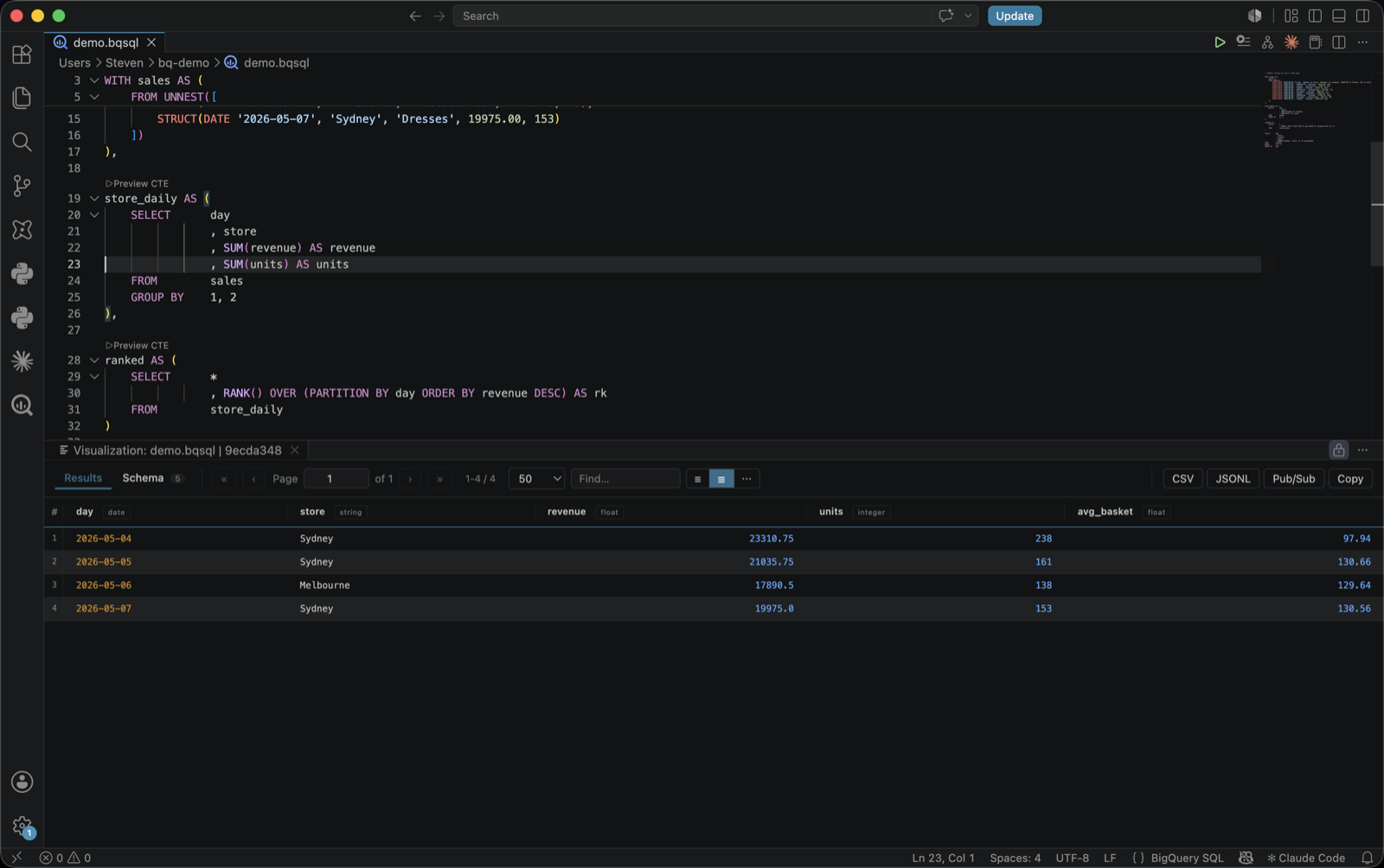
Features
- Authentication - User login, GDrive access, and service account support via gcloud CLI
- Project Explorer - Browse projects, datasets, tables, views, functions, and ML models; pin/hide projects; pin tables; copy fully-qualified paths; table search across all datasets (cached index)
- Query Execution - Run queries with
Ctrl+Enter, real-time error highlighting, byte estimation, and automatic region detection
- Results Grid - Modern Preact-based grid with multi-column sort, find-in-page, schema tab, cell drawer, drag-resize, row selection with TSV/Markdown copy, density toggle, and customizable per-type cell colors
- Notebook Mode - Open
.sql/.bqsql as a notebook: per-cell run / cancel / exports, cell output persistence, stats line
- Column Profile - Right-click a column name to chart its distribution: null %, distinct/duplicate counts, uniqueness, quantile histogram, top values
- CTE Preview - One-click "Preview CTE" CodeLens above each CTE runs it in isolation with its dependencies
- Table Preview from SQL - Right-click a table name (or alias) in the editor to preview its rows
- SQL Intellisense - Autocomplete for SQL keywords, BigQuery functions, and table/CTE columns
- Syntax Highlighting - Full support for
.bqsql files with grammar injection for .sql files
- SQL Formatting - Format queries with configurable style options (keyword case, indent style, leading commas, logical-operator style, dense operators, expression width)
- Query History - Track all executed queries with re-run and copy capabilities
- Cost Estimation - Real-time cost estimates based on bytes processed (configurable $/TB)
- Table Schema Hover - Hover over table names to see schema details (JOINs, CTEs, backtick-quoted)
- Data Lineage - Visualize data flow with CTE support; PNG / PDF export (individual and bulk); dark/light export theme
- Export Options - Download query and preview results as CSV or JSONL, copy to clipboard as Markdown, copy selected rows as TSV/MD
- Pub/Sub Integration - Publish query results directly to Google Cloud Pub/Sub
- Automatic Query Location - Region auto-detected from the first FROM via
datasets.get; override with vscode-bigquery.defaultLocation
- Persistent Panels - Results and preview panels restore across VS Code restarts
Installation
- Open VS Code
- Go to Extensions (
Ctrl+Shift+X)
- Search for "BigQuery Studio"
- Click Install
Or install from the VS Code Marketplace.
Requirements
Quick Start
- Install the gcloud CLI and authenticate:
gcloud auth login
- Open the BigQuery panel from the Activity Bar
- Create a new
.bqsql file and write your query
- Press
Ctrl+Enter to run
Authentication
The extension uses the gcloud CLI for authentication. Three authentication methods are supported:
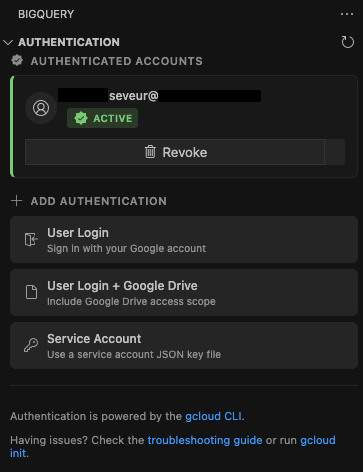
- User login - Opens browser for Google Cloud authentication
- User login + GDrive - Same as above, with Google Drive access for Drive-based tables
- Service account - Select a service account key file (JSON format)
When there's a valid account active with BigQuery permissions, the extension is ready to use.
Additional functionality:
- Activate/switch between multiple accounts
- Revoke authentication
Refresh the authentication screen with the command BigQuery: Authentication refresh.
Projects, Datasets, and Tables Explorer
The BigQuery side panel displays a tree of projects, datasets, tables, views, functions, and ML models.
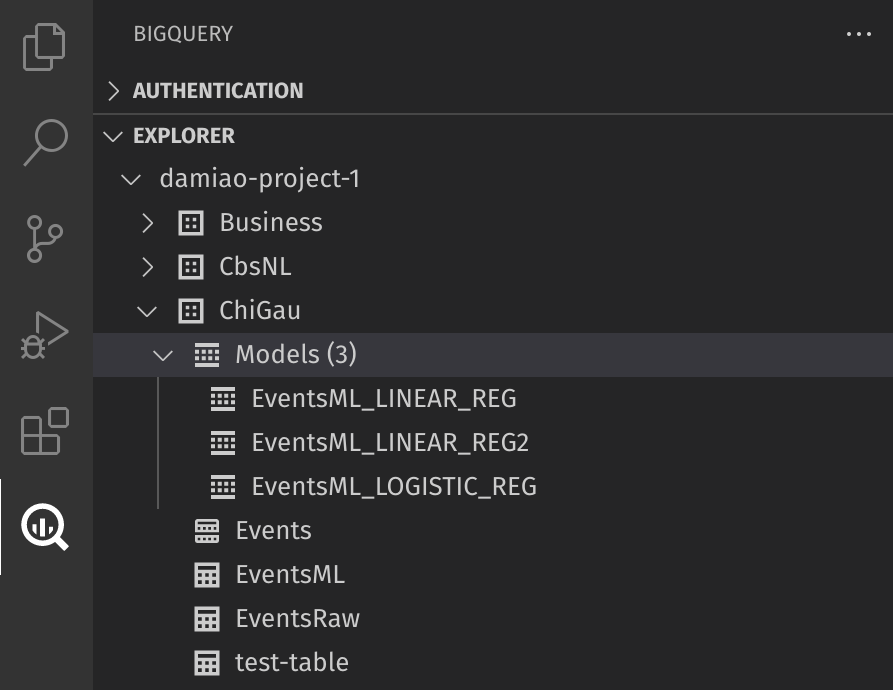
Refresh the explorer with the command BigQuery: Explorer refresh.
You can set a default project that queries will run against by right-clicking on a project.
Right-click on tables and views to access:
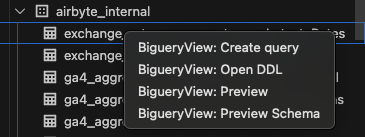
- Create query - Opens a new editor with a basic
SELECT * FROM statement
- Open DDL - Opens the DDL (Data Definition Language) statement for the object
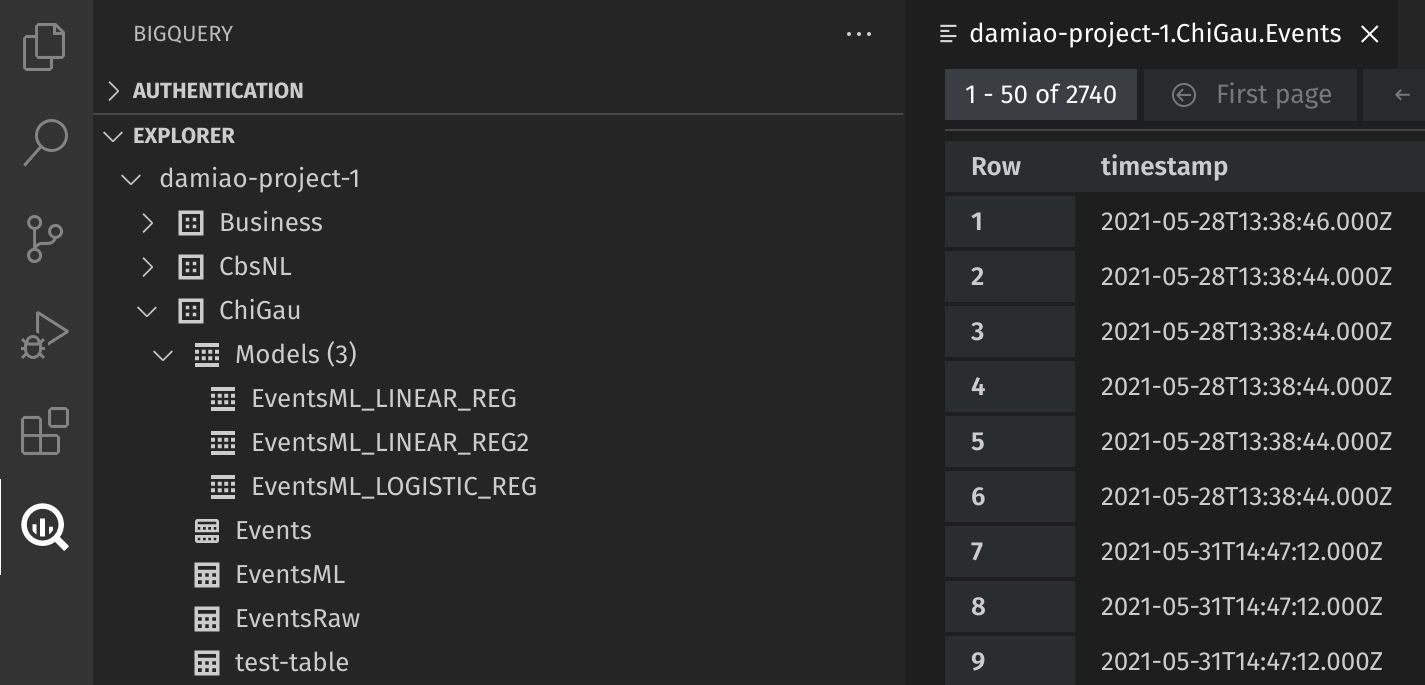
- Preview - Opens a preview of the table data (runs
SELECT * for views and external tables)
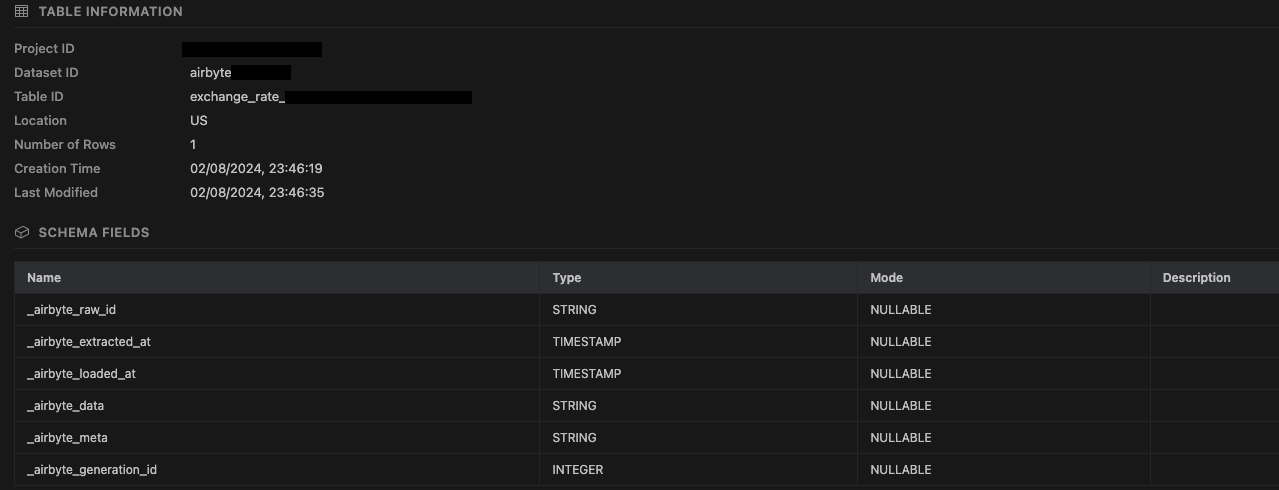
- Preview schema - Opens the table/view schema information
Table Preview
Schema View
Run Queries
The extension activates for .bqsql files. Run queries using:
- Keyboard:
Ctrl+Enter (run all) or Ctrl+E (run selected)
- Command Palette:
BigQuery: Run Query or BigQuery: Run Selected Query
- Editor Toolbar: Click the run buttons
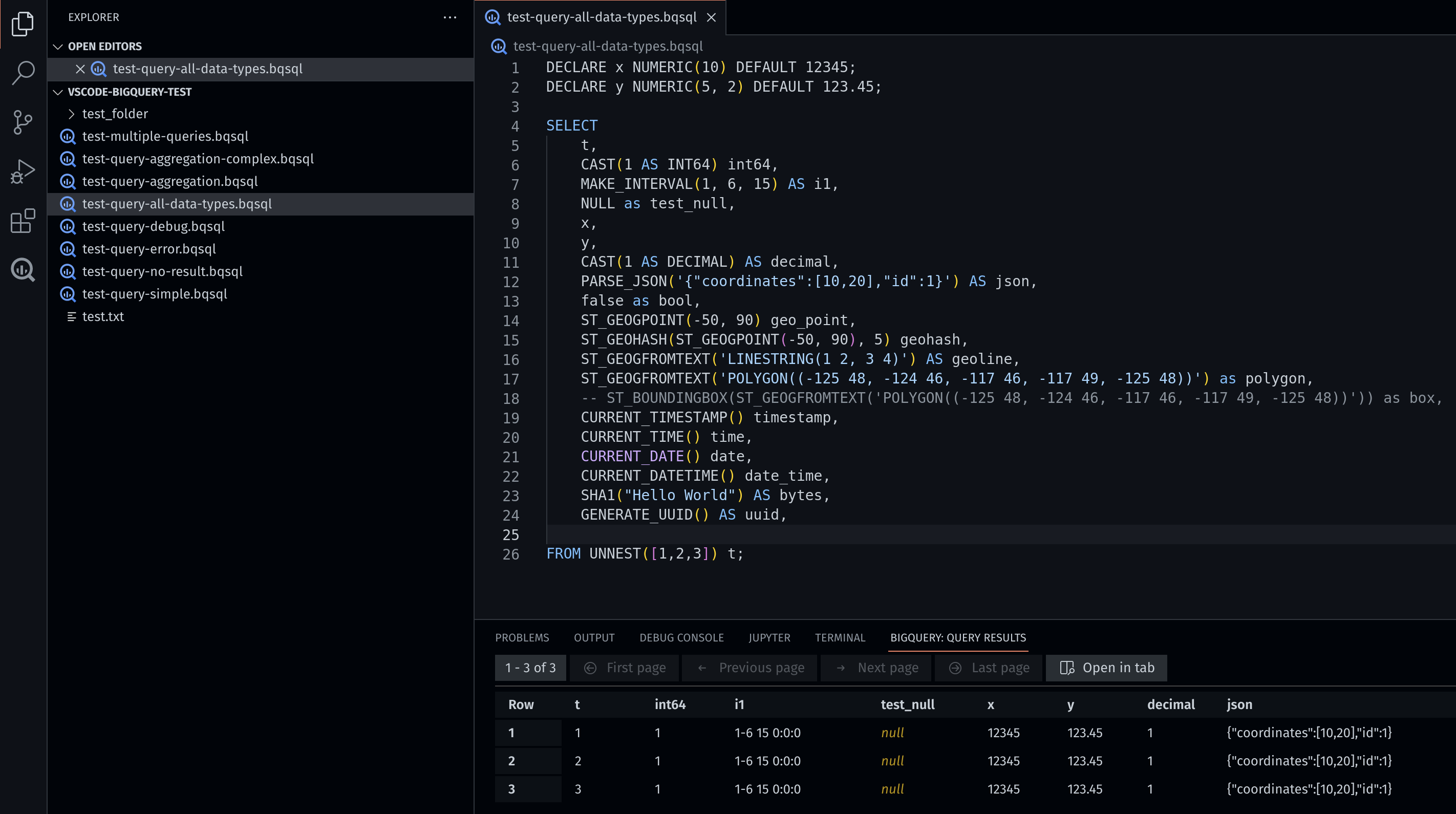
Query results appear in the bottom panel under Bigquery: Query results. You can open results in a separate tab for side-by-side comparisons.
Syntax Highlighting & Intellisense
The extension provides:
- Syntax highlighting for SQL keywords (SELECT, FROM, WHERE, JOIN, CASE, WHEN, etc.)
- Block comment support (
/* */) with syntax highlighting and folding
- Intellisense/autocomplete for SQL keywords and BigQuery functions
- Grammar injection for
.sql files (syntax highlighting works automatically)
Smart Column Autocomplete
Type . after a table alias, CTE name, or table reference to get column suggestions:
- CTE columns - Type
cte_name. to see columns defined in the CTE's SELECT clause
- Table alias columns - Type
alias. to see columns from the aliased table (resolves aliases automatically)
- Physical table columns - Type
`project.dataset.table`. to see columns from BigQuery tables (schema must be cached first via hover)
- Column priority - Columns appear at the top of the autocomplete list, above functions and keywords
The autocomplete works during active typing even when SQL is incomplete, using regex fallback parsing when the full parser fails.
Real-time Query Validation
Queries are validated as you type. Errors are underlined in the editor:
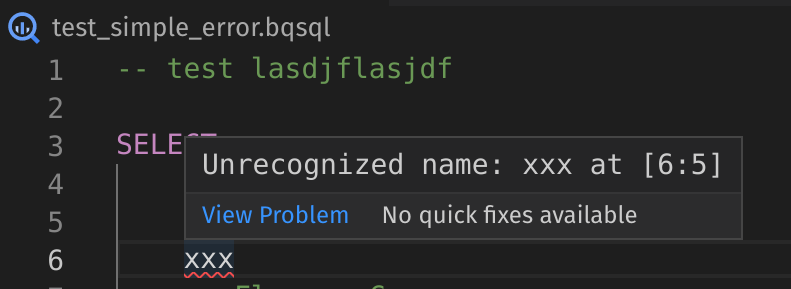
Valid queries show the estimated bytes in the status bar:

Data Lineage
Visualize data flow in your queries. Click the lineage button in the editor title bar (top-right corner) or run BigQuery: Show Data Lineage.
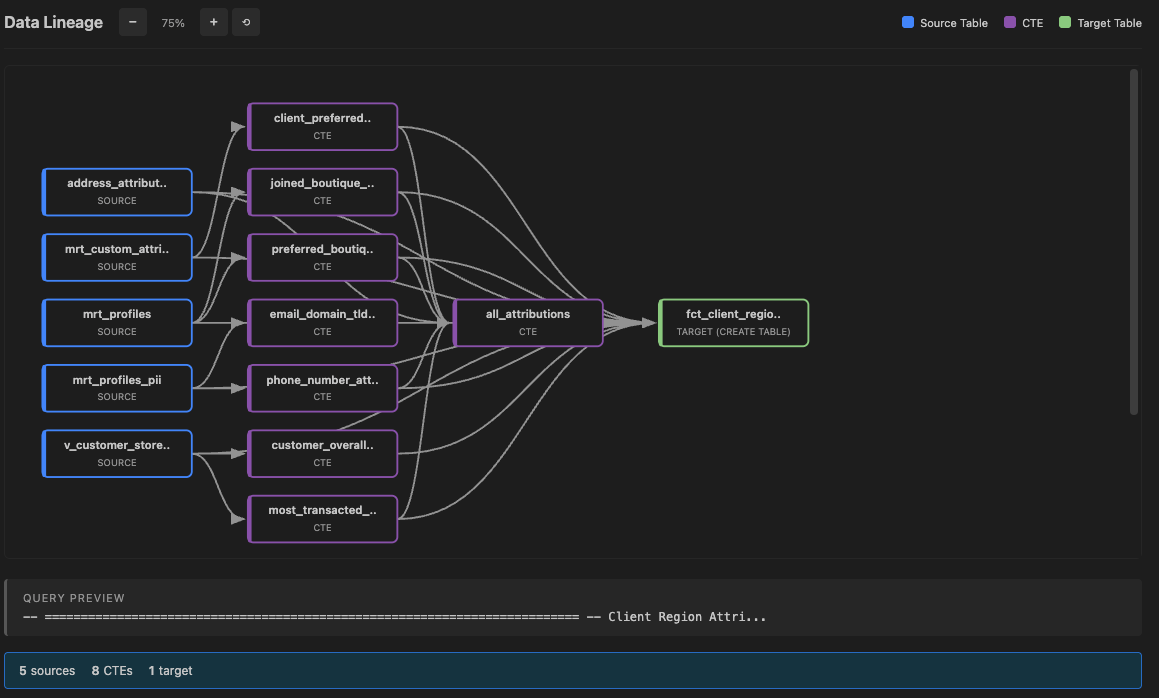
The lineage graph shows:
- Source tables (blue) - Tables your query reads from
- CTEs (purple) - Common Table Expressions as intermediate nodes
- Target tables (green) - Tables your query writes to (INSERT, CREATE, MERGE, etc.)
- Query Result (orange) - Destination node for SELECT-only queries
Features:
- Multi-Query Support - Files with multiple queries show separate lineage diagrams stacked vertically
- Collapsible Query Sections - Each query section has collapse/expand toggles with chevron icons for easier navigation
- Lineage for Selection - Right-click on selected SQL text to generate lineage for just that portion
- Click to Navigate - Click on any node to jump to its location in the SQL source code
- Hover Tooltips - Hover over nodes to see the full qualified table name
- CTE Support - CTEs are shown as intermediate nodes between sources and targets
- Layered DAG Layout - Nodes are arranged left-to-right based on data flow
- Curved Connections - Bezier curves show relationships between nodes (curves around overlapping edges)
- Statement Type Badges - Target nodes show the operation type
- Zoom Controls - Zoom in/out and reset buttons, plus Ctrl+scroll wheel support
Exporting Lineage Charts
Export lineage visualizations to share, document, or print your data pipelines:
PNG Export - Click "↓ PNG" to save as high-quality image (2x resolution)
- Ideal for embedding in wikis, documentation, or presentations
- Preserves VS Code theme colors and styling
PDF Export - Click "↓ PDF" to save as vector PDF
- Perfect for printing or sharing with stakeholders
- Maintains quality at any zoom level
Multi-Query Files - Files with multiple queries show additional export options:
- Individual export - Click PNG/PDF button on each query section
- Bulk export - Click "↓ All PNG" (separate files) or "↓ All PDF" (multi-page document) in the header
File Naming - Files are automatically named with:
- Query number (for multi-query files)
- Line range (e.g.,
lines1-15)
- Timestamp (e.g.,
20260102_143052)
- Example:
lineage_query1_lines1-15_20260102_143052.png
Export Theme - Switch between dark and light themes for exports:
- Dark theme (default) - Dark background with light text
- Light theme - White background with dark text (better for printing)
- Toggle via Command Palette:
BigQuery: Toggle Lineage Export Theme
- Or configure in settings:
vscode-bigquery.lineageExportTheme
Exported files include the complete lineage graph with proper node colors, edges, and layout.
Note: Lineage requires valid SQL. If your query contains syntax errors, the lineage graph may be incomplete or unavailable.
Table Schema Hover
Hover over any table name in your SQL query to see schema information:
- Column names and data types
- Column descriptions (if available)
- Partitioning and clustering information
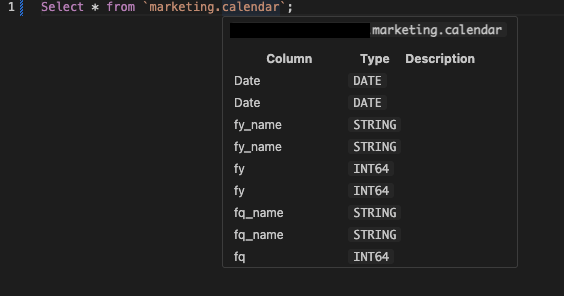
The schema is cached after first fetch for faster subsequent lookups.
Refresh Schema Cache
If a table schema has changed in BigQuery, the cached schema may be outdated. To clear the cache and fetch fresh schemas:
- Open the Command Palette (
Ctrl+Shift+P / Cmd+Shift+P)
- Run
BigQuery: Refresh Schema Cache
This clears all cached schemas. The next time you hover over a table, fresh schema data will be fetched from BigQuery.
Supported Locations
Schema hover works for tables in:
FROM clauses - FROM project.dataset.tableJOIN clauses - JOIN project.dataset.table, LEFT JOIN, RIGHT JOIN, INNER JOIN, CROSS JOIN, FULL JOIN- CTE references - When you reference a CTE name (e.g.,
FROM my_cte), the hover shows the columns defined in that CTE's SELECT clause
Results Grid
Query results, table previews, and multi-statement scripts render in a Preact-based grid that replaced the legacy WASM renderer in v2.0.0. Bundle is ~7× smaller (≈64 KB vs ≈442 KB; ~12 KB gzipped), fully theme-aware, and runs behind a strict Content Security Policy with nonced inline styles.

Feature Matrix
| Feature |
How it works |
| Tabs |
Switch between Results and Schema panes. Schema pane lists every column with type and mode (including flattened parent.child paths for STRUCT fields). |
| Multi-column sort |
Click a column header for single-column sort. Shift-click additional headers to stack secondary sort keys. A rank badge shown next to the arrow when more than one column is active. Click the same header twice to flip direction; three times to clear. |
| Find-in-table |
Type in the Find… box in the toolbar to filter the current page. Matches highlighted inline via <mark>; hit count shown next to the input. |
| Density toggle |
Three-button group (≡ compact / ☰ cozy / ⋯ comfy). Adjusts row padding and cell font size live via CSS custom properties. |
| Row selection |
Click a row-number cell to select that row. Shift-click a second row-number for range selection. Cmd/Ctrl-click toggles individual rows. Selection count shown in toolbar. |
| Copy selected |
When rows are selected, TSV / MD / JSON buttons appear in the toolbar. TSV = tab-separated with column headers; MD = GitHub-flavored Markdown table; JSON = pretty-printed array of objects. |
| Row right-click menu |
Right-click any row for a context menu. If the row is part of a multi-selection, the menu operates on all selected rows (label shows N rows). Otherwise right-click acts on the single clicked row (and auto-selects it). Options: Copy row(s) (TSV / Markdown / JSON). Right-click on a specific cell also offers Copy cell value and Copy column name. Multi-selection mode adds Clear selection. |
| Cell drawer |
Click any STRUCT, ARRAY, RECORD, or JSON cell to open a resizable right-side drawer with pretty-printed JSON (2-space indent) and a Copy button. |
| Click-to-copy scalars |
Click any scalar cell (number, string, timestamp, bool, bytes, geography) to copy its raw value to clipboard. A toast confirms. |
| Column drag-resize |
Grab the thin handle at the right edge of any column header and drag. Per-column widths remembered for the current panel session. |
| Row number gutter |
Sticky-left numbered gutter. Hover highlight; accent-colored when the row is selected. |
| Type-aware syntax colors |
Cell text tinted per BigQuery type via CSS custom properties (see Color Customization). Defaults inherit from VS Code theme vars. |
| Exports |
CSV, JSONL, Pub/Sub, and Copy-as-Markdown buttons in the toolbar. All four route through the existing extension commands — no regressions in the export flows. Pub/Sub requires a job reference (query results only; table previews use CSV / JSONL / Copy). |
| Pagination |
First / prev / next / last buttons, page-number input, and rows-per-page selector (25 / 50 / 100 / 250 / 1000). Uses BigQuery getQueryResults (query jobs) or tabledata.list (table previews) REST API with startIndex + maxResults. |
| Table preview |
Right-click → Preview loads schema via tables.get and rows via tabledata.list into the same grid. Exports use tableReference instead of jobReference. |
| Multi-statement scripts |
Queries with ; separators render as a vertical stack of child-job tables, each labelled Statement N · <statementType>. Powered by jobs.list?parentJobId=…; each child job opens as an independent BqTable with its own pagination. |
| DML summary |
For INSERT / UPDATE / DELETE / MERGE jobs, a summary banner shows the statement type and affected row counts (inserted · updated · deleted) above the grid. Applies to single-job queries and script child jobs alike. |
| Error panel |
Job errors show a titled panel with message and reason; replaces the grid while the error is active. |
| State persistence |
Panels restore across VS Code restarts via QueryResultsSerializer and TableResultsSerializer. On restore, the panel re-calls the execute-query / preview-table command with the persisted reference; the grid re-renders normally. |
Color Customization
Each cell color is driven by a CSS custom property with a sensible theme-aware default. You can override any of them via the vscode-bigquery.gridColors setting. Supported keys:
| Key |
Applies to |
Default |
number |
INT64, INTEGER, FLOAT, FLOAT64, NUMERIC, BIGNUMERIC |
var(--vscode-charts-blue, #4fc1ff) |
boolean |
BOOL, BOOLEAN |
var(--vscode-charts-purple, #c586c0) |
timestamp |
TIMESTAMP, DATE, DATETIME, TIME |
var(--vscode-charts-orange, #ce9178) |
struct |
STRUCT, RECORD, JSON |
Blend of foreground and var(--vscode-charts-green, #4ec9b0) |
bytes |
BYTES, GEOGRAPHY |
Blend of foreground and var(--vscode-charts-yellow, #dcdcaa) |
string |
STRING |
inherit (neutral — keeps string-heavy tables readable) |
null |
Any NULL cell |
var(--vscode-inputValidation-warningBorder, #c5a300) |
Example settings.json:
"vscode-bigquery.gridColors": {
    "number": "#7ee787",
    "boolean": "#ff7b72",
    "timestamp": "#d2a8ff",
    "struct": "#79c0ff",
    "null": "#ffa657"
}
Any CSS color value works (hex, rgb(), hsl(), named colors, var(--vscode-…), color-mix(…)). Leave a key unset (or empty) to keep the default and let the VS Code theme decide.
Values are sanitized at HTML inject time against an allowlist regex ([A-Za-z0-9 ,.()%#\-], 80-char cap) and emitted inside a nonced <style> block guarded by the webview's Content Security Policy. Values containing ;, {, }, <, >, : other than those in allowed function syntax, or url(...) expressions are rejected.
Export Options
Download CSV
After running a query, download results as CSV from the result grid toolbar.

- Supports multiline content
- No row limit (be mindful of large result sets)
- Does not support nested complex objects
Copy to Clipboard
Copy results in CSV format with a configurable size limit (default 1MB). Configure via vscode-bigquery.clipboardSizeLimitKb.
Download JSONL
Download results in JSONL format from the result grid toolbar.

Send to Pub/Sub
Publish query results to Google Cloud Pub/Sub (one message per row).
Requirements:
- A column named
data of type STRING or JSON
- Optional: A column named
attributes of type RECORD
Example query:
SELECT
    (
    SELECT AS STRUCT
        "my test test" AS test,
        "amazing data type" AS data_type
    ) AS attributes,

    TO_JSON(t) AS data

FROM `dataset.table` t

Enter the topic name in the format: projects/<project_id>/topics/<topic_name>

Query History
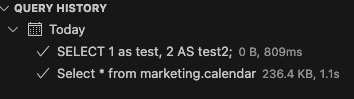
All executed queries are saved to the History panel in the BigQuery sidebar.
Each history entry shows:
- Query preview text
- Execution timestamp
- Bytes processed and duration
- Success/error status
Right-click actions:
- Re-run - Execute the query again
- Copy - Copy query text to clipboard
- Delete - Remove from history
Use the clear button to remove all history entries.
Cost Estimator
The status bar shows real-time cost estimates based on BigQuery's dry-run feature:
- Estimated bytes to be processed
- Estimated cost in USD (configurable, default $6.25/TB)
Configure the cost per TB in settings via vscode-bigquery.costPerTB. Set to 0 to hide cost estimates:

Format your BigQuery SQL queries with Shift+Alt+F or by running BigQuery: Format SQL.
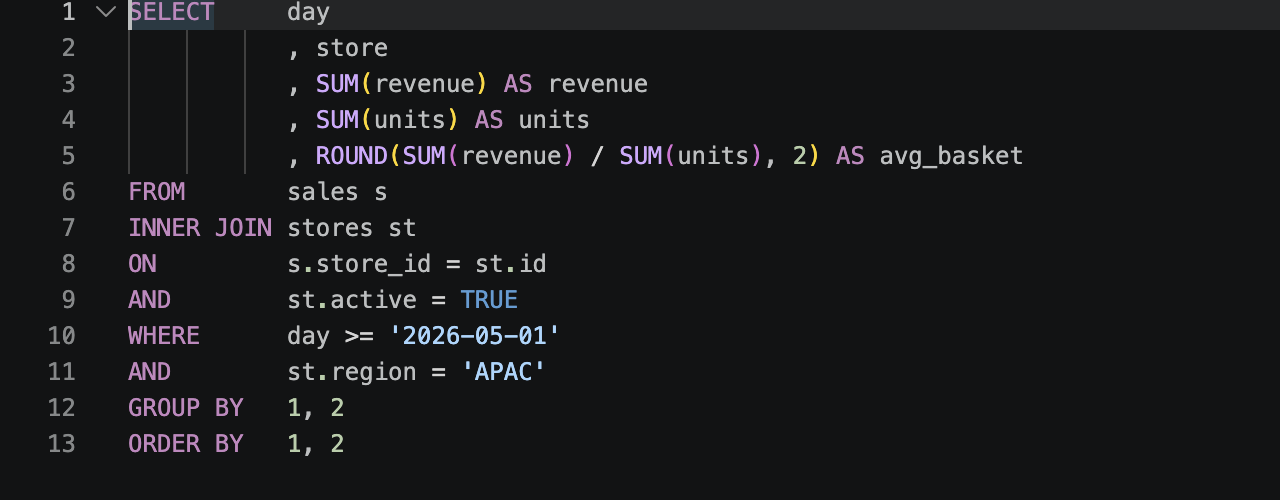
Example: tabularLeft indent, leading commas, gutter-aligned ON/AND, inline GROUP BY/ORDER BY.
Configuration options:
| Setting |
Values |
Default |
Description |
formatKeywordCase |
upper, lower, preserve |
upper |
Case for SQL keywords (SELECT, FROM) |
formatFunctionCase |
upper, lower, preserve |
preserve |
Case for function names (COUNT, SUM) |
formatIdentifierCase |
upper, lower, preserve |
preserve |
Case for identifiers (tables, columns) |
formatDataTypeCase |
upper, lower, preserve |
preserve |
Case for data types (INT64, STRING) |
formatIndentStyle |
standard, tabularLeft, tabularRight |
standard |
SQL indentation style |
formatLeadingCommas |
true, false |
true |
Use leading comma style |
formatExpressionWidth |
1-200 |
50 |
Max expression width before line breaks |
formatInlineKeyClauses |
true, false |
false |
Keep GROUP BY / ORDER BY items on one line when they fit formatExpressionWidth (SELECT stays expanded) |
formatDenseOperators |
true, false |
false |
Pack operators without spaces (1+1) |
formatLogicalOperatorNewline |
before, after |
before |
Newline position for AND/OR |
formatLogicalOperatorStyle |
keywordAligned, contentAligned, indented |
keywordAligned |
How AND/OR/ON are positioned relative to their parent clause |
formatNewlineBeforeSemicolon |
true, false |
false |
Semicolon on separate line |
Query Location
BigQuery jobs run in a specific processing location. By default the extension auto-detects the location for every query:
- If
vscode-bigquery.defaultLocation is set (e.g. US, EU, australia-southeast1, asia-east1), that value is used.
- Otherwise, the first fully-qualified
FROM \project.dataset.table`` is extracted from the query, datasets.get is called for that dataset, and the returned location is used.
- If detection fails (no qualified FROM, dataset not readable), BigQuery's default auto-detect runs — typically
us-central1.
Detected locations are cached per project.dataset for the lifetime of the BigQuery client, so follow-up queries on the same dataset do not pay the lookup cost.
Set vscode-bigquery.defaultLocation explicitly if:
- Your queries use unqualified
FROM dataset.table references.
- You run CTE-only queries (no concrete FROM).
- You always work in a single region and want to skip the lookup entirely.
Multi-statement scripts run as a single BigQuery job and cannot span regions. If a script references two datasets in different locations, either split into separate queries or pin a location via the setting.
Keyboard Shortcuts
| Shortcut |
Command |
Description |
Ctrl+Enter |
Run Query |
Execute the entire query in the editor |
Ctrl+E |
Run Selected Query |
Execute only the selected text |
Shift+Alt+F |
Format SQL |
Format the current SQL document |
Command Palette
All commands are available via the Command Palette (Ctrl+Shift+P / Cmd+Shift+P). Type "BigQuery" to see all available commands:
| Command |
Description |
| Authentication |
|
| BigQuery: User Login |
Sign in with Google account (opens browser) |
| BigQuery: User Login with Google Drive |
Sign in with Google Drive access for Drive-based tables |
| BigQuery: User Login via Console |
Sign in without browser (for remote/headless environments) |
| BigQuery: Service Account Login |
Authenticate with a service account JSON key file |
| BigQuery: Initialize gcloud |
Run gcloud init to configure the CLI |
| BigQuery: Refresh Authentication |
Refresh the authentication panel |
| BigQuery: Revoke Session |
Sign out from a Google account |
| Query Execution |
|
| BigQuery: Run Query |
Execute the entire query (Ctrl+Enter) |
| BigQuery: Run Selected Query |
Execute selected text only (Ctrl+E) |
| BigQuery: Format SQL |
Format the current SQL document (Shift+Alt+F) |
| BigQuery: Preview Table |
Right-click a table name in the editor to preview its rows (resolves full paths, dataset.table, bare names, and aliases) |
| BigQuery: Open as Notebook |
Open the current .sql/.bqsql file as a BigQuery notebook |
| BigQuery: Open as Text |
Switch a notebook back to the plain SQL editor |
| Explorer |
|
| BigQuery: Refresh Explorer |
Refresh the project/dataset tree |
| BigQuery: Show Hidden Projects |
Unhide previously hidden projects |
| BigQuery: Refresh Schema Cache |
Clear cached table schemas |
| BigQuery: Build Table Index |
Crawl all projects/datasets/tables into a local search index |
| BigQuery: Search Tables |
Fuzzy-search tables across all indexed datasets |
| BigQuery: Clear Search |
Clear the active table search filter |
| BigQuery: Pin Table / Unpin Table |
Pin a table to the dedicated Pinned Tables folder |
| BigQuery: Copy Table Path |
Copy project.dataset.table to clipboard |
| BigQuery: View Table |
Open a preview of the table's rows |
| BigQuery: Preview Schema |
Open the table/view schema |
| BigQuery: Open DDL |
Show the DDL statement for the table/view/routine |
| BigQuery: Create Table Default Query |
Open a new editor with a SELECT * starter |
| BigQuery: Set Default Project |
Make a project the default target for new queries |
| BigQuery: Pin / Hide Project |
Pin or hide a project in the explorer |
| Query History |
|
| BigQuery: Re-run Query |
Execute a query from history |
| BigQuery: Copy Query |
Copy query text to clipboard |
| BigQuery: Show Query |
Open query in a new editor |
| BigQuery: Delete from History |
Remove a query from history |
| BigQuery: Clear All History |
Remove all query history |
| BigQuery: Refresh History |
Refresh the history panel |
| Data Lineage |
|
| BigQuery: Show Data Lineage |
Visualize data flow for the current query |
| BigQuery: Show Data Lineage for Selection |
Visualize lineage for selected SQL |
| BigQuery: Toggle Lineage Export Theme |
Switch between dark/light export theme |
| Results & Exports |
|
| BigQuery: Download CSV |
Export the active result set as CSV |
| BigQuery: Download JSONL |
Export the active result set as JSONL |
| BigQuery: Copy to Clipboard |
Copy the active result set as Markdown |
| BigQuery: Send to Pub/Sub |
Publish the active result set to a Pub/Sub topic |
| Other |
|
| BigQuery: Troubleshoot |
Open troubleshooting guide |
| BigQuery: Open Settings - Projects |
Open project settings |
Settings
Pin a Project
Pin projects to keep them at the top of the explorer tree.
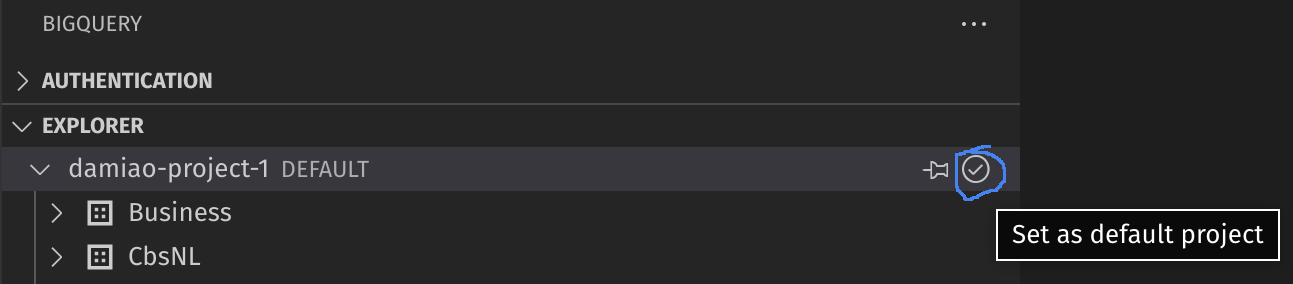
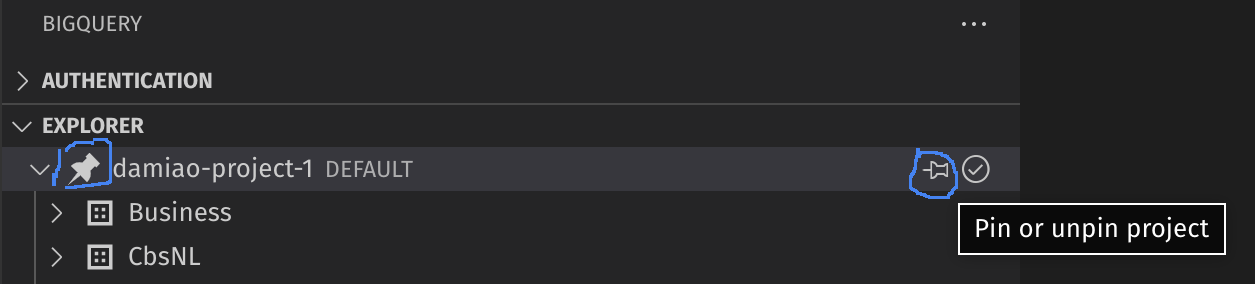
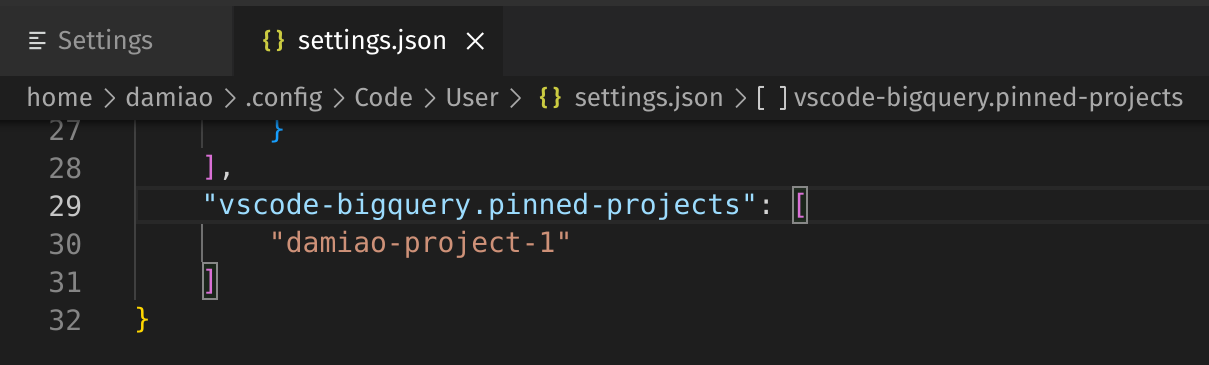
Pinned projects are stored in settings:
Hide a Project
Hide projects from the explorer tree to reduce clutter. Hidden projects can be restored at any time.
To hide a project:
- Right-click on a project in the explorer and click the "Hide" button (eye-closed icon)
To unhide a project:
- Open the Command Palette (
Ctrl+Shift+P / Cmd+Shift+P)
- Run
BigQuery: Show Hidden Projects
- Select the project to unhide from the list
Alternatively, you can manage hidden projects directly in settings via vscode-bigquery.hidden-projects.
Add GCP Projects
For cases where you only have read permissions at the dataset level (not project level), force a project to be listed:
Setting: vscode-bigquery.projects
Add BigQuery Tables
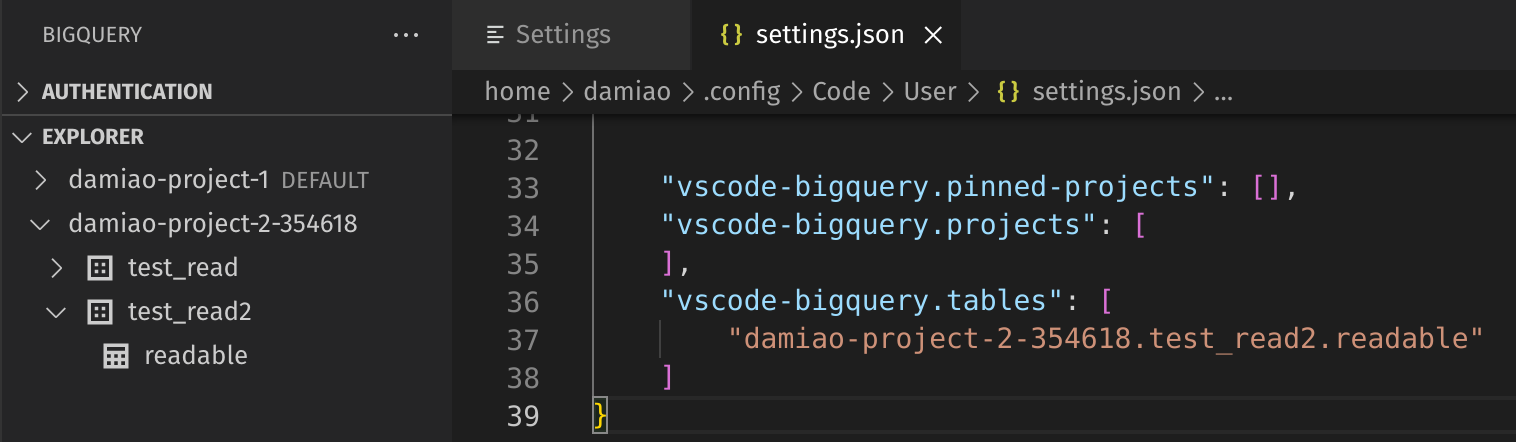
When permission is granted only at the table level:
Setting: vscode-bigquery.tables
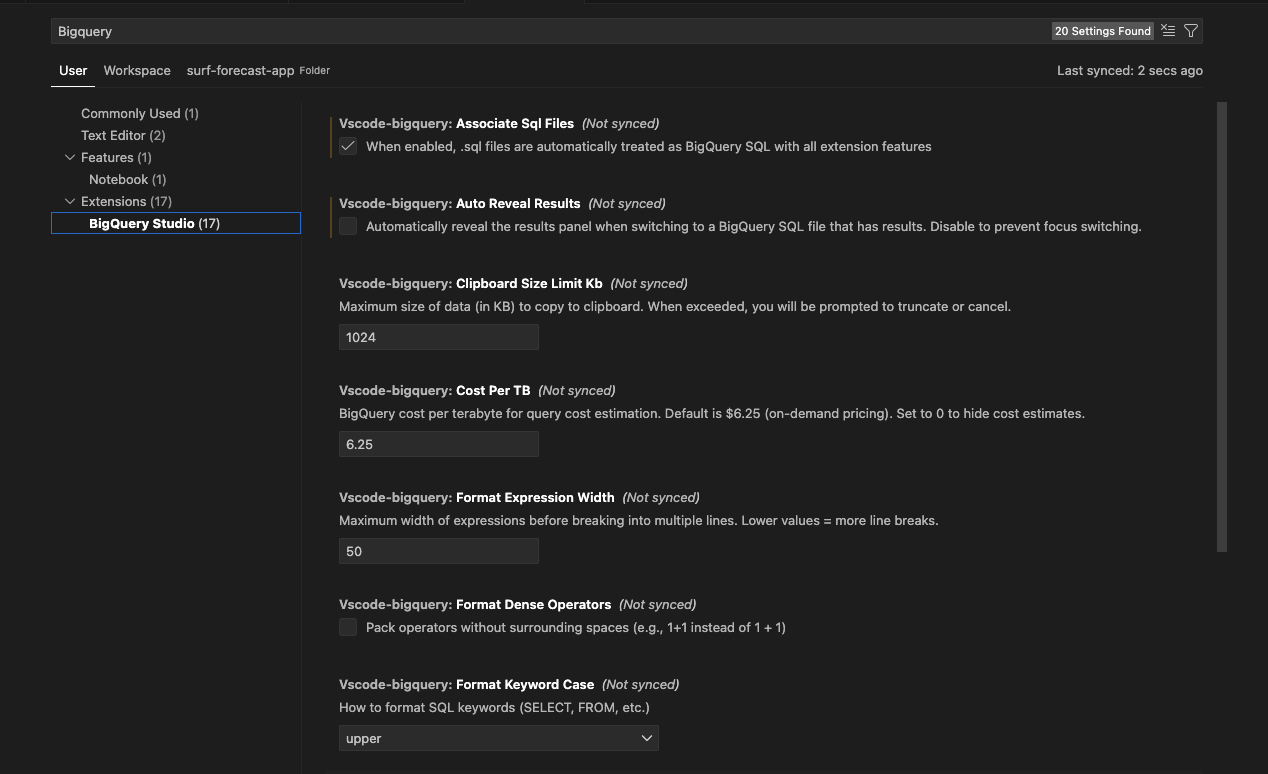
Associate .sql Files
Enable BigQuery features for all .sql files:
Setting: vscode-bigquery.associateSqlFiles
Configuration Reference
| Setting |
Type |
Default |
Description |
vscode-bigquery.associateSqlFiles |
boolean |
false |
Treat .sql files as BigQuery SQL |
vscode-bigquery.autoRevealResults |
boolean |
true |
Auto-reveal results panel on file switch |
vscode-bigquery.clipboardSizeLimitKb |
number |
1024 |
Clipboard copy size limit (KB) |
vscode-bigquery.costPerTB |
number |
6.25 |
Cost per TB for estimates ($) |
vscode-bigquery.formatExpressionWidth |
number |
50 |
Max expression width before line break |
vscode-bigquery.formatInlineKeyClauses |
boolean |
false |
Inline GROUP BY / ORDER BY items within expression width |
vscode-bigquery.formatDenseOperators |
boolean |
false |
Pack operators without spaces |
vscode-bigquery.formatKeywordCase |
string |
upper |
Keyword case: upper, lower, preserve |
vscode-bigquery.formatFunctionCase |
string |
preserve |
Function case: upper, lower, preserve |
vscode-bigquery.formatIdentifierCase |
string |
preserve |
Identifier case: upper, lower, preserve |
vscode-bigquery.formatDataTypeCase |
string |
preserve |
Data type case: upper, lower, preserve |
vscode-bigquery.formatIndentStyle |
string |
standard |
Indent style: standard, tabularLeft, tabularRight |
vscode-bigquery.formatLeadingCommas |
boolean |
true |
Use leading comma style |
vscode-bigquery.formatLogicalOperatorNewline |
string |
before |
AND/OR newline: before, after |
vscode-bigquery.formatLogicalOperatorStyle |
string |
keywordAligned |
AND/OR/ON positioning: keywordAligned, contentAligned, indented |
vscode-bigquery.formatNewlineBeforeSemicolon |
boolean |
false |
Semicolon on separate line |
vscode-bigquery.pinned-projects |
array |
[] |
Pinned GCP project IDs |
vscode-bigquery.pinned-tables |
array |
[] |
Pinned table full names (project.dataset.table) |
vscode-bigquery.hidden-projects |
array |
[] |
Hidden GCP project IDs |
vscode-bigquery.projects |
array |
[] |
Additional GCP project IDs to list |
vscode-bigquery.tables |
array |
[] |
Table IDs to list directly |
vscode-bigquery.lineageExportTheme |
string |
dark |
Lineage export theme: dark, light |
vscode-bigquery.autoPreviewCreatedTables |
boolean |
false |
Auto-preview first 100 rows after CREATE TABLE |
vscode-bigquery.defaultLocation |
string |
"" |
BQ processing location (US, EU, australia-southeast1, asia-east1, …). Empty = auto-detect from first FROM via datasets.get. Set to override for unqualified or CTE-only queries. |
vscode-bigquery.copyTablePathBackticks |
boolean |
true |
Wrap copied table paths in backticks (`project.dataset.table`) for direct paste into FROM clauses. Set to false for raw project.dataset.table. |
vscode-bigquery.gridColors |
object |
{} |
Override per-type cell text colors in the results grid. See Color Customization |
vscode-bigquery.gcloudPath |
string |
"" |
Full path to the gcloud executable. Empty = auto-detect from PATH and common install locations. Set if VS Code can't find gcloud when launched from the Dock/Finder. |
vscode-bigquery.enableCtePreviewCodeLens |
boolean |
true |
Show a clickable "Preview CTE" link above each CTE in a WITH clause |
vscode-bigquery.ctePreviewRowLimit |
number |
100 |
Row limit when previewing a CTE via the CodeLens |
Access settings via:
Troubleshooting
Query results panel not opening
Sometimes after installation, the BigQuery: Run query command doesn't open the results panel. Restart VS Code to resolve this.
Authentication issues
Ensure the gcloud CLI is properly installed and you've run gcloud auth login successfully.
Missing projects or datasets
If you have limited permissions, add projects or tables manually via settings.
Report a Bug
Please file an issue with as much detail as possible at GitHub Issues.
Contributing
Contributions are welcome! Please feel free to submit a Pull Request.
Project History
Fork Notice: This extension started as a fork of bstruct/vscode-bigquery and has since grown into its own project. This section is kept for attribution and history.
Improvements over the original project:
Highlights in v2.0.0
- Modern Results Grid (default) — Preact-based renderer replaces the legacy WASM grid. ~7× smaller bundle (≈64 KB vs ≈442 KB), 35× smaller gzipped. Multi-column sort, find-in-page, Schema tab, resizable cell drawer for STRUCT/ARRAY/JSON, column drag-resize, multi-row selection with TSV/Markdown copy, density toggle, per-type syntax colors, click-to-copy scalars, script multi-result view, table preview parity. Runs behind a strict Content Security Policy. See Results Grid.
- Automatic query location detection —
datasets.get on the first FROM picks the right BigQuery region automatically. No more "Dataset not found in location us-central1" errors for datasets outside your project's default region. Override via new vscode-bigquery.defaultLocation setting. See Query Location.
- Customizable cell colors — New
vscode-bigquery.gridColors setting lets you retune per-BQ-type cell text colors (number, boolean, timestamp, struct, bytes, string, null) without writing CSS. See Color Customization.
New Features (cumulative since fork)
- Notebook mode for SQL files - Open
.sql/.bqsql as a BigQuery notebook. Per-cell run / cancel / exports (CSV, JSONL, Pub/Sub, Copy-as-Markdown). Tabbed Results/Schema, pagination with page-number input, configurable page size (25/50/100/250/1000), cell output persisted across VS Code restarts.
- Smart Column Autocomplete - Type
alias. or cte_name. to get column suggestions from tables and CTEs
- Data Lineage Visualization - dbt-style lineage graphs with CTE support, multi-query support, click-to-navigate, hover tooltips, Query Result nodes, right-click lineage for selection, PNG / PDF export (individual and bulk, cross-platform)
- Query History - Track all executed queries with re-run, copy, and delete; bytes / duration / status shown inline
- Table Schema Hover - Hover over table names to see schema details (supports JOINs, CTEs, and backtick-quoted identifiers)
- Table Search - Search tables across all projects and datasets via a cached local index (
BigQuery: Build Table Index → BigQuery: Search Tables)
- Pinned Tables - Pin frequently-used tables to a dedicated folder; visual feedback for already-pinned tables
- Hidden Projects - Hide projects from the explorer with one-click restore
- Copy Table Path - Right-click any table to copy its fully-qualified path
- Cost Estimator - Real-time query cost estimates with configurable $/TB pricing
- SQL Formatter - Advanced formatting with leading commas, keyword casing, indent styles, logical-operator style, dense operators, expression width
- Copy to Clipboard - Copy query results directly to clipboard with configurable size limits
- Schema Refresh Command - Clear cached table schemas when they become outdated
- Auto-preview created tables - Optional setting to open a preview panel on successful
CREATE TABLE
Improvements
- Offline-Ready Charting - MorphCharts bundled locally instead of CDN for air-gapped environments
- Enhanced SQL Intellisense - 400+ keywords/functions with syntax highlighting (including ALL, ANY, SOME)
- Block Comment Support - Full
/* */ syntax highlighting and code folding
- Windows Support - Fixed gcloud authentication issues on Windows
- Security Hardening - XSS prevention, Content Security Policy on results webview with nonced styles, input validation, tight CSS sanitization for user-configurable colors
- Better Panel State - Webview panels retain context when hidden
- Auto-Reveal Control - Setting to disable automatic results panel focus switching
License
MIT License - see the original project bstruct/vscode-bigquery for license details.
| |

