Omni-FS
One file system client for S3, FTP, FTPS, SFTP and WebDAV — inside VS Code.
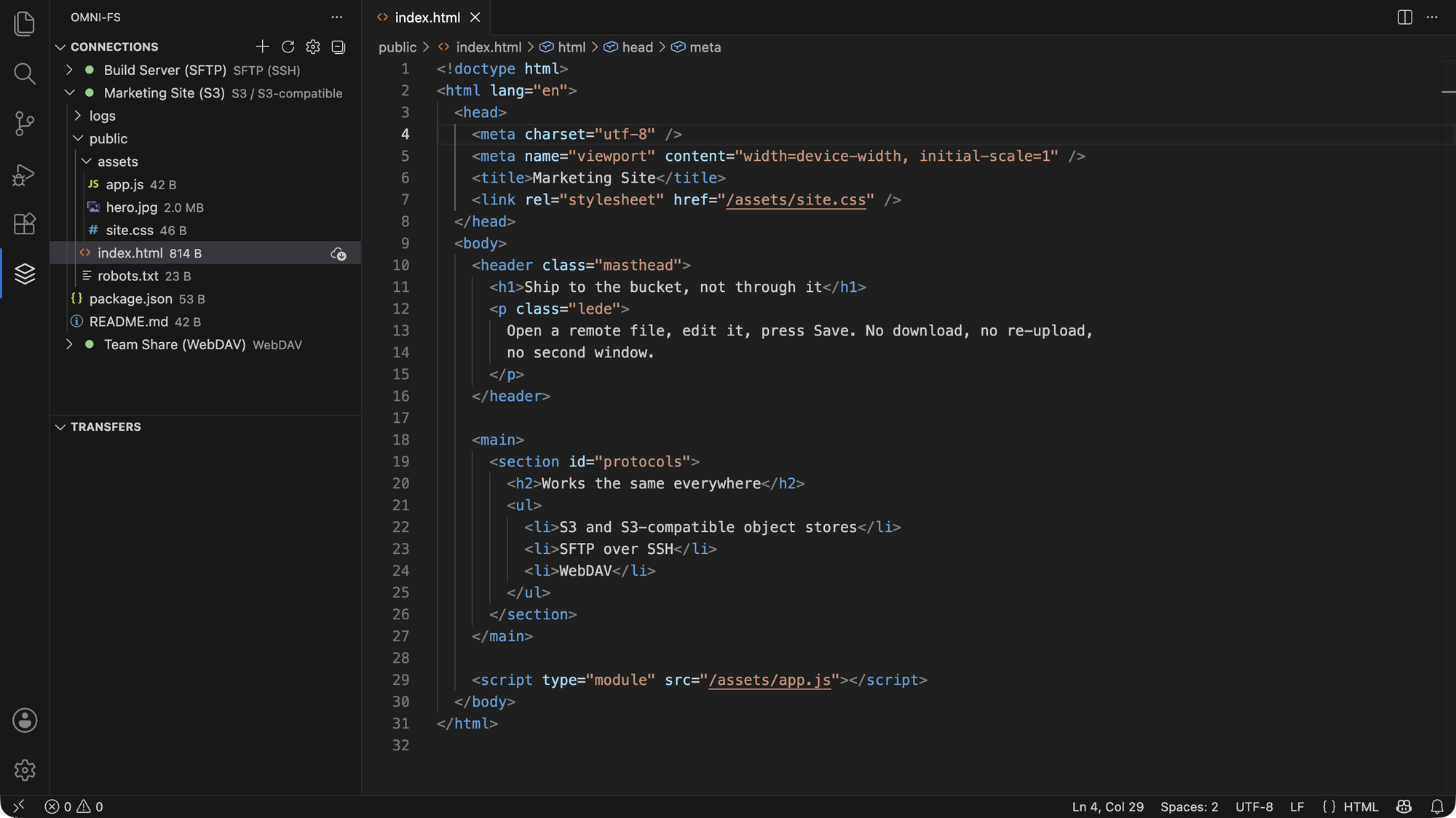
Open a remote file, edit it, press Ctrl+S. That's it. No
download, no re-upload, no separate window.

Pre-release. Every protocol listed below works, but Omni-FS is pre-1.0 and
still has gaps — read Status and the changelog before
installing.
Install
Releases are pre-releases for now, so on the Marketplace choose Switch to
Pre-Release Version if it offers you nothing to install.
What it does
- Remote files are real files. Omni-FS registers an
omnifs:// file system,
so remote files open in normal editors, save normally, and work with search,
quick-open and diff. Add a bucket to your workspace and it behaves like a
folder.
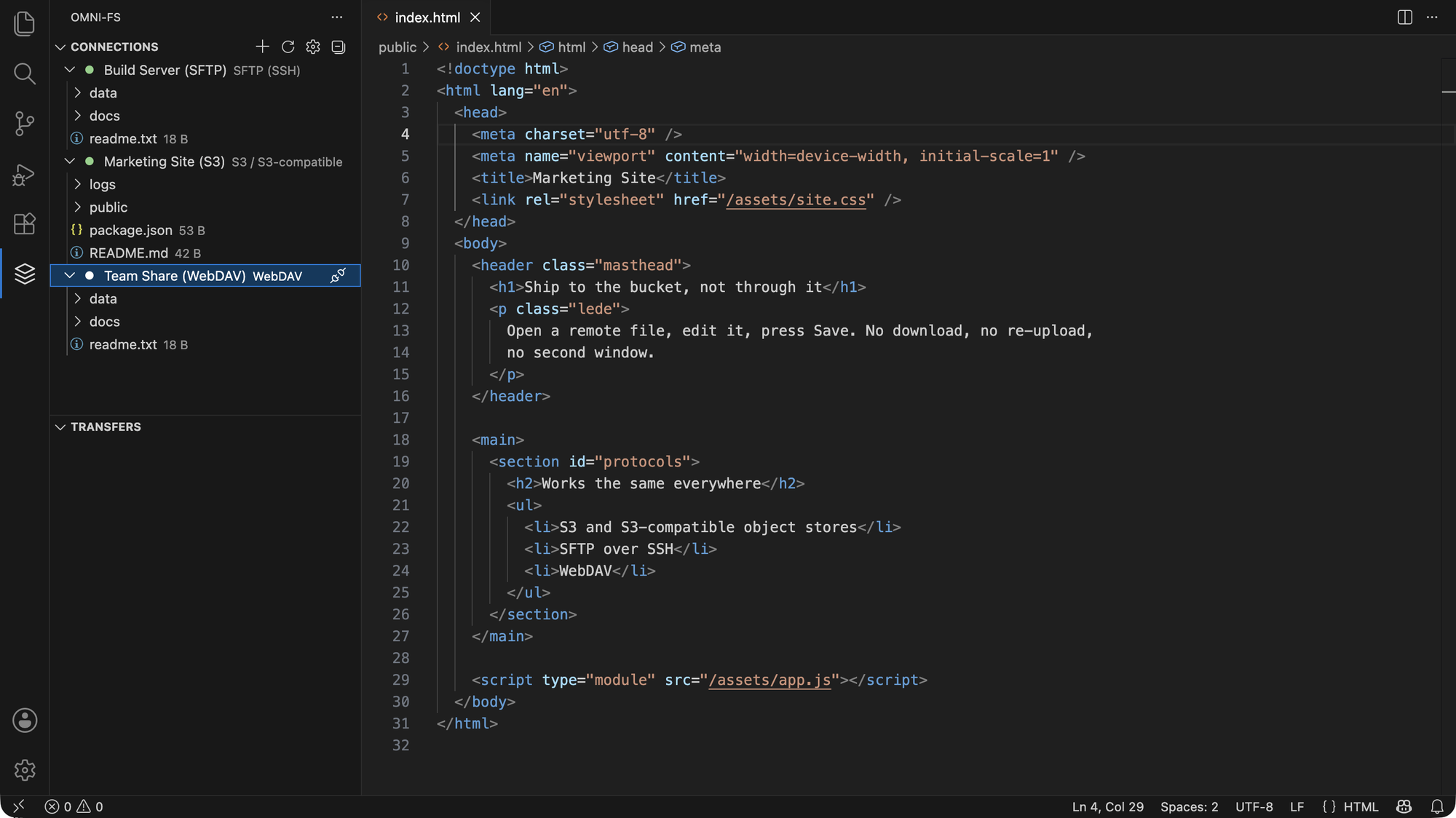
- A connections sidebar for status, connect/disconnect, credentials, and
browsing a server you haven't mounted.
- A transfers view with progress, automatic retry on transient failures, and
cancellation.
- Protocol-aware behaviour. Each backend declares what it can genuinely do,
and Omni-FS adapts instead of failing after you click. S3 has no real
directories, so a new folder appears once it holds a file. An FTP connection
carries one operation at a time, so bulk work serialises there — unless you
allow it more connections — while S3 runs sixteen transfers in parallel. You
don't have to think about any of it.
- Colour-tagged connections, so production is hard to mistake for staging.
The colour follows the connection's files into the Explorer and editor tabs.
- Read-only connections, switched from the tree's context menu and applied
to the next write without reconnecting.
Status
| Protocol |
Status |
Notes |
| S3 / S3-compatible |
✅ Working |
AWS S3, MinIO, Cloudflare R2, Backblaze B2, DigitalOcean Spaces, Ceph |
| SFTP (SSH) |
✅ Working |
Password, private key, SSH agent |
| WebDAV |
✅ Working |
Nextcloud, ownCloud |
| FTP / FTPS |
✅ Working |
Explicit and implicit TLS, configurable minimum TLS version |
Each protocol passes the same conformance suite against a real server of its
kind in CI.
The Download… and Upload… commands are not wired up yet. Everything else
listed above works against every protocol.
Getting started
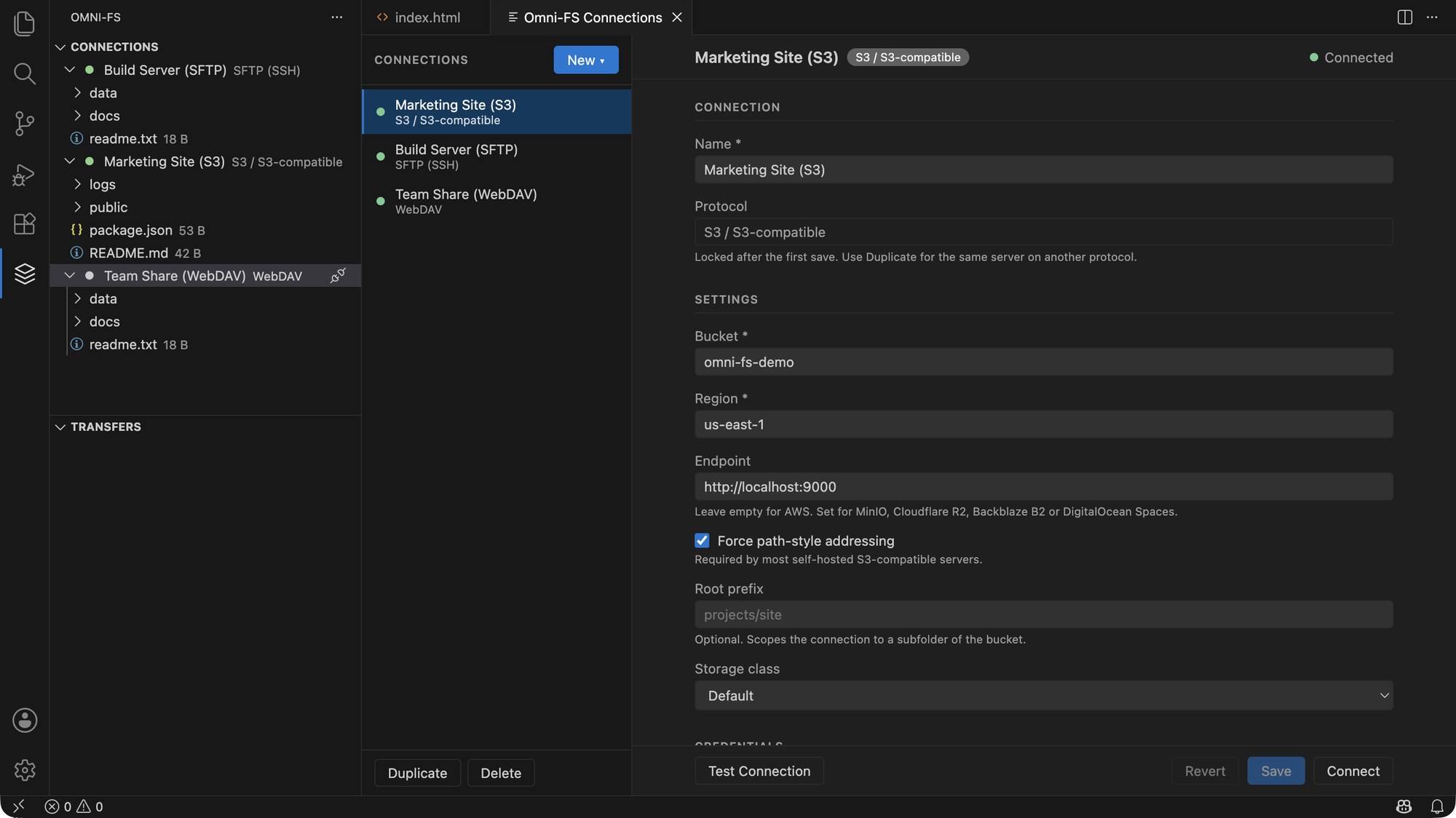
- Open the Omni-FS view in the Activity Bar.
- Click Add Connection and pick a protocol.
- Fill in the settings, then the credentials.
- Click Connect.
To work in a remote folder as if it were local, right-click the connection and
choose Open as Workspace Folder. The sidebar then marks it in workspace,
and the same menu offers Remove from Workspace instead.
Disconnect takes the folder out of the workspace as well: while it is
there, VS Code reads from it whenever it likes, and each read would connect
again. A connection closed for being idle stays in the workspace and reconnects
when you next use it.
VS Code restarts extensions, closing every open connection, whenever the first
folder in the workspace changes. In a window with no folder open yet, that
includes opening a connection there, and later disconnecting it or removing it
from the workspace. Open a local folder first to keep remote ones out of that
position.
Connecting to S3-compatible storage
Leave Endpoint empty for AWS. For anything else, set it and turn on
Force path-style addressing, which most self-hosted servers require:
| Service |
Endpoint |
Path-style |
| AWS S3 |
(leave empty) |
off |
| MinIO |
https://minio.example.com |
on |
| Cloudflare R2 |
https://<account>.r2.cloudflarestorage.com |
on |
| Backblaze B2 |
https://s3.<region>.backblazeb2.com |
on |
| DigitalOcean Spaces |
https://<region>.digitaloceanspaces.com |
on |
Root prefix scopes a connection to a subfolder of the bucket, which is handy
for keeping a production connection pointed at exactly one deploy directory.
Connecting over FTP / FTPS
Pick the Encryption that matches the server:
| Encryption |
Port |
When |
| FTPS — explicit TLS |
21 |
The default, and what most servers mean by "FTPS" (AUTH TLS) |
| FTPS — implicit TLS |
990 |
Servers that expect TLS from the first byte |
| Plain FTP — unencrypted |
21 |
Only on a network you trust: the password is sent in the clear |
- Minimum TLS version is Automatic by default. Choose TLS 1.0 or 1.1 only
to reach an old server that offers nothing newer — it also relaxes the cipher
policy those servers need.
- Allow self-signed certificates turns off certificate verification. Use it
only for a server you control.
- Maximum connections defaults to 1. FTP carries one command per
connection, so with one, browsing waits behind a transfer. Raising it (up to 8) opens more logins so they run side by side. If the server refuses the
extra logins, Omni-FS drops back to the number it accepted instead of
failing.
- Root prefix scopes the connection to a subfolder of the login directory,
or to an absolute server path if it begins with
/.
Listings use MLSD/MLST where the server offers them, for exact sizes and
timestamps, and fall back to parsing LIST where it does not. Rename and delete
work on directories too, and a recursive delete walks the tree for you.
Your credentials
Credentials go to your operating system's keychain — Keychain on macOS, DPAPI on
Windows, libsecret on Linux — through VS Code's secret storage. They are never
written to a settings file.
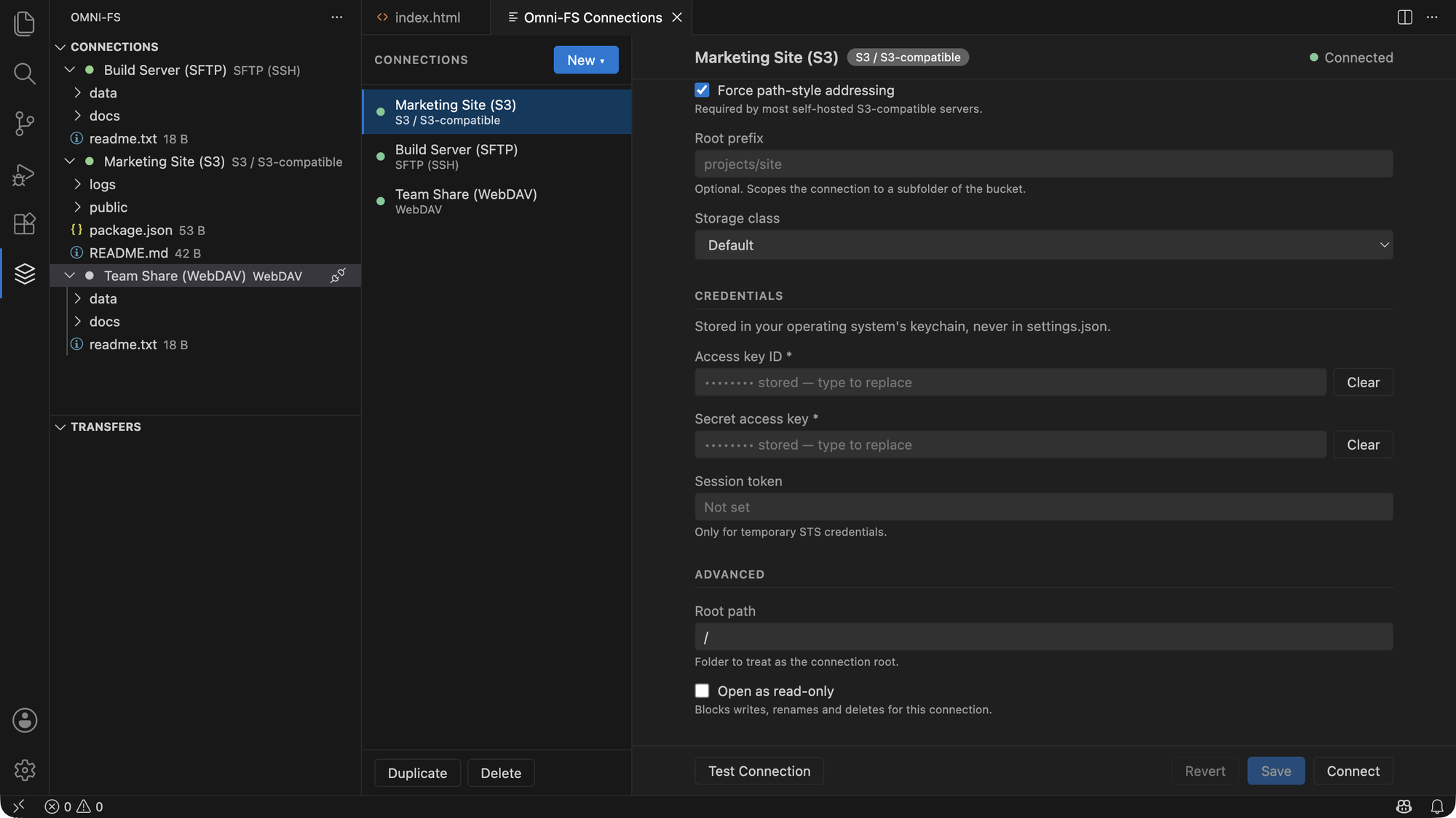
Connection settings (endpoint, bucket, host, username) live in the
omniFs.connections setting, which contains no secrets and is safe to commit to
.vscode/settings.json and share with your team. Each person supplies their own
credentials on first connect.
Settings
| Setting |
Default |
What it does |
omniFs.connections |
[] |
Connection definitions. No credentials. |
omniFs.cache.ttlSeconds |
15 |
How long directory listings stay cached |
omniFs.connection.idleTimeoutSeconds |
300 |
Close an idle connection after this long; 0 keeps it open |
omniFs.transfers.maxConcurrent |
4 |
Simultaneous transfers across all connections |
Troubleshooting
Open the Omni-FS output channel, click the gear and choose Set Log
Level…. The level applies at once and VS Code remembers it.
info — connects, disconnects and why (idle, edited, lost), and for FTP the
server greeting, negotiated TLS version and cipher.debug — every operation with its timing, entry or byte count, cache miss,
and on failure the error code.trace — also cache hits and, for FTP, the raw control channel (> LIST,
< 226 …). The password is written as PASS ###.
S3-compatible servers disagree with AWS about error codes, so when reporting a
problem please say which server you're using. Never paste credentials or an
endpoint URL containing one.
Contributing
Omni-FS is open source and built so that adding a protocol touches no existing
code. The repository, architecture notes and contribution guide are at
github.com/ryftcore/omni-fs.
License
MIT © ryftcore

