Why PrairieLearn Preview?
If you write or TA for a PrairieLearn course, you know the old loop: make a
small edit, leave your editor, find the right browser tab, click Load from
disk, reload, then compare the result and hope you did not lose your place.
Repeat that dozens of times, and the context switching starts to feel like the work. 🤨😩🫠
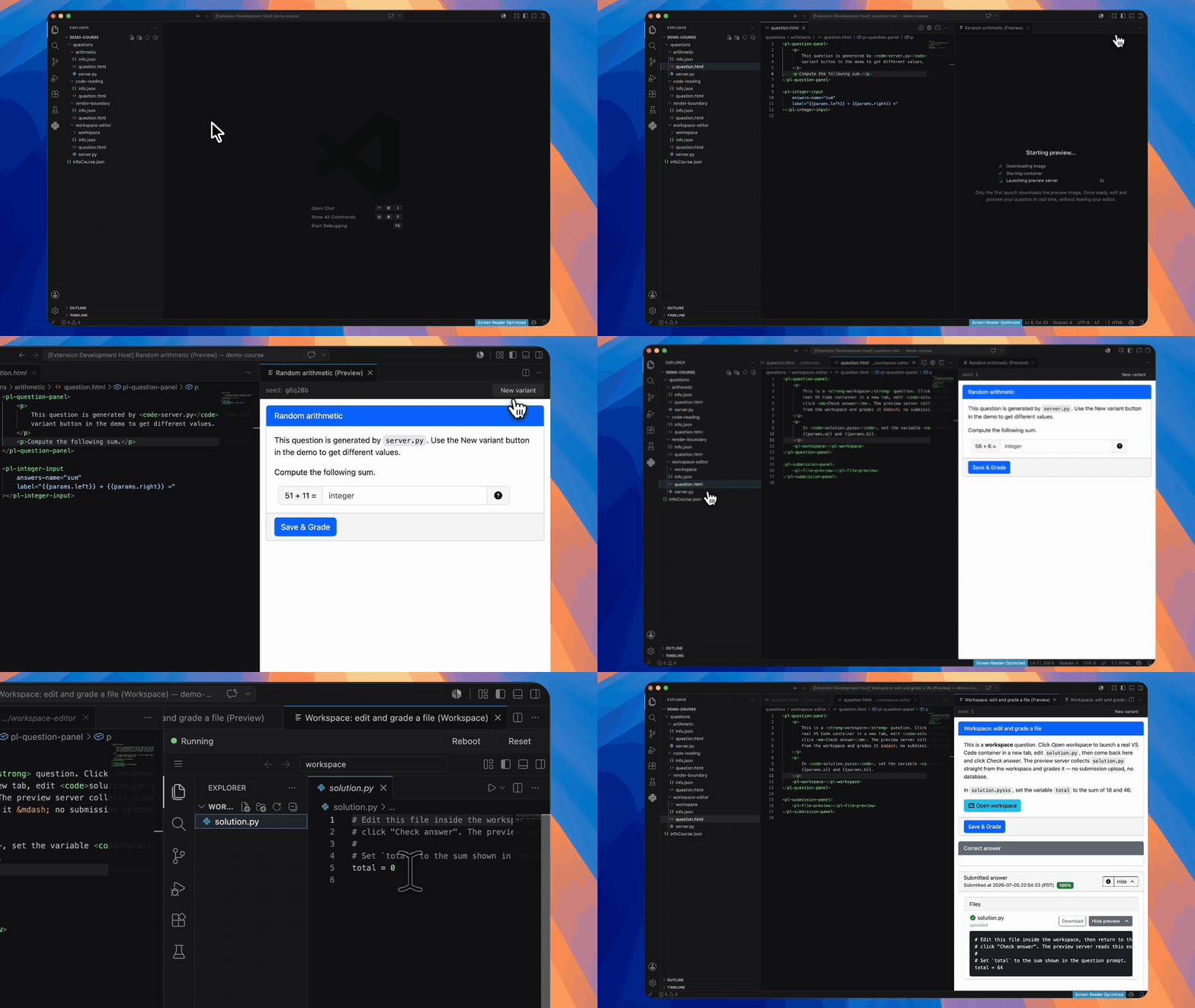
PrairieLearn Preview turns that into a tighter loop: edit ↔️ preview.
Features
- Open the preview from the editor title bar when a PrairieLearn question file is
active.
- Follow the active editor as you move between question files.
- Refresh automatically after saving, with a manual refresh command when you need
it.
- Keep the same variant seed across refreshes so edits are easy to compare.
- Reroll the current question with New variant.
- Preview all six PrairieLearn Source Question Types:
v3, Calculation,
MultipleChoice, Checkbox, File, and MultipleTrueFalse.
- Use stateless Preview Answer Check in the server's explicit full mode.
- Use any Docker-compatible local container runtime.
- Preview workspace questions without leaving VS Code.
- Show render and container logs from the PrairieLearn Preview Output channel.
- Keep one preview server warm while you move between courses, with a command to
stop it when you are done.
Requirements
- VS Code 1.90.0 or newer
- A Docker Engine API-compatible container runtime installed and running, such
as Docker Desktop or Podman (Colima, Rancher Desktop, and OrbStack work too
through their Docker-compatible socket)
- One or more PrairieLearn course folders visible in the VS Code workspace, each
with
infoCourse.json at its course root
- Questions using any of PrairieLearn's six Source Question Types
Install
Install PrairieLearn Preview from your editor's extension registry:
PrairieLearn Preview activates when your workspace contains a PrairieLearn
infoCourse.json file.
Quick Start
- Open a PrairieLearn course folder in VS Code.
- Open any file inside a question directory, such as
questions/my-question/question.html.
- Click the preview button in the editor title bar.
- Keep editing your question source. Save the file to refresh the preview.
The preview opens beside your editor, follows the active PrairieLearn question as
you switch files, and shows clear progress while the local preview environment
starts.
How it works
PrairieLearn Preview gives you a live edit-and-refresh loop without running a full
local PrairieLearn instance.
When you open a workspace containing one or more courses, the extension watches
the file you are editing and works out which question it belongs to by walking
up to the nearest infoCourse.json (the course) and to the question's
info.json under questions/.
The first time you open a preview, it detects your Docker-compatible container
runtime and starts one small local container from a preview image built from my
PrairieLearn fork (pinned to an exact
version for reproducible previews). Each discovered course folder is mounted
independently and read-only; unrelated workspace files are not mounted. The
container runs a standalone preview server I added to the fork. The extension
points a VS Code webview at the loopback server so the active question renders
beside your editor.
Before showing a question, the extension checks the server's public health
endpoint, discovers the experimental-1 capabilities through an authenticated
control plane, and creates or deliberately reuses a Local Preview Session for
the active course. Multiple course sessions share the same server process and
PrairieLearn preview engine. Each opaque session ID scopes the question,
course/question assets, generated/submission files, and Preview Workspace URLs.
The extension generates the control-plane bearer token inside the extension host
and never puts it in browser HTML or requests.
The container requests full rendering explicitly so Preview Answer Check is
available; the Standalone Preview Server itself now defaults to
question-only. Preview Workspaces remain a separate opt-in server capability
and are enabled only when the trusted-workspace/runtime checks below pass.
Every time you save, it re-renders the current question, reusing the server that
is already running ("warm") so refreshes are nearly instant. The variant seed
stays the same across refreshes, so before and after are easy to compare, and
New variant rerolls it. Workspace questions preview
the same way, with the interactive workspace opening in its own tab.
flowchart LR
  subgraph vscode["VS Code"]
    editor["Question Files<br/>question.html/server.py/info.json"]
    panel["Preview Panel"]
  end
  ext["PrairieLearn Preview Extension"]
  runtime["Docker-compatible<br/>container runtime"]
  subgraph container["Local preview container"]
    server["PrairieLearn<br/>Standalone Preview Server"]
    sessions["Course-scoped<br/>Local Preview Sessions"]
  end

  editor -->|"active question<br/>detected on edit / save"| ext
  ext -->|"start or reuse one server<br/>(courses mounted read-only)"| runtime
  runtime --> container
  ext -->|"health + metadata<br/>create/reuse session"| server
  server --> sessions
  ext -->|"session-scoped URL / variant"| panel
  panel <-->|"rendered question + scoped resources<br/>over loopback HTTP"| sessions
Commands
You can also run PrairieLearn Preview commands from the Command Palette:
| Command |
What it does |
| PrairieLearn Preview: Open Preview |
Opens the side-by-side preview for the active question. |
| PrairieLearn Preview: Refresh preview |
Re-renders the current preview immediately. |
| PrairieLearn Preview: New variant |
Rerolls the current question's variant seed. |
| PrairieLearn Preview: Show logs |
Opens the PrairieLearn Preview Output channel. |
| PrairieLearn Preview: Stop preview server |
Stops the shared local preview server. |
| PrairieLearn Preview: Delete old preview images |
Removes superseded preview container images after asking for confirmation. |
Container runtime
PrairieLearn Preview runs the preview server in a local container using any
Docker Engine API-compatible runtime. By default, it auto-detects one: Docker's
socket first, then Podman's. Docker Desktop, Podman, Colima, Rancher Desktop,
and OrbStack all work with no configuration.
To configure runtime behavior, use these VS Code settings:
| Setting |
What it does |
plPreview.containerRuntime |
auto (default), docker, podman, or custom. |
plPreview.containerHost |
An explicit endpoint, e.g. unix:///run/user/1000/podman/podman.sock, tcp://127.0.0.1:2375, or npipe:////./pipe/podman-machine-default. Required for custom; with auto it overrides detection. |
plPreview.enableWorkspaces |
true (default). Preview workspace questions; see Workspace questions. Set to false to keep the preview container fully jailed. |
When multiple runtimes are running and auto is selected, Docker is preferred;
set plPreview.containerRuntime to podman to force Podman.
If the selected runtime is installed but stopped, PrairieLearn Preview can help
start it before opening the preview.
Podman on macOS or Windows. Podman runs inside a podman machine VM whose
socket path is not reliably discoverable. Either run podman-mac-helper install
(so the default Docker socket points at Podman and auto just works), export
CONTAINER_HOST before launching VS Code, or set plPreview.containerHost to the
machine's socket (from podman machine inspect). On Linux, the rootless socket
($XDG_RUNTIME_DIR/podman/podman.sock) is detected automatically.
Workspace questions
Workspace questions run an interactive per-variant container, such as a terminal,
VS Code in the browser, or JupyterLab. To preview one, the preview server must be
able to launch that container itself, so PrairieLearn Preview mounts the
container runtime socket into the preview container and connects it and its
workspace containers to one server-owned network. Course sessions still own and
clean up their workspace containers independently.
Everything is proxied through the preview server, so the live workspace opens in
a separate VS Code tab beside the preview. Click Open workspace on a
workspace question. From there, you can see the workspace status and reboot or
reset the workspace when you need a fresh run.
Because this lets previewed course code talk to your container runtime
(root-equivalent when the daemon is rootful), it is enabled only when both of
these are true:
- The workspace is trusted. PrairieLearn Preview declares limited support for
untrusted workspaces, so other question types still preview in an untrusted folder, but
workspace previews stay off until you trust the workspace. You can also turn the
feature off entirely with
plPreview.enableWorkspaces: false.
- The runtime is socket-based. Use Docker Desktop, Docker Engine on Linux,
or Podman on Linux. A Podman machine on macOS or Windows (reached over a
TCP/SSH endpoint) has no local socket to mount, so workspace previews are
unavailable there; plain questions still preview.
Prefer rootless Podman where you can: if the mounted socket belongs to a
rootless daemon, a compromise affects your user account rather than host root.
Limitations
- A Docker-compatible container runtime is required. The preview server runs in a
local container.
- The first use can take a few minutes while the runtime downloads the preview
image.
- Unsaved editor changes are not rendered. Save the file to refresh the preview.
Troubleshooting
The preview button is missing.
Make sure the active file is inside a PrairieLearn question directory under
questions/, and that the opened workspace contains the course's
infoCourse.json.
No container runtime is installed or running.
Install and start a compatible runtime such as Docker Desktop or Podman, then
open the preview again. If you use Podman on macOS or Windows, see Container
runtime above for pointing PrairieLearn Preview at the podman machine
socket.
The first preview is slow.
The first run may download the preview image. Later previews reuse the downloaded
image and the warm shared preview server.
The panel says the question type is not previewable.
Check that info.json uses one of v3, Calculation, MultipleChoice,
Checkbox, File, or MultipleTrueFalse. Other custom type values are outside
the Standalone Preview Server contract.
The preview reports an incompatible server contract.
The extension requires apiVersion: experimental-1, full rendering with
Preview Answer Check, and a Preview Workspace capability matching the launch
choice. Delete superseded preview images, verify PL_PREVIEW_IMAGE is not
pointing at an older proof-of-concept build, and reopen the preview.
The preview failed.
Run PrairieLearn Preview: Show logs from the Command Palette and check the
PrairieLearn Preview Output channel for the full render or container error
details.
Development
pnpm install
pnpm run build
pnpm run test
pnpm run typecheck
Press F5 in VS Code and choose Run Extension to launch an
Extension Development Host. Open a PrairieLearn course folder, open a question
file, and click the preview button in the editor title bar.
Use PL_PREVIEW_IMAGE to point the extension at a self-built preview image.
To run the Docker contract against the published preview image, provide an immutable
digest (mutable tags and latest are rejected):
PL_PREVIEW_CONTRACT_IMAGE='ghcr.io/runjuu/prairielearn:sha-6fd23e1@sha256:d480645624195991e42197f9105ae1a818065ca58098da041a2a6403fde3862a' \
  pnpm run test:contract
Also set PL_PREVIEW_CONTRACT_SOCKET to exercise explicit Preview Workspace
launch capability through a local Docker-compatible socket.
Release
- Move the relevant
CHANGELOG.md entries out of Unreleased, commit that
changelog update, and start from a clean working tree.
- Run
pnpm run release to choose the next version interactively, or run
pnpm run release:patch, pnpm run release:minor, or
pnpm run release:major.