
Capy Theme for VS Code



Preview - Blackberry
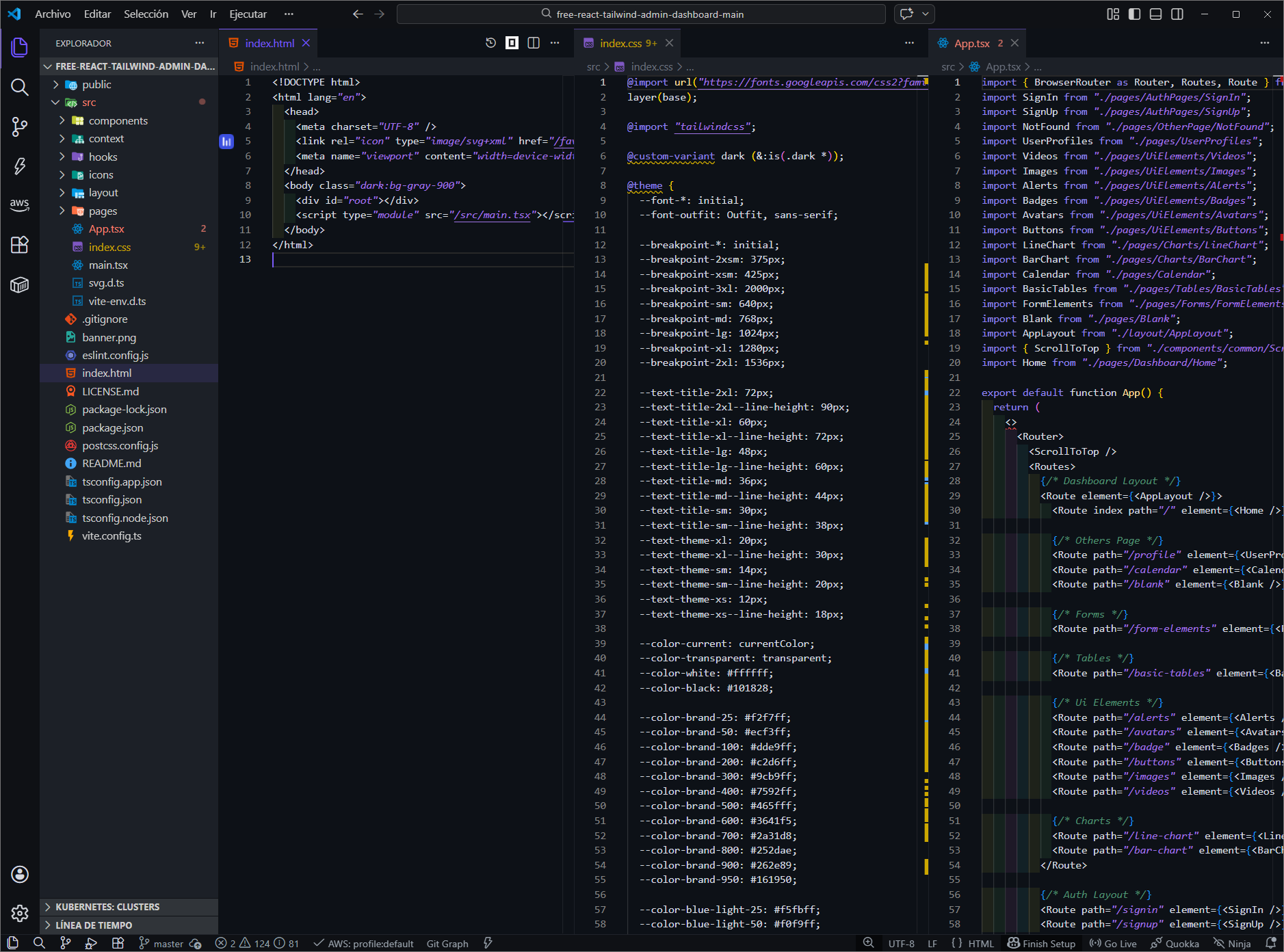
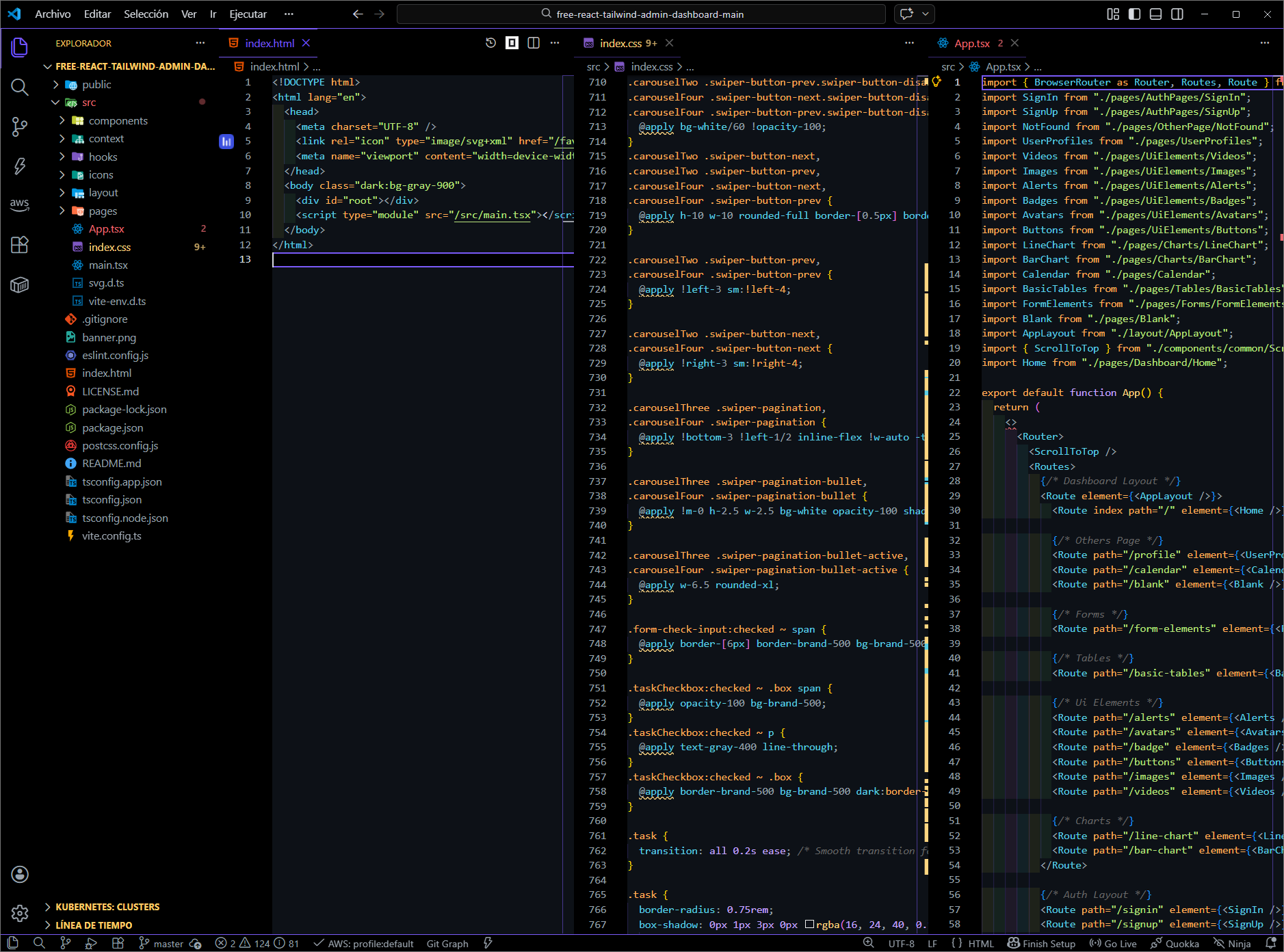
Preview - Dark
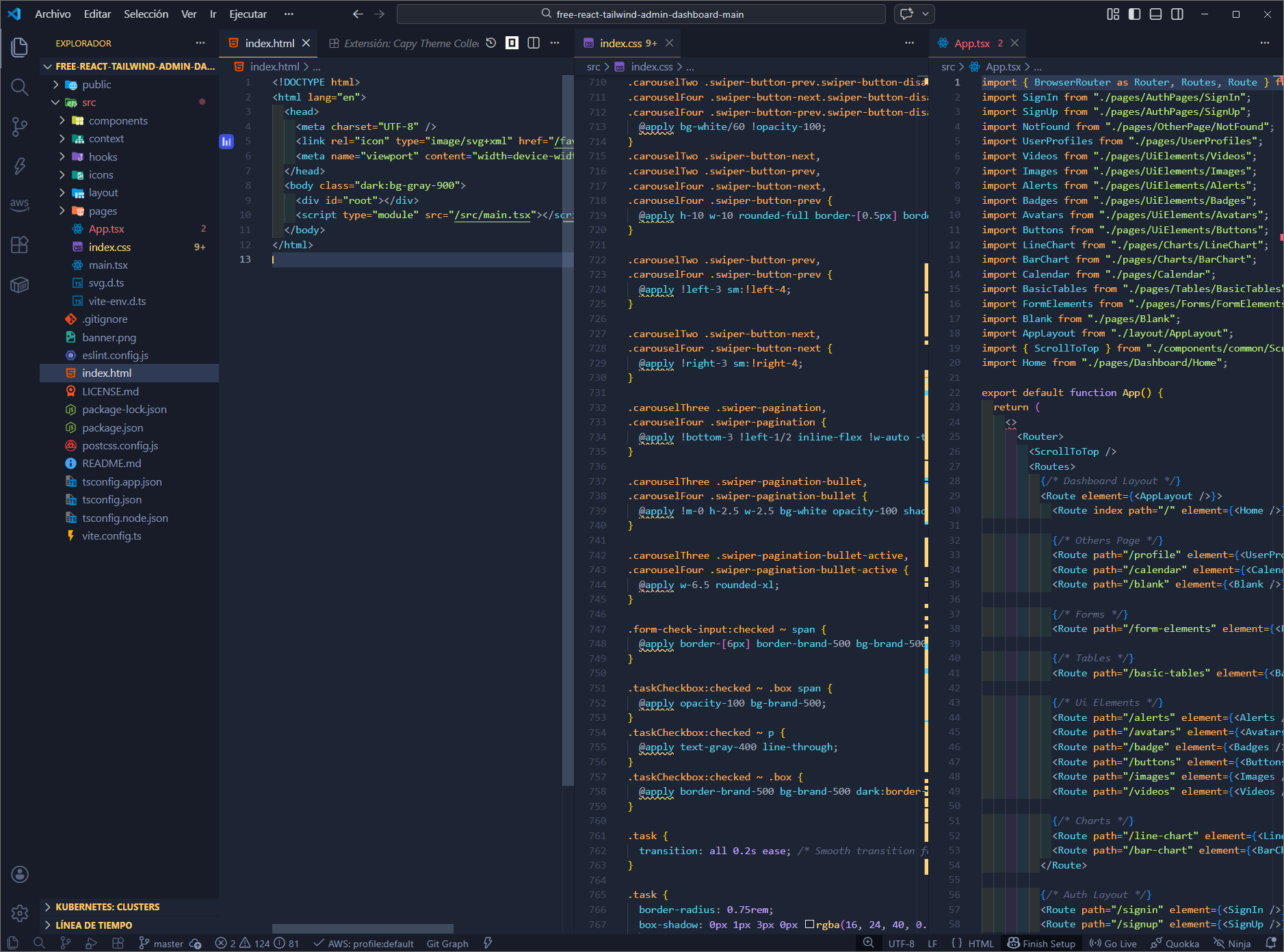
Preview - Gray
Technologies Used
Project Structure
├── package.json              # Extension manifest
├── themes/                   # Color theme JSON files
│   ├── capy-theme-blackberry-dark.json
│   ├── capy-theme-dark.json
│   └── capy-theme-gray.json
├── images/                   # Logo and demos
├── .eslintrc                # ESLint configuration
├── prettier.config.js       # Prettier configuration
├── .nvmrc                   # Node.js version
└── build.md                 # Build and installation
Installation via VS Code
- Open Extensions sidebar panel in VS Code.
View → Extensions
- Search for
capy
- Click Install to install it
- Click Reload to reload the editor
- Code > Preferences > Color Theme > capy
Manual Installation
For detailed installation instructions on different editors, see build.md.
Development
Prerequisites
- Node.js 20.20.0 (use
nvm install)
Setup
npm install
Testing Theme Changes
- Press
F5 to open a development window with the extension loaded
- Go to
File > Preferences > Color Themes and select your theme
- Use
Inspect TM Scopes command (Ctrl+Shift+P) to debug token colors
- Edit colors in
workbench.colorCustomizations in VS Code settings for quick testing
- Run
Generate Color Theme From Current Settings to export changes to JSON
Code Quality
npx eslint .          # Lint code
npx prettier --write .  # Format code
Build
npx vsce package # Package extension as .vsix
Contributing
- Fork the repository
- Create a feature branch (
git checkout -b feature/amazing-feature)
- Make your changes following the code style guidelines
- Test your changes using
F5
- Commit your changes (
git commit -m 'Add amazing feature')
- Push to the branch (
git push origin feature/amazing-feature)
- Open a Pull Request
URL
License
MIT (c) 2026 rtaparay
| |

