Editor support for Rocky, the typed graph between your code and your warehouse.
The extension is a language client. It starts rocky lsp and asks it the language questions. So the diagnostics, the hover types, and the lineage all come from the same compiler that builds your tables.
Rocky reads plain SQL as well as the .rocky DSL. The language server attaches to both.
In action
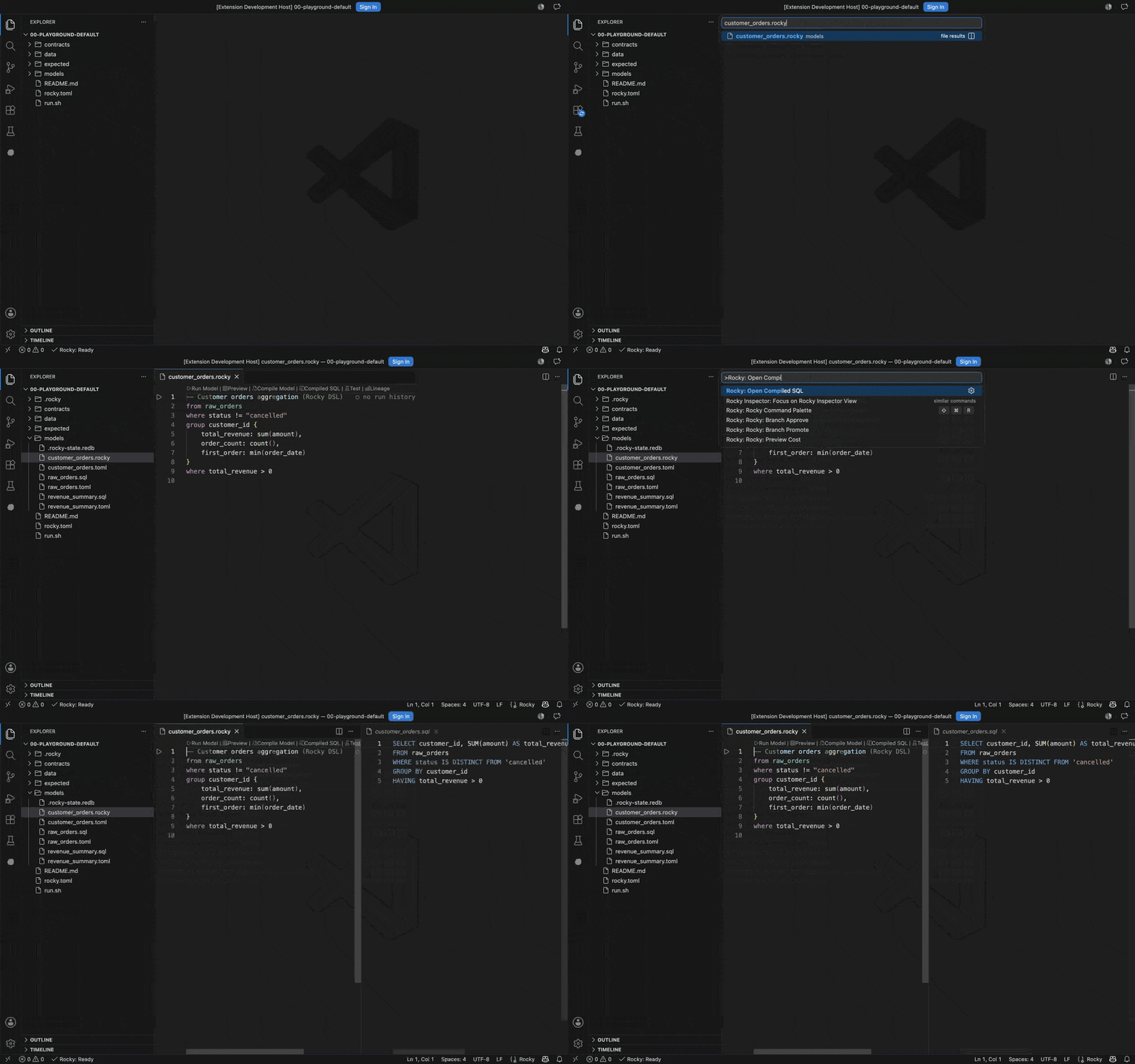
See the SQL behind the DSL. Open a model and run Rocky: Open Compiled SQL. The compiled SQL appears beside it and refreshes every time you save. Here != becomes a null-safe IS DISTINCT FROM, and the post-aggregate filter becomes HAVING.
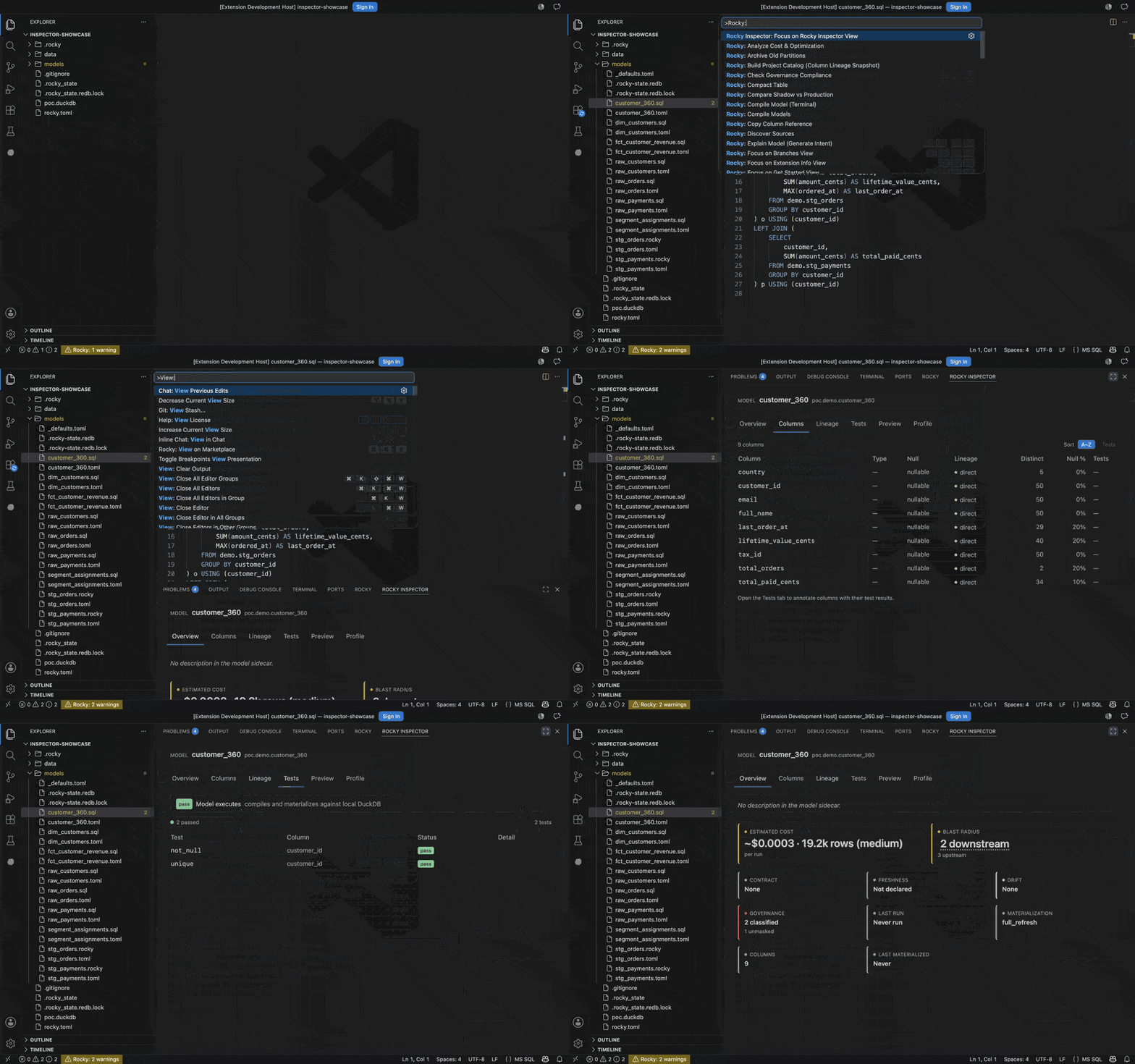
Inspect a model. The Inspector opens in the bottom panel with six tabs: Overview, Columns, Lineage, Tests, Preview, and Profile. Overview is a trust dashboard. It carries cards for estimated cost, blast radius, contract, freshness, governance (classified and unmasked columns), last run, materialization, column count, and last materialized time.
In the recording below, a PII-classified model flags a column left unmasked. Columns then traces each column to its upstream source. The Lineage canvas draws the model's neighbourhood with a cost overlay.
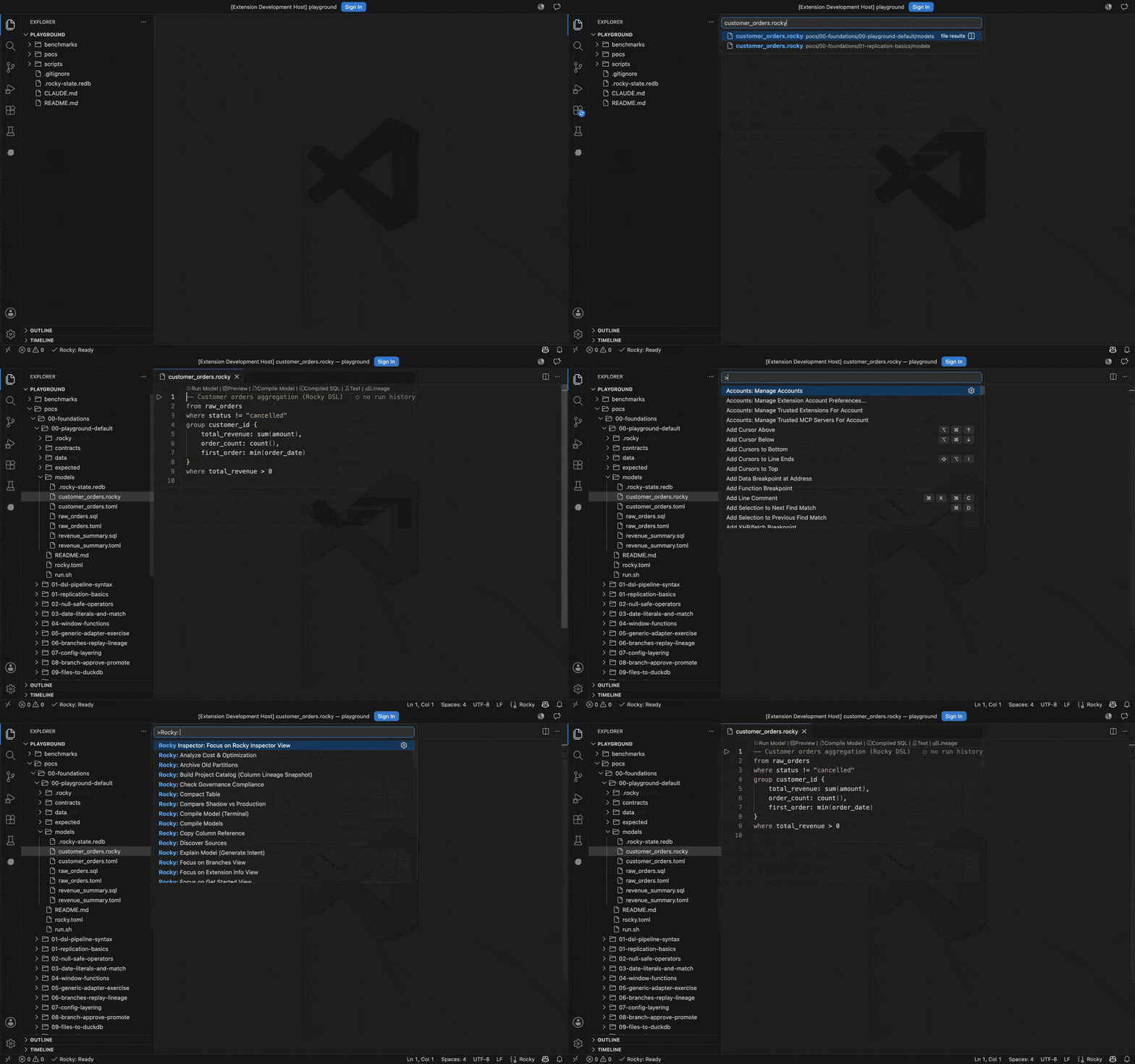
Drive it from the keyboard. Every command carries the Rocky: prefix in the VS Code command palette.
Features
Editor intelligence: diagnostics, hover, completion, go-to-definition, find references, rename, quick-fix code actions, signature help, document symbols, and inlay hints for inferred column types. Formatting applies to .rocky files only. Folding also works on the .sql files under models/.
Syntax: a TextMate grammar and semantic tokens for .rocky files. Snippets cover the DSL operators (from, where, derive, group, join, select, sort, take, match) and the sidecar blocks (model, source, target, strategy-incremental).
Activity bar sidebar: Get Started, Extension Info, Models, Runs, Sources, Schema, Previews, Branches, and Help. A workspace with no rocky.toml shows orientation instead of CLI errors, with buttons for Initialize Rocky Project, Try the Playground, and Open Documentation.
Lineage: Rocky: Show Model Lineage opens the Inspector on its Lineage tab, framed on the model you are editing.
AI generate: Rocky: Generate Model from Intent turns a description in plain English into a model. Rocky compiles each attempt. It makes at most three attempts in total. It writes the model and its sidecar into models/ only when the model type-checks. The command opens the result in a new tab, including the path of each file it wrote.
Agent mode: the extension registers rocky mcp as a Model Context Protocol server for each workspace folder that has a rocky.toml at its root. Agent mode then drives Rocky through the engine's 31 tools. Most of them only read: compile, lineage, schema, row samples, and run history. Six of them write.
draft_model, draft_contract, and draft_check write files under models/, and draft_metadata patches a model's sidecar metadata. propose records a plan for a human to review, and applies nothing itself. pause_schedule pauses a pipeline's schedule, and refuses to act unless the agent passes confirm: true.
review_queue lists the plans waiting on you. The agent cannot sign one off: signing off writes the approval marker that unblocks rocky apply, and the engine serves that action only to a server started as rocky mcp --profile approver. The extension starts rocky mcp without that flag, so the call is refused and nothing is written.
Plan review: you approve a plan yourself. Run Rocky: Review Plan (Breaking Changes + Apply) and pick a plan from .rocky/plans/. When that directory has no plans, the command asks for a plan id. The panel shows the breaking-change report with two buttons. Approve runs rocky review <plan-id> --approve. Apply runs rocky apply <plan-id>, and stays disabled until the plan is approved.
A @rocky chat participant handles four single-shot requests: /generate, /explain, /sync, and /test.
Status bar: language server state and a live error count.