Pane Pulse
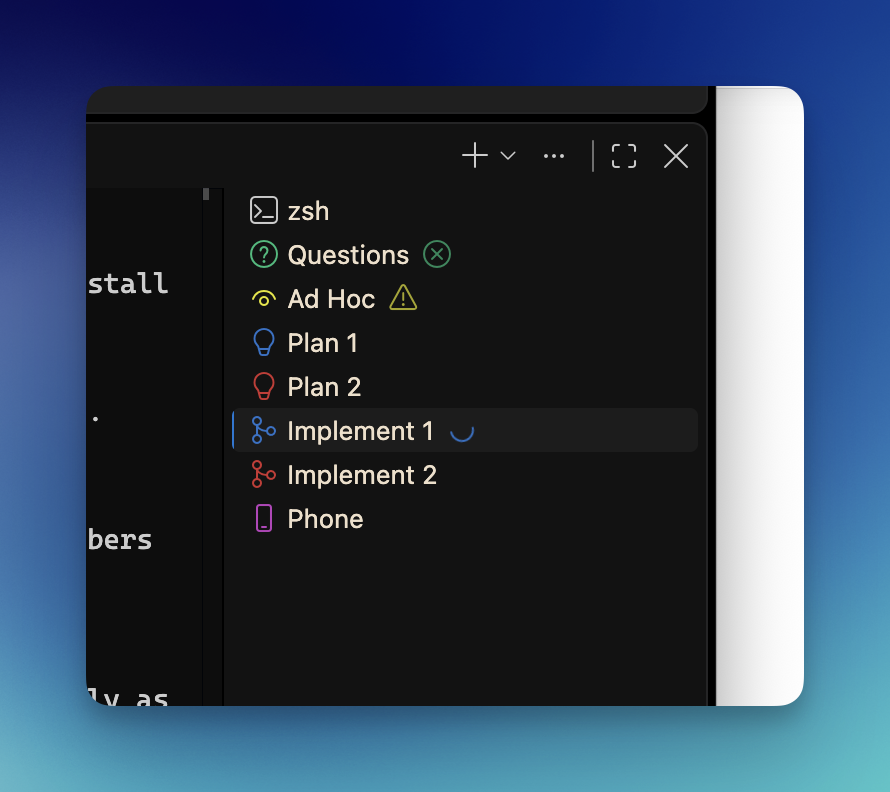
Pane Pulse marks each Claude Code terminal tab in VS Code with what that pane is doing: working, finished and not yet read, or waiting on you.
It is for running several Claude panes in one window, so a glance at the tab list tells you which pane to click.
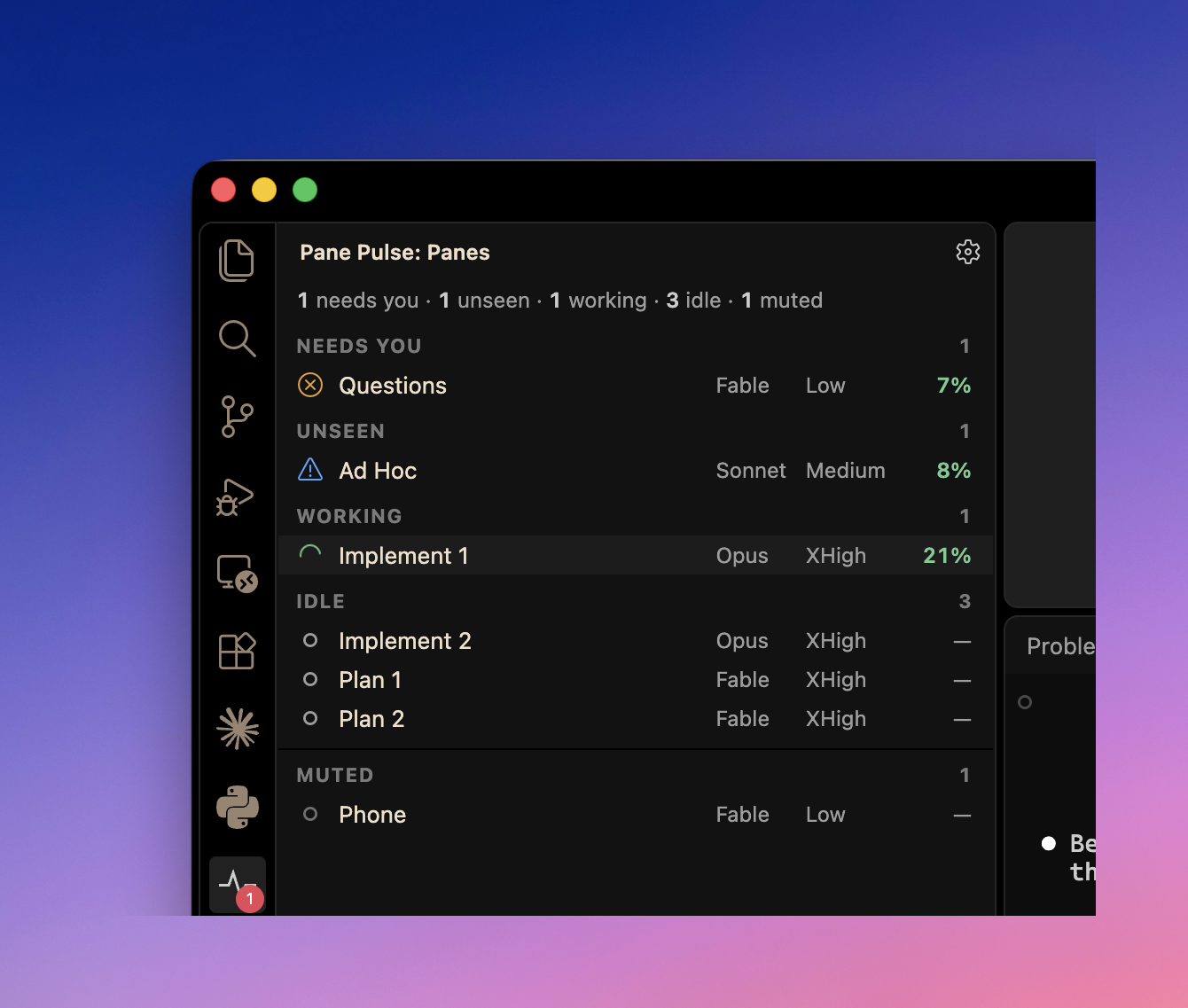
Its Panes panel in the sidebar lists every Claude pane under what it needs from you, with its model, its effort and how full its context is, and a right-click menu acts on a pane without hunting for its tab.
Clicking a pane clears only what you have actually dealt with.
What you need
|
minimum |
note |
| VS Code |
1.138.0 |
enforced: VS Code refuses to install the extension below it |
| Claude Code |
tested against 2.1.278 |
Anthropic documents neither the session registry's fields nor the transcript's, so a Claude Code update could change what Pane Pulse reads |
| Node.js on the PATH Claude Code runs its hooks with |
any |
eight of the nine hooks run node <root>/hook.js; without it only the PostToolUse spinner still draws |
| Node.js for the installer scripts |
22.18 |
scripts/install-hooks.mjs and scripts/prove-local.mjs import the TypeScript in src/ directly, which needs Node's type stripping |
If you use a VS Code profile other than the default, set PANE_PULSE_VSCODE_SETTINGS to that profile's own settings.json (under …/Code/User/profiles/<id>/) before installing the hooks. Otherwise the install writes ${progress} into the default profile's file, the checker still reports everything fine, and no tab ever shows a mark.
VS Code forks (Cursor, Windsurf, VSCodium) are untested. The extension asks for VS Code 1.138, which a fork on an older API will refuse to install; if yours does install it, its settings folder is not named Code, so point PANE_PULSE_VSCODE_SETTINGS at the real file before installing the hooks.
The terminal must be VS Code's own integrated terminal. A claude running inside tmux is never found, on any platform, because the tmux server daemonises and no VS Code shell is among its ancestors.
macOS: the only platform it has been run on. Everything described here is built and tested there, and the hooks, the marks and the panel have been used on screen; parts of the panel's menu have been exercised by its test suite rather than by hand.
Linux: built to work, never run. Every road is the one macOS takes, deliberately: the same ps process walk, the same write to the pane's /dev/pts/N device to clear a mark (with O_NOCTTY, which is there for Linux specifically), and ~/.config/Code/User/settings.json for the VS Code side. Nothing in the source blocks it and the unit tests cover the Linux branches, but no one has yet installed it on a Linux machine. Three things would break it: a ps that does not take -eo, such as BusyBox on Alpine; a sandboxed Snap or Flatpak VS Code, whose process view and home folder are not the real ones; and a VS Code fork whose settings folder is not named Code, which PANE_PULSE_VSCODE_SETTINGS works around.
Windows: it installs and runs, one feature does not, and none of it has been run. The panel lists panes, the hooks install, and every hook is written in the node form, including PostToolUse, since Windows has neither sh nor printf. What does not work is clearing a tab mark: there is no road from the extension host to a terminal's console, so a finished pane's mark stays on the tab until your next message in that pane. Clicking its row updates the panel at once; the tab catches up later. Whether the mark draws at all under ConPTY has never been checked, so Windows support is honestly untested rather than merely degraded.
Wherever you are, node scripts/prove-local.mjs --check-only tells you what is actually installed, and never writes anything.
The three states
| state |
tab glyph |
set by |
cleared by |
| thinking |
$(loading~spin) |
a prompt submitted, a tool resumed |
the turn finishing |
| unread |
$(alert) ⚠ |
the turn finishing, or failing |
looking at the pane (a tab click, a row click in the Panes panel, or Mark as Seen), or the next prompt |
| waiting |
$(error) ⊗ |
a question, a permission, a plan to approve, a blocking notification |
a state change only: answering, or submitting anything else. Never by looking. |
Only an unread mark is cleared by looking.
A waiting mark stays until the state changes, however often you look at the pane, so a wrong guess about where you are looking can only ever drop an unread mark, never a waiting one.
A turn that ends with background tasks still running counts as still working, so it keeps its spinner.
In the Panes panel a waiting pane is listed under Needs you, an unread one under Unseen and a thinking one under Working, and its peek says "Waiting for you", "Ready to read" or "Working".
A pane that finishes while it is your active terminal keeps its warning mark until you type your next prompt there, click its row in the Panes panel, choose Mark as Seen on it, or select another tab and then it.
Nothing clears a mark on a guess.
VS Code cannot tell looking at a terminal from reading a file with that terminal still selected, and gives no signal for a hidden panel, so any guess could clear a mark you never saw.
The only looks that clear are selecting a pane's tab, clicking its row (or pressing Enter on it), and Mark as Seen.
The panel's highlighted row follows the active terminal, and that highlight never counts as looking.
How it works
Claude Code hooks set every mark.
On each event they are registered for, the hook looks the event up in the decision table deployed beside it (a copy of hook/decision-table.json), hands Claude Code the mark to write to that pane's terminal (when the event changes the mark), and drops one small event file under ~/.pane-pulse/events/ (or under PANE_PULSE_HOME).
The extension reads those files, maps each event to its terminal by walking the process tree from the event's Claude process up to the shell VS Code started, and keeps the Panes panel.
When you select an unread pane's tab or click its row, the extension clears its mark by writing the clear sequence straight to that pane's terminal device (macOS and Linux; Windows is under Known gaps).
Nothing reads or guesses focus in the hook: it always sets the mark unless the pane is muted, and the extension owns every clear.
The hooks live in your user settings, so they run for every Claude Code session on the computer, and each VS Code window takes only the events of Claude sessions running in its own terminals.
The model, effort, context and the rest of what the panel shows come from Claude Code's own files, read and never written, as "Where the numbers come from" explains.
A mute reaches the hook as a file.
While <root>/mute/<claude pid> exists, or PANE_PULSE_IGNORE is set in the pane's environment, the hook and the PostToolUse one-liner print no mark for that pane; only a clear, which draws nothing, still goes out.
They still drop the event file, recording that the pane is muted and why, so the extension keeps following what the pane is doing.
The extension is the only thing that writes a marker; the hook and the one-liner only check that one exists, and never open it.
A marker goes when that pane's session ends, when its terminal closes, when you unmute it, or when the extension finds its claude has died.
When the extension starts, it also removes every marker whose claude is no longer running.
One more rule covers a process id the system hands out again: a claude that has just started removes any marker already under its own process id, because a process that new cannot have been muted yet.
Install
Pane Pulse has two halves and both must be installed, or it does nothing: the extension, which draws the panel and clears marks, and the hooks, which are entries in Claude Code's own settings that write the marks. Installing the extension alone leaves a panel that lists nothing.
Everything it changes is listed under What the install changes, every change is backed up and recorded first, and Uninstall puts it all back.
The extension also keeps one small folder of its own, for the question it asks at first run, described under What the extension keeps.
From the Marketplace
The easiest road: three steps, and VS Code keeps it up to date.
- Install the extension.
In VS Code, open the Extensions view, search for Pane Pulse and click Install.
From a terminal it is
code --install-extension robs-studio.pane-pulse.
Its page is Pane Pulse on the Visual Studio Marketplace.
- Set up the hooks.
Pane Pulse asks, in a notification, to set up its hooks: click Set it up.
It shows you every change it would make in a read-only document, then asks you to confirm.
Only the Install button writes anything.
- Have Node.js on the machine.
Eight of the nine hooks run on Node.js, and Claude Code's own installer does not bring it.
If Pane Pulse cannot find Node, its question says so and offers Get Node.js, which opens nodejs.org.
It then offers Set it up as well: the hooks can go in while Node installs, and they start marking your tabs once Node is installed and VS Code has restarted.
Pane Pulse asks only until the hooks have been set up once on this machine, and then never again, even if you later remove them with Pane Pulse: Uninstall Hooks.
It asks only in a local window, never in one connected over SSH, to WSL or to a Codespace.
It asks only in the window you're looking at, because that is where the question belongs: a window that starts while you're looking elsewhere waits until you come to it, and with several windows open, only one of them asks.
It asks at most three times: the second no sooner than 3 days after the first, the third no sooner than 7 days after the second.
Each time counts toward the three, whatever you answer, Not now and closing the notification included.
Don't ask again is permanent.
The Panes panel still says the same at its top until the hooks are in, with its own Set it up.
Whatever you answer, Pane Pulse: Install Hooks is always in the Command Palette, and it is what Set it up runs.
It remembers your answers per VS Code profile, so Don't ask again in one profile does not quiet another.
The hooks install itself writes the default profile's VS Code settings unless PANE_PULSE_VSCODE_SETTINGS points elsewhere (see What you need), so in any other profile the tabs show no marks.
Profiles are a known gap that 0.2.1 does not close.
The short road: install the built extension
No clone, no build.
Three steps, and Node on your machine for the hooks to run.
- Download
pane-pulse-0.2.1.vsix from the latest release.
- Install it: in VS Code, Extensions view → the
... menu → "Install from VSIX…", and pick that file. From a terminal it is code --install-extension pane-pulse-0.2.1.vsix.
- Reload the window when it suits you, then install the hooks.
Pane Pulse offers to do it, as it does from the Marketplace: click Set it up, or open the Command Palette and run Pane Pulse: Install Hooks, which is the same thing.
It shows you every change it would make in a read-only document, then asks.
Only the Install button writes anything.
That is the whole install. The hooks ship inside the extension, but eight of the nine run node, so Node must be on the PATH Claude Code runs its hooks with; without it only the spinner draws.
Claude Code's own installer does not bring Node with it, so run node --version in the terminal you start claude from, and if it finds nothing, install Node from nodejs.org first.
Two things it cannot do, both of which want the source below: run prove-local, the read-only checker that says what is actually installed, and install the hooks without a human to click the dialog. Removing it later needs neither: Pane Pulse: Uninstall Hooks is in the same palette, and previews the same way.
Let an agent do it
If you work with a coding agent in your terminal, paste this:
Install the Pane Pulse VS Code extension for me.
Clone https://github.com/robs-studio/pane-pulse into a folder of your choosing,
then follow its AGENTS.md exactly, from step 1 to step 7.
Show me the dry run and wait for my yes before you change any settings.
AGENTS.md is written for that: every command in full, every setting it will change and why, the flags for the cases where the defaults are wrong, and a table of what to do when something fails. AGENT-UNINSTALL.md is the same for taking it away again.
Install by hand
Building it yourself is for changing it, or for the command-line installer and prove-local, the read-only checker; the .vsix takes about a minute to build.
Keep the folder you clone into: the hook installer, the verifier and the uninstaller all live in it.
1. Get the source.
git clone https://github.com/robs-studio/pane-pulse.git
cd pane-pulse
node --version    # must be 22.18 or later, or step 3 fails with a confusing syntax error
2. Build and install the extension.
npm install
npm run package
npm run package builds first on its own, then packages without a licence prompt.
It writes a .vsix file into the project folder, and its last line names the file.
Install that from VS Code's Extensions view ("Install from VSIX…" in the view's ... menu), or from a terminal, naming the file exactly:
code --install-extension pane-pulse-<version>.vsix --force
Name the version rather than typing pane-pulse-*.vsix. A folder that has been built more than once holds several, and the wildcard can install an older build and still report success.
No code command? In VS Code, run Shell Command: Install 'code' command in PATH from the Command Palette, or use the Extensions view's "Install from VSIX…" instead.
The extension loads when VS Code next starts, or on Developer: Reload Window. A reload restarts every terminal in the window, including any Claude pane running in it, so pick your moment.
3. Install the hooks.
Open the Command Palette and run Pane Pulse: Install Hooks, or click Set it up if Pane Pulse has offered it, which runs the same command.
It opens the installer's preview of every change in a read-only document, then asks in a dialog.
Only the dialog's Install button writes anything.
If either settings file changes between the preview and your answer, the install refuses and asks you to run it again: Claude Code rewrites its own settings file when you grant a permission in any pane, and a yes to one preview is not a yes to another.
New Claude panes carry the marks. Claude Code's own file watcher usually picks the hooks up for panes already running, but a pane that stays silent has not: restart that claude and it will.
After updating or rebuilding the extension, run Pane Pulse: Install Hooks again: nothing redeploys the hook into <root> on its own.
Then check the result:
node scripts/prove-local.mjs --check-only
Or install the hooks from the command line.
Run these from the project folder, after npm install:
node scripts/install-hooks.mjs --dry-run      # print the preview, write nothing
node scripts/install-hooks.mjs                # install
node scripts/install-hooks.mjs --uninstall    # undo, from the install record
The command line does not ask: without --dry-run it prints the preview and writes straight away, so read the dry run first.
--uninstall --dry-run previews an uninstall, and --help prints the usage.
Three environment variables move what it touches:
| variable |
what it points at |
default |
PANE_PULSE_HOME |
<root>, Pane Pulse's own folder |
~/.pane-pulse |
PANE_PULSE_CLAUDE_SETTINGS |
Claude Code's user settings |
~/.claude/settings.json |
PANE_PULSE_VSCODE_SETTINGS |
VS Code's user settings |
macOS ~/Library/Application Support/Code/User/settings.json, Linux ~/.config/Code/User/settings.json, Windows %APPDATA%\Code\User\settings.json |
The defaults need no setting. Reach for an override when the default is wrong for your machine: PANE_PULSE_CLAUDE_SETTINGS when CLAUDE_CONFIG_DIR has moved Claude Code's settings, since the installer does not read that variable, and PANE_PULSE_VSCODE_SETTINGS when you run VS Code Insiders, VSCodium or Code-OSS, whose settings folder is not named Code.
PANE_PULSE_HOME is read by each part when it runs: the hook reads it from Claude Code's environment, the extension from VS Code's, and the PostToolUse one-liner has the root written into it at install time, for its events folder and its mute markers alike.
If you move it, set it to the same folder in all three places.
One more variable, PANE_PULSE_IGNORE, moves nothing: set in a pane's own environment, it mutes that pane (see "Muting a pane for good").
Checking the install
node scripts/prove-local.mjs --check-only reads the installed state and writes nothing, anywhere.
It prints the root, the platform and both settings paths it read, then four checks, each as ok or FAIL with the reason:
- hooks: every registration in
<root>/decision-table.json has exactly one Pane Pulse hook in Claude Code's settings, in the shape the table declares for this platform, pointing at <root>; there is none under an event the table does not register; and no hand-installed indicator hook is left beside them.
- synchronous: none of those hooks is async.
- settings: VS Code's
terminal.integrated.tabs.description contains ${progress} exactly once, and Claude Code's terminalProgressBarEnabled is false.
- deployed:
<root>/hook.js and <root>/decision-table.json match the hook source by sha256, and <root>/install-record.json is there and parses.
A one-line verdict follows.
It exits 0 when every check holds, 1 when any fails, and 2 on a usage error.
Run it after installing, and again whenever something else may have rewritten either settings file.
What the install changes
hook/decision-table.json decides what is written: one hook entry for each item in its registrations list, in the shape that item declares.
The install goes in this order, so the settings never point at a hook that is not there yet.
- Backups.
Both settings files are copied into
<root>/backups/, one folder per file, each copy named by its UTC time, and the newest 30 copies of each file are kept.
A backup that fails stops the install before anything else is written.
A settings file that does not exist yet has nothing to back up.
- The hook.
The hook (
hook.js, decision-table.json and the small package.json from the same folder) is written into <root> atomically, each file as a temporary file renamed into place, so a hook firing during a re-install never reads half a file, and <root>/events/ and <root>/mute/ are created.
That package.json marks the folder as CommonJS, so node parses hook.js correctly wherever it sits.
- Claude Code's user settings.
- Every existing hook entry, under any event, whose command contains
9;4 or whose first argument is a file named hook.js is removed: earlier hand-installed printf hooks that write the same marks, or an earlier Pane Pulse install.
Each one is listed in full in the preview and kept in the install record.
- One entry is added per registration, as in the table below.
A node entry is the exec form
{"type":"command","command":"node","args":["<root>/hook.js"],"timeout":5}.
PostToolUse is a shell one-liner instead, because it fires on every tool call and starting Node each time would slow every turn.
It keeps the subagent guard (grep -q '"agent_id"' || printf …, shortened here) verbatim, so a subagent's tool call leaves the parent pane's mark alone, and it drops its event file by writing a temporary file and renaming it into place.
Before it prints its mark it checks PANE_PULSE_IGNORE and then the pane's marker in <root>/mute/, by existence alone, so a muted pane gets its event file and no mark.
On Windows, which has neither sh nor printf, PostToolUse is written in the node form too.
- Every entry is synchronous, because Claude Code honours a hook's
terminalSequence only on the synchronous path.
terminalProgressBarEnabled is set to false.
This is Claude Code's own progress-bar setting; Claude Code does not draw that bar in VS Code's terminal today, so turning it off is insurance that it never competes with the hooks' marks.
- VS Code's user settings.
terminal.integrated.tabs.description gains ${progress} once.
It is prepended as ${progress}${separator} in front of your current value, or in front of VS Code's default (${task}${separator}${local}${separator}${cwdFolder}) if you have never set it, so nothing you see today is lost.
A value that already contains ${progress} is left exactly as it is.
Comments and indentation in that file are kept.
- The record.
<root>/install-record.json holds every entry added and removed, verbatim and with where it sat, the earlier value of both settings keys (or that they were absent), the sha256 of each deployed file, and where the backups went.
The registrations today:
| event |
matcher |
shape |
sets |
SessionStart |
startup, resume, clear |
node |
idle: lists the pane, and prints nothing |
UserPromptSubmit |
all |
node |
thinking |
PreToolUse |
AskUserQuestion or ExitPlanMode |
node |
waiting |
PermissionRequest |
all |
node |
waiting |
PostToolUse |
all |
shell |
thinking |
Notification |
permission_prompt, elicitation_dialog, agent_needs_input, quota_auto_resume_stale, quota_auto_resume_disabled |
node |
waiting |
Stop |
all |
node |
unread, or thinking while background tasks are still running |
StopFailure |
all |
node |
unread |
SessionEnd |
all |
node |
clears the mark and retires the pane's row |
Inside a subagent every one of these does nothing, so only the main thread moves a pane's mark.
SessionStart prints nothing at all, because Claude Code adds a hook's plain output on that event to the conversation; a /clear's mark is already wiped by the SessionEnd that comes just before it.
Its compact and fork sources are not registered, so a compaction in the middle of a turn never touches a spinner.
idle_prompt notifications are deliberately not registered: one fires after about a minute of idling, which is exactly a finished pane you have not read, and as a waiting mark it would turn every unread pane into one that clicking can never clear.
What the extension keeps
Beside the hooks install, the extension keeps one small folder of its own, the memory of its first-run question: a first-run folder in the storage VS Code gives each extension.
It holds an asked-<date> file for each time the question was asked, never-ask after Don't ask again, and set-up once the hooks have been set up on this machine.
Only the question reads or writes it, and it is left behind when you remove the extension, because VS Code keeps an extension's storage after it is uninstalled.
In the default profile it is:
- macOS:
~/Library/Application Support/Code/User/globalStorage/robs-studio.pane-pulse/first-run
- Windows:
%APPDATA%\Code\User\globalStorage\robs-studio.pane-pulse\first-run
- Linux:
~/.config/Code/User/globalStorage/robs-studio.pane-pulse/first-run
Updating
Installed from the Marketplace, Pane Pulse is updated by VS Code for you.
From a clone, update it this way:
git pull
npm run package
code --install-extension pane-pulse-<version>.vsix --force
Then run Pane Pulse: Install Hooks again, or node scripts/install-hooks.mjs. Nothing redeploys the hook on its own, and a hook left over from an older build is exactly what node scripts/prove-local.mjs --check-only reports as out of date.
Uninstall
Working with an agent? Hand it AGENT-UNINSTALL.md, which is the whole removal in order, including the two steps that only work in that order.
By hand: run Pane Pulse: Uninstall Hooks, which previews and asks like the install, or node scripts/install-hooks.mjs --uninstall.
It works from <root>/install-record.json alone and refuses clearly if there is none, so run it with the same PANE_PULSE_HOME the install used.
It is surgical:
- it removes only the entries the install added, so a hook you added since stays;
- it puts every entry the install removed back where it was;
- it puts
terminalProgressBarEnabled and the tab description back to their earlier values, or deletes them if they were absent, but leaves either one alone if it no longer reads what the install wrote;
- it deletes a settings file the install created, if nothing else is left in it;
- it deletes the deployed hook files and the record, and keeps the backups and the
events/ and mute/ folders.
When nothing else in a settings file has changed since the install, the uninstall writes that file's original bytes back exactly.
When something has, the surgical inverse above is written instead: your later edits and comments stay, and only what the install touched is put back, so a hook group you had written on a single line can come back spread over several lines, with the same content.
If the extension is still running when <root> is removed, it creates <root>/events/ again; that empty folder is harmless.
Restore Backups
Pane Pulse: Restore Backups asks, for each of the two settings files, which dated copy to restore (newest first, or leave that file alone), shows which file each copy will overwrite, and asks before writing.
The backup code copies the current file into its folder before restoring, so a restore can itself be undone.
Run the check afterwards to see whether the hooks are still in place.
Alongside Glitch
Glitch is a local-first AI assistant whose folder is called a brain. You do not need it to use Pane Pulse, and if you have never heard of it, skip this section.
- The installer refuses to write any file inside a brain folder: for every path it writes, it looks for
operations-reference.md in that folder and every folder above it. So PANE_PULSE_HOME must point outside the brain, and the default ~/.pane-pulse already does.
- Glitch's
/look restore rewrites the same two settings files, which can remove the hooks while the install record still says they are installed.
After using it, run node scripts/prove-local.mjs --check-only, and install again if the hooks are gone.
The Panes panel and status bar
The Pane Pulse icon in the activity bar opens the Panes view.
A pane is listed from the moment claude starts in it, idle until its first prompt.
When the extension starts, the panes already running in the window's terminals are listed at once, from Claude Code's session registry.
A renamed terminal's row follows within about two seconds while the panel is on screen: VS Code fires no rename event, so the names are read again on a timer.
A row leaves when its Claude session ends, when another Claude session starts in the same terminal, or when its terminal closes.
A claude that crashes or is killed fires no hook, so every pane's claude is checked every five seconds, and a dead one's row leaves with its tab mark cleared.
The Pane Pulse output channel logs what the extension did and why.
While the hooks aren't set up, a notice at the top of the panel says "Pane Pulse isn't marking your tabs yet", and its Set it up button runs Pane Pulse: Install Hooks, which previews and asks first as always.
While Pane Pulse can't find Node.js, a line there says so, beside Get Node.js, which opens nodejs.org.
The notice reads the real state each time the panel draws, not what the first-run question remembers, so Don't ask again does not hide it, and it comes back after Pane Pulse: Uninstall Hooks.
It never pops up or notifies, and each of its lines goes by itself as soon as what it asks for is in.
Like the first-run question, it shows only in a local window, never in one connected over SSH, to WSL or to a Codespace.
The five headings
Panes are grouped under five headings, shown in capitals and always in this order, each with a count.
A heading shows only while it has a pane, and one that fills appears in its own place, so the order never changes.
A line above the headings counts them, as 1 unseen · 5 idle · 1 muted, naming only the headings shown.
| heading |
row icon |
colour |
a pane here is |
| Needs you |
circled X |
amber |
waiting for you: a question, a permission or a plan to approve |
| Unseen |
warning triangle |
blue |
finished, and not yet looked at |
| Working |
spinner |
green |
working |
| Idle |
hollow ring |
grey |
read, or not yet given a prompt |
| Muted |
hollow ring |
faint grey |
muted, whatever it is doing |
The icon sits on each row, never on the heading, and the first three are the ones the tabs show.
Inside a heading panes go by name; under Muted the most urgent state comes first, then the name.
Each row
A row shows the pane's status icon and its terminal's name, then three columns: the model, the effort and how full its context is.
The model is its family (Opus, Fable, Sonnet or Haiku).
The effort words are Claude Code's levels: Low, Medium, High, XHigh and Ultra, where Ultra is Claude Code's max.
The context % is green below 50%, amber from 50% and red from 80%, and both points are settings.
A column with nothing to show yet, such as a pane that has not answered its first prompt, reads as a dash.
A name loses the ◐, ◑ or ✳ that Claude Code puts before a terminal's title, so the row does not jump about as that glyph comes and goes.
On a narrow sidebar a long name ends in an ellipsis, the effort column goes below 240 pixels wide, and the model goes below 190; the name and the % always stay.
Clicking a row, or pressing Enter on it, opens that pane's terminal and, if it was unseen, marks it seen and, on macOS and Linux, clears its tab mark.
Opening a Needs you pane leaves its mark until you answer.
The arrow keys, Home and End move between rows once the panel has the keyboard focus.
The highlighted row is the active terminal's, and it follows as you switch terminals; the highlight alone opens nothing and marks nothing seen.
The peek
Rest the pointer on a row for a moment and its peek appears next to it.
It shows the pane's name with its model and effort, its state and how long ago it last did anything (or why it is muted), and its last prompt.
Below those come its Model, its Effort, its Context (the %, the tokens and how much of them came from the cache) and its Session (how long it has run, then the lines its edits added and removed, once they are counted), and a bar filled to the context %.
The peek floats over the list without moving it, stays while the pointer is on the row or on the peek, and goes when the pointer leaves both, on a scroll, a click or Escape.
VS Code keeps a sidebar view inside its own rectangle, so the peek stays inside the panel rather than opening out beside it.
The panePulse.peek.enabled setting turns it off.
Right-click a row for VS Code's own menu, with these items in this order:
| item |
what it does |
| Open Pane |
opens the pane, as a click on its row does |
| Mark as Seen |
marks an unseen pane seen and clears its tab mark, without opening it |
| Mute Status or Unmute Status |
mutes or unmutes the pane (see "Muting a pane") |
| Rename… |
opens the pane, asks for its new name, then renames its terminal |
| Copy Last Reply |
puts Claude's last reply in that pane on the clipboard, read fresh from its transcript, or says in the status bar that there is none yet |
| /Clear Context |
asks first, then types /clear into the pane, which starts a fresh conversation there |
| Interrupt |
sends the pane an Esc, as pressing Esc in it would |
| Close Pane |
asks first, then closes the terminal, which ends the Claude session in it |
Only /Clear Context and Close Pane ask first, each in a dialog that says what will happen.
/Clear Context keeps the old conversation in the pane's history, where /resume finds it, but anything typed in the pane and not yet sent would be sent with the /clear.
Close Pane keeps the pane's conversation in its history too.
Interrupt does not ask, because it is the same Esc you would press in the pane yourself.
Rename… opens the pane first because VS Code can rename only the active terminal, so, like a click, it marks an unseen pane seen.
An item that does not fit the row is greyed rather than hidden, so the menu keeps its shape: Mark as Seen needs an unseen pane, /Clear Context an idle or unseen one, and Interrupt a working one or one that needs you.
On a muted row both /Clear Context and Interrupt are offered, since the Muted heading hides the pane's own state, and each checks that state when you choose it.
Every item checks again when chosen, and if the pane has closed in the meantime it does nothing and says "That pane has closed" in the status bar.
Muting a pane
Right-click a row and choose Mute Status to silence that pane.
Its tab mark is cleared at once (on macOS and Linux), and no mark is drawn on its tab again while it is muted.
The row moves under Muted, its peek says "Muted by you", and it is left out of the status-bar counts and the badge.
Pane Pulse still follows what a muted pane is doing, so Unmute Status puts the row back under the heading its state says, and its marks return from its next event.
A mute belongs to the terminal until that terminal closes, so a new claude started in it starts muted.
A window reload or an extension restart keeps the mute while that pane's claude is still running, because its marker is still in place.
Muting a pane for good
For a pane that should never mark, such as a loop that runs claude unattended, set PANE_PULSE_IGNORE=1 in its environment before claude starts:
PANE_PULSE_IGNORE=1 claude
Any value but empty or 0 mutes, and the value is read exactly as written, so 0 with spaces around it mutes too.
The hook reads it from Claude Code's own environment, so it has to be there before claude starts: in a launch script, in a VS Code terminal profile's env, or in the env block of a settings file passed with claude --settings.
Such a pane is listed under Muted from its first moment, its peek says "Muted by its environment", and its menu offers neither Mute Status nor Unmute Status, because nothing in VS Code can change a running process's environment.
To unmute it, start claude again without the variable.
Settings and colours
The gear in the panel's title bar opens VS Code's Settings at Pane Pulse's own, as does Pane Pulse: Settings in the Command Palette.
A change takes effect at once, with no reload.
| setting |
default |
what it does |
panePulse.peek.enabled |
true |
shows a pane's details when you hover over its row |
panePulse.context.warnAtPercent |
50 |
the context % turns amber from here (1 to 99) |
panePulse.context.alertAtPercent |
80 |
the context % turns red from here (2 to 100) |
panePulse.terminal.disableEnvironmentChangeIndicator |
false |
hides the warning triangle VS Code puts on a terminal's tab when an extension wants to relaunch it |
If the amber point is not below the red one, the panel uses 50 and 80.
The last one is a checkbox for a setting of VS Code's own, terminal.integrated.environmentChangesIndicator.
VS Code draws that triangle when an extension changes what a new terminal's environment would hold, and a restart of the extension host is enough to set it on every open terminal, since the built-in Git extension hands its variables over afresh.
A Claude pane cannot be relaunched without ending its session, so the triangle there only asks for something you will not do.
Ticking the box sets the VS Code setting to off in your user settings and remembers what it was; unticking puts that back, unless you have changed the setting by hand in the meantime, which is left as you set it.
A terminal opened before the triangle is hidden keeps its old environment either way, which matters only to a command in it that asks VS Code for Git credentials.
The last row, About, says who made Pane Pulse and holds nothing to set.
VS Code gives every row an Edit in settings.json link, so it has one too; it changes nothing.
Every colour in the panel is a theme colour, which you can change under workbench.colorCustomizations in your VS Code settings, for example:
"workbench.colorCustomizations": {
  "panePulse.unseenForeground": "#C586C0"
}
| colour id |
what it colours |
default in a dark theme |
panePulse.needsYouForeground |
the Needs you icons |
amber #E5A13A |
panePulse.unseenForeground |
the Unseen icons |
blue #4FA6FF |
panePulse.workingForeground |
the Working icons |
green #73C991 |
panePulse.idleForeground |
the Idle icons |
the theme's description text colour |
panePulse.mutedForeground |
the Muted icons |
the theme's disabled text colour |
panePulse.contextLowForeground |
a context % below the amber point, and its peek bar |
green #73C991 |
panePulse.contextMidForeground |
a context % from the amber point up to the red one, and its peek bar |
amber #E5A13A |
panePulse.contextHighForeground |
a context % from the red point up, and its peek bar |
red #F14C4C |
panePulse.peekAccentForeground |
the model and effort beside the name in a peek |
purple #B48EF0 |
Light and high-contrast themes get their own defaults.
The tab marks cannot follow these colours.
VS Code draws a tab's mark in that terminal's own colour, and gives an extension neither a way to change a terminal's colour nor a way to read it, so the tabs and the panel cannot be made to match.
The status bar and the badge
The status bar item on the left shows each marked state that has any panes, with the same glyph as the tabs and a count, most urgent first.
Muted panes are left out of its counts, and its tooltip says how many there are.
With nothing marked it shows a pulse icon alone.
Clicking it opens the Panes panel, as does Pane Pulse: Show Panes in the Command Palette.
The Pane Pulse icon in the activity bar carries a badge with the number of panes that need you, and no badge when none do.
VS Code creates the Panes view, and with it the badge, only when the view is first shown, so the badge appears once you have opened the panel at least once in that window.
Where the numbers come from
The model, the effort, the context, the session and the last prompt the panel shows are read from files Claude Code keeps for its own use.
Pane Pulse only reads them: it never writes, moves or deletes anything there, and the hooks do not change for it.
- The session registry,
<config>/sessions/<pid>.json, has one small file per running claude, removed when it exits: its session id (which changes at a /clear), its folder, when it started, and whether it is busy, idle or waiting.
- The transcript,
<config>/projects/<folder>/<session id>.jsonl, has one record per line, and its newest lines carry the model, the effort, the token usage, the last prompt and the last reply.
<config> is CLAUDE_CONFIG_DIR when that is set in VS Code's environment, else ~/.claude.
The registry folder also holds a key file beside each session's file; Pane Pulse lists only the <pid>.json names there and never opens anything else.
A transcript is never read whole: its end is read, its start once, and after that only what has been added, and only when the file has changed.
- Model: the model of the pane's newest reply, its family (
Opus) in the row and its full name (Opus 5) in the peek.
- Effort: the effort of the pane's newest reply, in the words under "Each row".
- Context: the tokens the pane's newest reply sent the model (its input, cache reads and cache writes together), as a share of the model's context window.
The peek adds the tokens and the share of them that came from the cache.
- Session: how long since the transcript's first record (or, before there is one, since the registry says the session started), then the lines added and removed by its edits and new files, a subagent's included.
- Last activity: the later of the pane's newest hook event and its transcript's newest record.
Claude Code writes no context window size into these files; it states one only to a status line command, which Pane Pulse leaves alone.
So the context % uses Claude Code's documented rule (model configuration): a window of 1M tokens for Fable, for Sonnet 5 and later, for Opus 4.7 and later, and for any model id tagged [1m], and 200K for every other model.
A context already above 200K tokens proves a 1M window, whatever the model.
That makes the % an estimate, and it is off wherever a provider gives a model a different window.
Known gaps
- Pressing Esc, or choosing Interrupt, fires no hook, so an interrupted turn keeps its spinner, and stays under Working, until your next prompt in that pane.
- Coming back from an editor to the terminal that was already active fires no event, so an unread mark stays.
Click that pane's row, or choose Mark as Seen, to mark it read.
- Rejecting a permission or a plan does not clear the waiting mark until the turn's next tool call or its end, because no event fires for the "no".
- Windows: an unread mark clears on your next message.
Clicking a row, or choosing Mark as Seen, updates the panel straight away; that pane's tab mark waits for your next message.
Mute Status likewise stops new marks at once, but the mark already on the tab waits for your next message there.
- A
claude running inside tmux is never found, because the tmux server daemonises and no VS Code shell is among its ancestors.
It gets no row in the Panes panel, and the extension never clears anything for it.
- After a window reload or an extension restart, the panes already running are listed at once from Claude Code's session registry, which says only whether each is busy, waiting or idle.
So a pane that had finished unseen is listed under Idle until its next event, and a mark VS Code restored on its tab may not clear when you click it.
This has not yet been checked on screen.
- A mute from the menu survives a window reload or an extension restart only while that pane's
claude is still running; a muted terminal whose claude had already exited comes back unmuted.
PANE_PULSE_IGNORE has no such gap.
- A pane you unmute after it finished unseen while muted is listed under Unseen with no mark on its tab until its next event, because no mark was drawn while it was muted.
- A muted
claude that crashes while no VS Code window is open leaves its marker behind until a window next starts, and in that gap a claude --resume that happens to get the same process id starts muted.
- A message you send while Claude is still finishing its turn is queued, and Claude Code fires its prompt hook when you press Enter, not when the queued message starts.
So when that turn ends the pane shows its warning mark while Claude is already working on your message, until its first tool call sets the spinner again.
Seen twice in testing.
- Clicking the tab of the pane that is already the active terminal does nothing, because VS Code reports no change.
Click its row, or choose Mark as Seen, instead.
- On Windows, a process id reused after its parent exits could in principle attribute a pane to the wrong terminal.
- A
claude killed with SIGKILL leaves its file in Claude Code's session registry behind, and if that process id is later reused under a VS Code shell before Claude Code clears the file, a ghost row can appear until its terminal closes.
- When the active terminal closes, VS Code makes another terminal active, and that counts as selecting it, so an unread mark on that pane clears.
- A
claude started inside another claude's pane shares that pane's tab, and a tab has one mark, so the panel shows whichever of the two spoke last, and the inner session's marks can replace or clear the outer session's spinner.
- The peek cannot open outside the Panes panel, because VS Code keeps a sidebar view inside its own rectangle, so it floats over part of the list instead.
- Close Pane cannot be shown in red, because VS Code's menus cannot colour an item, so it asks first instead.
- The context % is an estimate by Claude Code's documented window rule, and is off wherever a provider gives a model a different window.
- After a
/model or /effort change, a row's model and effort update at the pane's next reply, because they are read from its newest reply.
- Anthropic documents neither the session registry's fields nor the transcript's, so a Claude Code update could change what they hold.
Its readers were written against the files of Claude Code 2.1.278, and they show a dash rather than a guess for anything they cannot read.
- The activity-bar badge appears only once the Panes view has been shown once in that window.
- Windows and Linux are untried: nothing in this README has been run on either, and "Platform support" above says what Pane Pulse is built to do there.
- A few rare orderings can show a pane in the wrong state in the list until its next event.
Across two windows, a slow first lookup in one can let the other handle a pane's newer event before its older one.
PostToolUse event files are stamped to the second, so one can sort before another event for the same pane from the same second.
On Windows, an event file whose delete fails can be delivered twice.
Development
npm run lint           # eslint
npm run typecheck      # both typechecks, the extension and the webview
npm run build          # bundle the extension and the panel's script into dist/, and copy hook/, the codicons and panel.css there too
npm run package        # build, then write the .vsix
hook/decision-table.json is the single source of truth for what each Claude Code event means, and hook/hook.js and src/decision.ts read it independently, so change the table rather than either reader.
| file |
what it does |
hook/hook.js |
the hook: resolves the event's row, writes the event file, prints the mark |
hook/decision-table.json |
the contract: every event to a pane state and a sequence |
scripts/install-hooks.mjs |
the installer's command line |
scripts/prove-local.mjs |
the read-only checker: what is actually installed, never a write |
esbuild.mjs |
the build: the extension bundle, the panel's script, the codicons and the hook copied into dist/ |
hook/package.json |
two words, deployed beside the hook so node reads it as CommonJS wherever it sits |
src/installer.ts |
the installer itself, shared by the command line and the extension's commands |
src/backup.ts |
the dated backups, and the guard against writing inside a Glitch brain |
src/extension.ts |
the entry point: builds the parts and hands VS Code's events to the controller |
src/controller.ts |
decides which pane an event belongs to and when a clear may be written |
src/model.ts |
the pure reducer: each pane's next state, and whether its mark must go |
src/mapping.ts |
finds the terminal a Claude process runs in, by walking the process tree |
src/events.ts |
claims the event files, so each window takes only its own panes' events |
src/writer.ts |
writes the clear sequence to a pane's terminal device |
src/mute.ts |
writes and removes the mute markers, and asks whether a claude is still alive |
src/ticker.ts |
the timers that read the names again and check every pane's claude |
src/view.ts |
the words, the order and the command ids the panel and the status bar share |
src/panel.ts |
the Panes panel's headings, columns, peek and menu, as HTML |
src/panelView.ts |
the webview that shows the panel in the sidebar, and its badge |
src/setupNotice.ts |
the notice at the top of the panel while the hooks or Node.js are missing, and its two buttons |
src/webview/main.ts, src/webview/peek.ts |
the panel's own script: clicks, keys, and where the peek goes |
media/panel.css |
the panel's styles, in VS Code's theme colours |
src/claudeFiles.ts |
finds and reads Claude Code's session registry and transcripts, read-only |
src/details.ts |
turns transcript lines into the model, effort, context and the rest, and those into words |
src/detailsStore.ts |
keeps each pane's details current, reading only what has changed |
src/statusbar.ts |
the status bar item |
src/commands.ts |
the Install Hooks, Uninstall Hooks and Restore Backups commands |
src/firstRun.ts |
the first-run question that offers to set up the hooks: when it asks, and what it remembers of the answers |
src/nodeCheck.ts |
whether Node.js can be found, for the first-run question, Install Hooks' closing message and the panel's notice |
src/decision.ts |
the typed reader of the decision table |
src/indicator.ts |
the Terminal setting that hides VS Code's environment change triangle, and puts it back |
src/version.ts |
the version string the extension and its tests share |
About
This VS Code extension was made by Rob Kolts, rob@robs-studio.com.
Website: robs-studio.com/pane-pulse.
Built with Glitch.
Released under the MIT licence; see LICENSE.
Credits
The panel's status icons are VS Code's Codicons, from Microsoft's @vscode/codicons package, licensed CC-BY-4.0; a copy ships inside the extension.

