Tithon for VSCode
Your Jupyter kernel dies with your client. It shouldn't.



Run a Python .py file as a notebook against a persistent remote kernel.
Close your editor, lose your connection, or return later; the same session is
still there and still streaming.
This is the VSCode client for Tithon. The kernel and all session state
live in a host-resident daemon, not in the editor, so disconnecting only stops
the rendering — never the work.
Status: alpha. It works and it's in daily use, but you will hit rough
edges. Bug reports are genuinely useful — please open an issue.
The problem
You SSH into a GPU box, start a long run in a notebook, and close your laptop.
When you come back, depending on your setup:
- VSCode Jupyter ties the kernel to the extension-host process. Close the
window or drop the network and the kernel dies, taking the session with it.
- JupyterLab reconnects, but everything printed while you were away is gone.
iopub output is streamed over the WebSocket and never persisted server-side,
so there is nothing to replay.
tmux + jupyter console survives the disconnect, but you lose rich
output (plots, HTML, widgets) and you can't open the same session from a
second client.
The root cause is the same in all three: the source of truth for your session
lives on the client, or in a channel that doesn't outlive a disconnect. Tithon
moves it to the host — the extension is a thin view over a daemon, not the owner
of the kernel.
Tip. And in the era of AI agents, one more: a .ipynb is JSON bloat — the
same notebook is ~250 lines of "cell_type"/"outputs" noise that Tithon
keeps as ~50 lines of clean .py. Output images? Tithon keeps them as real
files, so an agent hands them to the model as actual images it can see — not
base64 the model burns thousands of tokens on and still can't read.
Don't feed your AI idiot JSON.
Requirements
- The Tithon daemon on the host, which needs Python 3.11+
(
pip install tithon, or uv add tithon). The extension can start it for you
(see tithon.autoStartDaemon).
- A Unix-like host — the daemon uses unix domain sockets and
setsid (developed
and tested on Linux).
- VSCode 1.85+.
Windows is not currently supported.
The intended setup is a Tunnel or Remote-SSH connection, where the
extension host runs on the remote host and reaches the daemon's local socket
directly — no port forwarding. It works exactly the same locally.
Install
code --install-extension rnoro.tithon
or search for "tithon" in the Extensions view. The daemon side ships on PyPI:
pip install tithon # or: uv add tithon
Quickstart
A percent-format .py (a plain script with # %% cell markers) opens as a
notebook backed by the daemon — same cells, same Run buttons, same rich
output as a Jupyter .ipynb, except the kernel and its output live on the host
and survive your disconnects.
- Open a
.py. It opens as plain text by default; switch it with Open as
Notebook — the CodeLens at the top of the file, or the editor title menu.
- Pick the Tithon kernel and run cells as usual.
That's all. Selecting the kernel attaches the session and restores any earlier
output automatically; new output then streams into the cells live as it is
produced. Close the laptop or drop the connection — the daemon and kernel keep
running. Reopen the notebook later (VSCode remembers the kernel) and the outputs
are back and resume streaming, with no command to run.
Outputs are matched to cells by content hash, so they survive edits and reopens;
an output whose cell changed after it ran is flagged stale. The .py itself
stays pure source — outputs never touch the file, so diffs stay clean.
What you get
- Notebook view for percent
.py files, with per-cell run and a kernel
toolbar (interrupt / restart / select interpreter).
- Automatic restore + live sync — selecting the kernel (or reopening the
file) rebuilds the folded output state into the cells and resumes streaming;
stdout/stderr,
matplotlib figures, and rich display_data arrive in real
time, with no manual command.
- ipywidgets —
tqdm bars and interactive widgets render through a bundled
widget renderer and come back at their real state, not their initial value.
- Shareable outputs — the folded output state is kept as text in
<project>/.tithon/ (images referenced as deduplicated files, not embedded).
Commit it and whoever clones the repository opens the file with your results
already in it; leave it uncommitted to keep them to yourself.
Commands
Restore and live sync happen automatically, so there are no commands for them.
The rest are run from the command palette or the notebook's kernel toolbar:
| Command |
What it does |
Tithon: Open as Notebook / Open as Text Editor |
Toggle a .py between notebook and plain text, once. |
Tithon: Always Open With… |
Choose Text Editor or Notebook for this one file, permanently in this workspace. |
Tithon: Restart Kernel |
Restart the session's kernel. |
Tithon: Interrupt Kernel |
Interrupt the running cell. |
Tithon: Select Python Interpreter |
Choose the interpreter the daemon runs the kernel as. |
Tithon: Restart Daemon |
Restart the host daemon. |
Tithon: Terminate Kernel… |
Kill the session's kernel. Reopening the file then leaves the cells empty — terminating means you are done with that session. |
Tithon: Restore Previous Outputs |
Put a terminated session's outputs back into the cells. |
Run Cell is offered as a CodeLens above each # %% cell.
A .py opens as a normal text editor unless you say otherwise. Use Tithon: Always Open With… from the Explorer context menu, editor title, or Notebook
toolbar to choose Text Editor or Notebook. Tithon records the choice as one
workbench.editorAssociations entry in the workspace's .vscode/settings.json,
so it survives reloads and can be committed for the team. If you want every
.py in a workspace to open as a notebook, that is VSCode's own setting rather
than a Tithon command — Reopen With… → Configure default editor… on a .py,
choosing Notebook - Tithon. It writes "*.py": "tithon-py", which applies to
every Python file in scope, setup.py and conftest.py included.
Settings
| Setting |
Default |
Purpose |
tithon.autoStartDaemon |
true |
Start the daemon on the host when it isn't already running (spawned detached, so it survives reconnects). |
tithon.daemonCommand |
tithon |
Command used to launch the daemon (run as <command> daemon). Set an absolute path if tithon isn't on PATH. |
tithon.pythonPath |
"" |
Run the daemon as <python> -m tithon daemon. Leave empty to use the Python extension's selected interpreter. |
tithon.confirmDestructiveActions |
true |
Ask in a modal dialog before Restart Kernel, Terminate Kernel and Restart Daemon. Set to false if you restart often and accept losing the namespace to a mis-click. |
tithon.kernelIdleTimeout |
0 |
Reap a kernel after this many seconds idle (no attached notebook, nothing running or queued). Outputs stay restorable from the journal; only the in-memory variables are lost. 0 = never. Applied when the extension (re)starts the daemon. |
How it works
A long-lived daemon on the host owns the kernel and serves clients:
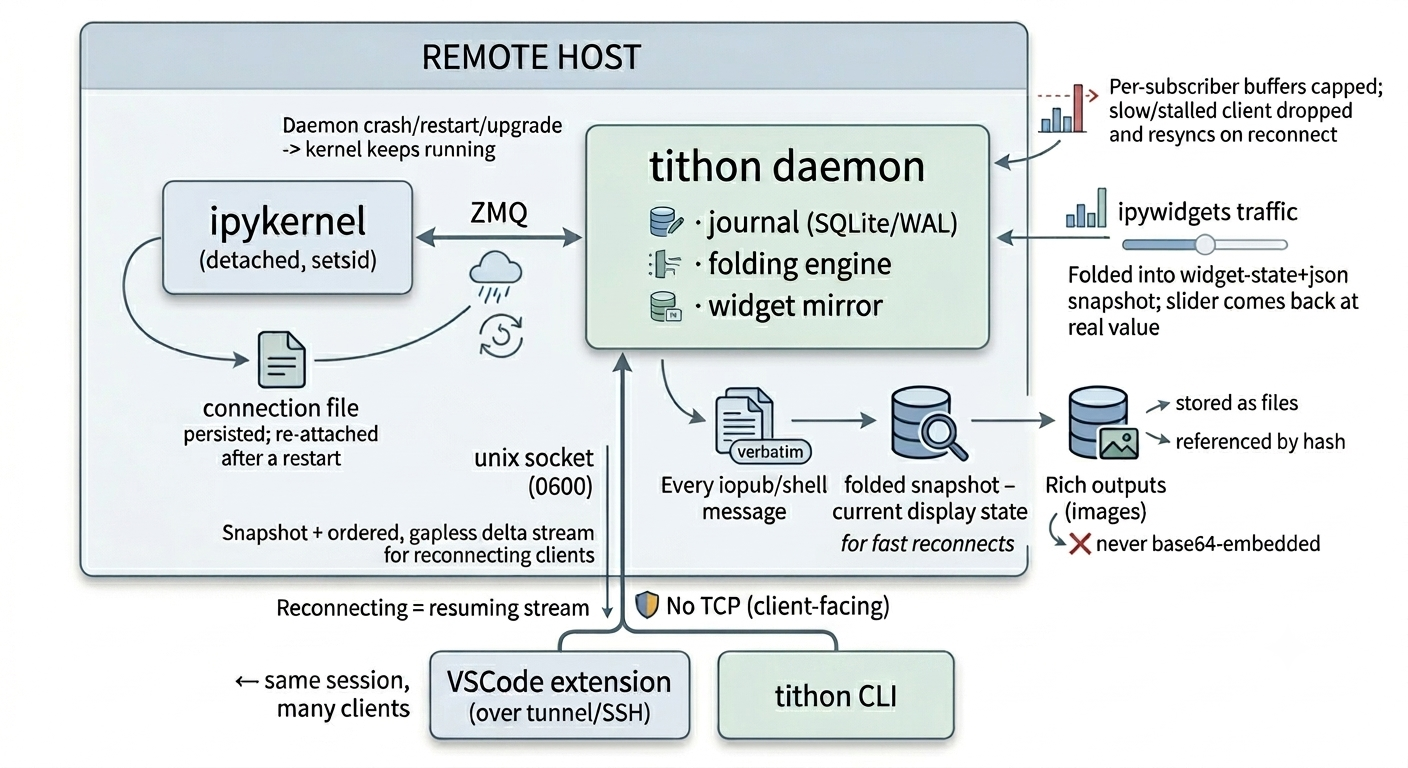
- The kernel runs detached (
setsid), so it is not a child of the daemon.
The daemon can crash, restart, or be upgraded; the kernel keeps running and
re-attaches through a persisted connection file.
- Every iopub/shell message is journaled verbatim to append-only SQLite
(WAL), alongside a per-execution folded snapshot — the current display
state — so reconnects are fast.
- The extension attaches with the last sequence number it saw and gets a
snapshot plus an ordered, gapless delta stream; reconnecting is just resuming
the stream.
- Rich outputs (images) are stored as files and referenced by hash, never
base64-embedded, and
ipywidgets traffic is folded into a widget-state+json
snapshot, so a tqdm bar or a slider comes back at its real value.
- Backpressure is bounded: per-subscriber buffers are capped, and a client that
falls too far behind is dropped and resyncs on reconnect — so one slow client
can't grow daemon memory or block the others.
- The daemon binds a
0600 unix domain socket. No TCP.
The kernel itself is plain ipykernel — Tithon replaces the session-management
layer around it, not the execution engine.
How it pairs with the daemon
The extension and the daemon must run on the same host and share
TITHON_HOME (both default to ~/.tithon for the same user). A
Tunnel/Remote-SSH session satisfies this for free: the extension host runs on
the host, so it uses the host-local socket and needs no forwarding. If you
instead run the extension on your laptop against a remote daemon, you must
forward the unix socket yourself (SSH RemoteForward, socat, …) — that is not
the default path.
The daemon also ships a CLI (tithon run, tithon attach, tithon status) for
driving the same sessions from a terminal. See the main project README
and the design spec for the full architecture.
License
MIT.

