BMAD Viewer VS Code Extension
Open the BMAD dashboard inside VS Code, backed by the same local BMAD workspace and sync capabilities that power the standalone viewer.
Screenshots
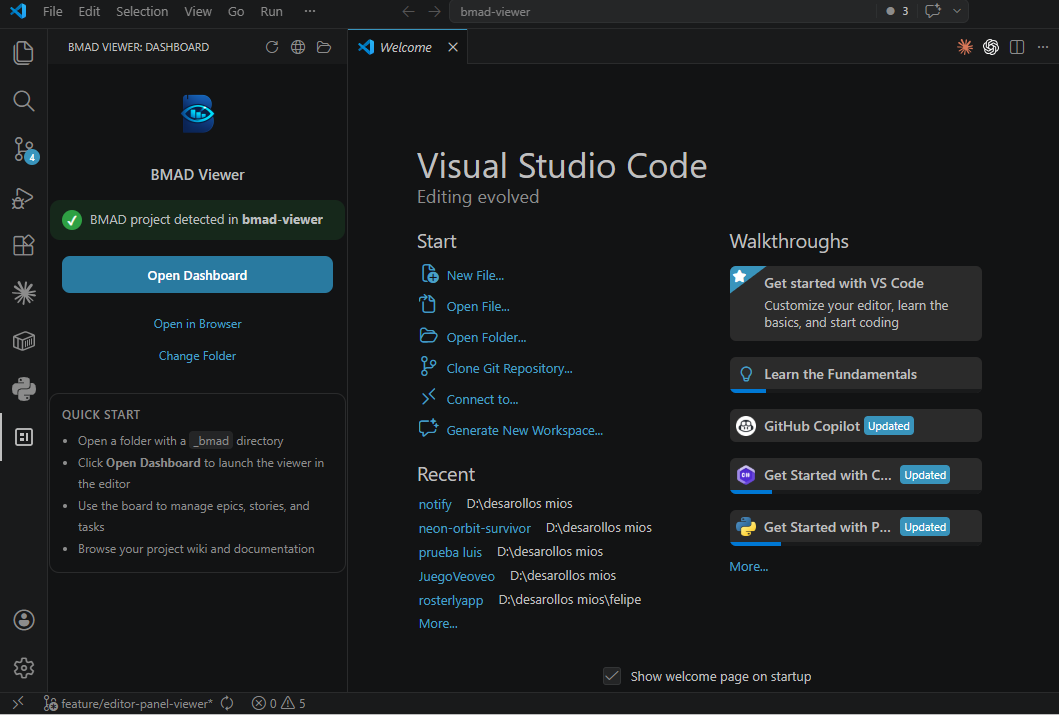
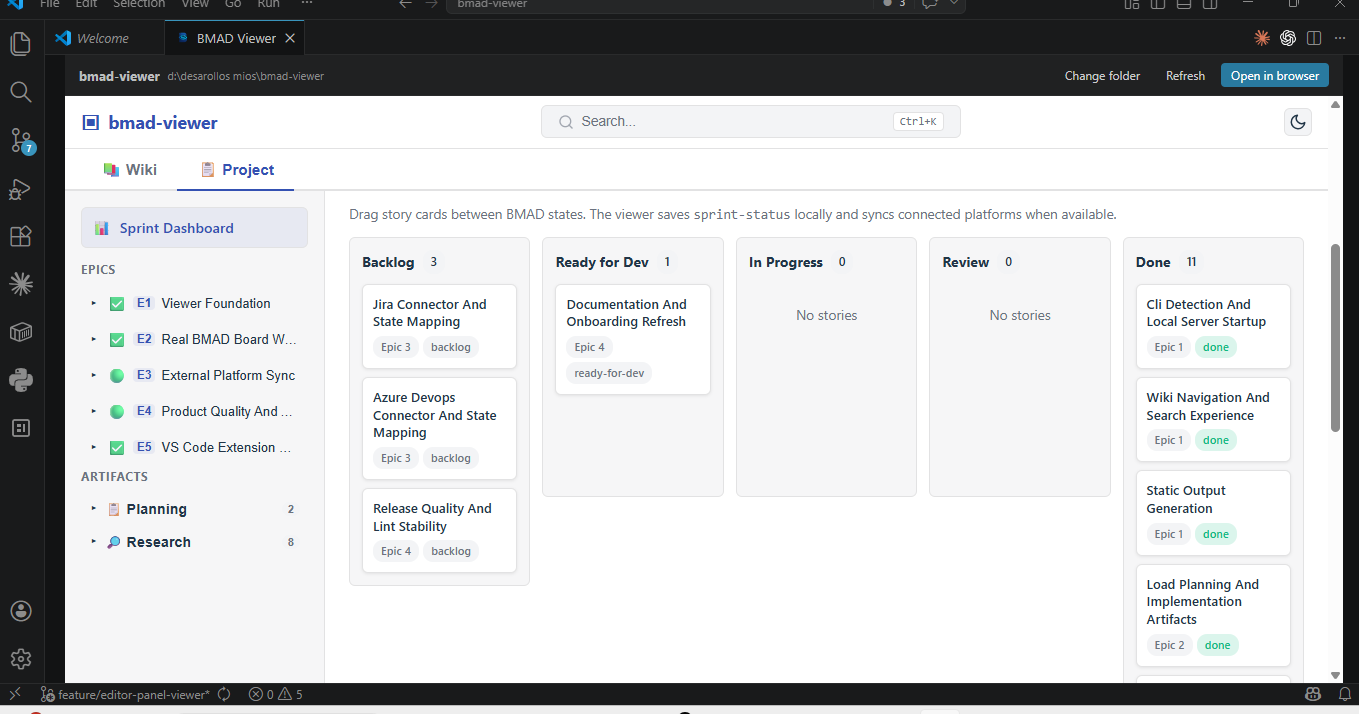
Full dashboard in the editor panel
Features
- Activity Bar integration — Dedicated BMAD Viewer icon in the VS Code sidebar for quick access.
- Automatic project detection — Detects
_bmad/ folders in your workspace automatically.
- Full editor dashboard — Opens the complete BMAD Viewer in the main editor area, not cramped in a small panel.
- Kanban board — Drag-and-drop board with Backlog, Ready for Dev, In Progress, Done, and Blocked columns.
- Epic and story management — Browse and manage epics, stories, and tasks directly from VS Code.
- Project wiki — Access your project documentation, product briefs, and technical specs without leaving the editor.
- Sprint dashboard — View sprint progress, status, and planning at a glance.
- Search — Full-text search across your BMAD project (Ctrl+K).
- Quick start guide — Built-in sidebar guide to get started in seconds.
- Open in browser — Launch the dashboard in your default browser for a wider view.
- Multi-folder workspaces — Switch between multiple BMAD projects in multi-root workspaces.
- Configurable port — Set your preferred localhost port for the embedded server.
- Auto-open on startup — Optionally open the dashboard automatically when VS Code starts.
- Light and dark theme support — Adapts to your VS Code theme.
- Platform sync — Sync stories and tasks with GitHub Issues (Jira and Azure DevOps coming soon).
Getting started
- Install the extension from the VS Code Marketplace.
- Open a folder that contains a
_bmad/ directory.
- Click the BMAD Viewer icon in the Activity Bar.
- Click Open Dashboard to launch the full viewer in the editor.
Extension settings
| Setting |
Default |
Description |
bmadViewer.openOnStartup |
false |
Open the dashboard automatically when VS Code starts with a workspace |
bmadViewer.preferredPort |
4100 |
Preferred localhost port for the embedded server |
Commands
| Command |
Description |
BMAD Viewer: Open Dashboard |
Open the full dashboard in the editor panel |
BMAD Viewer: Refresh |
Refresh the dashboard and sidebar |
BMAD Viewer: Open In Browser |
Open the dashboard in your default browser |
BMAD Viewer: Select Workspace Folder |
Choose which workspace folder to use |
Local development
cd apps/vscode-extension
npm install
npm run check
npm run package:vsix
Install locally with:
code --install-extension bmad-viewer-vscode-*.vsix
CI/CD
The GitHub Actions workflow at .github/workflows/vscode-extension.yml:
- Packages the extension on pull requests and pushes to
master
- Uploads the generated
.vsix as a workflow artifact
- On merge to
master: auto-bumps the patch version, publishes to the Marketplace, commits the version bump, and creates a git tag
| |

