
CodeStudy
Code review and code understanding for VS Code, with AI on top.
Review commits and branches. Study any method in a notebook of questions: chat, math, pseudocode, diagrams. Step through worked examples like a debugger. Plot what the code does


While the world races toward more vibe coding and hands-off automation, CodeStudy takes the other road: it helps
you grasp the code in front of you and review it the old-school way. Review it, study it in depth, and let AI be
your assistant again, rather than an autopilot.
It's a thin layer over your own AI (Claude Code, or a local model in LM Studio): CodeStudy asks the questions
well and shows the answers well; the AI does the thinking. See Who does what.
Contents
Who does what
| Claude (or your local model) |
CodeStudy |
| reads your code, history and diffs, with read-only tools |
finds the method or class you mean, and writes a focused prompt for the kind of answer you picked |
| writes the answer's content: text, formulas, diagram source, findings |
asks for the answer as typed blocks, checks them, and keeps any answer that isn't in that form as text |
| writes review comments and summaries through CodeStudy's tools |
turns file:line references into links that open the right file, and drops ones that don't exist |
| writes a JavaScript copy of a method for Playgrounds and Plots |
renders everything (Markdown, KaTeX formulas, Mermaid diagrams), and runs those copies sealed off |
|
stores reviews in git refs and study sessions as Markdown files |
CodeStudy has no server and no AI of its own. It runs your own Claude Code, or talks to LM Studio on your machine.
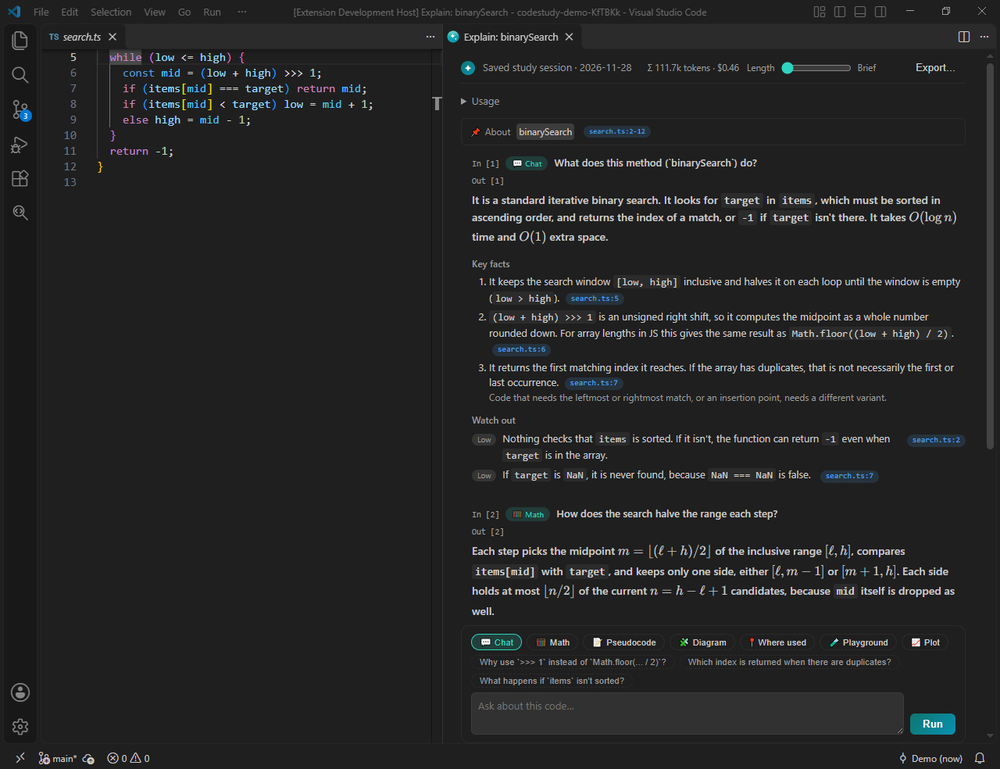
Explain with Claude
Right-click in any file, or in a review diff.
| Command |
Explains |
| 💡 Explain with Claude |
your selection; with no selection, the method around the cursor, else the class |
| 🔧 Explain This Method / 🏛 This Class |
the whole method or class around the cursor |
| 📏 Explain This Line |
just one line |
The code being explained is found and highlighted for you, using the language's symbols, or matching braces
where there's no language support (e.g. C++ inside a review diff). It's pinned to the notebook that opens: every
question you ask next is about that code.
The first answer is a short 💬 Chat cell: the gist in one line, then a few points, each linked to its line of
code. From there you ask for what you want to see, as the next cell.
The notebook
Every AI answer opens as a notebook beside your code, like Mathematica's: In [1] your question, Out [1] the
answer, then the next question below it.
| Cell type |
Answers with |
| 💬 Chat |
a one-line answer and a few points, each linked to the code |
| 🧮 Math |
the formulas in LaTeX, with a table mapping every symbol to the code's variable |
| 📝 Pseudocode |
the logic in plain IF / FOR EACH / RETURN steps, keeping the code's own names |
| 🧩 Diagram |
a Mermaid diagram of how the classes interact (not a flowchart of the algorithm) |
| 📍 Where used |
every call site as a link, with why it's called there |
| 🧪 Playground |
worked examples you can load, tweak and step through like a debugger (see below) |
| 📈 Plot |
suggested plots of what the code computes (see below) |
- Pick a type, then ask. Click a type under the input box, or start your question with
/math, /diagram…
Enter runs it.
- Proposals: each answer suggests the next questions worth asking, per type ("How is the midpoint computed?" for
Math, "Who calls binarySearch?" for Where used). Click one to run it; Alt+click to edit it first.
- Claude can ask back. When your question is ambiguous, the answer is a question with reply buttons; click one
to answer.
- One conversation per notebook: Claude remembers your earlier questions and its own answers, so "and why two?"
works. Each follow-up sends your question word for word, plus a short note on the kind of answer you picked.
- See what was sent: every cell has a folded Sent to Claude with exactly what went to Claude.
- Fold or delete any cell from its top-right corner.
🧪 Examples & Playground
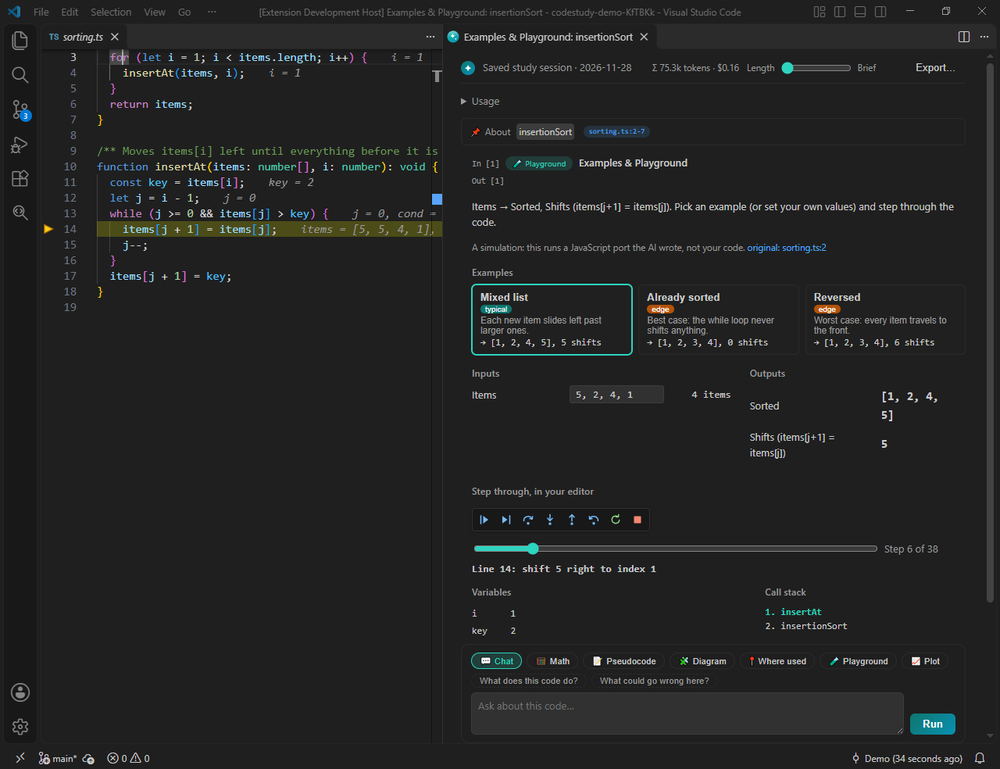
Ask a 🧪 Playground cell in a notebook, or right-click a method → Examples & Playground with Claude.
- Worked examples as cards: typical, edge and failure cases, each with what it shows and the expected result.
Click one to load it.
- Controls for the method's inputs (sliders, checkboxes, dropdowns) with realistic ranges from the code. Set
your own values any time; the outputs update instantly.
- Step through it in your editor, like a debugger: Continue, Run to Cursor, Step Over, Step Back, Restart and
Stop, as icons like VS Code's debug toolbar (F5, F10…), or the step slider. Your real source file shows the
current line highlighted with an arrow, and the values each executed line set (
d = 4000) as faint text
after it. The Playground shows what the step did and the variables (those that just changed highlighted). A call
is one step. Stop clears the editor.
If the file was renamed or changed since, stepping happens in a read-only copy of the code as it was explained.
- Honest about itself: it runs a JavaScript copy Claude wrote, shows that copy, links to the original, and lists
what it simplified. Engine calls it can't copy become inputs with sensible defaults.
- True to your language: the copy behaves like the original C++, C#, Java, Python, Rust, Go, shader code…, not
like JavaScript: integer division, overflow, 32-bit floats, values copied or shared.
- Sealed off: the copy runs in a worker with no access to VS Code, your files or the network, and is stopped if
a run takes more than a second.
- Lives in the notebook: it's a cell, folds away like the others, and stays live while you ask more questions
below it. A saved study session brings it back working, without asking the AI again. The same goes for the Plotter.
- Ask for a particular one: a Playground cell with your own request ("with negative numbers") builds a
Playground around it.
📈 Plot
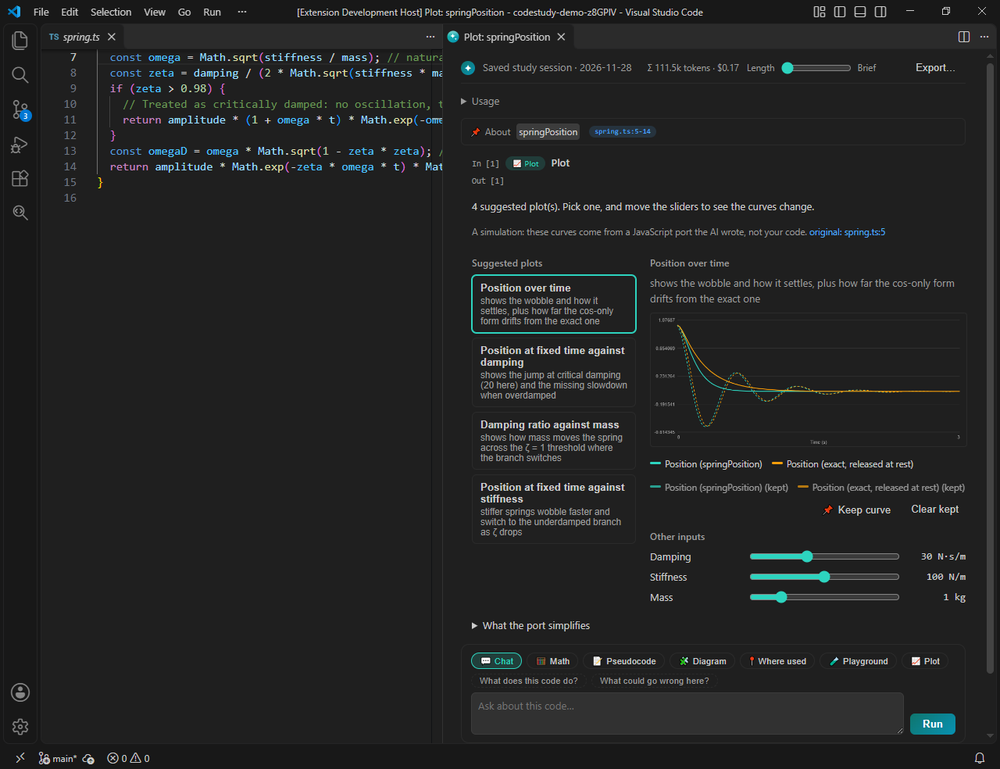
Right-click a method → Plot with Claude, or ask a 📈 Plot cell in a notebook. Claude suggests what's worth
plotting: "grip against slip angle, per surface", "force against load". Nothing is drawn until you pick a
suggestion:
- Several curves, including one per option of a setting (e.g. per surface, with and without boost).
- Sliders for the inputs the plot doesn't sweep.
- Hover for a crosshair with each curve's value.
- 📌 Keep curve to compare before and after moving a slider.
It uses the same sealed-off JavaScript copy as the Playground.
💬 Ask anything
Start a study session from your own question: 💬 Ask Claude… in the right-click menu, the CodeStudy side bar's
title bar, or the command palette. Type anything about the repository ("How does a saved car get loaded back?").
Code you have selected goes with the question.
It opens a notebook whose first cell is a 💬 Chat answer. Carry on with any cell type: they work on the code you
selected, or, with nothing selected, on the method or class the first answer was about (it's pinned for you). It's
saved under 📚 Study sessions.
Code reviews
A review is a named set of changes to go through, stored in your own git repository.
| Review a… |
What it covers |
| Commit |
one commit against its parent |
| Branch |
everything a branch changed since it split from another (e.g. feature/drift against main) |
| File history |
every commit that ever touched one file, following renames |
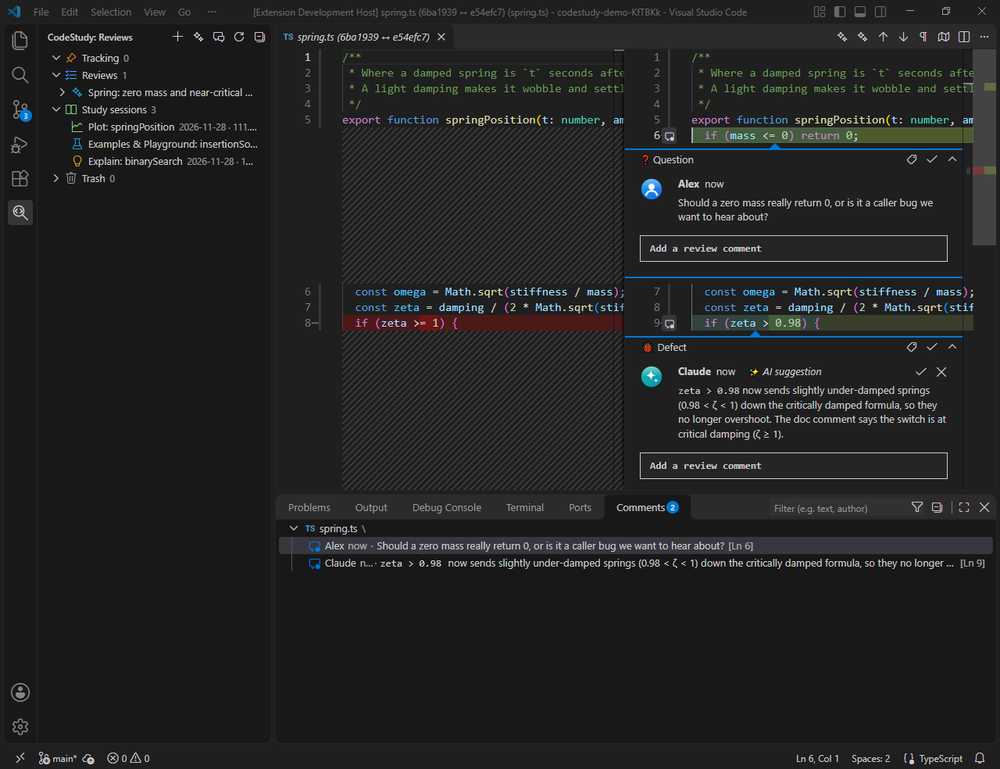
- Side-by-side diffs for every changed file: base on the left, the review's latest version on the right.
- Compare any two revisions inside a review, e.g. what commit 3 of a branch did to one file.
- Diffs are read-only snapshots served straight from git, so they never change under you while you work.
- Line comments on any line or range in a review diff, in markdown.
- Threads with replies, typed as 📝 Note, ❓ Question or 🐞 Defect.
- Resolve and reopen threads; replying to a resolved thread reopens it.
- AI suggestions: comments Claude writes arrive as ✨ suggestions. Accept turns one into a normal comment;
Dismiss hides it but keeps it in the review's history.
- Every change is saved to the review in git immediately.
Click the CodeStudy icon in the activity bar. It works like a mailbox: four folders, always shown with counts.
📌 Tracking          1
📋 Reviews           4
   └─ feature/drift → main     cr-1a2b · 3/10 reviewed · 5 commits
      ├─ Car/Steering.cs       M · 💬 3 · 1 open
      ├─ Car/Tire.cs           M
      ├─ ✓ Reviewed            3
      └─ 💬 Questions & AI reviews  2
📚 Study sessions   12
🗑 Trash             2
- + New Review, ✨ Review with Claude and ⟳ Refresh in the title bar.
- Colour-coded reviews: teal ✨ = AI suggestions waiting, yellow = open threads, green = all resolved.
- ✅ Mark files as reviewed: they move into the review's ✓ Reviewed folder, so the files still to look at stay
on top. The review shows your progress ("3/10 reviewed"). Marks are personal: they don't change anyone else's view.
- 💬 Comment counts on every file, and how many of its threads are still open.
- 💬 Questions & AI reviews: a review's own Claude answers (Review with Claude, Review This File, Ask) are kept
inside that review, ready to reopen. 📚 Study sessions holds the answers about code (Explain, Playground, Plot, Why).
- 📌 Track a review to pin it in Tracking. Tracking is personal too.
- 🗑 Trash reviews and study sessions you're done with. From the Trash: Restore, Delete Permanently
(after a confirmation), or Empty Trash.
- Select several rows with Ctrl/Shift+click to mark, track, trash or restore them together.
Review with Claude
Claude reads the review's diffs, the surrounding code and the history, then:
- Comments only on real issues (bugs, risky changes, unclear code), not style nitpicks.
- Writes the review summary: what changed, the risks, and where a human should look first.
- Big branches: over 40 files, you choose between Claude picking the 15–25 riskiest files or you picking one
file to review in depth.
- Review one file: from a file in the sidebar or from its open diff.
You watch each step live: "Reading diff of car.cs", "Commenting on car.cs:42"… The summary opens as a notebook, so
you can ask Claude about its findings next, and it can ask you back.
Why is this line like this?
Right-click a line. Claude follows blame and the commit history (past commits that only moved or reformatted the
line) and reads the review discussions that covered those commits. You get a short answer, the relevant history, and
any related review discussion.
Blame
Right-click → Blame This Line: the commit, author, date and message, and which CodeStudy review covered that
commit, if any. Blame follows code moved between files. One click to Ask Claude Why or Copy Commit.
Ask about a review
Right-click a review → Ask Claude about This Review and ask anything: "Which of these changes could break save
games?", "What did commit 3 do?"
More in the notebook
- Live steps while the AI works, and a Stop button.
- Typed answers, drawn by CodeStudy: one-line answers, points, steps, formulas with symbol tables, diagrams, code,
review findings by severity, tables and folded details.
- Code references as chips: each opens the file at that line, even when the AI gave only the file name or part of
the path. References to files that don't exist are dropped.
- Block tools: hover a diagram for ⤢ close-up, ⬇ save as SVG, ⧉ copy the source; a formula for ⤢ close-up,
⧉ copy LaTeX; code for ⧉ copy. The close-up is full screen: zoom with the mouse wheel, drag to pan.
- Length slider: Brief (the default), Short, Normal or Detailed, for every following answer.
- Σ Token usage: tokens and equivalent API cost for each cell and in total.
- Export: save the notebook as Markdown (renders on GitHub), a web page with the diagrams drawn, or
SVG diagram files.
- Your colours: pick the accent colour (teal by default, or blue, green, orange, pink, purple, or your theme's).
📚 Study sessions
Every notebook is saved as a readable Markdown file and listed under 📚 Study sessions until you delete it. Click
one to reopen it (every cell, diagrams, token usage, working Playgrounds and Plotters) without running the AI again,
and keep asking. Sessions saved by older versions open as notebooks too. Rename it, or move it to the Trash. Sessions live in the repository (.codestudy/sessions/, to commit
and share, or to add to .gitignore) or in private VS Code storage, your choice.
AI: Claude Code or a local model
- Claude Code: your own Claude Code, under your own Claude account. Menus say "…with Claude".
- LM Studio: a model running on your own computer: free, private, offline. CodeStudy runs the tool loop for it,
giving it the same review tools and read-only access to your repository. Menus say "…with AI". Answers depend on
the model; pick one that supports tool use.
Use it from your own Claude chat (MCP)
CodeStudy includes an MCP server, so any Claude Code session (or Claude Desktop) can work with your reviews directly:
list reviews, read diffs, files at any revision, blame and commits, add comments, write summaries.
claude mcp add codestudy -- node /path/to/codestudy/packages/mcp/dist/cli.js --repo .
Then ask: "Review CodeStudy review cr-1a2b3c4d". Comments made this way show up in VS Code like any others.
Sharing reviews with your team
Reviews are stored as git refs (refs/codestudy/reviews/*) inside your repository, so they travel with your code:
git push origin "refs/codestudy/reviews/*:refs/codestudy/reviews/*"
git fetch origin "+refs/codestudy/reviews/*:refs/codestudy/reviews/*"
Each review keeps its own edit history. No server, no account, no database.
Settings
| Setting |
What it does |
| AI Provider |
Claude Code, or LM Studio for a local model. Menu names follow it |
| Response Length |
Brief (default) / Short / Normal / Detailed; also the panel's slider |
| Claude Path / Model |
where the claude program is, and the model for CodeStudy's runs |
| LM Studio URL / Model |
where LM Studio's server runs, and which loaded model to use |
| Accent Colour |
the colour of the notebook, Playground and Plotter |
| Study sessions › Location |
in the repository, or private to you |
Privacy and safety
- Your own AI: CodeStudy runs your own Claude Code under your own account, or a local model. CodeStudy has no
server and sends nothing anywhere itself.
- Read-only AI: the AI can read your code and history and write review comments, but it can't edit files, run
commands or browse the web.
- AI comments are suggestions until you accept them.
- AI-written code runs sealed off: Playground and Plot copies run in a worker with no access to VS Code, files or
the network, with a time limit.
Requirements and install
Install from the Visual Studio Marketplace: in VS Code, open the Extensions view (Ctrl+Shift+X), search for
CodeStudy, and click Install. Or open its
Marketplace page.
Each version is also on the Releases page, with its notes and the codestudy.vsix file to
download (see Other ways to install below).
Then open a project in VS Code and click the CodeStudy icon in the activity bar. CodeStudy works in projects that
are git repositories (it keeps reviews in git, and reads blame and history from it).
- VS Code 1.95 or newer
- For the AI features, either:
- Claude Code, installed and signed in (
claude, then /login), or
- LM Studio with its server started and a model loaded (ideally one that supports tool use)
Other ways to install
From a release file: download codestudy.vsix from the latest release, then in the
Extensions view click ⋯ at the top and choose Install from VSIX…, or run:
code --install-extension codestudy.vsix
From source: clone this repository, then:
npm install
npm run build
npm run package -w codestudy
code --install-extension packages/vscode/codestudy.vsix
More: the user guide covers every command, setting and troubleshooting step; the
architecture notes are for contributors.
License
Free for everyone, for personal and commercial use, under the MIT License. Every feature is
included; there's nothing to buy, no licence key, and nothing locked.
| |

