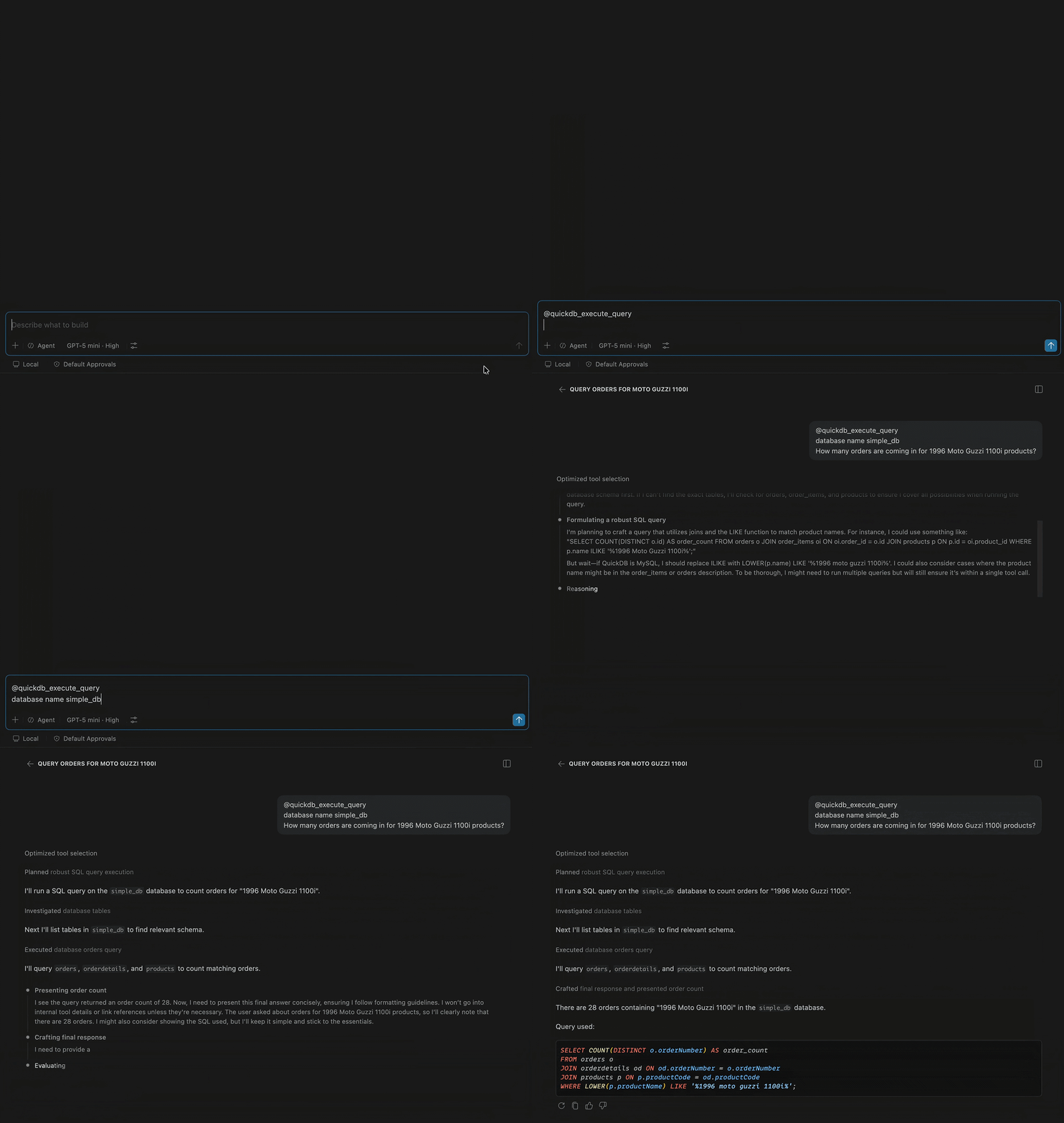
🎬 See It in Action
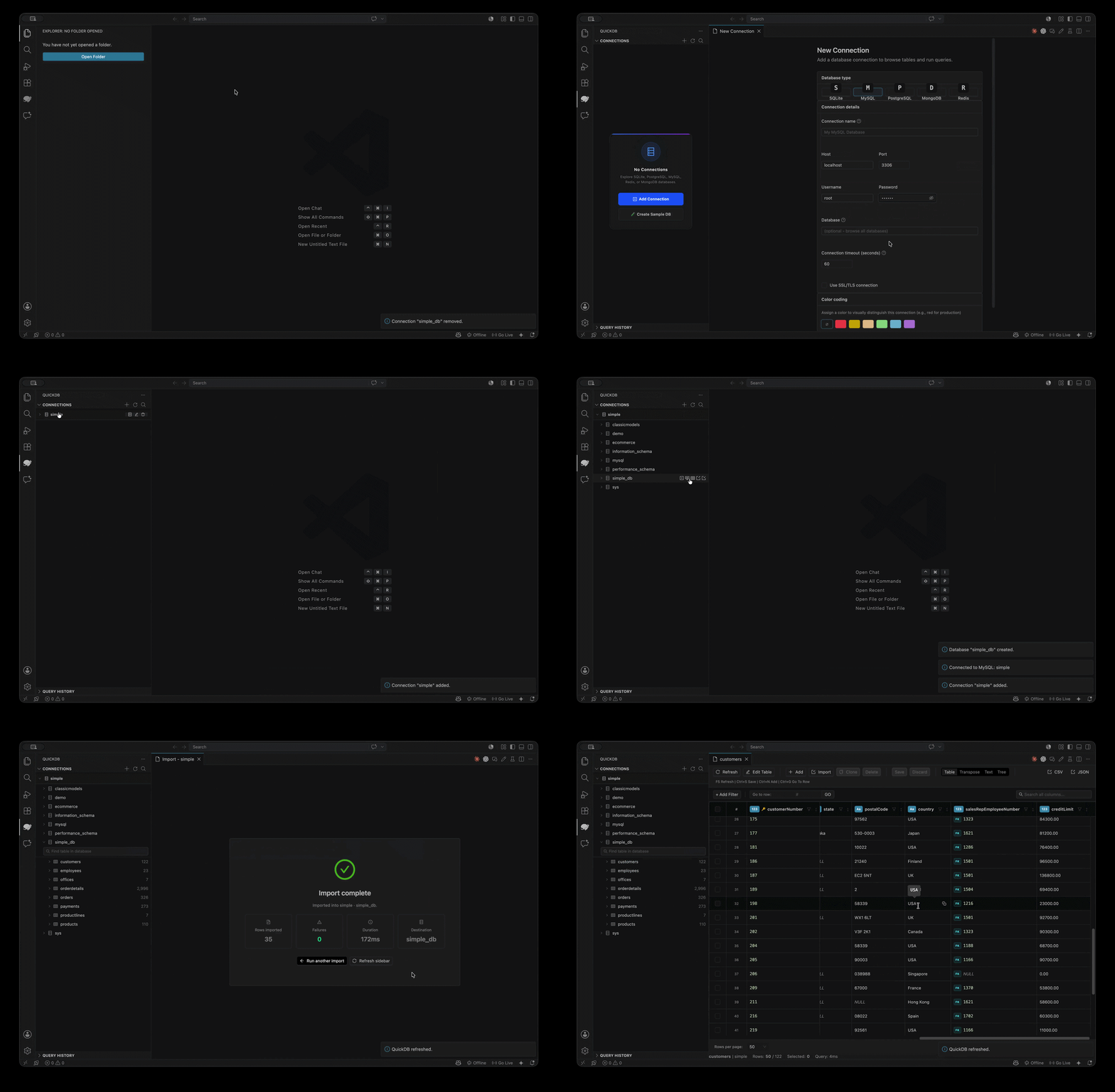
Database Management & Imports
Connect to your servers and import data seamlessly.
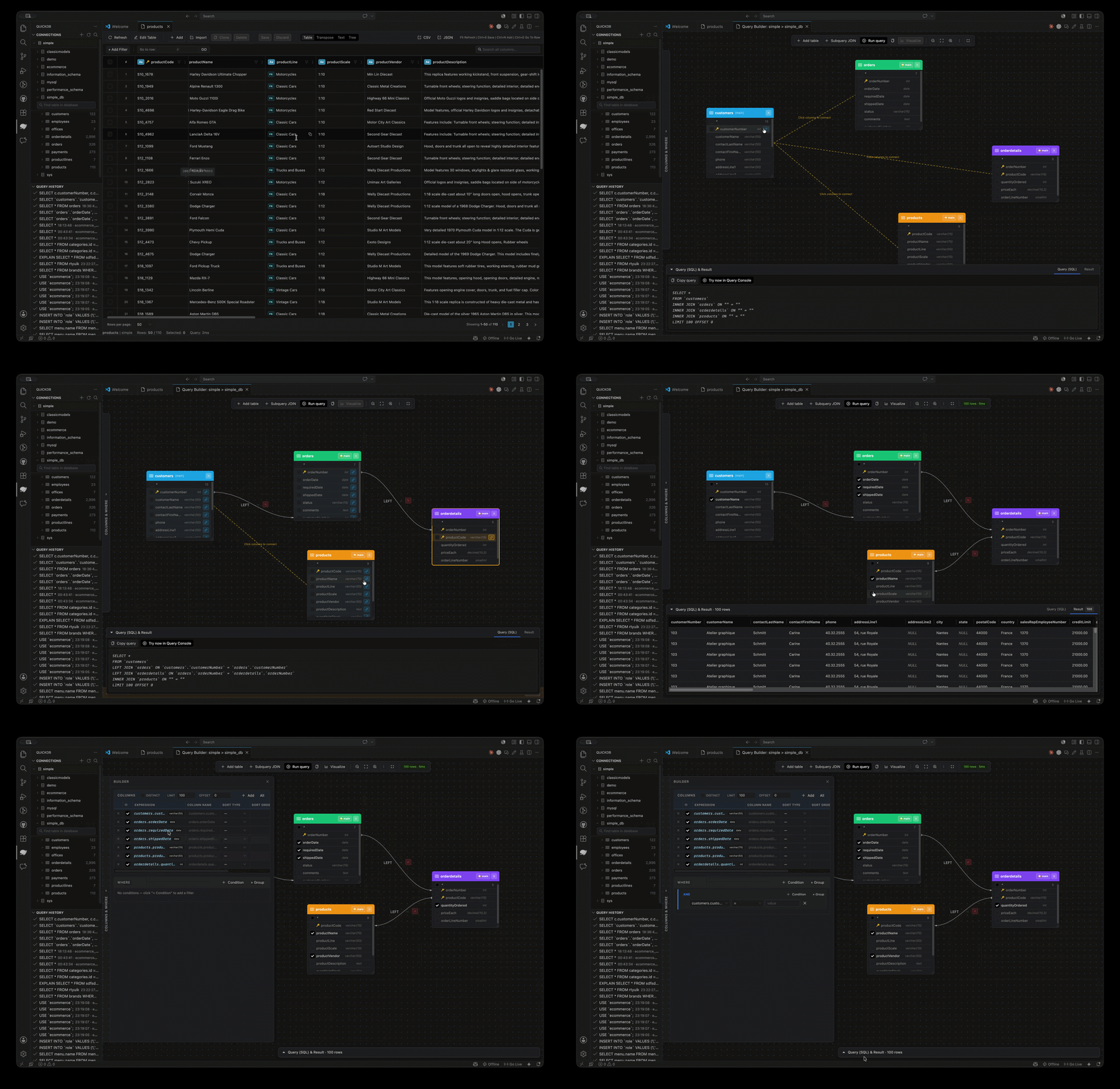
Visual Query Builder
Build complex SQL queries visually — no code required.
Query Console
Autocomplete, live linting, and instant results at scale.
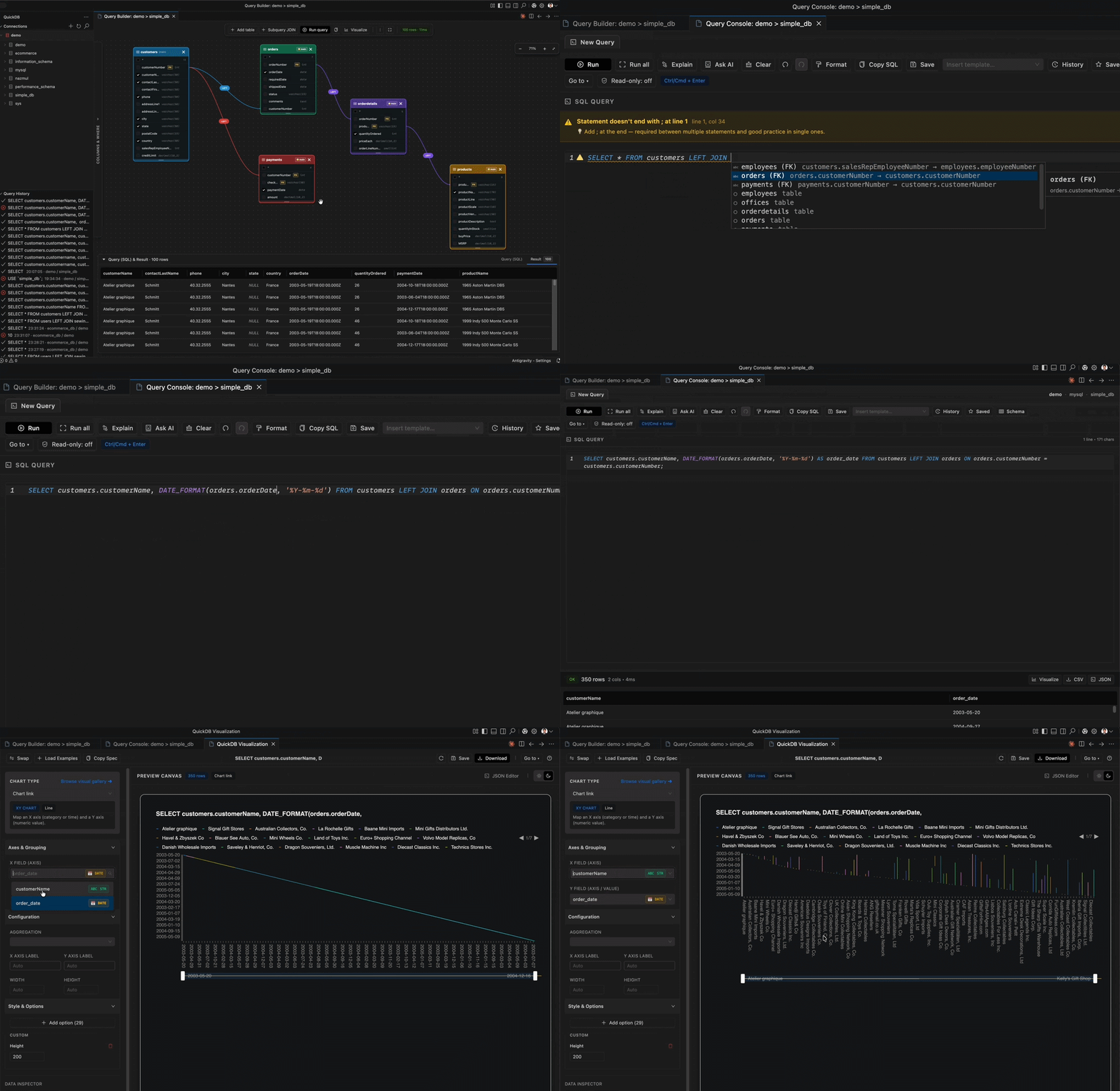
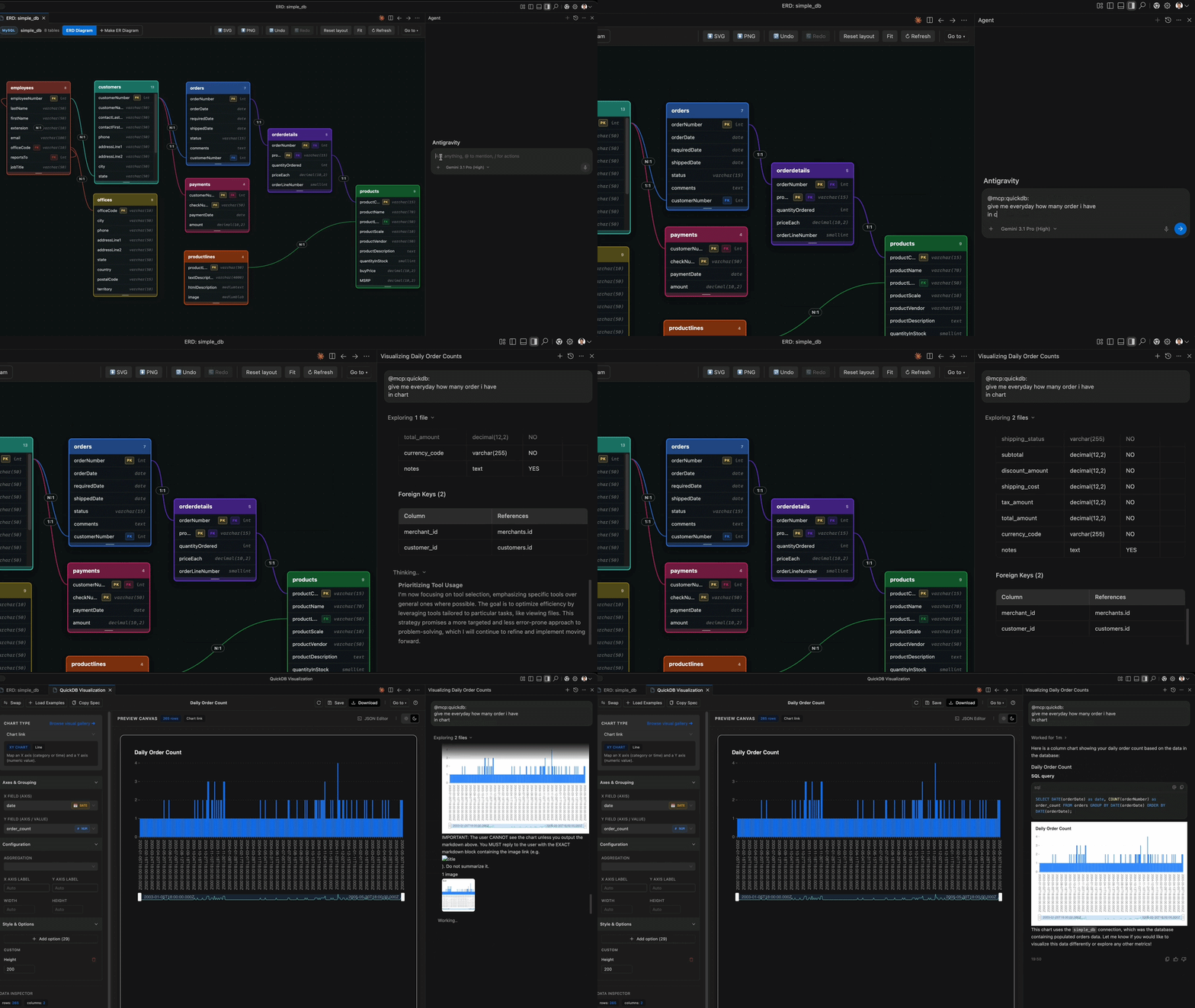
AI-Generated Charts via MCP
Ask an AI assistant to visualize data — QuickDB's MCP server renders the chart.
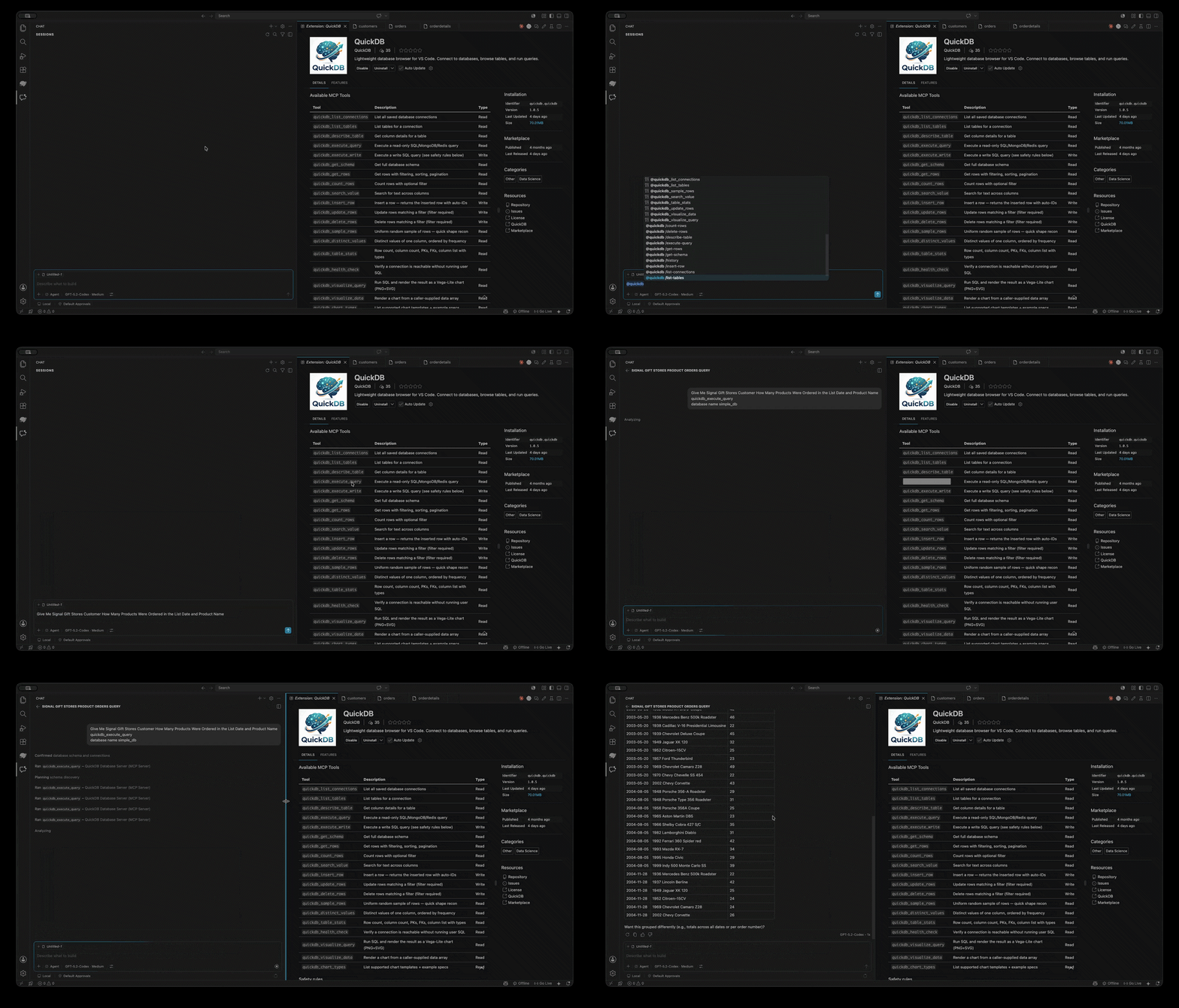
MCP Setup Panel
Pick clients and connections, then auto-configure Cursor, Claude Desktop, Windsurf, and 7 more.
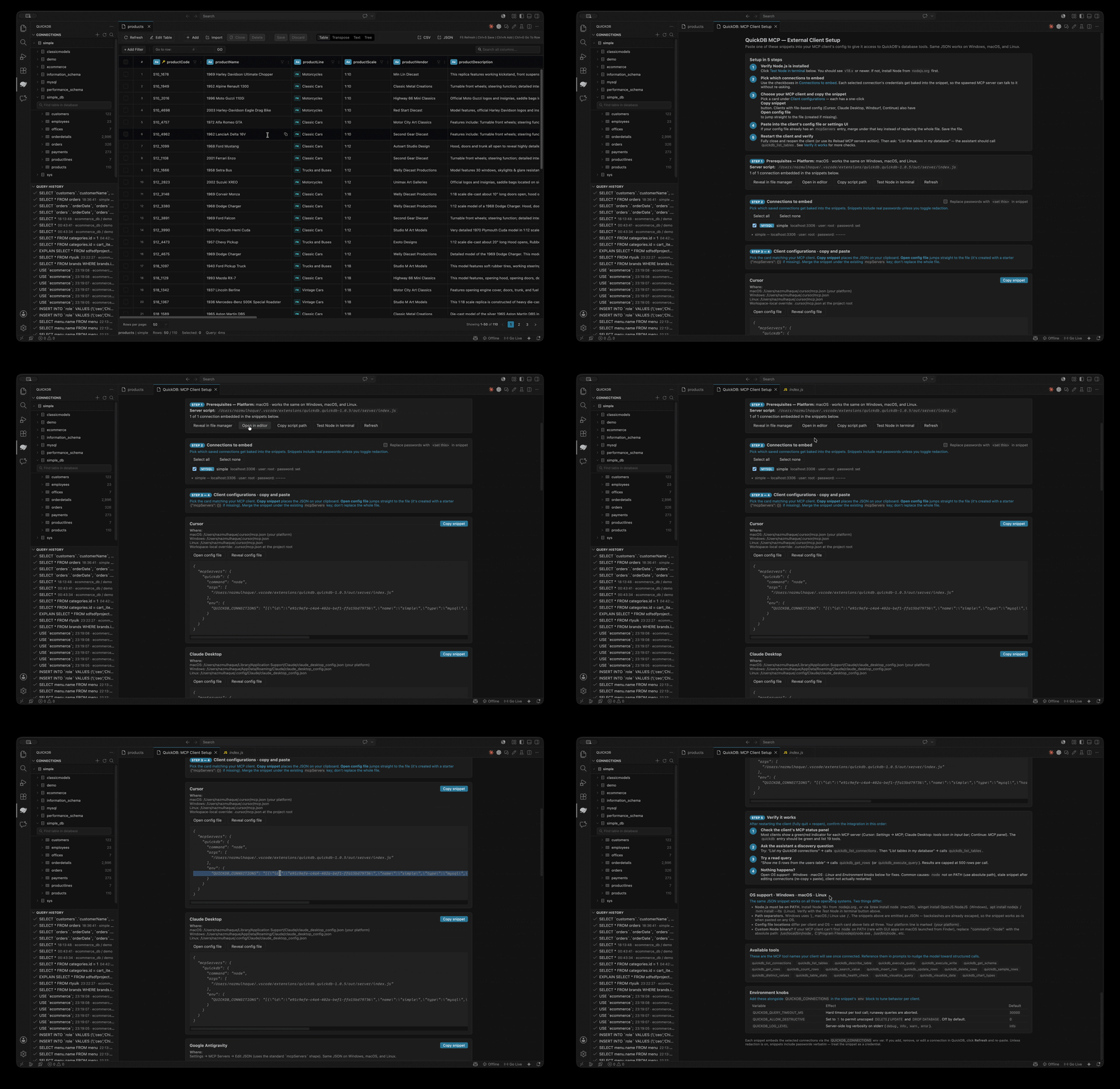
Connect External AI Clients
Paste the generated config once and restart your client — QuickDB tools appear immediately.
🚀 Why QuickDB?
QuickDB turns your editor — or a dedicated desktop window — into a powerhouse database tool. Whether you're inspecting data, visualizing relationships, or letting AI write your queries, QuickDB gives you a seamless, context-rich experience.
- Universal database support — one interface for 85 engines (PostgreSQL, MySQL, SQLite, MongoDB, Redis, ClickHouse, Snowflake, and 78 more) across 16 families and 59 driver families.
- AI-ready MCP server — expose your schema and data to AI agents (Cursor, Claude Desktop, Claude Code, Antigravity, VS Code, Windsurf, Continue, Cline, Roo Code, Kiro — 10 clients) as 67 tools.
- IDE-grade Query Console — autocomplete, live linting, go-to-definition, cancel, transactions, multi-tab, history and saved queries.
- Visual Query Builder — construct joins and aggregations without SQL. The SQL it runs is written for the connection's dialect (quoting, and LIMIT / OFFSET … FETCH paging for SQL Server, Oracle and Db2); values follow the column's type (numbers stay numbers,
NULL is NULL, =NOW() passes an expression through), and INSERT / UPDATE / DELETE ask for confirmation first — with an explicit warning when there's no WHERE.
- Table Manager & data grid — create/modify schema and edit rows inline. The table designer knows each database's types: pick one and see its storage, value range (signed / unsigned), date range and capacity, with length, precision, scale and fractional-second inputs bounded by what that database accepts (VARCHAR(70000) on MySQL or a TINYINT default of 300 is flagged before anything runs). Per column: primary key (composite too), NOT NULL, unique, auto-increment / identity with start and step, unsigned / zerofill, enum values, defaults with per-database presets, generated (computed) columns, character set / collation and comments. Indexes with method (btree, hash, gin, gist, brin · FULLTEXT / SPATIAL · clustered), column order, ASC / DESC and partial WHERE; foreign keys with composite columns, a referenced-column picker and the ON DELETE / UPDATE actions the database allows; named CHECK constraints; table options (MySQL engine, charset, row format, AUTO_INCREMENT; PostgreSQL UNLOGGED; SQLite STRICT / WITHOUT ROWID; ClickHouse engine, ORDER BY, PARTITION BY, TTL; comments everywhere). Editing an existing table runs only what changed — renames follow into indexes, keys, checks and predicates, data-loss risks are listed before you apply, and SQLite changes it can't make in place use a safe table rebuild (rows, indexes, triggers and dependent views preserved, rolled back on any error). The SQL preview is exactly what runs.
- Data visualization — 255 chart styles from any query result.
- Dashboards — compose live chart / table / KPI-card widgets on a grid.
- AI assistants — NL→SQL, explain, optimize, fix, advisor, data quality.
- Two products, one codebase — the same features in the VS Code extension and the standalone desktop app (coming soon).
📦 Install
VS Code Extension
- Open the Extensions view (
Ctrl/Cmd+Shift+X).
- Search for QuickDB → Install.
- Click the QuickDB icon in the Activity Bar.
Desktop App (Windows · macOS · Linux) — Coming Soon 🚀
The standalone desktop client is currently in active development. Binaries will be available for download soon:
- Windows:
.exe installer (coming soon)
- macOS:
.dmg package (coming soon)
- Linux:
.AppImage / .deb (coming soon)
🏁 Quick Start
- Open QuickDB — click the icon in the Activity Bar (extension) or launch the app (desktop).
- Add a connection — click
+ in the sidebar (or run QuickDB: Add Connection). Pick your engine from the 85-engine grid, fill in the fields (or paste a postgres://, mysql://, mongodb://, redis:// URL), click Test connection, then Create.
- Browse — expand the connection in the sidebar to see databases and tables; click a table to open the data grid.
- Query — hover a connection and click New Query (or right-click → New SQL Query). Write SQL with autocomplete, press Ctrl/Cmd+Enter to run.
- Go further — visualize a result, build a dashboard, or connect an AI agent via Setup MCP for AI Clients.
🗄️ Supported Databases
QuickDB supports 85+ engines across 16 families:
| Family |
Supported Database Engines |
| MySQL family |
MySQL · MariaDB · TiDB · SingleStore · StarRocks · Apache Doris |
| PostgreSQL family |
PostgreSQL · CockroachDB · Timescale · Amazon Redshift · Greenplum · QuestDB · RisingWave · YugabyteDB · KingbaseES · Netezza · PGlite |
| SQL Server family |
SQL Server · Azure SQL · Azure Synapse · SAP ASE (Sybase) · Microsoft Fabric |
| SQLite family |
SQLite · libSQL (Turso) · Cloudflare D1 |
| Other Relational |
Oracle · IBM DB2 · IBM i · SAP HANA · Teradata · InterSystems IRIS · Vertica · Firebird · Dameng · Exasol · H2 · Apache Derby · Microsoft Access |
| Analytics / Warehouse |
ClickHouse · DuckDB · MotherDuck · DuckLake · Snowflake · BigQuery · Databricks · Trino · Amazon Athena · Apache Druid · Apache Pinot · Apache Hive · Apache Impala |
| Document |
MongoDB · CouchDB · Couchbase · RavenDB · Firebase Firestore · Dataverse |
| Key-Value / Cache |
Redis · Memcached · Aerospike · Amazon DynamoDB |
| Wide-Column |
Cassandra · ScyllaDB · Google Spanner |
| Graph |
Neo4j · Memgraph · TypeDB |
| Search |
Elasticsearch · OpenSearch |
| Time-Series |
InfluxDB |
| Multi-Model |
SurrealDB |
| Vector |
Qdrant · Milvus · Pinecone · Weaviate · ChromaDB · LanceDB |
| Streaming |
Apache Kafka · RabbitMQ |
| Files & SaaS |
CSV · Excel · Parquet · Avro · Apache Iceberg · Salesforce |
Editing data in non-SQL engines and files
The table viewer, the sidebar's create / rename / empty / drop actions, imports, table transfers and the MCP row tools (quickdb_get_rows, insert_row, update_rows, delete_rows, count_rows, …) work on these engines through each one's own operations, not SQL:
| Engine |
A "table" is |
A row is |
Create · Read · Update · Delete |
| Redis |
a key |
depends on the key's type — string {key, value, ttl}, hash {field, value}, list {index, value}, set {member}, sorted set {member, score}, stream {_id, …fields} |
SET/HSET/RPUSH/SADD/ZADD/XADD · native reads (SCAN, never KEYS *) · edits keep the key's TTL, rename fields/members safely · HDEL/LREM/SREM/ZREM/XDEL/DEL. List and rename edits run as Lua scripts, so a row that changed since you loaded it is refused instead of overwritten. |
| Elasticsearch / OpenSearch |
an index |
a document keyed by _id |
index a document (empty _id = auto) · search API with _id, paging past 10,000 via scroll · partial update by _id, or _update_by_query for a filter · bulk delete by _id, or _delete_by_query. The table designer creates the index mapping; Add column adds a mapped field. |
| Kafka |
a topic |
a message keyed by partition + offset |
produce (key, value, partition, headers) · consume, newest first across partitions, through a throwaway consumer group that never commits offsets · on compacted topics an edit publishes a newer value for the key; on delete-policy topics records are immutable, so edits are refused with the reason · compacted: tombstones; otherwise DeleteRecords, which can only cut a partition's oldest records. |
| RabbitMQ |
a queue (vhost = database) |
a message keyed by its position |
publish (default exchange, or a named exchange + routing key) · peek (get + requeue) · messages can't be edited in AMQP — refused with what to do instead · delete consumes from the head of the queue, after re-checking the head is what you saw. Quorum queues aren't peeked automatically, because each requeue counts toward their delivery limit. |
| Cassandra / ScyllaDB |
a table |
a row keyed by the full primary key (partition + clustering) |
prepared, typed CQL (uuid, boolean, bigint, collections) · paged reads · INSERT … IF NOT EXISTS / UPDATE … IF EXISTS · DELETE by key. Key columns can't be edited (CQL rule). |
| Neo4j / Memgraph |
a label |
a node keyed by _id (elementId) |
CREATE · properties · SET n += … (clearing a cell removes the property) · DELETE — refused while the node has relationships, so nothing is silently detached |
| CouchDB |
the database's documents |
a document keyed by _id + _rev |
POST · _all_docs · edits are refused if the revision changed since you loaded it · _bulk_docs deletes |
| SurrealDB |
a table |
a record keyed by its record id |
CREATE … CONTENT · UPDATE … MERGE · DELETE · DEFINE TABLE / REMOVE TABLE |
| InfluxDB |
a measurement |
a point keyed by time + tags |
line-protocol writes (field types kept) · an edit rewrites the point (InfluxDB's own upsert) · DELETE … WHERE time = … AND tag = … |
| DynamoDB |
a table |
an item keyed by partition (+ sort) key |
conditional PutItem / UpdateItem / DeleteItem · paged Scan · CreateTable from the designer. DynamoDB Local / LocalStack: put http://localhost:8000 in the host field. |
| Firestore |
a collection |
a document keyed by __id__ |
create · PATCH with an update mask (field types kept) · delete |
| Vector stores |
a collection / class / index |
a point / object / record keyed by id |
Qdrant, Weaviate, ChromaDB, Milvus, Pinecone: insert with a vector (JSON array), edit payload / properties / metadata / vector, delete; new collections from the designer take their size from a vector(N) column. LanceDB: edit and delete (its REST insert needs Arrow batches). |
| CSV / Excel |
the file / each sheet |
a row |
Every change (table viewer, query console, MCP, import, Add column, new / dropped / renamed tables) is saved back to the file. CSV keeps its header text, BOM and line endings. Excel keeps sheet order, blank rows, and the formulas and number formats of rows that didn't move; new tables become new sheets. Before the first save of a session the original workbook is copied to <name>.quickdb-backup.<ext> (once), because cell styles, charts and images can't be preserved. Nothing is written mid-transaction, and a file changed on disk since it was loaded is never overwritten. |
The query console speaks each engine's language: Redis commands; Elasticsearch SQL or Kibana Dev Tools requests (GET /my-index/_search followed by a JSON body); and small command sets for Kafka (SHOW TOPICS, DESCRIBE <topic>, SHOW GROUPS, DESCRIBE GROUP <g> with lag, CONSUME <topic> [n], PRODUCE <topic> [KEY k] <value>, CREATE / ALTER / DROP / TRUNCATE TOPIC, …) and RabbitMQ (SHOW QUEUES / EXCHANGES / BINDINGS, PEEK, CONSUME, PUBLISH, PURGE, CREATE / DROP QUEUE, CREATE / DROP EXCHANGE, BIND, UNBIND, raw GET /api-path). Type HELP in the console for the full list. The MCP read tool only accepts the read commands; everything else goes through the approved write tool.
Data Profile, AI Data Quality, Duplicate Finder, Data Validation, the Aggregation Builder and Database Health work on all engines: SQL engines run one aggregate query; engines without SQL aggregates (MongoDB, Redis, Kafka, RabbitMQ, vector stores, …) — or whose dialect rejects the query — are analyzed from up to 20,000 rows read the engine's own way, and the result says when it came from a sample. The engine-specific tools answer natively instead of "not supported":
| Tool |
MySQL · PostgreSQL · SQL Server |
Also native on |
| Database Health (rows + size) |
✓ |
SQLite / CSV / Excel, MongoDB (collStats), Redis (per-key memory), Elasticsearch, Kafka, RabbitMQ, ClickHouse — any other engine gets row counts |
| Server Monitor (+ kill) |
✓ |
MongoDB (serverStatus, currentOp → killOp), Redis (INFO, CLIENT LIST → CLIENT KILL), Elasticsearch (cluster health, tasks → cancel), Kafka (brokers, consumer groups), RabbitMQ (overview, connections → close), ClickHouse (system.processes → KILL QUERY), SQLite (file stats) |
| Users & Privileges |
✓ |
MongoDB (usersInfo + privileges), Redis ACLs, RabbitMQ users + vhost permissions, Elasticsearch security users, Kafka ACLs, ClickHouse |
| Index Analysis |
✓ |
SQLite, MongoDB, Redis (RediSearch), ClickHouse (primary key + skip indexes) |
| Query Profiler |
PostgreSQL / MySQL |
MongoDB (explain of find / aggregate / count / distinct, with executionStats), Elasticsearch (profile API for _search, SQL → DSL translation), DuckDB, plus the existing SQLite / ClickHouse / Trino / Druid / Pinot / Vertica plans |
| Slow queries · Locks (MCP) |
✓ |
Redis SLOWLOG, MongoDB system.profile + lock waits, ClickHouse query_log |
Query plans also cover Oracle (EXPLAIN PLAN tree, or actual rows / timings with ALLSTATS LAST), SQL Server (estimated SHOWPLAN_XML or actual STATISTICS XML plan tree) and Snowflake (EXPLAIN USING TABULAR).
On engines without SQL, the SQL-shaped tools still work: the Query Builder runs its SELECT over a snapshot of the tables involved (joins, filters, grouping, sorting) and sends simple INSERT / UPDATE / DELETE to the engine's own write API; the Migration Generator writes each engine's own setup script (MongoDB create / createIndexes, Elasticsearch PUT /index mappings, CQL with real partition / clustering keys, Neo4j constraints and indexes, Kafka topics with their configs, RabbitMQ exchanges / queues / bindings, SurrealQL DEFINEs, InfluxDB retention policies, DynamoDB create-table, vector-store collection configs); and Schema Compare applies its diff as native create / drop / add-field operations, skipping (and listing) what a schemaless engine has no equivalent for.
Where a concept doesn't exist — SQLite users, Kafka query plans, Redis locks — the tool says why rather than showing an empty screen. The MongoDB console also accepts db.runCommand({...}) / db.adminCommand({...}) (the MCP read tool allows only read-only commands). Seed Data inserts its generated rows directly into Redis, Elasticsearch, Kafka and RabbitMQ (after a confirmation); SQL engines still get reviewable INSERTs for the console.
🧭 Feature Walkthroughs
1. Connections
- Click
+ in the sidebar or run QuickDB: Add Connection.
- Pick an engine (search the grid). The form adapts — file path for SQLite/DuckDB, host/port for servers, account id for Snowflake, etc.
- (Optional) Paste a URL — drop a
mysql://, postgres://, mongodb:// or redis:// string and the fields auto-fill.
- (Optional) Enable SSL/TLS, or an SSH tunnel — enter the bastion host/port/user plus a password or private-key path, and QuickDB forwards a local port through it.
- (Optional) Set a color (e.g. red for production) and choose whether the connection is exposed to AI clients via MCP.
- Click Test connection → Create.
Edit / remove — hover a connection for inline ✎ / 🗑, or right-click for the full menu.
2. Schema Explorer
- Expand a connection to see databases (multi-db engines) or tables directly.
- Expand a table to see its columns with type icons.
- Hover actions per connection: New Query · Query Builder · ERD · Create Table/Database · Export · Import · Edit · Remove.
- Use Find table, or Speed Search (
Ctrl/Cmd+F) to filter the whole tree — Esc clears it.
- Click any table to open the Table Viewer.
3. Query Console
- Open via New Query on a connection, right-click → New SQL Query, or
QuickDB: New SQL Query.
- Write with autocomplete (tables after FROM, columns after WHERE, dialect-aware keywords, auto-aliasing, smart JOIN with ready-made ON conditions), live linting with one-click fixes,
Ctrl/Cmd+Click to go to a definition, F2 to rename an alias, and Format to reflow SQL.
- Run with
Ctrl/Cmd+Enter (statement under caret), Run all, or Stop to cancel server-side.
- Explain shows the query plan; Profile opens the visual plan tree. Read-only blocks non-SELECT statements; auto-commit off enables manual Commit/Rollback.
- Results stream into a virtualized grid (smooth at 100k+ rows) — filter, sort, expand cells, Export to CSV/JSON, or send to Visualize. The results pane sizes itself to what came back; drag the divider (or use ↑/↓ on it), and double-click it or press Maximize to give the grid the whole height.
- No rows? The console says why it might be: join columns with unrelated names (
a.request_id = b.contract_id), inner joins, WHERE / HAVING / OFFSET — and Ask AI why sends the query to the AI SQL Assistant.
- Multi-tab console, History (
Ctrl/Cmd+Alt+E), Saved queries, templates, and AI actions (Ask AI / Explain / Optimize / Fix).
4. Query Builder
- Hover a connection → Query Builder (or
QuickDB: Open Query Builder).
- Add tables to the canvas; pick columns, filters, joins, grouping, and ordering.
- Watch the live SQL preview — validated against the real schema as you build.
- Run in place, or Open in Console to keep iterating in a query tab.
5. Table Viewer & Editing
1. Click a table in the sidebar — the panel opens instantly with a progress indicator, then streams data (a 30s cache makes reopening instant).
2. **Edit inline**: change cells, add rows, delete rows.
3. **Preview DML** shows the exact SQL before you Save.
4. **Undo/redo**, bulk fill, and **paste from a spreadsheet**.
5. **Navigate foreign keys** — jump to referenced rows, or list every row that references one.
6. **Switch views**: table grid · single record · transpose · tree · text.
7. **Cell helpers**: `Ctrl/Cmd+Alt+N` → NULL, `Ctrl/Cmd+Alt+D` → DEFAULT, `Ctrl/Cmd+Alt+Z` → revert, `Ctrl/Cmd+G` → go to row.
6. Data Visualization
- Run a query, then click Visualize (or
QuickDB: Open Visualization).
- Pick a chart style from the searchable dropdown — 255 styles with image thumbnails (column, line, pie, heatmap, sankey, word cloud, graphs, and more).
- Map fields (X / Y / color / series / size) and choose an aggregation — sum, count, avg, min, max.
- Style & Options adds ~29 guided controls (legend, labels, colors, gridlines, radius…) with a live-updating preview.
- Export to PNG / SVG, or save the chart to your library.
7. Dashboards
- Run
QuickDB: Dashboards → New dashboard.
- Add widgets: + Chart, + Table, or + Card (KPI) — each with its own SQL query and connection.
- Arrange each widget's width (¼ … full) and height, and drag by the handle to reorder on the 12-column grid.
- Make it live — set a per-widget or whole-board auto-refresh interval.
- Save. Reopening a dashboard re-runs every widget against the live database.
- Toggle Report view for a clean display, or Edit to change it — dashboards list with widget counts and reopen to the exact saved layout.
8. ERD
- Run
QuickDB: Open ERD Diagram (or use the ERD hover action on a connection).
- QuickDB lays out your tables with columns — PK/FK badges — and foreign-key edges automatically, no manual arranging.
9. Compare & Move Data
- Data Compare (
QuickDB: Compare Data) — pick two tables + key columns to see added / removed / changed rows.
- Schema Compare (
QuickDB: Compare Schema) — compare a whole database (or schema) against another, or one table against another whose name may differ, on the same or different connections. Every table is compared, however many there are: PostgreSQL, MySQL / MariaDB, SQL Server and SQLite are read in a few catalog queries per side (1,500 tables in well under a second), other engines table by table, with progress and Cancel. The result opens with the verdict — Match or Don't match, how many tables, columns, keys, indexes and view definitions differ, and a list naming each differing table and exactly what differs in it ("column name: type varchar(80) vs text; NULL vs NOT NULL"). Every table is listed as changed / only in source / only in target / identical (each a filter), and a side-by-side view shows each column's type, nullability, primary key, default and auto-increment with the differences highlighted, plus column comments, primary keys, indexes (a renamed index counts as the same), foreign keys and view definitions (SELECTs shown side by side). Type aliases (int4 / integer, character varying / varchar …), cast-decorated defaults and identity vs serial columns aren't reported as differences, so a database restored from a backup compares identical. Sync either way: the migration SQL is ordered (foreign keys dropped first, new tables, columns, indexes, foreign keys, then dropped tables), names copied indexes after the target table, recreates views from their definitions (never as tables), keeps auto-increment / identity and comments, changes primary keys on PostgreSQL and MySQL, and Apply runs it after a confirmation. Copy report gives a Markdown summary for a PR or ticket.
- Seed Data (
QuickDB: Generate Seed Data) — realistic sample rows for a table.
- Import / Export / Backup / Restore / Transfer — one panel with five modes (switch at the top), database and table level, with progress and Cancel.
- Import wizard for CSV, JSON arrays and JSON Lines: reading options (delimiter, header, encoding incl. Windows-1252 / UTF-16 / auto-BOM, quote character, trim, skip leading lines, NULL marker), a live preview with suggested column types, column mapping onto an existing table (matched by name, editable, skippable) or new columns and types for a new table, and how rows meet existing ones — insert, skip duplicates, upsert, or update only — on the key columns you choose (MySQL
ON DUPLICATE KEY, PostgreSQL / SQLite ON CONFLICT, SQL Server / Oracle MERGE).
- Transfer copies tables to another connection or database — same engine or across engines (MySQL ↔ PostgreSQL ↔ SQLite …) — mapping column types, keeping primary keys, converting values (booleans, binary, JSON, dates), with add / empty-first / recreate and insert / skip / update options.
- Export a query's result (not just tables) to CSV, JSON, JSON Lines, HTML, Markdown, XML or SQL; CSV gets quote policy, LF / CRLF and a UTF-8 BOM for Excel; SQL can be written as upserts so it replays over existing data.
- Import auto-detects the file's real format (not just its extension): plain SQL scripts (
.sql, .sql.gz), PostgreSQL pg_dump archives in custom, tar, or directory format (restored via pg_restore when it's installed, or QuickDB's own built-in reader otherwise), SQLite database files (copied table-by-table into any SQL connection), JSON, Excel and CSV — and JSON / CSV into MongoDB. Choose what happens on errors (continue, stop at the first, or all-or-nothing in one transaction on PostgreSQL / SQLite / MySQL data), whether an existing table gets rows added, emptied first, or dropped and recreated (both confirmed), row-by-row retry of failed batches, the CSV NULL marker, and column-type detection for new tables.
- Export → SQL writes a dump that restores on the same engine: engine DDL (
SHOW CREATE TABLE, sqlite_master, PostgreSQL catalog definitions incl. enum types), indexes, unique / check constraints and foreign keys after the data, views, identity / sequence resets, and engine-correct values (booleans, binary, dates without time-zone shifts, MySQL backslashes, SQL Server Unicode, PostgreSQL arrays). Rows are read in primary-key order. Options: schema / data / both, DROP, IF NOT EXISTS, rows per INSERT, transaction, constraint checks, .sql.gz compression.
- Backup writes timestamped
.sql[.gz] dumps (MongoDB: canonical Extended JSON, so ObjectId, Date, Decimal128 and Long survive) into quickdb.backupDir, can keep only the newest N backups of that database, and lists earlier backups. Restore takes one from the list or any dump, asks for confirmation, and reports exactly what failed. Import and Restore both list the QuickDB backups of every connection and database (This database / All databases), so a backup can go into another database or server. When a SQL backup creates tables that already exist in the target, the panel names them and lets you either keep them (the file's rows are added) or replace them (dropped with what depends on them and recreated from the file, after a confirmation listing each table).
- Query Profiler — EXPLAIN / ANALYZE with a visual plan tree (PostgreSQL).
- Database Health — size, sessions, cache hit rates, table bloat.
- Data Profile — per-column null %, distinct counts, min/max.
- Index Analysis — unused, duplicate, and missing indexes.
- Server Monitor — live sessions, with the ability to kill a running query.
11. Design & Generate
All three read the schema the same way: in a few catalog queries on PostgreSQL, MySQL / MariaDB, SQL Server, SQLite, ClickHouse and DuckDB (table by table elsewhere), keeping the database's own DDL wherever it makes one (pg_get_*def, SHOW CREATE, sqlite_master, system.tables, duckdb_tables()).
- Code Generator — pick any number of tables and generate TypeScript types, Zod schemas, Prisma, Drizzle and TypeORM models, Pydantic, SQLAlchemy 2.0 and Django models, Go and Rust structs, Java JPA and C# EF Core entities, GraphQL SDL, JSON Schema, or the tables' SQL DDL. Each engine's types are read exactly (MySQL
tinyint(1) → boolean, unsigned ranges, DECIMAL(p,s) precision, SQL Server tinyint → byte, Oracle NUMBER(p,0), ClickHouse Nullable / LowCardinality, domains and alias types → their base type), with identity and generated columns, defaults, enums (named Postgres enum types included), arrays, composite keys, indexes (partial and covering ones where the target can express them) and relations from foreign keys — named when two tables are linked more than once. Insert / create types leave generated columns out and make defaulted columns optional. Save one file, or every entity into a folder.
- Schema Docs — a browsable data dictionary: an overview (counts, sizes, largest tables), then each table's columns with PK / FK / UQ / index badges, foreign keys and the tables that reference it (click to follow), unique / check / exclusion constraints, indexes, triggers, view definitions and the table's DDL; routines with their source, types and sequences. Row estimates come from the catalog (exact
COUNT(*) on request). Export as Markdown (with a Mermaid ER diagram), a self-contained HTML page with search, or JSON; optional ✨ AI table descriptions.
- Migration Generator — a migration that recreates the schema on an empty database, with its down script: extensions, enum and domain types, sequences (and their owners), tables (partitions after their parents), routines, views in dependency order, indexes, foreign keys added last (so cycles work), triggers and comments. Pick the objects and kinds to include — a table brings the types, sequences and functions it needs, and the generator warns when a foreign key's table is left out. Output as plain up / down SQL (
DELIMITER / GO where needed), Flyway, Liquibase (a changeset per object, with rollbacks), golang-migrate, goose, dbmate, Prisma Migrate, Drizzle Kit, Knex, TypeORM or Alembic. PostgreSQL output is fully schema-qualified, as pg_dump writes it.
12. Security & Admin
- Users & Privileges lists users/roles and their grants.
- Create/drop users, and grant/revoke privileges — every write shows the exact SQL before you confirm it.
- RLS policies are surfaced where the engine supports them.
13. AI Features
Open AI Settings (QuickDB: AI Settings) and choose a provider:
- Editor model — a model your editor lends through VS Code's Language Model API (e.g. GitHub Copilot — no key). Editors that don't share their AI with extensions (Cursor, Windsurf, VSCodium without a model extension, …) use a fallback you choose: a running local server (the default), a cloud key, or nothing.
- Cloud (API key) — Anthropic, OpenAI, Google Gemini, Hugging Face, OpenRouter, Groq, Mistral, DeepSeek or xAI. Each provider keeps its own key in VS Code SecretStorage: save, replace or remove it per provider.
- Local — Ollama (with model pulls), or any server with the OpenAI API: LM Studio, llama.cpp, Hugging Face TGI, vLLM, LocalAI, Jan, GPT4All or your own URL (optional key).
Pick a model from live lists, then Send test message — it makes a real request with the settings in the form, saved or not (and gets VS Code's "allow QuickDB to use this model?" prompt answered before a chat depends on it). Discard drops unsaved edits; Reset… returns every AI setting to its default (optionally removing saved keys).
AI SQL Assistant — natural language → SQL with schema context, plus Explain / Optimize / Fix / Document. "Open in Console" runs the result.
AI Chat — a schema-aware conversation about one connection / database / schema:
- Answers stream in (with the model's reasoning summary when it provides one); Stop any time, Regenerate, or edit and resend a question (↑ in an empty box edits the last one).
- SQL blocks are highlighted with Run, Open in Console and Copy. Nothing runs until you click Run, and statements that change data ask first.
- Results show inline: sort by any column, filter rows, click a cell to see its full value (JSON pretty-printed), or switch to a Chart (pick the X and Y columns). One-row results show as a record. Copy as CSV, TSV (for Excel / Sheets), JSON or Markdown; Save writes every row, not just the 200 shown, as CSV, JSON, JSON Lines, Markdown, HTML, SQL INSERTs or XML. Ask about this sends at most 30 rows, only when you click it; errors offer Fix with AI.
- Conversations are saved locally with search, rename, delete and Export as Markdown.
- The header shows what the model sees: the tables in context (pinned first, then the ones the conversation mentions, with foreign keys) — pin tables to always include them. Row data is never sent unless you ask about a result.
- Works with the editor's model, Ollama, Claude (default
claude-opus-5-5), OpenAI or Gemini. With the editor's model, a model that fails or answers with nothing (Copilot's "Auto" can) hands over to the next one, and is tried last for a while after that.
@quickdb in Copilot Chat — ask about your data in plain words. The model you picked in the chat answers from the connection's schema and runs what it needs through QuickDB's tools — queries (shown with their SQL and results), table lookups, charts — then answers from the results. Follow-up questions keep the earlier queries in mind. Changes still need your approval, once, in QuickDB's write dialog; /execute-query, /describe-table and the other slash commands work as before. QuickDB's 32 tools are also available to Copilot's agent mode.
- No need to name a connection: @quickdb uses the one you mention; else the one the conversation is about; else the open connection whose tables your question names ("orders" → the shop database, "employees" → HR); else the one you used last — and says which, so a wrong guess is one word to fix. Connections that aren't open are never opened just to look. On a server with no database chosen, the model picks one from its list.
- Works with Copilot's "Auto": when the chat's model fails or answers with nothing, another model of the same provider answers, and is used first for the next few minutes.
AI Advisor — index & performance advice for a table.
AI Data Quality — a quality report plus fix statements for a table.
Not configured yet? Every AI panel shows a hint with an Open AI Settings button instead of failing.
ML Playground (QuickDB: ML Playground & Loss Improvement) trains models on a table with no Python:
- Pick a table and a target column. Auto-Detect decides regression vs. classification from the target; ID columns, constant columns and free text are left out automatically (the panel says which and why).
- Choose Auto (a tournament of up to 8 algorithms ranked on one validation metric) or a single algorithm, and tune preprocessing (imputation, scaling, one-hot / ordinal / target encoding, outlier clamping) and hyperparameters. A Random Seed makes runs reproducible.
- Watch per-model loss curves live, compare the leaderboard, inspect metrics / confusion matrix / residuals, and try predictions on an example row.
- Explore any trained candidate in 3D, all drawn from your real rows and the model's own predictions:
- Feature Space — validation or training rows on PCA components or any numeric/date feature, colored by actual or predicted class, correct vs. wrong, confidence, residual or anomaly score; filter to misclassified rows or the worst errors, toggle classes, show centroids and drop lines.
- Prediction Surface — the model's output swept over two features (other inputs held at a typical row, or averaged as partial dependence), with real rows and their error lines against it.
- Training Curves — every candidate's loss curve side by side, live while training.
- Every view rotates, pans and zooms (mouse or keyboard), has camera presets, perspective or orthographic projection, hover tooltips, an expanded view and Save as PNG.
- Algorithm-specific settings include tree min-rows-to-split and features-per-split, network layer sizes and weight decay, Elastic Net L1 ratio, Huber δ, Isolation Forest contamination and samples per tree, K-Means iterations and Naive Bayes smoothing.
- Export SQL turns the model — feature encoding included — into one SELECT that scores every row inside PostgreSQL, MySQL/MariaDB, SQLite, SQL Server, Oracle or Snowflake. (KNN and Isolation Forest need their training rows, so they stay in-process.)
14. MCP — Connect AI Agents
1. Run `QuickDB: Auto-Configure MCP for Detected Clients` (or open the **MCP Setup** tab).
2. Pick which of the **10 clients** to configure: Cursor, Claude Desktop, Claude Code, Antigravity, VS Code, Windsurf, Continue, Cline, Roo Code, Kiro.
3. Use the per-client checkboxes to choose exactly which connections each client can see.
4. Click **Setup** — QuickDB writes the correct config for that client on Windows, macOS or Linux, backs up the previous file, and encrypts embedded credentials. The entry launches the server with an absolute path to your Node.js (18 or newer), so it starts even when the client app doesn't inherit your shell's `PATH` (nvm, fnm, volta).
5. Afterwards QuickDB keeps only the clients you set up in sync when connections change — it never adds itself to a client you didn't choose.
Browse every tool in the MCP Tools panel. Mutating tools are gated behind an approval confirmer (default-deny in stdio).
🖥️ Desktop App (Coming Soon)
🚀 In Development: The standalone QuickDB desktop client is coming soon for Windows, macOS, and Linux!
Built on Electron and sharing the same high-performance UI and universal database core as the extension:
- Single window, tabbed workspace — left sidebar (connections tree + grouped tool catalog), a tab bar on top, with close / close-others / close-all.
- Own visual identity — indigo-slate theme, teal accent, native typography, smooth animations.
- Sidebar groups — Connections (per-connection New Query / Builder / ERD / Edit / Remove), Visualize (Dashboards, Data Visualization), Compare & Move, Performance & Health, Generate, Admin, AI & MCP.
- AI runs on Ollama; connections, saved queries, dashboards and charts persist as JSON in the OS user-data dir.
⚡ CLI & Server
QuickDB includes a standalone stdio-based CLI MCP Server (out/server/index.js) that allows any external AI assistant or automation script to communicate directly with your databases without needing a GUI.
Running QuickDB MCP Server via CLI
# Start the QuickDB MCP stdio server
node out/server/index.js
Passing Connections via Environment
Pass connection configurations directly to the CLI server:
export QUICKDB_CONNECTIONS='[{"id":"prod-pg","name":"Production Postgres","type":"postgresql","host":"localhost","port":5432,"username":"postgres","password":"…","database":"main"}]'
node out/server/index.js
Automatic AI Client Configuration via CLI / Extension
QuickDB auto-detects and writes ready-to-run configurations for 10 major AI agents & clients:
- Claude Desktop (
claude_desktop_config.json, including Microsoft Store installs on Windows)
- Claude Code (
~/.claude.json)
- Cursor (
~/.cursor/mcp.json)
- Antigravity (
~/.gemini/antigravity/mcp_config.json)
- Windsurf (
~/.codeium/windsurf/mcp_config.json)
- VS Code (built-in MCP provider, or user
mcp.json)
- Continue.dev (
~/.continue/mcpServers/quickdb.yaml)
- Cline / Roo Code / Kiro
- Introspection & Schema:
quickdb_list_connections, quickdb_list_tables, quickdb_describe_table, quickdb_table_detail, quickdb_list_indexes, quickdb_get_schema, quickdb_database_objects
- Execution & Profiling:
quickdb_execute_query, quickdb_execute_write, quickdb_explain_query, quickdb_profile_query
- Data Operations:
quickdb_get_rows, quickdb_insert_row, quickdb_update_rows, quickdb_delete_rows, quickdb_sample_rows
- Visualization & Reports:
quickdb_visualize_query, quickdb_visualize_data, quickdb_chart_types, quickdb_chart_gallery, quickdb_generate_dashboard, quickdb_generate_report
- Administration & Safety:
quickdb_list_users, quickdb_user_grants, quickdb_create_user, quickdb_drop_user, quickdb_grant_privilege, quickdb_kill_query, quickdb_table_maintenance
- Live Monitoring:
quickdb_server_status, quickdb_active_sessions, quickdb_slow_queries, quickdb_lock_monitor, quickdb_database_metrics
- AI & Machine Learning:
quickdb_ai_schema_context, quickdb_ai_query_advisor, quickdb_ml_train, quickdb_ml_training_status, quickdb_ml_predict, quickdb_ml_evaluate, quickdb_ml_export_sql, quickdb_ml_list_models, quickdb_ml_catalog
🧩 Command Reference
Open the Command Palette (Ctrl/Cmd+Shift+P) and type QuickDB. Highlights:
- Connections & schema — Add / Edit / Remove Connection · Refresh · Create Table · Edit Table · Drop Table · Empty Table · Move Table · Create/Delete Index · Empty Database · Drop All Tables · Create Sample Database
- Query & data — New SQL Query · Open Query Builder · View Table Data · Browse Query History · Open Visualization · Pivot Table · Aggregation Builder · SQL Snippets
- Compare / move — Compare Data · Compare Schema · Generate Seed Data · Import/Export Database · Import/Export Table · Backup / Restore Database
- Insights — Database Health · Index Analysis · Profile Table Data · Query Profiler · Server Monitor · Dashboards · Query History Dashboard
- Design / generate — Generate Code from Schema · Generate Schema Docs · Generate Migration · Browse Database Objects · Find in Database
- Security — Users & Privileges
- AI — AI SQL Assistant · AI Chat · AI Advisor · AI Data Quality · AI Settings · Set AI API Key
- MCP — MCP Tools · Auto-Configure MCP for Detected Clients · Start/Stop MCP Server · Generate Cursor Rules
- Local — Local Data (Saved Queries / Notes / Activity) · Show Local Activity Database
⌨️ Keyboard Shortcuts
| Shortcut |
Action |
Context |
Ctrl/Cmd+Enter |
Run current statement |
Query Console |
Ctrl/Cmd+F |
Speed Search (filter tree) |
Connections view |
Esc |
Clear tree filter |
Connections view |
Ctrl/Cmd+Alt+E |
Browse history |
Active panel |
Ctrl/Cmd+G |
Go to row |
Table Viewer |
Ctrl/Cmd+Alt+N |
Set cell to NULL |
Table Viewer |
Ctrl/Cmd+Alt+D |
Set cell to DEFAULT |
Table Viewer |
Ctrl/Cmd+Alt+Z |
Revert cell |
Table Viewer |
F2 |
Rename alias/identifier |
Query Console |
⚙️ Settings
| Setting |
Description |
quickdb.maxRowsPerPage |
Rows fetched per page in the table viewer |
quickdb.autoConnect |
Auto-connect saved connections on startup |
quickdb.saveHistory |
Keep executed queries in local history |
quickdb.backupDir |
Default folder for backups |
quickdb.ai.provider |
AI provider: editor model · cloud · Ollama · local (OpenAI-compatible server) |
quickdb.ai.cloudProvider |
Cloud vendor (when provider = cloud): Anthropic, OpenAI, Gemini, Hugging Face, OpenRouter, Groq, Mistral, DeepSeek, xAI |
quickdb.ai.model |
Cloud model; empty = the vendor's default |
quickdb.ai.editorModel |
Editor language model as vendor/id (when provider = editor); empty = Copilot's first |
quickdb.ai.editorFallback |
What Editor model uses when the editor lends none: auto (a running local server) · none · ollama · local · cloud |
quickdb.ai.ollamaUrl |
Ollama server URL (default http://localhost:11434) |
quickdb.ai.ollamaModel |
Ollama model; empty = the first installed |
quickdb.ai.localServer / localUrl / localModel |
Local OpenAI-compatible server: kind (LM Studio, llama.cpp, Hugging Face TGI, vLLM, …), URL including /v1, model |
quickdb.scheduledJobs.enabled |
Enable scheduled jobs |
🔐 Security & Privacy
- No hardcoded secrets anywhere in source, fixtures, or docs.
- Credential encryption — passwords and SSH secrets embedded in exported MCP client configs are encrypted with AES-256-GCM using a machine-derived key (
hostname + platform + arch); no key is stored, and a copied config is useless on another machine.
- Query-safety model — the visual builder validates table/column names against the live schema before generating SQL.
- Write confirmations — destructive operations (drop, truncate, privilege grants, migrations, AI-suggested writes) require confirmation.
- MCP default-deny — mutating MCP tools require approval.
- Read-only mode in the console blocks non-SELECT statements at the source.
🩺 Troubleshooting
- "Test connection" says unsupported — update QuickDB; all 85 engines support Test. If it still fails, the message is the driver's real error (check host/port/credentials, or SSL/SSH settings).
- A panel looks stale after an update — reload the window (
Developer: Reload Window) so the latest webview bundle loads.
- Chart text is invisible / axes missing — the chart theme follows the app (light text on dark). Re-open the panel if it was cached.
- AI panel just shows a hint — AI isn't configured. Click Open AI Settings, pick a provider, and use Send test message to see what's missing (no key, server not running, no model loaded, …).
- MCP tools don't appear in the AI client — restart the client after Setup and confirm the connection was ticked for that client.
- SSH tunnel fails — verify the SSH host is reachable, the key path is readable, and the database host/port are what the bastion sees.
- Desktop app won't start — from
desktop/, delete node_modules, run npm install, then npm start.
| |