🎬 See It in Action
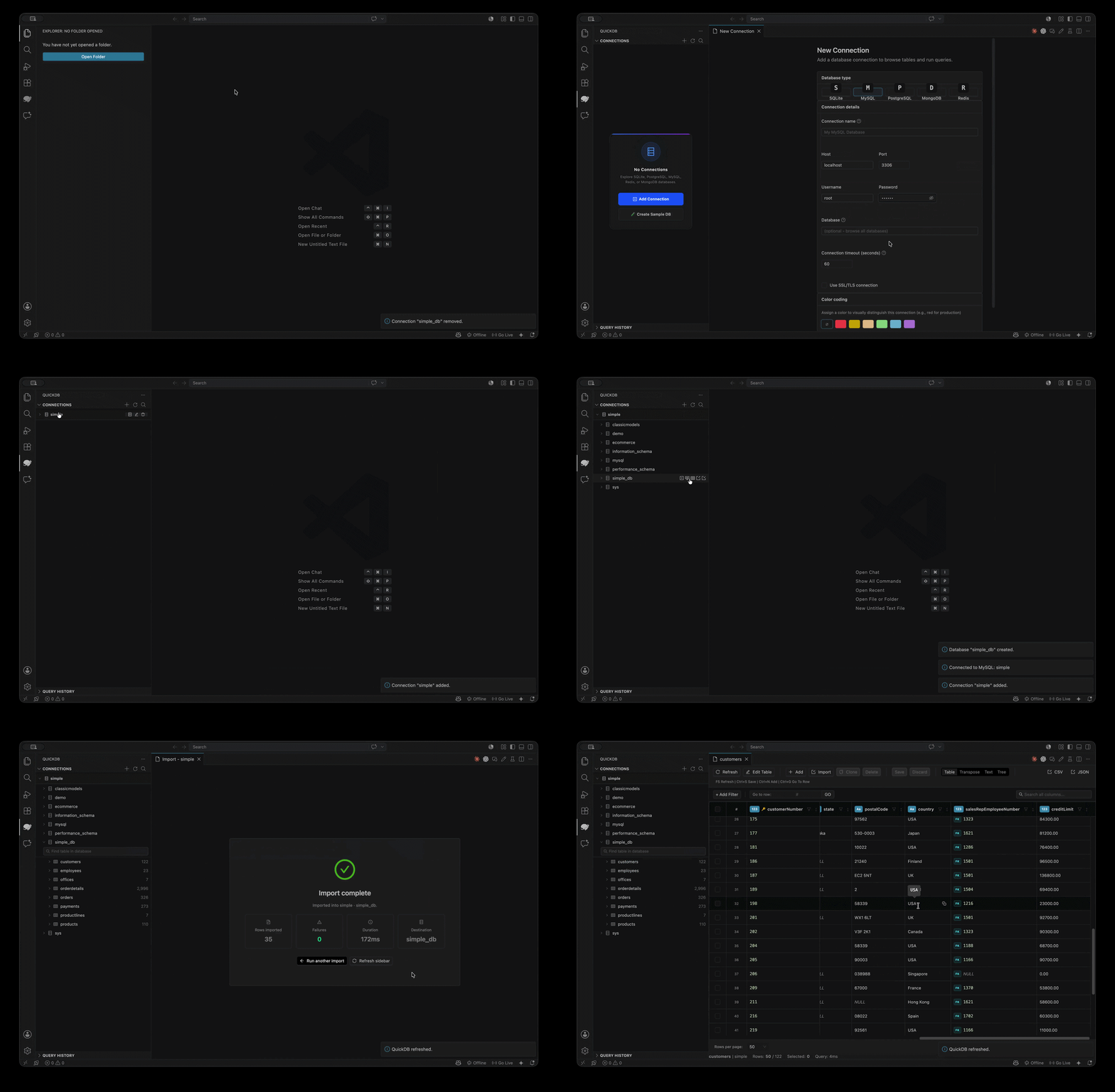
Database Management & Imports
Connect to your servers and import data seamlessly.
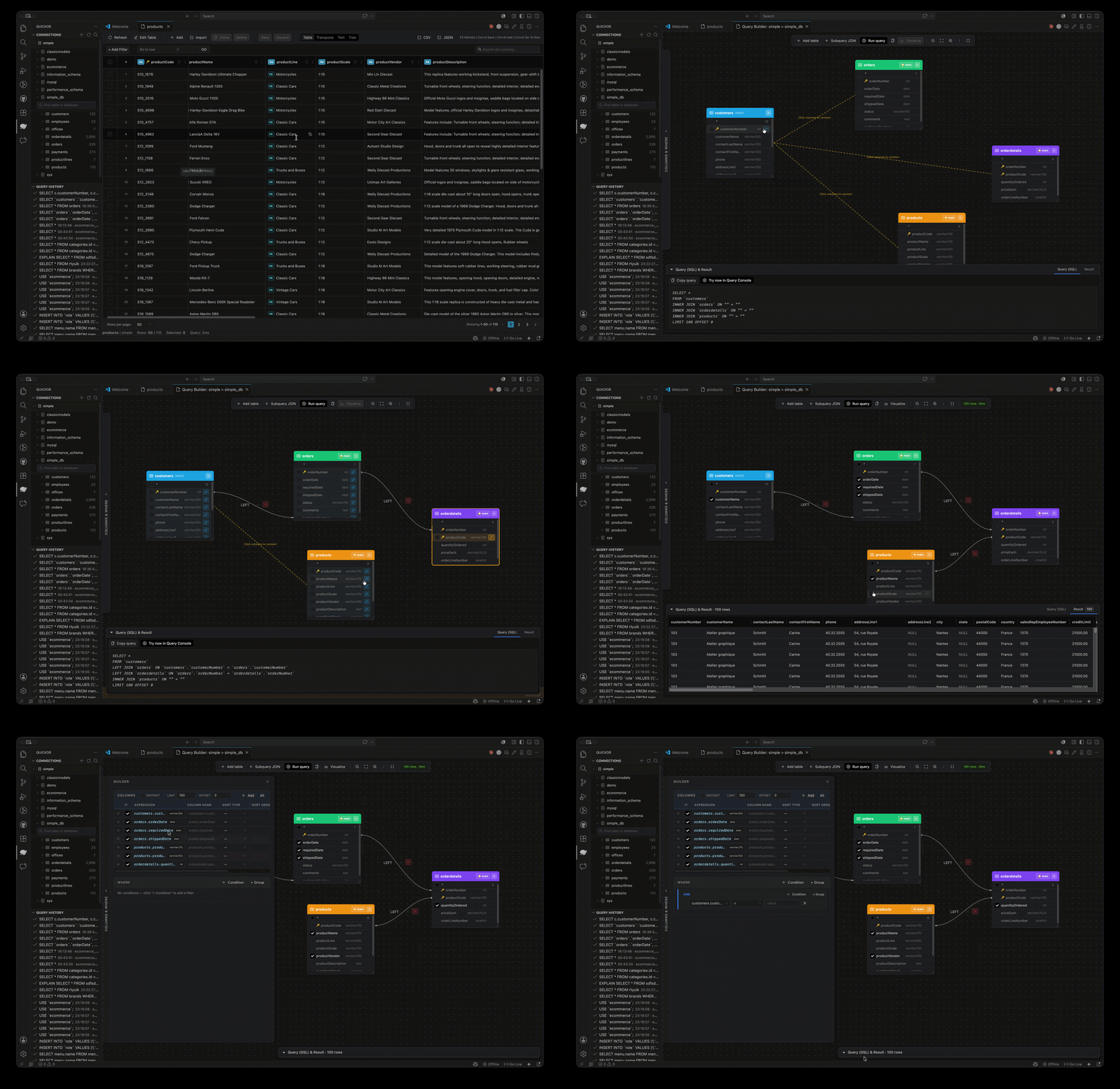
Visual Query Builder
Build complex SQL queries visually — no code required.
Query Console
Autocomplete, live linting, and instant results at scale.
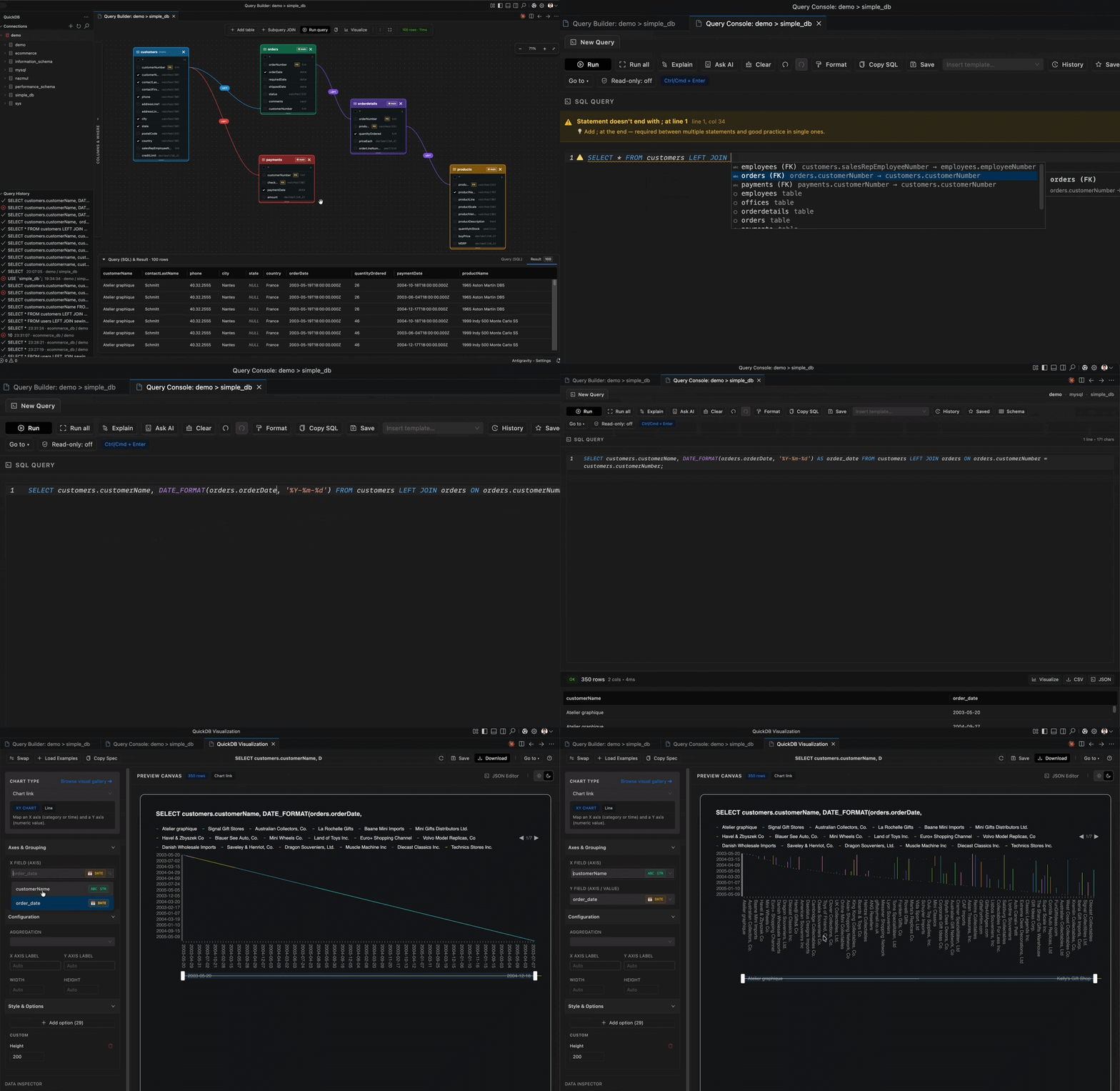
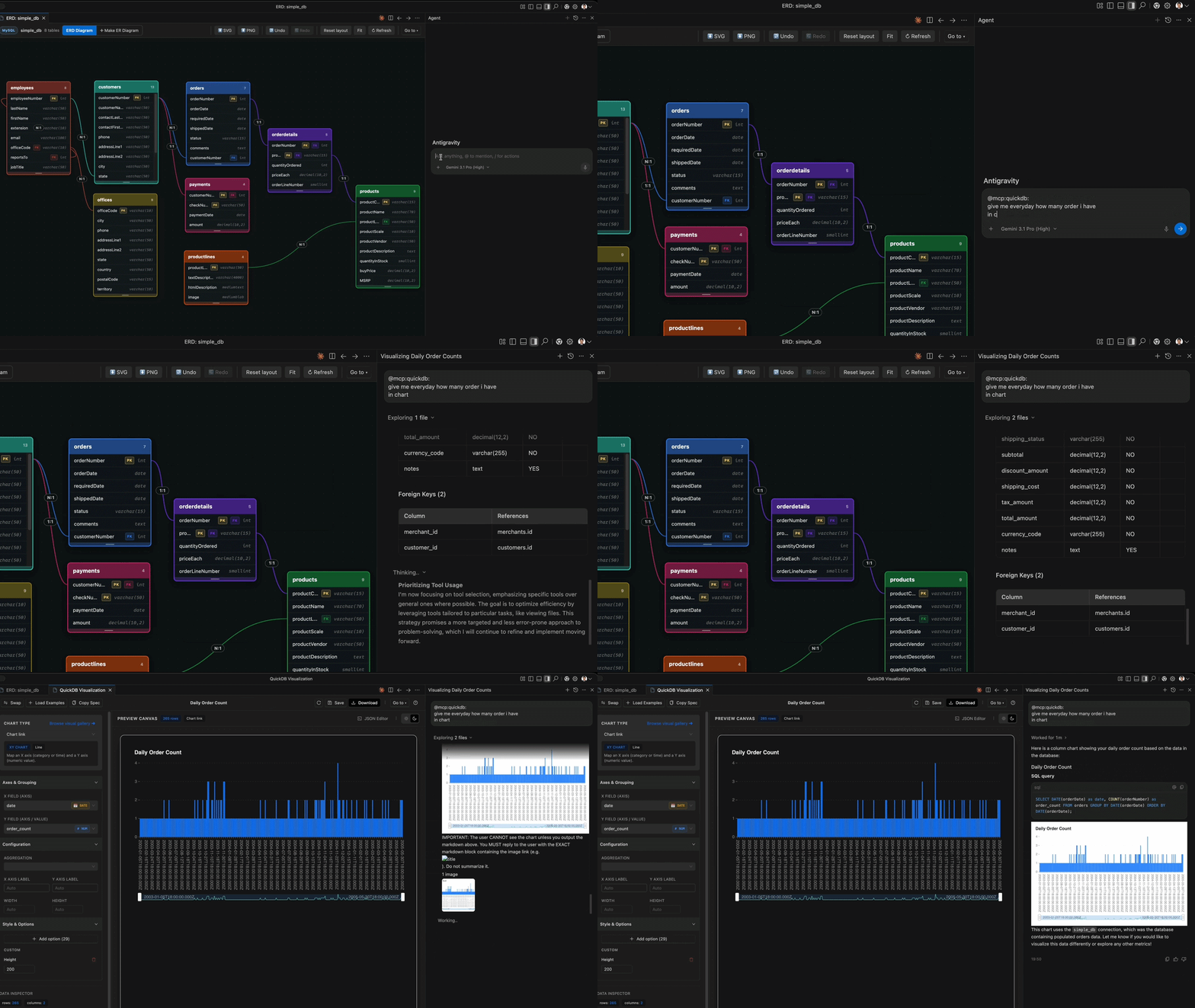
AI-Generated Charts via MCP
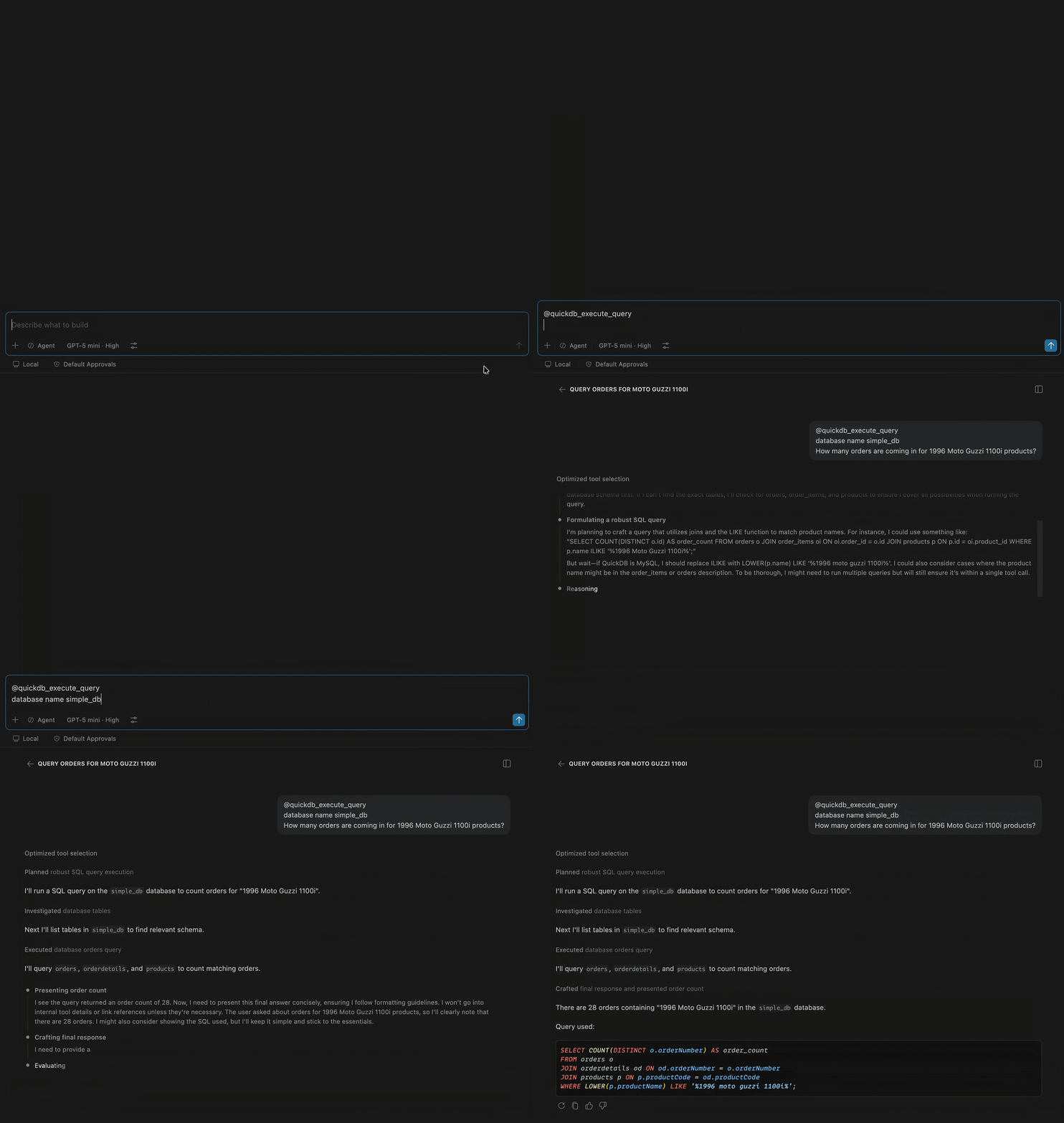
Ask an AI assistant to visualize data — QuickDB's MCP server renders the chart.
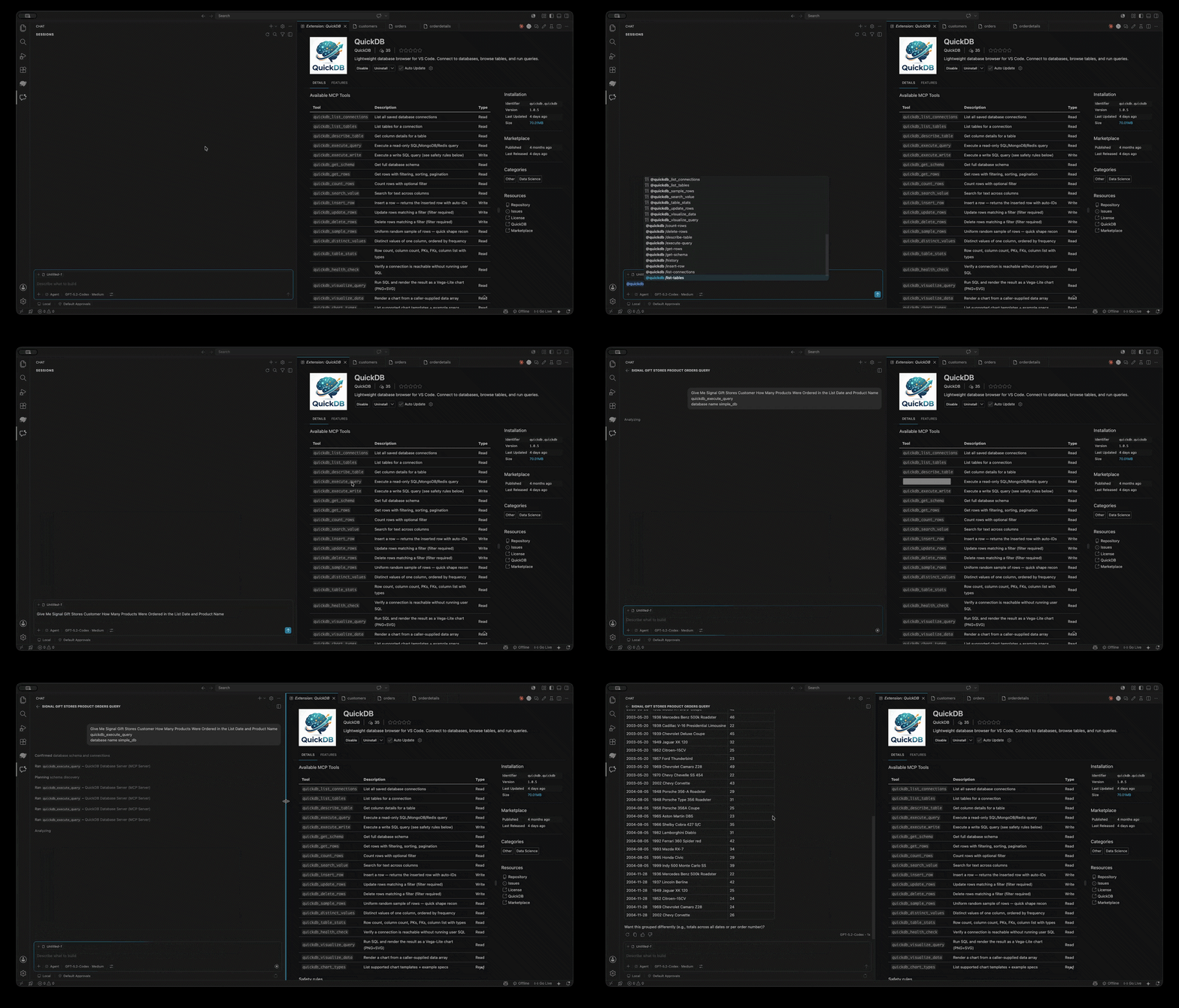
MCP Setup Panel
Pick clients and connections, then auto-configure Cursor, Claude Desktop, Windsurf, and 7 more.
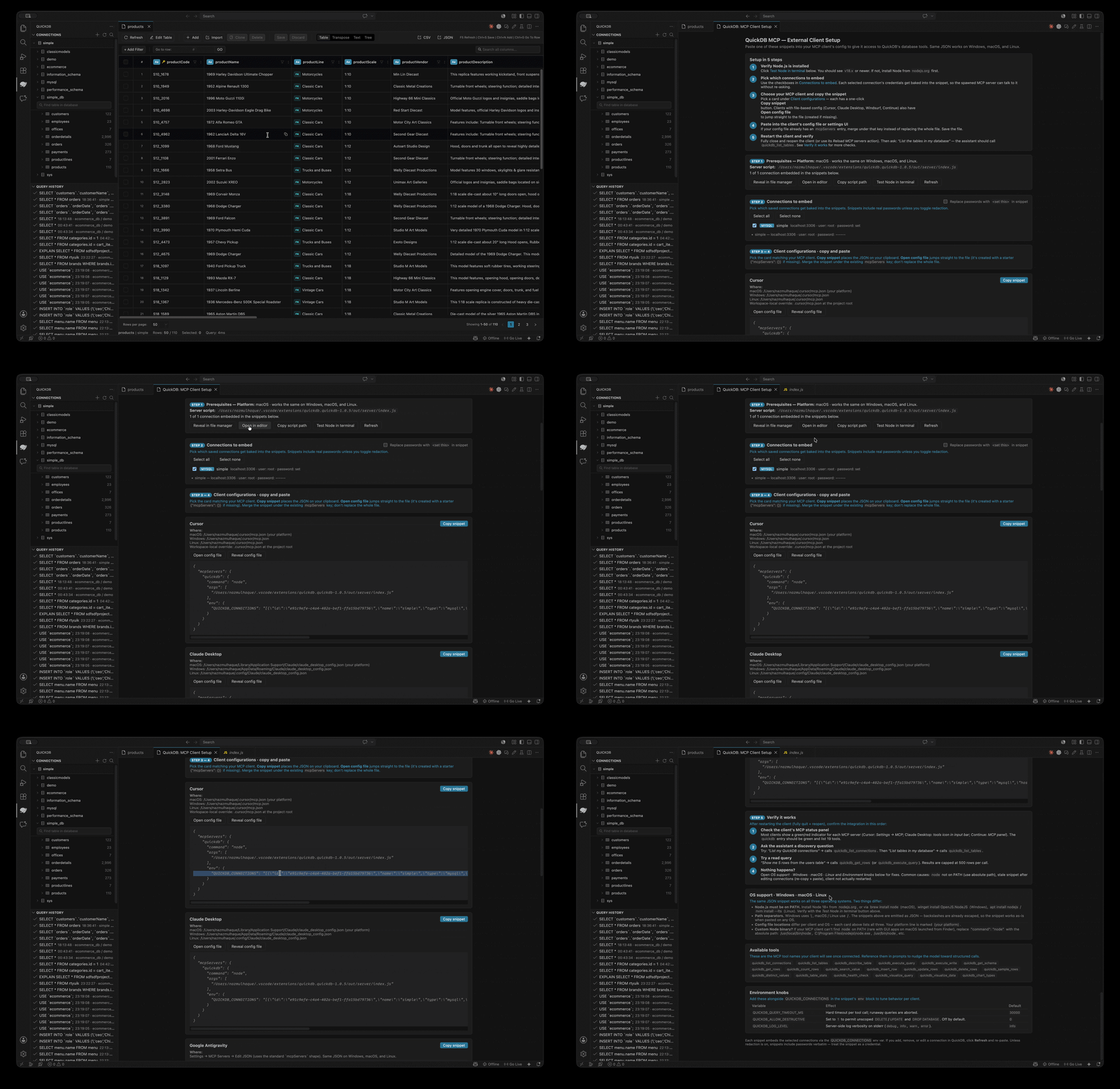
Connect External AI Clients
Paste the generated config once and restart your client — QuickDB tools appear immediately.
🚀 Why QuickDB?
QuickDB turns your editor — or a dedicated desktop window — into a powerhouse database tool. Whether you're inspecting data, visualizing relationships, or letting AI write your queries, QuickDB gives you a seamless, context-rich experience.
- Universal database support — one interface for 85 engines (PostgreSQL, MySQL, SQLite, MongoDB, Redis, ClickHouse, Snowflake, and 78 more) across 16 families and 59 driver families.
- AI-ready MCP server — expose your schema and data to AI agents (Cursor, Claude Desktop, Claude Code, Antigravity, VS Code, Windsurf, Continue, Cline, Roo Code, Kiro — 10 clients) as 32 tools.
- IDE-grade Query Console — autocomplete, live linting, go-to-definition, cancel, transactions, multi-tab, history and saved queries.
- Visual Query Builder — construct joins and aggregations without SQL.
- Table Manager & data grid — create/modify schema and edit rows inline.
- Data visualization — 255 chart styles from any query result.
- Dashboards — compose live chart / table / KPI-card widgets on a grid.
- AI assistants — NL→SQL, explain, optimize, fix, advisor, data quality.
- Two products, one codebase — the same features in the VS Code extension and the standalone desktop app (coming soon).
📦 Install
VS Code Extension
- Open the Extensions view (
Ctrl/Cmd+Shift+X).
- Search for QuickDB → Install.
- Click the QuickDB icon in the Activity Bar.
Desktop App (Windows · macOS · Linux) — Coming Soon 🚀
The standalone desktop client is currently in active development. Binaries will be available for download soon:
- Windows:
.exe installer (coming soon)
- macOS:
.dmg package (coming soon)
- Linux:
.AppImage / .deb (coming soon)
🏁 Quick Start
- Open QuickDB — click the icon in the Activity Bar (extension) or launch the app (desktop).
- Add a connection — click
+ in the sidebar (or run QuickDB: Add Connection). Pick your engine from the 85-engine grid, fill in the fields (or paste a postgres://, mysql://, mongodb://, redis:// URL), click Test connection, then Create.
- Browse — expand the connection in the sidebar to see databases and tables; click a table to open the data grid.
- Query — hover a connection and click New Query (or right-click → New SQL Query). Write SQL with autocomplete, press Ctrl/Cmd+Enter to run.
- Go further — visualize a result, build a dashboard, or connect an AI agent via Setup MCP for AI Clients.
🗄️ Supported Databases
QuickDB supports 85+ engines across 16 families:
| Family |
Supported Database Engines |
| MySQL family |
MySQL · MariaDB · TiDB · SingleStore · StarRocks · Apache Doris |
| PostgreSQL family |
PostgreSQL · CockroachDB · Timescale · Amazon Redshift · Greenplum · QuestDB · RisingWave · YugabyteDB · KingbaseES · Netezza · PGlite |
| SQL Server family |
SQL Server · Azure SQL · Azure Synapse · SAP ASE (Sybase) · Microsoft Fabric |
| SQLite family |
SQLite · libSQL (Turso) · Cloudflare D1 |
| Other Relational |
Oracle · IBM DB2 · IBM i · SAP HANA · Teradata · InterSystems IRIS · Vertica · Firebird · Dameng · Exasol · H2 · Apache Derby · Microsoft Access |
| Analytics / Warehouse |
ClickHouse · DuckDB · MotherDuck · DuckLake · Snowflake · BigQuery · Databricks · Trino · Amazon Athena · Apache Druid · Apache Pinot · Apache Hive · Apache Impala |
| Document |
MongoDB · CouchDB · Couchbase · RavenDB · Firebase Firestore · Dataverse |
| Key-Value / Cache |
Redis · Memcached · Aerospike · Amazon DynamoDB |
| Wide-Column |
Cassandra · ScyllaDB · Google Spanner |
| Graph |
Neo4j · Memgraph · TypeDB |
| Search |
Elasticsearch · OpenSearch |
| Time-Series |
InfluxDB |
| Multi-Model |
SurrealDB |
| Vector |
Qdrant · Milvus · Pinecone · Weaviate · ChromaDB · LanceDB |
| Streaming |
Apache Kafka · RabbitMQ |
| Files & SaaS |
CSV · Excel · Parquet · Avro · Apache Iceberg · Salesforce |
🧭 Feature Walkthroughs
1. Connections
- Click
+ in the sidebar or run QuickDB: Add Connection.
- Pick an engine (search the grid). The form adapts — file path for SQLite/DuckDB, host/port for servers, account id for Snowflake, etc.
- (Optional) Paste a URL — drop a
mysql://, postgres://, mongodb:// or redis:// string and the fields auto-fill.
- (Optional) Enable SSL/TLS, or an SSH tunnel — enter the bastion host/port/user plus a password or private-key path, and QuickDB forwards a local port through it.
- (Optional) Set a color (e.g. red for production) and choose whether the connection is exposed to AI clients via MCP.
- Click Test connection → Create.
Edit / remove — hover a connection for inline ✎ / 🗑, or right-click for the full menu.
2. Schema Explorer
- Expand a connection to see databases (multi-db engines) or tables directly.
- Expand a table to see its columns with type icons.
- Hover actions per connection: New Query · Query Builder · ERD · Create Table/Database · Export · Import · Edit · Remove.
- Use Find table, or Speed Search (
Ctrl/Cmd+F) to filter the whole tree — Esc clears it.
- Click any table to open the Table Viewer.
3. Query Console
- Open via New Query on a connection, right-click → New SQL Query, or
QuickDB: New SQL Query.
- Write with autocomplete (tables after FROM, columns after WHERE, dialect-aware keywords, auto-aliasing, smart JOIN with ready-made ON conditions), live linting with one-click fixes,
Ctrl/Cmd+Click to go to a definition, F2 to rename an alias, and Format to reflow SQL.
- Run with
Ctrl/Cmd+Enter (statement under caret), Run all, or Stop to cancel server-side.
- Explain shows the query plan; Profile opens the visual plan tree. Read-only blocks non-SELECT statements; auto-commit off enables manual Commit/Rollback.
- Results stream into a virtualized grid (smooth at 100k+ rows) — filter, sort, expand cells, Export to CSV/JSON, or send to Visualize.
- Multi-tab console, History (
Ctrl/Cmd+Alt+E), Saved queries, templates, and AI actions (Ask AI / Explain / Optimize / Fix).
4. Query Builder
- Hover a connection → Query Builder (or
QuickDB: Open Query Builder).
- Add tables to the canvas; pick columns, filters, joins, grouping, and ordering.
- Watch the live SQL preview — validated against the real schema as you build.
- Run in place, or Open in Console to keep iterating in a query tab.
5. Table Viewer & Editing
1. Click a table in the sidebar — the panel opens instantly with a progress indicator, then streams data (a 30s cache makes reopening instant).
2. **Edit inline**: change cells, add rows, delete rows.
3. **Preview DML** shows the exact SQL before you Save.
4. **Undo/redo**, bulk fill, and **paste from a spreadsheet**.
5. **Navigate foreign keys** — jump to referenced rows, or list every row that references one.
6. **Switch views**: table grid · single record · transpose · tree · text.
7. **Cell helpers**: `Ctrl/Cmd+Alt+N` → NULL, `Ctrl/Cmd+Alt+D` → DEFAULT, `Ctrl/Cmd+Alt+Z` → revert, `Ctrl/Cmd+G` → go to row.
6. Data Visualization
- Run a query, then click Visualize (or
QuickDB: Open Visualization).
- Pick a chart style from the searchable dropdown — 255 styles with image thumbnails (column, line, pie, heatmap, sankey, word cloud, graphs, and more).
- Map fields (X / Y / color / series / size) and choose an aggregation — sum, count, avg, min, max.
- Style & Options adds ~29 guided controls (legend, labels, colors, gridlines, radius…) with a live-updating preview.
- Export to PNG / SVG, or save the chart to your library.
7. Dashboards
- Run
QuickDB: Dashboards → New dashboard.
- Add widgets: + Chart, + Table, or + Card (KPI) — each with its own SQL query and connection.
- Arrange each widget's width (¼ … full) and height, and drag by the handle to reorder on the 12-column grid.
- Make it live — set a per-widget or whole-board auto-refresh interval.
- Save. Reopening a dashboard re-runs every widget against the live database.
- Toggle Report view for a clean display, or Edit to change it — dashboards list with widget counts and reopen to the exact saved layout.
8. ERD
- Run
QuickDB: Open ERD Diagram (or use the ERD hover action on a connection).
- QuickDB lays out your tables with columns — PK/FK badges — and foreign-key edges automatically, no manual arranging.
9. Compare & Move Data
- Data Compare (
QuickDB: Compare Data) — pick two tables + key columns to see added / removed / changed rows.
- Schema Compare (
QuickDB: Compare Schema) — diff two schemas, generate migration DDL, then Apply Migration to run it after confirmation.
- Seed Data (
QuickDB: Generate Seed Data) — realistic sample rows for a table.
- Import / Export — database and table level, with SQL-dump import progress.
- Query Profiler — EXPLAIN / ANALYZE with a visual plan tree (PostgreSQL).
- Database Health — size, sessions, cache hit rates, table bloat.
- Data Profile — per-column null %, distinct counts, min/max.
- Index Analysis — unused, duplicate, and missing indexes.
- Server Monitor — live sessions, with the ability to kill a running query.
11. Design & Generate
- Code Generator — model / DAO / ORM code straight from a table.
- Schema Docs — full Markdown documentation of a database, with optional row counts.
- Migration Generator — a migration script derived from the live schema.
12. Security & Admin
- Users & Privileges lists users/roles and their grants.
- Create/drop users, and grant/revoke privileges — every write shows the exact SQL before you confirm it.
- RLS policies are surfaced where the engine supports them.
13. AI Features
- Open AI Settings (
QuickDB: AI Settings) — choose a provider: the editor's built-in model (no key), Ollama (local/private — default on desktop), or a cloud provider. Pick a model (live list from Ollama) and test reachability.
- AI SQL Assistant — natural language → SQL with schema context, plus Explain / Optimize / Fix / Document. "Open in Console" runs the result.
- AI Chat — schema-aware chat that can run suggested SQL (writes confirm first).
- AI Advisor — index & performance advice for a table.
- AI Data Quality — a quality report plus fix statements for a table.
Not configured yet? Every AI panel shows a hint with an Open AI Settings button instead of failing.
14. MCP — Connect AI Agents
1. Run `QuickDB: Auto-Configure MCP for Detected Clients` (or open the **MCP Setup** tab).
2. Pick which of the **10 clients** to configure: Cursor, Claude Desktop, Claude Code, Antigravity, VS Code, Windsurf, Continue, Cline, Roo Code, Kiro.
3. Use the per-client checkboxes to choose exactly which connections each client can see.
4. Click **Setup** — QuickDB writes the correct config for that client's JSON shape, backs up the previous file, and encrypts embedded credentials.
Browse every tool in the MCP Tools panel. Mutating tools are gated behind an approval confirmer (default-deny in stdio).
🖥️ Desktop App (Coming Soon)
🚀 In Development: The standalone QuickDB desktop client is coming soon for Windows, macOS, and Linux!
Built on Electron and sharing the same high-performance UI and universal database core as the extension:
- Single window, tabbed workspace — left sidebar (connections tree + grouped tool catalog), a tab bar on top, with close / close-others / close-all.
- Own visual identity — indigo-slate theme, teal accent, native typography, smooth animations.
- Sidebar groups — Connections (per-connection New Query / Builder / ERD / Edit / Remove), Visualize (Dashboards, Data Visualization), Compare & Move, Performance & Health, Generate, Admin, AI & MCP.
- AI runs on Ollama; connections, saved queries, dashboards and charts persist as JSON in the OS user-data dir.
⚡ CLI & Server
QuickDB includes a standalone stdio-based CLI MCP Server (out/server/index.js) that allows any external AI assistant or automation script to communicate directly with your databases without needing a GUI.
Running QuickDB MCP Server via CLI
# Start the QuickDB MCP stdio server
node out/server/index.js
Passing Connections via Environment
Pass connection configurations directly to the CLI server:
export QUICKDB_CONNECTIONS='[{"id":"prod-pg","name":"Production Postgres","type":"postgres","host":"localhost","port":5432,"user":"postgres","database":"main"}]'
node out/server/index.js
Automatic AI Client Configuration via CLI / Extension
QuickDB auto-detects and writes ready-to-run configurations for 10 major AI agents & clients:
- Claude Desktop (
claude_desktop_config.json)
- Claude Code (
~/.claude/config.json)
- Cursor (
~/.cursor/mcp.json)
- Antigravity
- Windsurf (
~/.codeium/windsurf/mcp_config.json)
- VS Code (Built-in MCP Bridge)
- Continue.dev (
~/.continue/config.json)
- Cline / Roo Code / Kiro
- Introspection:
quickdb_list_connections, quickdb_list_tables, quickdb_describe_table, quickdb_get_schema, quickdb_database_objects
- Execution & Profiling:
quickdb_execute_query, quickdb_execute_write, quickdb_explain_query, quickdb_profile_query
- Data Operations:
quickdb_get_rows, quickdb_insert_row, quickdb_update_rows, quickdb_delete_rows, quickdb_sample_rows
- Visualization:
quickdb_visualize_query, quickdb_visualize_data, quickdb_chart_types, quickdb_chart_gallery, quickdb_generate_dashboard
- Diagnostics & Health:
quickdb_database_health, quickdb_index_analysis, quickdb_data_profile, quickdb_lock_monitor, quickdb_slow_queries
🧩 Command Reference
Open the Command Palette (Ctrl/Cmd+Shift+P) and type QuickDB. Highlights:
- Connections & schema — Add / Edit / Remove Connection · Refresh · Create Table · Edit Table · Drop Table · Empty Table · Move Table · Create/Delete Index · Empty Database · Drop All Tables · Create Sample Database
- Query & data — New SQL Query · Open Query Builder · View Table Data · Browse Query History · Open Visualization · Pivot Table · Aggregation Builder · SQL Snippets
- Compare / move — Compare Data · Compare Schema · Generate Seed Data · Import/Export Database · Import/Export Table · Backup / Restore Database
- Insights — Database Health · Index Analysis · Profile Table Data · Query Profiler · Server Monitor · Dashboards · Query History Dashboard
- Design / generate — Generate Code from Schema · Generate Schema Docs · Generate Migration · Browse Database Objects · Find in Database
- Security — Users & Privileges
- AI — AI SQL Assistant · AI Chat · AI Advisor · AI Data Quality · AI Settings · Set AI API Key
- MCP — MCP Tools · Auto-Configure MCP for Detected Clients · Start/Stop MCP Server · Generate Cursor Rules
- Local — Local Data (Saved Queries / Notes / Activity) · Show Local Activity Database
⌨️ Keyboard Shortcuts
| Shortcut |
Action |
Context |
Ctrl/Cmd+Enter |
Run current statement |
Query Console |
Ctrl/Cmd+F |
Speed Search (filter tree) |
Connections view |
Esc |
Clear tree filter |
Connections view |
Ctrl/Cmd+Alt+E |
Browse history |
Active panel |
Ctrl/Cmd+G |
Go to row |
Table Viewer |
Ctrl/Cmd+Alt+N |
Set cell to NULL |
Table Viewer |
Ctrl/Cmd+Alt+D |
Set cell to DEFAULT |
Table Viewer |
Ctrl/Cmd+Alt+Z |
Revert cell |
Table Viewer |
F2 |
Rename alias/identifier |
Query Console |
⚙️ Settings
| Setting |
Description |
quickdb.maxRowsPerPage |
Rows fetched per page in the table viewer |
quickdb.autoConnect |
Auto-connect saved connections on startup |
quickdb.saveHistory |
Keep executed queries in local history |
quickdb.backupDir |
Default folder for backups |
quickdb.ai.provider |
AI provider: editor model · Ollama · cloud |
quickdb.ai.cloudProvider |
Cloud AI vendor (when provider = cloud) |
quickdb.ai.model |
Model name (e.g. an Ollama model) |
quickdb.ai.ollamaUrl |
Ollama server URL (default http://localhost:11434) |
quickdb.apiUrl |
Optional backend API URL |
quickdb.scheduledJobs.enabled |
Enable scheduled jobs |
🔐 Security & Privacy
- No hardcoded secrets anywhere in source, fixtures, or docs.
- Credential encryption — passwords and SSH secrets embedded in exported MCP client configs are encrypted with AES-256-GCM using a machine-derived key (
hostname + platform + arch); no key is stored, and a copied config is useless on another machine.
- Query-safety model — the visual builder validates table/column names against the live schema before generating SQL.
- Write confirmations — destructive operations (drop, truncate, privilege grants, migrations, AI-suggested writes) require confirmation.
- MCP default-deny — mutating MCP tools require approval.
- Read-only mode in the console blocks non-SELECT statements at the source.
🩺 Troubleshooting
- "Test connection" says unsupported — update QuickDB; all 85 engines support Test. If it still fails, the message is the driver's real error (check host/port/credentials, or SSL/SSH settings).
- A panel looks stale after an update — reload the window (
Developer: Reload Window) so the latest webview bundle loads.
- Chart text is invisible / axes missing — the chart theme follows the app (light text on dark). Re-open the panel if it was cached.
- AI panel just shows a hint — AI isn't configured. Click Open AI Settings, start Ollama (
ollama serve), and select an installed model.
- MCP tools don't appear in the AI client — restart the client after Setup and confirm the connection was ticked for that client.
- SSH tunnel fails — verify the SSH host is reachable, the key path is readable, and the database host/port are what the bastion sees.
- Desktop app won't start — from
desktop/, delete node_modules, run npm install, then npm start.
| |