Choose an AI assistant to explain this destination using its public sources. Gemini opens gemini.google.com. Gemini, Copilot, DeepSeek, Meta AI and Qwen require pasting the prompt below; the other links include it in their URL. Sign-in or a manual paste may still be required. Check the answer against the documentation.
Copy the plain-text prompt
Use the code block's copy control, or select its complete text, then paste it into your assistant.
Help me understand QR Code & Barcode Scanner · VS Code extension 0.1.0 (integrations/vscode/README.md) for QR Code & Barcode Scanner, the open-source scanner. Source documentation; publication is not implied. Provided README context (verify against the sources): This VS Code extension reads the QR codes and barcodes in an image file of your workspace. Right-click a PNG, JPEG, WebP, GIF or BMP file and choose Scan QR codes and barcodes. Each decoded text, its format and the engine report appear in an output channel, and you can copy each text. The scan runs on your machine with the published WebAssembly engine 0.11.0: no network, no native binary, one package for every platform. Read the public documentation below. Explain what this destination does, its documented installation or access steps, a minimal example if supported, prerequisites, limitations and license. Distinguish published packages from working source and preparation. Cite your sources; if a page is unavailable or a fact cannot be checked, say so. Do not invent installation commands, benchmark results or comparisons. Answer in my language. Public sources: https://github.com/qrcode-ai-com/qrcode-barcode-scanner-rust/blob/main/integrations/vscode/README.md https://qrcode-ai.com/en-US/qr-code-scanner https://qrcode-ai.com/en-US/barcode-scanner https://qrcode-ai.com/en-US/qr-code-scanner/integrations/vscode https://qrcode-ai.com/en-US/barcode-scanner/integrations/vscode https://qrcode-ai.com/en-US/qr-code-generator https://qrcode-ai.com/en-US/barcode-generator
This VS Code extension reads the QR codes and barcodes in an image file of your workspace. Right-click a PNG, JPEG, WebP, GIF or BMP file and choose Scan QR codes and barcodes. Each decoded text, its format and the engine report appear in an output channel, and you can copy each text. The scan runs on your machine with the published WebAssembly engine 0.11.0: no network, no native binary, one package for every platform.
To make a test image, encode a known text with the QR code generator or the barcode generator. Keep that text next to the exported image. Then compare it with the text the extension decodes, leading zeroes included.
Install
The extension needs VS Code 1.74 or later. Its identifier is qrcode-ai-com.qrcode-barcode-scanner on the Visual Studio Marketplace and on Open VSX.
From the Visual Studio Marketplace
In VS Code, open the Extensions view, search for QR Code & Barcode Scanner and choose Install. You can also open its page on the Visual Studio Marketplace, or install it from a terminal:
VSCodium, Cursor and other editors built on VS Code install extensions from Open VSX. Search for QR Code & Barcode Scanner in their Extensions view, or open its page on Open VSX. From a terminal, use the editor's own command with the same identifier:
You can also build the VSIX file from this folder and install it. You need Node.js 22 or later, npm and Git.
git clone https://github.com/qrcode-ai-com/qrcode-barcode-scanner-rust.git
cd qrcode-barcode-scanner-rust/integrations/vscode
npm ci
npm run package
code --install-extension out/qrcode-barcode-scanner-0.1.0.vsix
npm run package checks that the installed engine is version 0.11.0 and that its WebAssembly module matches the SHA-256 of its build record. It then bundles the extension and writes out/qrcode-barcode-scanner-0.1.0.vsix. You can also open the Command Palette in VS Code, run Extensions: Install from VSIX... and choose that file. Editors built on VS Code, such as VSCodium or Cursor, take the same file with their own command (codium, cursor).
Use
In the Explorer, right-click an image and choose Scan QR codes and barcodes. Select several images first to scan them in turn.
With an image open in an editor tab, use the same command in the editor title bar or in the tab's context menu.
From the Command Palette, run QR Code & Barcode Scanner: Scan QR codes and barcodes and choose one or more image files.
While the scan runs, a notification shows its progress, and Cancel stops it at once. The output channel named QR Code & Barcode Scanner then lists each image, the profile and budget used, each code with its format and text, the QR quality score, and the engine report as JSON. A quick pick lists each decoded text with its format: select one to copy it exactly. Its last two items copy the engine report as JSON and show the output.
The extension never opens a decoded link and never runs what it reads. The output and the quick pick show hidden control and direction characters as \u{...} escapes. The copied text stays exactly what the code holds.
Settings
qrcodeBarcodeScanner.profile: full (the default), fast or frame.
qrcodeBarcodeScanner.budgetMs: empty (the default), or a number of milliseconds from 0 to 60000.
The full profile runs every decode stage and the full QR quality score. The fast profile runs fewer stages and a reduced score. The frame profile only decodes, with the stages meant for camera frames, and gives no score. An empty budget keeps the profile's own: 4000 ms for full, 800 ms for fast and 80 ms for frame. A budget of 0 removes the limit. When the budget stops a scan, the output says so, because the result may then be incomplete.
Limits
The engine reads PNG, JPEG, WebP and GIF files. The extension decodes BMP files itself: 1, 4, 8, 16, 24 and 32 bits per pixel, uncompressed or with bit fields. It refuses compressed BMP files (RLE) with a message; save them as PNG.
Files up to 64 MiB, and images up to 10,000 pixels on a side and 64 million pixels.
The extension runs where the workspace runs and reads files through VS Code, so it is meant for local, remote and virtual workspaces. It has no web build: vscode.dev and github.dev cannot run it.
Its tests run the bundled extension with a recorded vscode module. It has not yet been run in a real editor.
How it works
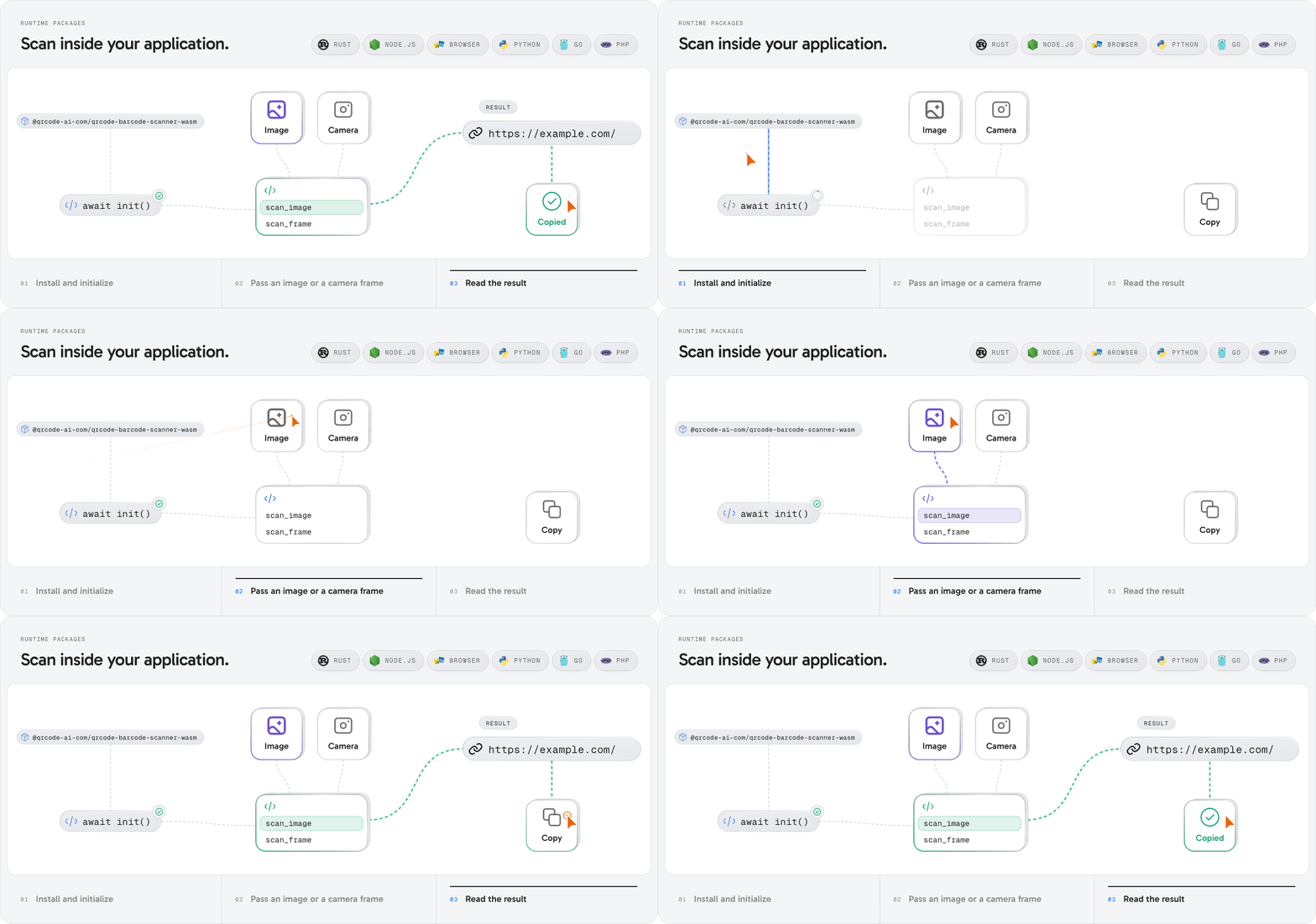
The picture shows the three steps of every engine package: install and initialize, pass an image or a camera frame, read the result. In this extension, VS Code reads the file you chose. A worker thread starts the engine's WebAssembly module and scans the bytes, so the editor stays responsive. The extension then writes the report to the output channel and offers the texts to copy.
What it returns
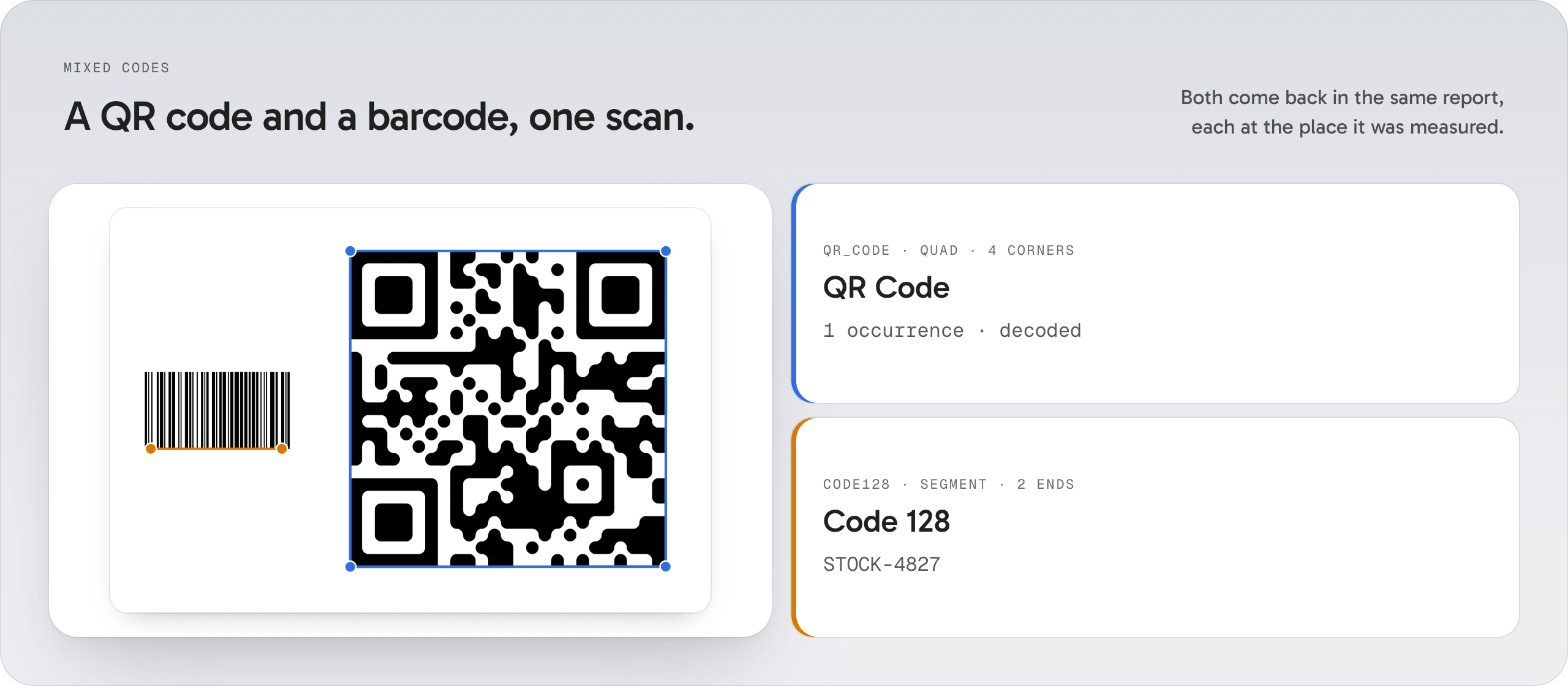
The picture is a recorded scan of one image that holds a QR code and a Code 128 barcode. The extension's tests scan that image, fixtures/symbology/mixed-code128-qr.png, in the three profiles. The output channel then starts like this:
For each code, the report keeps its format, its exact text and its bytes, how often it was seen and where the engine measured it. A QR quality score of null means that the profile did not measure it: it is not a score of zero. An image without a code gives an empty list, which is different from a file the engine cannot read.
What it reads
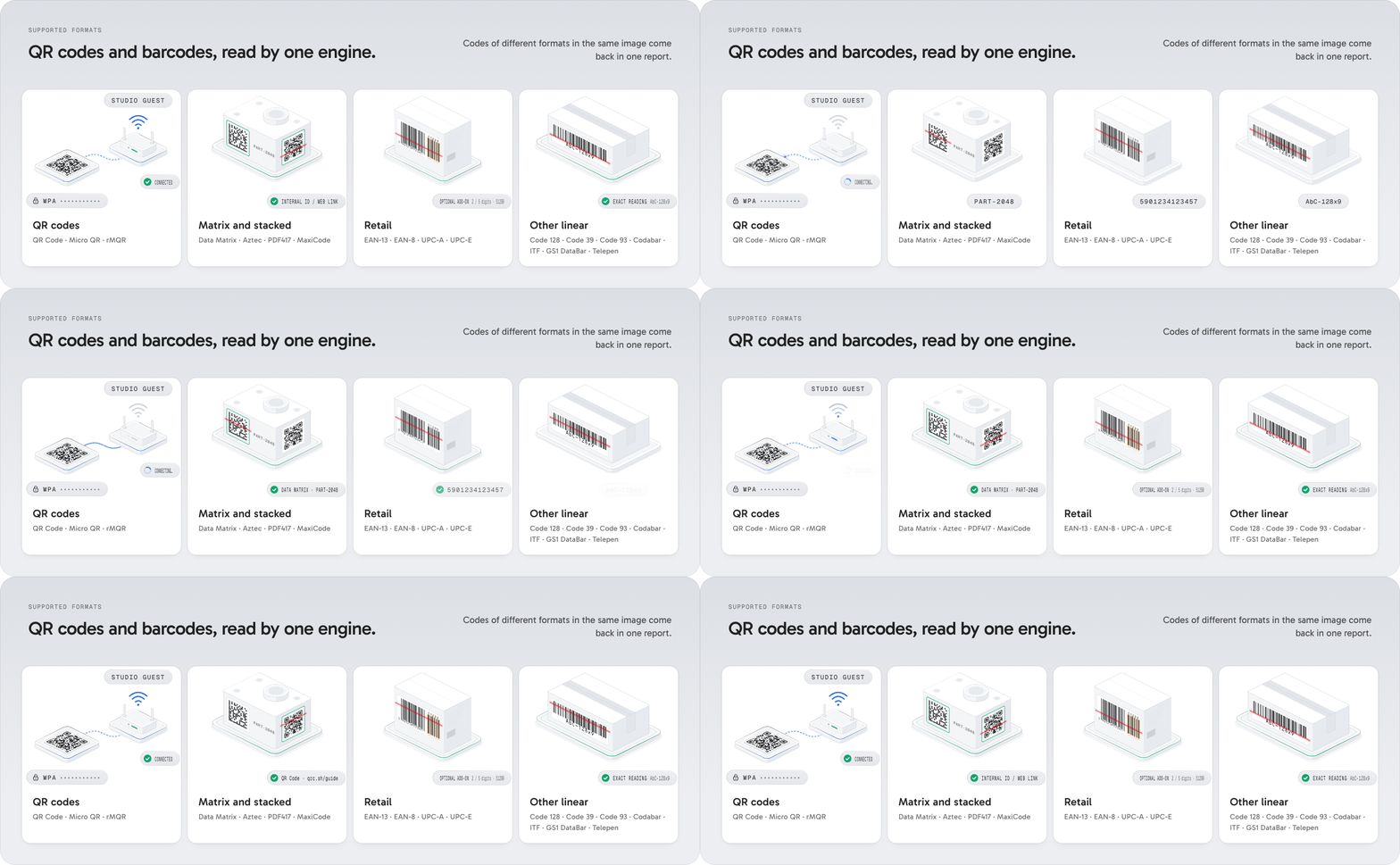
The bundled engine 0.11.0 reads 19 formats. Codes of different formats in one image come back in one report.
QR: QR Code, Micro QR, rectangular Micro QR (rMQR)
Matrix and stacked: Data Matrix, Aztec, PDF417, MaxiCode
The Rust, Node.js, browser and Python packages hold the engine. This extension bundles the WebAssembly package @qrcode-ai-com/qrcode-barcode-scanner-wasm, the one made for browsers. The Go and PHP packages hold no decoder: each one starts qrscan and hands you its report. Every route is listed in the scanner repository.
Develop and test
cd integrations/vscode
npm ci
npm test
npm run package
npm run test:vsix
npm test builds the extension into out/stage. It scans the repository's mixed fixture with the bundled engine in the three profiles, a GIF copy of it and BMP copies in seven layouts, and the repository's JPEG and WebP fixtures. It then loads the bundled dist/extension.js with a recorded vscode module and runs the command from the menus and the palette, the file dialog, the quick pick, the clipboard, Cancel and the error messages. No editor is started. npm run package writes the VSIX and out/package-receipt.json, which holds its size, its SHA-256 and its file list. With the same sources, engine and Node.js version, it writes the same bytes. npm run test:vsix checks the files and the manifest inside the VSIX, then runs the extension tests again on its unpacked copy.
Licensing
The VSIX holds two kinds of code. The extension's own code, from src/ and bundled in dist/extension.js and dist/worker.js, is MIT. The engine it bundles, dist/qrcode-barcode-scanner_bg.wasm and its JavaScript glue, is the published npm package @qrcode-ai-com/qrcode-barcode-scanner-wasm@0.11.0, which stays under AGPL-3.0-or-later. Its corresponding source is the v0.11.0 tag of the scanner repository. The manifest therefore declares MIT AND AGPL-3.0-or-later, and the packaged LICENSE.md holds both texts. The dist/engine/ folder keeps the engine's license, its Apache-2.0 notices and its build record. Whoever distributes the VSIX also distributes that AGPL engine.
Maintained by Thibaut Mélen & Nicolas Cella for QR Code AI, a product of SuperNovae Studio.
Source license
Project-authored scanner code and documentation in this checkout are available under the MIT License. You may use, modify and redistribute this source in open-source or proprietary applications, including commercial products, while preserving the copyright and permission notice. Thibaut Mélen & Nicolas Cella develop QR Code AI at SuperNovae Studio.
Retained third-party code, dependencies, artwork and test data keep their own licenses and notices. The licensing guide explains these component boundaries; the project license does not assign a license to an unrelated platform or service.
Published archives retain the license shipped with their version. A pinned engine, adapter or bundle may therefore have different terms from this working source. Read its packaged license and the license history before reuse. The source change does not replace an archive or publish a new version.