AI Badger for VS Code
Review Git changes and copy focused code context into ChatGPT, Claude, Gemini, Grok, or any other AI chat, directly from VS Code. Start with Copy All Changes for Review to prepare your Git changes for an AI review, or select files in the Explorer and use Copy File for AI or Copy Selected Files for AI. Paste the result into your preferred AI chat. The Badger CLI is optional. Direct Git review (selected, repository, or workspace changes) and direct file copying work with the extension alone. Install the CLI for complementary repository-aware workflows: Deep Review and guided Ask About commands. Local-first · AI-provider independent · No automatic uploads ▶ Try the AI Badger VS Code Demo Read: Reviewing AI-Generated Code in VS Code with AI Badger Why AI Badger?
How it works
Install
Both workflows work immediately without the Badger CLI. The extension is desktop-only; it is not a Optional: add repository-aware workflowsThe local AI Badger CLI is a complementary tool for Deep Review and guided Ask About workflows. Install it when you want the extension to prepare relevant repository context beyond the changes or files you select: For Windows and other installation methods, see the AI Badger installation guide. What you can doReview workflows are the primary use case. Start in Source Control with Copy All Changes for Review. Use Copy Selected Changes for Review for a narrower scope or Deep Review when repository-aware context is needed; the detailed review flows are described below. The Explorer workflows remain useful when you already know which code to share or want to ask a broader question. Copy files for an AI chatUse these commands when you already know which files should be included. AI Badger formats the selected files with their project-relative paths and copies them immediately. Nothing is shared until you paste it.
Ask about your codeUse these commands to start the smart-context workflow for a specific scope. These commands require the local Badger CLI.
File Ask prompts include selected source contents, including unsaved editor changes. Text files up to 500 KiB each fit within a 1 MiB copied prompt limit; binary files use metadata, and size exclusions are listed in the prompt. The project command is available from the Explorer toolbar. File and folder commands are available from Explorer and editor context menus where applicable. You can also find most commands in the Command Palette. Copy selected changes for reviewIn a Git repository, select one or more changed files in Source Control, right-click, and choose AI Badger: Copy Selected Changes for Review. The extension copies a review request with the selected files' complete Git diff and optional supporting text context. This works without the CLI; paste the request into your AI chat to review just those changes. If a repository or workspace review is too large to copy, select fewer changed files in Source Control, then right-click and choose AI Badger: Copy Selected Changes for Review. For example, leave large CSV/backfill files unselected and review the code, tests, and documentation separately. If a selected review is still too large, select fewer changed files and retry. A failed review leaves your clipboard unchanged. Copy all changes for reviewFrom a Git repository in the Source Control view, choose AI Badger: Copy All Changes for Review. The action copies one self-contained review request for that repository's current staged, unstaged, untracked, renamed, and deleted changes. It does not require the Badger CLI and never includes changes from another repository.
For a multi-repository workspace, choose AI Badger: Copy Workspace Changes for Review from the Command Palette or the aggregate Changes title. It copies one request covering every open Git repository with changes, keeping each repository's context in its own section. This also works without the CLI. If any repository cannot be prepared or the complete request does not fit, the clipboard is left unchanged. These Git Source Control actions are available from the repository actions and the Changes group. These commands require an explicit user action; nothing is sent anywhere automatically.
For request size limits, repository labels, and file inclusion details, see the review context guide. Deep Review
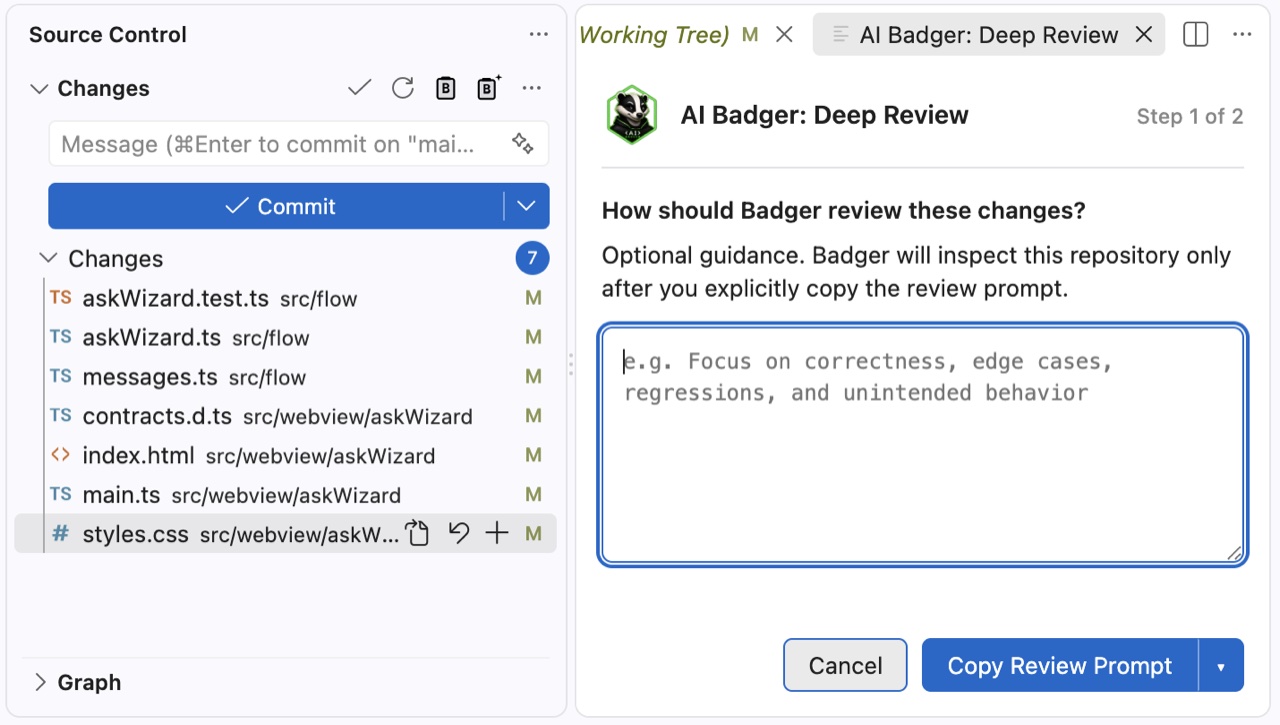
AI Badger: Deep Review requires the optional local Badger CLI. It opens editable guidance and, after Copy, prepares a review request with repository topology and source context. Paste the request into your AI chat to begin the review. Nothing is shared automatically. Deep Review may receive final findings immediately. If the AI instead responds with only valid After a successful local Badger operation, the reusable assisted-flow header shows the detected Badger version. The indicator is best-effort and never appears before Badger has successfully run. Privacy
Smart context sends selected paths and workflow input to the local CLI. If you deliberately paste generated context into an external AI service, that service receives what you pasted under its own terms. Configuration and troubleshootingThese CLI settings apply to Deep Review and guided Ask workflows. Direct Git review and file copying need no CLI setup.
See the CLI compatibility guide for capability requirements and executable resolution details. Support
DevelopmentSee the release guide for packaging and publishing details. AI Badger for VS Code is published by PVR Labs. |