Visual REST Client
No account required. All local, all private. Your data stays in your files and VS Code, and requests go directly to the APIs you choose.
A visual REST client for VS Code that edits .rest and .http files — the same plain-text format used by Huachao Mao's REST Client, so your existing files keep working while you get a graphical editor for requests, variables, responses, and collections.
Build requests with method selectors, header and query-param tables, JSON and GraphQL body editors, comments, and multipart uploads. Handle real workflows with file and environment variables, runtime extraction rules for chaining requests, Bearer, Basic, and reusable OAuth 2.0 auth, cookie management, per-request history, and cURL export with secrets redacted. Postman, Hoppscotch, Insomnia, Thunder Client, and Bruno collection imports included.
Your files stay plain text and fully compatible — switch freely between the visual editor and the built-in text editor.
Also available: Visual REST Client for iOS, a companion app with the same functionality.
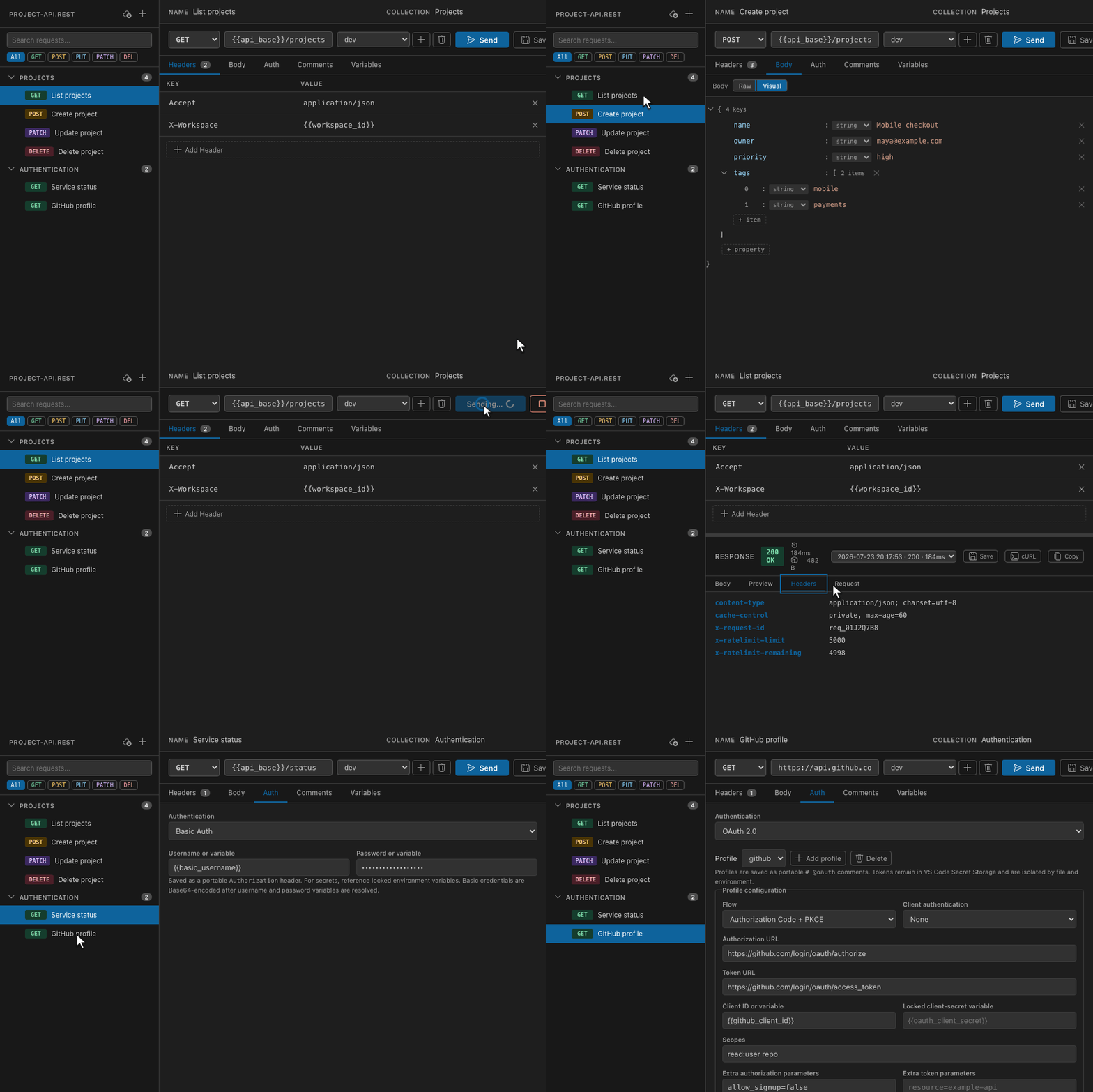
Watch a request being configured and sent, inspect extractions and assertion results, run a collection, and switch between dark and light themes. On-screen captions explain each step, including authentication and file transfers.
Ranked #2 Product of the Day on PeerPush
Features
- Visual editor for
.rest and .http files that follows the active VS Code
theme, including light and high contrast themes, with compact panels and
colored HTTP method badges.
- Sidebar with request search, method filters, nested collection folders,
folder rename/move, drag and drop ordering, duplicate, and delete actions.
- Request editor with method selector, URL and query-parameter fields, headers table,
body editor, comments, and JSON visual editing.
- Multipart form-data and whole-file uploads using file references in the request.
- Persistent enable switches for headers and query parameters, and a URL-encoded
body table with repeated fields and variable interpolation.
- Sequential collection runs with request selection, runtime chaining,
declarative assertions, cancellation, and a clickable result summary.
- A Tests results tab for each response, with green checks for passing
assertions and red crosses for failures, retained in response history.
- Cookie inspection, masked values, and session clearing per file and environment.
- GraphQL editor with separate query and JSON variables, query formatting, syntax checks, operation selection, and partial-response error details.
- Built-in HTTP sender with cancellation, redirects, compressed responses, bounded response sizes, status, timing, body, headers, and per-request history.
- Response timing, size, and the environment used, with explanatory tooltips.
- Environment and host labels in response history, plus a dedicated
Extractions tab for runtime extraction diagnostics.
- HTTP/HTTPS proxies, custom CA trust, and host-scoped mutual TLS certificates.
- Automatic in-memory cookie handling, isolated by REST file and active environment.
- Response-wide find in the tab bar, with highlighting and match
navigation for Body, Preview, Headers, Request, Extractions, and Tests results.
- Sent request preview and cURL export with known secret values and sensitive headers redacted.
@name = value file variables and {{name}} interpolation in URLs, headers, and bodies.- Root-level
.env / .env.* environments with automatic
workspace-storage fallback, plus import/export migration controls.
- Environment values masked by default, with per-value reveal
controls; managed credentials can still be locked in VS Code Secret Storage.
- Runtime extraction rules for request chaining from JSON paths, response headers, status, or raw body.
- Auth tab with Bearer tokens, split-variable HTTP Basic, and reusable OAuth
2.0 profiles for Authorization Code + PKCE and Client Credentials.
- Secure, workspace-isolated OAuth token storage with automatic refresh,
explicit refresh/sign-out controls, and a stable VS Code callback URI.
- Provider-friendly requests with a default
User-Agent, including GitHub API
compatibility.
- Save exact response bytes to a file, including binary downloads and non-UTF-8 text.
- Copy response body.
- Copy cURL command from the resolved sent request.
- Keyboard shortcuts:
Ctrl/Cmd+Enter to send the current request,
Ctrl/Cmd+Shift+N to create a request, and Ctrl/Cmd+F to find within the
active response tab.
- Postman Collection v2.0/v2.1, Hoppscotch, Insomnia, Thunder Client, and Bruno collection import into a
new file or the currently open REST file.
- Compatible with Huachao Mao's REST Client
.rest / .http file format.
Visual Walkthrough
The walkthrough follows a demo Projects API from request setup through response
inspection and a collection run. It shows the themed UI, extraction diagnostics,
passing and failing assertions, folder actions, and dotenv environment guidance,
alongside JSON, GraphQL, authentication, and file transfers. All screenshots use
demo data; the screenshots below explain what each view is doing.
Request overview
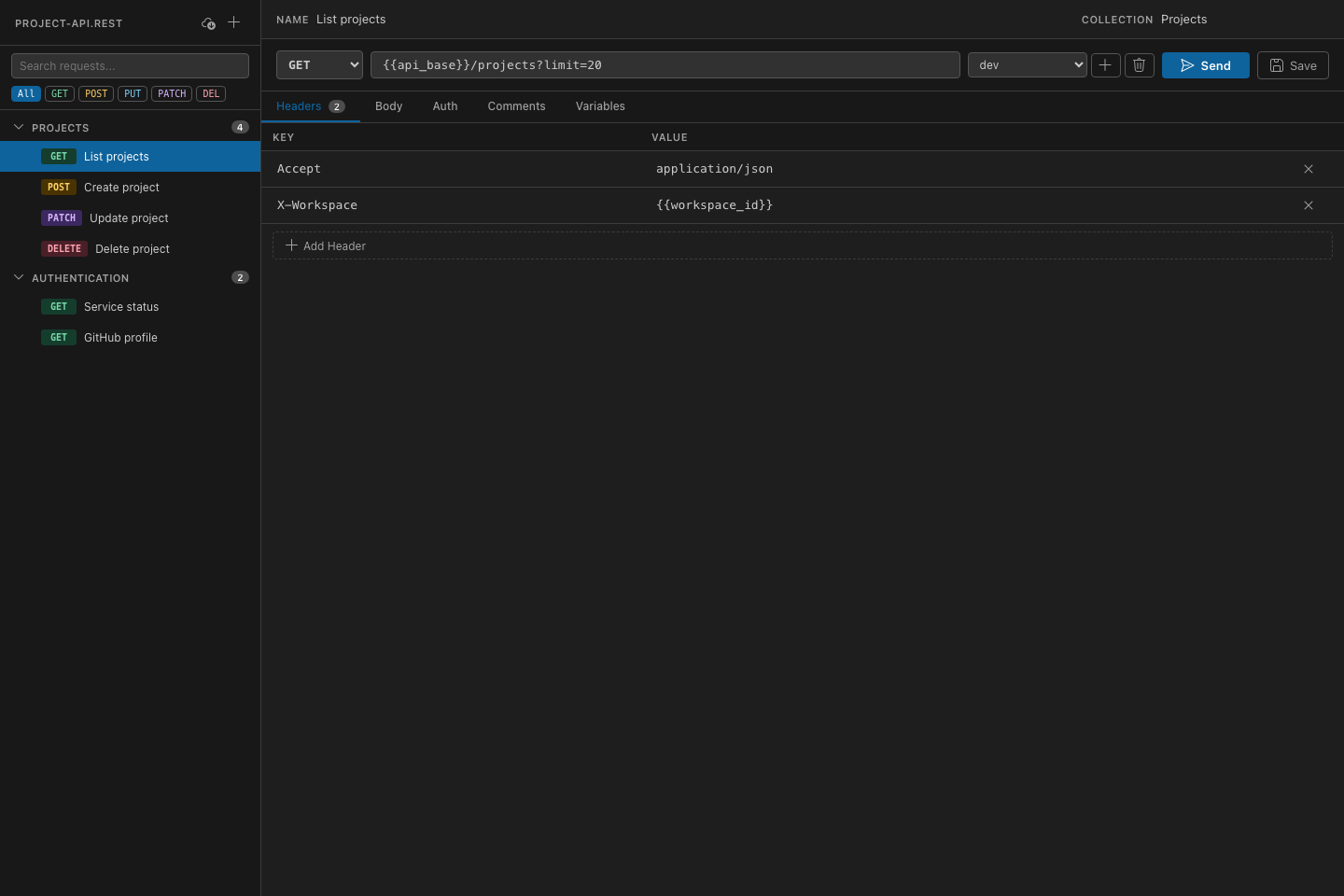
The Projects folder is expanded and List projects is selected. Configure request headers, choose the dev environment, and send the request from the compact toolbar; colored method badges make the sidebar easier to scan.
JSON request body
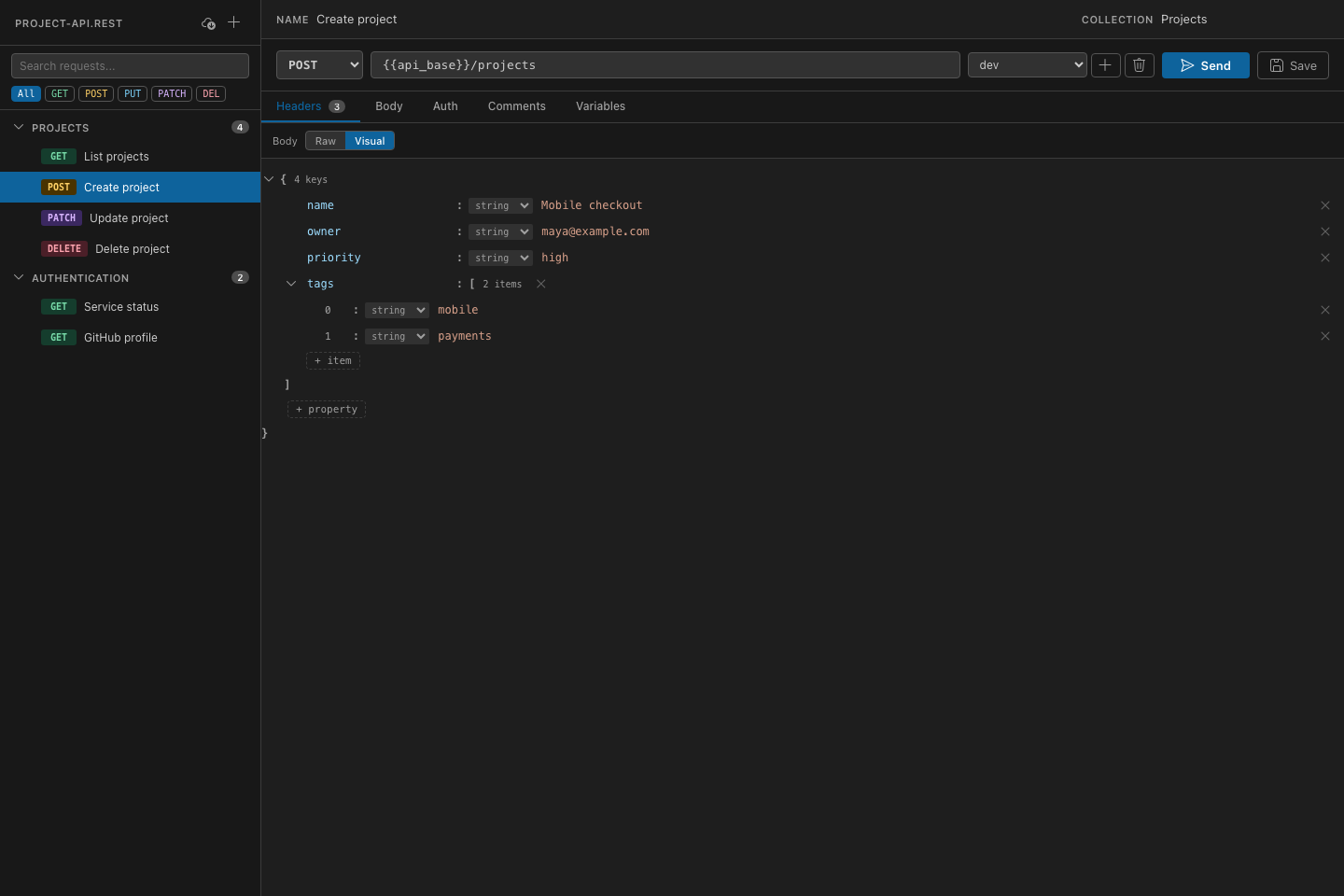
Create project is open in the visual JSON body editor. Edit the project name, owner email, and tag array without leaving the request file.
Variables
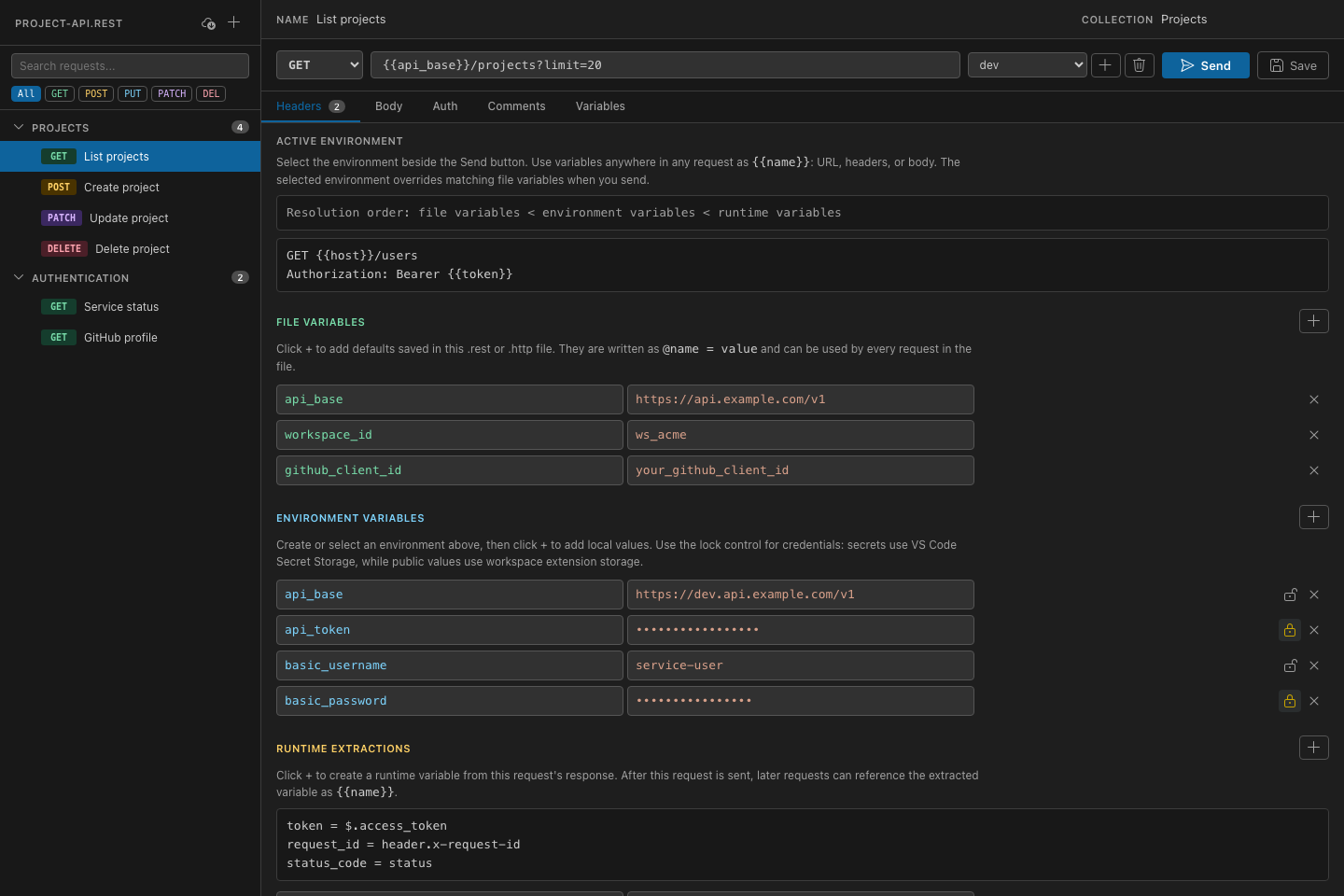
The Variables tab shows file values, masked dev environment values, extraction rules, and runtime values. The project_id and request_id rules capture data that later requests can reuse.
Response body
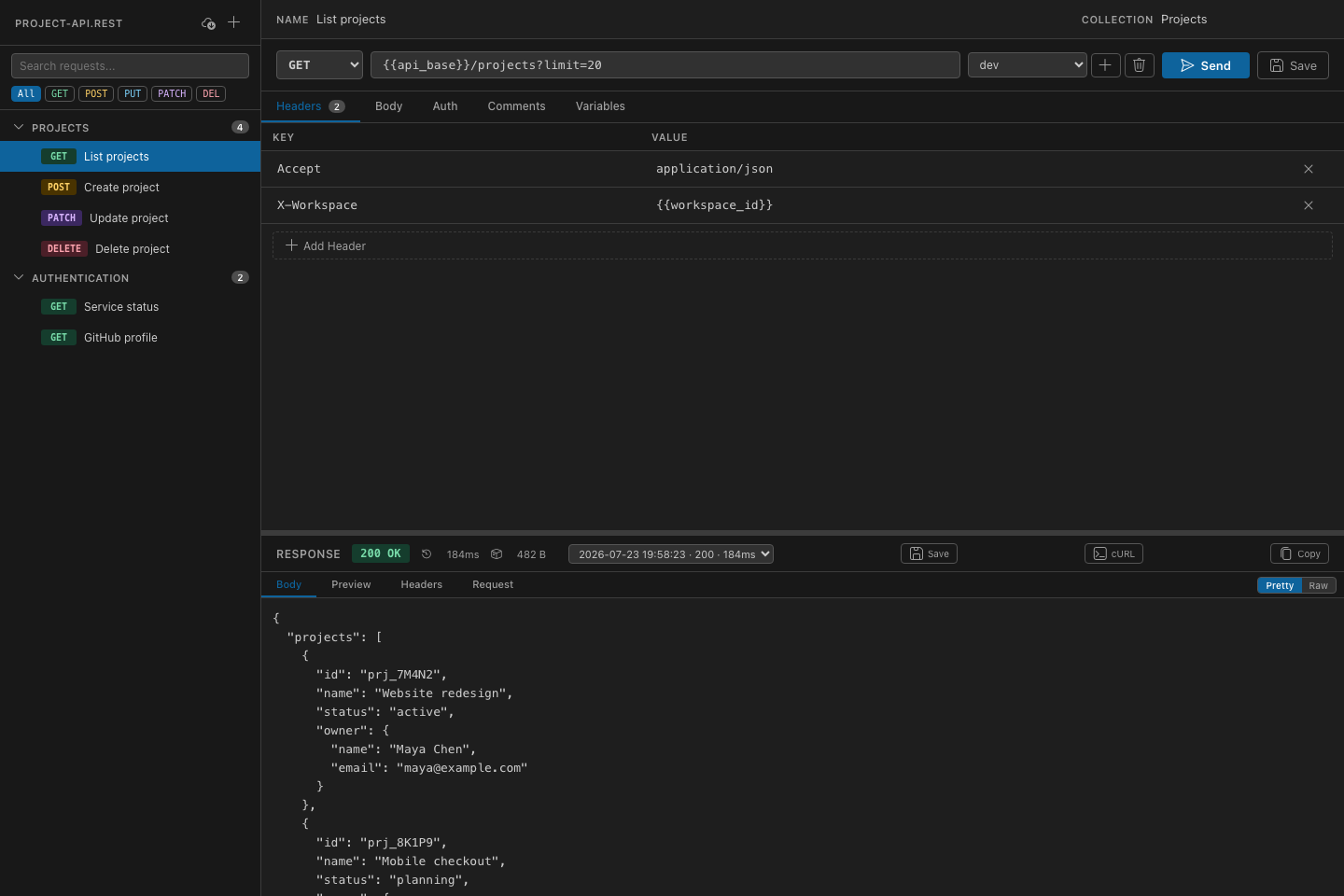
List projects returned HTTP 200. Searching the formatted body for Maya highlights matches, while the response header records the time, size, and environment used.
JSON preview
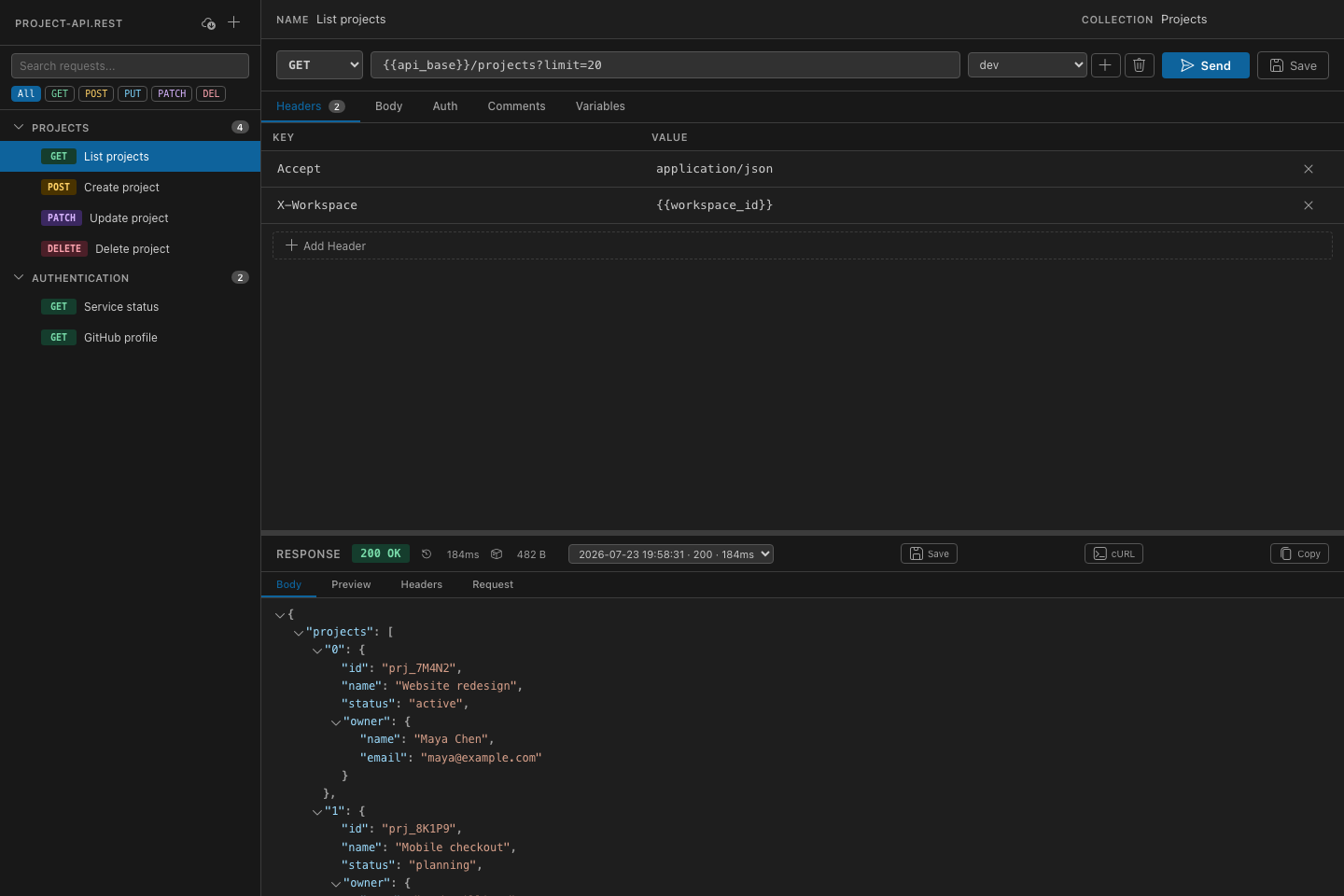
The same response is displayed as a JSON tree. Searching for Maya expands the relevant objects and highlights the matching values, so you can inspect nested data quickly.
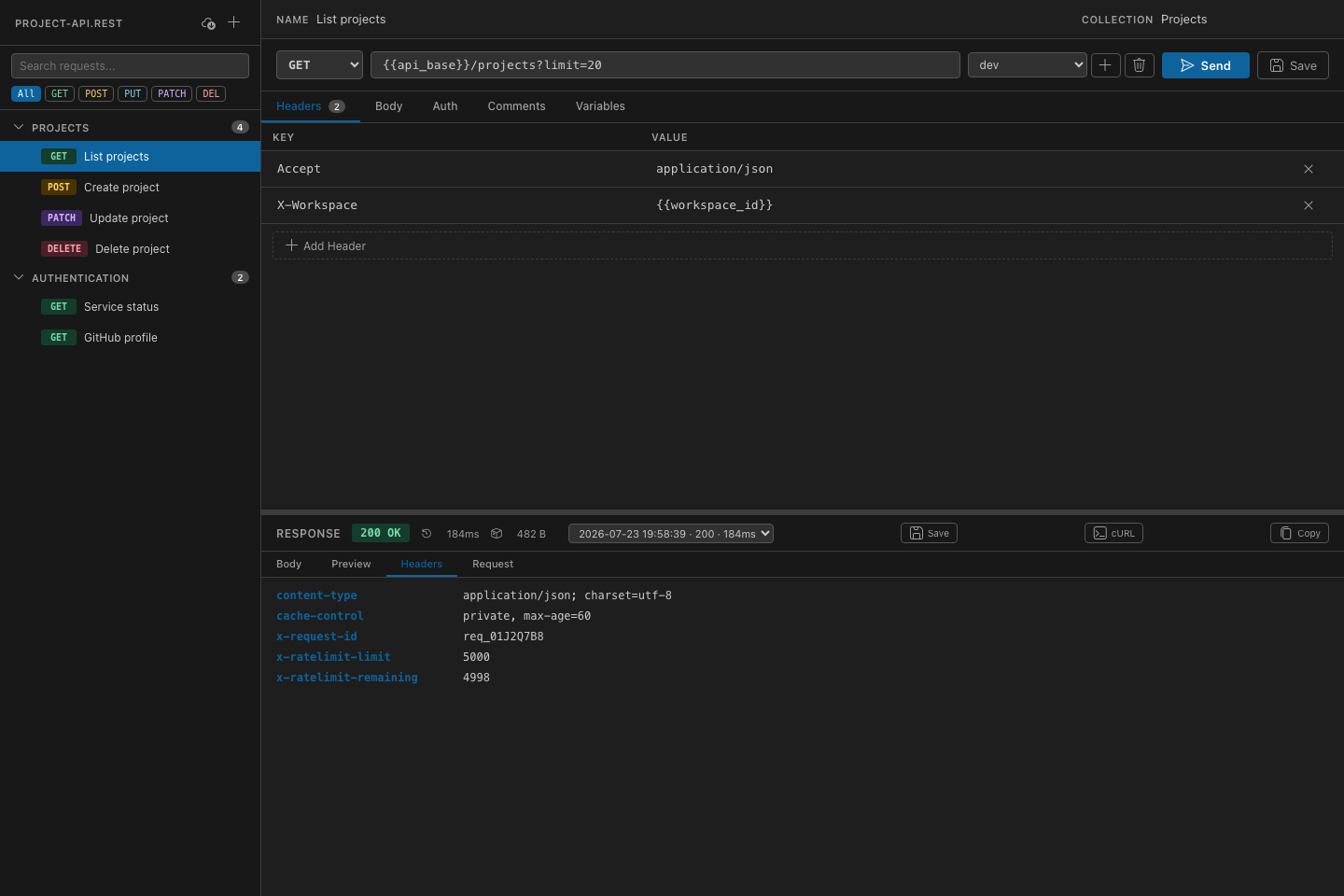
The Headers response tab lists the server headers with aligned values. A long header name is truncated to fit; its tooltip displays the complete name on hover.
Basic authentication
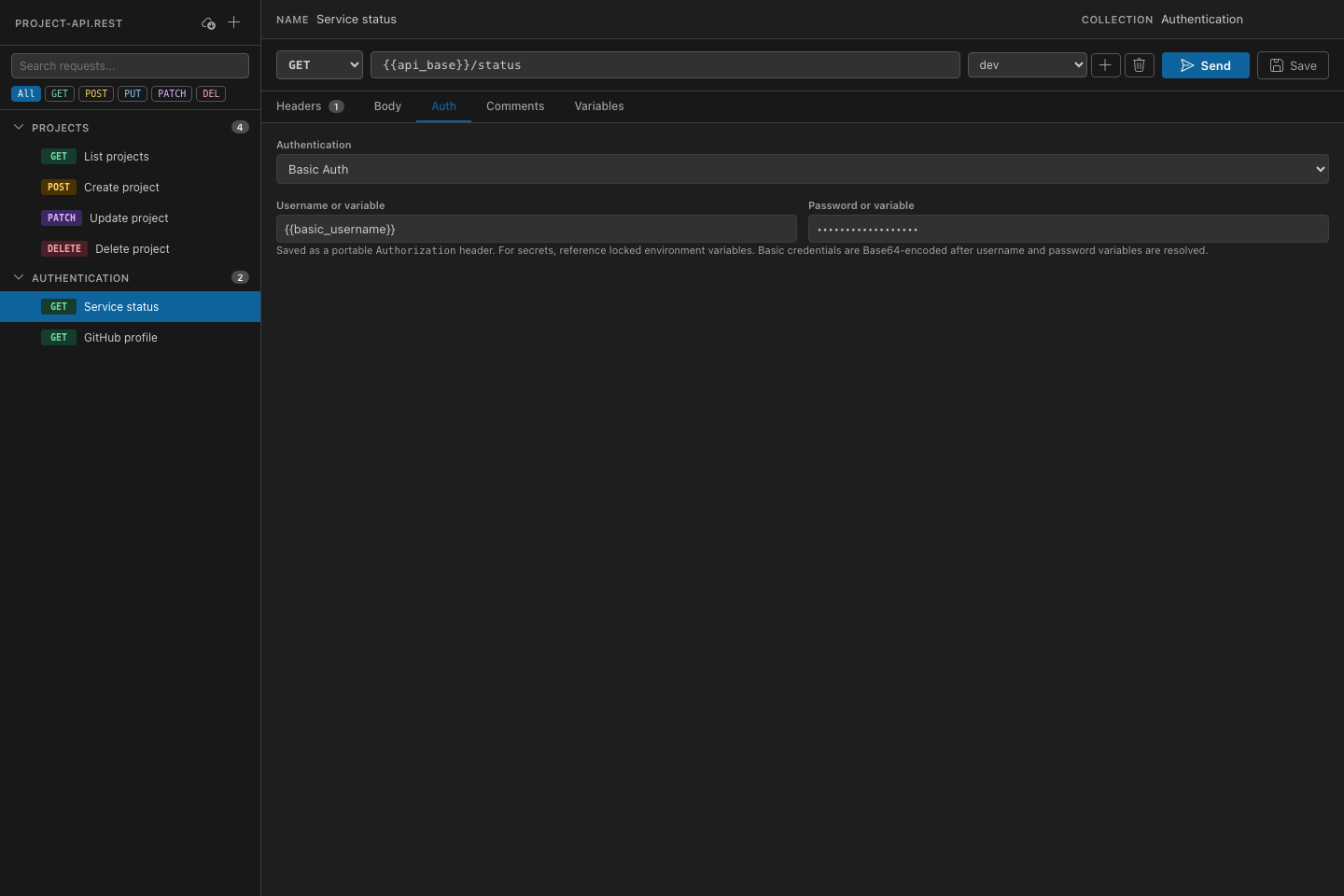
Service status uses HTTP Basic authentication with separate username and password variables. Credentials remain masked, while their variable references stay visible in the configuration.
OAuth 2.0
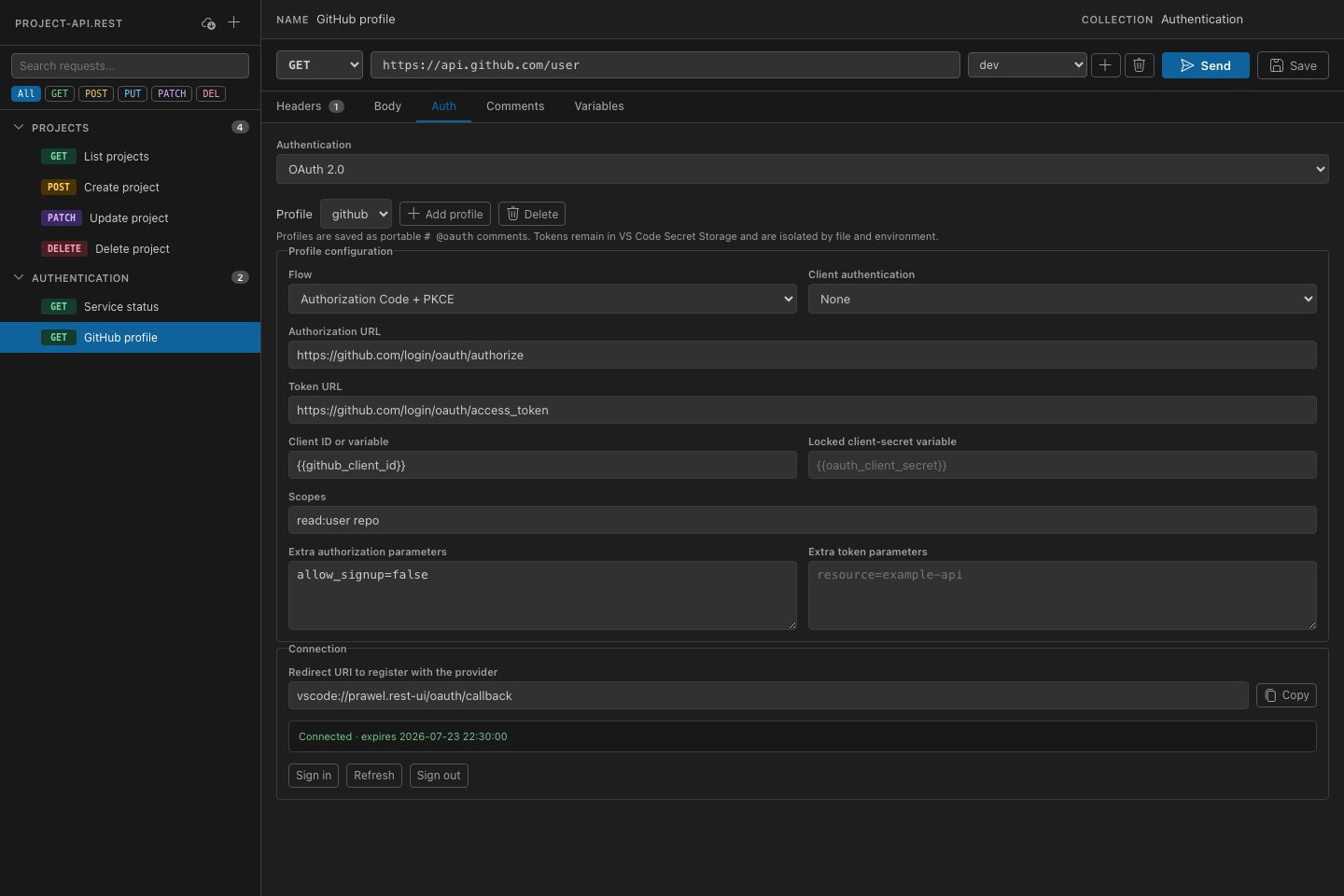
GitHub profile uses a reusable OAuth 2.0 profile with Authorization Code and PKCE. The Auth tab shows the profile configuration and token status, with refresh and sign-out controls.
Query parameters
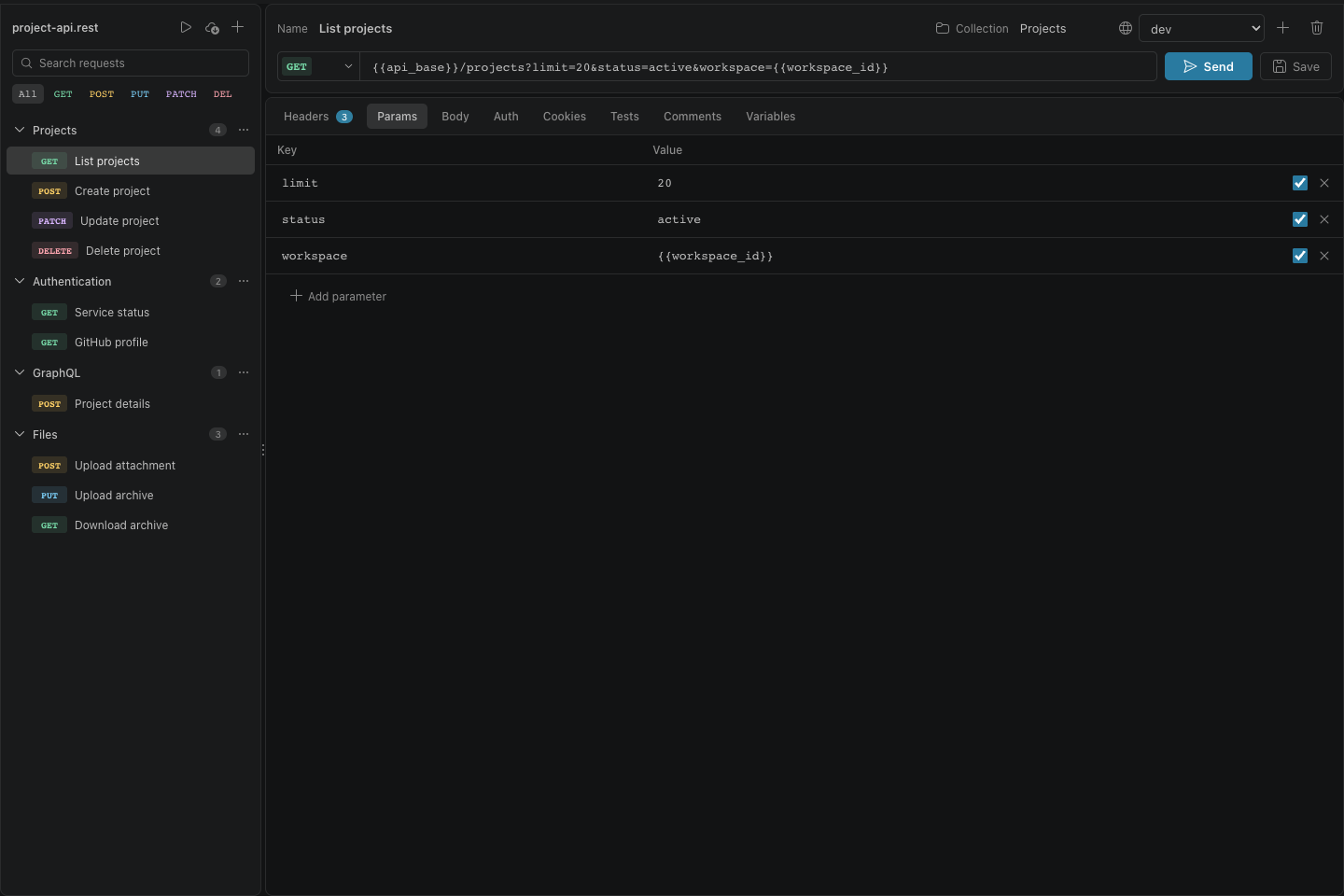
List projects defines pagination, status, and a workspace variable in the Params table. The URL stays readable while the table preserves variable references.
GraphQL
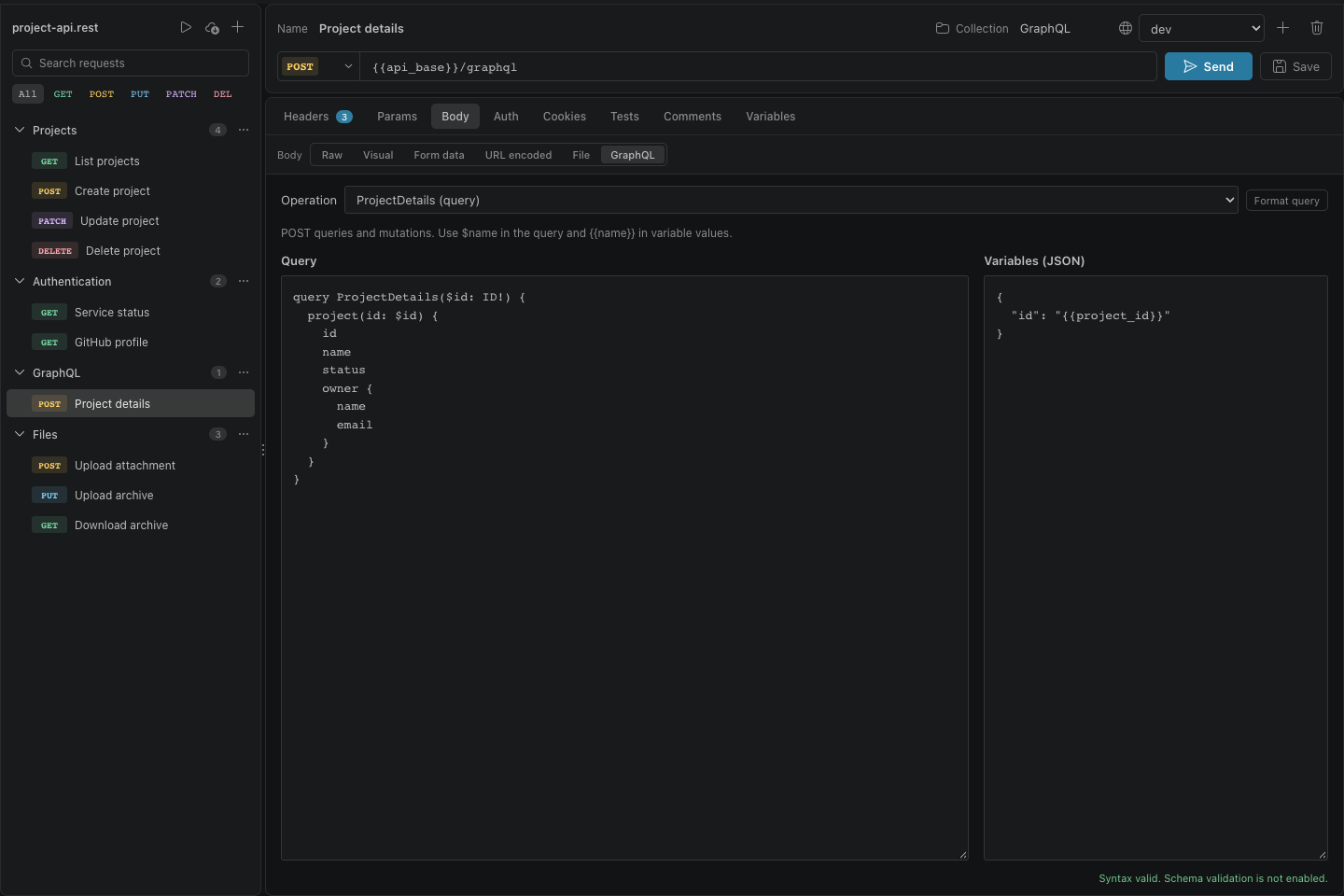
Project details keeps the query and JSON variables in separate editors. The operation selector chooses ProjectDetails, and syntax feedback helps check the query before sending.
Cookies
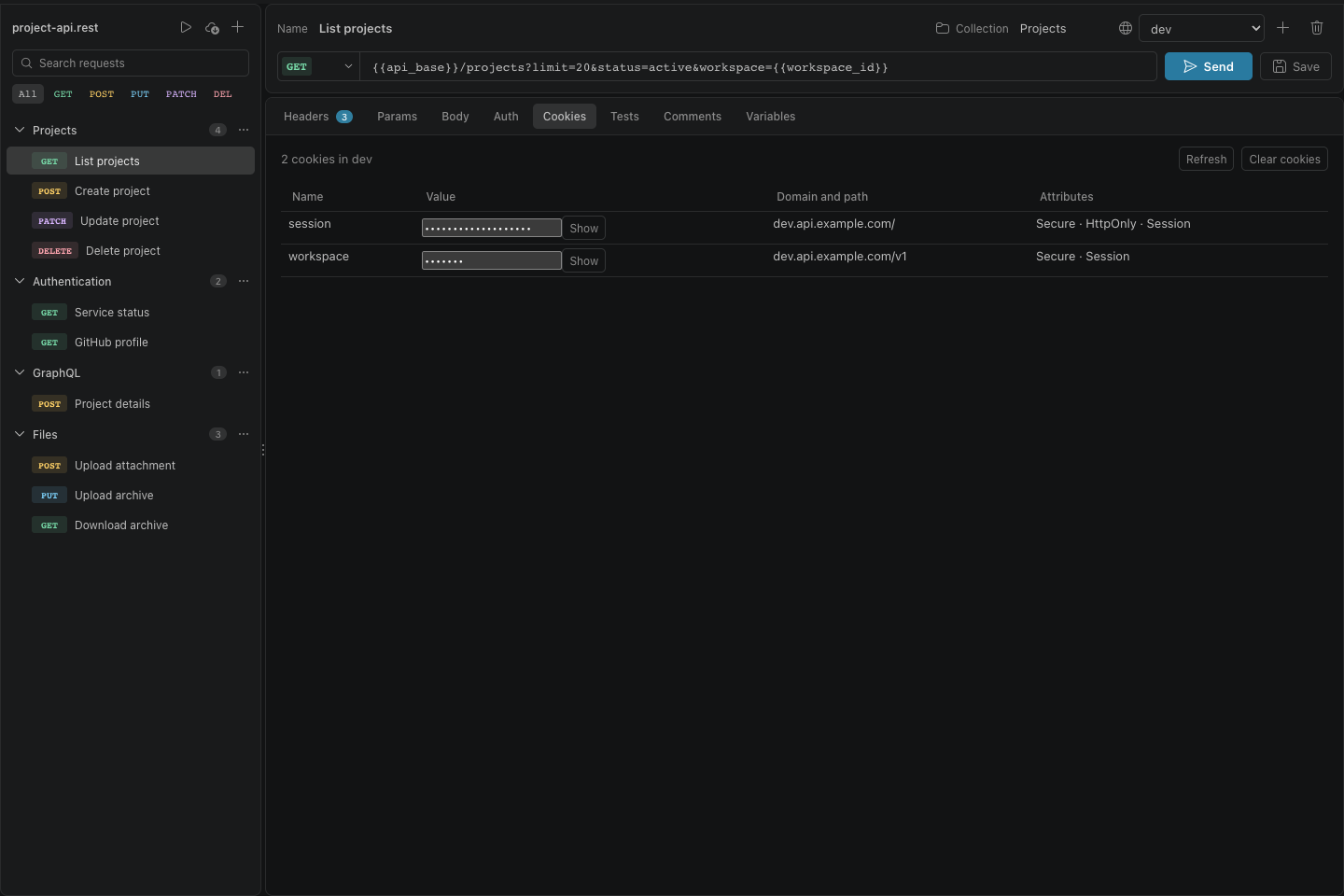
The Cookies tab displays the current environment’s session cookies, with masked values and security flags. Refresh the list or clear the session without editing the request.
Multipart uploads
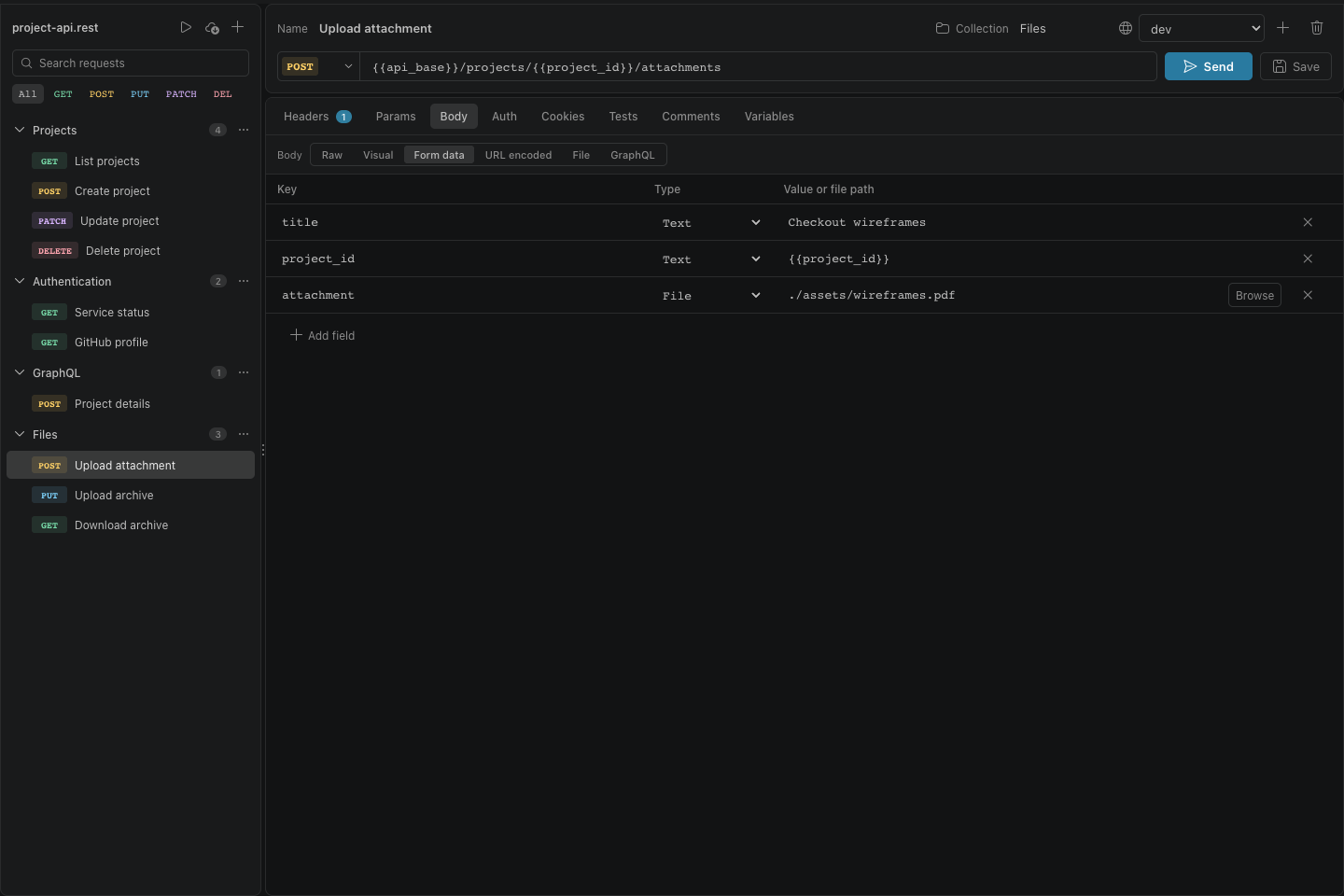
Upload attachment combines text fields, a runtime project ID, and a file attachment in multipart form data. The relative file reference keeps the request portable.
File uploads
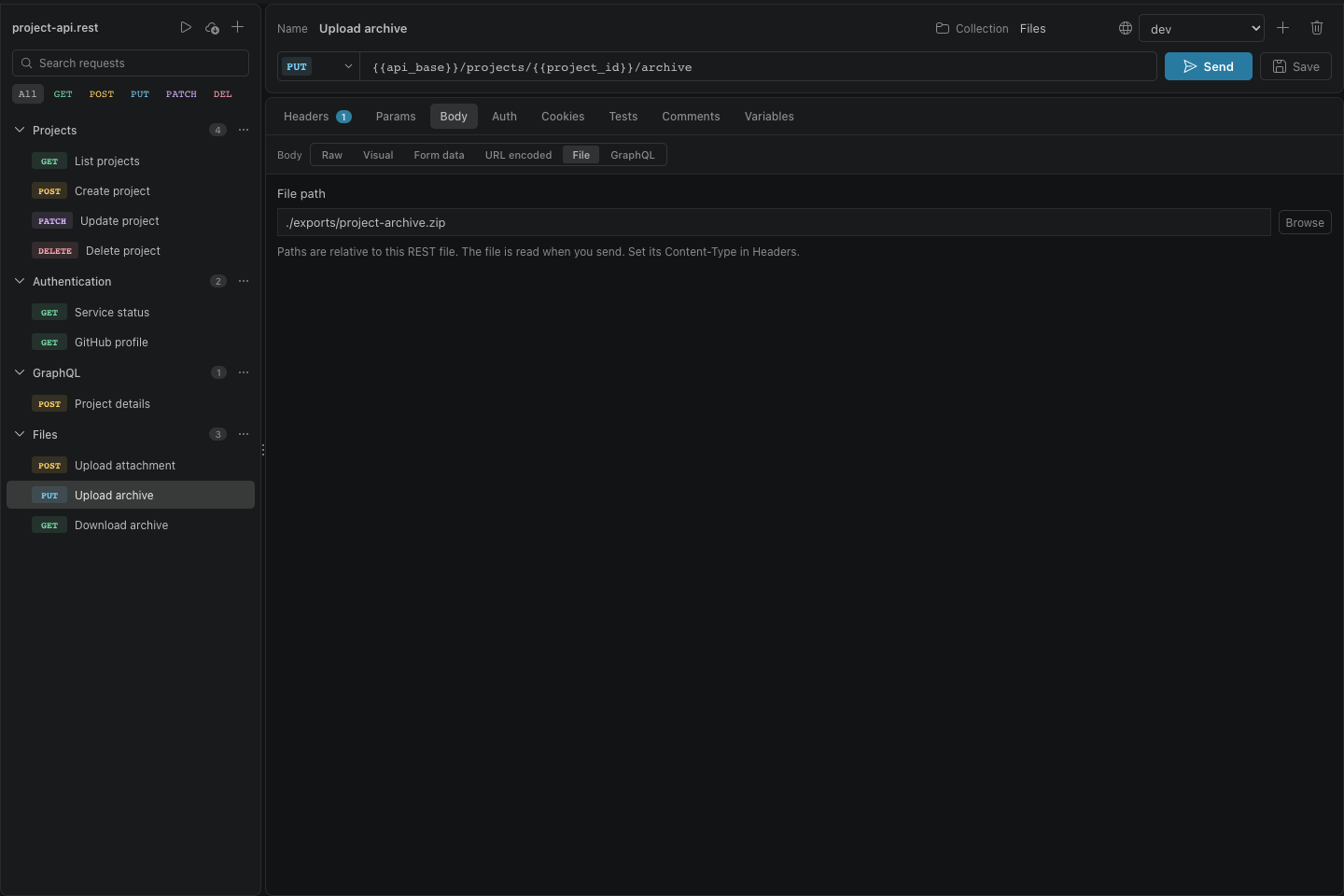
Upload archive sends a whole file as the request body. The file path is relative to the REST file, and the configured content type identifies the archive.
Sent request
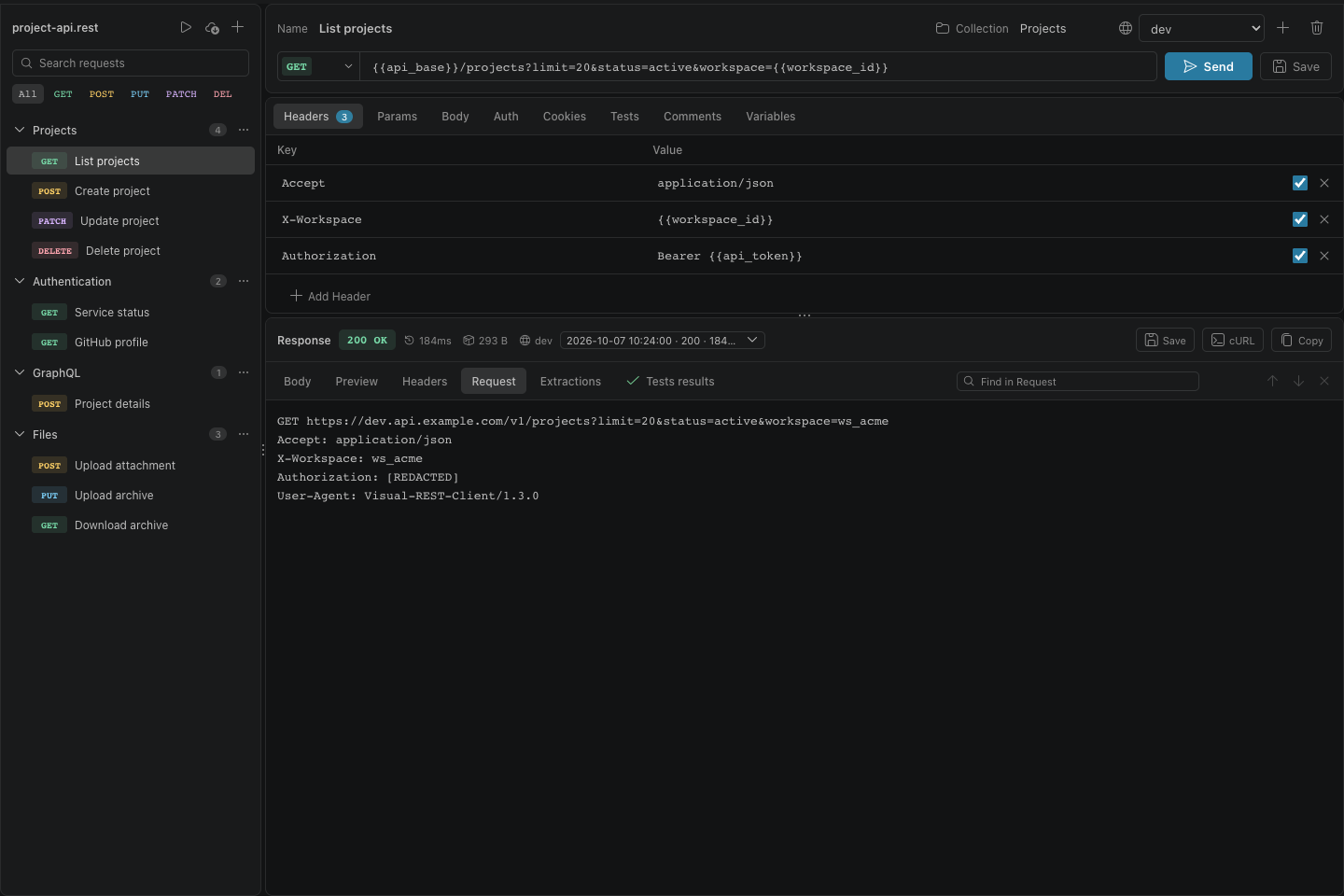
The Request response tab shows the actual request after variable resolution. Authorization is redacted, and Copy cURL exports the resolved request with known secrets masked.
GraphQL response errors
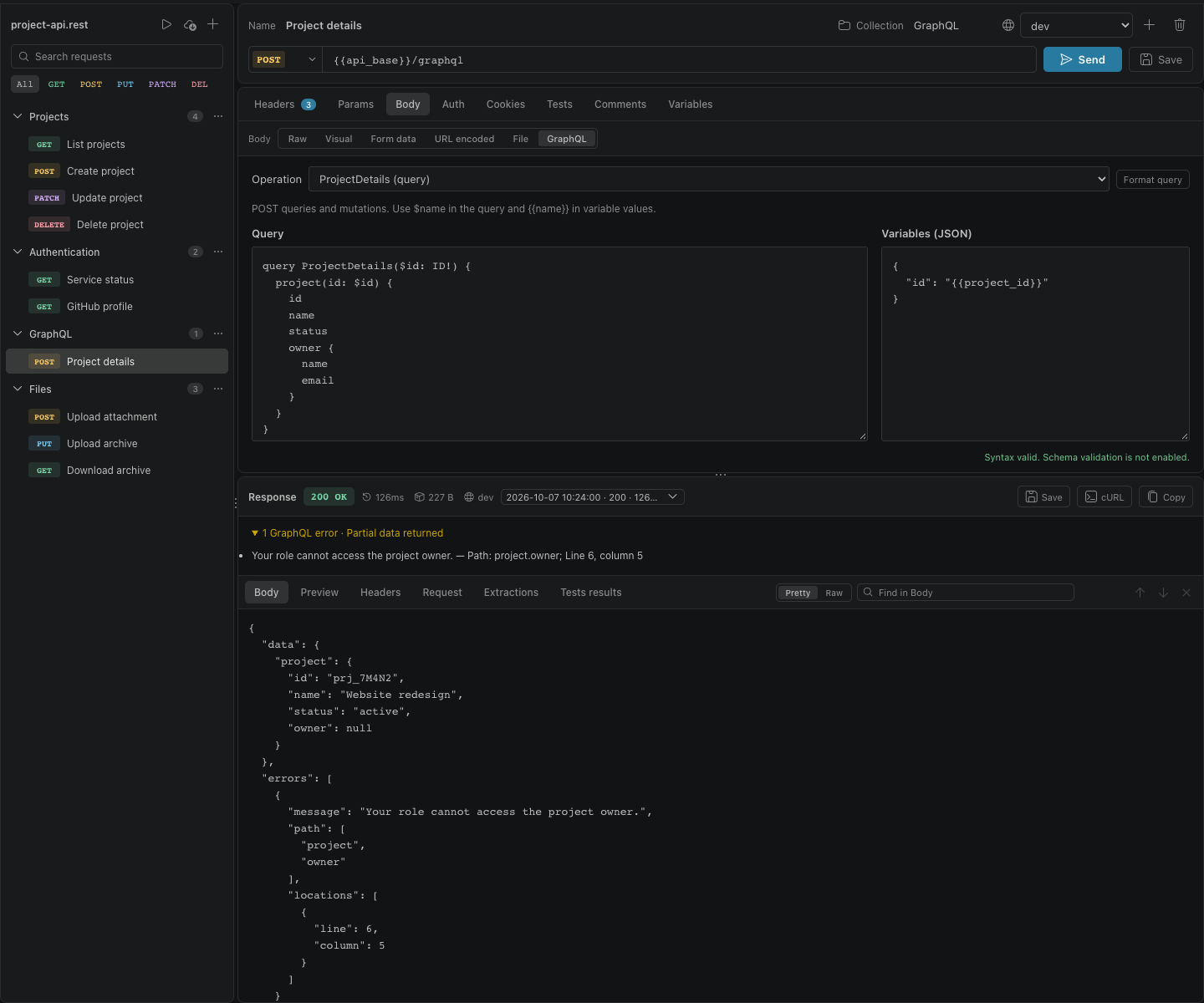
The GraphQL server returned HTTP 200 with partial data and an error. The expanded error summary identifies the message, response path, and query location alongside the response body.
Binary downloads
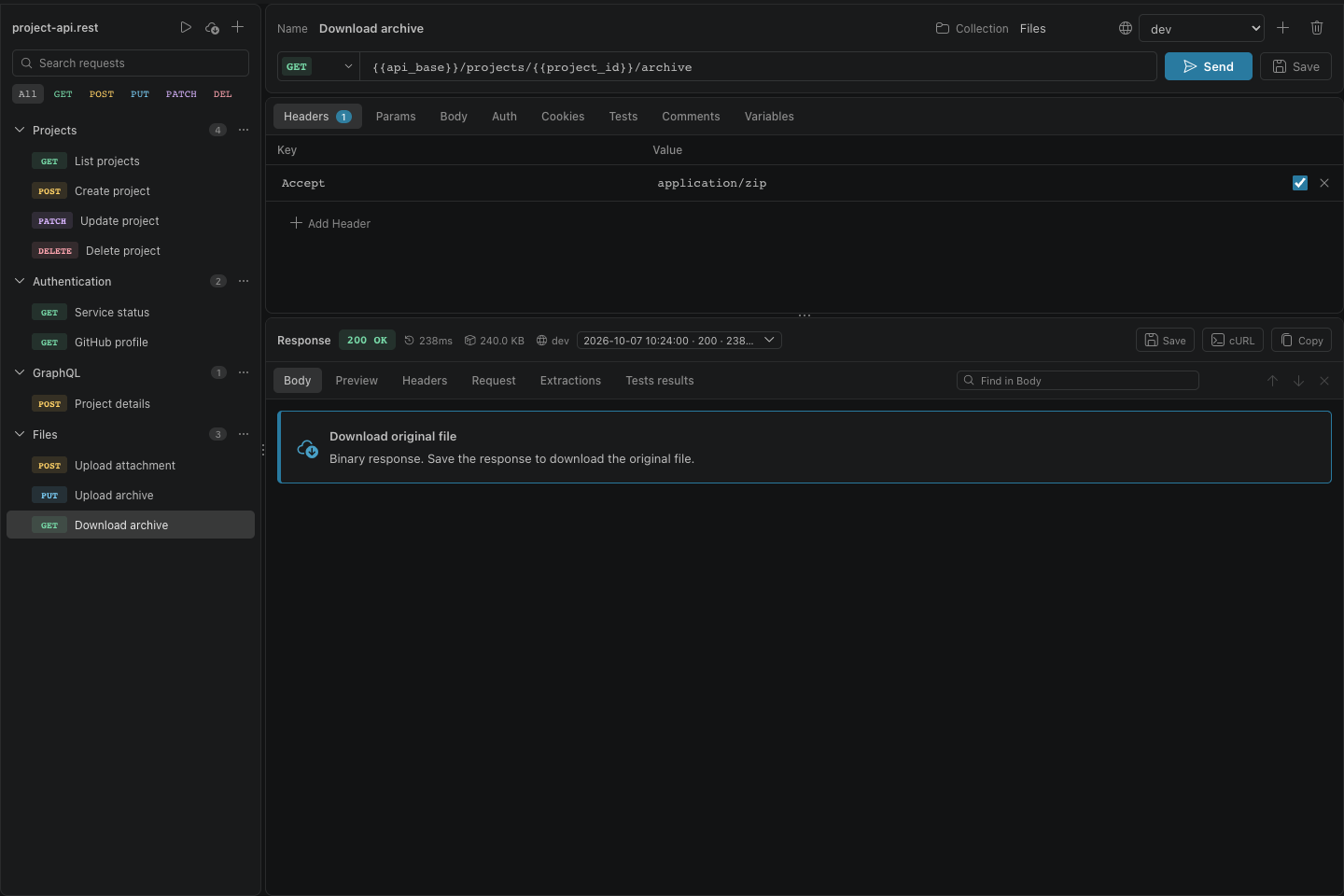
Download archive returned an archive. The binary-response view offers Download original file, and Save also preserves the exact response bytes.
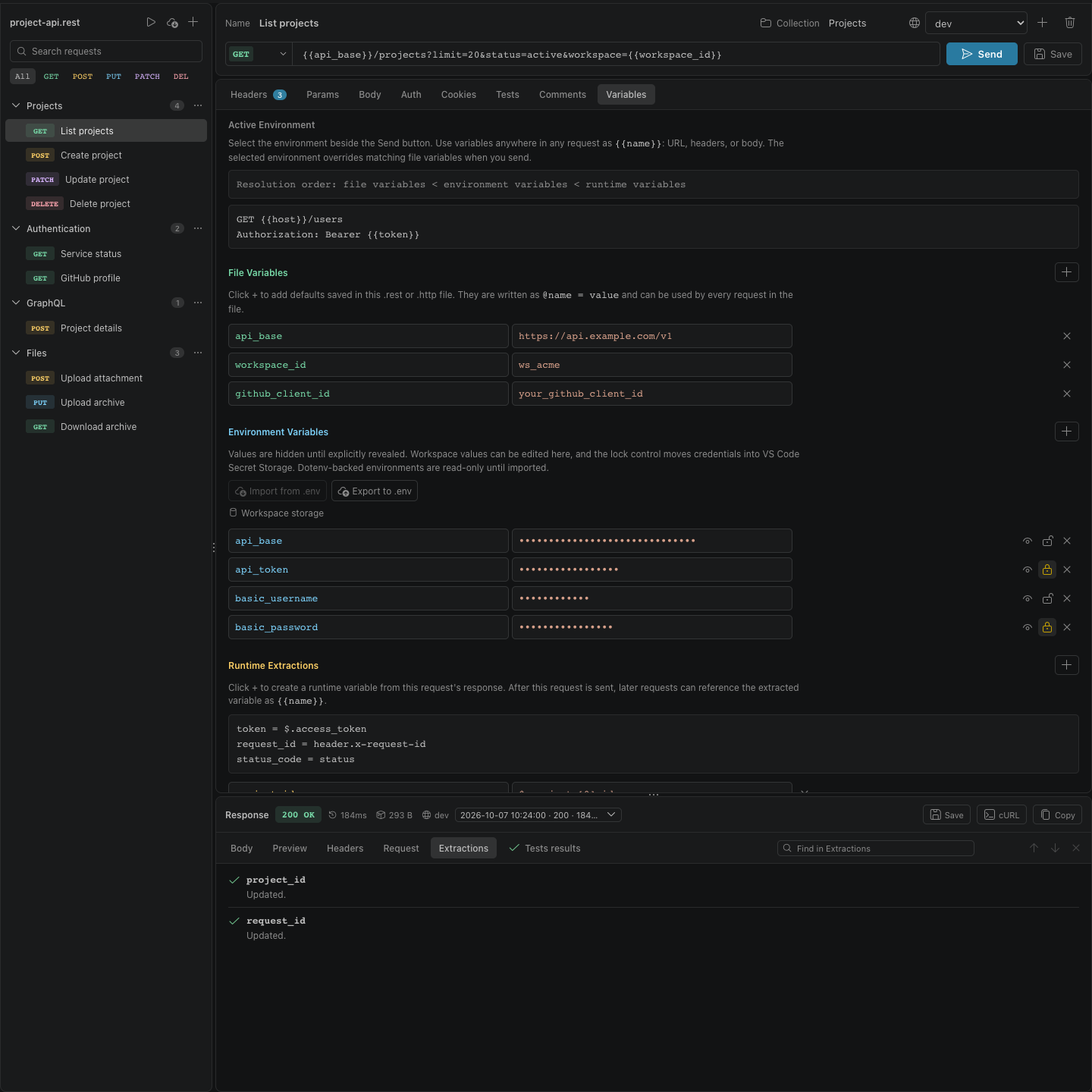
After List projects runs, the Extractions response tab confirms that project_id and request_id were captured. The Variables tab above shows the rules and runtime values available for subsequent requests.
Passing tests
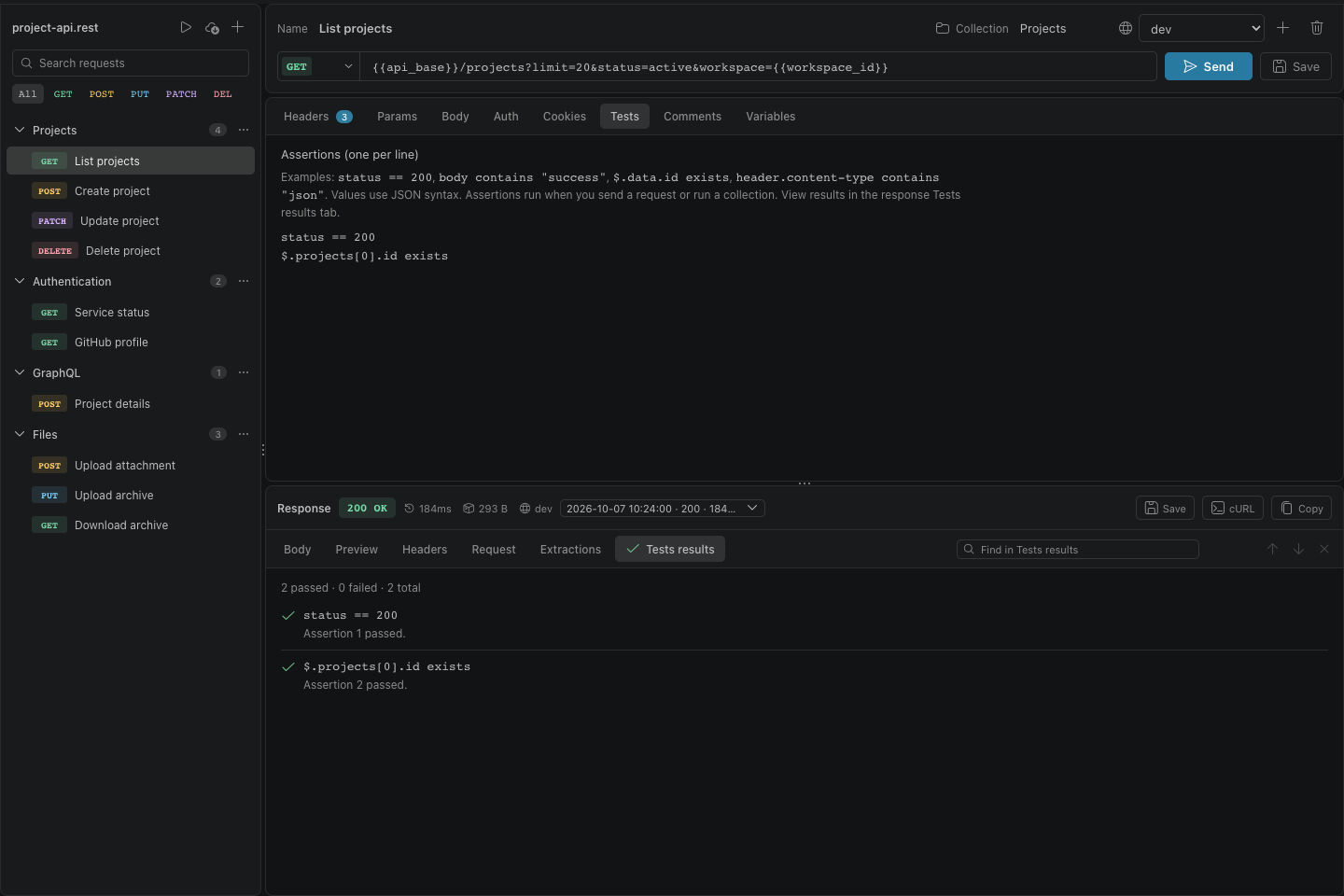
The request’s Tests tab defines a status check and a JSON-path check. The response’s Tests results tab shows both assertions passing, with a green tick; these results stay attached to this response in history.
Failed tests
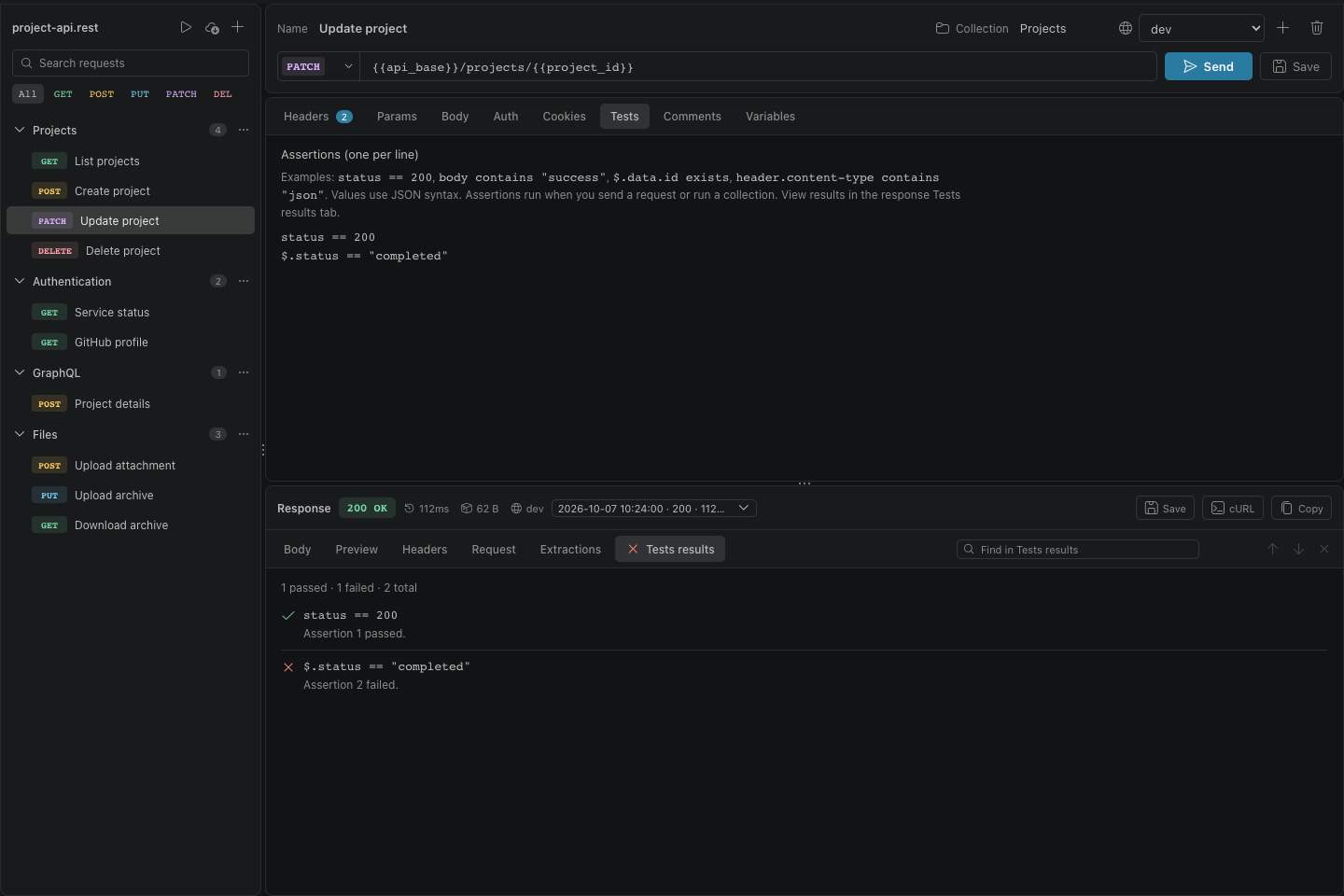
Update project returned HTTP 200, but its JSON status is pending rather than the expected completed. The Tests results tab shows one passed assertion and one failed assertion, marked with a red cross.
Collection run summary
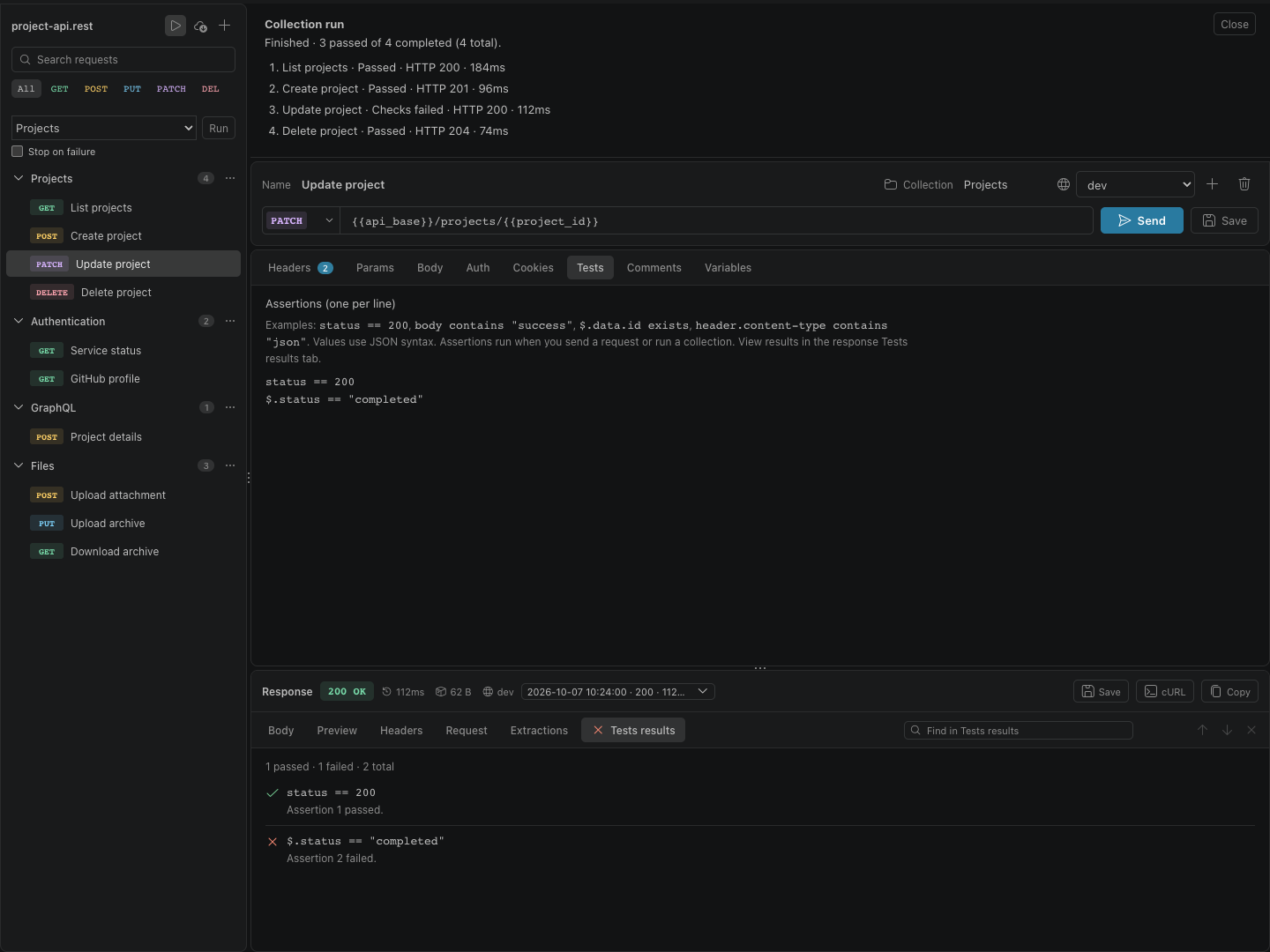
The Projects folder ran four requests with stop-on-failure disabled. The summary reports three passes and one failure; selecting Update project opens that run’s response and its failed assertion details.
Folder actions
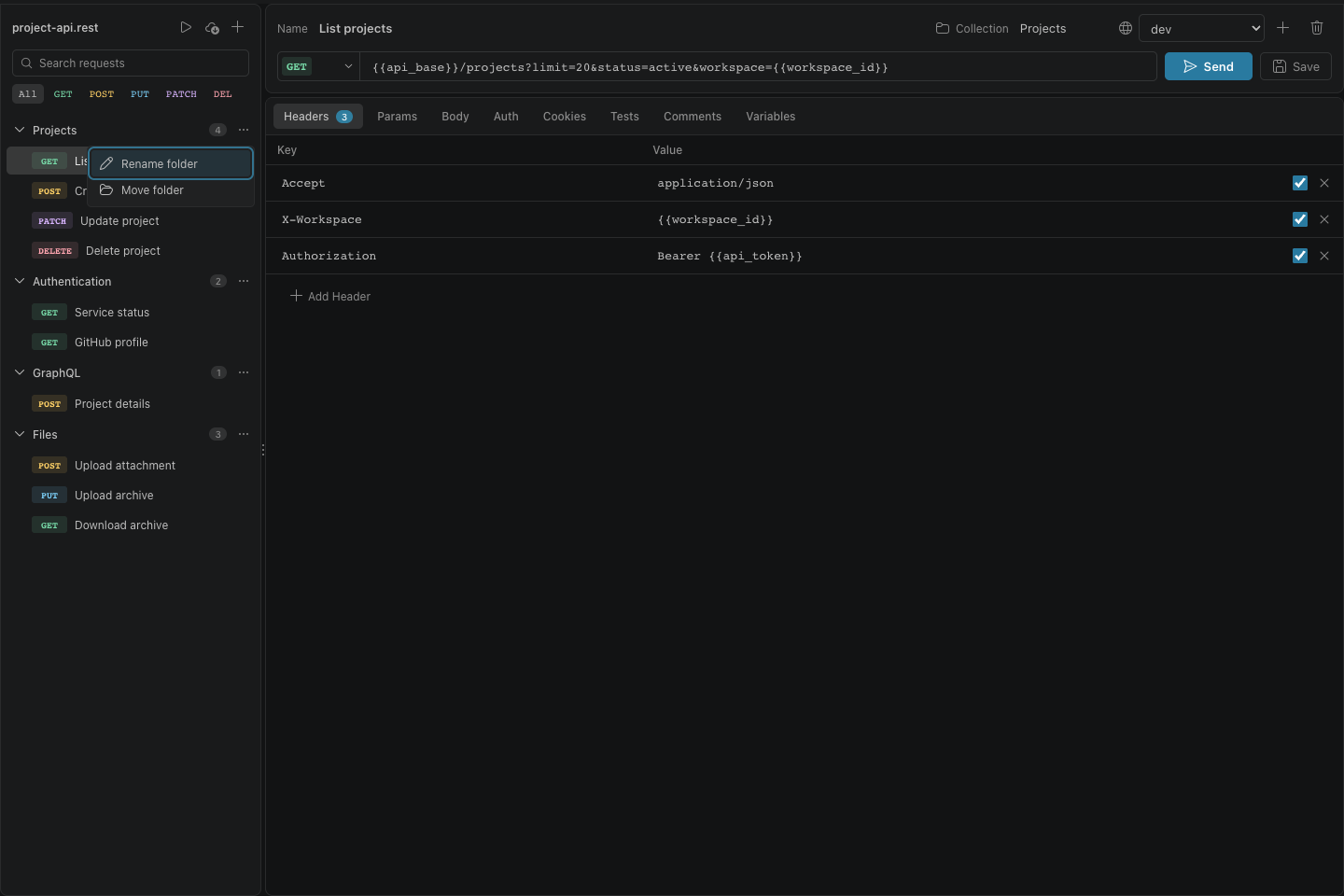
The Projects folder’s overflow menu contains Rename folder and Move folder. Folder management stays available without taking space from request names in the sidebar.
Light theme
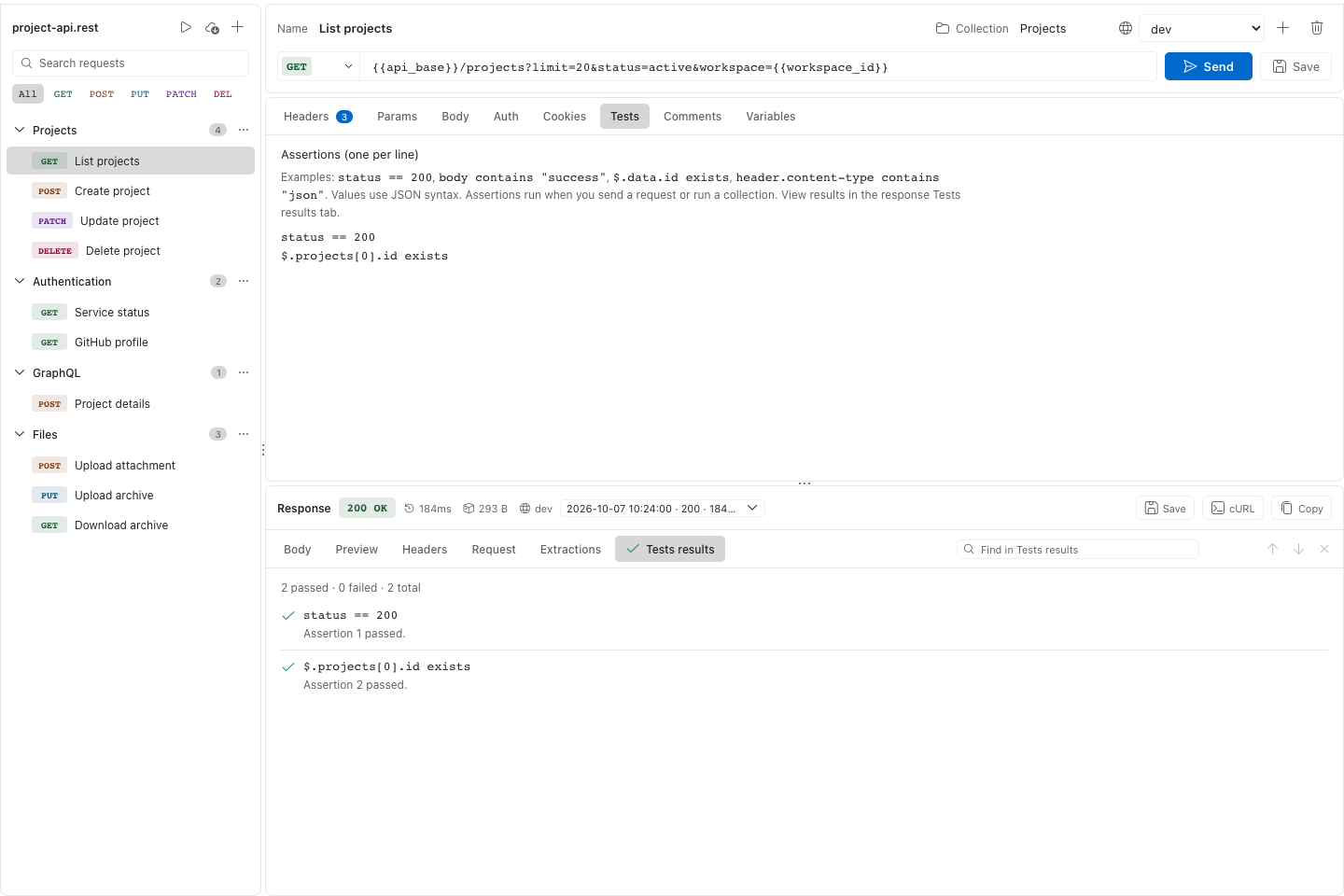
The same request and passing assertions are shown using VS Code’s light theme colors. Panel backgrounds, controls, method badges, and result indicators follow the active theme automatically.
Dotenv environments
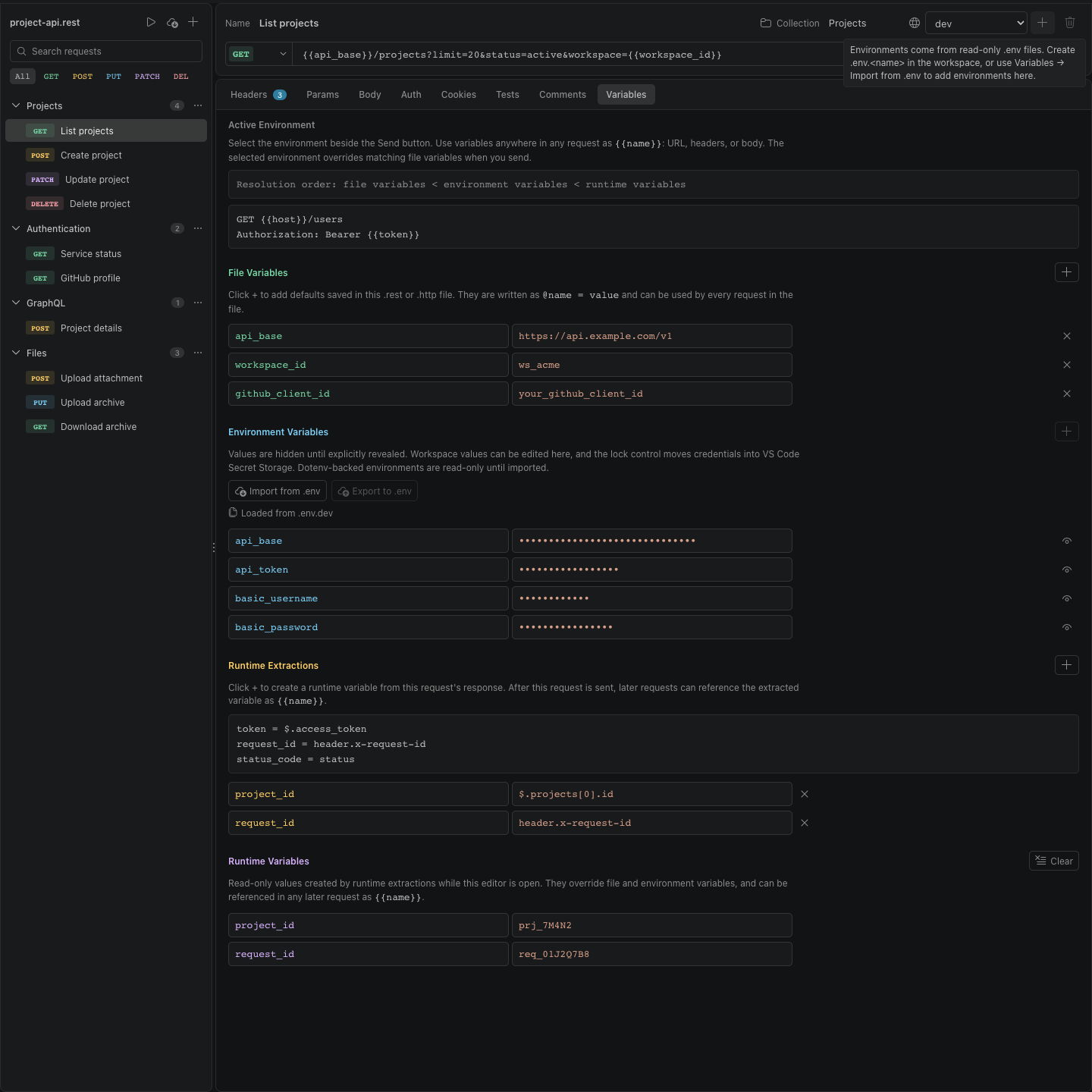
Environments are loaded from .env files, so the environment editor is read-only. Hovering the disabled Add environment button explains how to create a .env.<name> file or import values into editable workspace storage.
Opening The Editor
Open a .rest or .http file, then use one of:
| Method |
Action |
| Editor title bar |
Click Open Visual REST Client |
| Explorer context menu |
Right-click the file, then choose Open Visual REST Client |
| Command Palette |
Run Open Visual REST Client |
@host = https://api.example.com

### Login
POST {{host}}/login
Content-Type: application/json

{
  "email": "me@example.com",
  "password": "secret"
}

### Current user
GET {{host}}/me
Authorization: Bearer {{token}}
### starts a request.- Text after
### becomes the request name.
- Headers follow the
METHOD URL line.
- An empty line separates headers from the body.
- File-level variables use
@name = value.
- Variables are referenced as
{{name}}.
GraphQL
In the Body tab, choose GraphQL to edit a query and its JSON variables
separately. Opening GraphQL leaves an empty body unchanged; the example query is
only placeholder text. Writing your query creates a POST request with JSON headers.
Existing GraphQL JSON bodies open in GraphQL mode automatically. Use Format
query to format the document (this removes GraphQL comments), and select an
operation when the document contains multiple named operations.
### Get user
POST {{host}}/graphql
Content-Type: application/json
Authorization: Bearer {{token}}

{
  "query": "query GetUser($id: ID!) { user(id: $id) { id name } }",
  "variables": { "id": "{{user_id}}" },
  "operationName": "GetUser"
}
GraphQL $id references the JSON variables object. The existing {{user_id}}
syntax resolves file, environment, or runtime values before sending. Numbers,
booleans, arrays, and objects can be authored directly as JSON values; interpolated
string values are JSON-escaped automatically. Auth, cookies, cancellation,
response history, extraction rules, and redacted cURL export work as usual.
The saved body is standard JSON. Merely opening or switching editor modes does
not rewrite it. Unfinished variables JSON is retained as an editor draft across
request switches; fix it before sending or saving. The editor also reads and
sends REST Client's X-Request-Type: GraphQL format (query, blank line, variables
object). Editing that format in GraphQL mode converts it to a standard JSON body.
Postman collection imports preserve GraphQL queries and variables.
The standard JSON form also works as an ordinary HTTP request in Huachao Mao's
REST Client.
Use this form when sharing requests with an explicit operationName. Visual
REST Client's managed OAuth profiles and # @extract rules are extension-specific;
configure equivalent authentication or response chaining separately in other clients.
Responses retain the HTTP status and full JSON body. When GraphQL returns
errors, an expandable summary shows messages, paths, and locations, including
when HTTP 200 contains partial data. Extraction paths such as $.data.user.id
continue to work.
This release supports queries and mutations over POST, with syntax checks and
operation selection. Schema validation, autocomplete, subscriptions, file
uploads, and incremental streaming are not included.
Variables
Variables can be used in request URLs, headers, and bodies:
GET {{host}}/users/{{user_id}}
Authorization: Bearer {{token}}
X-Tenant: {{tenant_id}}
Resolution order:
file variables < environment variables < runtime variables
That means runtime variables override environment variables, and environment variables override file variables with the same name. Runtime extractions belong to the REST file and the environment that produced them. Switching environments also switches the runtime values; late responses update only their originating environment.
File Variables
File variables are stored in the .rest or .http file and are shared with the file.
@host = https://dev.example.com
@tenant_id = demo
Use them for portable defaults that should travel with the repo.
Environment Variables
Environment variables are named local overrides, not values written to the request
file. Their values are masked in the Variables panel until you use the eye control.
This prevents accidental disclosure while presenting, but it is a display safeguard,
not encryption.
At the root of the workspace containing the REST file, .env is exposed as the
default environment and .env.<name> is exposed as <name> (for example,
.env.dev becomes dev). Template files such as .env.example, .env.sample,
and .env.template are ignored, as are named templates such as
.env.sinco.example, .env.test.sample, and .env.dev.template (case-insensitive
template suffixes). When supported dotenv files exist, they are the
environment source and are shown read-only. When none exist, the existing workspace
environment store is used, so projects created before 0.2.0 keep working unchanged.
In workspace-storage mode, mark credentials with the lock control: secret values
are stored through VS Code Secret Storage, while ordinary values remain in workspace
extension storage. The active environment belongs to the current editor, so two
open REST files can safely use different environments.
Example:
dev:
host = https://dev.example.com
token = dev-token

prod:
host = https://api.example.com
token = prod-token
Use the Variables panel to create an environment, select it, and add variables. When
you send a request, the selected environment overrides matching file variables.
The same panel provides two deliberate move operations:
- Export to .env writes the complete workspace environment catalog to root-level
dotenv files, verifies the files, and then clears the migrated workspace values.
- Import from .env stores the dotenv environments in the VS Code workspace store
and then removes the successfully migrated source files.
Both actions confirm before changing sources. Dotenv files contain plaintext and
are not automatically ignored by Git; review the generated files and your
.gitignore before committing or sharing the workspace. Automatic dotenv loading
is scoped to each workspace root; migration actions are disabled in multi-root
workspaces because the backward-compatible managed environment store is shared by
the workspace.
Runtime Variables
Runtime variables are created from responses and stay available while the VS Code
window is open, including when switching tabs or closing and reopening a REST file.
Values stay in memory and are isolated by file and environment. Add extraction
rules in the Variables panel under Runtime Extractions.
Examples:
token = $.access_token
user_id = $.user.id
first_item = $.items[0].id
request_id = header.x-request-id
status_code = status
raw_body = body
After a request with extraction rules is sent, later requests can use those values:
GET {{host}}/me
Authorization: Bearer {{token}}
Runtime variables are shown read-only in the Variables panel.
Use Clear runtime variables to reset values for the current file and environment.
The response panel reports each failed extraction. Its previous runtime value is
cleared in the environment that produced the response, so later requests cannot
silently use an earlier result.
For predictable memory use, one response evaluates at most 32 extraction rules,
with a 256 KiB limit per value and a 1 MiB aggregate limit. A document retains
at most 256 runtime variables or 4 MiB of runtime values.
Authentication
Open a request's Auth tab and choose:
- Bearer Token to write
Authorization: Bearer <token>.
- Basic Auth to provide separate username and password values.
- OAuth 2.0 to use a reusable OAuth profile.
Bearer and Basic authentication are stored as standard request headers, so the
file remains portable. Prefer a locked environment variable such as
{{api_token}}, {{basic_username}}, or {{basic_password}} instead of
writing a secret directly into the REST file. Basic Auth is saved in the
REST Client-compatible Authorization: Basic username:password form. The
extension resolves each variable independently, then UTF-8/Base64-encodes the
pair immediately before sending.
OAuth 2.0
Open a request's Auth tab, choose OAuth 2.0, and create or select a
reusable profile. Profiles are saved as portable comment directives, while
access tokens, refresh tokens, and client secrets remain local.
# @oauth github.flow = authorization_code_pkce
# @oauth github.authorizationUrl = https://github.com/login/oauth/authorize
# @oauth github.tokenUrl = https://github.com/login/oauth/access_token
# @oauth github.scopes = repo user
# @oauth github.clientId = {{github_client_id}}

### Current user
# @oauth-use github
GET https://api.github.com/user
Supported flows:
- Authorization Code + PKCE opens the system browser, validates a
single-use state value, exchanges the returned code using PKCE-S256, and
resumes the waiting request.
- Client Credentials obtains a token directly from the token endpoint.
Client authentication may use HTTP Basic, request-body credentials, or no
client secret.
Add client IDs to the active environment when they vary locally. A profile
using a client secret must reference one locked environment variable, for
example {{oauth_client_secret}}. Literal client secrets are rejected.
Provider-specific authorization and token parameters can be entered as
name=value, one per line.
For browser login, copy the redirect URI shown in the Auth tab into the OAuth
application's allowed callback list. Desktop VS Code normally uses:
vscode://prawel.rest-ui/oauth/callback
VS Code Remote may resolve that callback to a different browser-reachable URI.
The Auth tab always shows the current value; compatibility depends on the
provider accepting that exact redirect URI.
Tokens are isolated by workspace, REST file, environment, and profile in VS
Code Secret Storage. Cached tokens also match the resolved OAuth configuration.
Changing the client ID, token endpoint, scopes, or other profile parameters
requires fresh credentials; old refresh tokens are not reused for the new profile.
The extension refreshes expiring tokens automatically,
handles refresh-token rotation, and provides explicit Refresh, Cancel, and
Sign out controls. OAuth adds the Bearer header only while sending. If a
request using an OAuth profile already contains an Authorization header, the
send is stopped with a conflict error.
Query Parameters and Uploads
The Params tab edits the URL's query parameters. Repeated names, {{variables}},
fragments, and the encoding of untouched fields are preserved.
Use each row's checkbox in Headers or Params to omit a value when sending
without deleting it. Disabled values remain editable and are retained as REST
comments when saved.
In Body → URL encoded, edit application/x-www-form-urlencoded fields in a
table. Repeated names stay in order. Variable values are encoded when sending,
including ampersands and equals signs inside values. Existing form bodies retain
their original encoding until a field is edited.
In Body → Form data, add text or file fields and use Browse to select a
file. Body → File sends a complete file as the request body. Paths are relative
to the REST file, and the referenced files are read only when sending. Set the
appropriate Content-Type in Headers. For example:
### Upload binary
POST {{host}}/upload
Content-Type: application/octet-stream

< ./payload.bin
Multipart fields are saved as normal multipart request text with < ./file
references inside file parts. File contents are never embedded in the REST file.
Missing files, empty file selections, and oversized uploads stop the request with
an error. Unsupported existing multipart syntax remains editable in Raw mode.
Opening Form data or File leaves the request unchanged until you edit a field or
choose a file. Removing the last form field clears the multipart body. Switching
to an incompatible body editor keeps the current content and shows a temporary
warning; use Raw to edit or clear the body before changing its format.
The Cookies tab shows the current file/environment's cookie jar. Values are
masked until revealed. Clear cookies starts a new session for that environment;
other files and environments keep their sessions.
Editing and External Changes
Visual changes participate in VS Code's normal save and undo/redo history.
If a file changes externally, outdated visual updates are rejected. If you had
pending edits, Open pending edits opens a recovery copy in a separate text
editor so you can compare and merge them with the latest file.
Sending Requests
Click Send or press Ctrl/Cmd+Enter. While a request is running, use
Cancel to abort it.
Before a request is opened, the extension blocks unresolved {{variables}} and
oversized request bodies. It follows a bounded number of redirects, decompresses
gzip, deflate, and Brotli responses, and limits both downloaded and decoded bytes.
Response cookies are stored in memory and reused for matching URLs during later
requests and redirect hops in the same REST file and active environment. Cookie
sessions are isolated between files and environments and are cleared when the
editor closes or the extension reloads. An explicitly authored Cookie header
overrides automatic cookie injection for that request. Redirects to a different
origin do not retain authored credential-bearing headers such as authorization,
cookies, API keys, tokens, or secrets. A cross-origin redirect is blocked if it
would replay a request body containing a known secret. Up to eight requests may
run concurrently per REST file by default.
By default, sending with an environment named like prod, production, or
live requires a modal confirmation. The matching pattern and all transport
limits can be changed under Settings → Visual REST Client.
The response panel includes one find control at the right of its tab bar. It searches
the currently selected tab case-insensitively; use Enter/Shift+Enter or the arrow
buttons to move through matches, or press Ctrl/Cmd+F while working in the response.
The response tabs are:
- Body: formatted response body, with pretty/raw JSON toggle when available.
- Preview: JSON tree for JSON responses; find matches keys and scalar values
and expands collapsed paths as needed.
- Headers: response headers.
- Request: the resolved request that was actually sent.
- Response history selector for previous sends of the same request.
Response history keeps up to ten entries per request within a shared 20 MiB
per-document display budget. Original response bytes have a separate bounded
download cache. Save downloads those bytes, including binary files, while
text views honor the response charset. If an old download was evicted, send the
request again to download it.
Use Copy, Save, or cURL from the response toolbar.
Each response and history entry identifies its originating environment and host.
Switching environments shows a notice when the displayed response belongs to
another environment.
Proxies and TLS Certificates
Configure these settings under Settings → Visual REST Client for the workspace
or resource that owns the REST file. Settings use the visual-rest-client.* prefix.
Existing restui.* settings remain supported; the new name takes precedence at
the same scope, and folder/workspace values still override user settings.
| Setting |
Purpose |
visual-rest-client.network.proxyUrl |
HTTP/HTTPS proxy endpoint, for example http://localhost:8080, without credentials or a path. |
visual-rest-client.network.caFile |
PEM certificate bundle that adds trusted CAs alongside the defaults. |
visual-rest-client.network.clientCertificateFile |
PEM client certificate for mutual TLS. |
visual-rest-client.network.clientKeyFile |
Matching PEM private key. |
visual-rest-client.network.clientCertificateHosts |
Exact destination hostnames allowed to receive the certificate; include a port to restrict it further. |
File paths may be absolute or relative to the owning workspace root (the REST
file's directory outside a workspace). Each PEM file is limited to 1 MiB. Both
client certificate and key are required, along with at least one allowed host.
Certificate verification remains enabled, including for HTTPS proxies.
With the REST file open, run Visual REST Client: Set Proxy Credentials to
store Basic proxy authentication in VS Code Secret Storage, or Clear Proxy
Credentials to remove it. Use Set Client Key Passphrase for an encrypted
private key; entering an empty value clears its passphrase. Secrets are scoped to
the owning workspace and configured proxy or key, and are kept out of authored
request headers. These network settings also apply to OAuth token requests.
Collection Runs and Assertions
Click Run collection (the play icon in the sidebar toolbar) to open the runner.
Choose All requests, a folder, or Selected requests, then click Run.
Request checkboxes appear only while the runner is open with Selected requests
chosen. Close the runner with its toolbar button or press Escape from the
runner or a selection checkbox to return to the uncluttered request list.
Your selections are retained while switching scopes or closing and reopening
the runner in the same editor session.
Requests run in file order using the active environment, authentication and
cookies. Response extractions are available to later requests in the same run.
Stop on failure is enabled by default; Stop cancels the active run. Editing
the source externally stops the run to avoid sending outdated requests.
The Tests tab accepts one assertion per line:
status == 200
body contains "success"
header.content-type contains "json"
$.data.id exists
$.items[0].active == true
Use status, body, header.name, or a JSON path with ==, !=, contains, or
exists. Expected values use JSON syntax. Assertions are stored as # @assert
comments and run only during collection runs; arbitrary scripts are never
executed. A request passes when its HTTP status is 2xx/3xx, its assertions pass,
and its extractions succeed. Up to 64 assertions are evaluated per request.
The summary shows pass/fail, HTTP status, timing and failure reasons, including
failed extractions and request errors. Checks failed means an HTTP 2xx/3xx
response was received but an assertion or extraction failed. Click a result to
open its request and response. Array paths such as $[0].title and the older
$.[0].title spelling work in both extractions and assertions.
Organising Requests
- Search requests from the sidebar.
- Filter requests by method.
- Drag and drop requests to reorder them.
- Set a slash-delimited collection name such as
API/Users to group requests in
nested folders. Collapse or expand folders with their buttons or Left/Right keys.
- Use the folder row's rename and move actions to update its descendants together.
- Drag requests onto a collection header to move them into that collection.
- Drop a request on empty sidebar space to remove its collection.
- Duplicate or delete requests from the sidebar row actions.
Collection Import
Import a Postman, Hoppscotch, Insomnia, or Thunder Client collection file, or a Bruno collection folder, from:
| Method |
Action |
| Sidebar toolbar |
Click Import Collection |
| Command Palette |
Run Visual REST Client: Import Collection |
| Postman shortcut |
Run Visual REST Client: Import Postman Collection |
Choose Auto-detect (JSON, Insomnia YAML or Paw binary), Bruno, Hoppscotch,
Insomnia, Postman, RapidAPI / Paw, or Thunder Client, select the
collection file or folder, then choose Current file or New file when an
editable .rest or .http document is open. The current target's filename is
shown; imports append requests, retain unsaved text and pending visual edits,
and participate in undo without automatically saving the document. Conflicting
incoming variables and OAuth profiles are renamed after confirmation, preserving
existing requests. Choosing New file opens the usual save dialog.
The existing Postman shortcut opens its file picker directly and offers the same
destinations. If the import needs attention, View import warnings opens a
summary; warnings also remain in the resulting file.
Postman
The importer preserves:
- request names, methods, URLs, headers, and bodies
- nested folders as collections
- collection variables as file variables
- request descriptions as comments
- Bearer, Basic, and API-key authentication, including inherited collection and folder settings
Disabled fields are skipped. Imported file fields must be configured locally;
unsupported body modes, authentication types, and scripts produce import warnings.
The importer preserves explicitly authored authentication headers when they
conflict with auth settings and reports that choice.
Hoppscotch
Native collection JSON is supported as a single collection or an array. Supported
versions are collection v1–12, REST request v1–17, and GraphQL request v1–10;
unversioned exports with the same endpoint-based request structure also work.
Older url/path REST requests and unknown future versions require re-exporting
with a supported Hoppscotch version.
The importer preserves collection/folder paths, request order within each list,
request descriptions, active headers and query parameters, raw JSON/XML/text,
URL-encoded forms, multipart text fields, and GraphQL queries and variables as
HTTP POST requests. Requests in each collection are followed by its child folders.
Basic, Bearer, and API-key auth inherit through collection/folder settings, with
request overrides. Explicit request headers take precedence over generated auth.
Variable header names are resolved from included values, with a warning that their
names become fixed. Unresolved header names are omitted with warnings because the
REST file format requires literal header names.
Hoppscotch <<variable>> references become REST {{variable}} references. Included
collection and request variables get scoped names such as hopp1_baseUrl so that
folder/request overrides do not affect sibling requests. Current values fall back
to initial values when empty. Missing exported values and dynamic variables produce
warnings and remain unresolved for you to configure before sending. Multiline or
whitespace-padded values cannot be stored faithfully as file variables and are
left unresolved with warnings.
Scripts/tests and saved responses are not imported. Separate environment exports,
OAuth/signing auth, binary/file bodies, and non-HTTP protocols are unsupported;
unsupported request features produce warnings, and non-HTTP requests are skipped.
Reattach multipart files locally. Bodies containing a ### request separator are
omitted with a warning because that delimiter would split the generated REST file.
Insomnia
Choose Insomnia or Auto-detect and select a native v5 YAML (.yaml / .yml)
or legacy v4 JSON collection export. Supported v5 types are
collection.insomnia.rest/5.0 and spec.insomnia.rest/5.0, with schema revision
5.0, 5.1, or no revision field. Standalone environments and mock exports are
rejected. See the Insomnia export reference.
Names, descriptions, request order, nested folders, enabled headers/parameters,
folder variables, inherited Basic/Bearer/API-key auth, JSON/XML/text, URL-encoded
forms, multipart text, and GraphQL over HTTP are retained. Legacy parent links
and sort keys determine folder/request order; v5 collection order is retained.
Missing, duplicate, or cyclic legacy parent links stop the import.
For bundled environments, choose the base environment alone or one sub-environment
for each workspace. The selected sub-environment overlays its base; other
environments are reported and never merged. Static string/number/boolean values,
simple nested-property references, and {{ _.name }} or {{ _['name'] }} syntax
become REST variables such as {{insomnia1_name}}. Separate effective scopes
retain distinct names, including references inside variable values.
Dynamic expressions, plugin/template tags, arrays, missing values, and multiline
or padded variables remain unresolved with warnings. Scripts and test suites are
never run. Saved cookies, specifications, unsupported authentication/protocols,
binary bodies, and file attachments are omitted with warnings; reattach files and
configure authentication before sending. Imports read only the selected export,
with a 20 MiB source limit and 64 folder levels. Environment migration, account
sync, and Insomnia export are not supported.
Thunder Client
Choose Thunder Client or Auto-detect and select a native single-collection
JSON export (export versions 1.1–1.4, using client or clientName). Separate
environment exports and extension storage databases are rejected. See the
Thunder Client export reference.
Requests retain names, descriptions, methods, folder links, sibling order,
enabled headers and parameters, and inherited collection/folder headers, Basic
or Bearer auth, and base URLs. Request auth overrides and none are respected.
API keys in headers/query parameters are retained. Mirrored query parameters in
the URL and parameter table are converted once; repeated values and URL fragments
are preserved, and disabled values are removed. Native {path} parameters become
encoded URL values.
Disabled header overrides fall back to enabled inherited headers. Native docs
descriptions are retained as comments, including exports that store them as lines.
JSON, XML, text, URL-encoded forms, multipart text, and GraphQL over HTTP are
converted, including exports that store text as arrays of lines. Included static
variables are kept separate by effective scope; missing {{variable}} values
remain references for your REST file or environment. Dynamic expressions and
filters become unresolved references with warnings.
Scripts, assertions, response extraction tests, request chaining, transport/runner
options, unsupported auth and protocols, and missing attachments produce import
warnings. Scripts never execute and file/binary bodies are not read. Review these
warnings and supply separate environment values before sending. Inputs are limited
to 20 MiB, 10,000 entries, and 64 folder levels. Direct storage/Git-folder imports,
separate environment migration, live sync, and Thunder Client export are not supported.
RapidAPI / Paw
Choose RapidAPI / Paw or Auto-detect and select a native .paw binary
document. Unencrypted Core Data binary documents using Paw document versions 10
and 11 are supported. RapidAPI / Paw does not need to be installed, and imports
work on all platforms supported by this extension.
Requests retain their names, nested folders, sibling order, descriptions,
methods, URLs (including query parameters), enabled headers, and raw text bodies.
Native GraphQL dynamic bodies become JSON POST payloads with queries and variables;
comments in Paw's GraphQL variable JSON are supported. Automatic JSON content
types are added where needed, and explicit headers remain authoritative.
When a document includes multiple environments, choose one per environment
domain. Referenced included values become scoped REST variables, without combining
values from different environments. Imported GraphQL bodies that use Paw request
variables include a warning to review their static values before sending.
Paw scripts, tests, computed authentication, response chaining, dynamic extensions,
attachments, binary values and per-request network settings are not evaluated or
migrated. Unsupported dynamic values remain unresolved REST placeholders with
warnings; binary values and ambiguous REST directives are omitted with warnings.
Encrypted documents, other storage formats, unsupported document revisions and
non-HTTP protocols require saving an unencrypted supported .paw document or
exporting to another supported collection format. Inputs are limited to 20 MiB,
10,000 entries and 64 folder levels. The original document is preserved.
Bruno
Choose Bruno and select the collection root folder. Supported formats are
native .bru files with bruno.json (version: "1", Bruno grammar v2) and
OpenCollection YAML
with opencollection.yml (opencollection: 1.0.0, Bruno 3.0+). Requests and folder
settings can mix .bru, .yml, and .yaml. If both root formats are present,
OpenCollection supplies collection settings. When a folder has multiple settings
files, the root format takes precedence; a warning identifies the selected file.
The importer preserves names, descriptions, nested groups, sequence order (folders
first, then requests), HTTP methods, URLs, enabled headers and parameters, raw
JSON/XML/text/SPARQL, URL-encoded forms, multipart fields, file bodies, and GraphQL
over HTTP. Collection and folder headers, Basic/Bearer/API-key auth, and static
variables inherit into requests. Request auth inherit uses its ancestors;
request auth none disables inherited auth. Configured auth takes precedence over
an authored authentication header, matching Bruno.
Variable references remain editable as {{bruno1_name}} and similar scoped names,
so overrides do not change sibling requests. Included strings, numbers, booleans,
and scalar YAML typed values are supported. Structured, multiline, padded, missing,
environment, secret-provider, and runtime values remain unresolved with warnings.
Variable header names are resolved once because REST files require literal names.
Available attachments with paths relative to the collection root become absolute
file references, allowing the imported REST file to be saved elsewhere. Import
does not read attachment contents. Missing, external, absolute, parent-relative,
and symbolic-link attachments are omitted with warnings; reattach them locally.
Collection ignore patterns, the root environments folder, hidden entries, and node_modules
are excluded. Imports are limited to 1 MiB per source file, 20 MiB total source,
10,000 directory entries, and 64 folder levels.
Scripts, tests, assertions, response actions, saved examples, and transport settings
are reported in the warning summary and affected request comments. Unsupported
auth and body modes are omitted; non-HTTP protocols are skipped. Scripts never run,
and environment files and secret providers are never loaded. Bodies containing
REST request separators or ambiguous raw file directives are omitted with warnings.
Workspace/ZIP imports, environment migration, live sync, and Bruno export are not
supported. Malformed source files and unsupported schema versions stop the import
before any output is saved.
See examples/README.md in the repository for sample collections, expected
results, and deliberately invalid files for testing.
Compatibility
Visual REST Client reads the common .rest / .http syntax used by Huachao
Mao's REST Client.
Unchanged files round-trip byte-for-byte, including CRLF line endings, multiline
query parameters, HTTP version suffixes, unknown directives, and unsupported
### blocks. Visual edits patch modeled fields while retaining surrounding
source wherever possible.
The visual model supports GET, POST, PUT, PATCH, DELETE, HEAD, OPTIONS and TRACE.
Existing CONNECT requests are preserved, with an explanation that tunnelling is
unsupported and sending disabled until a supported method is chosen.
Unsupported methods and opaque blocks are preserved in the file
but are not visually editable. A body line beginning with ### is interpreted
as a request separator, matching the format's normal delimiter behavior.
The built-in sender resolves named {{name}} variables. REST Client dynamic
variables that remain unresolved are blocked instead of being sent literally.
Changelog
1.4.0 - 2026-10-17
- Ignore named environment templates such as
.env.sinco.example,
.env.test.sample, and .env.dev.template in the environment selector.
- Prevent unfinished header rows from adding stray
: lines before request
bodies when editing headers or saving repeatedly.
- Keep extracted runtime variables available when switching tabs or closing and
reopening a REST file during the same VS Code window session.
1.3.0 - 2026-10-07
- Import native RapidAPI / Paw
.paw binary documents directly, including nested
folders, headers, raw and GraphQL bodies, and a choice of included environment
values. Unsupported dynamic values and request settings produce import warnings.
- Refresh the editor with rounded panels, inset tabs, and a compact request
toolbar that follows the active VS Code theme, including light and high
contrast themes. Move environment controls above the URL for more editing room.
- Access folder rename and move actions from an overflow menu, with descriptive
tooltips for new requests and single or collection runs.
- Keep unchanged request files unmodified when sending requests or running a
collection, preserving body line endings and comment directives.
- Inspect runtime extraction results in a dedicated response tab and keep the
response header compact by removing the extra sent-environment message.
- View assertion results in each response's Tests results tab after sending a
request or running a collection, with results retained in response history
and a green tick or red cross showing the outcome.
- Show the environment used beside the response size and explain why adding an
environment is unavailable when environments are loaded from dotenv files.
- Use a narrower HTTP method picker with a themed badge for the selected method.
Add tooltips to response metrics and environment controls, and truncate long
response header names while showing their full names on hover.
1.2.0 - 2026-10-07
- Import Thunder Client JSON collections with nested folders, inherited settings, and body conversion.
- Import Insomnia YAML v5 and JSON v4, with scoped values and environment selection.
- Import into the current REST file, preserving unsaved edits and supporting undo.
- Run collections sequentially with assertions, chaining and result summaries.
- Manage nested folders; toggle headers and parameters; edit URL-encoded forms.
- Configure proxies, custom CAs and host-scoped client certificates securely.
- Identify response environments/hosts and report failed extractions without
retaining stale values. Explain unsupported CONNECT requests before sending.
- Keep runner selection controls inside the runner panel, and explain
collection-run failures with extraction and request error details.
1.1.0 - 2026-09-28
- Import Bruno native and OpenCollection YAML folders, including mixed formats,
inherited authentication, scoped variables, GraphQL, and local attachments,
with warnings for unsupported features and missing values.
- Greatly reduced the extension package size to about 460 KB.
1.0.1 - 2026-09-26
- Import Hoppscotch collections with nested folders, scoped variables, inherited
authentication, GraphQL, and form bodies through the shared Import Collection
command, with warnings for unsupported features.
1.0.0 - 2026-09-11
- Added parameter editing, cookie inspection/clearing, multipart fields, and file uploads.
- Fixed stale document updates, runtime environment isolation, OAuth profile changes,
and binary response downloads; added Postman authentication import.
0.2.2 - 2026-09-11
- Added GraphQL body editing with separate query and JSON variables, formatting,
syntax checks, operation selection, and drafts retained across request switches.
- Added GraphQL POST queries and mutations using existing auth and request
features, plus REST Client-format compatibility and Postman GraphQL imports.
- Added expandable GraphQL error details alongside HTTP status and partial data.
0.2.1 - 2026-09-03
- Added in-memory cookie jars with automatic response-cookie reuse, redirect
support, and per-file/per-environment session isolation. Thanks, Xavier X!
- Added lossless compatibility for opaque post-response syntax from external
.rest tools, including httpyac scripts and assertions and IntelliJ-style
response handlers. Thanks, Juan Sebastián Echeverry!
- External post-response directives are excluded from displayed and sent
request bodies while remaining intact when the body is edited. Thanks,
Juan Sebastián Echeverry!
0.2.0 - 2026-08-19
- Added response-wide find for Body, Preview, Headers, and Request, with match
highlighting, wraparound navigation, collapsed-path expansion, and
Ctrl/Cmd+F focus.
- Added automatic root-level
.env / .env.* environment loading with
workspace-storage fallback and safe import/export migration controls.
- Environment values are now masked by default and can be revealed one at a time.
- Aligned Method, URL, environment, Send/Cancel, and Save controls in the request
bar.
0.1.9 - 2026-07-23
- Added reusable OAuth 2.0 profiles for Authorization Code + PKCE and Client
Credentials, including secure token storage, automatic refresh, and
request-time Bearer injection.
- Added Bearer Token and HTTP Basic options to the Auth tab. Basic Auth keeps
username and password variables separate until request-time Base64 encoding.
- Added a stable VS Code OAuth callback URI and a default
User-Agent for APIs
such as GitHub.
- Made the Auth and Comments editors fill the available request pane.
0.1.8 - 2026-07-23
- Reissued the 0.1.7 release content under a new Marketplace version so clients
refresh the restored semantic colors and updated README.
0.1.7 - 2026-07-23
Added
- Added request cancellation, redirect handling, gzip/deflate/Brotli decoding,
total timeouts, and compressed/decompressed response limits.
- Added configurable request-body and response-size safety limits.
- Added a per-file concurrency limit for pending requests.
- Added per-editor environment selection, encrypted environment secrets, runtime
variable clearing, and confirmation before production-environment sends.
- Added document-wide memory limits for runtime extraction and response history.
- Added keyboard request reordering, adjustable sidebar/response panes, stronger
focus states, responsive layout, reduced-motion support, and semantic labels.
- Added lossless parser fixtures, transport tests, importer tests, linting, CI,
and reproducible VSIX packaging.
- Added README screenshots and an animated walkthrough.
Changed
- Request, response, pending, and history state now use stable request IDs
instead of mutable list positions.
- Visual edits are flushed before navigation, save, send, or reordering.
- Unresolved variables are rejected before network activity.
- Sensitive sent-request headers and known secret values are redacted from
previews and generated cURL commands.
- Cross-origin redirects remove credential-bearing headers, including API keys
and token/secret headers, and block preserved bodies containing known secrets.
- Source-aware serialization now preserves original line endings, whitespace,
directives, query continuations, HTTP version suffixes, and opaque blocks.
- Replaced the extension and editor-title icons with a clearer bidirectional
request/response mark.
Fixed
- Fixed cross-editor active-environment mismatches.
- Fixed environment storage races and limited decrypted credentials to the
active editor environment.
- Fixed stale responses attaching to the wrong request after list changes.
- Fixed request IDs shifting after requests are inserted or deleted externally.
- Fixed delayed body/comment edits being lost during fast navigation.
- Fixed unsafe response JSON element identifiers derived from response keys.
- Fixed non-standard request methods with bodies, including GET, being sent
without HTTP body framing and corrupting reused connections.
- Fixed completed requests remaining visually stuck on “Sending…” when response
formatting fails; large JSON previews now render only when opened.
- Restored distinct method, status, JSON syntax, and variable-source colors
across dark, light, and high-contrast themes.
- Left-aligned collection names in the request sidebar.
0.1.6 - 2026-06-15
Added
- Added REST Client-style file variables with
@name = value declarations.
- Added
{{variable}} interpolation for request URLs, headers, and bodies.
- Added named environments for local variable overrides stored in VS Code extension storage.
- Added runtime extraction rules in the Variables panel, allowing response values to be saved as runtime variables without editing raw text.
- Added response-derived runtime variables for request chaining, including JSON paths, headers, response status, and raw body extraction.
- Added a Variables panel with usage instructions, precedence rules, and examples for file, environment, and runtime variables.
- Added sidebar search and method filtering.
- Added response history per request, including fixed-format timestamps.
- Added response export to file.
- Added cURL copy support using the resolved request when available.
- Added a Request tab in the response panel showing the resolved request that was sent.
- Added keyboard shortcuts for sending the current request and creating a new request.
- Added VS Code Codicon assets and replaced non-standard emoji/symbol controls with standard VS Code icons.
- Added automated CI checks for linting, compilation, tests, and extension packaging.
Changed
- Request sending now resolves variables before execution while preserving placeholders in the source file.
- Postman collection variables are imported as real REST variables instead of plain comments.
- Environment creation and deletion now use VS Code-native input and confirmation dialogs.
- The webview follows VS Code font settings more closely, including configured UI and editor font settings.
- Saved-query rows reserve action-button space to avoid layout shifting on hover.
- Build scripts now match the current monolithic webview implementation instead of referencing missing
src/webview build output.
- Standardized clean, build, check, test, package-listing, and package scripts with pinned local tooling.
Fixed
- Fixed the broken
npm run compile / npm run build path caused by the stale webview TypeScript build config.
- Fixed environment add behavior in the webview by moving creation to the extension host.
- Fixed request-history timestamp formatting.
- Fixed generated webview script escaping for runtime extraction parsing.
- Aligned the extension manifest, lockfile, and changelog at version 0.1.6.
Notes
- Variable resolution order is: file variables, then environment variables, then runtime variables.
- Runtime extraction examples:
token = $.access_tokenuser_id = $.user.idrequest_id = header.x-request-idstatus_code = statusraw_body = body
Building from source
Run npm ci after pulling dependency changes, then npm run package to build the
VSIX. The backend is bundled with esbuild, and the package includes only the
runtime bundles, UI assets, README, changelog, and license notices. Examples stay
in the repository and are excluded from the installable package.
npm run compile and npm run watch produce a debuggable backend bundle alongside
the modular output used by tests. npm run build produces the minified production
bundle. After building, npm run test:package checks the package file list and
tests activation and collection imports in isolation from node_modules.
npm run test:integration starts VS Code with that same package file layout.
License
MIT

