Webpify Images
Convert a folder of images to WebP, AVIF, JPEG or PNG — and rewrite every path reference
in your code to match, in the same pass.



Converting images is the easy half. Updating 283 references across 9 files by hand is not, and
a single missed one is a broken image in production. Webpify does both, and only rewrites a
reference once the new file is actually on disk.
Install
ext install phamhuuphuoc.webpify-images
Works in VS Code, and in any editor that uses Open VSX — VSCodium, Cursor, Antigravity, Gitpod, Theia.
How it works
1. Right-click a folder — or a single image
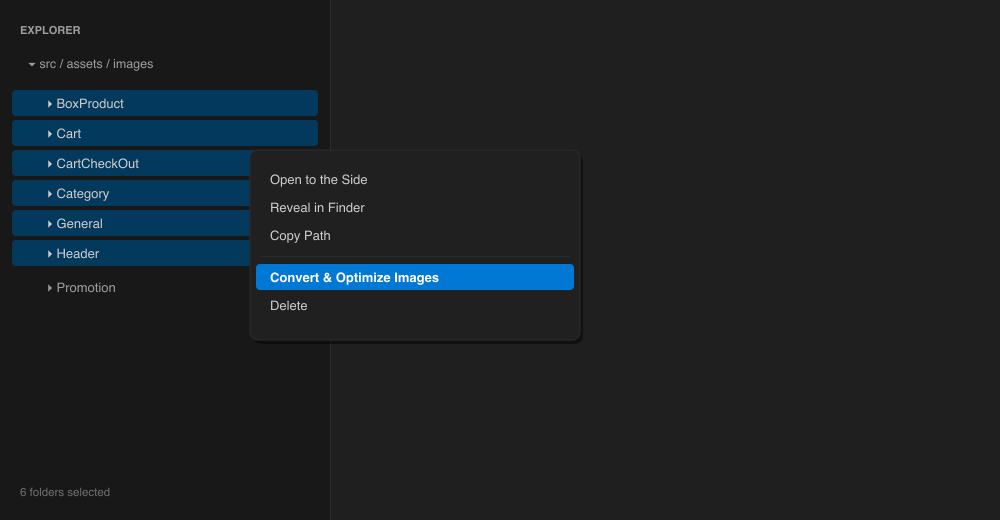
Multi-select works: cmd/ctrl-click any mix of folders and image files and it takes them all in
one pass. Nested selections are de-duplicated, so an image never shows up twice.
2. Pick what to convert
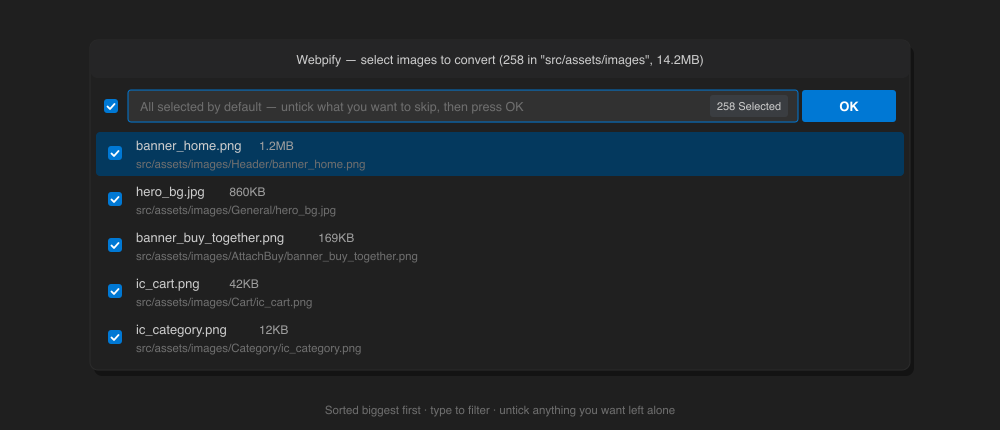
Everything is ticked by default and sorted biggest first, with each image's full path so you can
tell same-named files apart. Type to filter, untick anything you want left alone, press OK.
An unticked image is neither converted nor rewritten — your code keeps pointing at the file
that is actually there.
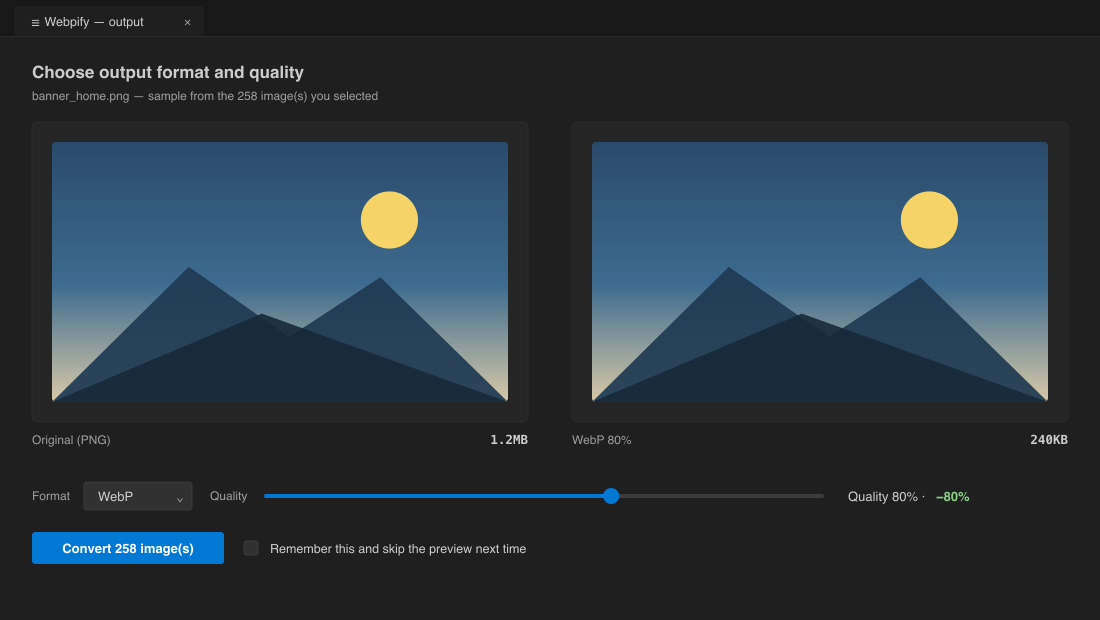
3. See what each quality level costs
Original and result side by side. Change the format, drag the slider, and the caption shows the
real file size and the saving for that exact combination. No guessing what 80% means for your
images.
Tick Remember this and skip the preview next time and this step disappears — the checklist
alone converts, using the settings you landed on. The checklist's title bar then carries two
buttons: ⚙ opens the settings, and the sliders button reopens the preview for a single run.
4. Keep or delete the originals
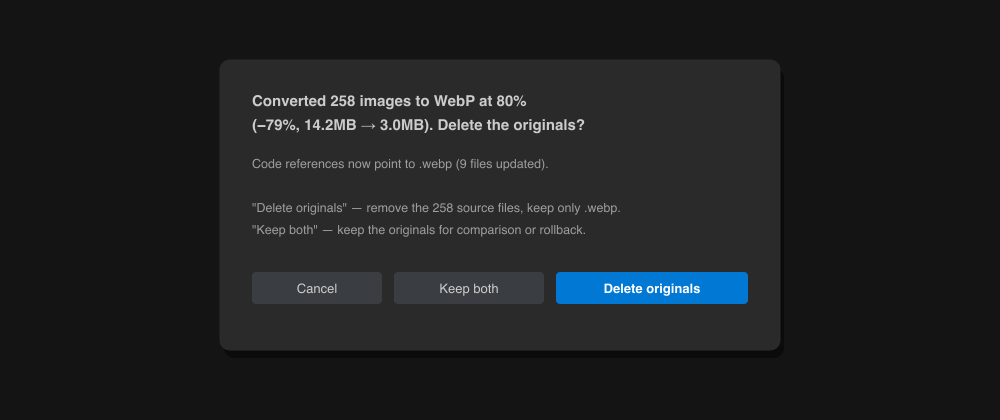
By then your code already points at the new files. Keep the originals to compare or roll back,
or delete them and be done.
What it does that a plain converter does not
- Rewrites your code.
import hero from '@/img/hero.png', url(/img/hero.png?v=3),
<img src=img/hero.png> — all updated. Matching is by path suffix from the workspace root,
so public/img/hero.png matches /img/hero.png but never a same-named /assets/hero.png.
- Skips images that would grow. Flat GIFs and already-optimised PNGs get bigger at high
quality — a 3.5MB animated GIF becomes a 4.4MB WebP at 95%. Those are left untouched and
listed in the output, instead of quietly making your site heavier.
- Never leaves a dangling reference. Conversion runs first; references are rewritten only
for files that were actually written. A failed or skipped encode cannot break your build.
- Re-encodes in place when it makes sense. Choosing PNG for a PNG source rewrites the file
itself — no second file, no reference change, no delete prompt.
- Leaves your repo alone otherwise.
node_modules, .git, dist, build, out,
.next, .nuxt, .output, vendor, .cache and coverage are never scanned.
Tip: commit before a large run. It is a big diff, and git diff is the easiest way to review it.
Settings
| Setting |
Default |
|
webpify.format |
webp |
Format the preview starts on, and what skipPreview uses |
webpify.quality |
80 |
Quality the slider starts on |
webpify.skipPreview |
false |
Skip the preview panel and convert straight away |
Files scanned for references: js jsx ts tsx mjs mts vue svelte astro css scss sass less html json md php py rb xml yaml (files over 2MB are skipped).
CLI
The same core ships as a command line tool:
npm install
node webpify.js <image-folder> [--code <code-root>]
| Flag |
Default |
|
--code <dir> |
cwd |
Where to rewrite references |
-f, --format <fmt> |
webp |
webp, avif, jpeg or png |
--quality <n> |
80 |
Output quality |
-y, --yes |
|
Don't prompt: convert and rewrite, keep originals |
-d, --delete |
|
Delete originals without prompting |
Repairing references broken by 1.8.0–1.8.4
Those versions matched relative references by path suffix, so in a project with two parallel
asset trees (src/assets/images/General/ and src/features/X/assets/images/General/) a
converted image under one tree would rewrite the reference in the other — leaving code pointing
at a .webp that was never written there. Fixed in 1.8.5.
If you ran an affected version, this reports every reference to a missing .webp/.avif whose
original is still on disk, and points it back:
node fix-refs.js /path/to/your/project           # report only
node fix-refs.js /path/to/your/project --apply   # write the fixes
Development
node webpify.js --self-test   # reference-rewriting logic
node test-extension.js        # UI flows, against a stubbed vscode module
node docs/make-images.js      # regenerate the screenshots above
CI builds a platform-specific .vsix for darwin-arm64, darwin-x64, linux-x64,
linux-arm64 and win32-x64 — sharp ships a native binary per platform, so a single
universal package is not possible. Pushing a v* tag publishes all five to both registries
and attaches them to a GitHub release:
npm version patch && git push --follow-tags
Secrets required: VSCE_PAT (Azure DevOps, All accessible organizations + Marketplace →
Manage) and OVSX_PAT (Open VSX, after signing the Eclipse Publisher Agreement).
License
MIT

