
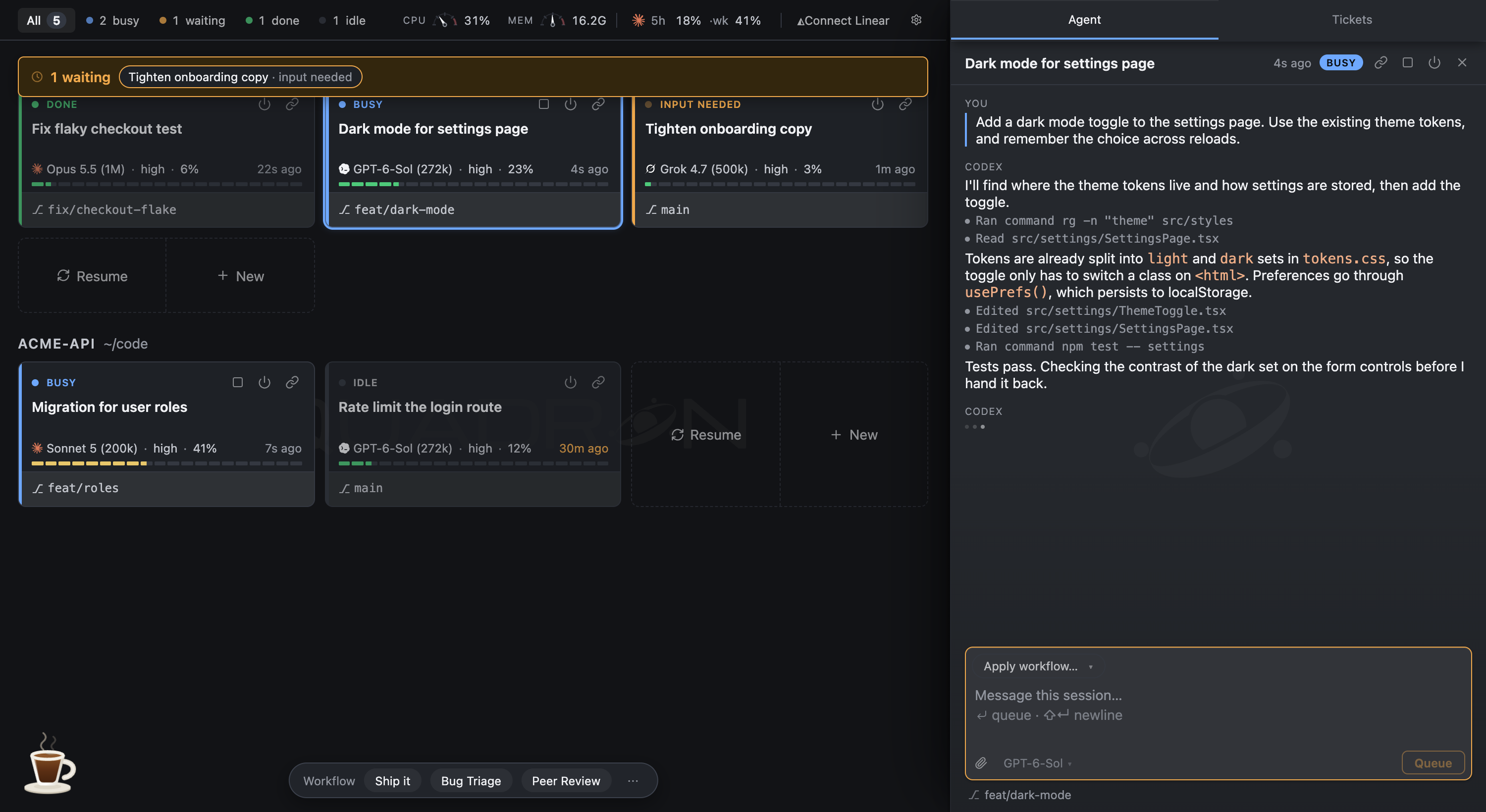
A panel in VS Code for running coding agents. Start Claude Code, Codex or Grok
sessions from it. Each one gets a card, grouped by the folder it's working in.
Click a card to read the conversation and reply.
Works in VS Code and editors built on it. macOS only for now.
Agents that work together
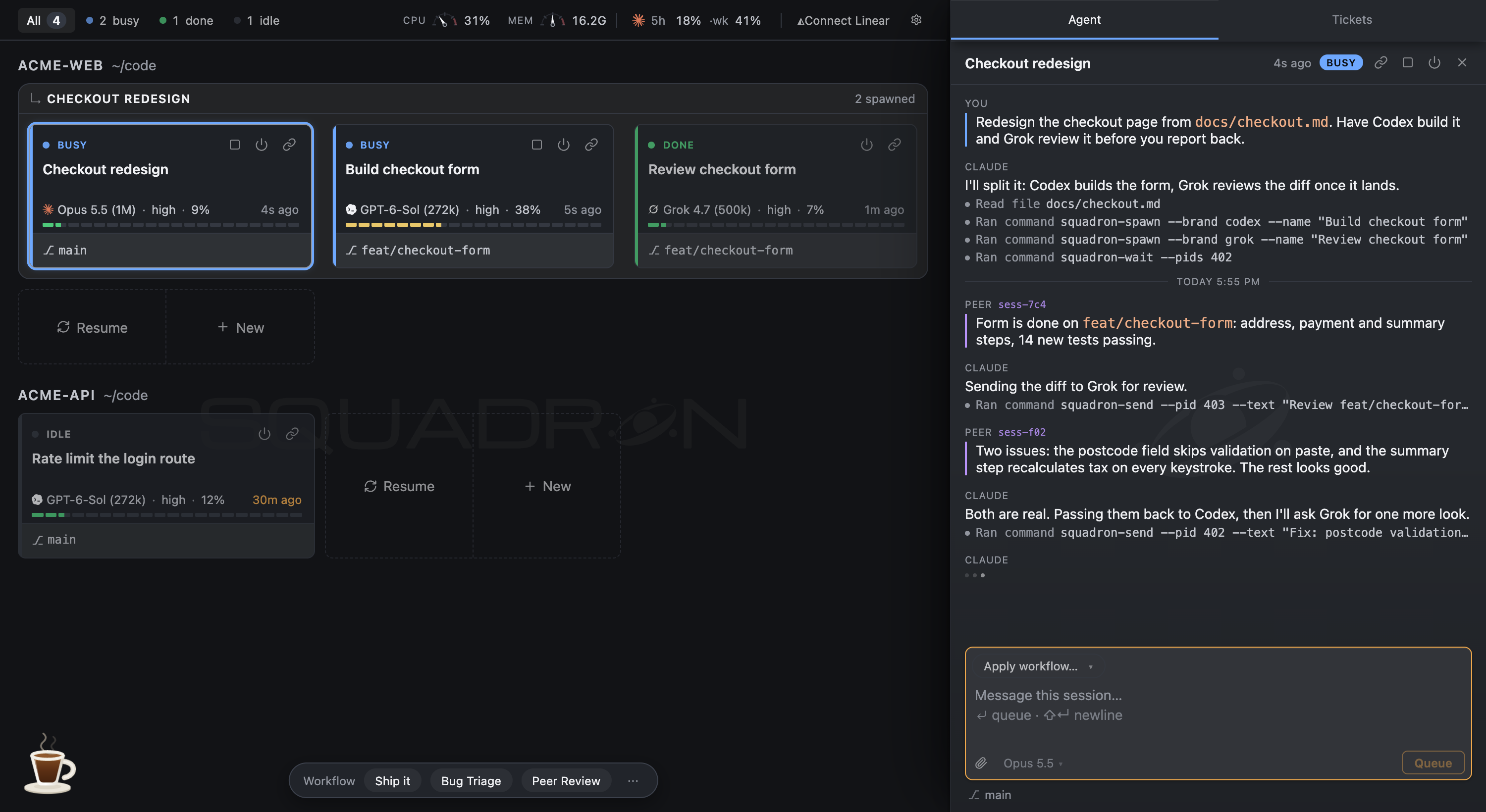
A session can start other sessions, send them messages and wait for their
answers, across brands. Ask Claude to have Codex build a feature and Grok review
it: Claude starts both, hands each its task, and reads what they send back.
The sessions it started sit in one box on the board, under the session that
started them. Open any of them to follow along or step in.
Off by default. Turn on squadron.orchestrators.enabled to give every session
the commands to start, message, wait on and end other sessions.
Start work from a ticket
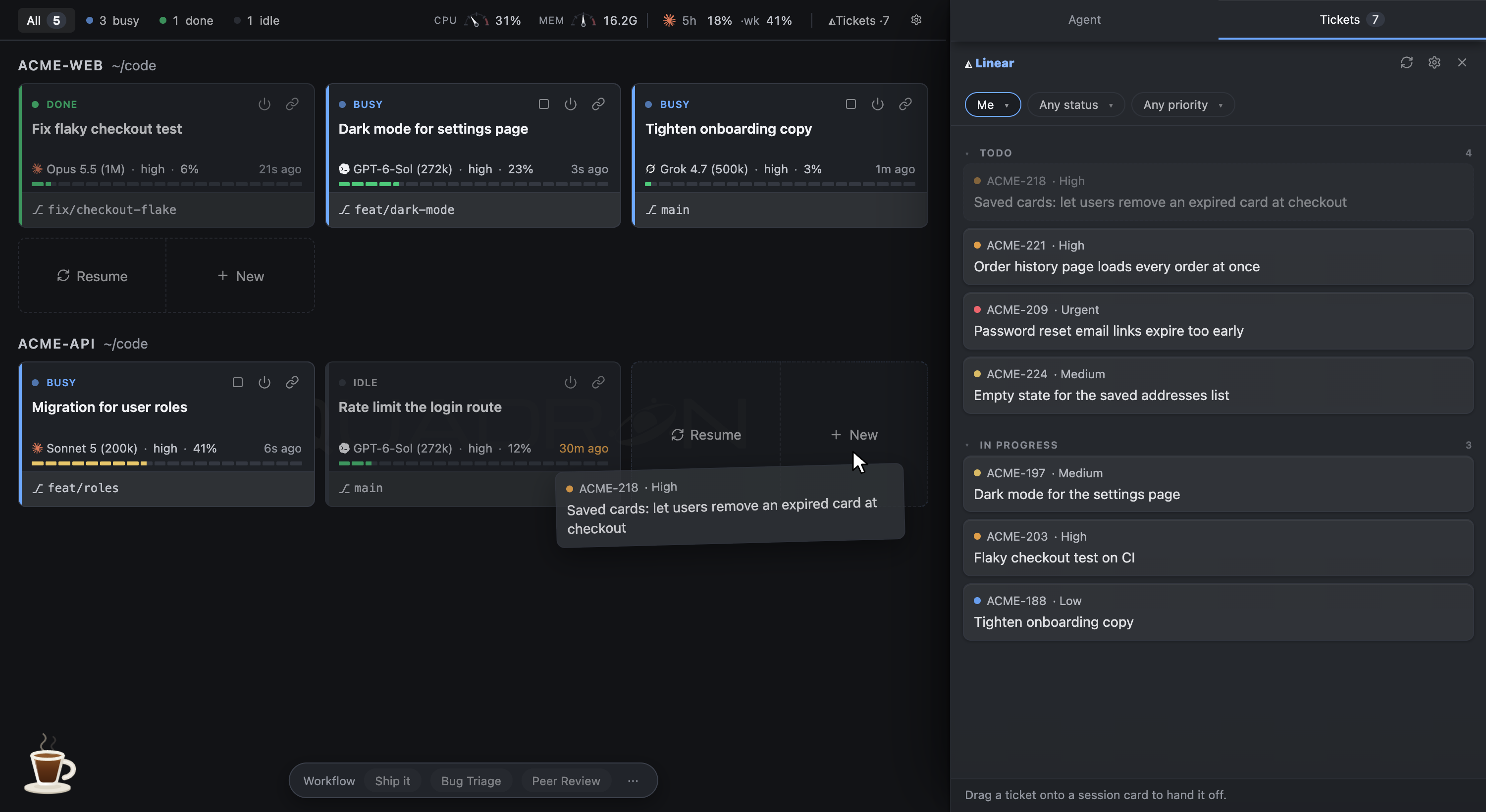
Click Tickets to open your Linear backlog beside the board. Drag a ticket
onto a folder's New slot to start a session with the ticket already in its
message box. You can also drop it on a running session's card to hand the ticket
to that session. Nothing is sent until you press Enter.
What you can do
- Start a session in any folder, or pick up an earlier conversation.
- Send messages, stop a reply midway, switch models, rename or end a session.
- Attach files and images to a message.
- Answer the agent's permission prompts and questions from the panel.
- Reopen earlier images and answered questions from the conversation.
- Write your own multi-step workflows, and attach one to a message when you
need it.
- Get a sound when a session finishes, and a knock when one is waiting on you.
- Keep your Mac awake while sessions are working.
- Keep your Linear tickets open beside the session you're working in.
Each editor window shows only the sessions it started. Sessions you start by
typing claude, codex or grok in a terminal don't show up.
Getting started
- Install Claude Code, Codex or Grok CLI and sign in. You need at least one.
Squadron doesn't auto install CLIs for you (to avoid installing stuff on your behalf)
- Run Squadron: Show Sessions Overview from the Command Palette, or click
the Squadron icon in the editor's title bar.
- If Squadron can't find your CLI, click Log in at the top of the panel and
use Set path. This happens a lot when the editor was opened from the
Dock, because it doesn't pick up your shell's
PATH.
Settings
Everything is under squadron.* in Settings. The ones worth knowing:
| Setting |
What it does |
squadron.orchestrators.enabled |
Lets sessions start and message each other. Off by default. |
squadron.model |
Model new sessions start on. Empty lets the CLI pick. |
squadron.sound.enabled |
Sounds for finished and waiting sessions. Off by default. |
squadron.cafe.enabled |
Keeps the Mac awake while sessions work. On by default. |
squadron.skipPermissions.enabled |
Starts sessions with --dangerously-skip-permissions, so they edit files and run commands without asking. Off by default. |
macOS is supported. The Linux code is written but hasn't been run on Linux.
Windows doesn't work: sessions may never appear.
Roadmap
Very highlevel, in no particular order.
- Workflows v2: more control over the sessions a workflow starts, and steps
that run at the same time.
- Gemini Support: probably once Gemini 4 Pro is out.
- Board UI rework: how sessions group on the board is still rough.
- Tickets UI rework: a better board for your Linear tickets.
Development
npm install
npm run watch
npm run check      # format, compile, lint, test
Then press F5 to open an Extension Development Host.
Host
Squadron uses only the stock VS Code API, so any VS Code fork should run it.
It's built against stock VS Code, which is also what npm run test:smoke runs.
Cursor hasn't been tried.
|
|
| VS Code |
1.139.1 |
| Extension gallery |
Marketplace, Open VSX |
| CLI |
/Applications/Visual Studio Code.app/Contents/Resources/app/bin/code |
engines.vscode is ^1.95.0: low enough to install on forks that trail VS
Code, high enough for the shell-integration API.
npm run deploy installs into every host whose CLI it finds (VS Code, VS Code
Insiders and the forks it knows), so none of them is left on an old build. Set
SQUADRON_IDE_CLI to install into just one, or into a fork deploy doesn't
know. For an unknown fork, also set SQUADRON_IDE_EXTENSIONS to its extensions
folder so deploy can check the installed files.
Release
npm run release                  # tag this branch and push
npm run deploy                   # build the tag in a temp dir and install it
npm run publish -- v2026.32.17   # send that build to Open VSX and the Marketplace
The branch decides where a tag can go. A tag on staging installs locally but
won't publish. Merge staging into main and the same tag becomes
publishable. release never touches main for you.
publish builds nothing. It uploads the VSIX that deploy already tested and
installed, so what goes out is what ran here. It's a separate step because it's
public and can't be undone.
Reload the editor window after a deploy, or it keeps running the old code. Full
details: docs/workflows/release.md.

