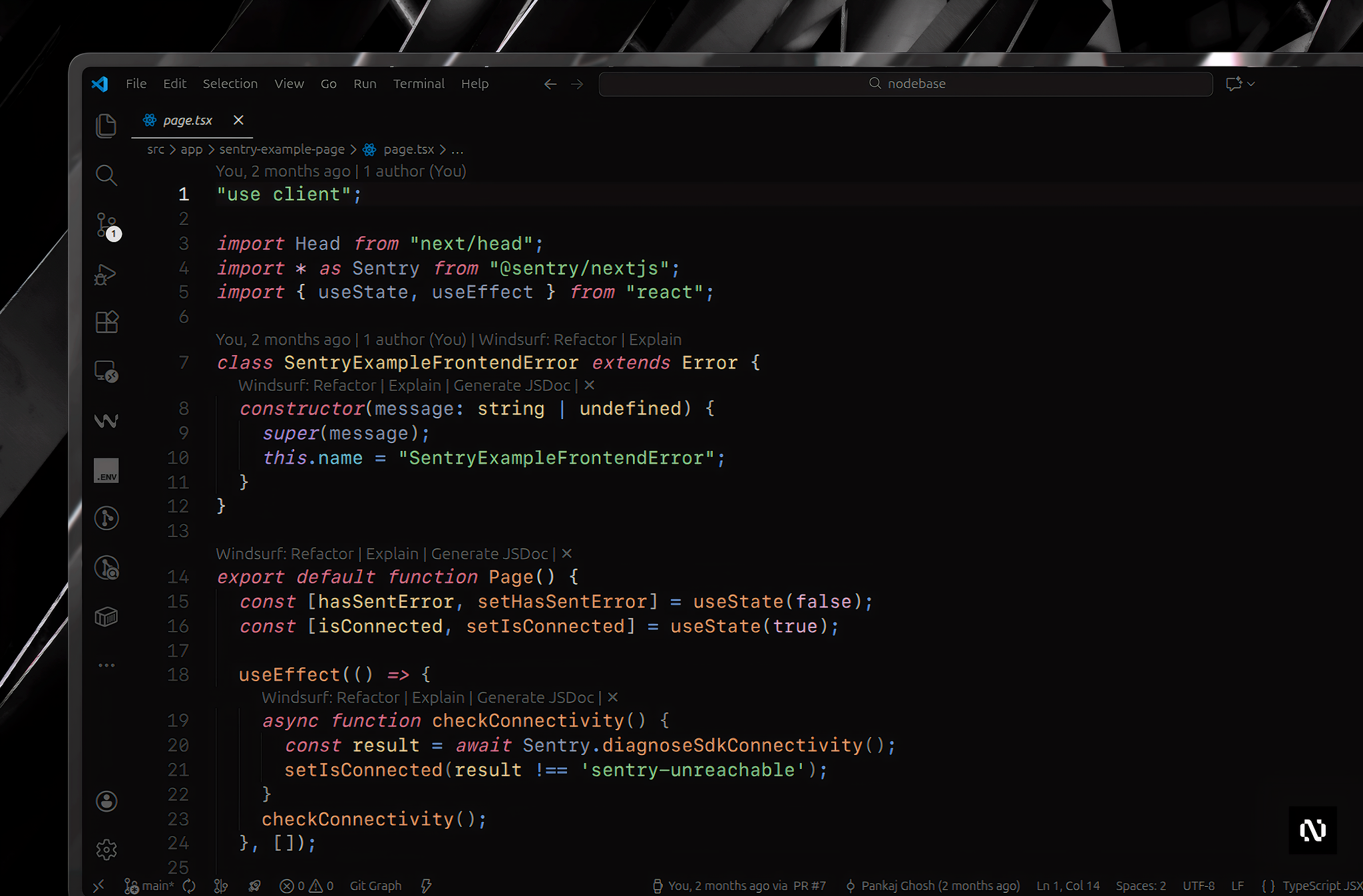
Nexus Dark
A sleek, modern dark theme for Visual Studio Code with clean aesthetics, focused on clarity, contrast, and developer comfort. Perfect for long coding sessions.
Status: Currently in Beta - We're actively improving based on user feedback!
✨ Features
- Clean & Modern Design - Professional aesthetic with balanced contrast
- Optimized Readability - Thoughtful color usage for reduced eye strain with enhanced visibility
- Accessibility Focused - Improved contrast ratios and better visibility for all UI elements
- Comprehensive Coverage - Full support for editor, UI components, and integrated terminal
- Modern Syntax Highlighting - Support for popular languages, frameworks, and file types (including
.env files)
- Terminal Colors - Custom ANSI color scheme for integrated terminal with full color palette support
- Semantic Highlighting - Better code understanding with semantic token colors
- Consistent UI - Unified color scheme across all VS Code components
🎨 Preview
Nexus Dark is designed with a focus on modern development workflows. The theme prioritizes:
- Readability over decoration - Clear, distinct colors for different code elements
- Subtle contrast over harsh colors - Comfortable for extended use
- Consistency across UI and syntax - Cohesive visual experience
📦 Installation
VS Code Marketplace
- Open Visual Studio Code
- Go to Extensions (
Ctrl+Shift+X / Cmd+Shift+X)
- Search for Nexus Dark
- Click Install
- Activate it via
Ctrl+K Ctrl+T / Cmd+K Cmd+T or go to File > Preferences > Theme > Color Theme
Direct Link: Install from VS Code Marketplace
Open VSX Registry
For editors that use the Open VSX Registry (VSCodium, Fleet, Windsurf, etc.):
- Open your editor's Extensions view
- Search for Nexus Dark
- Click Install
Manual Installation
- Download the
.vsix file from the Releases page
- Open VS Code
- Go to Extensions view
- Click the
... menu and select Install from VSIX...
- Select the downloaded file
⚙️ Recommended Settings
For the best visual experience, we recommend using the following settings in your settings.json:
{
  "editor.fontFamily": "'SF Mono', 'Fira Code', 'MonoLisa', monospace",
  "editor.fontSize": 16,
  "editor.cursorSmoothCaretAnimation": "on",
  "editor.cursorBlinking": "expand",
  "terminal.integrated.cursorBlinking": true
}
Recommended Extensions
For optimal syntax highlighting when working with modern web stacks:
🚀 Usage
After installation:
- Open the Command Palette (
Ctrl+Shift+P / Cmd+Shift+P)
- Type
Preferences: Color Theme
- Select Nexus Dark (Beta)
Or use the keyboard shortcut: Ctrl+K Ctrl+T / Cmd+K Cmd+T
Note: This theme is currently in Beta. We're actively improving it based on user feedback!
📝 Version
Current version: 0.2.4
See CHANGELOG.md for version history and updates.
🤝 Contributing
Contributions, issues, and feature requests are welcome! Feel free to check the issues page.
- Fork the repository
- Create your feature branch (
git checkout -b feature/AmazingFeature)
- Commit your changes (
git commit -m 'Add some AmazingFeature')
- Push to the branch (
git push origin feature/AmazingFeature)
- Open a Pull Request
📄 License
This theme is licensed under the MIT License.
👤 Author
Pankaj Ghosh
🙏 Acknowledgments
- Inspired by modern dark themes and developer feedback
- Built with care for the VS Code community
Enjoy coding with Nexus Dark! 🌌
If you find this theme helpful, please consider giving it a ⭐ on GitHub!

