OTP Authenticator — Google Authenticator / 2FA / MFA / TOTP for VS Code & Cursor
サイドバーを開いて、カードをクリック。それだけで 6 桁 OTP がクリップボードへ。 スマホはもう要らない。
Open the sidebar, click a card. The 6-digit OTP is on your clipboard. Leave your phone behind.
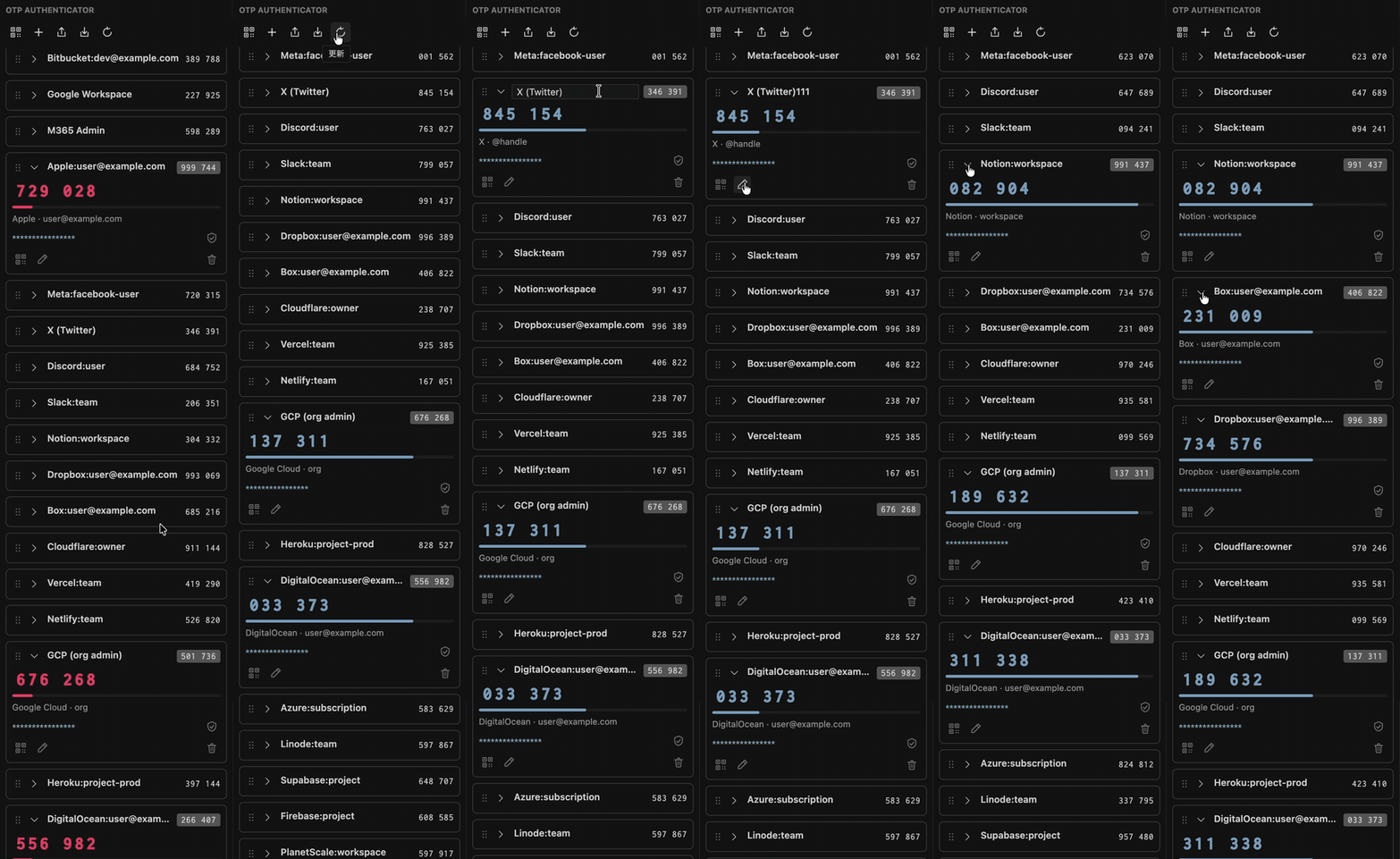
こんなことありませんか? / Tired of this?
ブラウザで「2 段階認証コードを入力」
→ スマホ取り出す
→ ロック解除
→ Authenticator アプリを探す
→ コードを読む
→ ブラウザに戻る
→ 入力
→ 30 秒切替の瞬間で間に合わず再入力。
Browser asks for the 2FA code → pick up phone → unlock → find Authenticator → read code → switch back → type → miss the 30-second window → repeat.
OTP Authenticator は VS Code / Cursor のサイドバーに常駐し、カードをクリックするだけで 6 桁コードがクリップボードに入る 拡張機能です。スマホは不要。 Cmd+V (macOS) / Ctrl+V (Win/Linux) で完了します。
OTP Authenticator lives in your VS Code / Cursor sidebar. Click a card → the 6-digit code is in your clipboard. No phone required — just paste with Cmd+V (macOS) / Ctrl+V (Win/Linux).
🚀 30 秒ではじめる / 30-second start
- インストール → アクティビティバーに OTP アイコン(6 本腕のアスタリスク)が出る
Install → an OTP icon (six-arm asterisk) appears in the Activity Bar
- アイコンをクリック → 「QR 画像から追加」を押し、サービスの 2FA QR コードのスクリーンショットを選ぶ
Click the icon → press "Add from QR Image" and pick a screenshot of the service's 2FA QR code
- カードをクリック → 6 桁コードがクリップボードへ。あとは
Cmd+V / Ctrl+V で貼るだけ
Click the card → 6-digit code is on your clipboard. Then just paste with Cmd+V / Ctrl+V
既に Google Authenticator / Authy / 1Password にエントリがあるなら、サービス側 (GitHub, AWS, Slack 等) の 2FA 設定画面で QR を再表示 → スクリーンショット → 上記 ②。スマホアプリを開く必要はありません。
Already using Google Authenticator / Authy / 1Password? Re-display the QR on the service's 2FA settings page (GitHub, AWS, Slack, etc.) → take a screenshot → step ② above. No need to touch the phone app.
✨ できること / What you can do
- 🖱️ クリックでコピー、即ペースト — カードを 1 タップするだけで OTP がクリップボード。
Cmd+V (macOS) / Ctrl+V (Win/Linux) で貼るだけ
Click → copy → paste — One tap on a card and the OTP is on your clipboard. Paste with Cmd+V (macOS) / Ctrl+V (Win/Linux)
- ⏱️ 切り替わった瞬間でも、1 つ前のコードで救済 — カード右上に 1 つ前のコード が小さく出続けるので、コピーした瞬間に rollover してもワンタップで前ステップを再コピー。サーバー側 ±1 step 受理 (RFC 6238 慣例) を活用
Saved by the previous code — A small badge keeps the previous-period code on the card. If the period rolled over the moment you copied, one tap recopies the previous one (most servers accept ±1 step per RFC 6238)
- 📷 QR 画像をインポート — それで終わり —
.png .jpg .gif .webp .bmp 対応。スペース・ハイフン入りの「セットアップキー」もそのままペースト OK(自動正規化)
Import a QR image — done — Supports .png .jpg .gif .webp .bmp. Setup keys with spaces/dashes paste as-is (auto-normalized)
- 🪟 複数ウィンドウで自動同期 — 別ウィンドウで OTP を追加・並べ替えると、開いている全エディタに即反映
Auto-syncs across editor windows — Add or reorder OTPs in one window; every other window reflects it instantly
- 🔒 OS キーチェーンに暗号化保存・完全オフライン — シークレットは macOS Keychain / Windows Credential Manager / GNOME Keyring に。
settings.json ・ログ・ネットワーク経由には 一切出ない
Encrypted in your OS keychain · fully offline — Secrets live in macOS Keychain / Windows Credential Manager / GNOME Keyring. Never written to settings.json, logs, or sent over the network
- 💾 JSON で全件バックアップ・端末移行 — 確認モーダル付きエクスポート → 別マシンで再インポート。重複は自動スキップ
JSON backup & device migration — Export with a confirmation modal → re-import on another machine. Duplicates auto-skipped
加えて: ドラッグで並べ替え、カード折りたたみ、表示名カスタマイズ、QR 表示でスマホへの再エクスポート、SHA-1 / SHA-256 / SHA-512 対応、日本語 / English 自動切替。
Plus: drag-to-reorder, card collapse, custom display names, QR display for re-exporting to phone, SHA-1 / SHA-256 / SHA-512, auto JP/EN.
🛡️ なぜ安全なのか / Why it's safe
OTP シークレットは多要素認証の根幹です。本拡張は次の方針を取ります:
OTP secrets are the foundation of MFA. This extension follows these rules:
- 🔐 OS キーチェーンに暗号化保存 — VS Code の SecretStorage 経由 (macOS Keychain / Windows Credential Manager / GNOME Keyring)
Encrypted in OS keychain — Via VS Code SecretStorage (macOS Keychain / Windows Credential Manager / GNOME Keyring)
- 🚫 平文ファイルへの保存ゼロ —
settings.json ・ログ・.vscode/ のいずれにもシークレットは書かない
No plaintext on disk — Secrets are never written to settings.json, logs, or .vscode/
- 📡 ネットワーク送信ゼロ — 全処理はローカル。コード生成も QR デコードも端末内で完結
No network traffic — All processing is local. Code generation and QR decoding happen on-device
- 👁️ シークレット表示は 10 秒で自動マスク — reveal ボタンで一時表示しても、放置すれば自動で
**** に戻る
Auto-mask after 10 seconds — Even when revealed, the secret returns to **** automatically if left on screen
- 🗑️ インポート元ファイルはゴミ箱誘導 — QR 画像 / JSON からインポートした後、元ファイルを OS ゴミ箱 に移すか確認するモーダルが出る (自動削除はしない・OS ゴミ箱経由なので復元可能)
Source files prompted to Trash — After QR/JSON import, a modal asks whether to move the source file to the OS Trash (never auto-deleted, recoverable via Trash)
- 🧪 HMAC は手書きしない — RFC 6238 準拠の
otpauth ライブラリに計算を委譲
No hand-rolled HMAC — Calculation delegated to the RFC 6238–compliant otpauth library
📚 詳細リファレンス / Reference
🌳 サイドバーカードの中身 / What's on each card
OTP エントリは縦に並ぶ「カード」として表示されます。
Each OTP is shown as a vertically-stacked card.
| 表示要素 |
Element |
説明 / Details |
| カードタイトル |
Card Title |
displayName (= 自分でつけた管理名)。空なら Issuer:Label をフォールバック / displayName you set; falls back to Issuer:Label |
| 大きい数字 |
Big Code |
現在ステップの 6 / 8 桁 OTP コード / Current 6/8-digit OTP code |
| 右上バッジ |
Top-right Badge |
1 つ前のコード (rollover 直後の救済用、タップで再コピー) / Previous code (recovery after rollover, tap to recopy) |
| プログレスバー |
Progress Bar |
残り時間 (period 秒) を視覚化 / Remaining seconds in the period |
| メタ行 |
Meta Row |
Issuer · Label の連結文字列 (1 行併記)。手動追加エントリでは空 / Concatenated Issuer · Label on one line; empty for manually-added entries |
| シークレット行 |
Secret Row |
マスク **** 表示 → 🛡️ ボタンで 10 秒だけ reveal → 自動マスク戻し。クリックで Base32 をクリップボードにコピー / Masked ****; reveal for 10s via 🛡️; auto re-mask. Click to copy Base32 |
| アクションボタン |
Action Buttons |
🛡️ Reveal / 📷 QR 表示 / ✏️ リネーム / 🗑️ 削除 / Reveal / Show QR / Rename / Delete |
| 並び替え |
Reorder |
カードをドラッグ&ドロップで自由に並べ替え (永続化) / Drag-and-drop reorder (persisted) |
| 最小化 |
Collapse |
カードヘッダーをクリックで折りたたみ (状態は永続化) / Click header to collapse (persisted) |
⌨️ コマンド / Commands
| Command |
説明 |
Description |
トリガー / Trigger |
OTP Authenticator: Refresh |
OTP 一覧を更新 |
Refresh OTP list |
パレット / Palette |
OTP Authenticator: Add from QR Image |
QR 画像から OTP を追加 |
Add OTP from QR image |
パレット, ツールバー / Palette, toolbar |
OTP Authenticator: Add Manually |
管理名 + Base32 シークレットで追加 |
Add by display name + Base32 secret |
パレット / Palette |
OTP Authenticator: Copy OTP Code |
現在の OTP をコピー |
Copy current OTP |
カードクリック / Card click |
OTP Authenticator: Show QR Code |
QR コードを表示 (スマホ移行用) |
Show QR (for migrating to phone) |
カードアイコン / Card icon |
OTP Authenticator: Export JSON |
全エントリを JSON 出力 (確認モーダルあり) |
Export all as JSON (with confirm modal) |
パレット / Palette |
OTP Authenticator: Import JSON |
JSON から取り込み (重複自動スキップ) |
Import from JSON (auto-dedupe) |
パレット / Palette |
OTP Authenticator: Delete Entry |
エントリ削除 (確認モーダルあり) |
Delete entry (with confirm modal) |
カードアイコン / Card icon |
OTP Authenticator: Rename Entry |
カード表示名を変更 |
Rename card display name |
カードアイコン / Card icon |
⚙️ 設定 / Configuration
| Setting |
説明 |
Description |
Default |
otpAuthenticator.autoRefreshEnabled |
OTP コードの 1 秒 tick 自動更新 |
1-second tick auto-refresh |
true |
otpAuthenticator.promptDeleteFileAfterImport |
QR / JSON インポート成功後、元ファイルをゴミ箱へ移すか確認するモーダルを出す |
Prompt to move source file to Trash after successful QR/JSON import |
true |
🔧 困ったとき / Troubleshooting
| 症状 |
Symptom |
対処 |
Solution |
| OTP がサーバー側で弾かれる |
OTP rejected by server |
システム時刻 (NTP 同期) を確認。RFC 6238 は時刻同期が前提 |
Verify system clock (NTP sync) — TOTP requires accurate time |
| 切り替わり直前にコピーしたら通らなかった |
Copied just before rollover, server rejected |
カード右上の 1 つ前のコードバッジ をタップ |
Tap the previous-code badge at the top-right of the card |
| QR 画像が読めない |
QR image won't decode |
画像が鮮明か・QR 全体が写っているか確認。.png .jpg .gif .webp .bmp 対応 |
Ensure QR is sharp and fully visible. Supports .png .jpg .gif .webp .bmp |
| インポートしたのにエントリが増えない |
Imported but no new entries |
同一シークレットの重複は自動スキップされる仕様 |
Duplicates with the same secret are auto-skipped by design |
| Cursor で表示されない |
Not shown in Cursor |
コマンドパレット → "Reload Window" |
Run "Reload Window" from the Command Palette |
| 起動時に「キーチェーンにアクセスできない」と出る |
"Cannot access keychain" on first action |
OS の Keychain / Credential Manager / libsecret が動作しているか確認 |
Verify OS Keychain / Credential Manager / libsecret is available |
❓ FAQ
Q. Google Authenticator や Authy のデータをそのまま移行できますか?
Q. Can I migrate my existing Google Authenticator / Authy entries?
A. 個別アカウントの QR ならインポートできます。具体的には、サービス側 (GitHub / AWS / Slack 等) の 2FA 設定画面で QR を再表示 → スクリーンショット → 「QR 画像から追加」。
A. Yes — via per-account QR codes. Re-display the QR on the service's 2FA settings page (GitHub / AWS / Slack, etc.) → screenshot → "Add from QR Image".
ただし Google Authenticator の 「アカウントの転送」一括エクスポート QR (otpauth-migration://) は 非対応 です (1 枚に複数アカウントがエンコードされた独自スキーマで、本拡張は標準の otpauth://totp/... のみサポート)。一括 QR を読み込ませると専用エラーが出ます。各アカウントを 1 件ずつ取り込んでください。
However, Google Authenticator's "Export accounts" bulk QR (otpauth-migration://) is not supported — it's a proprietary multi-account schema, while this extension supports the standard otpauth://totp/... only. Importing the bulk QR triggers a dedicated error message; please import accounts one at a time.
Q. スマホアプリを完全に置き換えても大丈夫?
Q. Can I fully replace my phone authenticator?
A. 開発用途なら十分実用的です。ただし開発マシンが故障した場合に備えて JSON エクスポート で定期バックアップを取る、もしくは「QR コード表示」機能でスマホアプリにも同じシークレットを登録しておくのがおすすめです。
A. For development, yes. We recommend periodic JSON Export backups, or registering the same secret on a phone app via the "Show QR Code" feature in case your machine fails.
Q. シークレットはどこに保存されますか?
Q. Where are secrets stored?
A. VS Code の SecretStorage 経由で OS のキーチェーン (macOS Keychain / Windows Credential Manager / GNOME Keyring) に暗号化保存されます。settings.json ・ログ・.vscode/ などの平文ファイルには一切書きません。
A. Encrypted in your OS keychain (macOS Keychain / Windows Credential Manager / GNOME Keyring) via VS Code SecretStorage. Never written to settings.json, logs, or .vscode/.
Q. 同じシークレットをスマホと PC で並行運用できますか?
Q. Can I use the same secret on both phone and PC?
A. できます。TOTP は同一シークレット + 同一時刻なら同じコードを生成するため、カード上の「QR 表示」でスマホアプリにも登録すれば並行運用できます。
A. Yes. TOTP generates identical codes for the same secret + time, so use "Show QR Code" on a card to register the same secret on a phone app.
Q. オフラインで動きますか?
Q. Does it work offline?
A. はい。コード生成・QR デコードを含めすべての処理がローカル完結で、外部 API 呼び出しはゼロです。飛行機の中でも動きます。
A. Yes. All processing — code generation, QR decoding, everything — is local. Zero external API calls. Works on a plane.
📛 バッジ / Badges










🗺️ Roadmap
- HOTP 対応 — カウンタベース OTP (現状は TOTP のみ)
HOTP Support — Counter-based OTP (TOTP only at present)
- カスタム期間 — 30 秒以外の TOTP 期間に対応
Custom Period — TOTP periods other than 30 seconds
- エントリグループ — 発行者別のグループ表示
Entry Grouping — Group entries by issuer
- アイコン自動割当 — 発行者からアイコンを自動選択
Auto Icons — Auto-pick icons based on issuer
- Google Authenticator 一括 QR (
otpauth-migration://) 対応 — Protocol Buffers のデコード実装
Bulk Google Authenticator QR (otpauth-migration://) — Decoding the proprietary Protocol Buffers schema
Issue でフィードバック受付中。
Feedback welcome via Issues.
- Plan Manager — Cursor / Claude Code のプランファイル管理
Plan file management for Cursor / Claude Code
- Cursor Economizer — Cursor 利用料金の可視化
Cursor usage cost visualization
Contributing
コントリビューション歓迎。
Contributions welcome.
- Fork →
git checkout -b feature/amazing-feature → PR
License
MIT
☕ Support This Project

寄付は任意です。
Donations are optional.

