Bring a glass-like translucent window effect to VS Code on macOS.
Glassy adds adjustable window transparency so your editor stays readable while your wallpaper and desktop ambience subtly come through in the background.
Features
Adjust window opacity with keyboard shortcuts
Tune opacity and step size from Settings
Jump to maximum transparency or reset to fully opaque
Re-apply the patch automatically after some VS Code updates
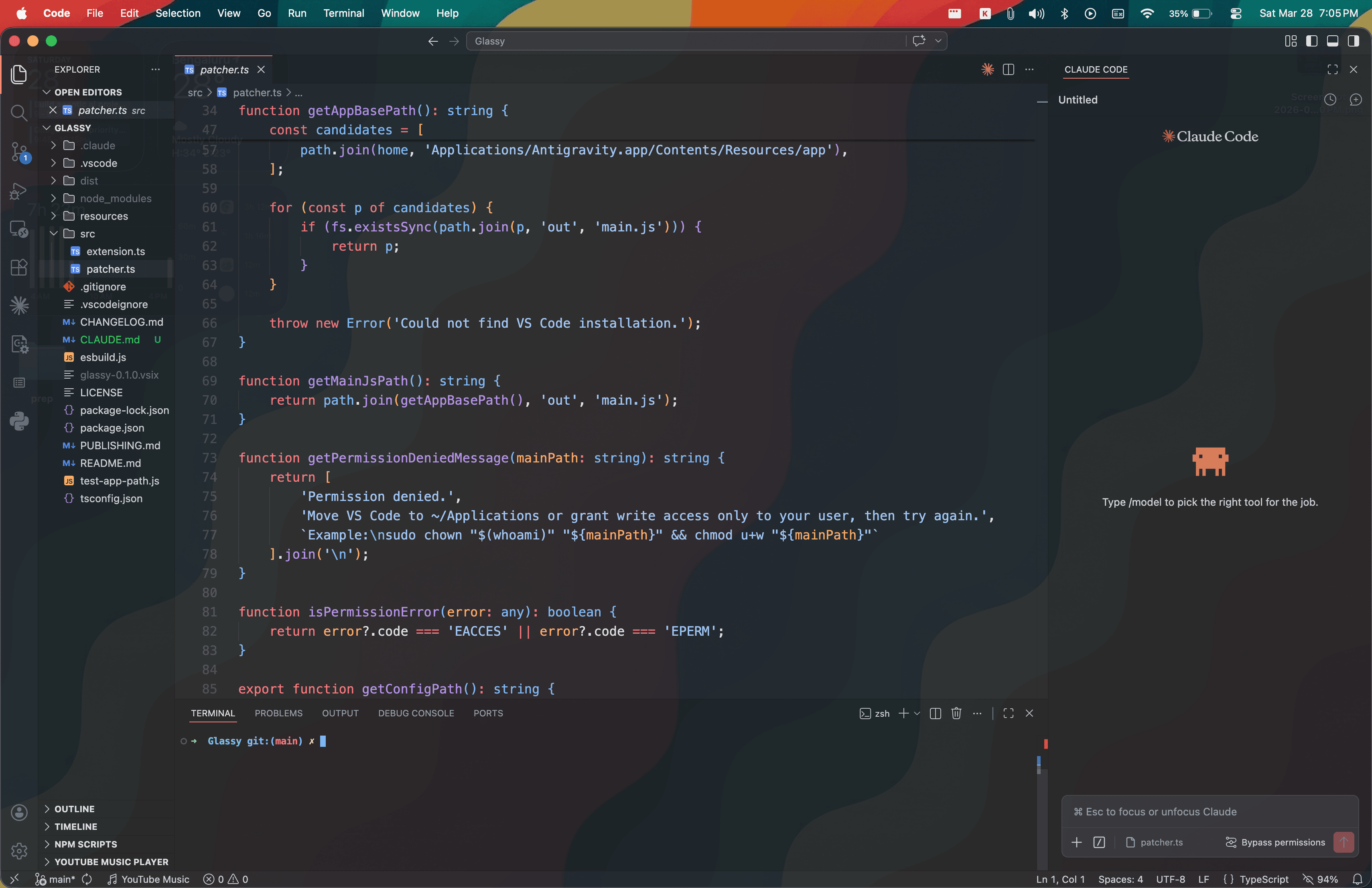
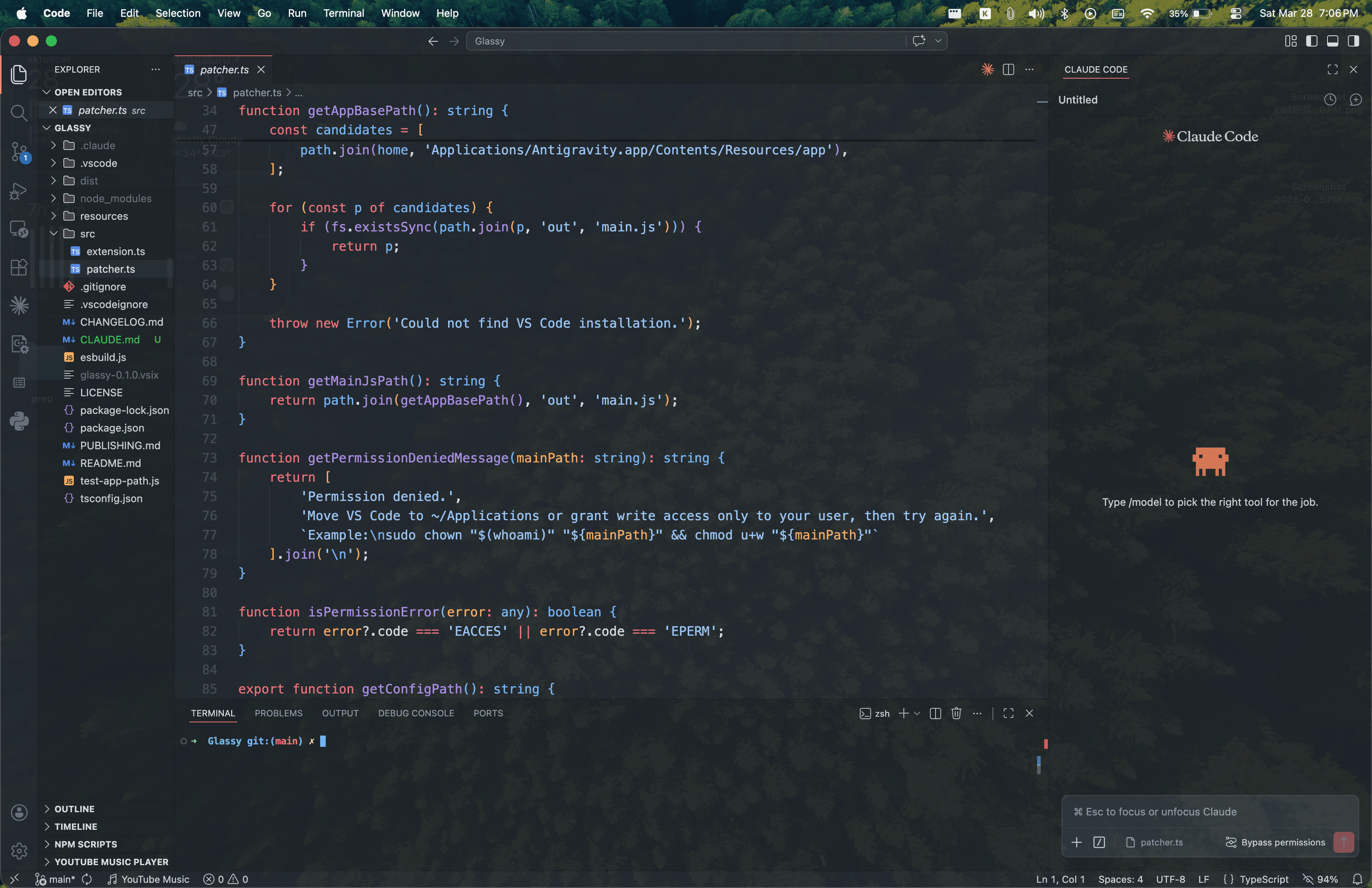
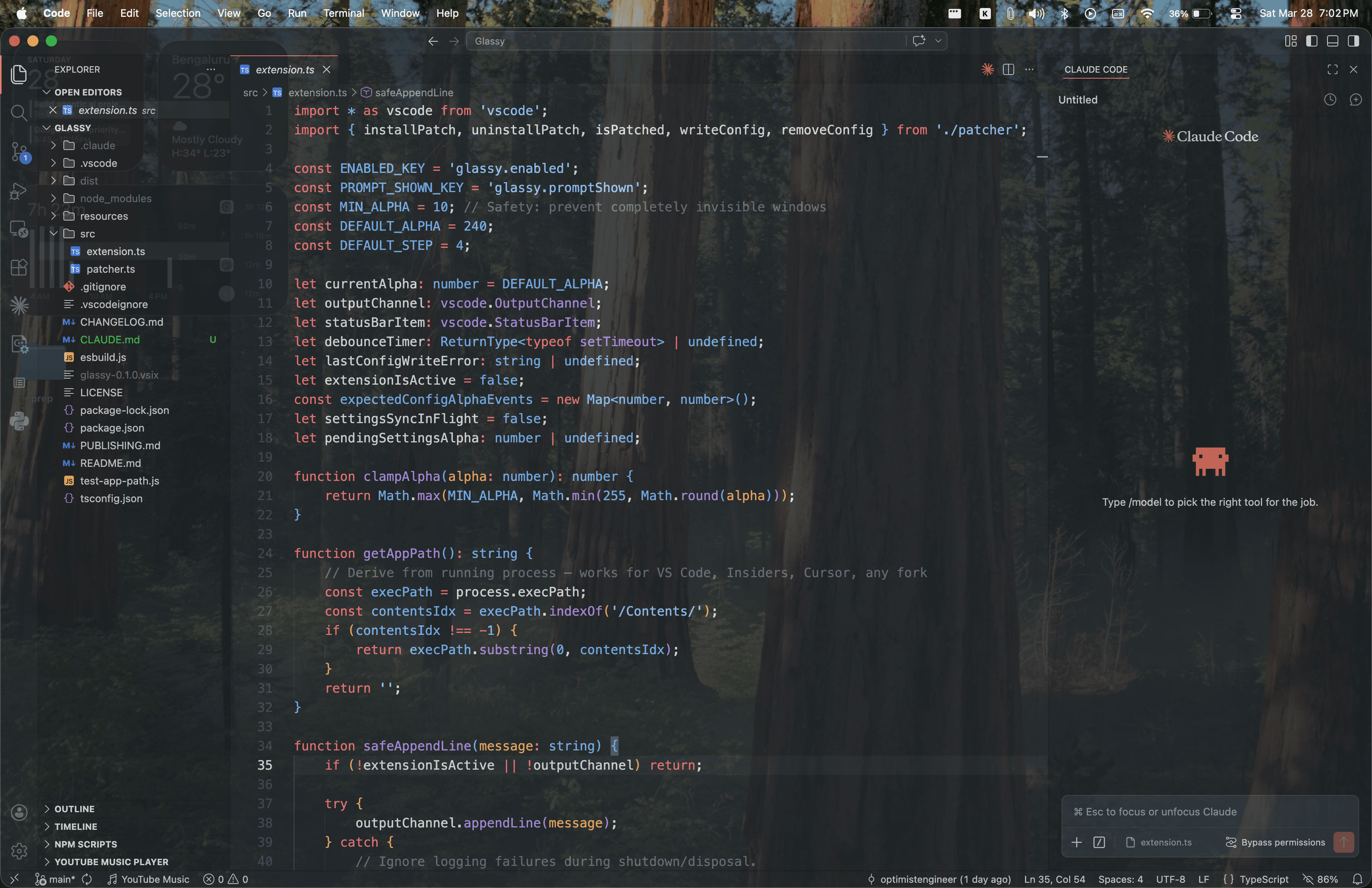
Preview
Glassy is designed to keep the editor usable while adding a soft glass effect over dark, ambient, or high-contrast backgrounds.
Dark wallpaper
Ambient background
Bright high-contrast background
Setup
Open the Command Palette (Cmd+Shift+P)
Run "Glassy: Enable Transparency"
Confirm the prompt
Restart VS Code when prompted, or Quit VS Code (Cmd+Q) and reopen it manually
Glassy modifies VS Code's internal app files to enable transparency. Because of that, enabling or disabling the effect requires a restart.
Usage
Shortcut
Command
Cmd+Option+Z
Increase opacity (less transparent)
Cmd+Option+C
Decrease opacity (more transparent)
Cmd+Option+X
Reset to fully opaque
You can also:
adjust opacity in Settings > Glassy
run "Glassy: Maximum Transparency" from the Command Palette to jump to the lowest supported opacity
run "Glassy: Toggle Auto-Restart on Update" to enable or disable automatic restarts after VS Code updates
run "Glassy: Disable Transparency" to remove the patch and restore the normal window
Settings
Setting
Default
Description
glassy.alpha
240
Opacity level (10 = very transparent, 255 = fully opaque)
glassy.step
4
Step size per keypress
glassy.autoRestartAfterUpdate
false
Automatically restart VS Code after an update without prompting
Glassy patches VS Code's Electron main process to enable BrowserWindow.setOpacity(). When you change opacity, the extension writes the new value to a local config file and the patched app applies the update to the current window.
Uninstalling
Run "Glassy: Disable Transparency" from the Command Palette
Restart VS Code when prompted, or quit and reopen it manually
Uninstall the extension if you no longer want to keep Glassy installed
This removes the patch and restores VS Code to its original state before the extension is uninstalled.
Requirements
macOS 12.0 or later
Glassy detects the currently running app automatically and also falls back to common VS Code, VS Code Insiders, Cursor, Antigravity, VSCodium, and Windsurf locations in /Applications or ~/Applications
Known Limitations
Requires patching VS Code's internal files, which may trigger a modified or corrupt installation warning
Glassy attempts to re-apply the patch automatically after VS Code updates, but some updates may still require a manual restart
Transparency applies to the entire window including text content