.env Manager
Manage your .env files effortlessly - quickly add environment variables and automatically sync them to .env.example files for your team.
Features
🎨 Syntax Highlighting for .env Files
Beautiful syntax highlighting for all .env files and variants (.env.example, .env.local, .env.production, etc.) with proper colorization for:
- Variable names
- Values (quoted and unquoted)
- Comments
- Variable substitutions
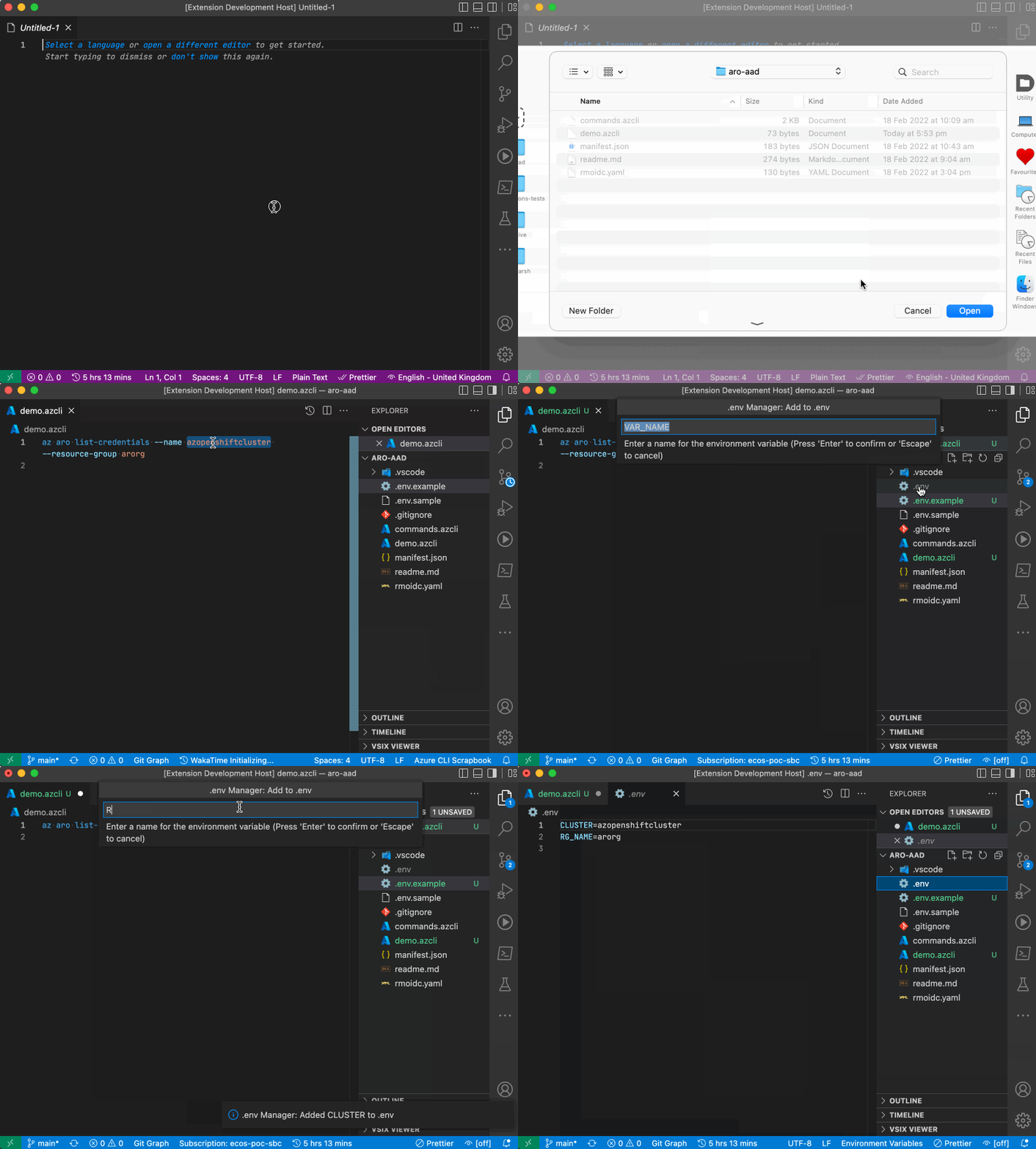
🚀 Quick Add to .env
Add environment variables to your .env file instantly using:
- Command Palette - Search for
.env Manager: Add to .env
- Context Menu - Right-click in any editor
- Keyboard Shortcut - Cmd/Ctrl + Shift + P
The extension automatically:
- Creates
.env if it doesn't exist
- Detects the variable name from your selection
- Supports language-specific formats (Node.js, Python, Go, etc.)
🔄 Auto-Sync to Example Files
Keep your .env.example files in sync automatically - perfect for teams!
What gets synced:
- ✅ Variable names (keys only)
- ✅ Comments and structure
- ✅ Empty lines and formatting
- ✅ Actual values replaced with configurable placeholders (default:
<your-value-here>)
When sync happens:
- Automatically when you save a
.env file
- Automatically when you add a variable using "Add to .env"
Example:
# .env (your actual file with secrets)
DATABASE_URL=postgresql://localhost:5432/mydb
API_KEY=super-secret-key-12345

# .env.example (synced version for Git)
DATABASE_URL=<your-value-here>
API_KEY=<your-value-here>
Quick Start
Install the extension from VS Code Marketplace
Configure sync mappings in your workspace or user settings:
{
  "envmanager.syncMappings": {
    ".env": [".env.example"]
  }
}
Start using it:
- Select text like
process.env.DATABASE_URL in your code
- Right-click →
.env Manager: Add to .env
- Enter the value when prompted
- Done! Your
.env and .env.example are updated
Configuration
Basic Setup
Sync .env to .env.example:
{
  "envmanager.syncMappings": {
    ".env": [".env.example"]
  }
}
Multiple Environments
Different environments? Configure each one:
{
  "envmanager.syncMappings": {
    ".env": [".env.example"],
    ".env.production": [".env.production.example"],
    ".env.staging": [".env.staging.example"],
    ".env.local": [".env.local.example"]
  }
}
Multiple Target Files
Need multiple example file formats?
{
  "envmanager.syncMappings": {
    ".env": [".env.example", ".env.sample", ".env.template"]
  }
}
Custom Placeholder
Change the placeholder value (default: <your-value-here>):
{
  "envmanager.syncMappings": {
    ".env": [".env.example"]
  },
  "envmanager.exampleFilePlaceholder": "CHANGE_ME"
}
Result:
DATABASE_URL=CHANGE_ME
API_KEY=CHANGE_ME
Disable Sync
Remove all mappings or set to empty:
{
  "envmanager.syncMappings": {}
}
Common Use Cases
Team Collaboration
Keep your team's local setup in sync:
{
  "envmanager.syncMappings": {
    ".env": [".env.example"]
  }
}
Commit .env.example to Git, ignore .env in .gitignore.
Multi-Environment Projects
Separate configs for each environment:
{
  "envmanager.syncMappings": {
    ".env.development": [".env.development.example"],
    ".env.staging": [".env.staging.example"],
    ".env.production": [".env.production.example"]
  }
}
Monorepo with Multiple Services
Different .env files per service:
{
  "envmanager.syncMappings": {
    "backend/.env": ["backend/.env.example"],
    "frontend/.env": ["frontend/.env.example"]
  }
}
Troubleshooting
Sync not working?
Check your configuration:
- Open VS Code settings (
Cmd/Ctrl + ,)
- Search for "envmanager"
- Verify
syncMappings is configured correctly
Check the logs:
- Open Output panel:
View → Output
- Select
.env Manager from the dropdown
- Look for error messages or sync activity
Common issues:
- File paths must be exact -
.env won't match .env.local
- Relative paths - Paths are relative to workspace root
- File doesn't exist - Target files are created automatically on first sync
Variables not being added?
- Make sure you've selected the variable name in your code
- The extension looks for patterns like
process.env.VAR_NAME, $VAR_NAME, etc.
- If auto-detection fails, you'll be prompted to enter the variable name manually
.gitignore suggestions?
The extension will suggest adding .env to .gitignore if:
- You don't have a
.gitignore file, OR
.gitignore exists but doesn't contain .env
You can accept or dismiss this suggestion.
Important Security Notes
⚠️ Never commit your .env file to source control!
- Always add
.env to your .gitignore
- Only commit
.env.example (with placeholder values)
- Keep sensitive values (passwords, API keys) only in
.env
- Sync is one-way: from
.env → example files (values are never copied back)
Supported Languages
The extension auto-detects variable formats for:
- JavaScript/TypeScript -
process.env.VAR_NAME, import.meta.env.VAR_NAME
- Python -
os.getenv('VAR_NAME')
- Go -
os.Getenv("VAR_NAME")
- Ruby -
ENV['VAR_NAME']
- PHP -
$_ENV['VAR_NAME']
- Shell -
$VAR_NAME
- PowerShell -
$env:VAR_NAME
- And many more!
Reporting Issues
Found a bug or have a feature request?
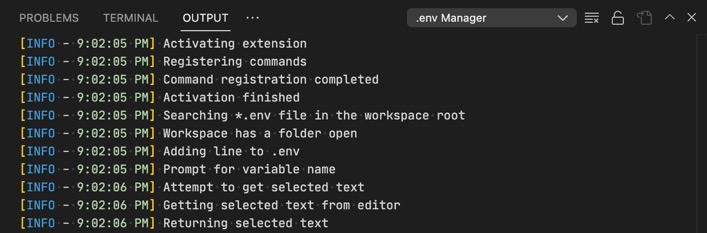
Check the logs first:
- Open Output panel:
View → Output
- Select
.env Manager from dropdown
Report on GitHub: Create an issue
- Include the log output
- Describe what you expected vs what happened
- Share your
syncMappings configuration (remove sensitive data!)
Contributing
Contributions are welcome! Check out the GitHub repository.
License
GPL-3.0
Enjoy using .env Manager! If you find it helpful, please ⭐ star the repo and leave a review on the VS Code Marketplace.

