Layers for Claude Code
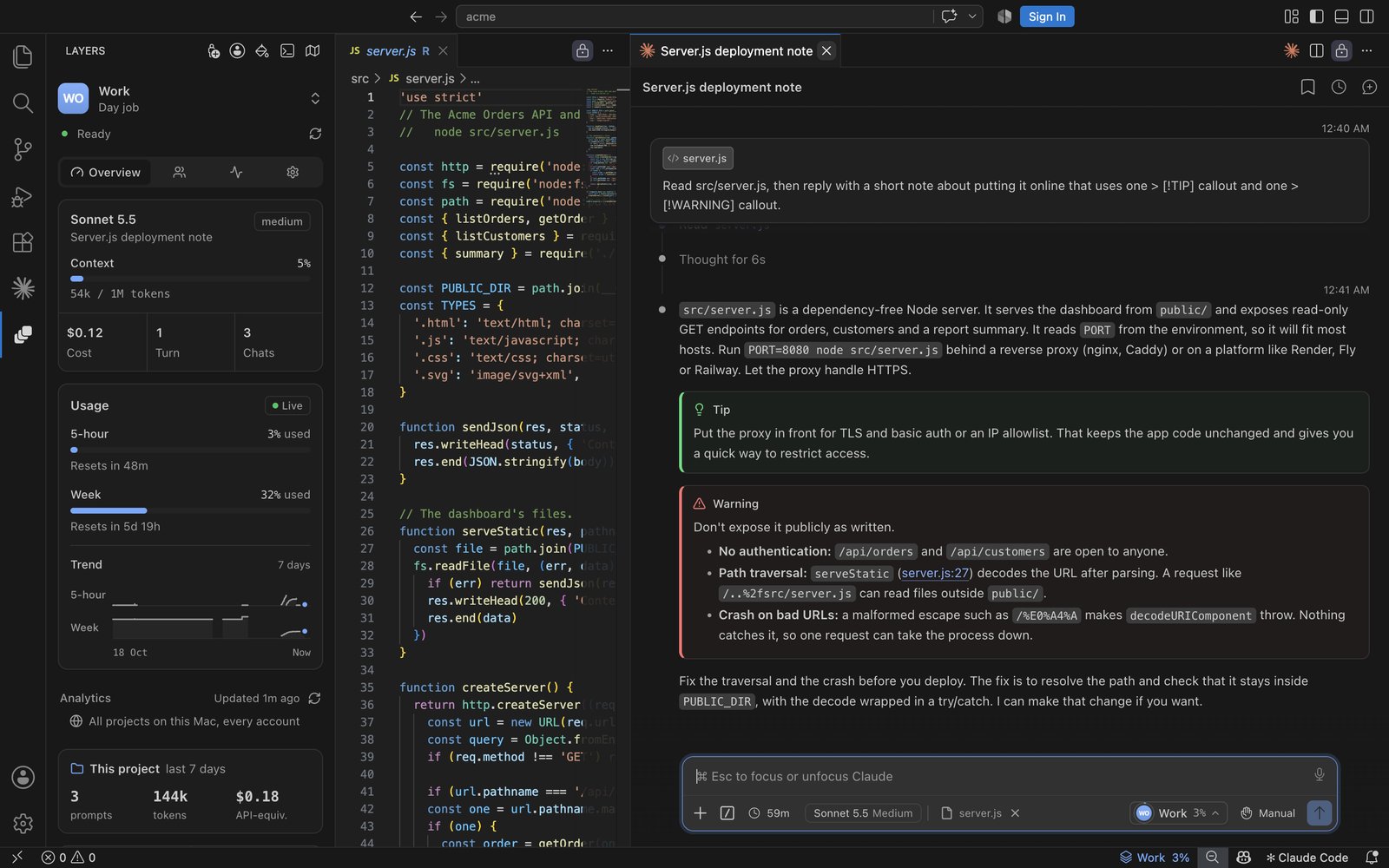
Everything Claude Code doesn't show you. Every Claude account and its limits in one place, your usage as real stats, a chat you can make your own, and every command in plain English, all inside VS Code.
Unofficial · Free · Tested on macOS
Anthropic doesn't make or support Layers. It works on top of Anthropic's Claude Code extension, which VS Code installs along with it. It should work on Windows and Linux too, but it hasn't been tested there yet.
Install: in VS Code, press Cmd+P (Mac) or Ctrl+P (Windows and Linux), paste ext install omiiii21.layers and press Enter. It's also on the VS Code Marketplace and Open VSX. Needs VS Code 1.100 or newer.
Cursor, Windsurf, Antigravity, VSCodium and other editors built on VS Code: search "Layers" in the Extensions view, which installs it from Open VSX. Layers is tested in VS Code; these editors run the same Claude Code extension.
What you get
- Every account, one click: how much of each Claude account's 5-hour and weekly limit is left, which one has the most room, and switching in one click. Profiles get names, colours and photos.
- See how you use Claude: tokens, prompts, estimated cost, streaks, the hours you work, and your top tools, models and projects, all worked out on your computer.
- Make it yours: 5 chat looks, boxes for questions, warnings and tips, and mods you switch on in one click.
- Know what a command does: one plain sentence under each command Claude asks to run, with a warning when it's risky.
- See what Claude touched: letters on the files Claude read or changed, and the helpers it's running.
Accounts
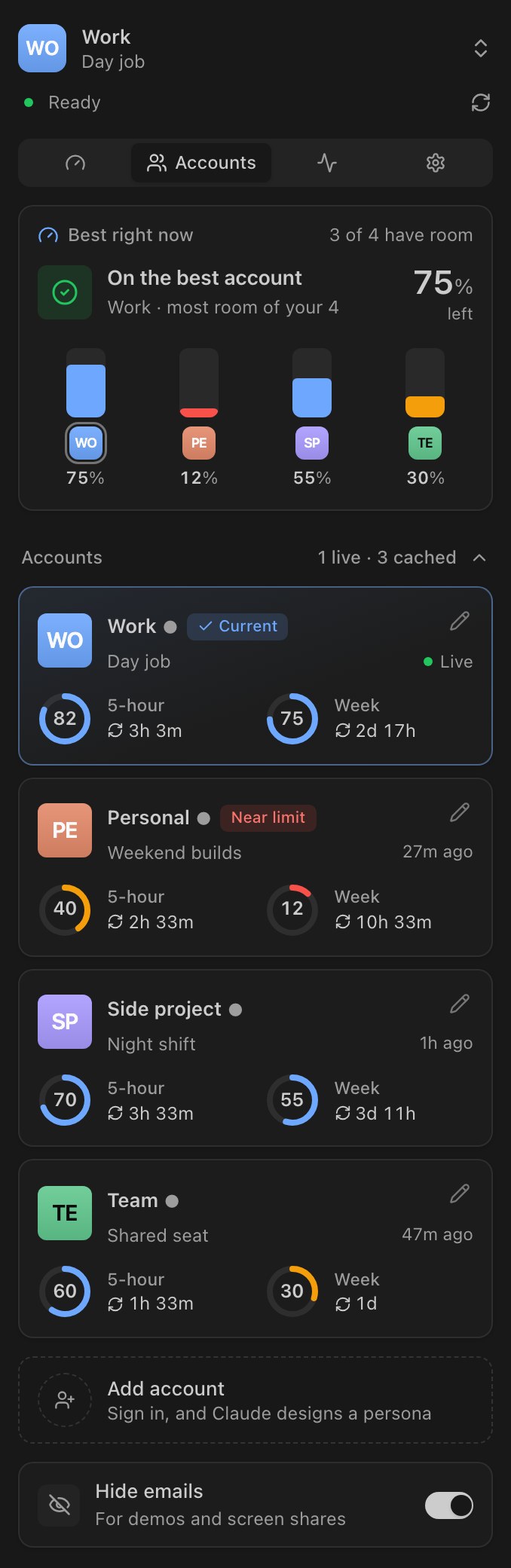 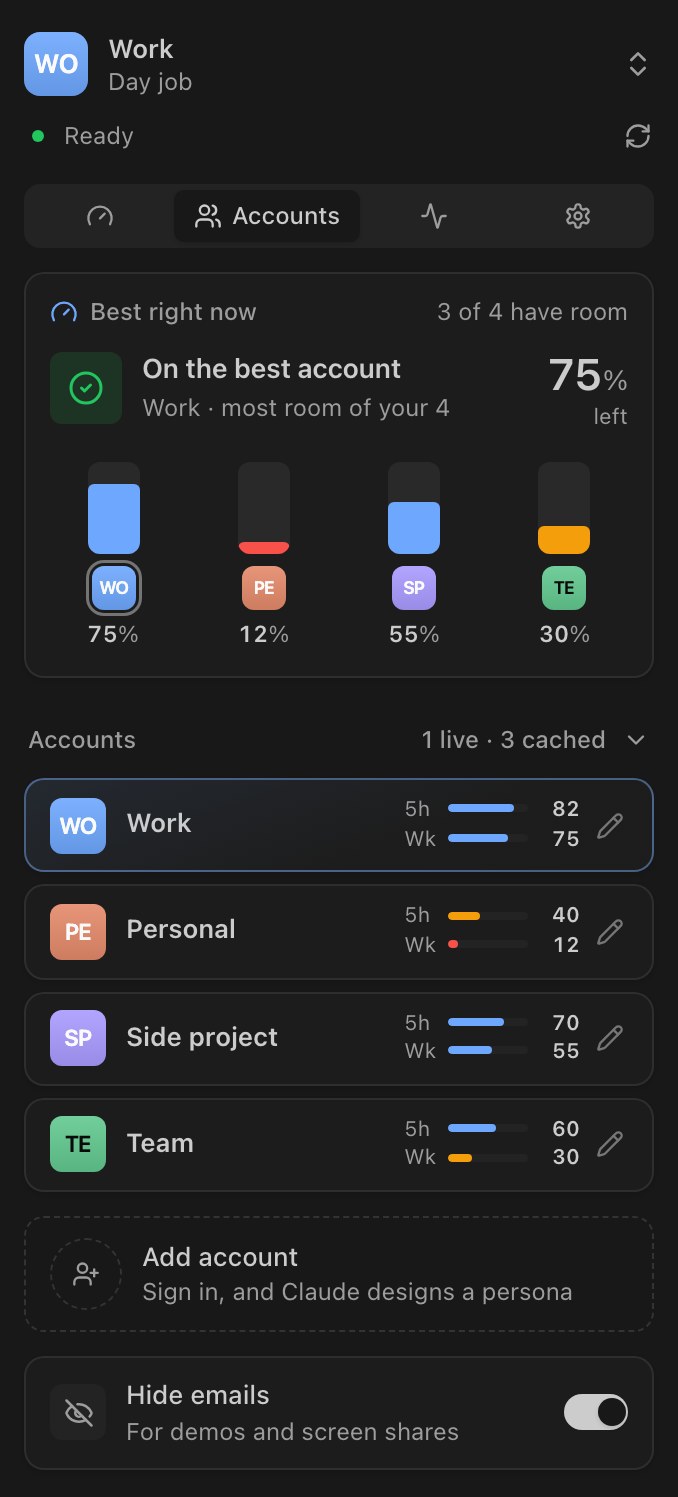
If you use more than one Claude account, Layers shows how much of each account's 5-hour and weekly usage is left.
- Best right now names the account with the most room and gives you a Switch button. When every account is close to its limit, it says Running low and tells you when usage refills.
- A card for each account shows what's left of its 5-hour and weekly usage, and when each one refills.
- Compact view. The arrow next to Accounts folds the list to one line per account. Layers remembers your choice.
- One-click switching. New chats use the new account right away. Reload the window to move open chats too.
- A heads-up when the account you're using passes 80% or 95% of a limit, with a button to switch to the account with the most room.
- The status bar at the bottom of VS Code shows the current account and its 5-hour usage. Hover over it to see every account.
Adding an account. Click Add account (or run Layers: Add a Claude account) and sign in on Claude's own sign-in page: copy the link Layers shows, paste back the code you get, then give the account a name. You can rename any account, pick its colour or add a photo. Hide emails hides email addresses, which is handy when you share your screen.
How Layers finds your accounts. Each Claude settings folder in your home folder counts as one account: ~/.claude shows as Main, and a folder like ~/.claude-work shows under its own name. Switching tells Claude Code which folder to use, through its claudeCode.environmentVariables setting.
Make it yours
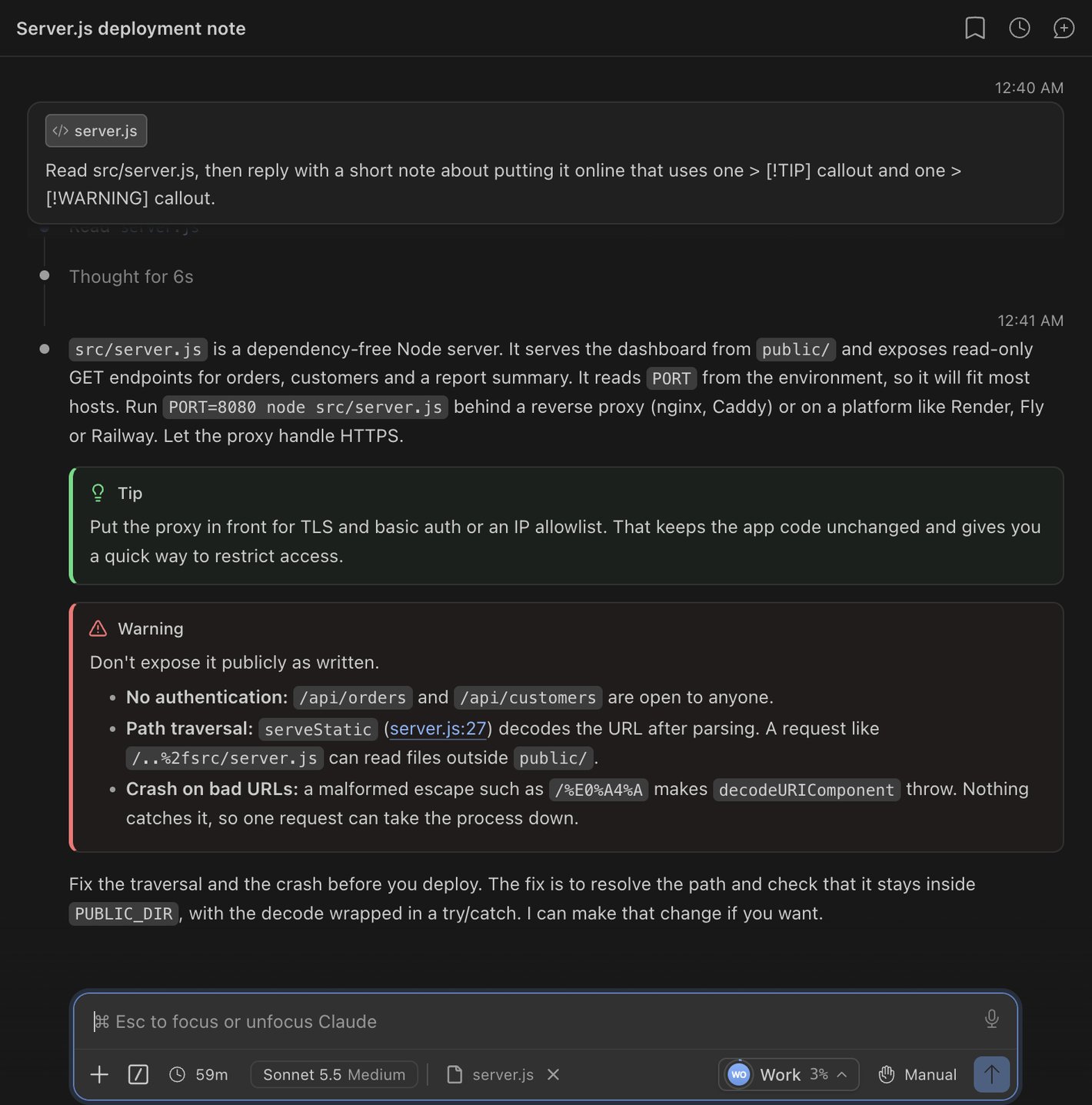
- 5 looks. Accent (your editor's colours, with a touch of your account's colour), Midnight, Aurora, Paper and Mono. Pick one in the Settings tab or with Layers: Choose the chat's skin.
- Highlighted boxes. When Claude asks you something, warns you or gives a tip, it appears in a labelled box, so the parts that need you stand out: Question, Important, Remember, Warning, Tip, Note and You should know. Layers teaches Claude to write them.
- The Layers button in Claude's message box shows your account and its 5-hour usage. Click it to see your limits and switch accounts.
- Progress while helpers work (Pulse). When Claude runs helpers side by side, a bar above the message box shows how far along the work is. Type
/pulse for a panel listing each helper with its model, progress and time. The same progress shows on the Activity tab in the Layers sidebar.
- Diagrams and maths (Skins). Diagrams, maths and charts in Claude's replies are drawn as pictures instead of raw text. Everything else keeps your Layers look. Skins is off at first: switch it on in the Settings tab.
- Diagrams. A Mermaid diagram in Claude's reply (a flowchart, pie, timeline and more) is drawn as a picture inside its own code block, in your theme's colours. The copy button still copies the source.
- Small touches. Code blocks show their language, and the list of Claude's steps is quieter.
Lens
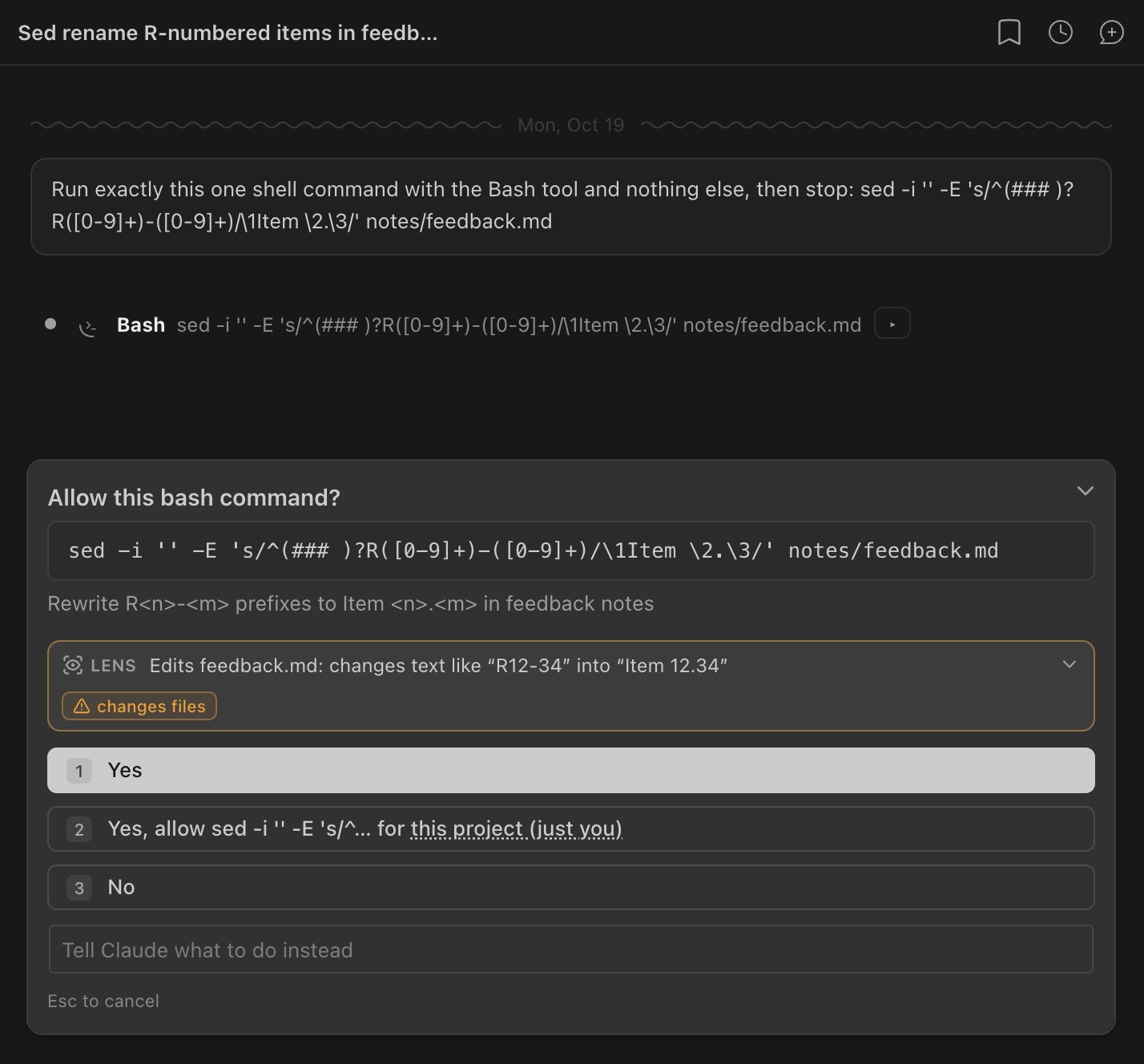
When Claude asks to run a command ("Allow this bash command?"), Lens adds one sentence that says what the command will do:
find notes -name '*.md' -mtime +30 -delete
→ Deletes .md files under notes, older than 30 days (warning: deletes files)sed -i '' -E 's/R([0-9]+)-([0-9]+)/Item \1.\2/g' notes/feedback.md
→ Edits feedback.md: changes text like “R12-34” into “Item 12.34” (warning: changes files)curl -fsSL https://example.com/install.sh | sh
→ Downloads a script from example.com and runs it (warnings: uses the network, runs a downloaded script)
What else to know:
- Warning labels appear when a command deletes or changes files, overwrites a file, uses the internet, runs a script it downloads, installs software, runs as administrator, rewrites git history, throws away changes, stops programs or changes file permissions.
- It reads the command itself, not Claude's summary of it, which can differ from what the command really does.
- More detail if you want it. The arrow at the right opens what each pattern in the command matches, with an example.
- It keeps up. If you edit the command in the prompt, the sentence changes with it.
- It works on your computer. Nothing is sent anywhere. For a command Lens can't read (your own script, say), an Ask Claude button can ask Claude for the sentence instead. That's one short request on your current account, only when you click it, and the answer is marked "Haiku".
To turn Lens off, use the Lens switch in the Settings tab of the Layers sidebar.
See what Claude touched
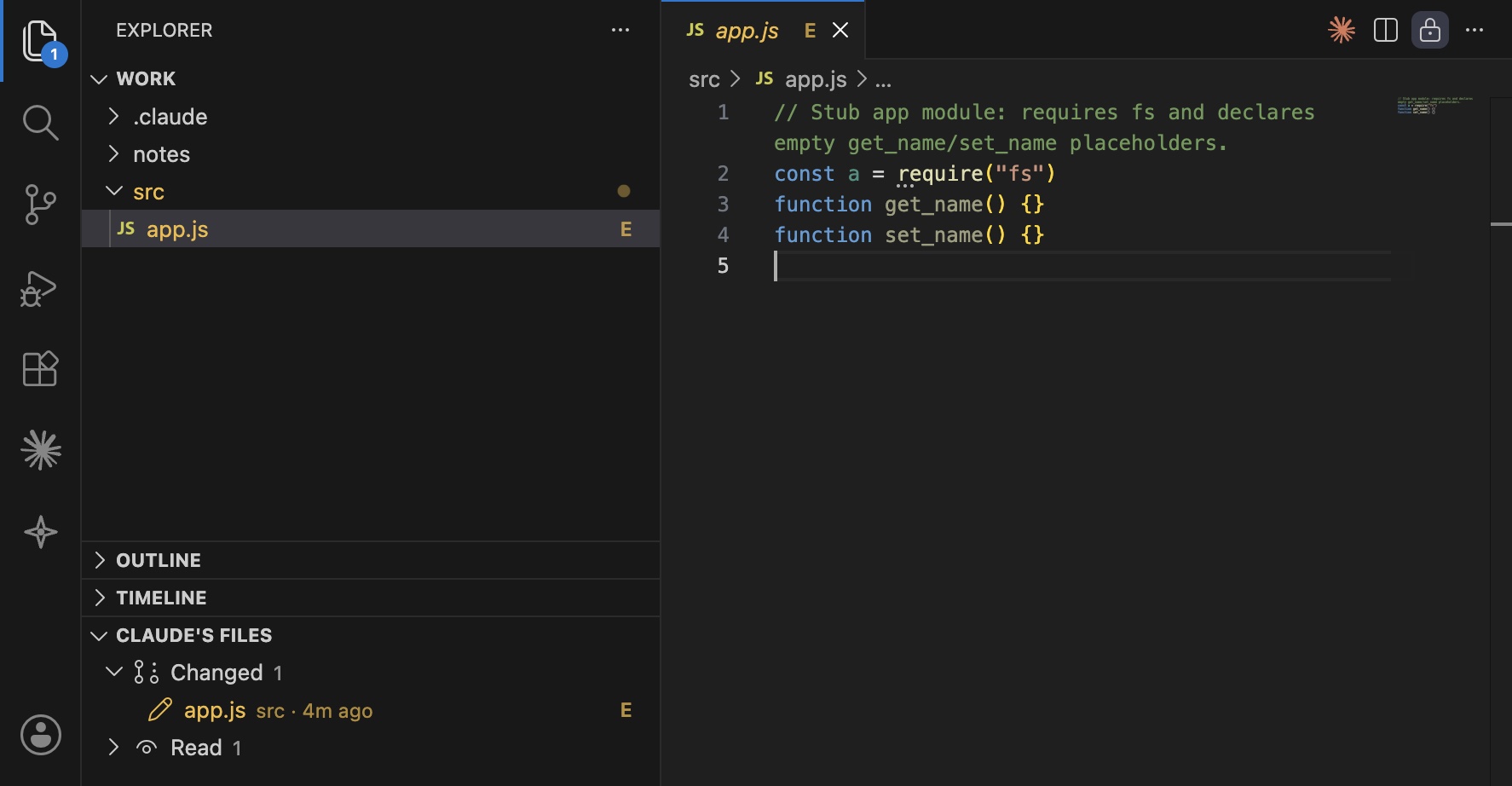
Layers marks Claude's work in VS Code's own file list (the Explorer):
- R means Claude read the file, E edited, N created, and ● is the file it's working on now. Folders with an edited file inside get a dot.
- A Claude's Files list in the Explorer shows every file the chat read or changed.
- Lines Claude just edited flash briefly in open files. The eye button (Follow) jumps to each file as Claude edits it.
What Claude is doing right now
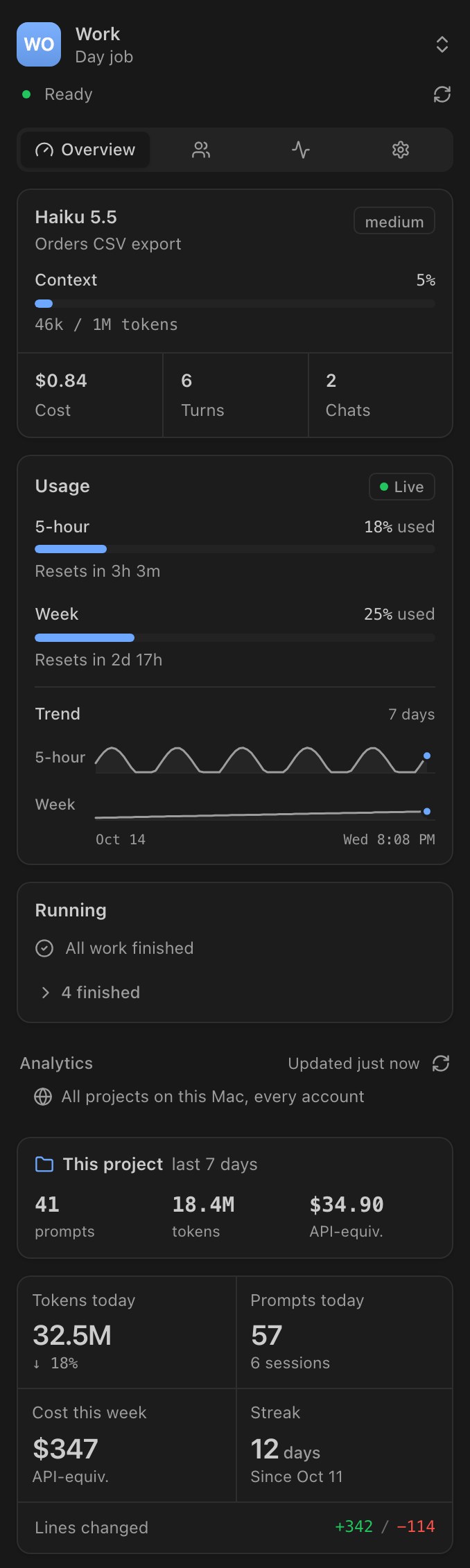
Click the Layers icon in VS Code's side bar, or the Layers item in the status bar. The sidebar has four tabs:
- Overview: the current chat (its model, how full its memory is, what it has cost and its number of turns), your usage with a 7-day trend, and the helpers Claude is running in the background. Below that, stats on how you use Claude: prompts, estimated cost, streaks and the hours you work, all worked out on your computer.
- Accounts: see Accounts.
- Activity: how many helpers are working, with a progress bar for each, then each step Claude takes as it happens.
- Settings: the chat's look, Lens, the highlighted boxes, Claude Code add-ons (mods) with on/off switches, and buttons to re-apply or remove Layers.
The Layers icon shows a number while helpers are running.
Getting started
- Install Layers. VS Code installs Claude Code too if you don't have it.
- Click Apply once. The first time, Layers asks before it changes Claude Code's files: "Layers restyles Claude Code's chat by adding a small layer to Claude Code's installed files. It keeps a backup, and "Layers: Remove the layer" puts them back." Click Apply. If a Claude chat is already open, reload the window when Layers asks.
- Not now leaves Claude Code alone, and Layers asks again the next time VS Code starts. Run Layers: Apply the layer to Claude Code whenever you're ready, or turn off the
layers.enabled setting to stop the question.
- Without Apply, the sidebar still shows your accounts, their last known usage and your stats. Lens, the new chat look and the live details need Apply.
- Take the tour. The first time you open the Layers sidebar, a one-minute tour shows you around. Use the arrow keys or the buttons to move through it, and Esc to stop.
- Replay the tour any time with the map button at the top of the Layers sidebar, or with Layers: Take the tour.
Used Layers when it was called Lumo? Your settings carry over on the first start.
Privacy
- Everything stays on your computer. Layers has no servers, no sign-up and no tracking. Lens, your usage numbers and your stats are all worked out on your machine.
- Layers only sends something to Claude when you ask, on your own account: the Ask Claude button in Lens, signing in a new account, and, if you give a new account a short description, having Claude pick its colours.
- It reads and changes only a few things. It reads what Claude Code already shows, Claude Code's chat history on your computer (for the stats) and each account's settings folder. It writes its own files to
~/.claude/lumo/, changes the Claude Code files you said yes to (keeping a backup of each), and updates one VS Code setting when you switch accounts.
Turning it off
- Just Lens: switch off Lens in the Settings tab, or set
layers.lens to false.
- Take Layers off Claude Code, keep the sidebar: click Remove in the Settings tab, or run Layers: Remove the layer (restore Claude Code's files), then reload. Claude Code's files go back exactly as they were. Layers: Apply the layer to Claude Code brings it back.
- Uninstall: uninstalling Layers also puts Claude Code's files back, the next time VS Code restarts. To do it straight away, run Remove the layer first.
- Your data: Layers keeps its files in
~/.claude/lumo/. Delete that folder to remove them.
Settings
| Setting |
Default |
What it does |
layers.enabled |
true |
Keep Layers on Claude Code, and put it back after Claude Code updates. |
layers.skin |
"accent" |
The chat's look: accent, midnight, aurora, paper or mono. |
layers.callouts |
true |
Show questions, warnings and tips in Claude's replies as highlighted boxes. |
layers.lens |
true |
Lens: a plain sentence under each command Claude asks to run, with warning labels. |
layers.chip |
true |
Show the Layers button in Claude's message box. |
layers.chatMods |
["lumo-pulse"] |
Which of Layers' add-ons to load into Claude's chat in VS Code: Pulse (lumo-pulse). You can add Skins (lumo-skins). |
layers.terminalMods |
["callouts", "prompt-status", "account-usage"] |
Which of Layers' add-ons to load when Layers opens Claude in a terminal. You can add lumo-pulse, lumo-skins and lumo-tree. |
layers.hideFileTree |
true |
If you use the filetree add-on, keep its panel out of Claude's chat. VS Code's file list marks Claude's files instead. |
layers.followFiles |
false |
Jump to each file Claude edits in the file list (while the Explorer is open). |
layers.hideEmails |
false |
Hide account email addresses everywhere Layers shows them. |
To change the colours of the R / E / N letters, set lumo.read, lumo.edited, lumo.created, lumo.active or lumo.flash under workbench.colorCustomizations.
Commands
Open the Command Palette (Cmd+Shift+P on Mac, Ctrl+Shift+P on Windows and Linux) and type Layers.
| Command |
What it's for |
| Layers: Take the tour |
A one-minute walk through the sidebar. The map button at its top does the same. |
| Layers: Switch Claude account |
Choose which account new chats use. |
| Layers: Add a Claude account |
Sign in with another Claude account and give it a name. |
| Layers: Edit an account (name, photo, colour) |
Change how an account looks in Layers. Its sign-in isn't touched. |
| Layers: Hide or show account emails |
Hide email addresses while you share your screen. |
| Layers: Open Claude in a terminal as the current account |
Start Claude in VS Code's terminal, on the account you're using. |
| Layers: Choose the chat's skin |
Pick one of the 5 looks for Claude's chat. |
| Layers: Toggle callout boxes in the chat |
Turn the highlighted boxes on or off. |
| Layers: Apply the layer to Claude Code |
Add Layers to Claude Code, or add it back. |
| Layers: Remove the layer (restore Claude Code's files) |
Put Claude Code's files back exactly as they were. |
| Layers: Show logs |
Show Layers' log, handy when you report a bug. |
| Layers: Send feedback |
Report a bug, ask for a feature or suggest an improvement. |
| Layers: Clear Claude's files |
Empty the Claude's Files list. |
| Layers: Follow the files Claude edits in the Explorer |
Jump to each file in the file list as Claude edits it. |
| Layers: Use Layers' versions of filetree, savvy-progress and skins |
If you use these Claude Code add-ons, switch to Layers' versions of them. |
| Layers: Switch back to the original filetree, savvy-progress and skins |
Undo the command above. |
Reveal in Explorer is the small button on each file in the Claude's Files list.
Feedback
Layers is made by one person, and I read every note.
Each opens a short form on the Layers website, where you can add screenshots or a .md file. Notes come straight to me and stay private. You can also message @LumoLogs on X or find me on LinkedIn.
Inside VS Code, run Layers: Send feedback, or use the Feedback card at the bottom of the sidebar's Settings tab.
Credits
Made by Om Mengshetti. Say hi on LinkedIn or X.
Layers comes with a few small Claude Code add-ons (mods). Three of them are forks of MIT-licensed projects: Tree (lumo-tree) of filetree by Kurt Buhler, Pulse (lumo-pulse) of savvy-progress by johnnyvizz, and Skins (lumo-skins) of skins by hellosverre. Skins also includes beautiful-mermaid by Craft Docs (MIT). Each fork keeps its authors' copyright and license, and mods/NOTICE.md, which comes with the extension, lists what changed. The look follows shadcn/ui, with Lucide icons (ISC).
Claude and Claude Code are trademarks of Anthropic, PBC. Layers changes only your own copy of the Claude Code extension, and one command undoes it.
License
MIT. The license comes with the extension. Found a bug or have an idea? See Feedback.
For developers: node --test test/*.test.js runs the tests, node dev/e2e.mjs runs the full check in a separate test copy of VS Code, and node dev/package.mjs builds the extension file.
| |

