
Git ID SwitcherSwitch between multiple Git identities with one click. SSH keys and GPG signing sync automatically, and changes apply to submodules. Installation Launch VS Code Quick Open ( Ctrl+P), paste the following command, and press enter.Copied to clipboard |

Git ID Switcher
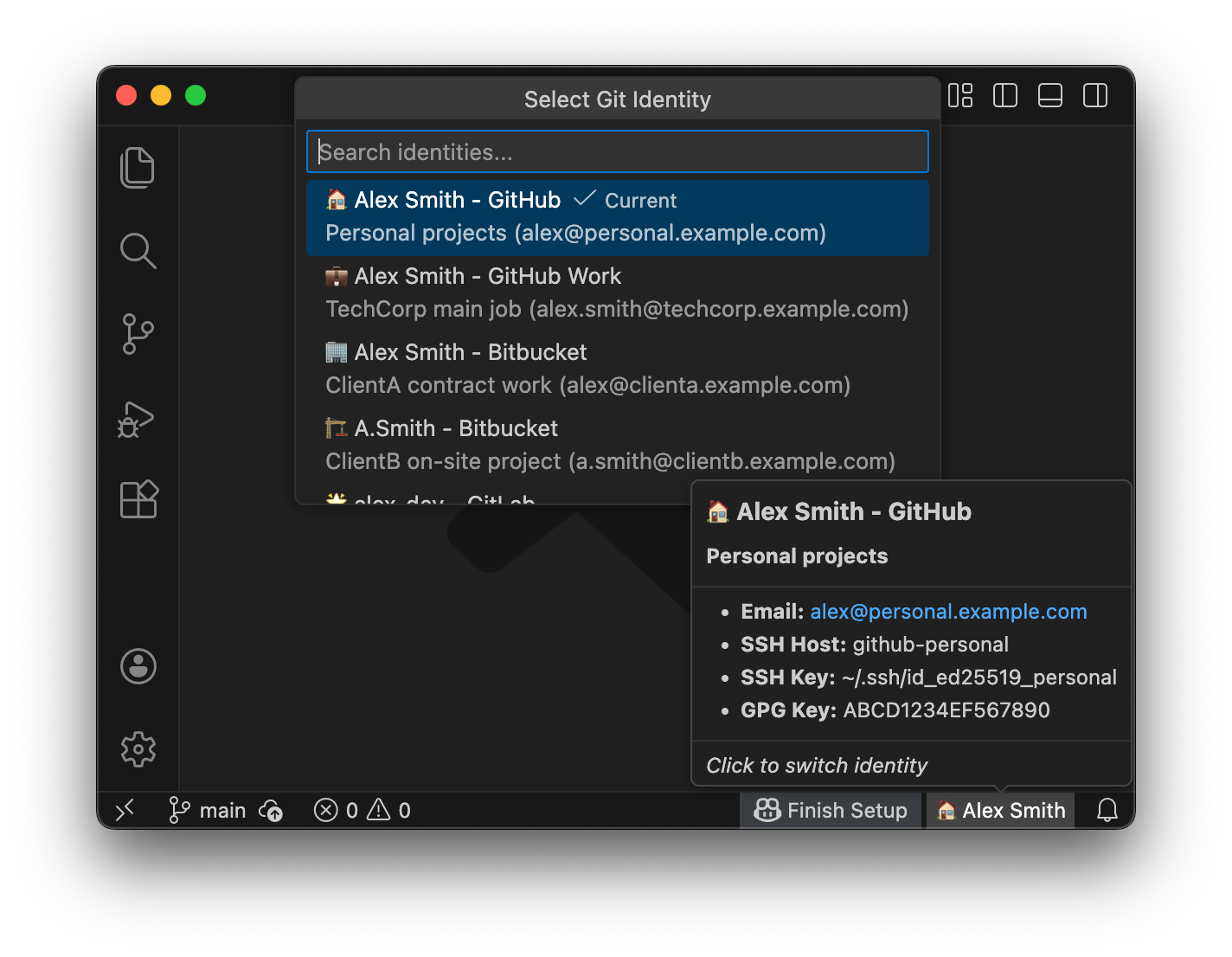
🎯 Why Git ID Switcher?While many Git identity switchers exist, Git ID Switcher solves the complex problems that others overlook:
Features
🌏 A Note on Multilingual Support
This extension supports all 17 languages that VS Code supports. Additionally, for README documentation, we're challenging ourselves to translate into minority languages and even joke languages. This isn't just "global support" — it's "respect for linguistic diversity." And I'd be happy if this becomes infrastructure where commits that make the world better come from developers living everywhere, transcending language barriers. Quick StartA typical setup for switching between personal and company-issued accounts (Enterprise Managed User). Step 1: Prepare SSH KeysFirst, create SSH keys for each account (skip if you already have them): Register the public key (
Step 2: Configure SSHEdit Step 3: Configure the ExtensionSample identities are provided right after installation. Follow the guide below to edit them for your own use. 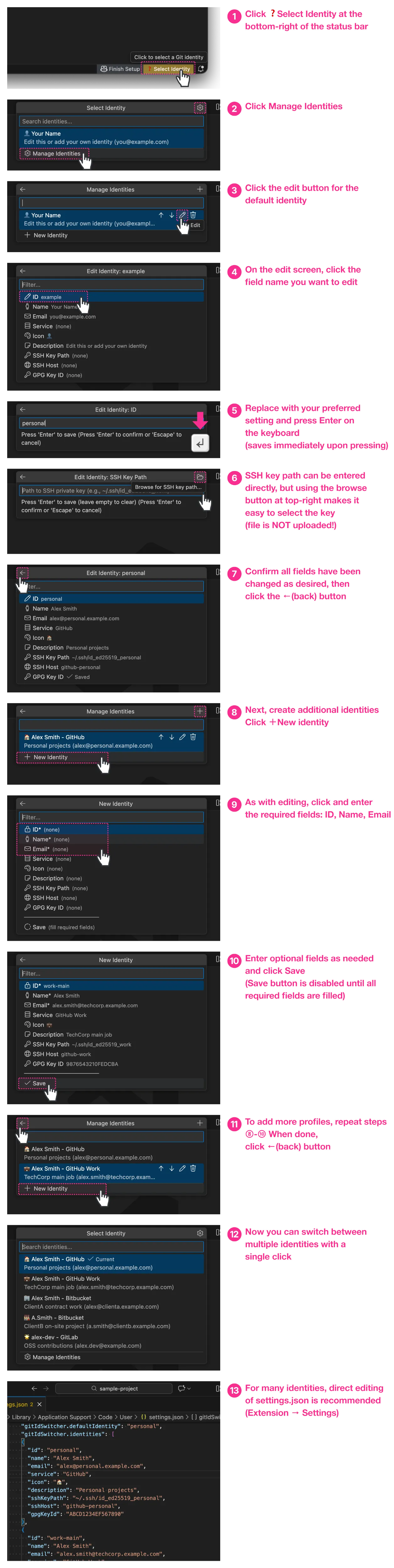
Full Example: 5 Accounts with SSH + GPGHere's a complete example combining everything: SSH Config (
|













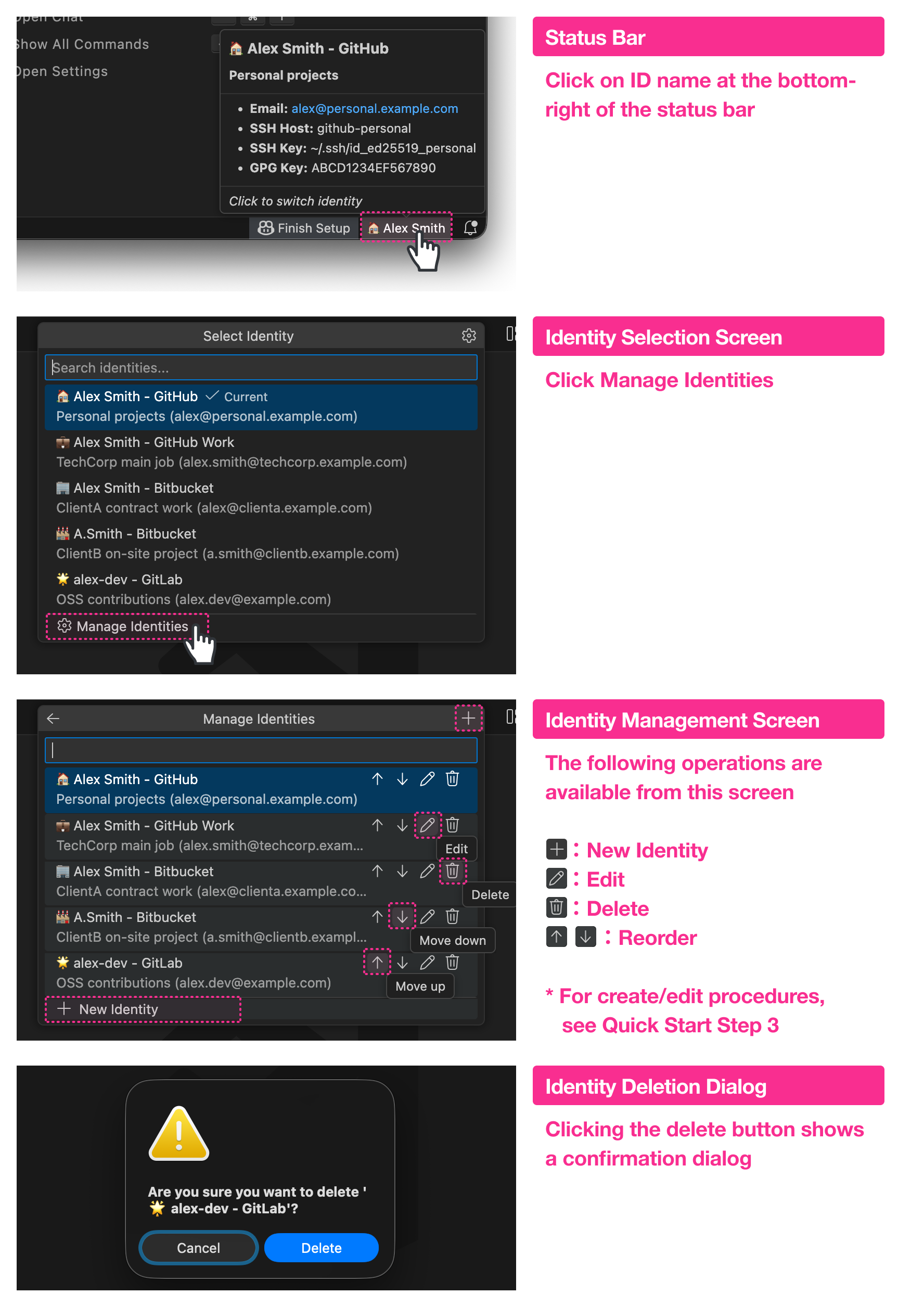
| Command | Description |
|---|---|
Git ID Switcher: Select Identity |
Open the identity picker |
Git ID Switcher: Delete Identity |
Delete an identity |
Git ID Switcher: Show Current Identity |
Display current identity info |
Git ID Switcher: Show Documentation |
Show documentation |
Configuration Reference
Identity (Profile) Properties
| Property | Required | Description |
|---|---|---|
id |
✅ | Unique identifier (e.g., "personal", "work") |
name |
✅ | Git user.name — shown in commits |
email |
✅ | Git user.email — shown in commits |
icon |
Emoji shown in status bar (e.g., "🏠"). Single emoji only |
|
service |
Service name (e.g., "GitHub", "GitLab"). Used for UI display |
|
description |
Short description shown in picker and tooltip | |
sshKeyPath |
Path to SSH private key (e.g., "~/.ssh/id_ed25519_work") |
|
sshHost |
SSH config Host alias (e.g., "github-work") |
|
gpgKeyId |
GPG key ID for commit signing |
Display Limitations
- Status bar: Text exceeding ~25 characters will be truncated with
... icon: Only a single emoji (grapheme cluster) is allowed. Multiple emojis or long strings are not supported
Global Settings
| Setting | Default | Description |
|---|---|---|
gitIdSwitcher.identities |
See sample | List of identity configurations |
gitIdSwitcher.defaultIdentity |
See sample | ID of the default identity to use |
gitIdSwitcher.autoSwitchSshKey |
true |
Auto-switch SSH key when changing identities |
gitIdSwitcher.showNotifications |
true |
Show notification on identity switch |
gitIdSwitcher.applyToSubmodules |
true |
Propagate identity to Git submodules |
gitIdSwitcher.submoduleDepth |
1 |
Max depth for nested submodule configuration (1-5) |
gitIdSwitcher.includeIconInGitConfig |
false |
Include icon emoji in Git config user.name |
gitIdSwitcher.syncCheck.enabled |
true |
Check whether selected profile matches actual git config |
gitIdSwitcher.syncCheck.onFocusReturn |
true |
Run sync check when editor window regains focus |
gitIdSwitcher.logging.fileEnabled |
false |
Save audit logs to file (records identity switches, SSH key operations, etc.) |
gitIdSwitcher.logging.filePath |
"" |
Log file path (e.g., ~/.git-id-switcher/security.log). Empty string uses default path |
gitIdSwitcher.logging.maxFileSize |
10485760 |
Max file size before rotation (bytes, 1MB-100MB) |
gitIdSwitcher.logging.maxFiles |
5 |
Max number of rotated log files to keep (1-20) |
gitIdSwitcher.logging.redactAllSensitive |
false |
When enabled, masks all values in logs (maximum privacy mode) |
gitIdSwitcher.logging.level |
"INFO" |
Log verbosity (DEBUG, INFO, WARN, ERROR, SECURITY). Records selected level and above |
gitIdSwitcher.commandTimeouts |
{} |
Custom timeout per command (ms, 1sec-5min). E.g., {"git": 15000, "ssh-add": 10000} |
About includeIconInGitConfig
Controls behavior when the icon field is set:
| Value | Behavior |
|---|---|
false (default) |
icon is shown in editor UI only. Only name is written to Git config |
true |
icon + name is written to Git config. Emoji appears in commit history |
Example: icon: "👤", name: "Alex Smith"
| includeIconInGitConfig | Git config user.name |
Commit signature |
|---|---|---|
false |
Alex Smith |
Alex Smith <email> |
true |
👤 Alex Smith |
👤 Alex Smith <email> |
How It Works
Git Config Layer Structure
Git configuration has three layers, where lower layers are overridden by higher ones:
System (/etc/gitconfig)
    ↓ overridden by
Global (~/.gitconfig)
    ↓ overridden by
Local (.git/config)  ← highest priority
Git ID Switcher writes to --local (repository-local).
This means:
- Identities are saved to each repository's
.git/config - Different identities can be maintained per repository
- Global settings (
~/.gitconfig) are not modified
What Happens When Switching Identities (Profiles)
When you switch identities, the extension does the following (in order):
- Git Config (always): Sets
git config --local user.nameanduser.email - SSH Key (if
sshKeyPathset): Removes other keys from ssh-agent and adds the selected key - GPG Key (if
gpgKeyIdset): Setsgit config --local user.signingkeyand enables signing - Submodules (if enabled): Propagates settings to all submodules (default: depth 1)
- Sync Check: Verifies that the applied profile matches the actual git config
Sync Check
Compares the selected profile against the actual git config --local values (user.name, user.email, user.signingkey) and shows a status bar warning when a mismatch is detected.
When checks run:
- Immediately after profile apply
- On workspace folder change
- On configuration change
- On editor window focus return (debounced 500ms)
When a mismatch is detected:
- The status bar shows a ⚠️ icon with a warning background color
- The tooltip displays a table showing the mismatched fields (field, expected value, actual value)
- Clicking the status bar presents resolution options:
- Re-apply profile — Re-apply the current profile to git config
- Select different profile — Open the identity picker
- Dismiss — Suppress the warning until the next check
To disable:
Set gitIdSwitcher.syncCheck.enabled to false to disable all sync checks.
To disable only the focus-return check, set gitIdSwitcher.syncCheck.onFocusReturn to false.
How Submodule Propagation Works
Local settings are per-repository, so they don't automatically apply to submodules. That's why this extension provides submodule propagation (see "Advanced: Submodule Support" for details).
SSH Key Management Details
Git ID Switcher manages SSH keys through ssh-agent:
| Operation | Command |
|---|---|
| Add key | ssh-add <keyPath> |
| Remove key | ssh-add -d <keyPath> |
| List keys | ssh-add -l |
Important: This extension does NOT modify ~/.ssh/config. SSH config setup must be done manually (see Step 2 in "Quick Start").
Interaction with Existing SSH Configuration
If you already have SSH configuration, Git ID Switcher works alongside it:
| Your Setup | Git ID Switcher Behavior |
|---|---|
~/.ssh/config with IdentityFile |
Both can be used; use IdentitiesOnly yes to prevent conflicts |
GIT_SSH_COMMAND environment variable |
Uses your custom SSH command; ssh-agent still works |
git config core.sshCommand |
Same as above |
| direnv with SSH-related env vars | Works alongside; ssh-agent operates independently |
Recommended: Always use IdentitiesOnly yes in your SSH config. This prevents SSH from trying multiple keys.
Why IdentitiesOnly yes?
Without this setting, SSH may try keys in this order:
- Keys loaded in ssh-agent (managed by Git ID Switcher)
- Keys specified in
~/.ssh/config - Default keys (
~/.ssh/id_rsa,~/.ssh/id_ed25519, etc.)
This can cause authentication failures or unintended key usage.
With IdentitiesOnly yes, SSH uses only the specified key. This ensures the key configured in Git ID Switcher is used reliably.
# Recommended configuration
Host github-work
    HostName github.com
    User git
    IdentityFile ~/.ssh/id_ed25519_work
    IdentitiesOnly yes  # ← This line is important
With this configuration, connections to the github-work host will only use ~/.ssh/id_ed25519_work, and no other keys will be tried.
Advanced: Submodule Support
For complex repositories using Git Submodules, identity (profile) management is often troublesome. When you commit in a submodule, Git uses that submodule's local config, which may default to your global config (wrong email!) if not explicitly set.
Git ID Switcher automatically detects submodules and applies the selected identity (profile).
{
  "gitIdSwitcher.applyToSubmodules": true,
  "gitIdSwitcher.submoduleDepth": 1
}
applyToSubmodules: Enable/disable this featuresubmoduleDepth: How deep to apply?1: Direct submodules only (most common)2+: Nested submodules (submodules within submodules)
This ensures your identity is always correct, whether you commit in the main repo or a vendored library.
Troubleshooting
SSH key not switching?
Ensure
ssh-agentis running:eval "$(ssh-agent -s)"Check the key path is correct:
ls -la ~/.ssh/id_ed25519_*On macOS, add to Keychain once:
ssh-add --apple-use-keychain ~/.ssh/id_ed25519_work
Wrong identity (profile) on push?
For new clones:
When cloning work repositories, use the host alias configured in SSH config:
# Work (using github-work alias)
git clone git@github-work:company/repo.git

# Personal (using default github.com)
git clone git@github.com:yourname/repo.git
For existing repositories:
Check if the remote URL uses the correct host alias:
git remote -v
# Should show git@github-work:... for work repos
Update if needed:
git remote set-url origin git@github-work:company/repo.git
GPG signing not working?
Find your GPG key ID:
gpg --list-secret-keys --keyid-format SHORTTest signing:
echo "test" | gpg --clearsignMake sure the email in your identity matches the GPG key's email
Identity (profile) not detected?
- Make sure you're in a Git repository
- Check
settings.jsonfor syntax errors - Reload VS Code window (
Cmd+Shift+P→ "Reload Window")
Error with name field?
The following characters in the name field will cause an error:
` $ ( ) { } | & < >
Use the service field if you want to include service information.
// NG
"name": "Alex Smith (Personal)"

// OK
"name": "Alex Smith",
"service": "GitHub"
New settings not showing?
After updating the extension, new settings may not appear in the settings UI.
Solution: Restart your machine completely.
VS Code-based editors cache the settings schema in memory, and "Reload Window" or reinstalling the extension may not be enough to refresh it.
Default values (identities, etc.) empty?
If sample settings don't appear even after a fresh install, Settings Sync may be the cause.
If you previously saved empty settings, they may have synced to the cloud and are overwriting the default values on new installations.
Solution:
- Find the setting in the settings UI
- Click the gear icon → "Reset Setting"
- Sync with Settings Sync (this removes the old settings from the cloud)
Design Philosophy
"Who am I?" — The only question this extension answers
Built on Karesansui Architecture: a simple core (100 lines), surrounded by deliberate quality (90% coverage, logging, timeouts) and intentional constraints (no GitHub API, no token management).

Contributing
Contributions welcome! See CONTRIBUTING.md.
License
MIT License — see LICENSE.
Credits
Created by Null;Variant