Nexus: Android Debugger



Debug Android C/C++ native code in VS Code with a workflow that stays fast, focused, and practical.
Built for CMake-based Android native projects.
Languages: English · 简体中文 · 繁體中文 · 日本語 · 한국어 · Deutsch · Français · Español · Русский · Português
Install from Marketplace · Report an issue · Website
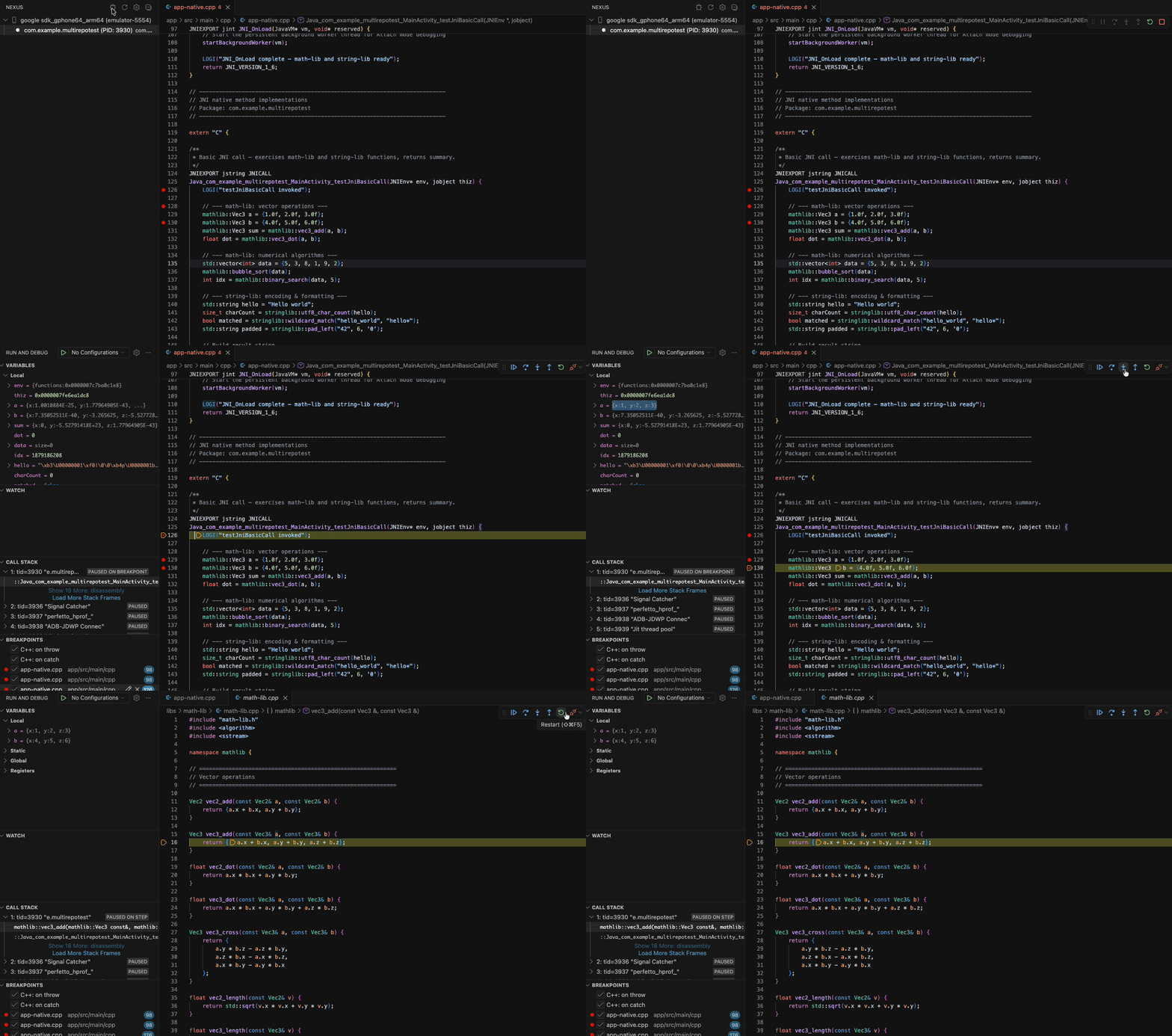
Why teams use Nexus
When the problem is in native code, many Android engineers do not want a full IDE session just to attach, inspect, and step through one issue.
Nexus gives you a lighter path:
- attach to a running Android process from VS Code
- stay focused on native debugging without bouncing between tools
- work more comfortably in Android projects that also include Java and Kotlin
It is built for engineers who want native debugging to feel direct instead of heavy.
What you get
Faster path to native debugging
Connect to the app process you care about and start investigating sooner.
A lighter Android debugging workflow
Use VS Code when Android Studio feels like too much overhead for the task in front of you.
Better mixed-project usability
Open Android workspaces that include native code, Java, and Kotlin without the editor feeling fragmented.
More predictable source navigation
Point Nexus at the Android project you want to work with and reduce source lookup confusion.
Localized experience
Nexus follows your VS Code display language automatically.
Requirements
- A connected Android device or emulator with USB debugging enabled, running a debuggable build
- Android NDK installed
- A CMake-based native project
Who it is for
Nexus is a good fit if you:
- debug Android native issues regularly
- already work in VS Code and want to stay there
- need to inspect Java/Kotlin app code around native behavior
- want a lighter debugging path for large Android projects
Get started
Open the Nexus view from the Activity Bar, choose your device, choose the process you want, then attach.
The Nexus view includes:
- Attach — start debugging the selected process.
- Refresh — re-scan for connected devices and processes.
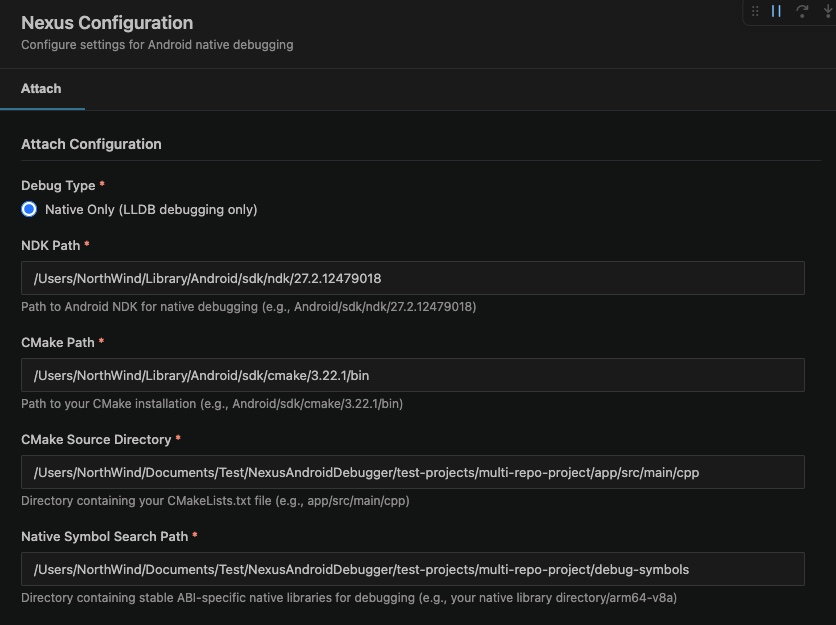
- Settings (gear icon) — open the configuration panel below.
Key settings
Open the settings panel from the gear icon in the Nexus view. The main options are:
- NDK path — where Nexus should find your Android NDK.
- Debug options — which app/process you want to work with.
- Android/Gradle Project Root — which Android project Nexus should use for source navigation.
Better Java/Kotlin source experience
Native issues rarely live in isolation. You often need to read the Android app layer around them, inspect related classes, and move between native and app code quickly.
Nexus improves that workflow in mixed Android projects by helping VS Code feel more usable when Java and Kotlin are part of the picture.
That means a smoother experience when you want to:
- inspect Java and Kotlin files in the same Android workspace
- move between related app code more naturally
- understand native behavior in the context of the surrounding Android code
Languages
The extension UI is available in:
- English
- 简体中文 (Simplified Chinese)
- 繁體中文 (Traditional Chinese)
- 日本語 (Japanese)
- 한국어 (Korean)
- Deutsch (German)
- Français (French)
- Español (Spanish)
- Русский (Russian)
- Português (Portuguese)
The UI follows your VS Code display language automatically, and falls back to English when a string isn't translated.
Telemetry
Nexus collects anonymous, aggregated usage analytics to understand which
features are used and where things fail, so we can prioritize improvements. We
collect only:
- Anonymous feature/command usage (e.g. attach, build, refresh, settings) and a
once-per-day "active" signal.
- Categorized failure reasons (no raw error messages).
- Basic environment info: extension version, VS Code version, and OS.
We never collect file paths, project or app package names, device serials,
source code, or any personally identifiable information. You are identified only
by VS Code's anonymized machine id.
Telemetry respects your global VS Code setting. To opt out, disable
telemetry.telemetryLevel (set it to off) in VS Code settings — Nexus will
stop reporting immediately.
Feedback & Support
License
See LICENSE.txt.

