Skip to content
| Marketplace
Sign in
Visual Studio Code>Other>sharp-penNew to Visual Studio Code? Get it now.
sharp-pen

sharp-pen

Norbert Laszlo

|
1 install
| (0) | Free
Review Markdown and plain-text writing with your local AI CLI.
Installation
Launch VS Code Quick Open (Ctrl+P), paste the following command, and press enter.
Copied to clipboard
More Info

sharp-pen for VS Code

Review Markdown and plain-text writing without leaving VS Code. sharp-pen turns a local AI CLI into a careful copy editor: it finds focused improvements, shows each one in context, and leaves every change in your hands.

Your editor remains the source of truth. Suggestion choices never touch the document until Apply, which writes them as one undoable VS Code edit; task checkboxes and code-block language selectors in the preview are the exception and edit their source marker immediately, each as its own undoable edit.

See it in action

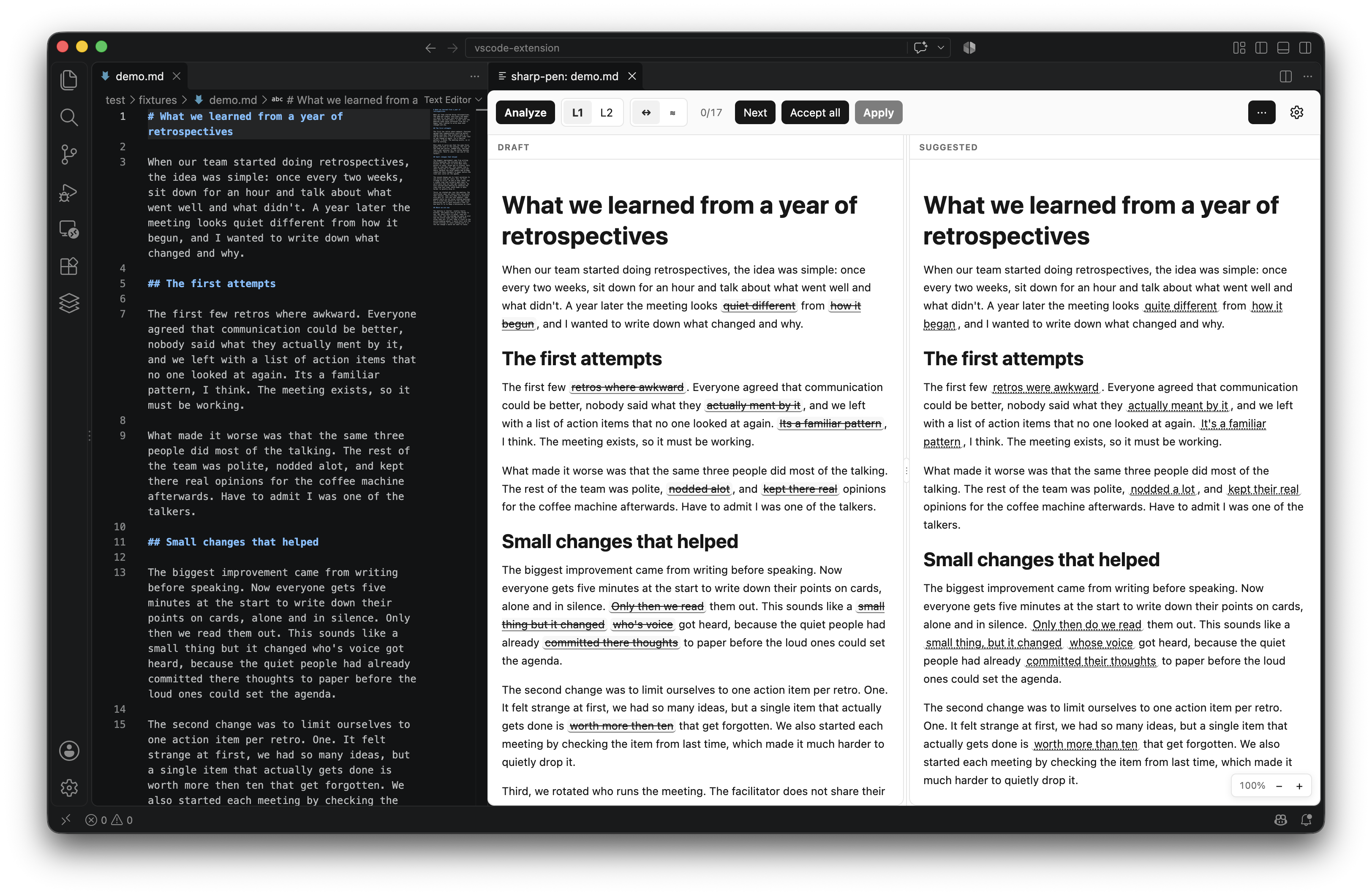
Split review — compare the staged draft and suggested result side by side.

sharp-pen split review in VS Code: Markdown source beside the draft and suggested-text panes

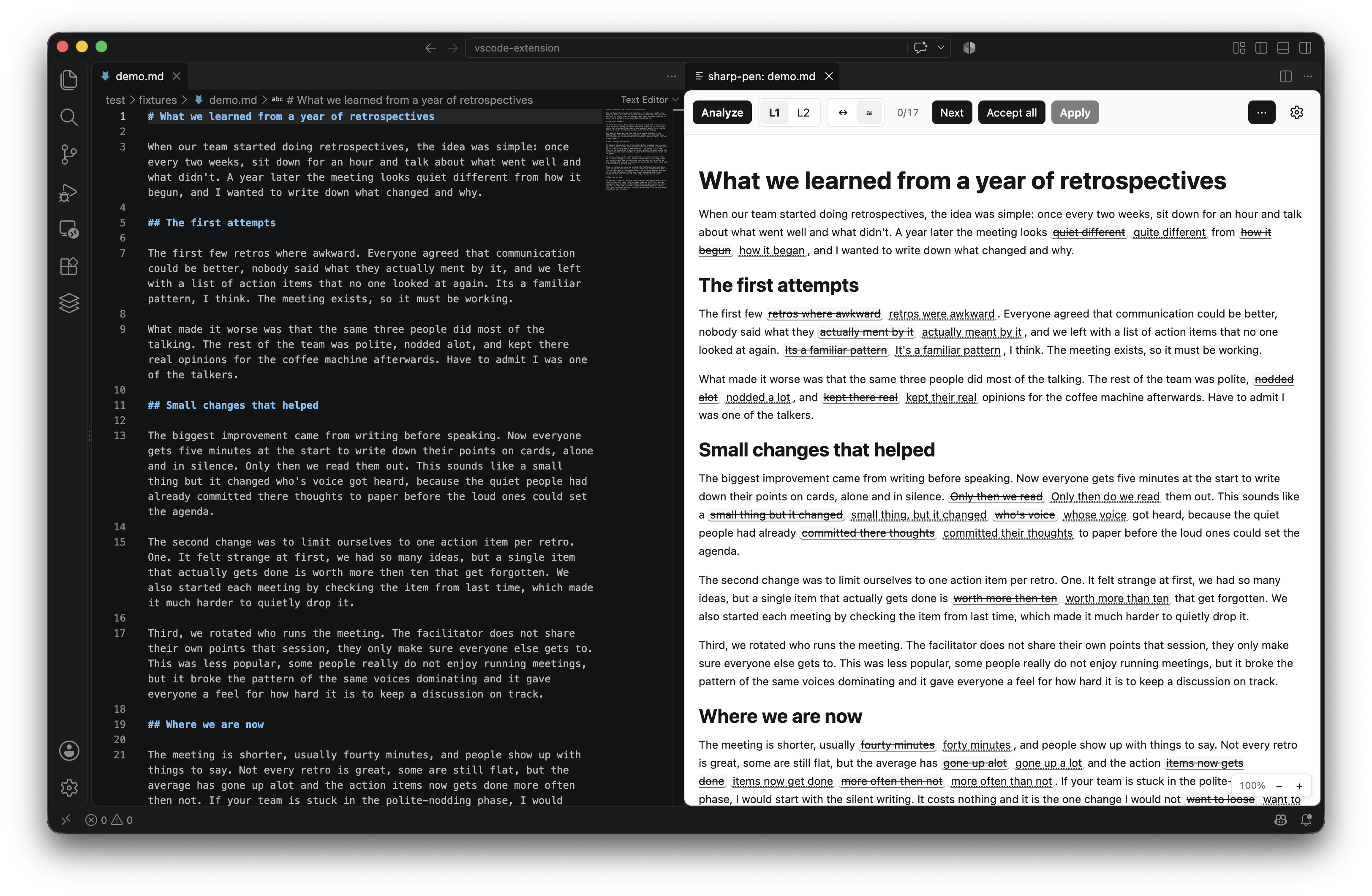
Inline review — work through every proposed change in one rendered document.

sharp-pen inline review in VS Code: Markdown source beside an interactive rendered review

Why sharp-pen

  • Keep your voice. Level 1 catches spelling, grammar, punctuation, and other clear writing errors. Level 2 focuses on sentence construction without rewriting the substance of your work.
  • See what would change. Compare your current staged draft and suggestion side-by-side, or review insertions and deletions inline.
  • Choose the phrasing. Accept a suggestion, keep the original, or select from alternatives. Accept all stages the default option for only the pending suggestions in the level you are reviewing.
  • Work in the document you already know. Suggestions are presented in a faithful rendered Markdown preview, while the original VS Code editor stays open beside it.
  • Scroll the source editor or preview and the other follows to the same relative document position.
  • Zoom the preview with the bottom-right controls, Ctrl/Cmd-wheel or trackpad pinch, and the standard Ctrl/Cmd +, -, and 0 shortcuts.

How it works

  1. Open a Markdown or plain-text document and run sharp-pen: Open Review.
  2. Select Analyze to get Level 1 or Level 2 suggestions.
  3. Review in Split or Inline view, choose the changes you want, then select Apply when you are ready.

Accepted choices are staged first. You can reset them, continue editing, or re-analyze before applying. If the source changes, sharp-pen keeps unaffected suggestions where it can and refuses to apply a change whose original text no longer matches.

Built for Markdown authors

  • Rendered Markdown preview with safe handling of raw HTML and links.
  • Interactive task-list checkboxes update their matching source marker.
  • Fenced code blocks have a language selector based on installed VS Code languages and syntax highlighting for supported languages. Fence metadata is preserved; indented code blocks remain plain because Markdown gives them no language metadata.
  • Light, Dark, and Auto preview themes, including high-contrast support.
  • Responsive review layout: wide panels offer side-by-side panes; narrower panels switch to Inline view and move secondary actions into the overflow.

Markdown syntax that is not prose—including code, front matter, raw HTML, and link destinations—is rendered but excluded from writing suggestions. A sentence containing that syntax can still receive Level 1 fixes, but not a Level 2 sentence-construction suggestion.

AI clients and models

sharp-pen uses an AI CLI you have already installed and signed in to. It supports Claude Code, Codex, GitHub Copilot CLI, and OpenCode. With Auto, it selects the first available client in this order: Claude Code, Codex, GitHub Copilot CLI, then OpenCode. A failed analysis is reported; sharp-pen never silently sends your document to another provider.

Choose a client and preview theme from sharp-pen: Open Settings. Model choices are scoped to their provider, so a model selected for one CLI is never sent to another. Use the client default, an available discovered model, or a manual model ID.

Codex is currently supported only at safety-reviewed Codex CLI 0.155.1. GitHub Copilot is currently supported only at safety-reviewed GitHub Copilot CLI 1.0.88. OpenCode is currently supported only at safety-reviewed OpenCode 1.18.32.

Requirements and limitations

  • Desktop VS Code 1.85 or later and a trusted workspace.
  • A supported CLI installed and authenticated where the workspace extension host runs. For SSH, WSL, Dev Containers, and Codespaces desktop sessions, that is usually the remote host or container.
  • Markdown and VS Code's plaintext language mode only. VS Code for the Web cannot run the required local CLI.
  • sharp-pen is for proofreading and sentence construction—not full rewrites, translation, summarization, factual review, or automatic changes while you type.
  • Analysis supports documents up to 100,000 characters.
  • Closing the source document also closes its review; if you had staged but unapplied choices, sharp-pen warns you how many were discarded.

Privacy and security

sharp-pen owns no API keys, account, service, analytics, or telemetry. It sends the document snapshot to the local CLI you select; that CLI and its provider own authentication, storage, and any provider transmission. sharp-pen does not read or manage provider credentials. See the privacy policy for details.

Install

Install from the VS Code Marketplace. If you have downloaded a release VSIX, use Extensions: Install from VSIX... in VS Code, or run:

code --install-extension sharp-pen-0.1.0.vsix

Release builds are available from GitHub Releases.

Help and links

Source and support · Report an issue · Changelog · MIT License

  • Contact us
  • Jobs
  • Privacy
  • Manage cookies
  • Terms of use
  • Trademarks
  • Your Privacy Choices
  • Consumer Health Privacy
© 2026 Microsoft