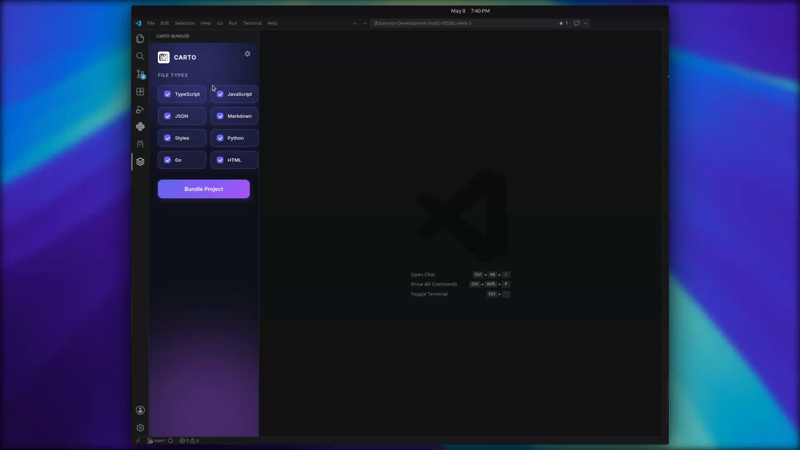
Watch the full demo: ik.imagekit.io/...
Carto bundles your entire codebase into a single, beautifully structured Markdown file — ready to paste into any AI assistant. It works with multi-provider AI (Gemini, OpenAI, Groq, Ollama), detects your tech stack automatically, and runs entirely locally on your machine.
Table of Contents
Features
Multi-Provider AI Integration
Supports Google Gemini, OpenAI (GPT-4o), Groq (Llama 3), and local models via Ollama.
Intelligent Context Bundling
Bundles your codebase into a clean, navigable Markdown file with a table of contents, tech stack detection, directory tree, and full file contents grouped by folder.
Use AI Toggle
Enable the AI toggle to automatically append a senior-engineer-level codebase analysis to your output — uses a smart compact context to minimize API token usage.
Full Output Preview
Preview the entire bundled output with beautiful rendered markdown before saving — right inside the VS Code sidebar.
Auto Tech Stack Detection
Detects ecosystem, dependencies, and scripts from package.json, requirements.txt, go.mod, Cargo.toml, pom.xml, Gemfile, composer.json, and more.
Security Scanning
Automatically detects and excludes .env, private keys, credentials, and other sensitive files.
Local AI Support
Use Ollama to run models entirely locally — no data leaves your machine.
Installation
- Open Visual Studio Code
- Go to Extensions (
Ctrl+Shift+X)
- Search for Carto
- Click Install
Usage
1. Open Carto
Click the Carto icon in the Activity Bar, or press Ctrl+Shift+C (Windows/Linux) / Cmd+Shift+C (macOS).
2. Configure AI (optional)
Click the gear icon to open Settings. Select a provider and enter your API key. Keys are stored locally and never sent to Carto servers.
3. Bundle
Click Bundle Project. Carto scans your workspace, skipping node_modules, build artifacts, lock files, and sensitive files automatically.
4. Preview & Export
View stats, the directory tree, and click Preview Output to see the full rendered bundle. Use Copy to Clipboard or Save as Markdown to export.
5. AI Analysis (optional)
Toggle Use AI to append an expert technical analysis of your codebase to the output. The analysis covers architecture, tech stack, data flow, key components, and improvement suggestions.
Configuration
| Setting |
Description |
Default |
carto.aiProvider |
Active AI provider |
gemini |
carto.geminiApiKey |
Google Gemini API key |
"" |
carto.openaiApiKey |
OpenAI API key |
"" |
carto.groqApiKey |
Groq API key |
"" |
carto.ollamaEndpoint |
Local Ollama endpoint |
http://localhost:11434 |
Privacy and Security
- Local Processing — All bundling and scanning happens on your machine.
- Secure Key Storage — API keys are stored in VS Code's global settings, never transmitted to Carto.
- Sensitive File Detection —
.env, *.pem, SSH keys, credential files, and API key files are flagged and excluded by default.
- Offline Mode — Use Ollama for 100% local AI analysis with no external requests.
Requirements
- VS Code 1.118.0 or higher
- Ollama (optional, for local models)



