Markdown Content Creator



Right-click to insert any Markdown element with auto-generated syntax — no need to memorize or type Markdown by hand.
Demo
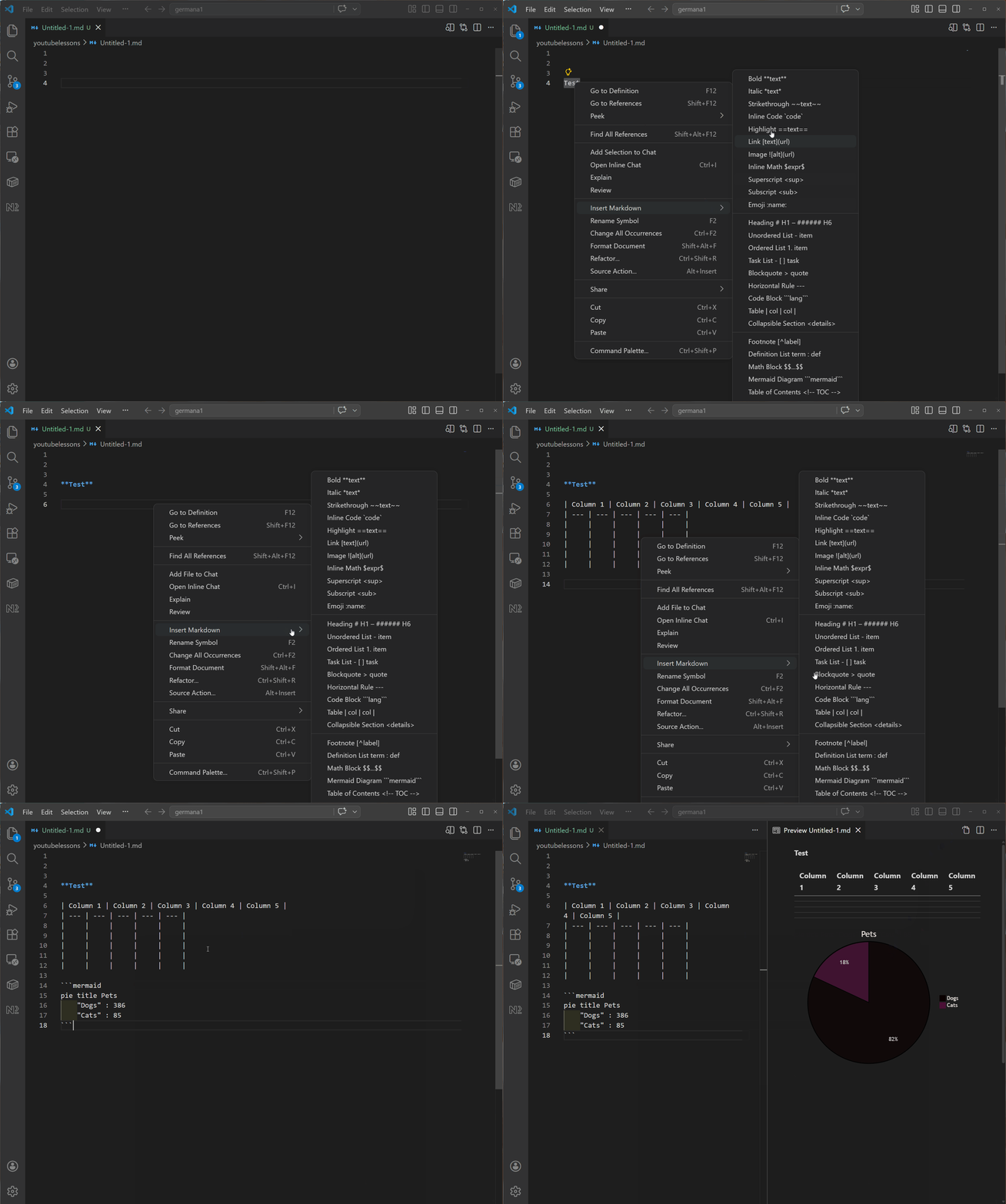
Why?
- Stop memorizing syntax — tables, mermaid diagrams, footnotes, badges… just pick from a menu.
- Fewer typos — auto-generated syntax is always correct.
- Faster writing — complex elements like tables and diagrams are inserted in seconds.
How to Use
- Open any
.md file in VS Code.
- Right-click in the editor.
- Hover over "Insert Markdown" to open the submenu.
- Pick the element you want (Bold, Table, Code Block, etc.).
- Fill in any prompts that appear — done.
Elements are organized into three groups in the submenu:
- Inline — Bold, Italic, Strikethrough, Inline Code, Highlight, Link, Image, Inline Math, Superscript, Subscript, Emoji
- Block — Heading, Unordered List, Ordered List, Task List, Blockquote, Horizontal Rule, Code Block, Table, Collapsible Section
- Special — Footnote, Definition List, Math Block, Mermaid Diagram, Table of Contents, Badge
Keyboard Shortcut
Press Ctrl+I, Ctrl+N (while in a .md file) to open a quick-pick list of all elements.
Smart Behaviors
- Selection wrapping — select text first, then insert Bold/Italic/Link etc. to wrap it automatically.
- Snippet tab-stops — elements like Code Block and Blockquote place your cursor inside so you can start typing immediately.
- Footnote placement — footnote definitions are automatically appended to the end of the document.
Supported Elements
| Category |
Elements |
| Inline |
Bold, Italic, Strikethrough, Inline Code, Highlight, Superscript, Subscript, Emoji, Inline Math, Link, Image |
| Block |
Headings (H1–H6), Unordered List, Ordered List, Task List, Blockquote, Horizontal Rule, Code Block, Table, Collapsible Section, Footnote, Definition List, Math Block |
| Advanced |
Mermaid Diagram (8 types), Table of Contents, Shields.io Badge |
Installation
From the Marketplace
Search for "Markdown Content Creator" in the VS Code Extensions view (Ctrl+Shift+X) and click Install.
License
MIT
| |

