Pocket Pilot
Your Copilot agents, in your pocket. Chat with your GitHub Copilot agent sessions — in VS Code, the GitHub Copilot app or the Copilot CLI — approve their tool calls and get notified when they need you, from your phone, anywhere. Free, end-to-end encrypted, passkey-protected, no servers.
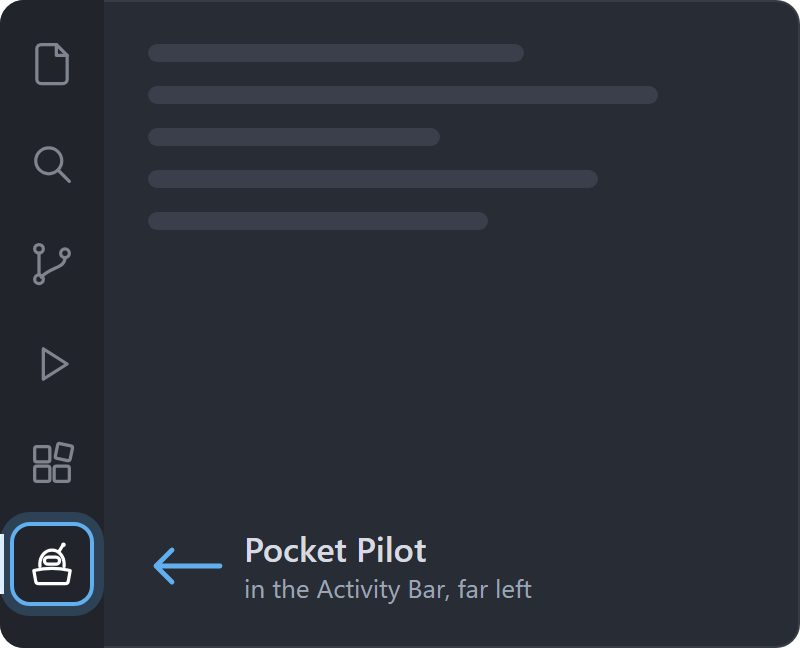
Find Pocket Pilot in VS Code's Activity Bar, the icons on the far left. Right after you install it, it opens by itself.
Product page · Live demo · Install from the VS Code Marketplace · Plugin for the GitHub Copilot app
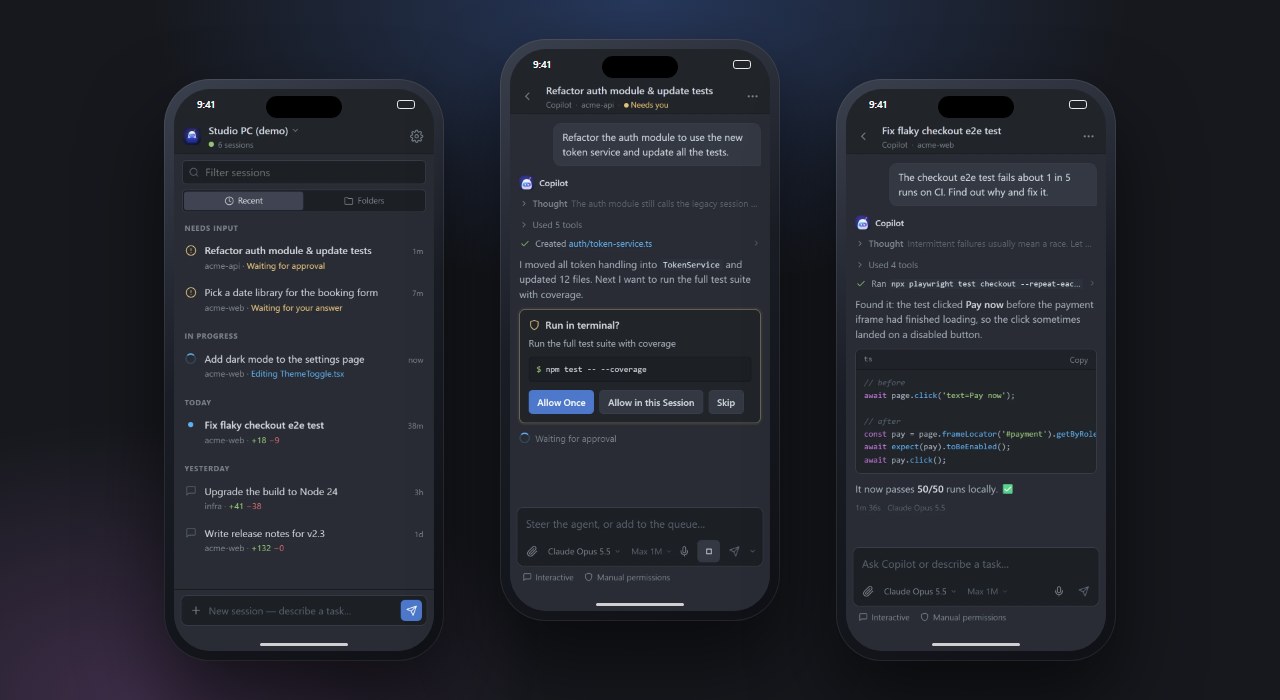
- Same sessions, same history. The phone app is a real client of VS Code's Agent Host Protocol: you see exactly the sessions and full history VS Code shows, live, token by token.
- Feels like VS Code. Atom One Dark (or One Light) theme, VS Code-style chat input with the model and its thinking level / context size under the text and the mode and approvals below it, compact tool progress rows, the same confirmation buttons, and syntax-highlighted code. Browse sessions by recency or grouped by folder with their
+added −removed line counts, like VS Code's Agents window.
- Everything you can do at your desk. Send messages, steer a running agent (the default while it works) or add to the queue, stop it, approve or skip tool calls (with the same options VS Code offers), answer the agent's questions, pick the model with its thinking level and context size, switch mode (Interactive / Plan / Autopilot) and approvals, start new sessions in any folder, send photos and files, or dictate with the microphone. Screenshots pasted into a chat on your PC show in the conversation and open full screen, with pinch and double-tap zoom.
- In sync with your PC. The model, thinking level and context size you pick on the phone show up in VS Code's picker and the other way round, and the model list always comes live from your PC.
- Also for the GitHub Copilot app and CLI. A Copilot plugin gives the same phone app to the sessions you run in the GitHub Copilot desktop app or the Copilot CLI — see below.
- Push notifications when an agent needs approval, asks a question, finishes or fails — sent directly from your PC with standard Web Push (no Firebase, no account).
- Secure by design: QR pairing with approval on your PC, per-device keys that can't be exported, Face ID / fingerprint (passkeys) or codes from an authenticator app, end-to-end encryption through the tunnel, instant revocation.
- Free: Cloudflare quick tunnel (no account) + a static PWA on GitHub Pages. Your GitHub token never leaves your PC.
How it works
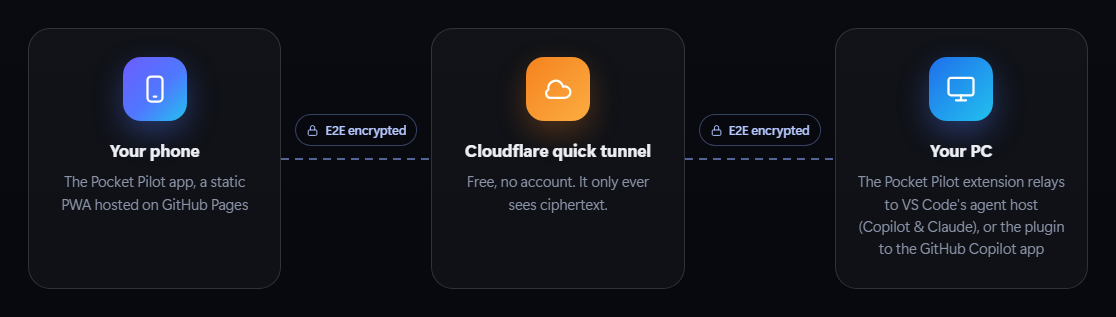
- VS Code (1.133+) runs agent sessions in its agent host and publishes a local, token-protected endpoint for the Agent Host Protocol (AHP).
- The extension runs a small relay on
127.0.0.1 and exposes it through a free Cloudflare quick tunnel (cloudflared is downloaded once from the official GitHub release and checksum-verified).
- The PWA (static, hosted on GitHub Pages) pairs with the relay by scanning a QR code, then speaks AHP to the agent host inside an end-to-end encrypted channel. The relay only forwards an allow-listed set of AHP methods. VS Code keeps its agent host signed in to GitHub itself, so Pocket Pilot never reads or sends your GitHub token.
- The extension's monitor watches session status and sends Web Push notifications ("needs you", "finished", "error") straight to the browser vendor's push service.
- The tunnel keeps its address while
cloudflared runs, also across VS Code restarts, window reloads and window switches. When it does change (after a reboot, or New tunnel), auto-reconnect tells your devices: one secret gist on your GitHub account holds a small file per PC with its current address, encrypted with a key only that PC's paired devices have. Devices read it without signing in and reconnect by themselves.
Security model
| Layer |
What it does |
| Pairing |
The QR code carries a single-use 128-bit token (expires in 10 min) and the PC's key fingerprint. The token only lives in the URL fragment (never sent to any server) and is removed from the address bar immediately. VS Code asks you to approve every new device. |
| Device identity |
Each device (phone, tablet or computer) generates an ECDH P-256 key pair; the private key is non-extractable (WebCrypto) and stored in IndexedDB. The PC stores only public keys. |
| Handshake |
ECDH(device, PC) + ephemeral ECDH (forward secrecy) + pairing token → HKDF-SHA-256 → per-direction AES-256-GCM keys. Mutual authentication: a party without the right private key cannot produce a single valid frame. The device pins the PC's key (fingerprint shown during pairing). |
| Transport |
Every frame is AES-256-GCM encrypted with a strict sequence number (no replay, reordering or drops). Cloudflare only sees ciphertext. |
| Second factor |
Devices register a passkey (Face ID / Touch ID / fingerprint / Windows Hello / screen lock) at pairing, or, if they can't, a code from an authenticator app (TOTP, RFC 6238). The extension verifies WebAuthn assertions itself (ES256/RS256, user-verification required, origin/rpId/challenge/counter checks) and asks again after the grace period (default 12 h). Authenticator codes: the phone makes the setup key and sends it end-to-end encrypted; a code works once, and wrong codes lock the device for 15 minutes, doubling up to a day. |
| Least privilege |
The relay allow-lists AHP methods (no file writes, no terminals, no authenticate from a device); file reads are limited to your session folders. The agent host connection token never leaves the PC, and Pocket Pilot never touches your GitHub sign-in: VS Code keeps its agent host signed in. |
| Control |
See and remove paired devices in the VS Code sidebar (they're disconnected instantly). Reset identity invalidates every pairing. Failed attempts are rate-limited per IP. |
| Push |
Web Push payloads are encrypted for the device (RFC 8291) and signed with VAPID (RFC 8292); only real push services are accepted as endpoints. |
Get started
- Install the extension from the VS Code Marketplace: search for Pocket Pilot in VS Code's Extensions view, or run
code --install-extension mithawala.pocket-pilot. VS Code keeps it up to date. (You can also download pocket-pilot.vsix from the latest release and use Extensions → … → Install from VSIX.)
- Open the Pocket Pilot panel (it opens by itself the first time; later, click the robot icon in the Activity Bar, shown at the top of this page) and click Start remote access. The first time, VS Code asks to:
- download
cloudflared (~55 MB, verified),
- optionally enable auto-reconnect (secret gist, the only feature that uses your GitHub account).
- Scan the QR code with your phone's camera (for a tablet or another computer: Copy link and open it there). Check that the fingerprint matches, tap Pair securely, click Allow in VS Code and confirm with Face ID / fingerprint / Windows Hello.
- iPhone and iPad: add the app to your Home Screen before pairing: open the app in Safari (or Chrome or Edge), tap Share → Add to Home Screen, open Pocket Pilot from your Home Screen and tap Scan the QR code there. iOS keeps the Home Screen app apart from Safari (a pairing made in Safari doesn't carry over), and only the Home Screen app can show notifications. If you scan with the Camera app, the app in Safari walks you through this.
- Tap Enable notifications.
- Android: tap Install (or Chrome menu → Add to Home screen) for an app-like experience; notifications work in the browser too, and the installed app keeps the browser's pairing.
The phone app lives at https://mithawala.github.io/pocket-pilot/app/ — try it without pairing at /app/?demo. The product page is https://mithawala.github.io/pocket-pilot/.
GitHub Copilot app and CLI
The Pocket Pilot plugin brings the same phone app to the sessions you run in the GitHub Copilot app (desktop) and the Copilot CLI. It's an Agent Plugins package in copilot-plugin/ with a Copilot extension, and this repository is its marketplace.
Install it in a terminal (the GitHub Copilot app uses the same plugins — restart the app afterwards):
copilot plugin marketplace add mithawala/pocket-pilot
copilot plugin install pocket-pilot@pocket-pilot
In any chat in the GitHub Copilot app (or the CLI), type /pocket-pilot — or just ask "pair my phone" — and confirm. In the GitHub Copilot app the Pocket Pilot panel opens next to the chat; the CLI opens the same page in your browser and prints the QR code. The first time, cloudflared (~55 MB, checksum-verified) is downloaded.
Scan the QR code (on another computer, open the copied link), check the fingerprint, tap Pair securely, click Allow in the panel (or in the chat) and confirm with Face ID / fingerprint. Tap Enable notifications.
Your phone now shows every chat you use in the app or the CLI — with the full history, replies streaming live, and the same actions: chat, queue and steer, approve or deny tool calls, answer questions, approve plans, switch model, mode and approvals, stop the agent, send photos and files, and push notifications. /pocket-pilot status shows the tunnel and paired devices; /pocket-pilot off (or Turn off remote access in the panel) closes the tunnel; the panel then says remote access is off and offers Turn on remote access.
How it works. The Copilot runtime starts the plugin's extension in every chat (the app lists it under Customize → Extensions as pocket-pilot · Plugin: pocket-pilot; its switch turns Pocket Pilot on or off). One chat's extension hosts a small hub — the same end-to-end encrypted relay, Cloudflare quick tunnel, pairing, passkeys and Web Push as the VS Code extension — and the other chats connect to it on 127.0.0.1. The hub translates each session's runtime events into the Agent Host Protocol, so the phone app renders them exactly like VS Code sessions, and it answers approvals and questions through the runtime's own APIs: whichever of the PC or the phone answers first wins. State lives in ~/.pocket-pilot/copilot/ (keys, paired devices; files readable only by you).
Closing or deleting chats. Remote access isn't tied to the chat you started it from. When the chat hosting the hub is closed or deleted, another open chat takes over within seconds: the cloudflared process keeps running on its own and the new hub listens on the same local port, so the address stays the same and your devices reconnect by themselves. With no chat open, the address waits (devices show the PC as offline) and everything resumes when you open a chat — also after restarting the app. /pocket-pilot off or Turn off ends the tunnel.
Good to know.
- A chat appears on the phone once it has a message. You can also start a new session from the phone (New session: folder, model, mode, approvals and what to do). It runs on your PC in the background, in a Copilot runtime Pocket Pilot starts with your sign-in, models, tools and plugins. It doesn't open in the app window, because the app only opens chats from outside after you click Allow on the PC; follow and control it from the phone. Sessions started from the phone keep running when the chat that runs remote access closes, and come back after an update.
- If
cloudflared itself stops (for example after a reboot), a new address is created. With the GitHub CLI signed in (gh auth login, a personal account — work accounts with Enterprise Managed Users can't own gists), the address is kept in an encrypted secret gist and your devices reconnect on their own; otherwise run /pocket-pilot and scan again.
- In VS Code the plugin stays out of the way: VS Code's sessions are served by the VS Code extension.
- Remove a device in the Pocket Pilot panel (
/pocket-pilot) — it's disconnected at once.
- Updating: click Update on the Plugins page of the GitHub Copilot app, or run
copilot plugin update pocket-pilot@pocket-pilot. From 0.7.1 on that works any time, with VS Code and the app open: the new version takes over remote access by itself and paired devices reconnect within seconds. The Pocket Pilot panel and /pocket-pilot status say when there's a new version.
- "Failed to install plugin: Access is denied (os error 5)" on Windows comes from the Copilot app: Windows refused to move the plugin's folder because another program keeps part of it open. VS Code does that with the
skills folder of every installed Copilot plugin, which versions up to 0.7.0 of Pocket Pilot still have. Updating from one of them, quit VS Code first (or delete that skills folder in %USERPROFILE%\.copilot\installed-plugins\pocket-pilot\pocket-pilot) and click Update again. Pocket Pilot 0.7.1 and later have no such folder. To uninstall, run /pocket-pilot off first, then copilot plugin uninstall pocket-pilot@pocket-pilot.
/pocket-pilot in the slash menu comes from a small skill Pocket Pilot keeps in your own skills folder, ~/.copilot/skills/pocket-pilot, because the plugin itself can't have a skills folder (see above). The agent reads it and runs Pocket Pilot's pocket_pilot tool (pair, status or off). Pocket Pilot 0.7.6 and later write it and keep it up to date (0.7.7 is the first version where it runs in the GitHub Copilot app); to keep your own version, delete its first line. VS Code lists it too, and there it points you to the Pocket Pilot panel. After uninstalling the plugin, delete that folder.- If Pocket Pilot doesn't react to
/pocket-pilot, check that its switch is on under Customize → Extensions (it's stored as extensions.disabledExtensions in ~/.copilot/settings.json).
Settings
| Setting |
Default |
Description |
pocketPilot.autoStart |
true |
Start remote access when VS Code starts (after you started it once). |
pocketPilot.pwaUrl |
https://mithawala.github.io/pocket-pilot/app/ |
Where the Pocket Pilot app is hosted (the QR code opens it). |
pocketPilot.tunnel.mode |
quick |
quick (Cloudflare, free), custom (your own HTTPS URL: named Cloudflare tunnel, dev tunnel, Tailscale Funnel…), none. |
pocketPilot.tunnel.customUrl |
|
Public URL for custom mode (set pocketPilot.port too). |
pocketPilot.security.requireApproval |
true |
Confirm new devices in VS Code. |
pocketPilot.security.passkey |
required |
required, optional or off: whether devices confirm it's you with a passkey or an authenticator app code. |
pocketPilot.security.authenticatorApp |
true |
Allow 6-digit authenticator app codes instead of a passkey. |
pocketPilot.security.passkeyGraceHours |
12 |
Ask for Face ID / fingerprint or a code again after this long (0 = every connection). |
pocketPilot.security.pairingCodeMinutes |
10 |
QR code lifetime (single use). |
pocketPilot.rendezvous.enabled |
true |
Encrypted secret gist for automatic reconnection. |
pocketPilot.notifications.* |
true |
inputNeeded, finished, errors, skipWhileActive. |
pocketPilot.uploads.folder |
.pocket-pilot/uploads |
Where files sent from your devices are saved (git-ignored). |
FAQ
- How is this different from Copilot's built-in
/remote? GitHub's remote control (/remote on, copilot --remote) streams a Copilot CLI session to GitHub.com and the GitHub Mobile app. It's official and covers the terminal, VS Code and JetBrains. Pocket Pilot connects your phone straight to VS Code: every agent session shows up without switching it on, you can start new sessions on your PC from your phone, and the link is end-to-end encrypted with no copy of the session in a cloud. See the comparison below.
- Which sessions show up? Every agent session hosted by VS Code's agent host, across all VS Code windows. (Classic, non-agent-host chat panel sessions are not part of the protocol.) With the plugin, also the chats you use in the GitHub Copilot app and the Copilot CLI.
- Does it work with the GitHub Copilot app? Yes — install the Pocket Pilot plugin and type
/pocket-pilot in a chat; the Pocket Pilot panel opens next to it. Pair the app and VS Code separately; the phone app switches between them like between two PCs.
- What if I close or delete the chat I ran
/pocket-pilot in? Nothing you'd notice: another open chat takes over within seconds at the same address, and your devices reconnect by themselves. See Closing or deleting chats.
- Does my PC have to stay on? Yes — VS Code (or the GitHub Copilot app / CLI) must be running and the PC awake.
- Tunnel doesn't start on a corporate network? Quick tunnels need outbound TCP/UDP 7844. Use
tunnel.mode: custom with a tunnel your network allows.
- Multiple VS Code windows? One window hosts the relay and tunnel; every other window shows the same panel (QR code, tunnel, paired devices) and its buttons act on it. A device's pairing request appears in the window you're using. If the hosting window closes, another takes over automatically (devices reconnect); stopping in any window stops it everywhere.
- Can I pair a tablet or another computer? Yes — any device with a current browser. On a phone or tablet, scan the QR code; on a computer, click Copy link in the panel and open the link there. The passkey uses Face ID, a fingerprint, Windows Hello or the screen lock (or use codes from an authenticator app), and wide screens get a desktop layout with the sessions next to the chat.
- Which apps can keep the passkey? Can I use Microsoft Authenticator? The passkey goes in the Passwords app (iCloud Keychain), Google Password Manager, 1Password, Bitwarden or another password manager. Microsoft Authenticator only keeps passkeys for Microsoft work and school accounts (and Google Authenticator keeps none), so to use one of them, choose A code from an authenticator app when pairing. Then copy the setup key and add it in the app — Microsoft Authenticator: + → Other (Google, Facebook, etc.) → Or enter code manually; Google Authenticator: + → Enter a setup key — and enter the code it shows. Pocket Pilot asks for a code every 12 hours by default. (On an iPhone, authenticator links always open Apple Passwords, which is why the key is copied rather than opened.)
- My passkey stopped working. If the passkey was saved in an app you have since turned off or removed (Microsoft Authenticator, 1Password…), your phone can't find it anymore. When it asks you to confirm it's you, tap Try again, then Set up this device again: click Allow on your PC, and save a new passkey or use an authenticator app. The device stays paired. Lost your authenticator app? The code prompt offers the same.
- Does Pocket Pilot need my GitHub account? Not for remote access. VS Code keeps its agent host signed in to GitHub and Pocket Pilot never touches that sign-in. Only the optional auto-reconnect asks to use your GitHub account once, to keep the encrypted tunnel address in a secret gist.
- What's the auto-reconnect gist? One secret gist on your GitHub account, Pocket Pilot · encrypted addresses of your PCs, with one small file per PC (VS Code and the Copilot app plugin each count as one). Each file holds only that PC's current tunnel address, encrypted (AES-256-GCM) with a key that only its paired devices have, so GitHub and anyone who finds the gist see nothing useful. Pocket Pilot updates a PC's file when its address changes; devices read it anonymously and reconnect. Turn auto-reconnect off in the settings, and delete the gist any time.
- Does it update itself? From the Marketplace, VS Code updates it automatically. A VSIX install (VS Code pins those and doesn't update them) checks GitHub for new releases and offers a one-click Update — or run Pocket Pilot: Check for Updates; to get Marketplace updates instead, check Auto Update in Pocket Pilot's gear menu in the Extensions view. The Copilot app plugin updates on the Plugins page of the app (Update) or with
copilot plugin update pocket-pilot@pocket-pilot, even while VS Code and the app are open (from 0.7.1; see Good to know when updating an older version on Windows); the Pocket Pilot panel and /pocket-pilot tell you when there's a new version. The phone app updates itself: when you open it, or when it comes back to the screen, it switches to a new release (and never in the middle of pairing, a confirmation or a message you are typing).
- Can I dictate? Yes — the microphone in the input uses your browser's built-in speech recognition, which may send the audio to the browser maker's speech service (it never passes through Pocket Pilot). Your phone keyboard's dictation works too.
- Lost a device? Remove it in the Pocket Pilot panel (instant), or run Pocket Pilot: Reset Identity.
Pocket Pilot vs. Copilot remote control (/remote)
GitHub Copilot has built-in remote control: /remote on (or copilot --remote) streams a Copilot CLI session to GitHub.com and the GitHub Mobile app, where you can follow it and steer it. It's a good, official option. Here's how the two differ.
|
Copilot remote control (/remote) |
Pocket Pilot |
| Made by |
GitHub; official and supported. |
An independent project, in preview, with its source code on GitHub. |
| Where you use it |
The GitHub Mobile app and github.com. |
An installable web app on iPhone and Android, with a desktop layout in any browser. |
| Which sessions |
Copilot CLI sessions, started in the terminal, VS Code or JetBrains. |
Every session in VS Code's agent host — and, with the plugin, the chats in the GitHub Copilot app and CLI. |
| Turning it on |
Per session with /remote on or copilot --remote (the CLI can default to it with "remoteSessions": true). VS Code also needs the github.copilot.chat.cli.remote.enabled setting, and its docs list a workspace that maps to a GitHub repository. |
Pair your phone once (in the GitHub Copilot app, start it with /pocket-pilot). All sessions show up, including ones you start later. |
| Starting new work from your phone |
Steers sessions already running on your machine. New work started from GitHub Mobile runs as a cloud agent on GitHub. |
Starts new sessions on your own PC: pick the folder, model, mode and approvals (in VS Code also an optional new worktree). With the GitHub Copilot app they run in the background on your PC rather than in the app window. |
| Inside a session |
Live progress, steering and queued messages, approvals (including the agent's proposed approach), questions, switching modes, stopping. |
The same, plus the model with its thinking level and context size (kept in sync with the model picker on your PC), dictation, photo and file attachments, the screenshots pasted on your PC (full screen, with zoom), and previews of files the agent links to. |
| Notifications |
Live activities (iOS) and live updates (Android) in GitHub Mobile. |
Web Push sent from your PC when an agent needs you, finishes or fails. |
| Where your session goes |
Session events are sent to GitHub and synced to your GitHub account, where only you can see them. |
Straight from your phone to your PC, end-to-end encrypted. The tunnel only relays ciphertext and nothing is stored in a cloud. |
| Signing in |
Your GitHub account. |
Pairing you approve on your PC, plus a passkey (Face ID or fingerprint) or an authenticator app code. No GitHub sign-in on the phone. |
| Work accounts |
For Copilot Business and Enterprise, an admin must set the "Store local sessions in the Cloud" policy to "View and control". |
Nothing to switch on at GitHub, but your company's policies still apply. |
| Network |
Your machine connects out to GitHub. |
A Cloudflare quick tunnel (outbound port 7844), or a tunnel you choose. |
| Cost |
Included with Copilot. |
Free, including at work. The source code is public on GitHub. |
Choose /remote when your organization provides it and you want the officially supported route, you also run Copilot in JetBrains, you want everything in GitHub Mobile next to cloud agent sessions and pull requests you can review and merge, or your network doesn't allow tunnels.
Choose Pocket Pilot when you want every agent session, in VS Code or the GitHub Copilot app, on your phone without switching each one on, you want to start new sessions on your own PC from your phone (VS Code), you want the phone link end-to-end encrypted with no copy of the session in a cloud, or you want model, thinking level and context size controls or a desktop browser layout.
They work side by side: a session with /remote on still shows up in Pocket Pilot. Either way, your prompts go to the AI model exactly as they do on your PC; what differs is how your phone reaches the session. If your organization has turned remote control off, check with them before using Pocket Pilot for work. It isn't a way around company policy.
Sources: GitHub Docs, About remote control of Copilot CLI sessions and Steering a Copilot CLI session from another device; GitHub Changelog, remote control generally available and GitHub Mobile live notifications; VS Code docs, agent harnesses. Checked in September 2026.
Self-hosting the phone app
The PWA is a static site in pwa/ with no build step; the product page is in site/. node scripts/build-site.mjs assembles both into dist/site (product page at /, app at /app/, with a content-hashed service worker cache). scripts/publish.ps1 pushes main, publishes dist/site to the gh-pages branch, enables GitHub Pages and attaches the VSIX to a GitHub release — it only needs the normal repo permission. Fork, run it with your account (PP_SITE_URL is set for you), then set pocketPilot.pwaUrl to your …/app/ URL. Any static host works (the app needs HTTPS for WebCrypto, passkeys and push). Optional GitHub Actions workflows (CI, Pages via Actions) are in docs/github-actions/ — copy them to .github/workflows/ if your token has the workflow scope.
Development
No npm install is required — everything uses Node built-ins and vendored, hash-pinned browser libraries.
node scripts/vendor.mjs          # verify (or --update) vendored libs from jsDelivr against scripts/vendor-lock.json
node --test "test/*.test.mjs"    # unit + integration tests (live tests run when a VS Code agent host is found)
node scripts/dev-relay.mjs       # standalone relay + PWA on http://localhost:8787 (prints a pairing link)
node scripts/live-check.mjs      # read-only end-to-end check against your VS Code agent host
node scripts/make-icons.mjs      # regenerate every icon (SVG + PNG sizes) from one design, via headless Edge/Chrome
node scripts/package-vsix.mjs    # build pocket-pilot-<version>.vsix
node scripts/build-plugin.mjs    # refresh copilot-plugin/ (vendored core, version); --check verifies it
node scripts/e2e-copilot.mjs     # end-to-end check of the plugin against the real Copilot runtime (uses a small model)
node scripts/build-site.mjs      # assemble dist/site (product page + app under /app/)
node scripts/serve.mjs           # serve dist/site on http://127.0.0.1:8790 (the demo is at /app/?demo)
node scripts/screenshots.mjs     # regenerate site/img/* from the demo app with headless Edge/Chrome
pwsh scripts/publish.ps1         # push to GitHub, publish the site to GitHub Pages and the VSIX to a release
Publishing to the VS Code Marketplace: see docs/MARKETPLACE.md. The icon is option 12 from design/icons/.
Project layout: extension/ (VS Code extension, core/ is VS Code-independent), copilot-plugin/ (GitHub Copilot app & CLI plugin: com.github.copilot/extensions/pocket-pilot/ is the per-session extension and the hub, vendor/ is generated from extension/core and pwa/), pwa/ (phone app; pwa/js/core/ is shared with the extension, pwa/js/demo/ drives the demo mode), site/ (product page), media/ (sidebar), scripts/, test/.
Third-party code: Agent Host Protocol client (MIT), Preact (MIT), htm (Apache-2.0), marked (MIT), DOMPurify (Apache-2.0/MPL-2.0), qrcode-generator (MIT), jsQR (Apache-2.0), highlight.js (BSD-3-Clause), and icons from Feather (MIT), Lucide (ISC) and Octicons (MIT). Details and license texts: THIRD-PARTY-NOTICES.md. Inspired by the idea behind Copilot Remote Control; this is an independent implementation.
License
Pocket Pilot is source-available under the PolyForm Shield License 1.0.0. In plain words:
- Use it for free for any purpose, including at work, on as many PCs and devices as you like.
- Read, audit and change it, and send fixes or ideas as issues and pull requests.
- Don't offer a product that competes with it, such as a copy, a rebrand or a paid version, even one that is free of charge.
The LICENSE file has the exact terms; this summary doesn't replace them. Third-party code and icons keep their own licenses, listed in THIRD-PARTY-NOTICES.md. Versions up to and including 0.4.3 were released under the MIT License.
| |

