Event Storming for VS Code


Event Storming is a workshop format for exploring a business
domain with sticky notes: domain events on a timeline, the commands that trigger them, and the
people, policies and systems around them. This extension lets you create and edit Event Storming
boards directly inside VS Code: it opens .storm files (a simple plain-text DSL) in a graphical
editor, while the text file stays the source of truth, so save, Git, and diff keep working.
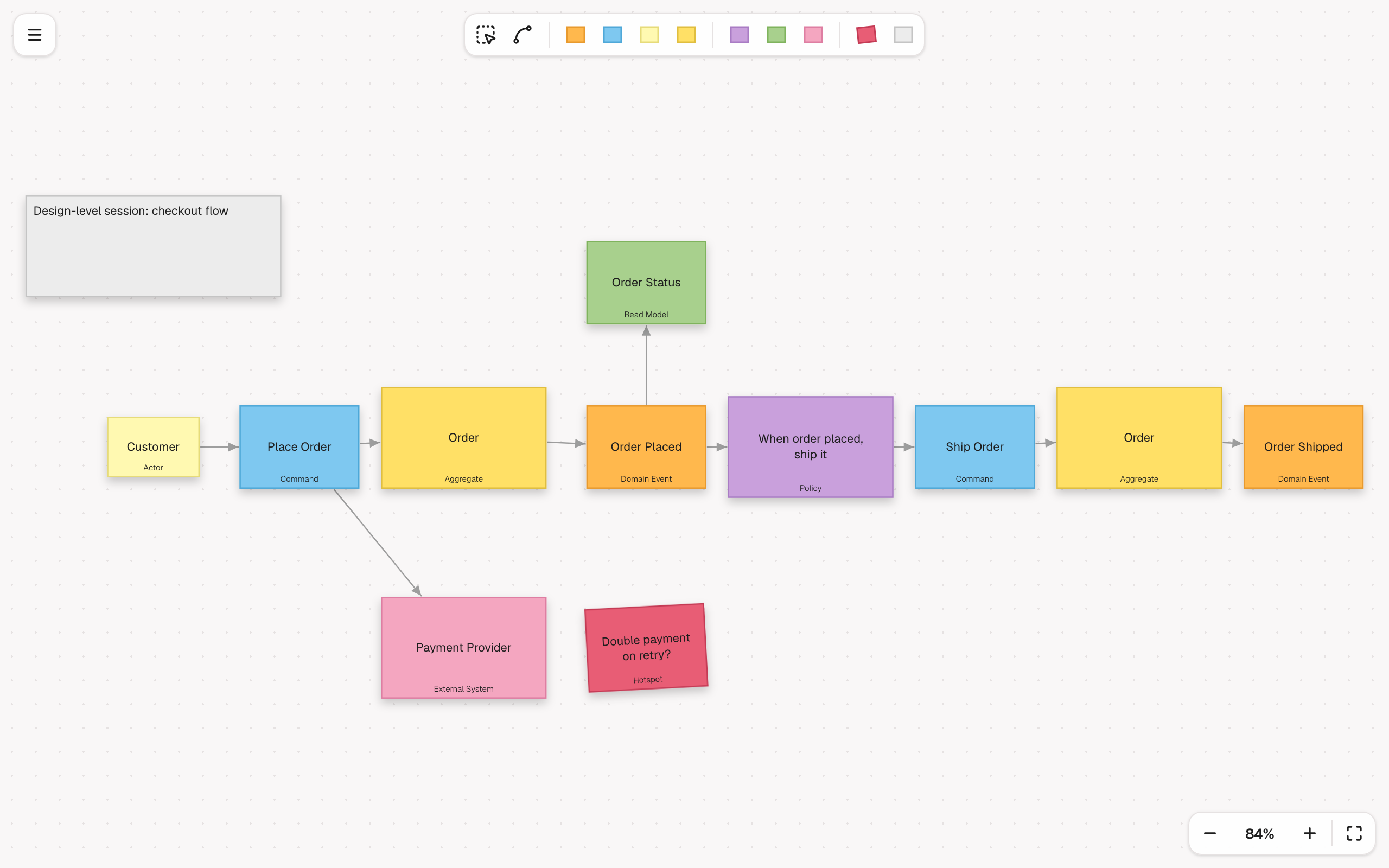
New to Event Storming? Start with eventstorming.com and Alberto
Brandolini's book Introducing EventStorming.
Getting started
Install Event Storming Modeler (publisher miragon-gmbh) from the VS Code Marketplace, then
start from a filled-in order-checkout example or a blank board. The built-in Get Started with
Event Storming walkthrough is the recommended first stop: click its Create board from example
button and you have a ready-made board to explore. From there you can open any .storm file.
Prefer commands? Run these from the Command Palette (Cmd/Ctrl+Shift+P, type "Event Storming"):
- Event Storming: New Board from Example — pick a location, pre-filled with the order-checkout
example.
- Event Storming: New Empty Board — same, but a blank board (also under File > New File…).
Reading a board
Each sticky color has a meaning: Domain Event (orange), Command (blue), Actor (light
yellow), Aggregate (yellow), Policy (purple), Read Model (green), External System
(pink), Hotspot (red), plus free-text notes and freehand drawings. Time flows left to right —
earlier events sit to the left of later ones — and arrows connect the stickies into a story.
Editing a board
- Custom editor for
.storm. Open a board file and you get the full graphical editor, backed
by the plain-text file. Open Source to the Side (the button in the editor title of a board)
opens the text beside it, Open Board to the Side (in the title of the text editor) does the
reverse; editing either re-renders the other live, and VS Code tracks dirty state as you go.
- Full modeler: the tool palette at the top and the context pad on a selected sticky (append,
connect, change type, delete), free movement on an unbounded canvas, inline label editing, and
sticky color overrides. With the keyboard, Tab to the palette, pick a sticky with the arrow keys
and press Enter: it lands in the middle of the board with its label editor open.
Ctrl/Cmd+A
selects the whole board.
- Undo and redo belong to the file. Every change on the canvas is one edit of the document, so
Ctrl/Cmd+Z and Ctrl/Cmd+Shift+Z (or Edit > Undo) undo it like a text change, and the
canvas keeps its view and selection. Only the lines that changed are rewritten, so a text editor
open beside the board keeps its cursor.
- Menu (top left): the workshop Level and Type captions (the caption on each sticky),
Export as PNG, Export as SVG, Export as PNG (4×, transparent) (for slides) and
Export as JSON, the same exports as the web app, and Keyboard shortcuts….
- Zoom (bottom right): zoom out, the current zoom (click for 100%), zoom in and fit. With the
board focused,
Ctrl/Cmd + +, - and 0 zoom the canvas (not the window), Shift+1 fits.
- Problems. Lines the parser cannot fully use (an arrow to a missing sticky, an unreadable
line) are kept in the file and listed in the Problems view in plain words ("This arrow points
to “Nowhere”, which isn't on the board."); the pill at the bottom left counts them and opens that
view.
- Stable sticky ids. A sticky you create or rename on the canvas keeps its id in the text
(
(id event_3)), so a reload, a peer or a tool that links to it finds the same sticky. Two
people who each add a sticky at the same time (on two branches, say) can both get event_1;
after the merge the second sticky gets a new id, and a link to it then finds the first.
- Commands (Command Palette or the
… menu of the editor title, while a board is focused):
Event Storming: Fit to View, Export as PNG, Export as SVG, Export as PNG (4×,
Transparent), Export as JSON, and Open Source to the Side / Open Board to the Side.
- Empty board: a hint in the middle offers Insert example, which adds the order-checkout
example as one undoable edit and keeps the title and comments already in the file.
- Light canvas in every theme. The board stays light under dark color themes (high contrast is
honoured) until the Miragon modelers ship their dark mode together. A
style dark line in the
file is kept, but the board follows the theme, not the file.
- Self-hosted fonts — no CDN, offline-capable.
The menu, palette skin, zoom panel, problems pill, status box, empty-board hint and the theme
bridge come from @miragon/modeler-shell,
the chrome shared by all Miragon modelers.
Development
Building from source and the dev loop are documented in
CONTRIBUTING.md.
The extension host bundle (dist/extension.cjs) is about 470 KB minified, nearly all of it zod,
which the DSL validation needs for the Problems view. It is loaded once per window when the first
board opens; this is accepted rather than moving the diagnostics into the webview. The webview
loads its fonts as separate files from dist/fonts, so only the subsets a page uses are fetched.
License
MIT. The extension bundles third-party software (Lucide icons, the Geist fonts, diagram-js and
its dependencies, zod); their licenses are in
THIRD_PARTY_NOTICES.md,
which ships in the extension as well.
| |

