Skip to content
| Marketplace
Sign in
Visual Studio Code>Machine Learning>Microed CodeAINew to Visual Studio Code? Get it now.
Microed CodeAI

Microed CodeAI

MicroedSistemas

|
13 installs
| (0) | Free
AI chat integrated into VS Code, with Agent Mode that reads, analyzes and writes code. Supports OpenAI, Anthropic, DeepSeek, Ollama and compatible APIs.
Installation
Launch VS Code Quick Open (Ctrl+P), paste the following command, and press enter.
Copied to clipboard
More Info
Microed CodeAI

Microed CodeAI

The AI that codes with you, inside your editor.

Marketplace Version Installs Downloads Rating

AI chat integrated into Visual Studio Code, with a sidebar panel and Agent Mode that reads, analyzes and writes code for you — supporting OpenAI, Anthropic/Claude, DeepSeek, Ollama and any OpenAI-compatible API. Bilingual interface with built-in language selector.

VS Code 1.85+ · Free · Lightweight (~266 KB) · Your API keys stay secure on your computer


Microed CodeAI brings an AI copilot right into the VS Code sidebar. Chat, ask for analysis and let the Agent Mode read, understand and write code for you — choosing the provider and model you prefer, without leaving the editor.

Table of Contents

  • Features
  • Screenshots
  • Languages
  • Agent Mode
  • Conversation History
  • Model List Updates
  • About Panel
  • Supported Providers
  • Privacy & Security
  • Installation
  • Usage
  • Settings
  • Unit Test Generation
  • FAQ
  • About

✨ Features

Feature Description
💬 Sidebar Chat Chat with AI while coding, with real-time streaming responses, markdown rendering and a copy button for code blocks.
🤖 Agent Mode AI reads files, searches code, checks editor errors and proposes creating or updating entire files.
✅ You're in control Each change becomes a proposal: review with "View diff" and confirm with "Apply". Nothing changes without your approval.
🧪 One-click tests Select a snippet or file and generate (or update) unit tests covering success, edge and error cases.
🔌 Your AI, your choice OpenAI, Anthropic/Claude, DeepSeek, Ollama (local) or any OpenAI-compatible API. Switch models anytime.
🌐 Bilingual interface Visual language selector (PT/EN) in the settings panel. Auto-detects VS Code language.
📋 Conversation history Conversations are saved automatically and can be accessed, restored and deleted via the history panel.
🔄 Updatable model list ↻ button to refresh the model list via a public JSON, with automatic local caching.
ℹ️ About panel Extension info with version, description and links to the website and Marketplace.
🔒 Privacy first API keys are securely stored in VS Code's SecretStorage, on your own computer.

🌐 Languages

Microed CodeAI offers a Portuguese (PT-BR) and English (EN) interface. The language is auto-detected from VS Code, but you can switch at any time via the selector in the settings panel (gear icon).

Also available via the microedcodeai.idioma setting (auto / pt / en).

All extension texts are translated: settings panel, chat, buttons, error messages, agent actions and more.

📸 Screenshots

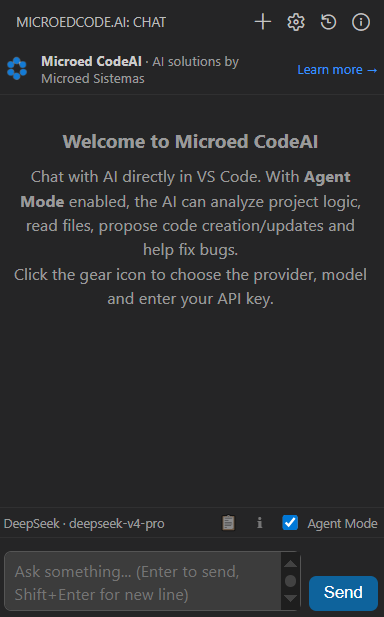
Chat & Agent Mode

Chat with Agent Mode

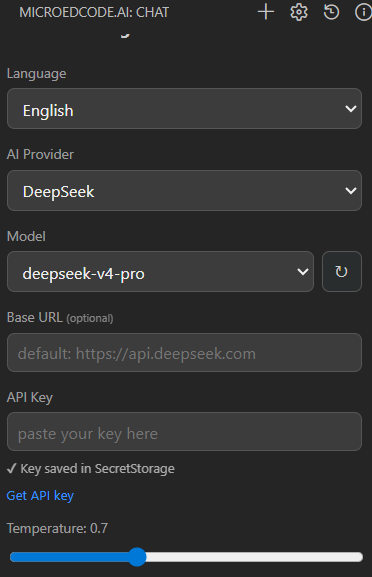
Settings Panel

Settings Panel

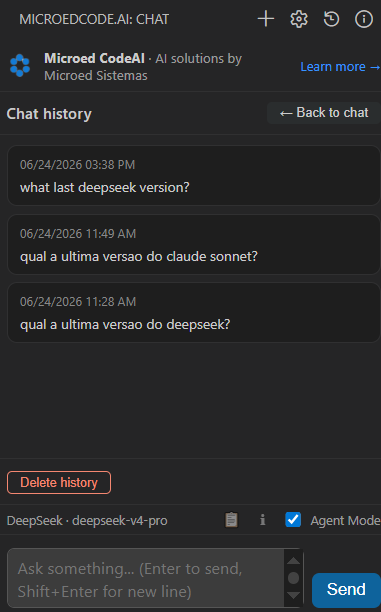
Conversation History

History Panel

Unit Test Generation

Unit Test Generation

🤖 Agent Mode

With Agent Mode enabled (toggle in the bottom bar of the panel), Microed CodeAI works in steps: it investigates the codebase, gathers the necessary context and reasons until proposing the best solution — like a pair programming partner that never sleeps.

  • Analyzes project logic — lists and reads files, searches code snippets
  • Diagnoses bugs — checks editor errors and warnings
  • Creates and updates code — proposes full file content for new or existing files
  • Uses editor context — automatically considers the active file and selection

The AI works in steps: it requests to read files, receives the content and continues reasoning until proposing the solution. Changes appear as cards with Apply, View diff and Reject buttons.

You decide the automation level. By default, changes are applied automatically. Disable "Apply changes automatically" in settings to review and approve each change before it touches your files.

📋 Conversation History

All conversations are automatically saved in the project (.microedcodeai/historico.json). The history panel (📋 button in the bottom bar) allows you to:

  • View all conversations grouped by date, from newest to oldest
  • Restore a conversation — click any item to load it back into the chat
  • Delete history — "Delete history" button with confirmation dialog
  • Open with the last conversation — on startup, the extension automatically loads the most recent conversation

🔄 Model List Updates

The model list can be updated without reinstalling the extension:

  1. Click the ↻ button next to the model selector in the settings panel
  2. The extension fetches the updated list from the public JSON at microed.com.br/microedcodeai/modelos.json
  3. The result is saved to local cache (.microedcodeai/modelos.json) and persists between sessions
  4. Models are sorted from newest to oldest

If the public URL is unavailable, the extension uses the built-in fallback (media/modelos.json).

ℹ️ About Panel

Click the ℹ️ button in the bottom bar (or use the Microed CodeAI: About command) to view:

  • Extension logo and description
  • Current version
  • Published by Microed Sistemas
  • Links to the official website and VS Code Marketplace page

🔌 Supported Providers

Choose the provider and model in the settings panel.

  • 🟢 OpenAI
  • 🟣 Anthropic / Claude
  • 🔵 DeepSeek
  • 🦙 Ollama (local)
  • ⚙️ OpenAI Compatible — LM Studio, Groq, OpenRouter and other services that follow the OpenAI format

With Ollama, run models 100% locally — no API key required and, if desired, fully offline.

🔒 Privacy & Security

  • API keys are stored in VS Code's SecretStorage, securely kept on your own computer — never in project files.
  • Nothing is sent to any server other than the AI provider you configure.
  • In manual approval mode, no file is changed without your confirmation.

🚀 Installation

From the Marketplace: visit Microed CodeAI on the VS Code Marketplace and click Install.

From VS Code: open the Extensions tab (Ctrl+Shift+X), search for Microed CodeAI and click Install.

From the terminal:

code --install-extension microedsistemas.microedcode-ai

▶️ Usage

  1. Click the Microed CodeAI icon in the activity sidebar.
  2. Click the gear icon to configure the provider, model and API key.
  3. Start chatting.

For Ollama, just have the local server running (http://localhost:11434); no API key is needed.

⚙️ Settings

Available under Settings → Extensions → Microed CodeAI (or directly in the extension panel):

Setting Default Description
microedcodeai.providerType openai AI provider (OpenAI, Anthropic, DeepSeek, Ollama or compatible).
microedcodeai.model gpt-5.4-mini Model name (e.g. gpt-5.4-mini, claude-sonnet-4-6, deepseek-v4-flash, llama3.3).
microedcodeai.baseUrl (empty) API base URL. Uses the provider default when empty.
microedcodeai.idioma auto Interface language (auto = detect from VS Code, pt, en).
microedcodeai.systemPrompt (i18n) System instruction sent to the model (default follows the language).
microedcodeai.temperature 0.7 Sampling temperature (creativity) from 0 to 2.
microedcodeai.modoAgente true Allows the AI to read files, analyze logic and propose code.
microedcodeai.aplicarAutomaticamente true Applies changes immediately. Disable to review each change.

🧪 Unit Test Generation

Right-click a file (or a selected snippet) and choose "Create or update unit test". Microed CodeAI detects the project's test framework, creates or updates the test file following the project convention and covers success, edge and error cases.

❓ FAQ

Is Microed CodeAI free? Yes. The extension is free. You only need an API key from the AI provider you choose (or use Ollama, which runs locally without a key).

Is the extension available in other languages? Yes. The interface is available in Portuguese and English, with auto-detection from VS Code and a manual selector in the settings panel.

Are my API keys secure? Yes. Keys are stored in VS Code's SecretStorage, securely kept on your own computer — never in project files.

Does the AI change my files without permission? You decide. In manual approval mode, each change becomes a proposal with "Apply", "View diff" and "Reject" buttons. Nothing is changed without your confirmation.

Are conversations saved? Yes. History is saved automatically in the project. Use the 📋 button in the bottom bar to access, restore or delete previous conversations.

How do I update the AI model list? Click the ↻ button next to the model selector in the settings panel. The extension fetches the latest list from the public JSON and saves it to local cache.

Which AI models are supported? OpenAI, Anthropic/Claude, DeepSeek, Ollama (local) and any OpenAI-compatible API, such as LM Studio, Groq and OpenRouter.

Do I need internet? For cloud providers, yes. With Ollama you can run models locally and work completely offline.

About

Extension created by Microed Sistemas. 🔗 microed.com.br/microedcodeai

  • Contact us
  • Jobs
  • Privacy
  • Manage cookies
  • Terms of use
  • Trademarks
© 2026 Microsoft