Skip to content
| Marketplace
Sign in
Visual Studio Code>Other>Agent PetNew to Visual Studio Code? Get it now.
Agent Pet

Agent Pet

Mert Talha Yener

|
9 installs
| (1) | Free
Track Codex and Claude Code chats across VS Code workspaces with a floating macOS panel and optional pet.
Installation
Launch VS Code Quick Open (Ctrl+P), paste the following command, and press enter.
Copied to clipboard
More Info

Agent Pet

Your coding chats, at a glance.

A floating desktop companion for Codex and Claude Code in VS Code.
See what’s running, finished, or waiting for you—even while using another app.

macOS 26+ · Apple Silicon · English / Türkçe

Download · Türkçe · Changelog

Meet your companions

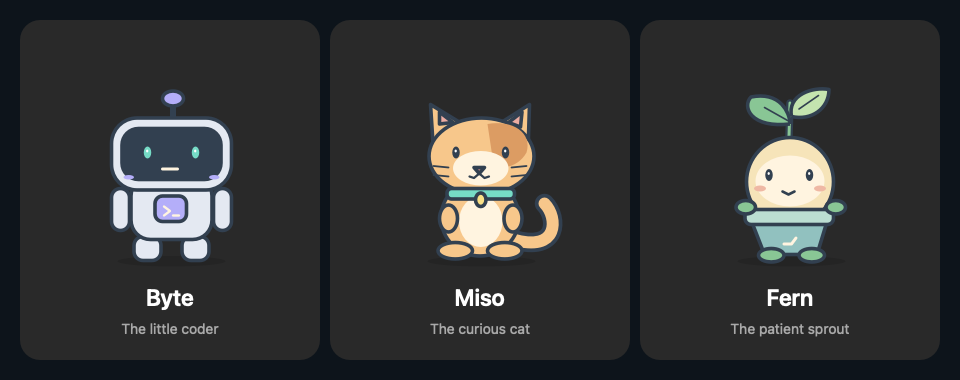
Byte the robot, Miso the cat, and Fern the sprout. Three original, animated characters included with Agent Pet. Choose one from Pets; no artwork from other extensions is used.

Byte the robot, Miso the cat and Fern the sprout, original Agent Pet characters

See when a chat needs you

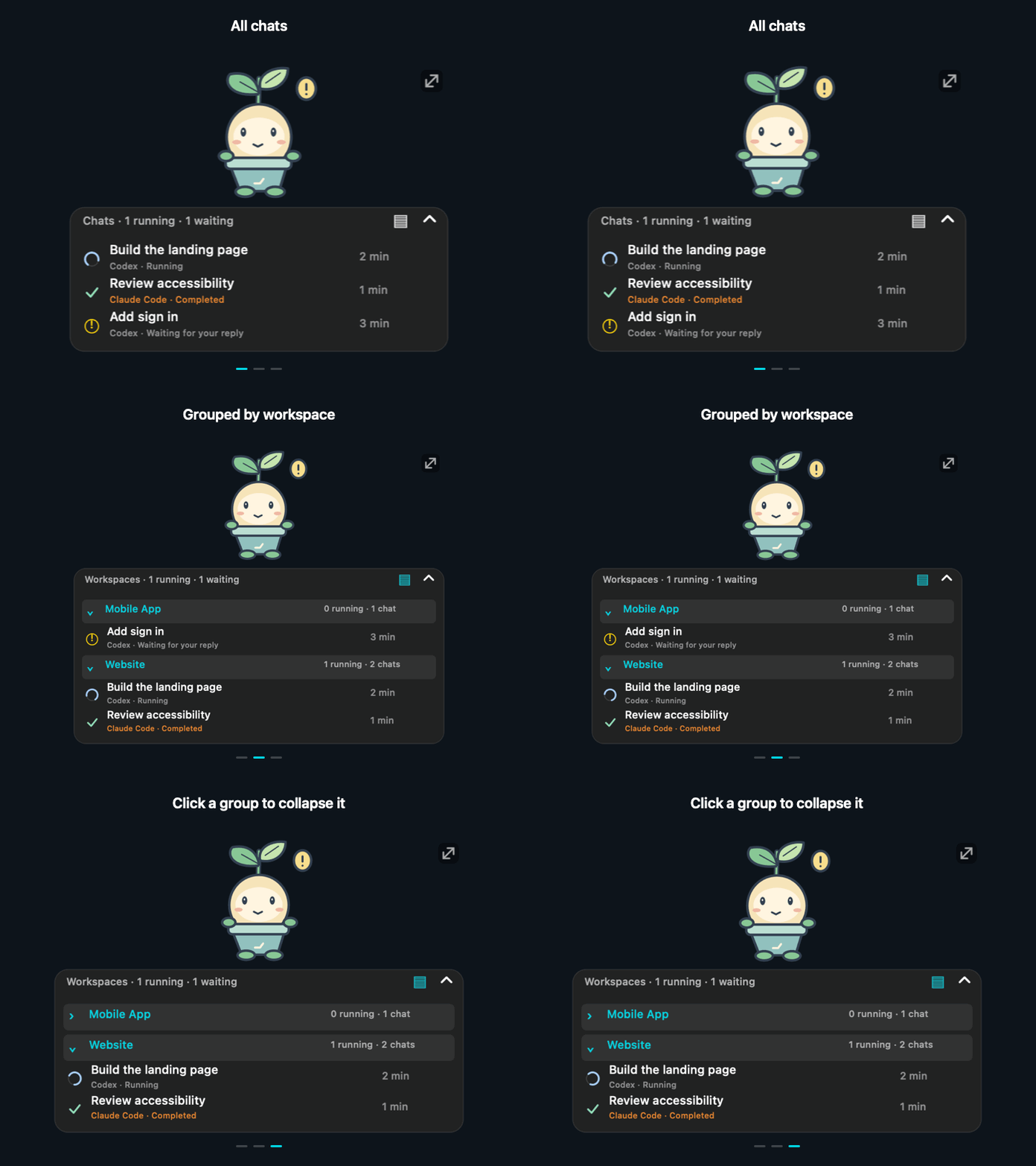
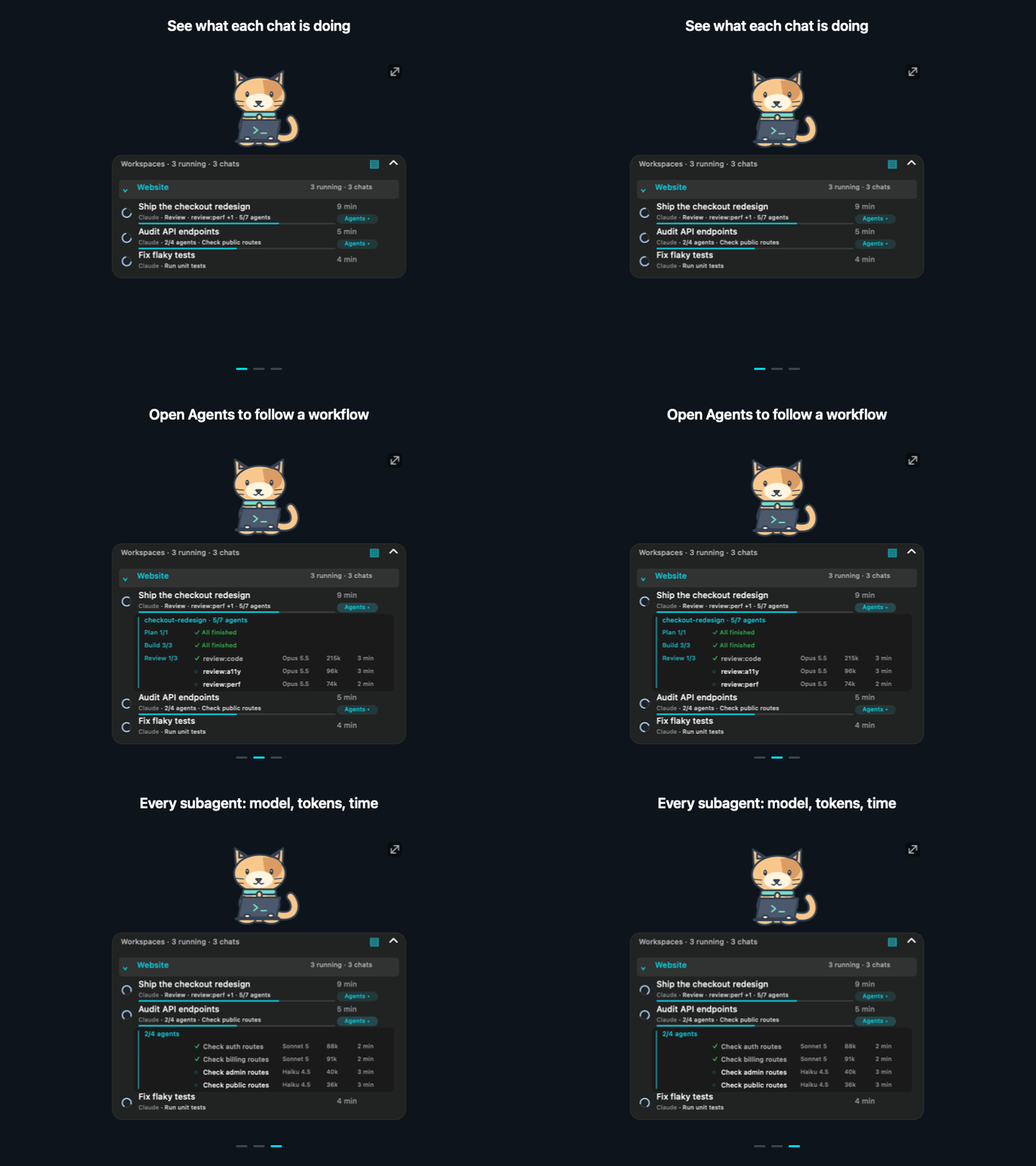
Watch a chat move from running → waiting for your reply → completed. Each conversation keeps its own status and elapsed time. If Codex asks a question while continuing to work, the spinner stays active with Running · question pending.

A Codex chat changes from a spinning progress indicator to waiting, then a completion checkmark

Keep projects separate

Click ▤ to group chats by workspace. Fold a group to make room; click a chat to return to its VS Code window.

A flat chat list becomes workspace groups, then the Mobile App group collapses

Keep the panel, hide the pet

Choose Hide pet for fewer distractions. Your chats stay visible; Show pet brings the character back. Hide panel hides only the chat list, leaving the pet visible. Hide all hides both. Appearance → Panel only controls the same character preference.

The pet disappears while its chat panel stays visible, then the pet returns

Animations use sample conversations rendered by the app.

Supports local VS Code sessions. CLI-only and cloud-only sessions are not supported. VS Code must stay open for live updates. No API keys or hooks to configure.

Get connected

Open Agent Pet: Get Started for a short setup guide: check your agent extensions, show your companion, and optionally enable waiting notifications.

Connections shows which VS Code windows are sending updates, their workspaces, and their last connection time. Diagnostics compares the loaded extension, installed extension, and running pet versions. Copy a report when something goes wrong; chat text, project names and file paths are excluded.

Open these tabs from the Command Palette or the paw menu’s Connections & diagnostics.

Agent Pet Connections tab with one connected workspace and one recently disconnected workspace, using sample data

Stay focused

  • Filters: show all chats, running chats, or those waiting for you; narrow to one workspace.
  • Workspace overrides: right-click a chat → Assign workspace to choose its group and destination window.
  • Clear statuses: optional text explains the icons, including Stopped and No update.
  • Waiting notifications: opt in under Notifications; click a macOS banner to return to the chat. Mute individual chats.
  • Menu bar counter: see running and waiting totals even with the panel hidden.
  • Updates: Marketplace installations use VS Code’s extension updates. Check for updates… opens the extension’s store entry.

Install

Install Agent Pet by merttalhayener from VS Code’s Extensions view. Available for Apple Silicon Macs running macOS 26 or later.

  1. Install Codex, Claude Code, or both in VS Code and sign in.
  2. Open Extensions, search @id:merttalhayener.agent-pet, and install Agent Pet.
  3. The Get Started guide opens automatically in the first focused VS Code window. Close it whenever you want; reopen it with Agent Pet: Get Started.

Coming from the GitHub preview? Choose Replace preview, let active chats finish, then run Developer: Reload Window in each VS Code window. Pet preferences are kept. The older local.codex-pet-panel and new Marketplace extension have different identities, so this is a one-time migration.

Subsequent Marketplace updates use VS Code’s update settings. The running desktop helper switches to newly installed versions without interrupting chats, preserving visibility preferences. Upgrading from 0.11.3 or earlier requires one window reload to enable this mechanism. Agent Pet can reload each window after tracked chats finish and changes are saved, with a 15-second Later option. Disable this with codexPet.autoReloadAfterUpdate if you prefer manual reloads.

The macOS app is bundled inside the extension; there is no separate Applications-folder installation. From 0.14.2, uninstall closes the helper and deletes that installation’s Agent Pet.app bundle. A version still installed in another profile is kept. Closing all connected VS Code windows only closes the helper after a short reconnect grace period (about one minute); it does not uninstall the app. If neither the extension nor helper is running, VS Code’s uninstall hook performs cleanup when it next runs.

Quick controls

Want to… Do this
Hide the character Hide pet (restore with Show pet)
Group chats Click ▤, or Appearance → Extended · Workspaces
Move / resize Drag the pet or panel header / drag the top-right handle
Hide or restore the chat list Hide panel / Show panel
Hide or restore everything Hide all / Show all, or Ctrl + Option + Cmd + P
Reopen / change language VS Code’s Agent Pet button / Language menu

Right-click the pet or panel for settings. Your preferences are remembered.

Independent community project. No added telemetry; chat records stay local. Marketplace downloads and update checks are managed by VS Code. Waiting notifications require macOS permission.

Usage & troubleshooting · Build & technical details · Report an issue

License

Original source code, Byte, Miso, Fern, and the application icon are MIT licensed. No external character artwork is loaded or bundled. Codex and Claude Code names identify supported integrations; Agent Pet is an independent community project.

  • Contact us
  • Jobs
  • Privacy
  • Manage cookies
  • Terms of use
  • Trademarks
  • Your Privacy Choices
  • Consumer Health Privacy
© 2026 Microsoft