Explorer File FilterAdds a Filter button to the Explorer toolbar that opens the file filter — the feature that should have been there by default. Installation Launch VS Code Quick Open ( Ctrl+P), paste the following command, and press enter.Copied to clipboard |

Explorer File FilterA tiny VS Code extension that adds a Filter button to the Explorer toolbar — right next to Collapse Folders — so you can filter the file tree with one click instead of hunting for a keyboard shortcut. It's the button that should have been there by default. Nothing to configure — it just works. What it does
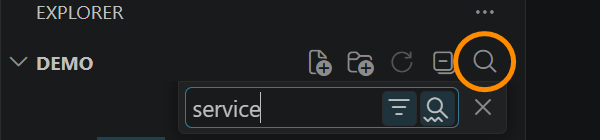
How it works1. A new Filter button appears in the Explorer toolbar — right after Collapse Folders:
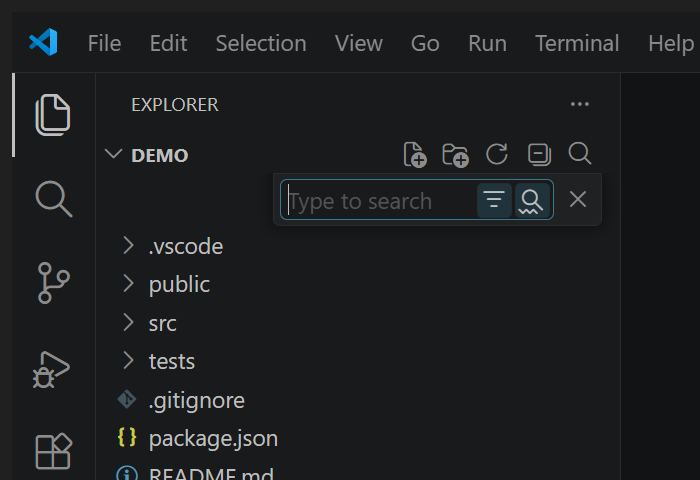
2. Click it and the filter opens instantly:
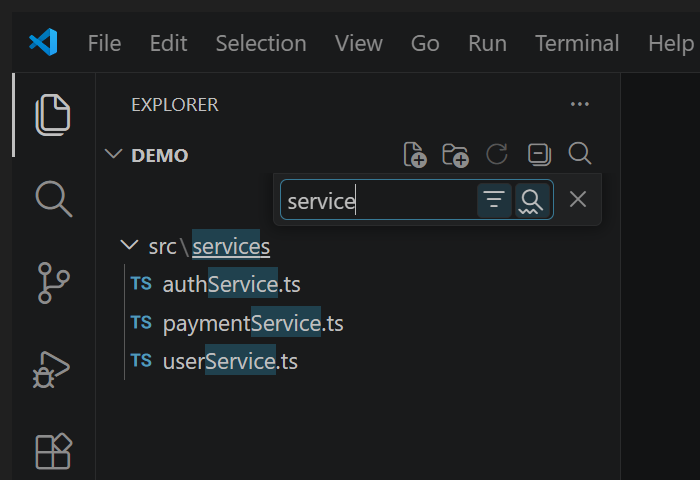
3. Type, and the tree narrows to matching files:
Press WhyVS Code can already filter the Explorer tree — when the Explorer is focused you can open the filter with Filter modeSo the filter prunes the tree (rather than only highlighting matches), the extension sets the built-in setting TroubleshootingThe Filter button disappeared from the Explorer toolbar? VS Code lets you hide toolbar buttons (through the
That restores the default toolbar, Filter button included. This is standard VS Code behavior and applies to every toolbar button, not just this one. Install
LicenseMIT © Erwin Mayer |