Quartz — Clear Markdown Editor for VS Code


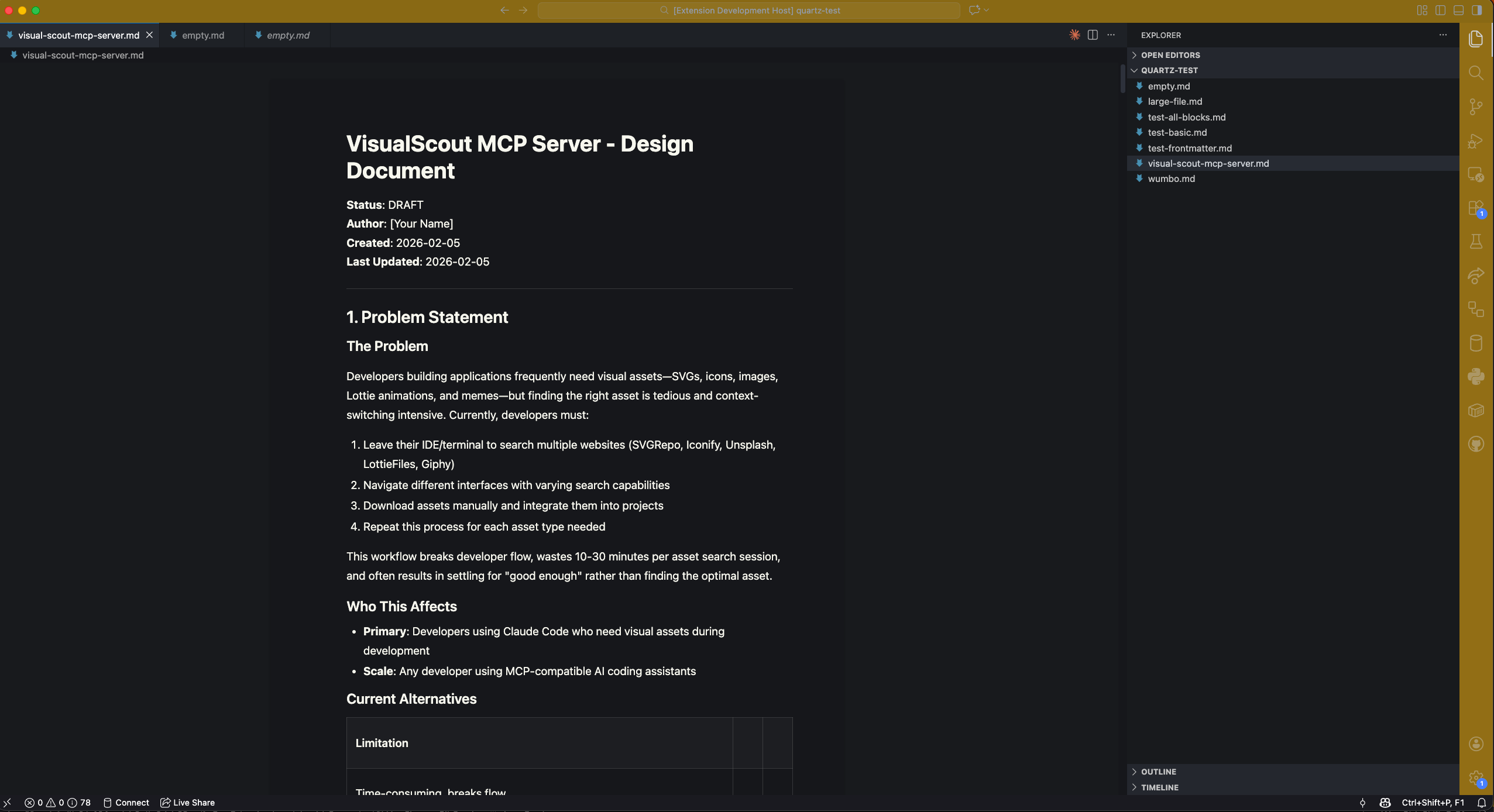
A Notion-style block-based WYSIWYG markdown editor that lives inside VS Code. Edit .md files visually while keeping them as standard CommonMark + GFM markdown.
Features
- Block-based editing — Every paragraph, heading, list, and code block is a draggable block
- Slash commands — Type
/ to insert any block type
- Keyboard shortcuts — Cmd+B for bold, Cmd+I for italic, and more
- Round-trip fidelity — Your markdown formatting is preserved when you save
- Callouts — 8 Obsidian-style admonition types (
> [!note], > [!warning], etc.) with collapsible content and custom titles
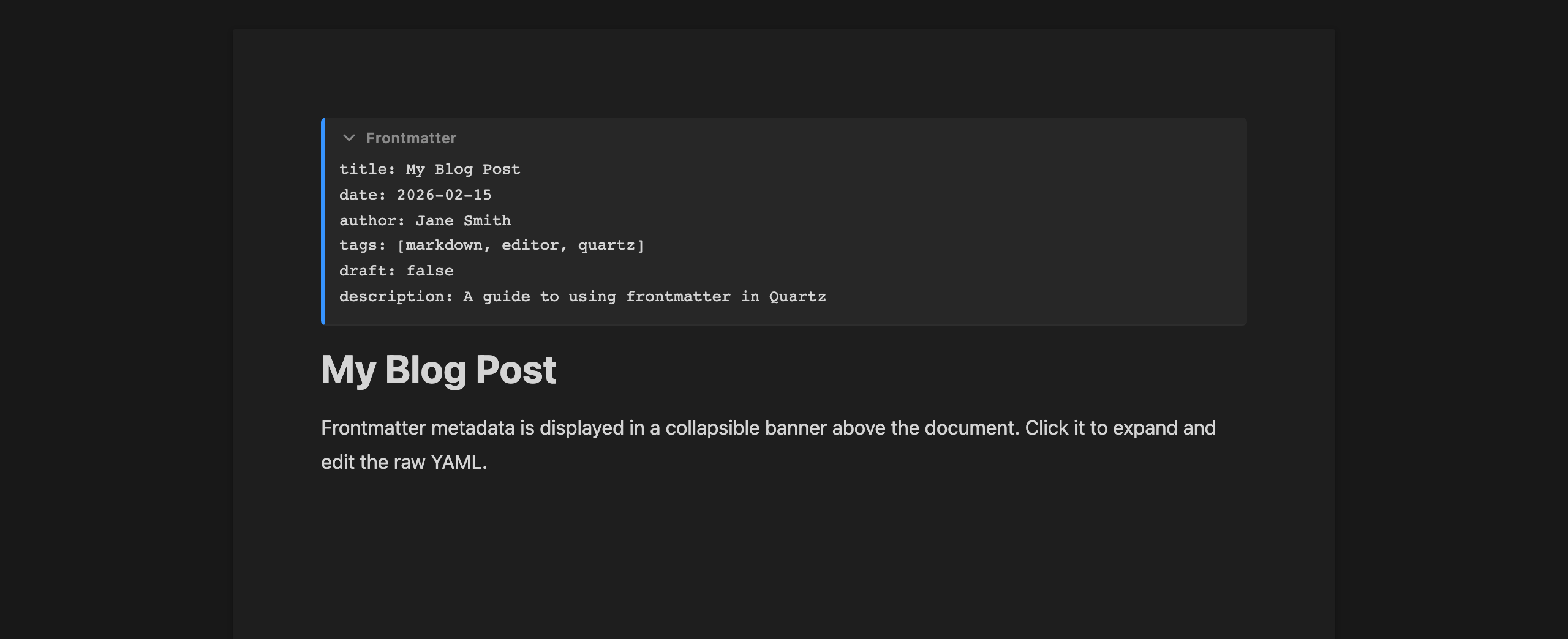
- Frontmatter — Collapsible YAML frontmatter banner with raw editing
- AI agent compatible — Editor auto-refreshes when external tools (Claude Code, Cursor, Copilot) modify the file, with no data loss or feedback loops
- Page layout mode — Optional document-style view with configurable margins
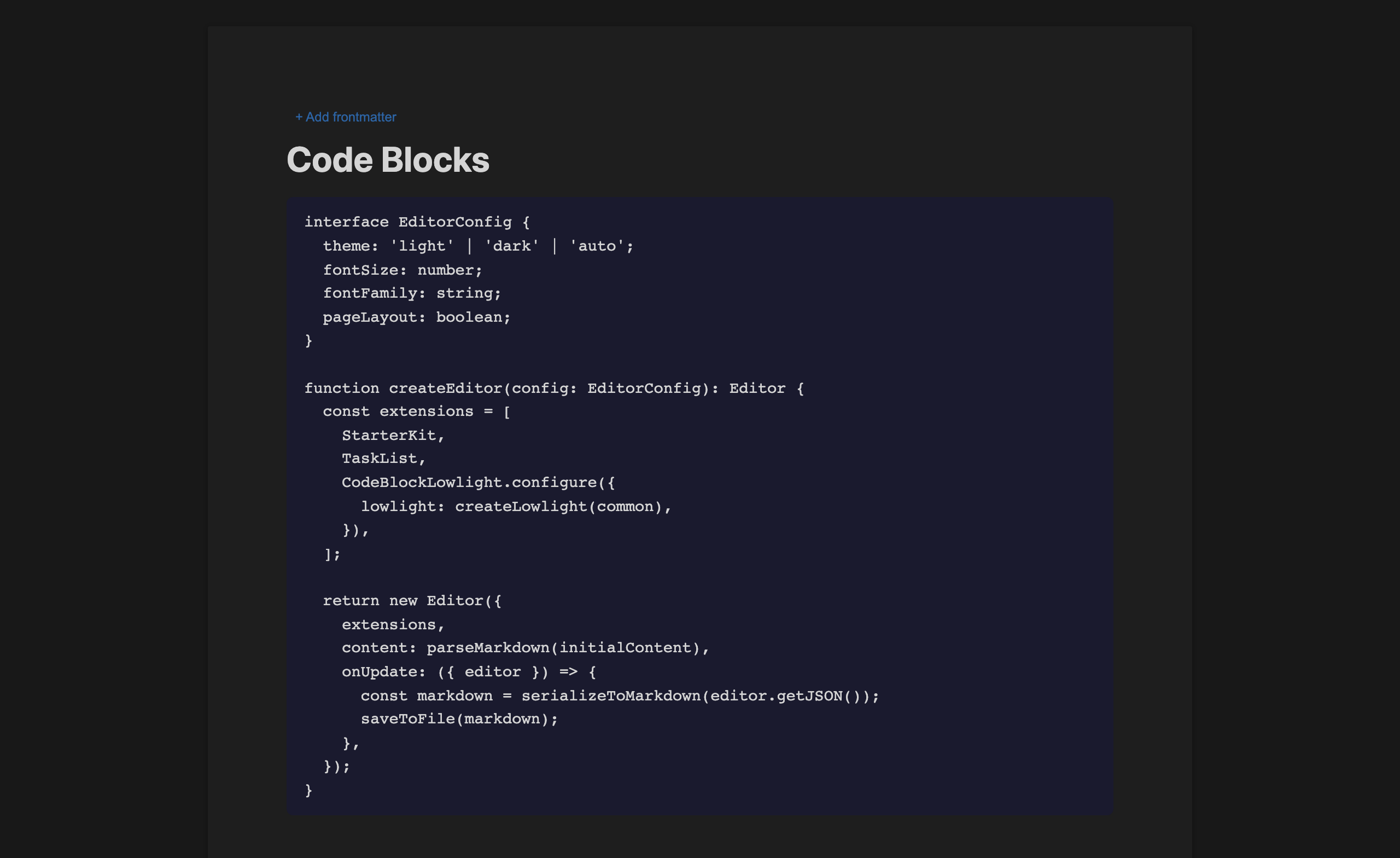
- Syntax highlighting — Code blocks with language-aware highlighting
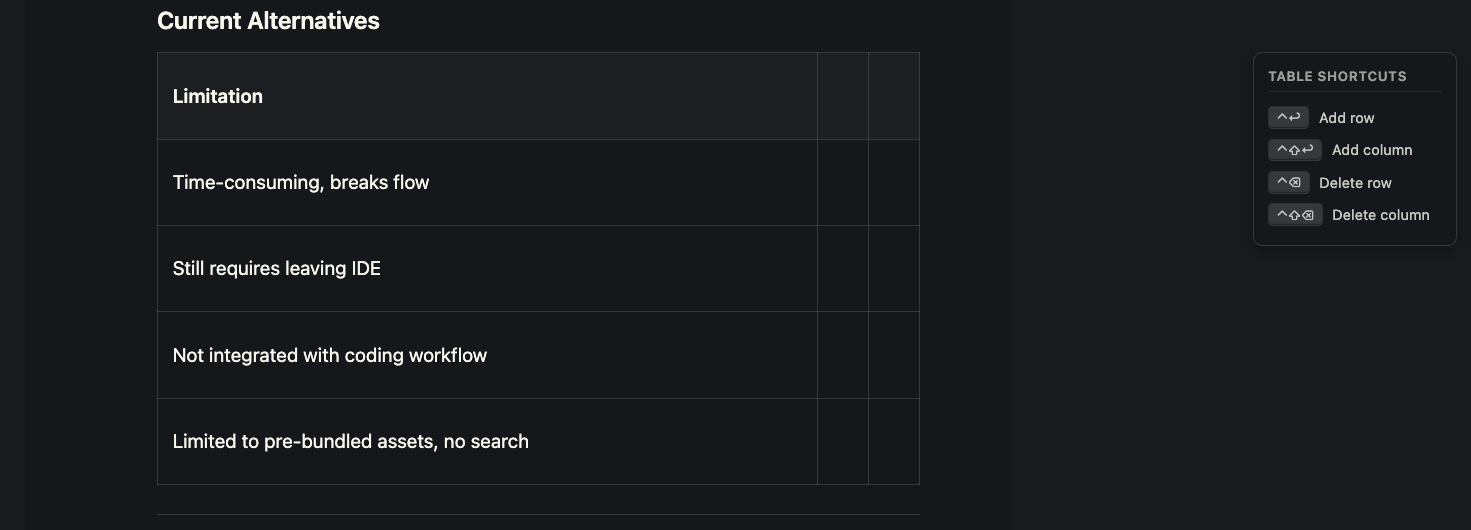
- Tables — Full table editing with Tab navigation
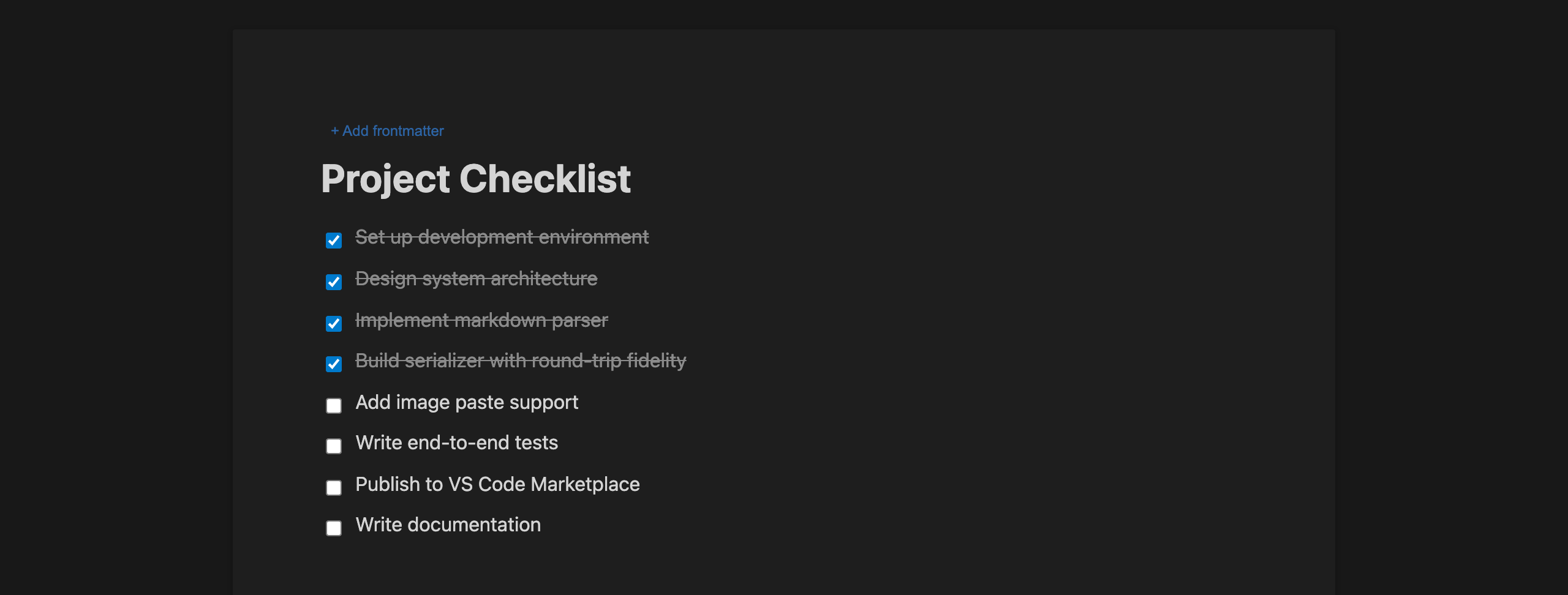
- Task lists — Interactive checkboxes that save to markdown
- List reordering — Move list items up/down with Option+Arrow keys
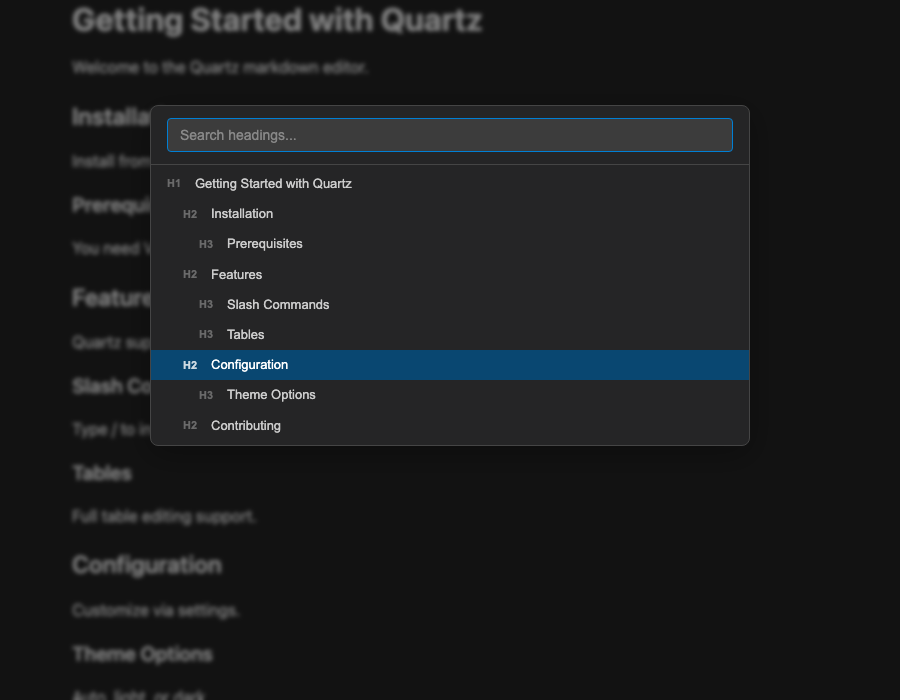
- Table of Contents — Quick-pick overlay (
Cmd+/) to search and jump to any heading, plus a Document Outline sidebar in the Explorer
- Find & Replace —
Cmd+F for in-document search with match highlighting, Cmd+H for find and replace
- Editor toggle buttons — Switch between Quartz, plain text, and diff view from the editor title bar
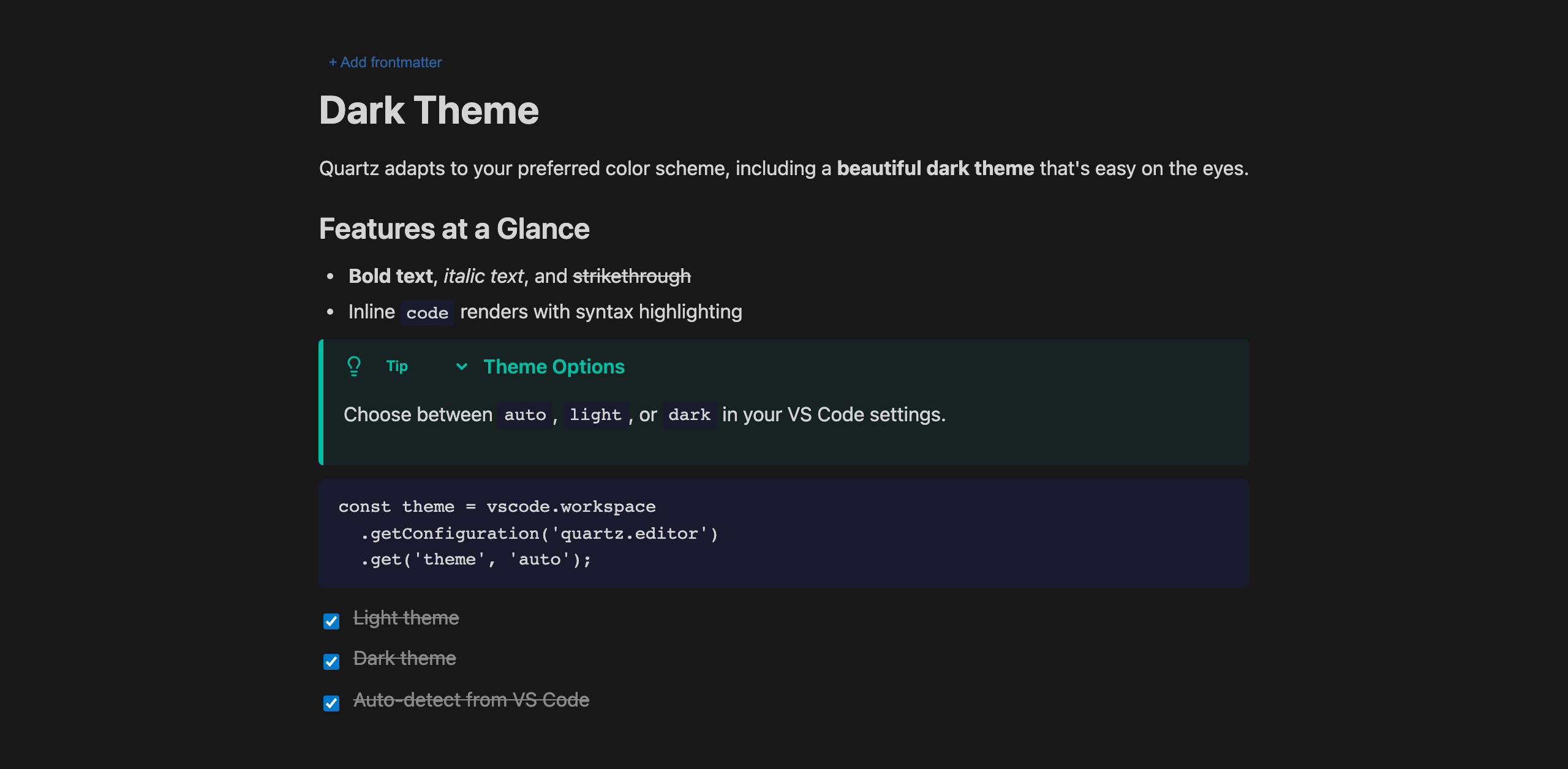
- Theme support — Automatic, light, or dark themes
The editor title bar includes quick-access toggle buttons:
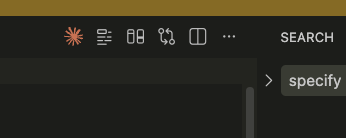
- Switch to plain text — Open the file in VS Code's default text editor
- Switch to Quartz — Open the file in the Quartz visual editor
- View git diff — Toggle inline diff view to review uncommitted changes
- Split diff view — Side-by-side comparison of current vs. last committed version
These buttons let you seamlessly move between visual editing, raw markdown, and code review without leaving the editor.
Find & Replace
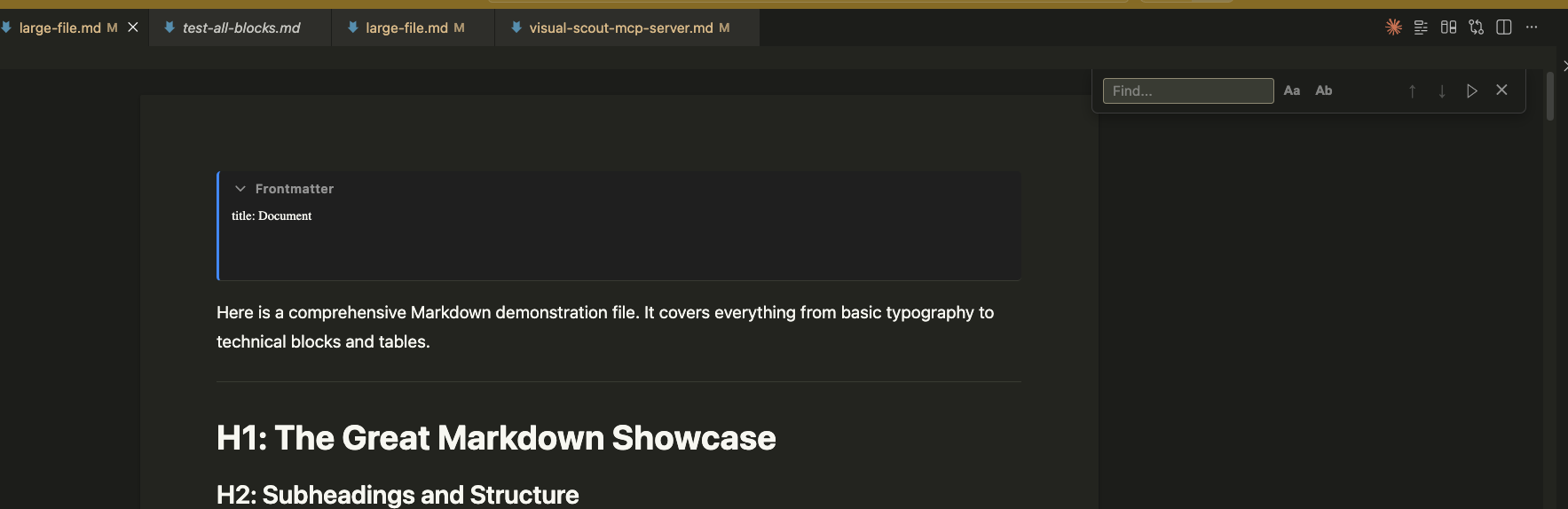
Press Cmd+F (Ctrl+F on Windows/Linux) to open the search bar. Highlights all matches with next/previous navigation, case sensitivity, and whole word toggles. Cmd+H opens find and replace:
Slash Commands
Type / anywhere to quickly insert blocks:
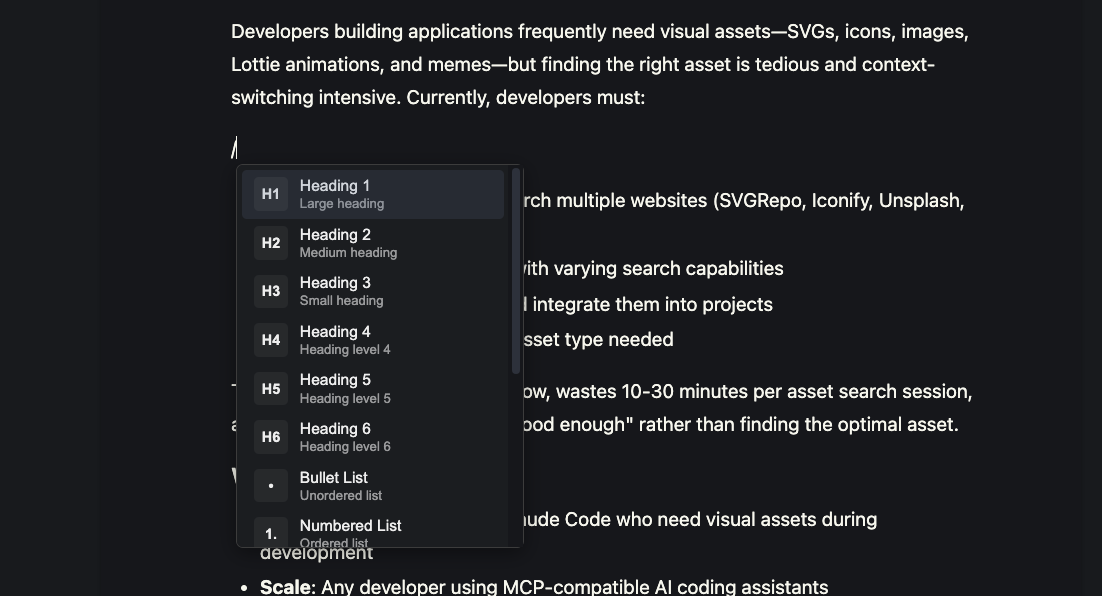
Table Editing
Create and edit tables with full keyboard navigation:
Callouts
8 Obsidian-style admonition types with colored borders and icons:
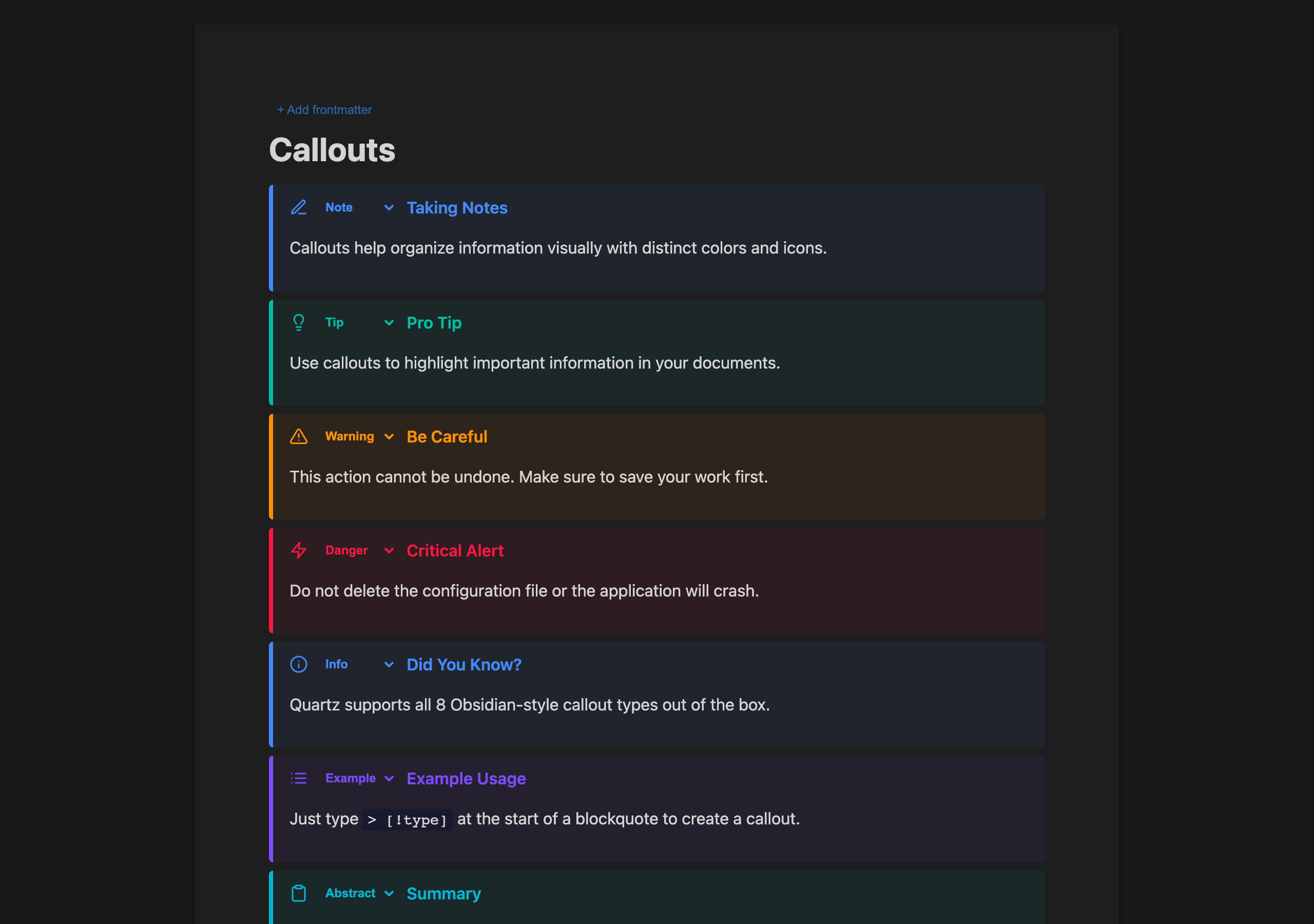
Table of Contents
Press Cmd+/ (Ctrl+/ on Windows/Linux) to open a quick-pick overlay for jumping to any heading. Filter by typing, navigate with arrow keys, and press Enter to scroll:
Frontmatter
Collapsible YAML frontmatter banner for document metadata:
Task Lists
Interactive checkboxes that save directly to markdown:
Code Blocks
Syntax-highlighted code blocks with language detection:
Dark Theme
Full dark theme support that matches your VS Code theme:
Installation
Install from VS Code Marketplace
Or manually:
- Open VS Code
- Go to Extensions (
Cmd+Shift+X / Ctrl+Shift+X)
- Search "Quartz"
- Click Install
Usage
- Open any
.md file — Quartz automatically sets itself as the default markdown editor on first install
- Start editing!
To switch to the plain text editor, use the toggle button in the editor title bar or run "Quartz: Toggle Editor" from the Command Palette.
Configuration
All settings are under quartz.editor.* in VS Code Settings:
| Setting |
Default |
Description |
defaultForMarkdown |
false |
Set Quartz as the default .md editor |
theme |
"auto" |
Editor theme: auto, light, or dark |
fontFamily |
"inherit" |
Font family (inherit uses VS Code's font) |
fontSize |
16 |
Font size in pixels |
pageLayout |
true |
Enable letter-sized page view |
pageMargin |
72 |
Inner page margin in pixels |
imageDir |
"./assets" |
Relative path for pasted images |
preserveFormatting |
true |
Maintain original markdown style on round-trip |
showBlockHandles |
true |
Show drag handles on block hover |
Keyboard Shortcuts
| Action |
macOS |
Windows/Linux |
| Bold |
Cmd+B |
Ctrl+B |
| Italic |
Cmd+I |
Ctrl+I |
| Strikethrough |
Cmd+Shift+S |
Ctrl+Shift+S |
| Inline code |
Cmd+E |
Ctrl+E |
| Highlight |
Cmd+Shift+H |
Ctrl+Shift+H |
| Bullet list |
Cmd+Shift+8 |
Ctrl+Shift+8 |
| Numbered list |
Cmd+Shift+7 |
Ctrl+Shift+7 |
| Task list |
Cmd+Shift+9 |
Ctrl+Shift+9 |
| Indent |
Tab |
Tab |
| Unindent |
Shift+Tab |
Shift+Tab |
| Move line up |
Opt+↑ |
Alt+↑ |
| Move line down |
Opt+↓ |
Alt+↓ |
| Find |
Cmd+F |
Ctrl+F |
| Find & Replace |
Cmd+H |
Ctrl+H |
| Table of Contents |
Cmd+/ |
Ctrl+/ |
Type these at the start of a line to create blocks:
| Input |
Result |
# |
Heading 1 |
## |
Heading 2 |
### |
Heading 3 |
- |
Bullet list |
1. |
Numbered list |
- [ ] |
Task list |
> |
Blockquote |
``` |
Code block |
--- |
Horizontal rule |
Known Limitations
- Some advanced markdown features (e.g., footnotes, definition lists) are displayed as raw text
- Images require absolute URLs or workspace-relative paths
- Maximum recommended file size: 10,000 lines for optimal performance
Contributing
Contributions are welcome! Please open an issue or submit a pull request on GitHub.
License
MIT


