
SSHarborYour safe harbor for SSH connections - Organize fleets, connect vessels with confidence Installation Launch VS Code Quick Open ( Ctrl+P), paste the following command, and press enter.Copied to clipboard |

⚓ Your safe harbor for SSH connections
"Managing 30 servers? There's a better way than Stop drowning in terminal windows. Organize your servers. Navigate with confidence.
🌊 Lost at Sea?You're a developer. You have dozens of servers. Production, staging, dev boxes, client machines, personal projects... Every time you need to connect:
Sound familiar? ⚓ Find Your Harbor
SSHarbor transforms chaos into clarity:
🧭 Who Sails with SSHarbor?
✨ Features That Ship🚢 Organize with FleetsGroup servers into logical Fleets — Production, Staging, Personal, Client-A, whatever makes sense for your workflow. ⚡ Quick Connect —
|








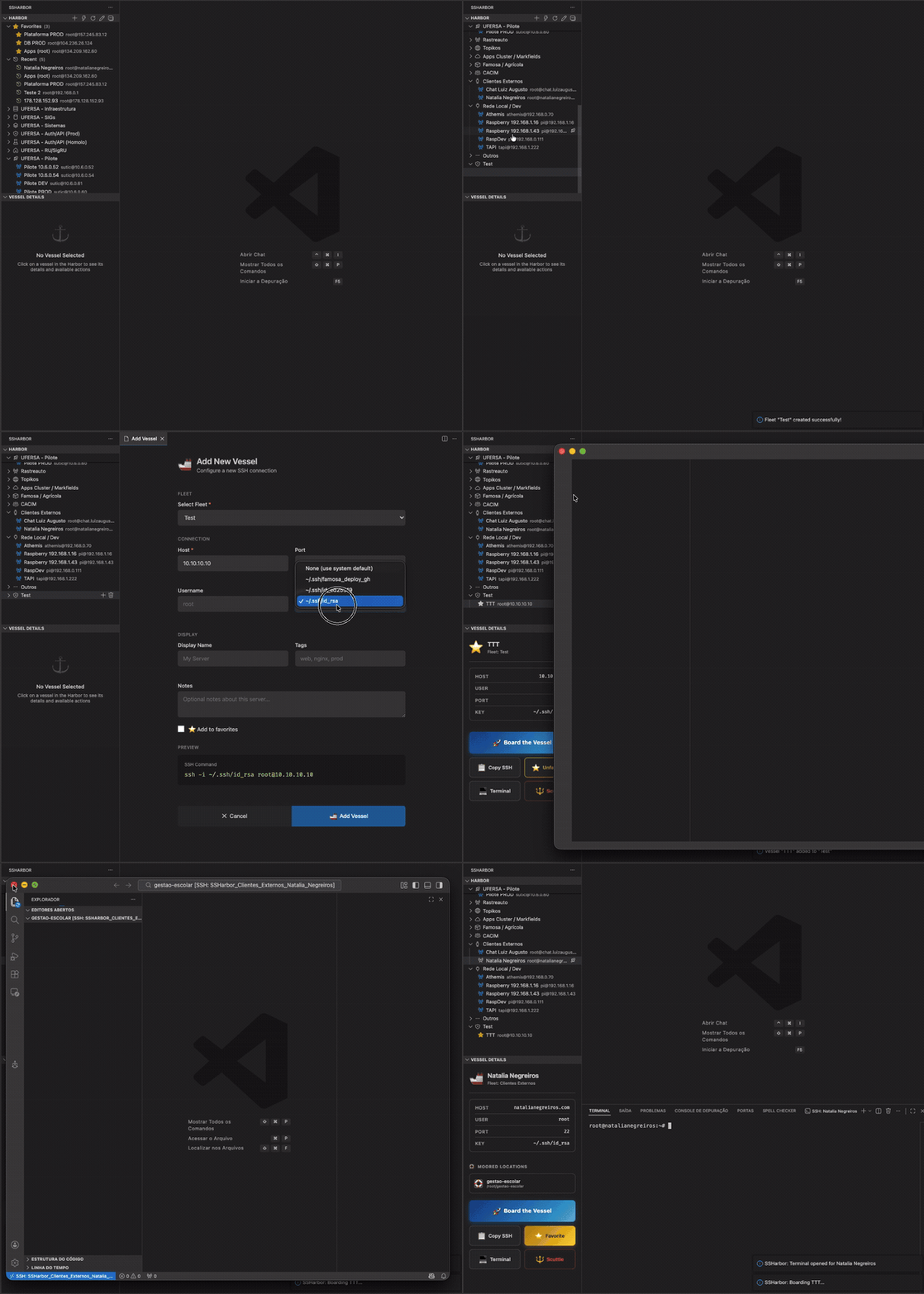
| Alternative | The Reality | SSHarbor Advantage |
|---|---|---|
| SSH Config | Great for 5 servers. Chaos at 50. | Visual organization + search |
| Shell Aliases | alias prod="ssh -i ~/.ssh..." scattered everywhere |
Centralized, portable config |
| Notes App | Copy-paste archaeology | One-click connection |
| Memory | "Was it .pem or .pub?" |
Never forget again |
| Terminal Tabs | 20 tabs, which one is prod? | Named, organized, searchable |
🚀 Quick Start
1. Install
Open VS Code → Extensions → Search "SSHarbor" → Install
Or via command line:
code --install-extension marcostullyo.ssharbor
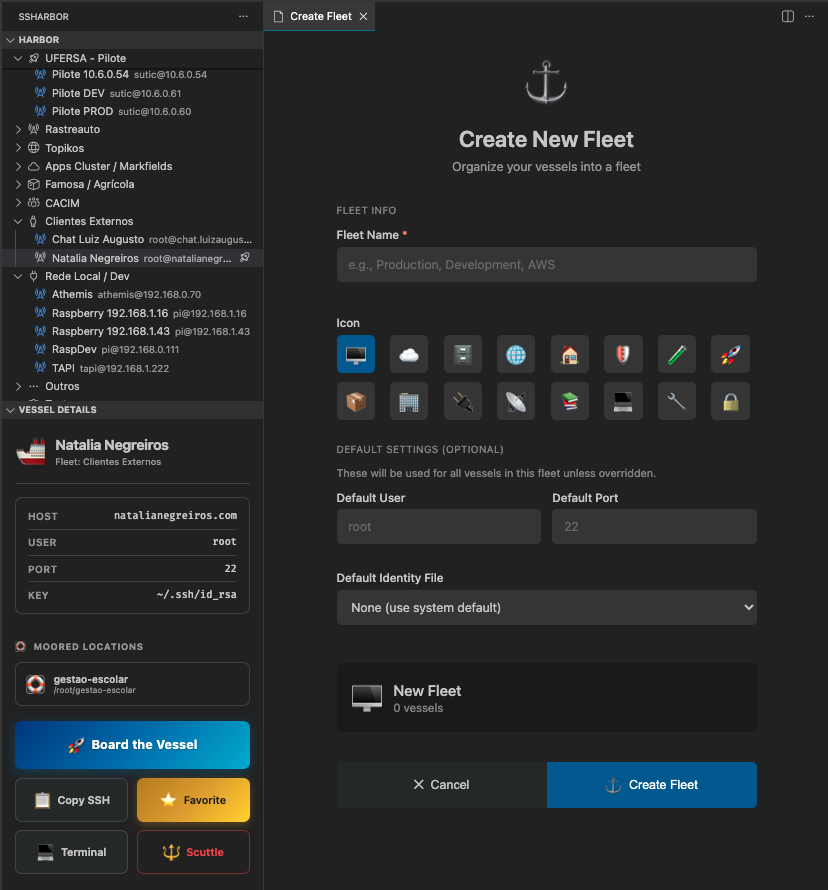
2. Create Your First Fleet
Click the + button in the SSHarbor panel, or run:
⌘ + ⇧ + P → SSHarbor: Create Fleet
3. Add Your Vessels
Right-click your fleet → Commission New Vessel
Enter host, user, port — done.
4. Connect!
Click on any vessel → Board the Vessel 🚀
⚙️ Configuration
SSHarbor stores configuration in VS Code's global storage. Edit via the ⚙️ icon or:
⌘ + ⇧ + P → SSHarbor: Edit Configuration
Example Configuration
{
  "$schema": "./schema.json",
  "defaults": {
    "user": "root",
    "port": 22,
    "identityFile": "~/.ssh/id_rsa"
  },
  "fleets": [
    {
      "name": "Production",
      "icon": "cloud",
      "defaults": {
        "user": "deploy",
        "identityFile": "~/.ssh/prod.pem"
      },
      "vessels": [
        {
          "name": "Web Server",
          "host": "web.example.com",
          "tags": ["nginx", "frontend"],
          "favorite": true
        },
        {
          "name": "Database",
          "host": "db.example.com",
          "port": 5432,
          "tags": ["postgres"]
        }
      ]
    },
    {
      "name": "Development",
      "icon": "beaker",
      "vessels": [
        {
          "name": "Dev Box",
          "host": "192.168.1.100",
          "user": "developer",
          "notes": "Local development machine"
        }
      ]
    }
  ]
}
Configuration Reference
Global Defaults
| Option | Type | Default | Description |
|---|---|---|---|
user |
string | root |
Default SSH username |
port |
number | 22 |
Default SSH port |
shell |
string | /bin/zsh |
Shell after connection |
identityFile |
string | — | Default SSH key path |
Fleet Options
| Option | Type | Description |
|---|---|---|
name |
string | Fleet display name |
icon |
string | VS Code ThemeIcon name |
collapsed |
boolean | Start collapsed in tree |
defaults |
object | Override global defaults |
vessels |
array | List of vessels |
Vessel Options
| Option | Type | Description |
|---|---|---|
name |
string | Display name |
host |
string | Required. Hostname or IP |
user |
string | SSH username |
port |
number | SSH port |
identityFile |
string | SSH key path |
tags |
array | Tags for organization |
favorite |
boolean | Pin to top |
notes |
string | Personal notes |
⌨️ Keyboard Shortcuts
| Shortcut | Action |
|---|---|
| ⌘ + ⇧ + S | Quick Connect |
🎯 Commands
| Command | Description |
|---|---|
SSHarbor: Quick Connect |
Fast connection dialog |
SSHarbor: Create Fleet |
Create a new fleet |
SSHarbor: Commission New Vessel |
Add server to fleet |
SSHarbor: Board the Vessel |
Connect via Remote SSH |
SSHarbor: Open SSH Terminal |
Classic terminal connection |
SSHarbor: Copy SSH Command |
Copy connection command |
SSHarbor: Edit Configuration |
Open config file |
SSHarbor: Reconnect to Last |
Quick reconnect |
🗺️ Roadmap
- [x] Fleet organization
- [x] Quick Connect (
Cmd+Shift+S) - [x] VS Code Remote SSH integration
- [x] Favorites & tags
- [x] Quick access folders
- [ ] 🔜 Import from
~/.ssh/config - [ ] 🔜 Team sharing (JSON export/import)
- [ ] 🔜 Connection health monitoring
- [ ] 💭 Multi-hop (Jump Host) support
- [ ] 💭 SFTP browser integration
💬 What Developers Are Saying
"Finally, a sane way to manage my AWS fleet" — DevOps Engineer
"Onboarding new team members went from hours to minutes" — Tech Lead
"My terminal history thanks you" — Full Stack Developer
"The nautical theme is surprisingly intuitive" — Homelab Enthusiast
💡 Pro Tips
- Use fleet defaults — Set user/key once per fleet, not per vessel
- Tag everything — Makes searching lightning fast
- Star your top 5 — Favorites always float to the top
- Save folders — SSHarbor remembers where you work
🆘 Quick Troubleshooting
🔴 Connection refused / Remote SSH not working
Ensure the Remote-SSH extension is installed:
code --install-extension ms-vscode-remote.remote-ssh
🔴 SSH key not found
Use absolute paths instead of ~:
❌ ~/.ssh/key.pem
✅ /Users/yourname/.ssh/key.pem
🔴 Permission denied (publickey)
- Check the key file permissions:
chmod 600 ~/.ssh/your-key.pem - Verify the correct username for your server
- Ensure the key is added to the server's
authorized_keys
🔴 Config file not loading
Run SSHarbor: Edit Configuration from the command palette to ensure the file exists and is valid JSON.
🤝 Contributing
Found a bug? Have a feature idea?
- Open an issue
- Fork & submit a PR
- Star the repo ⭐
📄 License
MIT — Use it, modify it, ship it.
🚀 Ready to dock your connections?

⚓ Made with love for developers who live in the terminal
🌟 If SSHarbor saved you time, consider starring the repo!
Built by Marcos Tullyo @ Markfields Solutions