Lockpin: a hard spend cap for AI agents
Give each agent task a budget. Lockpin prices every call at its worst case and stops the one that
won't fit, before it reaches the provider. This extension shows each task's spend against its
budget, live in your editor.

Start in two steps
- Install this extension. In VS Code it comes from the
Marketplace; in Cursor,
Antigravity, Windsurf and VSCodium, search for Lockpin in the Extensions view (it comes
from Open VSX).
- Install Lockpin, the free program on your machine that enforces the cap. Run
Lockpin: Install Lockpin from the Command Palette, which types the installer into a
terminal for you to run, or run it yourself:
- macOS and Linux:
curl --proto '=https' --tlsv1.2 -fsSL https://lockpin.dev/install.sh | sh
- Windows (PowerShell):
irm https://lockpin.dev/install.ps1 | iex
Your keys never leave your machine. The extension reads Lockpin's meter on this machine
(http://127.0.0.1:8787 by default) and never talks to a model provider.
What you get
- Cap: each task's budget is enforced before the call goes out, so the status bar shows
$0.48 / $0.50 and stops there.
- Catch: alerts for a spend spike, a task stuck in a loop, a budget nearly spent or a refused
call, in the status bar and the Lockpin panel as they happen.
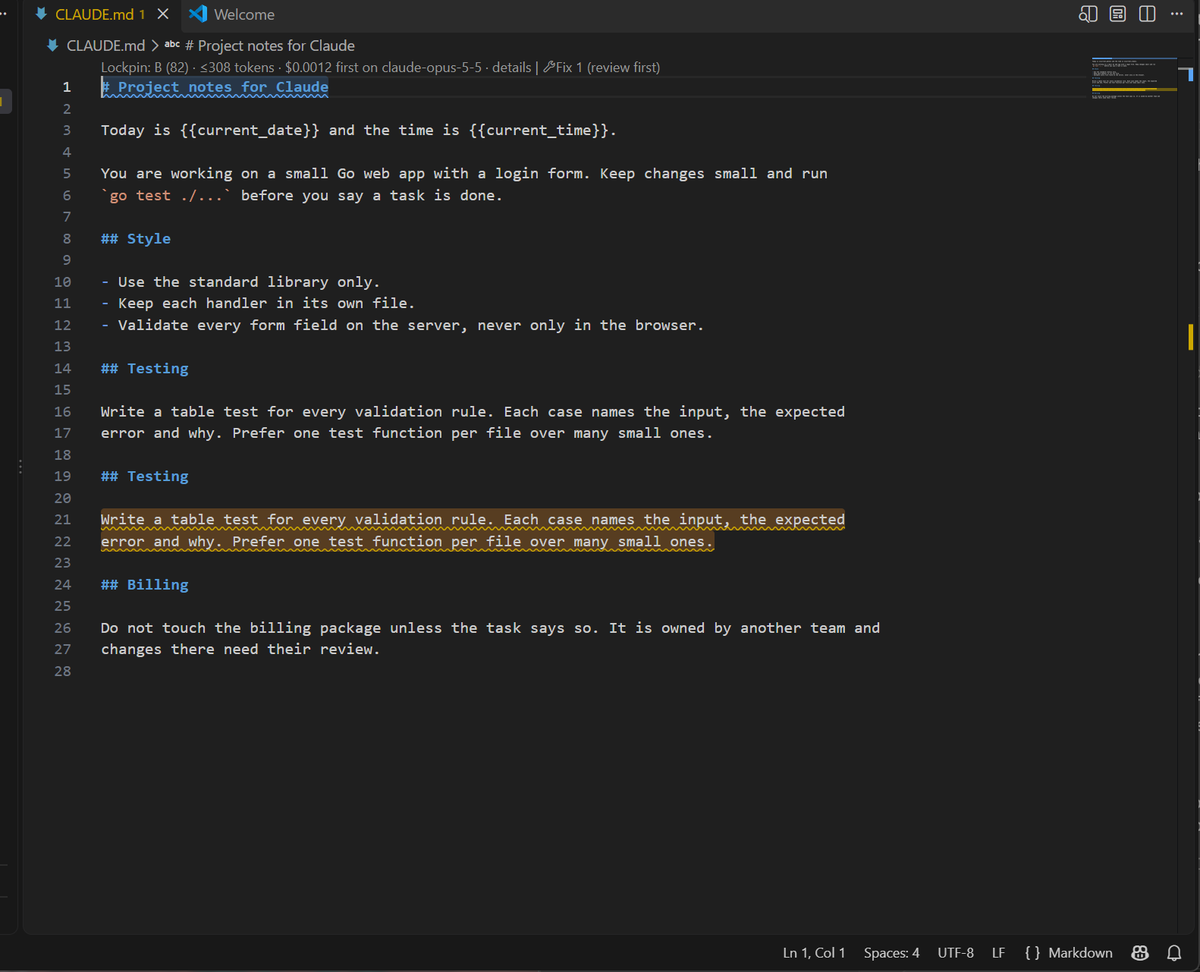
- Prompt costs: CLAUDE.md, AGENTS.md and other prompt files are rated as you write them:
tokens, cost per model, and what stops them being cached.
For teams: the hosted Lockpin dashboard shows every machine's spend and refusals in one
place, with owner, admin and viewer roles. Plans and pricing:
lockpin.dev/pricing.
Get started
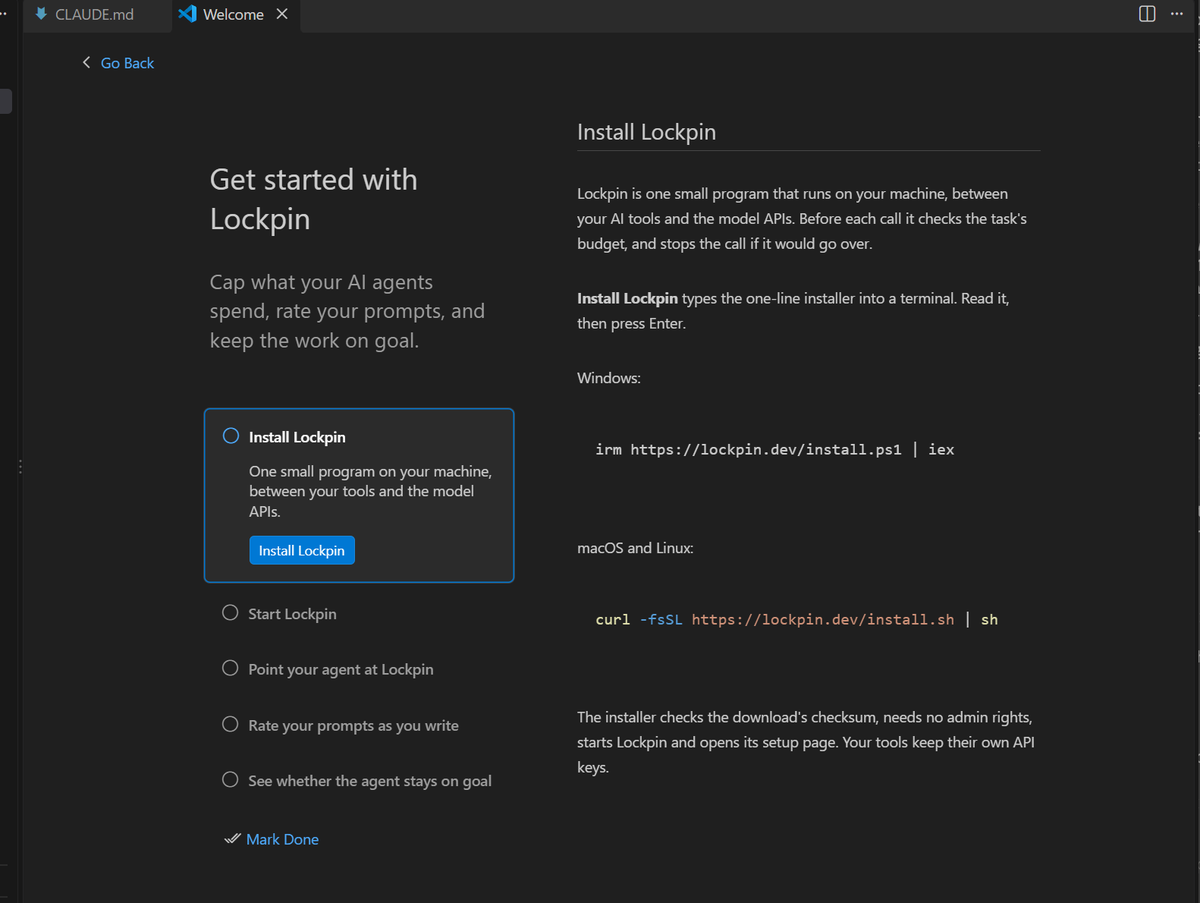
Run Lockpin: Get started for a five-step walkthrough. Without Lockpin running, the status
bar shows Lockpin: off; click it to Start Lockpin in a terminal, or Install Lockpin,
which types the one-line installer into a terminal for you to read and run. The extension never
runs the installer for you.
What it shows
The Lockpin panel, in the activity bar: the tasks with their budgets, the goal and plan,
the drift findings and the latest alerts. Each line opens the meter, the drift report or
GOAL.md. The badge on the icon counts open warnings and calls waiting for an answer. When
Lockpin is not running, the panel offers to start or install it.
One status bar item, on the left:
| Status bar |
Means |
$1.23 / $5.00 |
The most recently active task has spent $1.23 of its $5.00 budget |
$1.23 |
The most recently active task has no cap |
◎ 82% on goal |
Added when Lockpin tracks this folder; see below |
Lockpin |
Lockpin is running, but no call has gone through it yet |
Lockpin: off |
The meter could not be read; hover to see why |
| Warning color |
A new Lockpin alert in the last 30 seconds, or the agent drifting off goal; hover to read it |
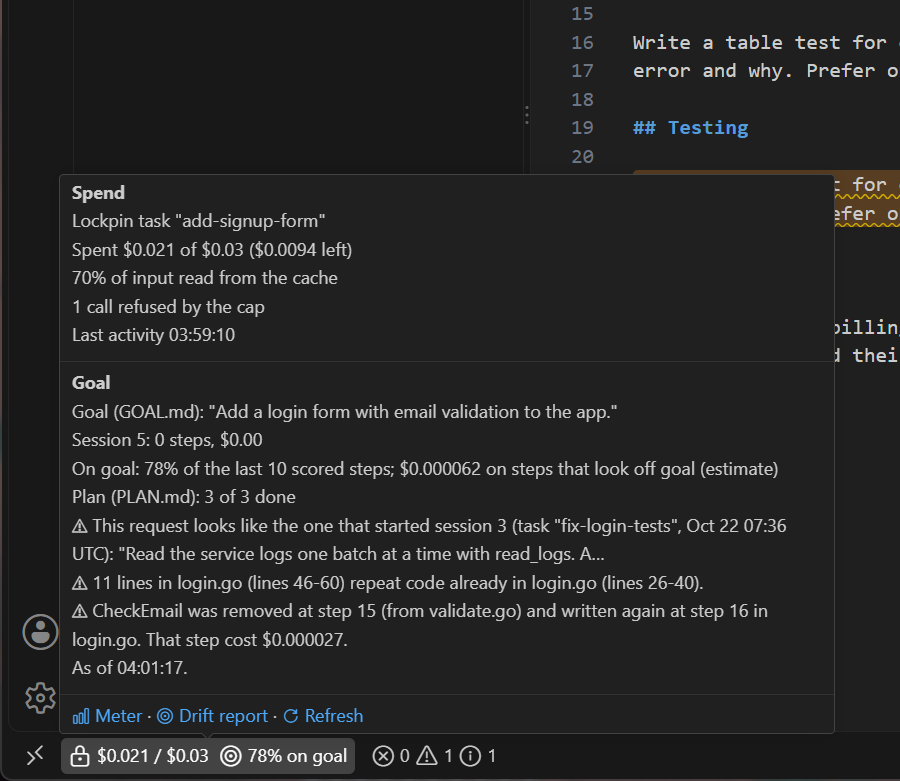
Hover for the task's name, what is left, the share of input read from the prompt cache,
cache misses with their cost and last cause, calls the cap refused, the time of its last
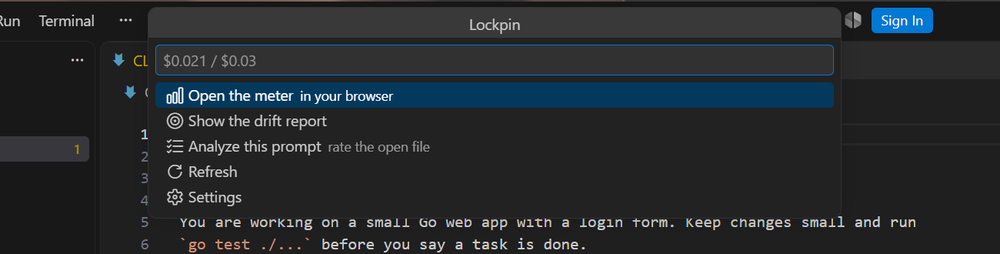
activity, and the goal, with links to the meter and the drift report. Click for a menu: open
the meter, the drift report, analyze the open prompt, refresh, or settings; when Lockpin is off,
start or install it.
Prompt rating, live
In prompt files (CLAUDE.md, AGENTS.md, *.prompt.md and others, see lockpin.live.files),
the extension rates the prompt a moment after you stop typing:
- A line above the prompt:
Lockpin: B (78) · ≤3,210 tokens · $0.0096 first / $0.0010 cached on claude-opus-5-5. Click it for the full report, rendered beside the editor: cost on each model in
lockpin.models, the worst case the cap would reserve, how long each provider keeps the
cache, every hint, and which sections hold the tokens.
- The exact words that cost money are colored (orange for warnings, blue for tips) and
underlined, with a mark in the scroll bar: for example a
{{current_time}} above 2,000 tokens
of fixed instructions (when it changes, nothing after it can be read from the cache), or a
paragraph you pasted twice. Hover for the reason.
- Fixes you review first. Click the lightbulb on a hint ("Move this line to the end of the
prompt", "Remove this repeated paragraph"), or Fix N (review first) above the prompt. The
change opens in the Refactor Preview; nothing is changed until you press Apply. Fixes only
move or remove your own lines; they never write new text.
For any other text, select it (or nothing, for the whole file) and run Lockpin: Analyze
prompt from the Command Palette or the right-click menu. A file you analyze stays live until
you close it or run Lockpin: Stop analyzing this file.
The grade is for cache-friendliness and waste, out of 100. The token count is Lockpin's own
estimate: deliberately high, and the number its cap reserves, with a likely range beside it.
Prices need a Lockpin with the estimate route; without one you still get the grade and the hints.
Is the work still on your goal?
When Lockpin tracks this folder (lockpin -drift .), the status bar item adds how much of the
agent's recent spend went to steps on the project's goal:
| Status bar |
Means |
◎ 82% on goal |
82% of this session's spend went to steps that look on goal (an estimate from scope and file names) |
◎ 64% kept |
No goal yet: 64% of the lines the agent added are still in the project |
· 2 ⚠ |
Warnings in the running session: work undone, a deleted file written again, copied code, files lost between sessions |
| Warning color |
The last steps went mostly off goal, or a new warning just arrived |
Hover for the goal, the session's spend, requirements and plan progress, and the latest warnings.
Drift report (in the tooltip or the menu) lists the steps worth a look, with their cost and
the lockpin restore command for anything lost.
It pops up only for what needs you, and says each thing once:
- when 3 of the agent's last 6 steps look outside your goal (again only after it got back on track,
and not within 20 minutes; Not this session silences it);
- when files were removed while no session ran, or a session repeats one you already ran;
- at a running session's third warning, once per session;
- once, after the agent's first few steps, when the project has no
GOAL.md. Write GOAL.md
opens a draft with your first request in it; nothing is saved until you save it.
Without a goal written down, the agent's goal is whatever its last message said. Three lines in
GOAL.md keep the point of the project in one place that you, the agent and Lockpin all read.
Settings
| Setting |
Default |
|
lockpin.meterUrl |
http://127.0.0.1:8787 |
Lockpin's -listen address, or -admin-listen when set. User settings only: a workspace cannot change it. |
lockpin.pollSeconds |
5 |
How often to read the meter while the window has focus. It slows to every 30 seconds after three failed reads. |
lockpin.alertNotifications |
false |
Also pop up a notification for each new alert. |
lockpin.live.enabled |
true |
Rate prompt files as you type. |
lockpin.live.files |
prompt files |
Glob patterns of the files rated live. |
lockpin.live.delayMs |
1500 |
How long after you stop typing to rate again. |
lockpin.highlight |
true |
Color the exact words a hint is about, besides the underline. |
lockpin.models |
Opus 5.5, Sonnet 5.5, GPT-6.1 Sol |
Models to price on, as in Lockpin's price table. The first is shown above the prompt. Empty: rules only. |
lockpin.maxOutput |
4096 |
Output tokens assumed for the worst case. |
lockpin.drift.enabled |
true |
Show the goal in the status bar when Lockpin tracks this folder. |
lockpin.drift.notifications |
true |
The drift popups above. The status bar flags the same things either way. |
lockpin.drift.pivotChanges |
3 |
Pop up when the agent changes direction (in and out of the goal) this many times within lockpin.drift.pivotMinutes (20). 0 turns it off. Once per session. |
lockpin.coach.enabled |
true |
The Coach view, and the status bar's stages: yellow past lockpin.coach.warnAtPercent (80) of a cap, red for five minutes after a refusal. |
lockpin.coach.refusalNotifications |
true |
Pop up when the cap refuses a call: raise this cap by $5, see why, open the meter, or not this session. At most once every ten minutes. |
The highlight colors are theme colors, lockpin.warningHighlight and lockpin.infoHighlight,
with high-contrast defaults. Change them in workbench.colorCustomizations.
In a remote window (SSH, WSL, Codespaces), the extension runs on the remote machine and reads the
meter there; run Lockpin on that machine too, or set lockpin.meterUrl.
Privacy
- The status bar and the Coach view read your local meter (
/lockpin/api/tasks,
/lockpin/api/alerts, /lockpin/api/approvals) and change nothing on their own. Two buttons
write, when you click them: an answer to a held call, and "Raise this cap by $5"
(PUT /lockpin/api/tasks/<task>/budget). The Coach view runs no script. The drift item reads /lockpin/api/drift and
/lockpin/api/goal, also read only.
- Prompt rating reads only files that match
lockpin.live.files and text you choose to analyze.
The rules run inside the editor. For prices, the text goes to POST /lockpin/api/estimate on
Lockpin on this machine, which keeps nothing; the extension refuses to send it to any address
that is not this machine, and only your user settings can set that address.
- No telemetry. Set
lockpin.live.enabled to false, or lockpin.models to [], to turn off
live reading or pricing.
Commands
- Lockpin: Open panel: shows the Lockpin panel in the activity bar.
- Lockpin: Open meter: opens the meter page.
- Lockpin: Refresh status: reads the meter now.
- Lockpin: Analyze prompt: rates the selection or the file and opens the report.
- Lockpin: Show prompt report: opens the report for the current file.
- Lockpin: Fix all hints in this prompt (review first): proposes every fix at once.
- Lockpin: Stop analyzing this file: clears its rating and underlines.
- Lockpin: Show drift report: where the agent's work went, against the goal.
- Lockpin: Write GOAL.md: opens the goal file, or a draft of one.
- Lockpin: Get started: the walkthrough.
- Lockpin: Start Lockpin: runs
lockpin in a terminal.
- Lockpin: Install Lockpin: types the one-line installer into a terminal, for you to run.
- Lockpin: Open setup page: how to point each tool at Lockpin.
- Lockpin: Open settings: this extension's settings.
The same rules run outside the editor as lockpin lint FILE... (for CI), and
lockpin lint -hook claude checks each message in Claude Code before it is sent. The hook also
suggests /compact when the conversation passes 100,000 tokens (and again each time it grows by
as much), and /clear when a message looks like a new task in a large conversation or the
prompt cache has expired. It only warns.
No AI model is used for any of this: the grade, hints and fixes are rules in the extension, and
the prices come from Lockpin's price table.
License
Proprietary; see LICENSE. The extension is free to use with Lockpin; its source
code is not published, and the license grants no right to use the Lockpin name or logo.
Lockpin, the program this extension reads, is distributed separately from
lockpin.dev. Report a security problem to
security@lockpin.dev.

