Skip to content
| Marketplace
Sign in
Visual Studio Code>Visualization>Infographic Markdown PreviewNew to Visual Studio Code? Get it now.
Infographic Markdown Preview

Infographic Markdown Preview

liwx2000

|
2 installs
| (0) | Free
Render AntV Infographic visualizations in Markdown preview
Installation
Launch VS Code Quick Open (Ctrl+P), paste the following command, and press enter.
Copied to clipboard
More Info

AntV Infographic Preview for VSCode

A Visual Studio Code extension that renders AntV Infographic visualizations directly in your Markdown preview.

Features

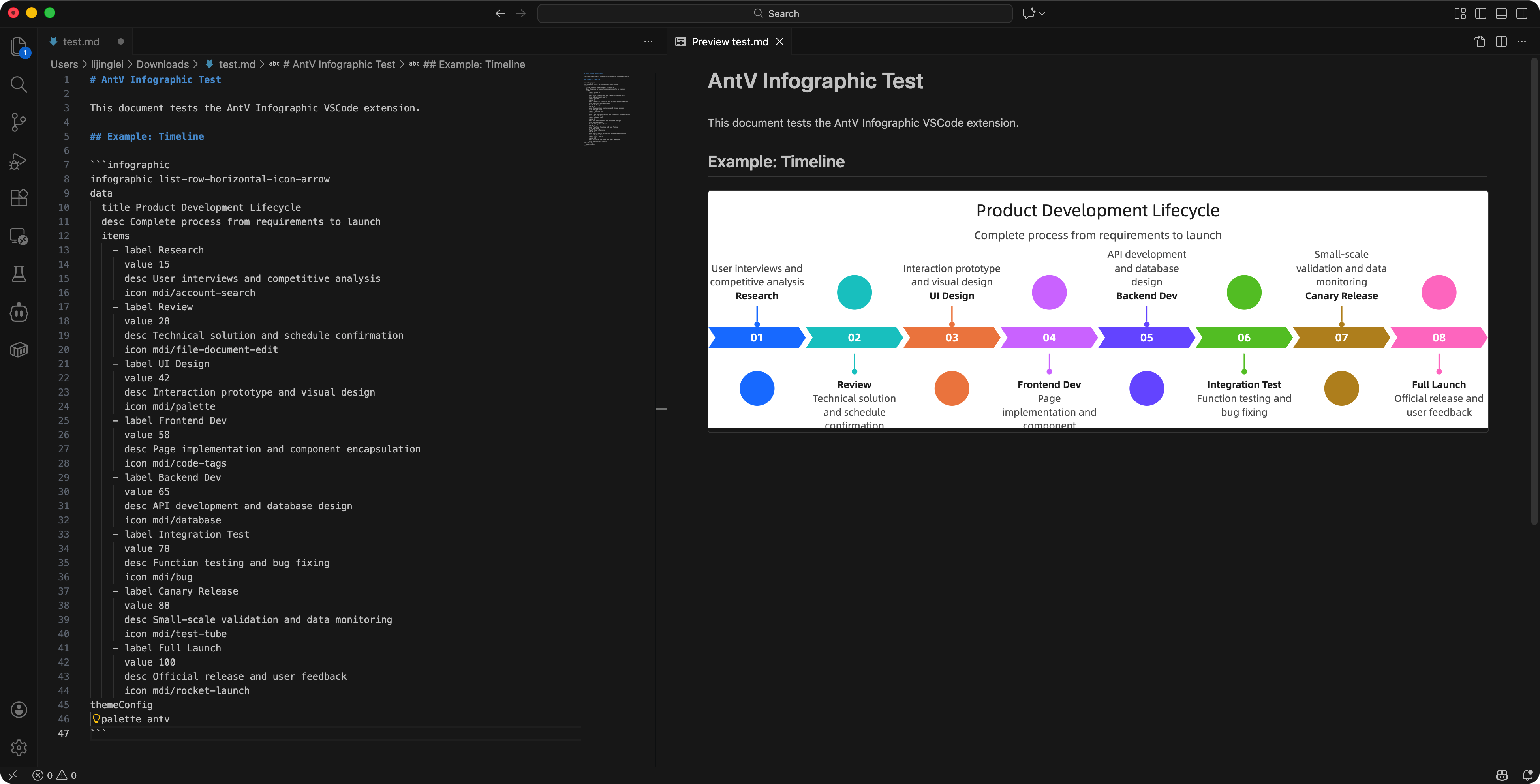
  • 📊 Live Preview: See your infographics render in real-time as you edit
  • 🎨 Theme Support: Automatically adapts to VSCode's light and dark themes
  • 📦 Offline Ready: All dependencies bundled - no CDN or internet required
  • 🔒 Secure: Fully compliant with VSCode's strict Content Security Policy
  • ⚡ Fast: Optimized rendering with smart caching and updates

Installation

From VSIX File

  1. Download the .vsix file from the releases page
  2. Open VSCode
  3. Go to Extensions view (Cmd+Shift+X / Ctrl+Shift+X)
  4. Click the "..." menu at the top right
  5. Select "Install from VSIX..."
  6. Choose the downloaded .vsix file

From Source

git clone <repository-url>
cd infographic-vscode-extension
npm install
npm run build
npm run package

Then install the generated .vsix file using the steps above.

Usage

Create infographic visualizations in your Markdown files using code blocks with the infographic language identifier:

Example 1: Simple Process Flow

```infographic
infographic list-row-simple-horizontal-arrow
data
  items
    - label Step 1
      desc Initialize
    - label Step 2
      desc Process
    - label Step 3
      desc Complete
```

Example 2: Growth Metrics with Icons

```infographic
infographic list-row-horizontal-icon-arrow
data
  title Customer Growth Engine
  desc Multi-channel acquisition strategy
  items
    - label Lead Generation
      value 18.6
      desc Content marketing and outreach
      icon company-021_v1_lineal
    - label Conversion
      value 12.4
      desc Lead scoring and automation
      icon antenna-bars-5_v1_lineal
    - label Retention
      value 32.1
      desc Customer success programs
      icon activities-037_v1_lineal
```

Example 3: Organizational Structure

```infographic
infographic list-column-vertical-icon
data
  title Product Team
  desc Engineering Organization
  items
    - label Product Management
      icon company-021_v1_lineal
      children
        - label Strategy
          desc Product roadmap and planning
        - label Execution
          desc Feature delivery
    - label Engineering
      icon antenna-bars-5_v1_lineal
      children
        - label Frontend
          desc User interface
        - label Backend
          desc Services and APIs
```

Syntax Reference

Basic Structure

All infographics follow this basic pattern:

infographic [template-name]
data
  title [Optional title]
  desc [Optional description]
  items
    - label [Item label]
      desc [Item description]
      value [Optional numeric value]
      icon [Optional icon name]

Available Templates

  • list-row-simple-horizontal-arrow - Simple horizontal process flow
  • list-row-horizontal-icon-arrow - Horizontal flow with icons and values
  • list-column-vertical-icon - Vertical list with hierarchical structure

For more templates and detailed syntax, visit the AntV Infographic Documentation.

Design Customization

You can customize the design using the design block:

infographic list-row-horizontal-icon-arrow
design
  structure default
  gap 12
  item card
  showIcon true
data
  items
    - label Example
      desc Description

Theme Customization

Apply custom themes using the theme block:

infographic list-row-horizontal-icon-arrow
theme
  colorPrimary #1890ff
  palette #1890ff #52c41a #faad14
data
  items
    - label Example
      desc Description

Error Handling

The extension provides helpful error messages when:

  • Syntax is invalid or incomplete
  • Template names are not recognized
  • Required data is missing

Errors are displayed directly in the preview pane with details about what went wrong.

Theme Support

The extension automatically adapts to your VSCode theme:

  • Light themes: Clean, bright appearance
  • Dark themes: Comfortable dark mode rendering
  • High contrast: Enhanced borders and visibility

Performance

  • Smart Caching: Infographics are only re-rendered when syntax changes
  • Efficient Updates: Live preview updates use debouncing to prevent excessive rendering
  • Memory Management: Automatic cleanup of removed infographics

Troubleshooting

Infographic Not Rendering

  1. Check that the code block language is set to infographic
  2. Verify your syntax follows the AntV Infographic format
  3. Look for error messages in the preview pane
  4. Try closing and reopening the Markdown preview

Preview Not Updating

  1. Make sure the Markdown preview is open
  2. Try refreshing the preview (close and reopen)
  3. Check VSCode's output panel for extension errors

CSP Errors

This extension is fully CSP-compliant. If you see CSP errors:

  1. Ensure you're using the latest version of the extension
  2. Check that no other extensions are interfering
  3. Report the issue on GitHub with reproduction steps

Technical Details

Architecture

  • Markdown-it Plugin: Transforms infographic code blocks into placeholder containers
  • Preview Script: Initializes and renders infographic instances in the webview
  • Bundled Library: Includes @antv/infographic library for offline functionality

Security

  • No external CDN dependencies
  • No dynamic script execution
  • Fully compliant with VSCode's strict CSP
  • All resources bundled within extension package

Dependencies

  • @antv/infographic - The core rendering library
  • Webpack bundled for browser compatibility

Development

Building from Source

# Install dependencies
npm install

# Build for development (with watch mode)
npm run watch

# Build for production
npm run build

# Package as VSIX
npm run package

Testing Locally

  1. Open the project in VSCode
  2. Press F5 to launch Extension Development Host
  3. Open or create a Markdown file
  4. Add infographic code blocks
  5. Open the Markdown preview

Project Structure

├── src/
│   ├── extension.ts          # Extension entry point
│   ├── markdown-it-plugin.ts # Markdown-it plugin
│   ├── preview.ts            # Preview script
│   └── measury-stub.js       # Browser-compatible text measurement
├── media/
│   └── infographic.css       # Preview styles
├── dist/                     # Compiled output
├── package.json              # Extension manifest
└── webpack.config.js         # Build configuration

Contributing

Contributions are welcome! Please feel free to submit issues or pull requests.

License

MIT

Resources

  • AntV Infographic Documentation
  • AntV Infographic Syntax Guide
  • VSCode Extension API

Changelog

0.1.0 (Initial Release)

  • ✅ Markdown preview rendering for infographic code blocks
  • ✅ Bundled @antv/infographic library
  • ✅ Theme support (light, dark, high contrast)
  • ✅ Live preview updates
  • ✅ Error handling and user feedback
  • ✅ CSP compliant implementation

Support

If you encounter any issues or have suggestions, please open an issue on GitHub.

  • Contact us
  • Jobs
  • Privacy
  • Manage cookies
  • Terms of use
  • Trademarks
© 2025 Microsoft