Live Eval — Inline JavaScript & TypeScript Playground




Run JavaScript and TypeScript in VS Code and see the result of every line inline, as you type.
Live Eval evaluates your file while you edit it and prints the value of an expression next to the
code that produced it. Nothing to run, nothing to log. Two visualizers come with it: an
interactive recursion tree, and a step-by-step view of the event loop and promises.

Why Live Eval?
- End a line with
// (or // ?) to see its value, and inspect objects, prototype chains and tables from the hover card
- Turn a recursive function into an interactive call tree, DAG and timeline
- Watch the event loop run your promises and timers step by step
- Read execution counts and dead-code highlighting in the gutter after every run
- Work across
.js, .ts, .jsx, .tsx, top-level await, and multi-file projects with relative imports and tsconfig path aliases
Quick Example
const prices = [12.5, 8.0, 24.99, 5.5];
prices.filter(p => p > 10);        //   → [12.5, 24.99]  ▁█
prices.reduce((a, b) => a + b, 0); // ? → 50.989999999999995
Both spellings above are the same marker: an empty // at the end of a line, or // ? written
out. Use whichever you prefer. Neither is going away.
Install
- Install from the VS Code Marketplace
- Open a
.js or .ts file
- End any line with
//. Results appear as you type.
Tip: Run LiveEval: New JavaScript Scratchpad or LiveEval: New TypeScript Scratchpad from the Command Palette for a file pre-loaded with examples.
Lines That Run More Than Once
A line inside a loop, or in a function called repeatedly, shows every value it produced, and
carries a ·×N badge counting the runs (🔥×N past 100). No marker asks for the count; you
always get it.
for (let i = 0; i < 4; i++) {
  i * 2; //   → 0  2  4  6  ▁▃▆█
}
When there are more values than fit, you get the first few, then the value the line ended on,
then a count of everything hidden. Hover the line for the full list.
function fib(n) {
  const r = n < 2 ? n : fib(n - 1) + fib(n - 2); //   → 1  0  1  1  2  1 … 46368 +150,042
  return r;
}
fib(24);
Marker Reference
Markers are plain comments. They tell Live Eval what to show, and they don't change how your code
runs.
That holds for errors too. A marked line that throws still throws: the marker shows the error and
lets it travel on to whatever can catch it, so your own try/catch still runs. At the top level
the error is shown and contained, so one bad line doesn't blank every value below it.
| Marker |
What it does |
In imported files |
// |
Show the value of the expression on this line, using nothing but an empty comment |
✅ |
// ? |
The same thing, spelled out. Both work; use whichever you prefer |
✅ |
// ?? |
Deep inspection: type, keys, prototype chain |
— |
// trace |
Record every call to this function (args, return, timing) |
✅ |
// watch |
Track a variable's value across every iteration and re-evaluation |
— |
// assert |
Inline pass/fail test |
— |
// path |
Which branches ran, which were missed, and how often |
— |
// perf |
Benchmark this expression (ops/sec, avg time) |
— |
// err |
Run the line in try/catch and show the caught error, or a green ✓ no throw |
— |
// log |
Show only console.log output inline, not the return value |
— |
// table |
Render the value as an aligned table in the hover card, with a Copy-as-CSV link |
— |
// checkpoint |
Mark this point inside a // traced function as its own event in that function's timeline |
— |
Only the value marker (//, // ?) and // trace do anything inside an imported file. The rest
are inert there: the file still evaluates, the marker just reports nothing. In the file you have
open, all of them work.
// watch takes an optional sampling interval. // watch 3 records every third value, which
keeps a long loop readable, and // watch 1 is the same as plain // watch.
// checkpoint reaches a timeline only when its line runs inside a // traced function.
Elsewhere it still counts the line, and the hover says so.
Full walkthrough with worked examples: Debug JavaScript without console.log.
What You Can Do
Visualize recursion
Add // trace to a recursive function, then open LiveEval: Visualize Recursion Tree:
function fib(n) {
  return n <= 1 ? n : fib(n - 1) + fib(n - 2);
} // trace
fib(8);
// → ⟳ fib  ×67  ↓8  6ms
Step through every call, argument, return value, depth and timing as a call tree, a DAG with
duplicate subtrees collapsed, a timeline, or a minimap. The marker goes on the function's opening
line, its closing brace, an arrow function's assignment, or a whole class. It cannot go on an
individual method inside a class body; trace the class instead.
→ Visualize Recursion in JavaScript
Visualize the Event Loop & Promises
Open LiveEval: Visualize Promises on a file containing async/await, promises or timers.
The panel animates the call stack, Web APIs, microtask queue and callback queue, plus the
create → pending → settled state of every promise, including Promise.all, race, allSettled
and any. Step through it, or play it back at adjustable speed. The Timeline view lays the same
run out grouped by phase, with real millisecond offsets.
→ Understand the JavaScript Event Loop & Promises
See coverage and branch paths
Every evaluation records which lines ran and how often. Executed lines get a gutter badge, and
lines that never ran are highlighted, so dead code is visible without a coverage tool. // path
adds the branch-level view:
function classify(n) {
  if (n > 0) return "pos";
  else if (n < 0) return "neg";
  else return "zero";
} // path
classify(5); classify(-3);
// → [PATH] ⬡ 2/3 paths · missed: else (line 4) (2 calls)
A branch the function contains but never took is named, not silently absent. Set the gutter style
with liveeval.coverage.style (full, quiet, dead-only), and toggle the ✓/✗ branch
badges with liveeval.features.branchHighlight.enabled.
→ Multi-File Projects: Coverage and Imports
Work across multiple files, in TypeScript
Import your own .ts, .js, .cjs, .mjs and .json files and get inline results across the
whole import graph. Relative imports and tsconfig.json path aliases (@lib/*) resolve
automatically; add your own with liveeval.pathAliases. Edit a leaf module with nothing to run
and Live Eval finds the entry point and re-runs that, so your results stay live. Pin the entry
point with liveeval.execution.entryPoints, and keep large graphs responsive with
liveeval.execution.entryReevalBudgetMs.
TypeScript needs no setup. Types are stripped at evaluation time and results are mapped back
through source maps, so annotations land on the line you wrote even when the compiler deleted the
lines above it.
→ Live TypeScript Evaluation
Inspect, assert and benchmark in place
for (let i = 1; i <= 5; i++) {
  i * i;                     // ? → 1  4  9  16  25  ▁▂▃▅█
}

const sum = add(2, 3);
sum === 5;                   // assert → ✓ Pass
sum === 6;                   // assert → ✗ false

JSON.parse('{ not json }');  // err → ⊘ SyntaxError: Expected property name or '}' in JSON at position 2
sumSqrt();                   // perf → [PERF] 10,960 ops/s · avg 91.24μs · 1,096 runs

const res = await fetch('https://jsonplaceholder.typicode.com/todos/1'); // ?
Top-level await needs no wrapper, console.log lines are annotated automatically, and
liveeval.behavior.stickyResults keeps the last good results on screen while you type through a
syntax error. Every panel can be switched off on its own with the liveeval.features.* settings.
See it end to end
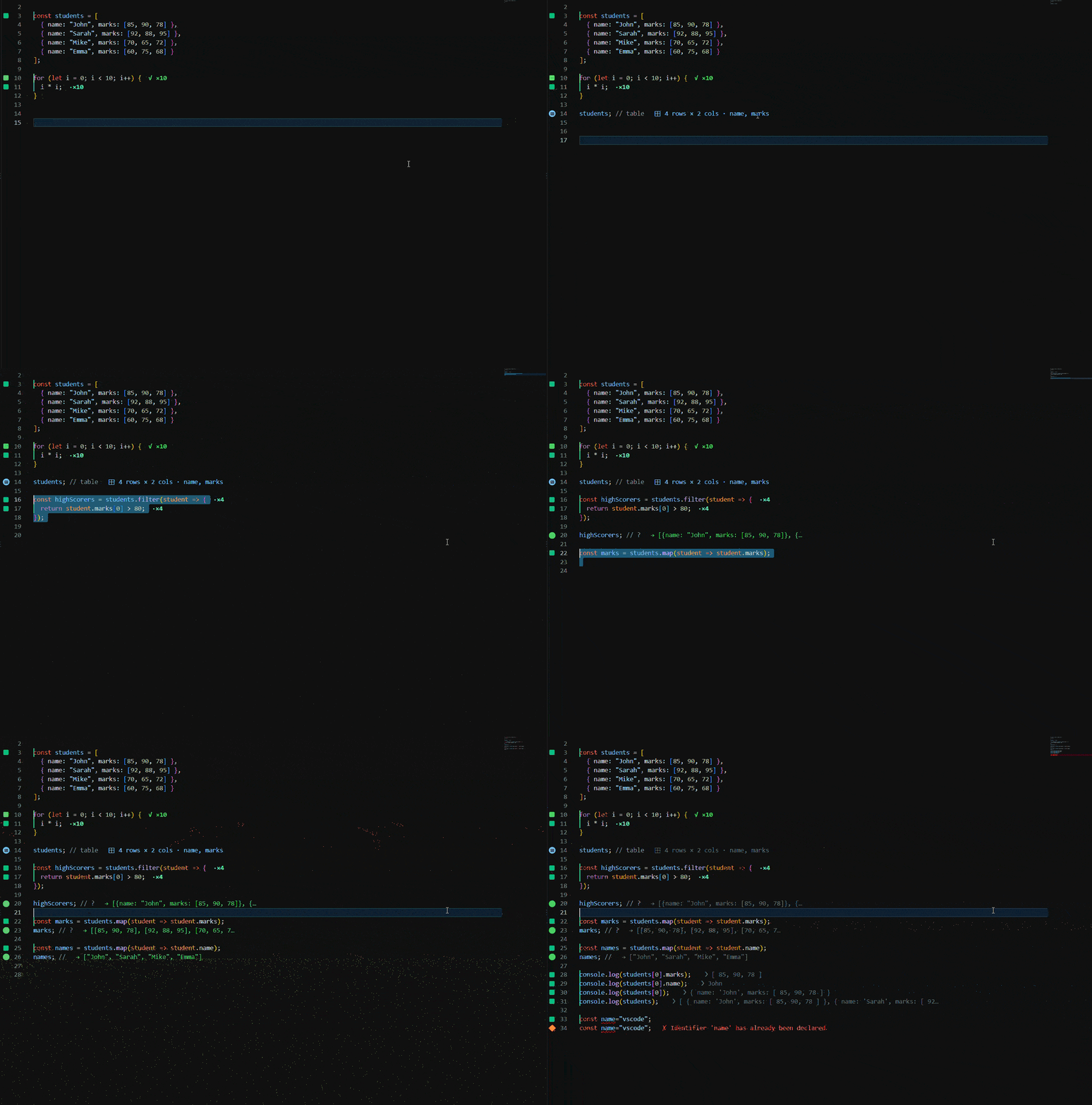
Tutorials
Step-by-step guides with screenshots.
| # |
Tutorial |
You'll learn |
| 1 |
Getting Started: See JavaScript Values Inline in VS Code |
Install, add your first // ?, read inline results |
| 2 |
Debug JavaScript Without console.log |
Every marker, with worked examples |
| 3 |
Visualize Recursion in JavaScript |
// trace, where to put it, the call-tree visualizer |
| 4 |
Understand the JavaScript Event Loop & Promises Visually |
Call stack, Web APIs, microtasks vs. macrotasks |
| 5 |
Live TypeScript Evaluation in VS Code |
Typed snippets, generics, source-mapped results |
| 6 |
Multi-File Projects: Coverage and Imports |
Imports, path aliases, entry points, dead-code detection |
Browse them all in the tutorial index.
Sandbox & Security
Live Eval runs your code in an isolated sandbox: a dedicated Node.js vm context per document,
with its own global scope, no access to the extension host's globals, and hard limits on time and
recursion depth. Nothing you evaluate can affect VS Code itself.
Isolation is not the same as a security boundary. Don't evaluate code you don't trust, and add
modules to allowedModules only in a workspace you trust.
What works out of the box:
- Safe Node.js built-ins:
path, crypto, util, url, querystring, events, buffer, stream, os, with or without the node: prefix (require('node:path') works too)
- Both CommonJS (
require/module.exports) and ES module (import/export) syntax. Static import/export is converted to CommonJS, while dynamic import() stays genuinely asynchronous and can load ESM-only packages that require() cannot
- Relative imports, and
@/… tsconfig path aliases, of your own .ts, .js, .cjs, .mjs and .json files, instrumented for inline results across files
fetch, HTTPS only, credentials never forwarded, responses over 512 KB truncated with a warning. The timeout defaults to the evaluation timeout minus 500 ms (clamped 2–30 s); pin it with liveeval.execution.fetchTimeout- Top-level
await, async/await, promises, timers
- Full ES2020+ syntax
Module access is one setting. The safe read-only builtins above and your own local files
always work. Everything else, npm packages as well as powerful builtins like fs,
child_process, net and http, is blocked until you add it to
liveeval.execution.allowedModules. Listing a module is explicit consent, so you grant
exactly what you trust:
// .vscode/settings.json
"liveeval.execution.allowedModules": ["lodash", "dayjs", "fs"]
Requiring anything not listed returns a clear error naming the setting to add it to.
ESM-only packages. Some packages ship no CommonJS entry point, and a synchronous require()
can never load one. Use await import('the-package') instead: dynamic import is asynchronous, so
it loads them directly. The package still has to be in allowedModules, and nothing else is
needed. liveeval.execution.esmPreload remains for the case where you need such a package
synchronously, from a static import at the top of the file or a require(), which the sandbox
can only serve if the extension host loaded it in advance.
Error output stays yours. To show inline results Live Eval rewrites your code before running
it, adding coverage counters, marker capture calls and a preamble of helper functions. None of
that reaches you when something throws. Stack traces are filtered down to frames from code you
wrote, line numbers are translated back to your own file, and messages naming an internal helper
are scrubbed.
What's intentionally blocked or limited:
eval() and new Function(), disabled for safetyprocess is a safe read-only stub, not the real host process. process.platform, .version, .arch and .cwd() work, but .env, .argv and .pid are empty or absent, and .exit()/.kill() throw- Node's CommonJS
global is undefined, exactly as in real ESM code. globalThis exists, and it is the sandbox's own isolated realm rather than the host's
- Browser APIs (
document, window, localStorage) are undefined, as they are in real Node. typeof window === 'undefined' is true, so feature-detection code works, while actually using window.foo throws ReferenceError: window is not defined
http:// URLs in fetch, HTTPS onlyimport.meta and top-level module-scope await in imported files
JSX / TSX (.jsx, .tsx) evaluates, but this is not a React preview.
JSX is transpiled to React.createElement(...) before evaluation, the same way type annotations
are stripped for .ts, so react must be resolvable from your file. What you get back is the
element a component returns: el.type, el.props, nested children. That is genuinely useful
for checking what a component builds from given props.
What you don't get is rendering. There is no DOM and no renderer, so calling MyComponent(props)
returns an element without rendering anything, and hooks throw when you call a component
directly. Hooks do work if you render instead of call, via
require('react-dom/server').renderToString(<Counter />) with react-dom installed and
allow-listed, but useEffect still never fires, because server rendering never commits.
Tutorial 5 covers the details.
Execution limits (all configurable):
| Limit |
Default |
| Evaluation timeout |
5 000 ms |
fetch() timeout |
auto (timeout − 500 ms) |
| Recursion depth |
1 000 calls |
| Trace records per function |
50 |
| Trace events per visualizer run |
2 000 |
| Watch history per variable |
10 values |
Results panel
LiveEval: Show Results Panel opens a tree of everything the last run produced: one row per
marker whatever its kind, plus any errors, ordered by line. Clicking a row jumps to the line that
produced it.
Rows holding an object, array, Map or Set expand in place, so you can walk a nested result
without leaving the panel. Folding, indent guides and the type-to-filter box are the editor's own.
Right-click any row for:
| Action |
What it copies |
| Copy Value |
The full value: a string verbatim, anything else as pretty-printed JSON |
| Copy Path |
The property path to that node (user.tags[1]), ready to paste back into your code |
Copy Path appears only where a path exists. A Map entry and a Set item aren't reachable by
one, so the action is hidden rather than producing something that wouldn't evaluate.
Commands
Open the Command Palette (Ctrl+Shift+P / Cmd+Shift+P):
| Command |
Shortcut |
Description |
| LiveEval: Run — Evaluate Current File |
Ctrl+Shift+Enter |
Evaluate immediately |
| LiveEval: Toggle Live Auto-Evaluation On/Off |
Ctrl+Shift+L |
Enable or disable live mode |
| LiveEval: Clear Inline Results |
— |
Remove all inline decorations |
| LiveEval: Visualize Recursion Tree |
— |
Open the call tree for the last // trace run |
| LiveEval: Visualize Promises |
— |
Open the event-loop and promise visualizer |
| LiveEval: Visualize Prototype Chain |
— |
Open the prototype-chain panel for an inspected object |
| LiveEval: Show Console Output Panel |
— |
Open the captured console output |
| LiveEval: Show Results Panel |
— |
Open the results tree view |
| LiveEval: Show Output Panel |
— |
Open the extension log |
| LiveEval: New JavaScript Scratchpad |
— |
New JS file pre-loaded with marker examples |
| LiveEval: New TypeScript Scratchpad |
— |
New TS file pre-loaded with typed examples |
| LiveEval: Add // ? Marker to Selected Lines |
— |
Insert a value marker on each selected line |
| LiveEval: Toggle Debug Marker (// ?) |
— |
Add or remove a // ? on the current line |
| LiveEval: Add Watch Expression |
— |
Add a // watch for a variable you name |
| LiveEval: Export Results to Clipboard |
— |
Copy all current inline results as text |
| LiveEval: Copy Line Value to Clipboard |
— |
Copy the value on the line your cursor is on |
| LiveEval: Show Trace Log |
— |
Open the recorded // trace calls as text |
| LiveEval: Show Gutter Icon Legend |
— |
Explain the gutter icons and badges |
| LiveEval: Diagnose Module Resolution |
— |
Explain how an import or require resolved, and why one failed |
| LiveEval: Clear Console Output |
— |
Empty the captured console panel |
| LiveEval: Clear Results History |
— |
Empty the results tree view |
| LiveEval: Show Status |
— |
Display version and feature status |
| LiveEval: Buy Me a Coffee |
— |
Open the Buy Me a Coffee page |
Configuration
Settings live under liveeval.* in VS Code Settings (Ctrl+,). Changes apply live, with no
window reload.
Execution
| Setting |
Default |
Description |
liveeval.execution.timeout |
5000 |
Max evaluation time (ms) before a slow run is stopped |
liveeval.execution.fetchTimeout |
0 |
Time limit (ms) for fetch() calls. 0 = auto: execution timeout − 500 ms, clamped 2–30 s |
liveeval.execution.maxCallDepth |
1000 |
Recursion guard: max call-stack depth before execution stops |
liveeval.execution.allowedModules |
[] |
Modules evaluated code may load, npm packages or powerful builtins (fs, child_process, …). Safe builtins are always available |
liveeval.execution.debug |
false |
Print internal diagnostic logs to the output panel |
Behavior
| Setting |
Default |
Description |
liveeval.behavior.evaluationDelay |
300 |
Debounce after typing before re-evaluating (ms). With adaptive delay on, this is the maximum wait |
liveeval.behavior.adaptiveDelay |
true |
Scale the debounce down to what the file actually costs to evaluate. Turn off to always wait the configured delay |
liveeval.behavior.evaluateWithoutMarkers |
false |
Show results for every line automatically, no markers needed (Quokka-style) |
liveeval.behavior.stickyResults |
false |
Keep the last successful results visible mid-edit; replace them on the next successful run |
liveeval.support.showOccasionalAsk |
true |
Allow one support prompt, ever, after several separate days of use. Set to false to never see it |
Markers & history
| Setting |
Default |
Description |
liveeval.execution.traceMaxCalls |
50 |
Max call records per // trace |
liveeval.execution.traceMaxEvents |
2000 |
Max trace events streamed to the recursion visualizer per run, shared across every // trace in the file. Each traced function is guaranteed a slice, so a hot one cannot use up the whole budget |
liveeval.execution.watchHistorySize |
10 |
Values retained per // watch across re-evaluations |
liveeval.hover.showLearningTips |
true |
Show a one-line explainer at the top of marker hovers. Turn off once you know the markers by heart |
Multi-file projects
| Setting |
Default |
Description |
liveeval.execution.entryPoints |
[] |
Explicit entry-point files (e.g. ["src/app.ts"]) overriding automatic entry detection |
liveeval.execution.entryReevalBudgetMs |
1200 |
Time budget (ms) for re-running the whole import graph when a module is edited. 0 disables live module re-runs |
liveeval.pathAliases |
{} |
Manual path-alias map (e.g. {"@lib/*": "src/lib/*"}) supplementing auto-detected tsconfig.json paths |
liveeval.execution.esmPreload |
[] |
ESM-only packages to load ahead of evaluation so the sandbox's synchronous require() and static import can serve them. Not needed for await import(). Also list them in allowedModules |
Console output
| Setting |
Default |
Description |
liveeval.console.maxDepth |
6 |
Object nesting depth for console output inspection |
liveeval.console.filter |
{"mode":"off","levels":[]} |
Log-level filter. whitelist shows only the listed levels, blacklist hides them (e.g. {"mode":"blacklist","levels":["debug"]}) |
Coverage & editor decorations
| Setting |
Default |
Description |
liveeval.coverage.style |
"full" |
Coverage presentation: full (badges and dead-line highlight), quiet (badges only), dead-only (highlight never-executed lines only) |
liveeval.features.branchHighlight.enabled |
true |
✓/✗ taken / not-taken branch badges in the gutter |
liveeval.features.promiseLens.enabled |
true |
Show the ⚡ Visualize Promises CodeLens above async code |
Recursion visualizer
| Setting |
Default |
Description |
liveeval.visualization.maxEvents |
5000 |
Max call events recorded before the visualizer stops capturing |
liveeval.visualization.showTruncationWarning |
true |
Show a banner in the visualizer when the trace was cut off |
liveeval.visualization.showRecursionNotification |
true |
Offer the visualizer the first time recursion is detected in a file (once per file per session) |
liveeval.features.recursionTree.enabled |
true |
Show the Execution Tree panel |
liveeval.features.timeline.enabled |
true |
Show the Execution Timeline tab |
liveeval.features.callStack.enabled |
true |
Show the Call Stack panel |
liveeval.features.backtrack.enabled |
true |
Show backtracking highlights and animation |
liveeval.features.resultsOutput.enabled |
true |
Show the Results / Console pane |
Deprecated
Both of these predate the allow-list. They still work, so an old settings.json keeps behaving as
it did, but neither is needed in a new one.
| Setting |
Replaced by |
Notes |
liveeval.execution.allowFilesystemAccess |
liveeval.execution.allowedModules |
List the builtins you actually need ("fs", "child_process"). While this is true, the builtins it used to unblock are still granted |
liveeval.execution.blockedModules |
nothing |
Modules are blocked by default now, so there is nothing left to block. Names still listed here are subtracted from the allow-list |
Troubleshooting
Results not appearing. Check that the status bar shows $(play) LiveEval. If it says
LiveEval Disabled, click it or press Ctrl+Shift+L. The file also has to be a supported
language (.js, .ts, .jsx, .tsx) with a // ? marker on a line.
Decorations look stale. Run LiveEval: Clear Inline Results.
Slow typing. Raise liveeval.behavior.evaluationDelay to 500–1000 ms.
Recursion visualizer is empty. Evaluate the file first, then check that the function actually
recurses. A flat function offers View Calls rather than View Tree, because there is no tree to
draw. If the marker says the function was never called, nothing in the file is calling it.
require() not found. The sandbox scopes require to your workspace root, so open the file
inside a VS Code workspace folder.
Imports fail in a multi-file project. Check that the imported file is part of the workspace
and that the relative path is correct.
A marker does nothing in an imported file. Only // ? and // trace report across a module
boundary. Open that file and evaluate it directly if you need the rest.
An allowed package still won't load. If the error says EsmOnlyModuleError, the package ships
ESM only and the sandbox's synchronous require() cannot load it. Switch that import to
await import('the-package'), which is asynchronous and loads it directly. If you need it
synchronously, add it to liveeval.execution.esmPreload as well as allowedModules.
A .tsx or .jsx import doesn't resolve. Those extensions do resolve, and evaluating JSX
calls React.createElement, so react must be resolvable from the imported file too. An
unresolved import is an ordinary module-resolution failure; run LiveEval: Diagnose Module
Resolution to see why.
A React component shows an element instead of markup, or a hook throws. That's expected. Live
Eval evaluates the code and shows you the element, it does not render. See the JSX/TSX note under
Sandbox & Security.
A traced method says never called but clearly ran. // trace can't wrap an individual
method inside a class body. Put the marker on the class instead, which traces construction and
keeps instanceof, statics and .name intact.
Feedback
Found a bug or have a suggestion? Submit feedback.
Include the code that triggered it, your VS Code version, and your OS.
License
Copyright (c) 2026 LiveEvalJS Labs. All rights reserved.
Live Eval is proprietary software and the source code is not open source. You may install and use
the extension binary from the VS Code Marketplace for personal or internal business purposes.
Copying, modifying, redistributing, sublicensing or reverse-engineering it requires prior written
permission.
Installing or using the extension means accepting the full terms in LICENSE, which also
covers your responsibility for the code you choose to evaluate.

