Transify V2 - Visual Studio Code Extension
Streamline your multilingual development workflow with powerful translation management directly in VS Code
English · 中文


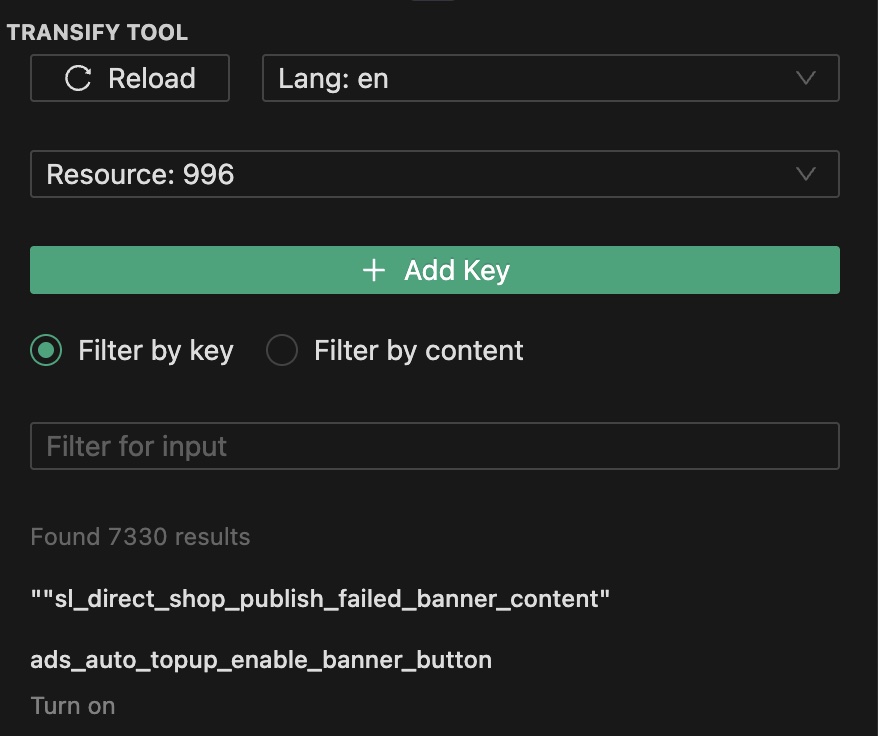
🎯 What This Extension Does
Transify V2 helps you manage translations directly in VS Code. With this extension, you can:
- 🔍 Search translations - Find translation keys and content instantly
- ➕ Add/Update keys - Create or modify translation keys without leaving your editor
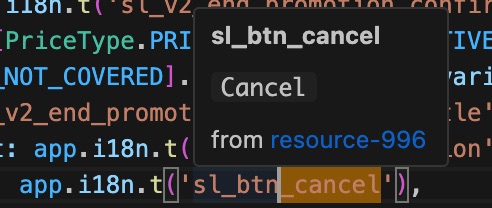
- 💡 View translations in code - Hover over translation keys to see their translations
- 📊 Sync to Google Sheets - Automatically sync translations to Google Sheets for collaboration
- 📈 Check translation completion status - Open an editor panel to check which languages are translated for keys in a Google Sheet
- 💾 Cache translations locally - Store multi-language translation data under the workspace
.transify-v2/ directory for faster loading and easier access by tooling or agents
⚡ Quick Start (Minimum Configuration)
Step 1: Get Your Token
- Visit Transify Platform
- Generate your API token
- Open User Settings
- Search for "Transify"
- Set
transify.token to your API token (e.g., Token xxxxxx)
- Set
transify.resourceProjectMap to map your resource IDs to project IDs
Example configuration:
{
  "transify.token": "Token your-transify-api-token-here",
  "transify.resourceProjectMap": {
    "Your Resource ID": "Your Project ID" // e.g. For https://transify.sea.com/projects/11/resources/996, can config "transify.resourceProjectMap":{ "996": "11" }
  }
}
That's it! You can now use the extension. Open the Transify sidebar (click the Transify icon in the Activity Bar) and start searching or adding translations.
📚 Advanced Configuration
For more advanced features, you can configure the following optional settings:
| Setting |
Description |
Example |
transify.keyPrefix |
Default key prefix for your team |
sl_ |
transify.spreadsheetId |
Google Sheets ID for syncing translations and translation status |
1abc...xyz |
transify.resourceProjectMap |
Map resource IDs to project names |
{"resourceId": "projectName"} |
transify.enableLocalCache |
Enable local translation cache under .transify-v2/ |
true |
transify.cacheTtlHours |
Cache TTL in hours |
24 |
transify.translationStatusDefaultLanguageCodes |
Default languages checked in Translation Status |
["en", "zh-CN"] |
See the Extension Settings section below for detailed configuration instructions.
🔁 UTM Migration Notes (TSP → UTM)
After migrating to UTM, many projects no longer configure legacy resources/collections in project config. Instead, you may see:
{
  "translator": {
    "utmCollections": [1452, 1466, 1326],
    "utmLazyCollections": []
  }
}
- UTM collections: this extension fetches UTM collection translations from UTM CDN (instead of legacy TSP API).
- Legacy
collections compatibility: even if some projects still use the collections field, the extension will treat it as UTM collection data during migration.
- Resources (still required for Add/Update keys): creating/updating keys still needs a Transify resource ID.
- Use
transify.resourceProjectMap to provide a resource list and correct Transify links.
- The Add Key form provides a
resourceToAdd dropdown (merged & deduped from project-loaded resources and resourceProjectMap).
- The sidebar resource selector also includes resources from
resourceProjectMap, which helps UTM-migrated projects keep resource options available after switching projects.
Note: for UTM collections, the hover link currently redirects to https://space.shopee.io/webfe/tm because we don't have the project mapping for a collection ID yet.
✨ Key Features
🔍 Intelligent Search
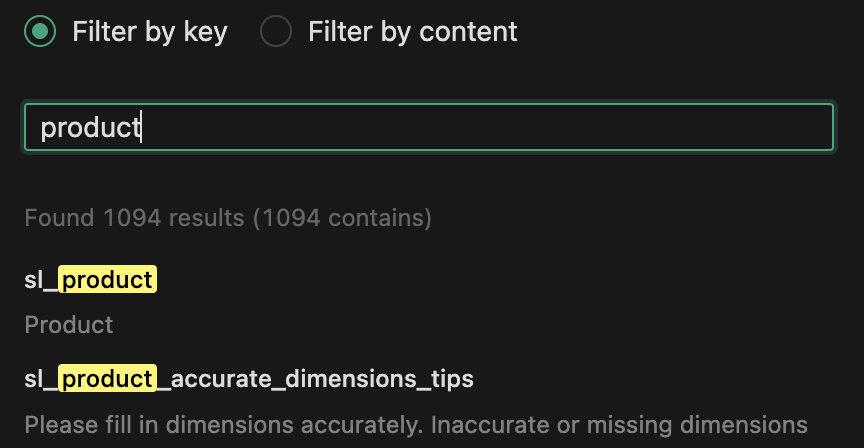
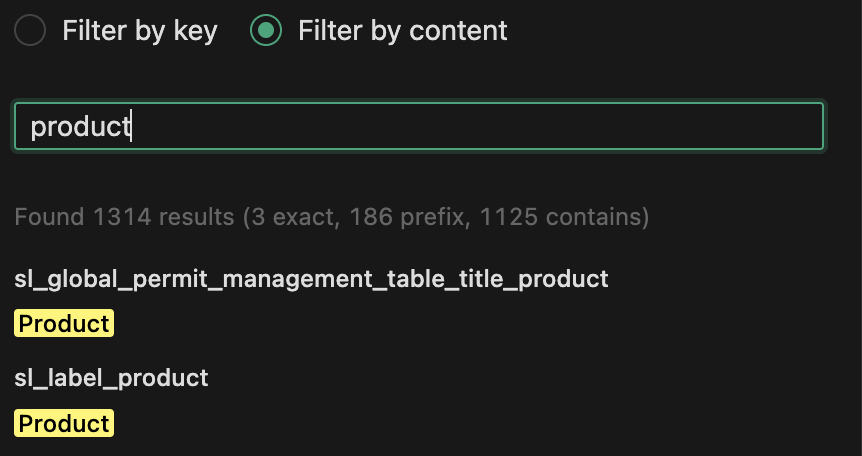
- Multi-criteria filtering: Search by language, resource ID, key name, or content
- Smart matching: Case-insensitive search with intelligent result sorting (exact > prefix > contains)
- Real-time highlighting: Keyword highlighting with visual feedback
- Match statistics: Detailed statistics showing exact, prefix, and contains matches
➕ Flexible Key Management
- Single Key Mode: Add individual translation keys with key-value pairs
- Batch Import: Import up to 50 keys at once using JSON format with real-time validation
- Plural Keys: Automatically generate plural key variants with proper suffixes (
__zero, __one, __two, __few, __many, __other)
- Smart Updates: Auto-detect existing keys for intelligent add/update operations
💡 Code Hover Integration
- Inline translations: Hover over translation keys in your code to see translations instantly
- Quick navigation: Click to open the key in Transify platform
- Multi-language support: View translations in different languages on hover
📊 Google Sheets Integration
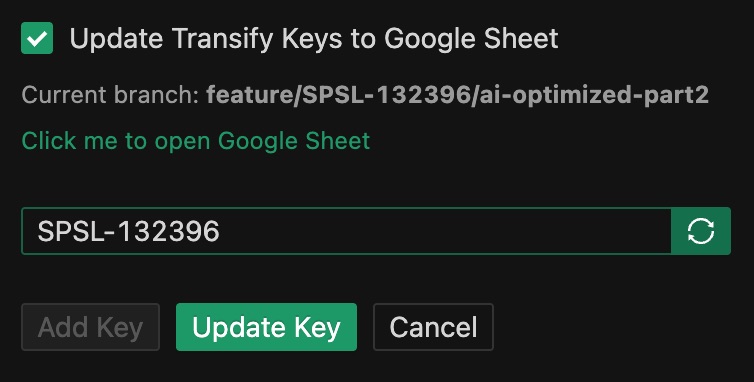
- Automatic sync: Sync translation keys to Google Sheets after creation
- Jira integration: Auto-extract Jira ID from git branch for sheet organization
- Smart navigation: Direct links to Google Sheets with proper sheet navigation
📈 Translation Status Panel
- Editor-based status view: Open a dedicated editor panel to review translation completion
- Sheet title override: Use the current branch Jira ID by default, or manually enter a different sheet title
- Language selection: Choose which languages to inspect and save them as defaults
- Translation preview: Click translated language tags to preview the translated text
- Focused review: Filter incomplete keys and expand/collapse translated or missing language groups
🎯 Multi-Project Support
- Project switching: Seamlessly switch between multiple projects/modules
- Resource mapping: Configure resource-to-project mappings for correct URL generation
- Auto-detection: Automatically detect project configurations from workspace
- Workspace-friendly paths: Show project paths relative to the current workspace in the sidebar
🌍 Multi-Language Support
- Language switching: Switch between different languages on the fly
- Language-specific search: Filter and search translations by target language
- Persistent multi-language cache: Keep local cache files for multiple languages under
.transify-v2/
💾 Local Cache
- Workspace cache directory: Store translation data under
.transify-v2/resources and .transify-v2/collections
- Per-language files: Cache translations as
{resourceOrCollectionId}_{lang}.json
- Configurable TTL: Control cache expiration via
transify.cacheTtlHours
- Remote refresh after add/update: Refresh and overwrite the related resource cache after key changes
🚀 Quick Start
Installation
- Open VS Code
- Go to Extensions view (
Ctrl+Shift+X or Cmd+Shift+X)
- Search for "Transify V2"
- Click Install
Configuration
Get your Transify Token:
Configure in VS Code:
- Open Settings (
Ctrl+, or Cmd+,)
- Search for "Transify"
- Set the following:
transify.token: Your Transify API token (required)transify.keyPrefix: Default key prefix for your team (optional, e.g., sl_)transify.spreadsheetId: Google Sheets ID for syncing and translation status (optional)transify.resourceProjectMap: Map resource IDs to project names (optional)transify.enableLocalCache: Enable local cache under .transify-v2/ (optional)transify.cacheTtlHours: Set local cache TTL in hours (optional)transify.translationStatusDefaultLanguageCodes: Set default languages checked in Translation Status (optional)
For detailed installation and configuration instructions, see the official documentation.
📖 Usage Guide
Searching Translations
- Open the Transify sidebar (click the Transify icon in the Activity Bar)
- Select your project and resource
- Enter your search term in the search box
- Filter by:
- Key: Search by translation key name
- Content: Search by translation content
- Resource: Filter by specific resource ID
Adding Translation Keys
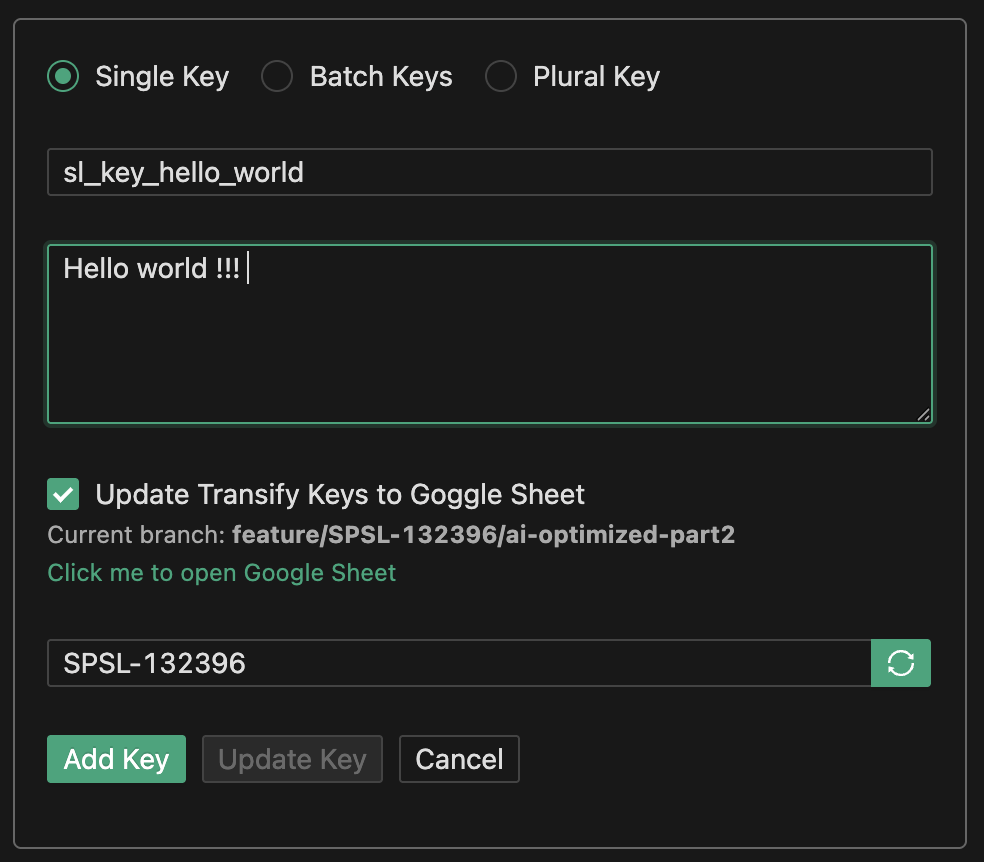
Single Key
- Click Add Key button in the sidebar
- Select "Single Key" mode
- Enter the key name and translation content
- Click Add Key or Update Key (if key exists)
Batch Import
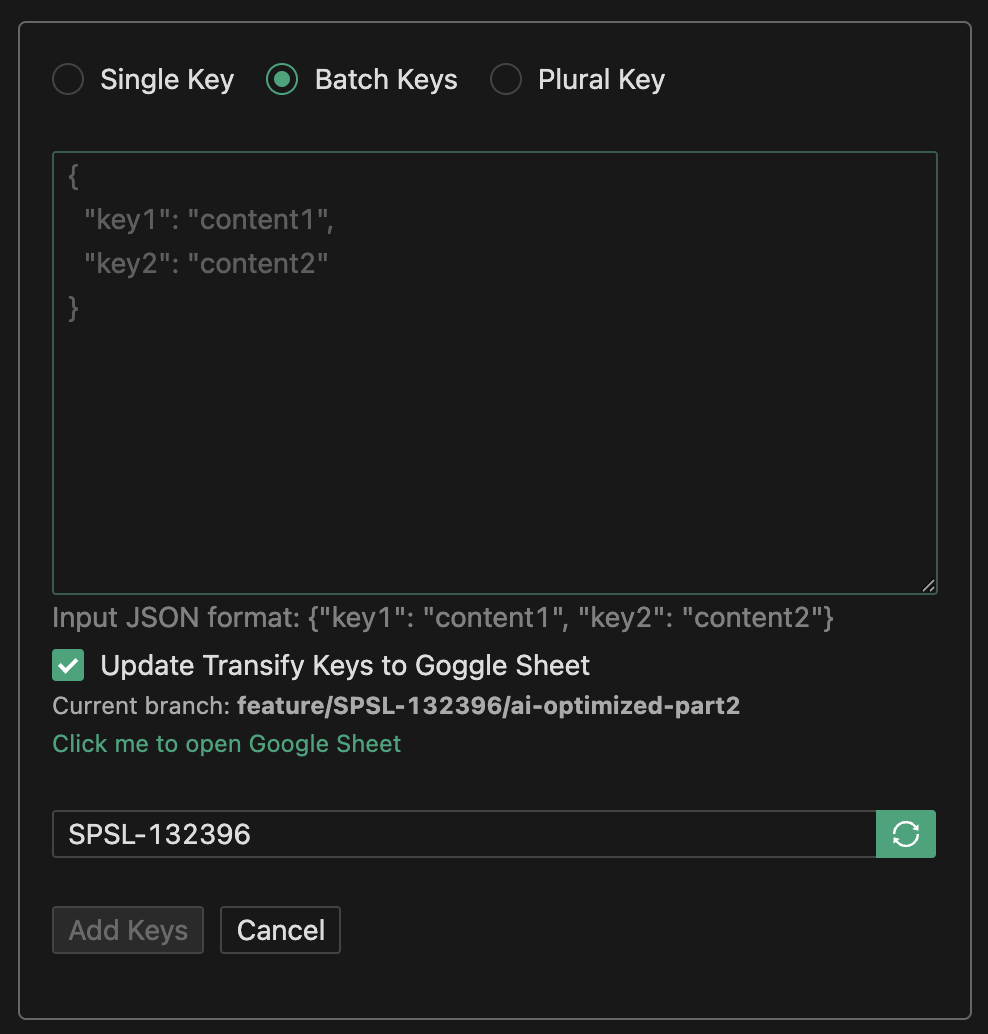
- Click Add Key button
- Select "Batch Keys" mode
- Paste your JSON in the format:
{
  "key1": "translation1",
  "key2": "translation2"
}
- The extension validates your JSON in real-time
- Click Add Keys to import (up to 50 keys per batch)
Plural Keys
- Select "Plural Key" mode
- Enter the base key name
- Fill in translations for each plural form
- The extension automatically generates keys with proper suffixes
Using Hover Feature
Simply hover over any translation key in your code to see:
- The translation content
- The resource it belongs to
- A link to open it in Transify platform
Syncing to Google Sheets
- Enable "Update Transify Keys to Google Sheet" checkbox when adding keys
- The extension automatically:
- Extracts Jira ID from your git branch
- Creates or updates the corresponding Google Sheet
- Generates direct links for easy access
Checking Requirement Translation Completion Status
- Run the command
Transify: Open Translation Status
- Select or confirm the target sheet title
- Choose the languages you want to inspect
- Click refresh to fetch the latest translation status
- Review translated and missing languages for each key
Using Local Cache
- Enable
transify.enableLocalCache
- Optionally set
transify.cacheTtlHours
- The extension stores translation data under
.transify-v2/
- When keys are added or updated, the related resource cache is refreshed automatically
⚙️ Extension Settings
| Setting |
Type |
Required |
Description |
transify.token |
string |
✅ Yes |
Your Transify API token (format: Token xxxxxx) |
transify.keyPrefix |
string |
❌ No |
Default key prefix for auto-completion (e.g., sl_) |
transify.spreadsheetId |
string |
❌ No |
Google Sheets ID for syncing translations and translation status |
transify.resourceProjectMap |
object |
❌ No |
Map resource IDs to project names: {"resourceId": "projectName"} |
transify.enableLocalCache |
boolean |
❌ No |
Enable local cache files under .transify-v2/ |
transify.cacheTtlHours |
number |
❌ No |
Local cache TTL in hours. Set 0 to expire immediately |
transify.translationStatusDefaultLanguageCodes |
array |
❌ No |
Default language codes checked in Translation Status. Leave empty to check all languages |
🎨 Screenshots
Search Interface
Search by Key
Search by Translation Content
Google Sheets Sync
📚 Documentation
🛠️ Commands
| Command |
Description |
Transify: Add Keys |
Open the add translation keys panel |
Transify: Get Keys |
Refresh and load translation keys |
Transify: Config Google Credentials |
Configure Google API credentials |
Transify: Clear Google Credentials & Token |
Clear stored Google credentials |
Transify: Open Translation Status |
Open the translation status editor panel |
🔧 Requirements
- VS Code: Version 1.58.0 or higher
- Node.js: Version 20.0.0 or higher
- Transify Account: Active account with API token
📝 Changelog
See CHANGELOG.md for detailed version history and updates.
Recent Updates
- ✅ Added local cache under
.transify-v2/ with configurable TTL
- ✅ Added Translation Status panel for checking translated and missing languages by Google Sheet
- ✅ Added default language configuration for Translation Status
- ✅ Extended migrated-project support for UTM collections and
resourceProjectMap
🤝 Contributing
This extension is maintained by the Shopee development team. For issues, feature requests, or contributions, please refer to the internal documentation or contact the maintainers.
📄 License
See LICENSE file for details.
Transify V2 - Visual Studio Code 扩展
在 VS Code 中高效管理多语言翻译,提升开发效率
🎯 插件功能
Transify V2 帮助您在 VS Code 中直接管理翻译。使用此扩展,您可以:
- 🔍 搜索翻译 - 即时查找翻译键和内容
- ➕ 添加/更新键 - 无需离开编辑器即可创建或修改翻译键
- 💡 在代码中查看翻译 - 悬停翻译键即可查看翻译内容
- 📊 同步到 Google Sheets - 自动将翻译同步到 Google Sheets 以便协作
- 📈 查看翻译完成状态 - 在编辑器面板中检查 Google Sheet 中各 key 的语言翻译完成情况
- 💾 本地缓存翻译 - 将多语言翻译数据缓存到 workspace
.transify-v2/ 目录下,提升读取速度和方便代理
⚡ 快速开始(最小配置)
步骤 1:获取 Token
- 访问 Transify 平台
- 生成您的 API token
步骤 2:配置(两个设置)
- 打开用户设置
- 搜索 "Transify"
- 将
transify.token 设置为您的 API token(例如:Token xxxxxx)
- 将
transify.resourceProjectMap 设置为资源 ID 到项目 ID 的映射
配置示例:
{
  "transify.token": "Token your-transify-api-token-here",
  "transify.resourceProjectMap": {
    "Your Resource ID": "Your Project ID" // 示例:对于 https://transify.sea.com/projects/11/resources/996, 可以配置为 "transify.resourceProjectMap":{ "996": "11" }
  }
}
完成! 现在您可以使用扩展了。打开 Transify 侧边栏(点击活动栏中的 Transify 图标)即可开始搜索或添加翻译。
📚 高级配置
如需使用更高级的功能,可以配置以下可选设置:
| 设置项 |
说明 |
示例 |
transify.keyPrefix |
团队的默认键前缀 |
sl_ |
transify.spreadsheetId |
用于同步翻译和翻译状态检查的 Google Sheets ID |
1abc...xyz |
transify.resourceProjectMap |
资源 ID 到项目名的映射 |
{"resourceId": "projectName"} |
transify.enableLocalCache |
启用 .transify-v2/ 本地缓存 |
true |
transify.cacheTtlHours |
本地缓存 TTL,单位小时 |
24 |
transify.translationStatusDefaultLanguageCodes |
Translation Status 默认检查的语言 |
["en", "zh-CN"] |
详细配置说明请参阅下面的 扩展设置 部分。
🔁 UTM 迁移说明(TSP → UTM)
迁移到 UTM 后,很多项目不再在项目配置里配置旧的 resources/collections,而是会变成:
{
  "translator": {
    "utmCollections": [1452, 1466, 1326],
    "utmLazyCollections": []
  }
}
- UTM collections:插件会从 UTM CDN 获取 UTM collection 的翻译数据(不再依赖旧的 TSP API)。
- 兼容旧
collections 字段:如果项目还没有把字段名完全迁移到 utmCollections,插件也会把旧的 collections 按 UTM collection 方式处理。
- Resources(仍然是新增/更新 key 的必需项):新增/更新翻译 key 仍需要 Transify 的 resource ID。
- 请配置
transify.resourceProjectMap 来提供可用的 resource 列表并生成正确的 Transify 链接。
- Add Key 表单新增
resourceToAdd 下拉(来自“项目已加载的 resources + resourceProjectMap 合并去重”的列表)。
- Sidebar 的 resource 下拉也会补充
resourceProjectMap 中的资源,方便已迁移项目在切换 project 后继续选择对应 resource。
说明:目前 utm collection 在 hover 的跳转链接会先指向 https://space.shopee.io/webfe/tm(暂时无法从 collectionId 反查 project 映射)。
✨ 核心功能
🔍 智能搜索
- 多条件筛选:支持按语言、资源ID、键名或内容搜索
- 智能匹配:不区分大小写的搜索,结果智能排序(精确匹配 > 前缀匹配 > 包含匹配)
- 实时高亮:关键词高亮显示,提供视觉反馈
- 匹配统计:显示精确、前缀和包含匹配的详细统计信息
➕ 灵活的键管理
- 单个键模式:添加单个翻译键值对
- 批量导入:使用 JSON 格式一次性导入最多 50 个键,支持实时验证
- 复数键:自动生成复数键变体,包含正确的后缀(
__zero、__one、__two、__few、__many、__other)
- 智能更新:自动检测已存在的键,智能执行添加或更新操作
💡 代码悬停集成
- 内联翻译:在代码中悬停翻译键即可即时查看翻译内容
- 快速导航:点击即可在 Transify 平台中打开该键
- 多语言支持:在悬停时查看不同语言的翻译
📊 Google Sheets 集成
- 自动同步:创建翻译键后自动同步到 Google Sheets
- Jira 集成:从 git 分支自动提取 Jira ID 用于表格组织
- 智能导航:直接链接到 Google Sheets,支持正确的表格导航
📈 Translation Status 面板
- 编辑器面板查看:在独立的编辑器面板中检查翻译完成情况
- Sheet title 可覆盖:默认使用当前分支对应的 Jira ID,也支持手动输入其他 sheet title
- 语言可选:支持选择需要检查的语言,并保存为默认值
- 翻译文案预览:点击已翻译语言标签即可查看对应翻译内容
- 聚焦未完成项:支持只看未完成翻译的 key,并展开/收起已翻译和缺失语言列表
🎯 多项目支持
- 项目切换:在多个项目/模块之间无缝切换
- 资源映射:配置资源到项目的映射,生成正确的 URL
- 自动检测:从工作区自动检测项目配置
- 相对路径展示:在 sidebar 中优先展示相对当前 workspace 的 project 路径
🌍 多语言支持
- 语言切换:随时切换不同语言
- 按语言搜索:按目标语言筛选和搜索翻译
- 多语言本地缓存:支持为多种语言分别保留
.transify-v2/ 缓存文件
💾 本地缓存
- 工作区缓存目录:翻译数据保存在
.transify-v2/resources 和 .transify-v2/collections
- 按语言分文件:缓存文件命名为
{resourceOrCollectionId}_{lang}.json
- TTL 可配置:通过
transify.cacheTtlHours 控制缓存过期时间
- 新增/更新后自动刷新:在新增或更新 key 后,会自动刷新并覆盖对应 resource 的本地缓存
📖 使用指南
搜索翻译
- 打开 Transify 侧边栏(点击活动栏中的 Transify 图标)
- 选择您的项目和资源
- 在搜索框中输入搜索词
- 按以下方式筛选:
- 键:按翻译键名搜索
- 内容:按翻译内容搜索
- 资源:按特定资源 ID 筛选
添加翻译键
单个键
- 点击侧边栏中的 Add Key 按钮
- 选择 "Single Key" 模式
- 输入键名和翻译内容
- 点击 Add Key 或 Update Key(如果键已存在)
批量导入
- 点击 Add Key 按钮
- 选择 "Batch Keys" 模式
- 粘贴 JSON 格式的数据:
{
  "key1": "translation1",
  "key2": "translation2"
}
- 扩展会实时验证您的 JSON
- 点击 Add Keys 导入(每批最多 50 个键)
复数键
- 选择 "Plural Key" 模式
- 输入基础键名
- 填写每个复数形式的翻译
- 扩展会自动生成带有正确后缀的键
使用悬停功能
只需在代码中悬停任何翻译键即可查看:
- 翻译内容
- 所属资源
- 在 Transify 平台中打开的链接
同步到 Google Sheets
- 添加键时勾选 "Update Transify Keys to Google Sheet"
- 扩展会自动:
- 从 git 分支提取 Jira ID
- 创建或更新相应的 Google Sheet
- 生成直接链接以便访问
查看对应需求翻译完成状态 Translation Status
- 执行指令
Transify: Open Translation Status
- 选择或确认目标 sheet title
- 选择需要检查的语言
- 点击刷新获取最新翻译状态
- 查看每个 key 的已翻译语言和缺失语言
使用本地缓存
- 启用
transify.enableLocalCache
- 按需配置
transify.cacheTtlHours
- 插件会将翻译数据保存到
.transify-v2/
- 当新增或更新 key 时,对应 resource 缓存会自动刷新
⚙️ 扩展设置
| 设置项 |
类型 |
必填 |
说明 |
transify.token |
string |
✅ 是 |
您的 Transify API token(格式:Token xxxxxx) |
transify.keyPrefix |
string |
❌ 否 |
自动补全的默认键前缀(例如:sl_) |
transify.spreadsheetId |
string |
❌ 否 |
用于同步翻译和 Translation Status 的 Google Sheets ID |
transify.resourceProjectMap |
object |
❌ 否 |
将资源 ID 映射到项目名称:{"resourceId": "projectName"} |
transify.enableLocalCache |
boolean |
❌ 否 |
是否启用 .transify-v2/ 本地缓存文件 |
transify.cacheTtlHours |
number |
❌ 否 |
本地缓存 TTL,单位小时;设置为 0 表示立即过期 |
transify.translationStatusDefaultLanguageCodes |
array |
❌ 否 |
Translation Status 默认检查的语言 code;留空表示检查全部语言 |
🎨 截图
搜索界面
按键名搜索
按翻译内容搜索
Google Sheets 同步
📚 文档
🛠️ 命令
| 命令 |
说明 |
Transify: Add Keys |
打开添加翻译键面板 |
Transify: Get Keys |
刷新并加载翻译键 |
Transify: Config Google Credentials |
配置 Google API 凭据 |
Transify: Clear Google Credentials & Token |
清除存储的 Google 凭据 |
Transify: Open Translation Status |
打开 Translation Status 编辑器面板 |
🔧 系统要求
- VS Code:版本 1.58.0 或更高
- Node.js:版本 20.0.0 或更高
- Transify 账户:具有 API token 的有效账户
📝 更新日志
查看 CHANGELOG.md 了解详细的版本历史和更新内容。
最近更新
- ✅ 新增
.transify-v2/ 本地缓存,并支持 TTL 配置
- ✅ 新增 Translation Status 面板,用于检查 Google Sheet 中各语言翻译状态
- ✅ 支持为 Translation Status 配置默认检查语言
- ✅ 增强 UTM collections 和
resourceProjectMap 的迁移兼容能力
🤝 贡献
本扩展由 Shopee 开发团队维护。如有问题、功能请求或贡献,请参阅内部文档或联系维护者。
📄 许可证
详情请参阅 LICENSE 文件。

