Skip to content
| Marketplace
Sign in
Visual Studio Code>Themes>Mint Breeze ThemeNew to Visual Studio Code? Get it now.
Mint Breeze Theme

Mint Breeze Theme

lilin

|
1 install
| (0) | Free
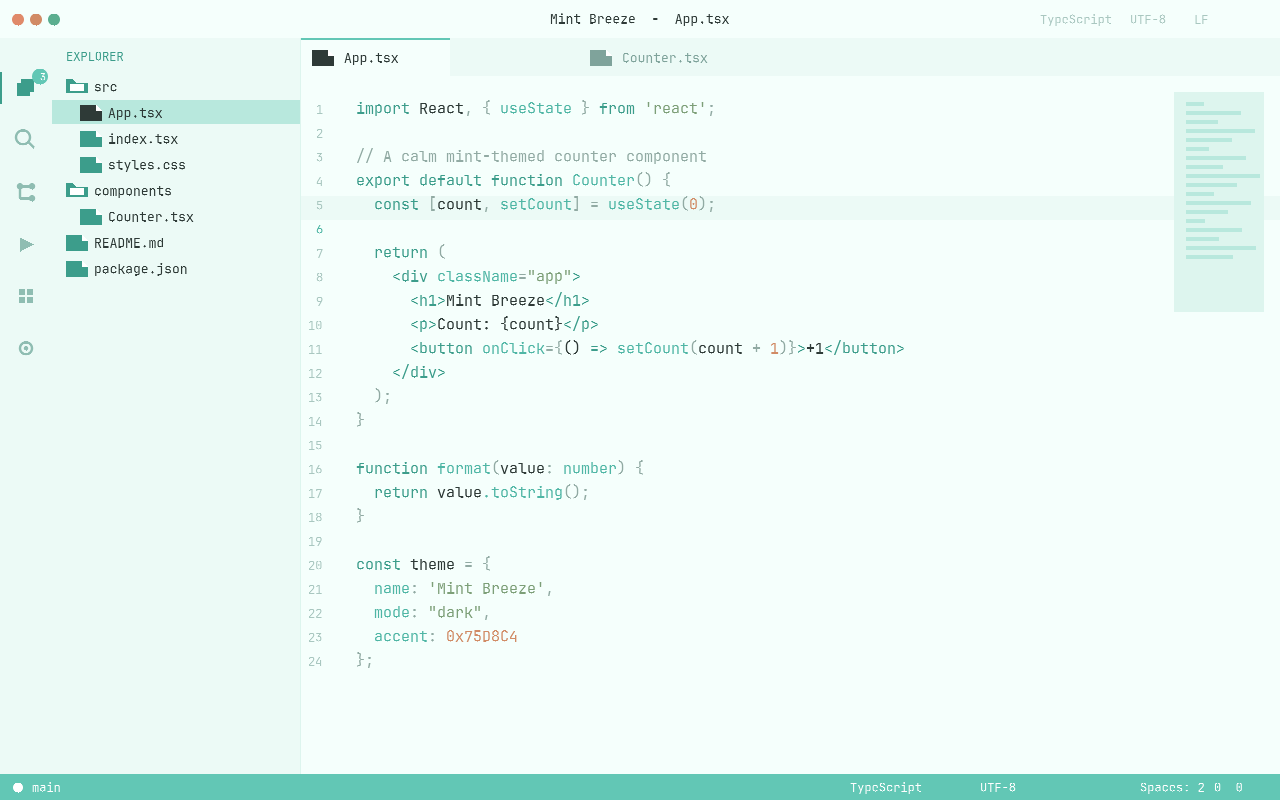
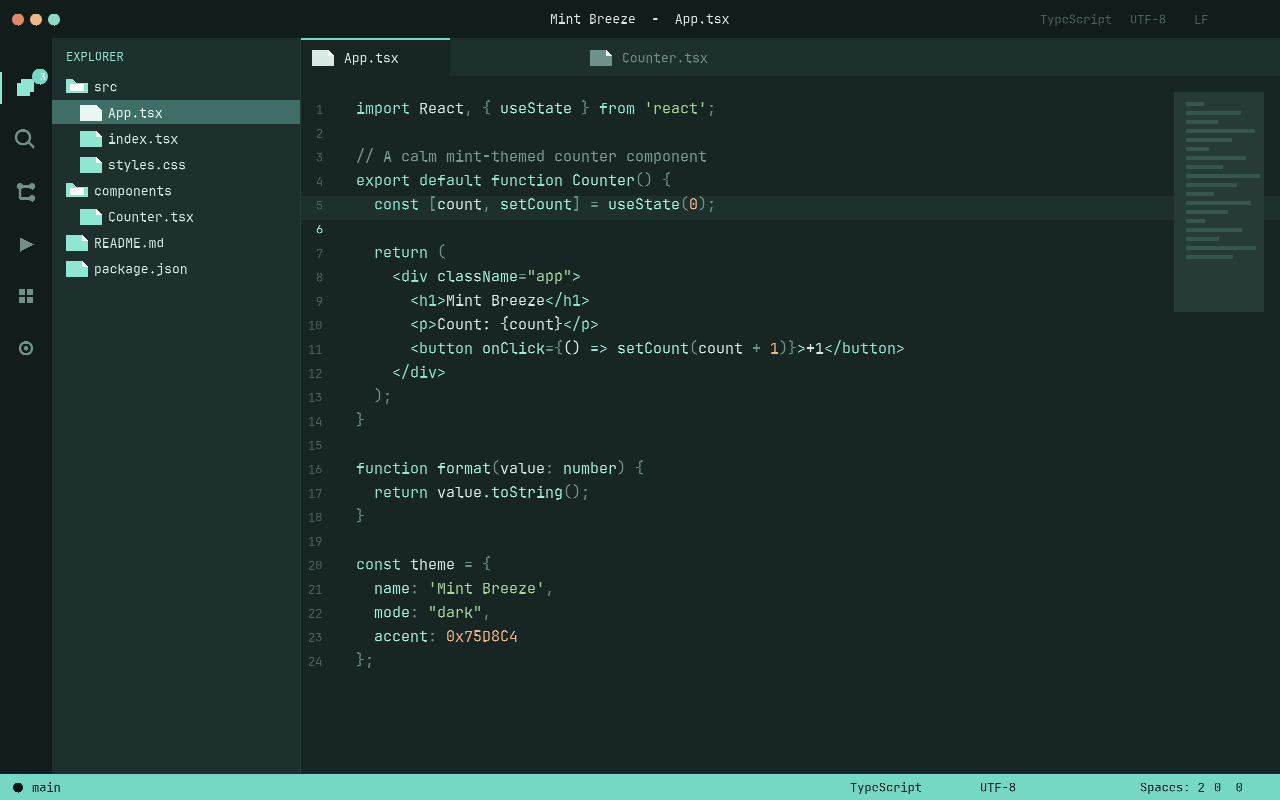
A fresh, soft and premium mint-green color theme for VS Code with light and dark modes for calm, focused creative coding.
Installation
Launch VS Code Quick Open (Ctrl+P), paste the following command, and press enter.
Copied to clipboard
More Info
Mint Breeze Theme icon

Mint Breeze Theme

Visual Studio Marketplace GitHub

A fresh, soft and premium mint-green color theme for Visual Studio Code.

Inspired by mint leaves, clean morning air and modern minimal workspaces, Mint Breeze is designed for AI developers, frontend developers, designers and indie hackers who want a calm, focused and aesthetic programming environment.

Installation

  1. Open the Extensions sidebar (Ctrl+Shift+X).
  2. Search for Mint Breeze Theme.
  3. Click Install.
  4. Open the Command Palette (Ctrl+Shift+P) → Preferences: Color Theme → choose Mint Breeze Light or Mint Breeze Dark.

Or install directly from the Visual Studio Marketplace.

Themes

Mint Breeze Light Mint Breeze Dark
Fresh morning palette with a soft mint-white background. Ideal for bright daylight coding. Deep ocean teal workspace with a soft mint glow. Comfortable for long night-coding sessions.
Mint Breeze Light Mint Breeze Dark

Features

  • Two carefully tuned variants: Light and Dark
  • Fresh mint inspired color palette with semantic highlighting
  • Optimized for JavaScript, TypeScript, React/JSX, HTML, CSS, JSON, Python and Markdown
  • Customized workbench UI: editor, activity bar, side bar, tabs, panels, status bar, terminal, git decorations and notifications
  • Premium, minimal interface
  • Low-contrast, eye-friendly design for long coding sessions

Quick Theme Switch

Press Ctrl+K Ctrl+T (or Cmd+K Cmd+T on macOS) to open the color theme picker instantly.

License

This theme is released under the Non-Commercial License. See LICENSE.md for details.


Made with calm by Li Lin Huang

  • Contact us
  • Jobs
  • Privacy
  • Manage cookies
  • Terms of use
  • Trademarks
© 2026 Microsoft