
Emerald Clear Theme




A clean editor theme built around emerald and teal accents on neutral gray surfaces. Two coordinated variants share one palette, so the workspace keeps the same calm, low-noise character in light and dark mode.
一套以祖母绿与青绿为强调色、中性灰为底色的清爽主题:明暗两套变体共享同一色板,切换时保持同样安静、低噪音的观感。
Preview / 预览
| Light 浅色 |
Dark 深色 |
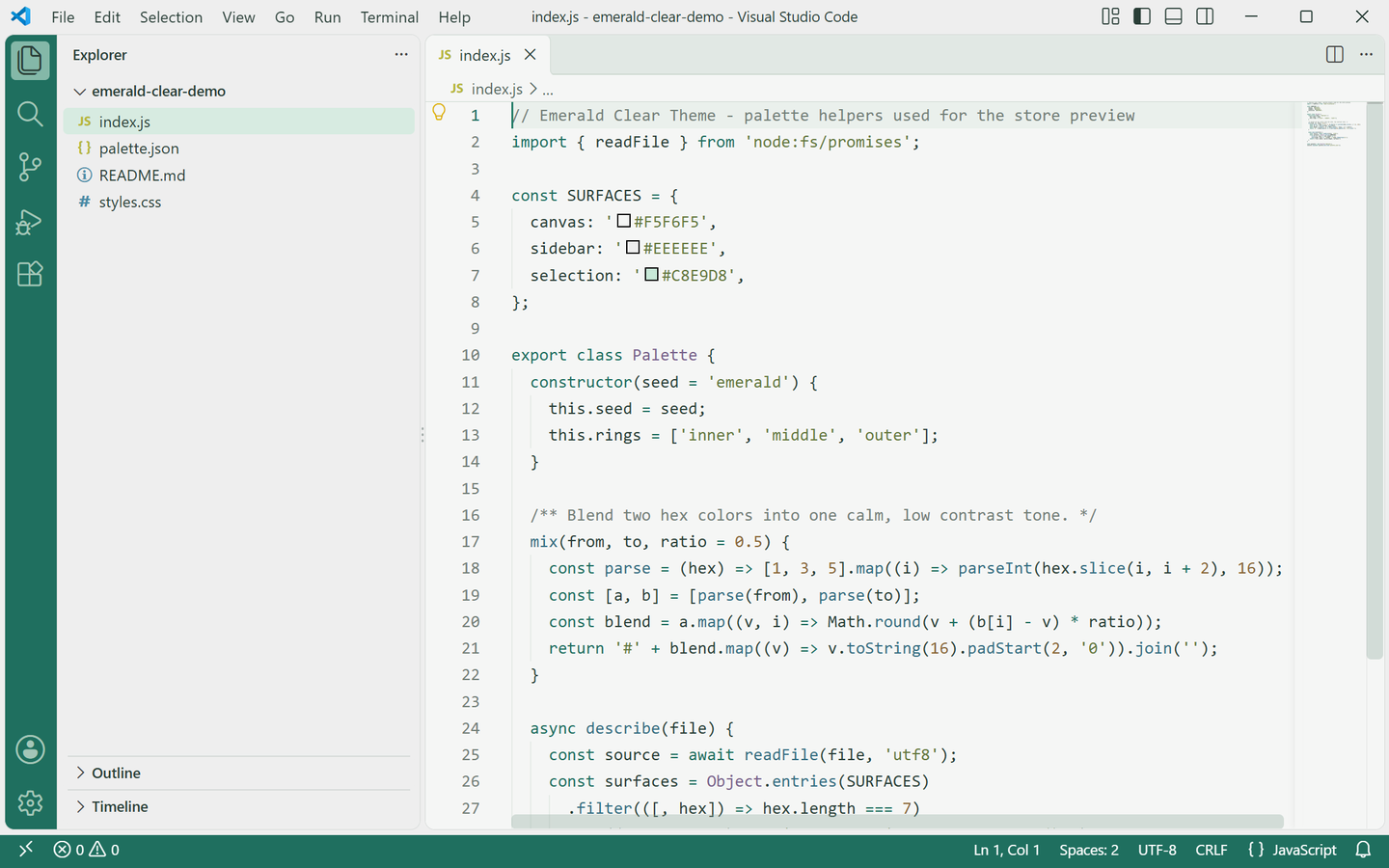 |
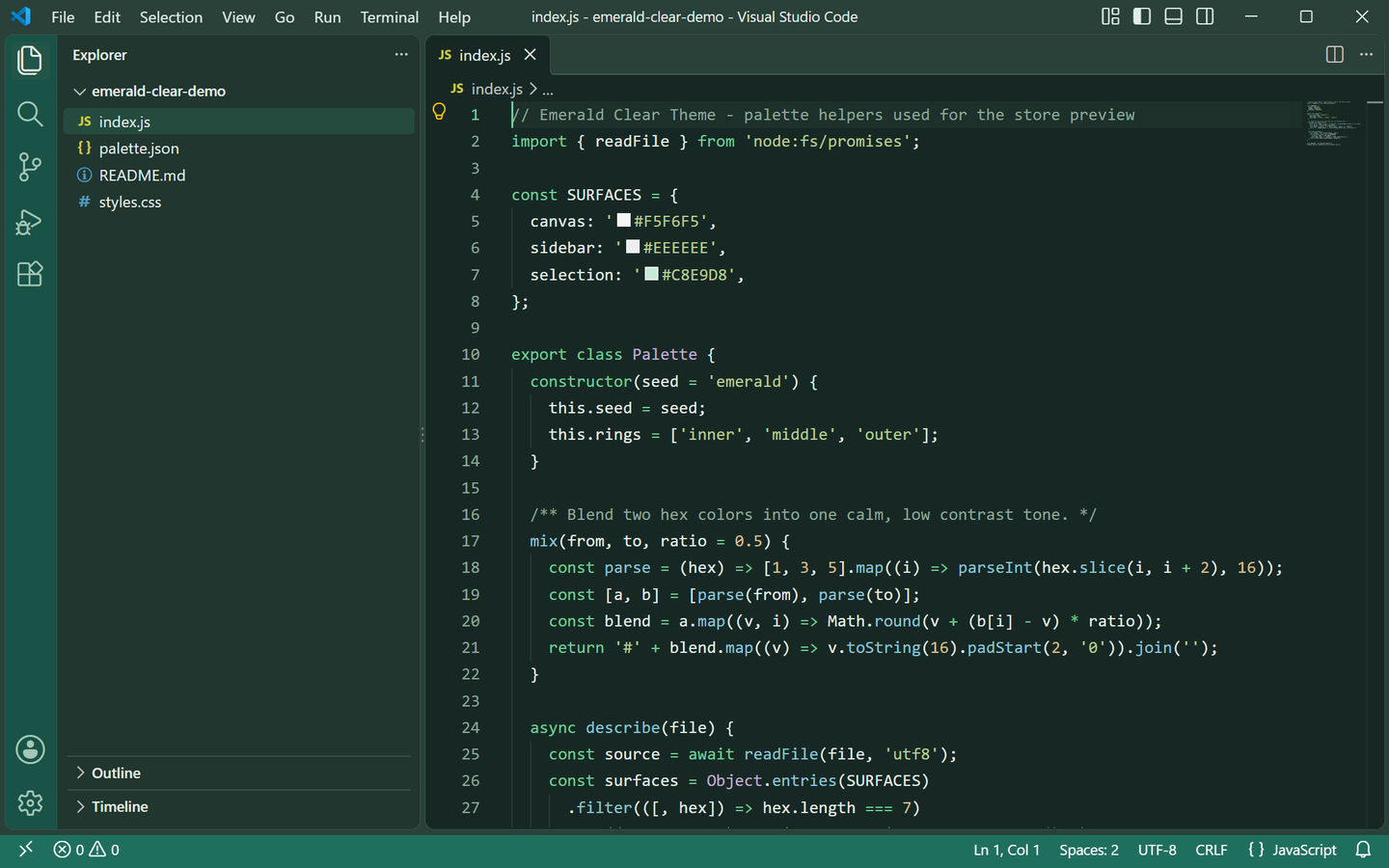 |
Both previews are captured from a real VS Code window running the theme — no mockups.
上方预览图取自真实运行该主题的 VS Code 窗口截图,非模拟图。
Palette / 色板
| Role |
Light |
Dark |
| Editor background |
#F5F6F5 mist white |
#172824 deep forest |
| Foreground |
#293E37 deep pine |
#E3ECE7 pale mist |
| Side bar / panel |
#EEEEEE neutral gray |
#20362F forest |
| Title bar |
#EEEEEE |
#294139 |
| Tabs (bar / inactive tab) |
#E1E8E4 |
#294139 |
| Selection |
#C8E9D8 mint |
#285747 teal shadow |
| Current line |
#EAF0EC |
#1D302A |
| Borders / indent guides |
#CED9D1 |
#415B4E |
| Activity bar |
#1F6F5F with light icons |
#195247 with light icons |
| Status bar |
#1F6F5F with white text |
#1F6F5F with white text |
| Button |
#247D68 white text (hover #1F6F5F) |
#6FCF97 with #172824 text (hover #8BDCAB) |
| Badge |
#6FCF97 on #172824 |
#6FCF97 on #172824 |
| Cursor |
#247D68 |
#6FCF97 |
| Progress bar |
#2FA084 |
#2FA084 |
| Links |
#346E83 (active #1F6F5F) |
#8BC5D4 (active #6FCF97) |
| Errors / warnings |
#AB4858 / #8A6736 |
#E69DA8 / #EAC18C |
Both variants are built from the same roles, so switching between them changes the light level rather than the identity: emerald #6FCF97, teal #2FA084 and deep teal #1F6F5F carry the accent work in both.
两套变体的角色色一一对应,切换时改变的是明暗而非风格:祖母绿 #6FCF97、青绿 #2FA084 与深青 #1F6F5F 在明暗两版中承担全部强调色。
Syntax mapping / 语法映射
| Syntax |
Light |
Dark |
| Comments |
#738078 |
#8CA69A |
| Keywords / storage / tags / headings |
#1F6F5F deep teal |
#6FCF97 emerald |
| Strings |
#65783D olive |
#B8CD91 sage |
| Numbers / constants |
#8A6736 amber brown |
#D9BE8B sand |
| Types / classes |
#77618B orchid |
#C1ACD3 lilac |
| Functions / methods |
#346E83 slate blue |
#8BC5D4 ice |
| Attributes |
#8A6736 |
#EAC18C |
| Variables |
#293E37 |
#E3ECE7 |
| Invalid |
#AB4858 |
#E69DA8 |
Keywords stay emerald, strings stay green and numbers stay warm, so a file still reads as "emerald clear" after switching variants.
关键字始终保持祖母绿、字符串保持绿色、数字保持暖调,切换变体后整个文件依然是同一份「祖母绿清爽」气质。
Coverage / 覆盖范围
Every surface below is themed in both variants:
- Editor — background, foreground, selection and inactive selection, current-line highlight, find match and find highlight, bracket-match background and border, cursor, line numbers (plus the active line number), indent guides, whitespace, errors, warnings and info.
- Workbench chrome — activity bar and its badge, title bar (active and inactive), side bar and its border, status bar (normal, no-folder and debugging states), editor group header and tabs (active, inactive, border and active top border).
- Panels and overlays — panel, editor widgets, hover widget, suggest widget, dropdowns, inputs and placeholder text, notifications, quick input, and the focus border.
- Lists — active, inactive and hover selection backgrounds, plus the highlight color.
- Terminal — background, foreground and the full 16-color ANSI palette, matched to the theme.
- Details — workbench borders, scrollbar sliders, git decoration colors (added / modified / deleted), buttons and badges, and semantic token colors for function, method, class, type, string, number, keyword and comment.
Diff editor, peek view, breadcrumbs, minimap, debug toolbar and the settings UI are intentionally left to VS Code's defaults.
以下区域在两套变体中均已配色:编辑器本体(选区、当前行、查找匹配、括号匹配、光标、行号、缩进线、空白符、错误/警告/提示)、活动栏与角标、标题栏、侧边栏、状态栏(含无文件夹与调试态)、标签栏,以及面板与各类浮窗(悬停、建议、通知、快速输入)、下拉与输入框、列表选中/悬停、全部边框与滚动条、Git 装饰色、终端 ANSI 全色,以及函数/方法/类/类型/字符串/数字/关键字/注释的语义高亮。差异编辑器、peek 视图、面包屑、缩略图、调试工具栏与设置界面保留 VS Code 默认样式。
Features / 功能
Two coordinated variants — Emerald Clear Theme Light and Emerald Clear Theme Dark ship in one extension.
One emerald palette — neutral gray surfaces with emerald and teal accents running through the editor, side bar, activity bar, status bar and terminal.
Readable syntax colors — deep teal keywords, olive strings, amber numbers and orchid types, tuned for contrast on both backgrounds.
Semantic highlighting enabled, so language-aware tokens are colored beyond the classic TextMate scopes.
Terminal ANSI colors taken from the same palette, so the integrated terminal sits inside the theme.
明暗两套协调变体——同一扩展内含 Emerald Clear Theme Light 与 Emerald Clear Theme Dark。
一套祖母绿色板——中性灰底色搭配祖母绿与青绿强调色,贯穿编辑器、侧边栏、活动栏、状态栏与终端。
可读的语法配色——深青关键字、橄榄绿字符串、琥珀数字、兰紫类型,在明暗底色上均保持对比。
启用语义高亮,在传统 TextMate scope 之外为语言感知的 token 着色。
终端 ANSI 配色取自同一色板,集成终端与主题融为一体。
Installation / 安装
Requires VS Code 1.80 or newer.
- Search for Emerald Clear Theme in the Extensions view (
Ctrl+Shift+X / Cmd+Shift+X), or open the Marketplace page.
- Or install from a VSIX: download
emerald-clear-theme-1.0.0.vsix, open the Command Palette (Ctrl+Shift+P / Cmd+Shift+P) and run Extensions: Install from VSIX....
需要 VS Code 1.80 或更高版本。
- 在扩展面板(
Ctrl+Shift+X / Cmd+Shift+X)搜索 Emerald Clear Theme,或打开 Marketplace 页面。
- 也可以从 VSIX 安装:下载
emerald-clear-theme-1.0.0.vsix,打开命令面板(Ctrl+Shift+P / Cmd+Shift+P),运行 Extensions: Install from VSIX... 并选择该文件。
Or from the command line:
或使用命令行:
ext install lilinhuang.emerald-clear-theme
Activation / 启用
Open the Command Palette (Ctrl+Shift+P / Cmd+Shift+P), run Preferences: Color Theme, and choose Emerald Clear Theme Light or Emerald Clear Theme Dark.
To switch between the two variants quickly, use the keyboard shortcut Ctrl+K Ctrl+T at any time.
打开命令面板(Ctrl+Shift+P / Cmd+Shift+P),运行 Preferences: Color Theme,选择 Emerald Clear Theme Light 或 Emerald Clear Theme Dark。
随时可用快捷键 Ctrl+K Ctrl+T 在两套变体之间快速切换。
Development / 开发
Open this folder in VS Code and press F5 to launch an Extension Development Host with the theme loaded. Regenerate the real-window preview screenshots with:
在 VS Code 中打开本文件夹并按 F5,在扩展开发宿主中预览主题。重新生成真实窗口预览图:
python3 scripts/capture-real-screenshots.py
The script builds a throwaway VS Code profile, installs this theme into it, opens the sample project under scripts/demo-project and captures the window for both variants into store-assets/screenshots/en/.
脚本会临时创建一个独立的 VS Code 配置目录,把本主题装进去,打开 scripts/demo-project 示例工程,并把两套变体的窗口截图输出到 store-assets/screenshots/en/。
License / 许可
Released under the Non-Commercial License — licensed for personal, educational and non-commercial use. See LICENSE for details.
基于 Non-Commercial License(非商业使用许可) 发布,可用于个人、教育及非商业用途,详见 LICENSE。
Feedback / 反馈
Found an unthemed area or want a tweak? Open an issue at github.com/vaxicy/emerald-clear-theme/issues.
发现没有配色的区域或想调整某处颜色,欢迎在 GitHub Issues 反馈。
Publisher / 发布者
Published by lilinhuang on the Visual Studio Code Marketplace.

