Leadlens
Email preview and linting for Adobe Marketo Engage, inside VS Code.




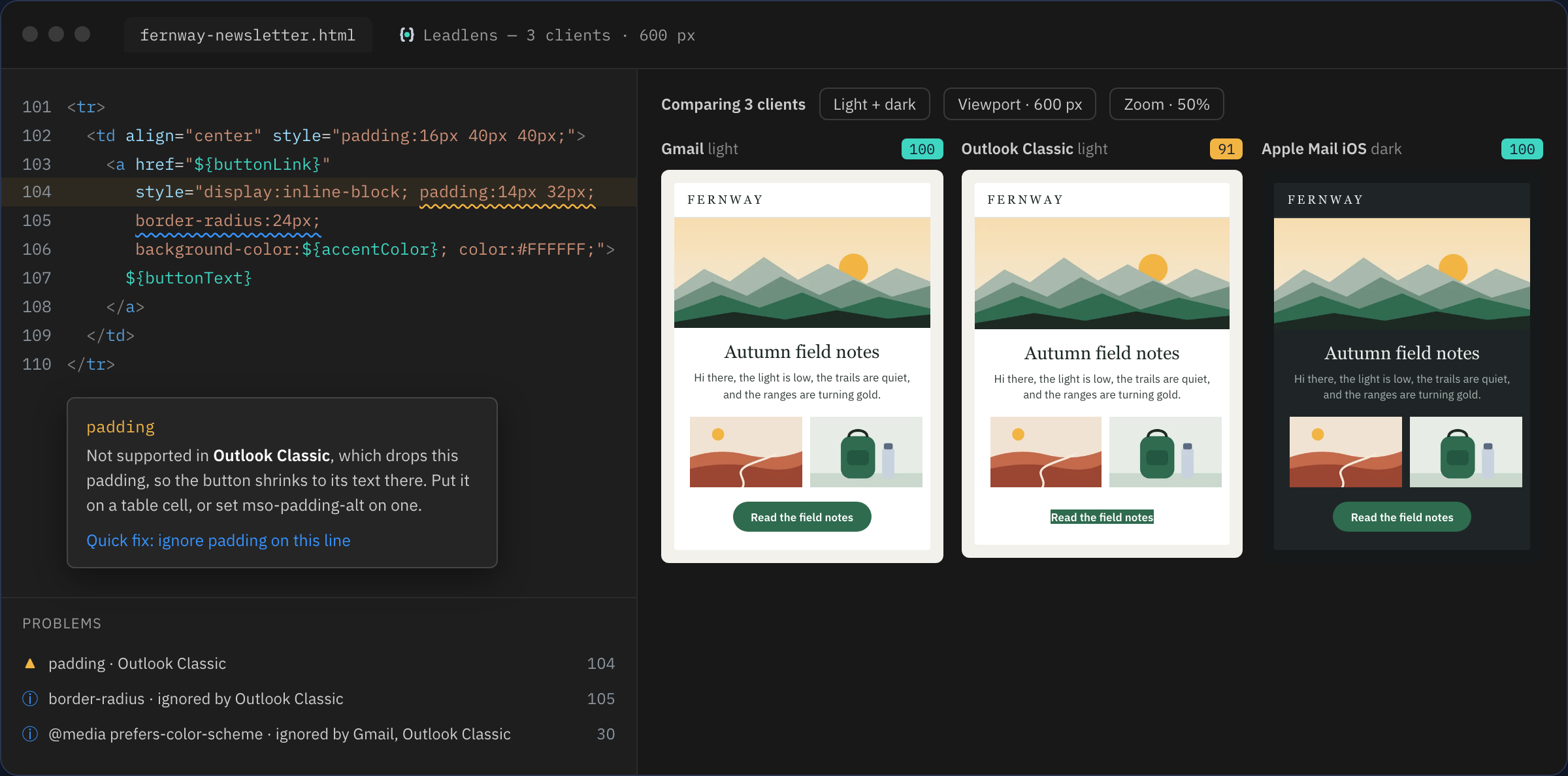
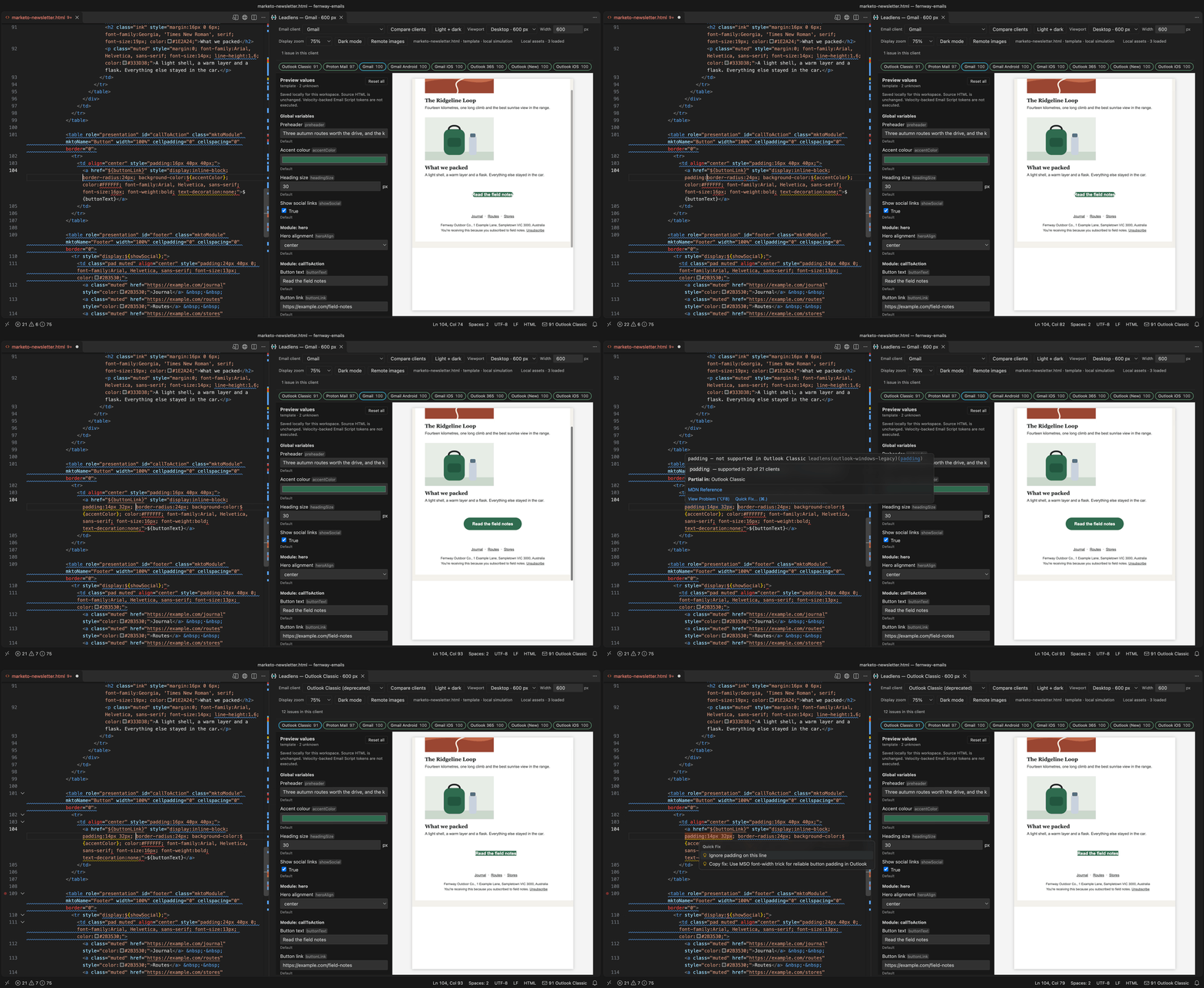
Leadlens shows how your email will look across 21 email clients as you type, flags what will break before it ships, and understands Marketo Email Editor 2.0, including variables, modules, editable regions and tokens. You get answers about your actual template, not false alarms about Marketo syntax.
- Live previews across 21 clients in light and dark mode, side by side.
- Built for Email Editor 2.0: templates, complete emails and standalone components, with local preview values.
- Linting where you write: problems appear in the editor, with explanations on hover and one-click fixes.
- Private by default: everything runs locally, and remote images stay off until you allow them.
Install
Install Leadlens from the Visual Studio Marketplace: search for Leadlens in the Extensions view, or run ext install leadlens.leadlens from Quick Open (Ctrl+P, or Cmd+P on a Mac). It needs VS Code 1.90 or later, and updates install automatically.
In Cursor, VSCodium, Windsurf and other editors that use Open VSX, search for Leadlens in the same way.
To install from a file instead, download leadlens.vsix and choose ⋯ → Install from VSIX… in the Extensions view. Every build is kept on the releases page.
The documentation covers every feature in detail.
Getting started
- Open an HTML email, template or component.
- Run Leadlens: Open Preview to the Side from the Command Palette, or click the preview button in the editor title bar.
- Edit as normal. The preview and the Problems panel update as you type.
Previews
Leadlens simulates how each client treats your HTML and CSS: which styles survive, how Outlook's rendering engine handles conditional comments and VML, and how dark mode recolours the design.
- 21 clients: Gmail (web, Android, iOS), Outlook (Classic, New, 365, Mac, iOS, Android), Apple Mail (macOS, iOS), Yahoo Mail (web, Android, iOS), Samsung Mail, Thunderbird, HEY, Proton Mail, AOL Mail, Fastmail and Superhuman.
- Compare up to four clients side by side, or one client in light and dark mode.
- Viewport and zoom: mobile and desktop presets from 320 to 768 px, any custom width from 240 to 1,600 px, and 50–150% zoom.
- Client sets: save the combinations you check most often and switch between them in one click.
- Local images: images referenced by relative paths in your workspace appear in the preview.
Previews are simulations based on each client's documented behaviour, not screenshots from the real apps.
Marketo Email Editor 2.0
Leadlens recognises Marketo syntax automatically, and leaves ordinary HTML and other template languages alone.
- Variables: String, List, Number, Color, Boolean, HTML and Image declarations, including module-scoped values. Set local preview values to see the template with different content.
- Tokens: fallback values are applied. Tokens that only Marketo can resolve at send time are clearly marked as unresolved; Leadlens never invents recipient or program data.
- Structure: declarations, variable references, containers, modules and editable regions are validated, with errors reported at the exact line.
- Components in templates: build custom HTML in its own file, then run Leadlens: Preview Component in Marketo Template to see it inside a template's editable region.
- Prepared HTML: Leadlens: Open Prepared Marketo HTML shows the exact HTML the preview renders after local substitutions. It's read-only, and your source file is never changed.
- Navigation: variables, containers, modules and editable regions appear in the Outline view and breadcrumbs. Hover for details, and use Go to Definition to jump from a variable to its declaration.
- Completions: type
${ for the variables a template declares, or <mkto inside <head> to insert a complete variable declaration.
Email Script (Velocity) tokens are not executed; Leadlens uses only the local values and fallbacks you provide. If an inherited file is detected as the wrong kind of content, set leadlens.marketo.context to template, email, fragment or generic.
Linting
Problems appear inline and in the Problems panel as you type, or on save if you prefer.
- What's checked: HTML and CSS support in each client, Outlook VML, styles that clients strip, accessibility, links, images, spam signals, size and Gmail clipping, overflow, dark- and mobile-mode contrast, and template variables.
- Hovers explain which clients support a CSS property and what happens in the ones that don't.
- Quick fixes repair common problems. Leadlens: Fix All Problems applies every safe fix at once, and also runs on save if you add
source.fixAll.leadlens to editor.codeActionsOnSave. Fixes preserve Marketo syntax, conditional comments and VML.
- Scores: the status bar shows your lowest-scoring client, and Leadlens: Show Full Report gives the per-client breakdown.
- Linked stylesheets: local
<link rel="stylesheet"> files are analysed together with the email, and findings are reported in the stylesheet itself.
Commands
| Command |
What it does |
| Leadlens: Open Preview to the Side |
Opens the live preview next to your editor. |
| Leadlens: Lint This Email |
Lints the current file now. |
| Leadlens: Show Full Report |
Shows per-client scores and every finding. |
| Leadlens: Fix All Problems |
Applies every safe automatic fix. |
| Leadlens: Open Prepared Marketo HTML |
Opens the locally resolved HTML used by the preview. |
| Leadlens: Preview Component in Marketo Template |
Previews the current component inside a chosen template. |
| Leadlens: Clear Component Template Preview |
Returns a component to standalone preview. |
Settings
| Setting |
Default |
Description |
leadlens.enable |
true |
Lint HTML and MJML emails. |
leadlens.include |
**/*.html, **/*.htm, **/*.mjml |
Files to lint. Narrow this in projects that also contain non-email HTML. |
leadlens.run |
onType |
Lint as you type (onType) or when you save (onSave). |
leadlens.clients |
all |
The client IDs to report on, such as gmail-web or outlook-windows-legacy. |
leadlens.skip |
none |
Check categories to skip, such as spam or images. |
leadlens.rules |
none |
Severity per rule: error, warning, info or off. |
leadlens.maxOccurrencesPerRule |
20 |
The most underlines shown for one rule. |
leadlens.marketo.context |
auto |
How to interpret HTML: auto, template, email, fragment or generic. |
leadlens.preview.defaultClient |
gmail-web |
The client the preview opens on. |
leadlens.preview.loadRemoteImages |
false |
Load images hosted elsewhere. Off by default, because loading them can trigger tracking pixels. |
leadlens.resolveStylesheetLinks |
true |
Analyse local linked stylesheets together with the email. |
Sharing settings with a team
Commit a .leadlensrc file to your project, or add a leadlens key to package.json. It overrides editor settings for the fields it sets:
{
  "clients": ["gmail-web", "outlook-windows-legacy", "apple-mail-ios"],
  "skip": ["spam"],
  "rules": { "insecure-link": "error", "letter-spacing": "off" }
}
Silencing a finding
When a finding is deliberate, silence it in the file and give a reason after --:
<!-- leadlens-disable-next-line border-radius -- Outlook is handled by the VML button -->
leadlens-disable-line and leadlens-disable-file work the same way, and leadlens-disable / leadlens-enable silence a range. Inside <style> blocks and stylesheets, use /* … */ comments. The quick fix menu can insert the right comment for you.
MJML
.mjml files are compiled with the mjml package installed in your workspace, then previewed and linted like HTML. Because compiling runs code from the workspace, MJML support is only available in trusted workspaces.
Privacy
Leadlens has no telemetry and makes no network requests of its own. Remote images in the preview are blocked until you turn on leadlens.preview.loadRemoteImages, so previewing an email never tells its sender that it was opened.
Acknowledgements
Leadlens is built on the open-source Emailens engine, used under the MIT licence, and its compatibility data draws on caniemail.com. Licences for every open-source component bundled with Leadlens are included in THIRD_PARTY_NOTICES.md, installed with the extension.
Adobe and Marketo are either registered trademarks or trademarks of Adobe in the United States and/or other countries. Leadlens is not authorized, endorsed or sponsored by Adobe.

