JustyBase SQL Editor for Microsoft SQL Server
Read the JustyBase documentation portal, including the MS SQL Server capability matrix and shared SQL workflows.
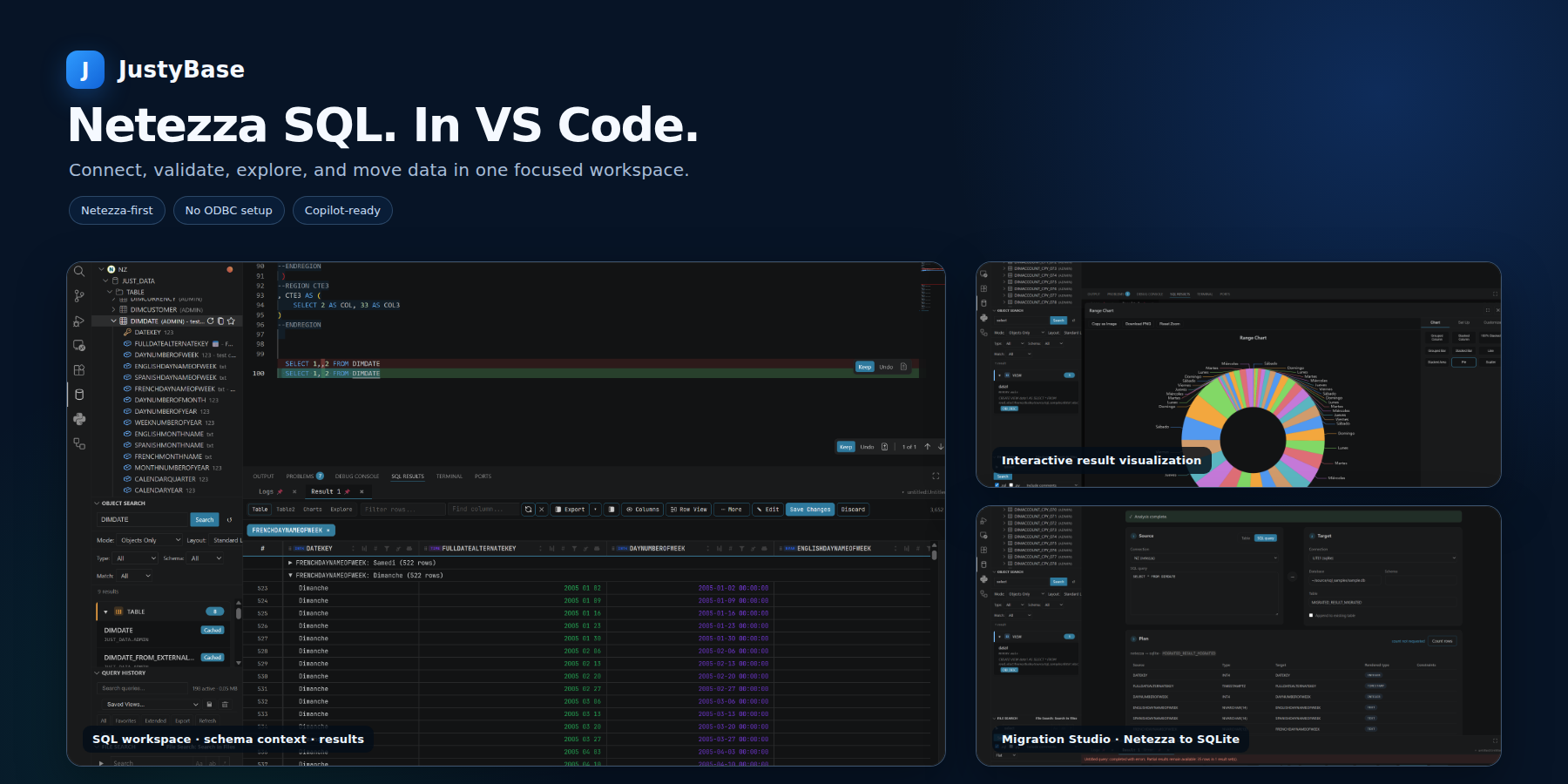
A focused T-SQL workspace for Microsoft SQL Server, built into VS Code.
This companion extension adds SQL Server connectivity and the MSSQL authoring profile to JustyBase SQL Editor. The core extension is installed automatically; Netezza is not required.

Explore, write, and review T-SQL
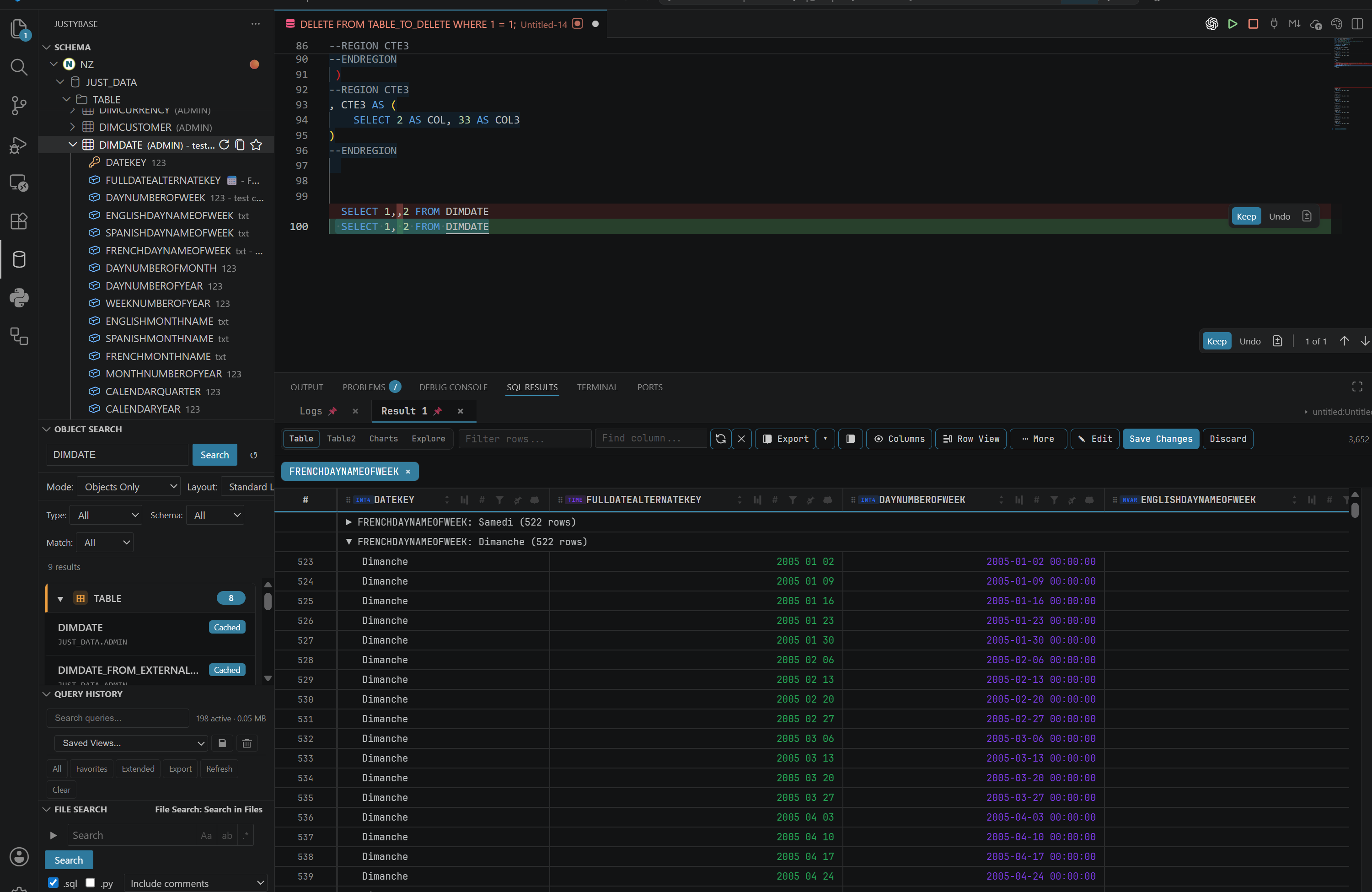
Use one workspace for databases, schemas, tables, views, procedures, functions, queries, and result sets.
SQL Server features
- SQL Server connection profile with the shared JustyBase login and secret-storage flow.
mssql runtime with streaming result readers and cancellation of active requests.- Metadata browsing for databases, schemas, tables, views, procedures, functions, and columns.
- Dedicated T-SQL parser runtime with completion, hover, semantic tokens, snippets, and MSS001–MSS008 quality rules.
- Authoring support for
TOP, OFFSET … FETCH, APPLY, TRY … CATCH, temporary tables, and SQL Server-specific syntax.
- DDL generation for tables and supported object types.
Catch issues before execution

Parser-backed diagnostics and metadata-aware completion help with object names, aliases, types, and common T-SQL patterns. GitHub Copilot can explain or revise a query while execution stays under your control.
Inspect and communicate results
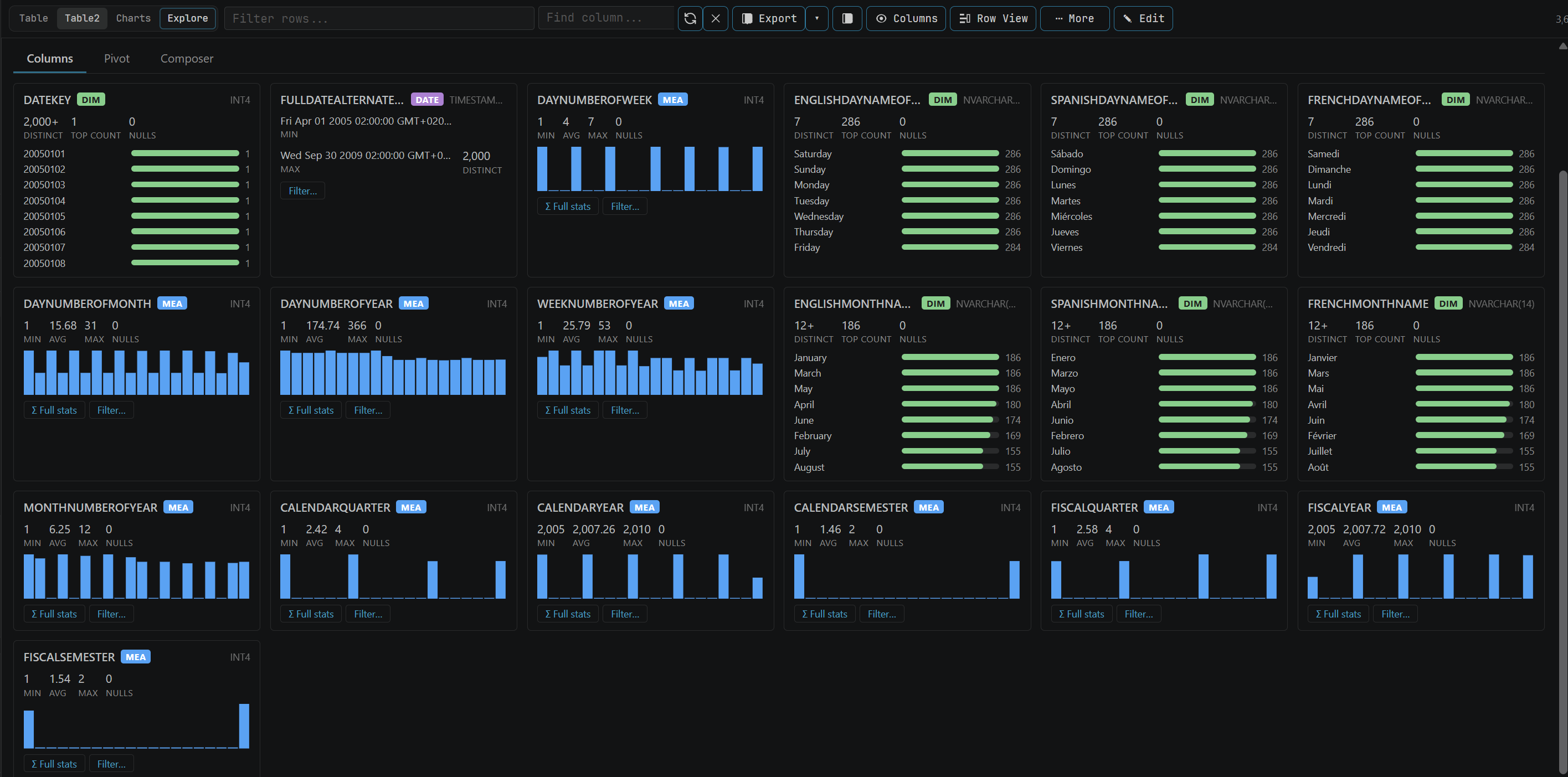
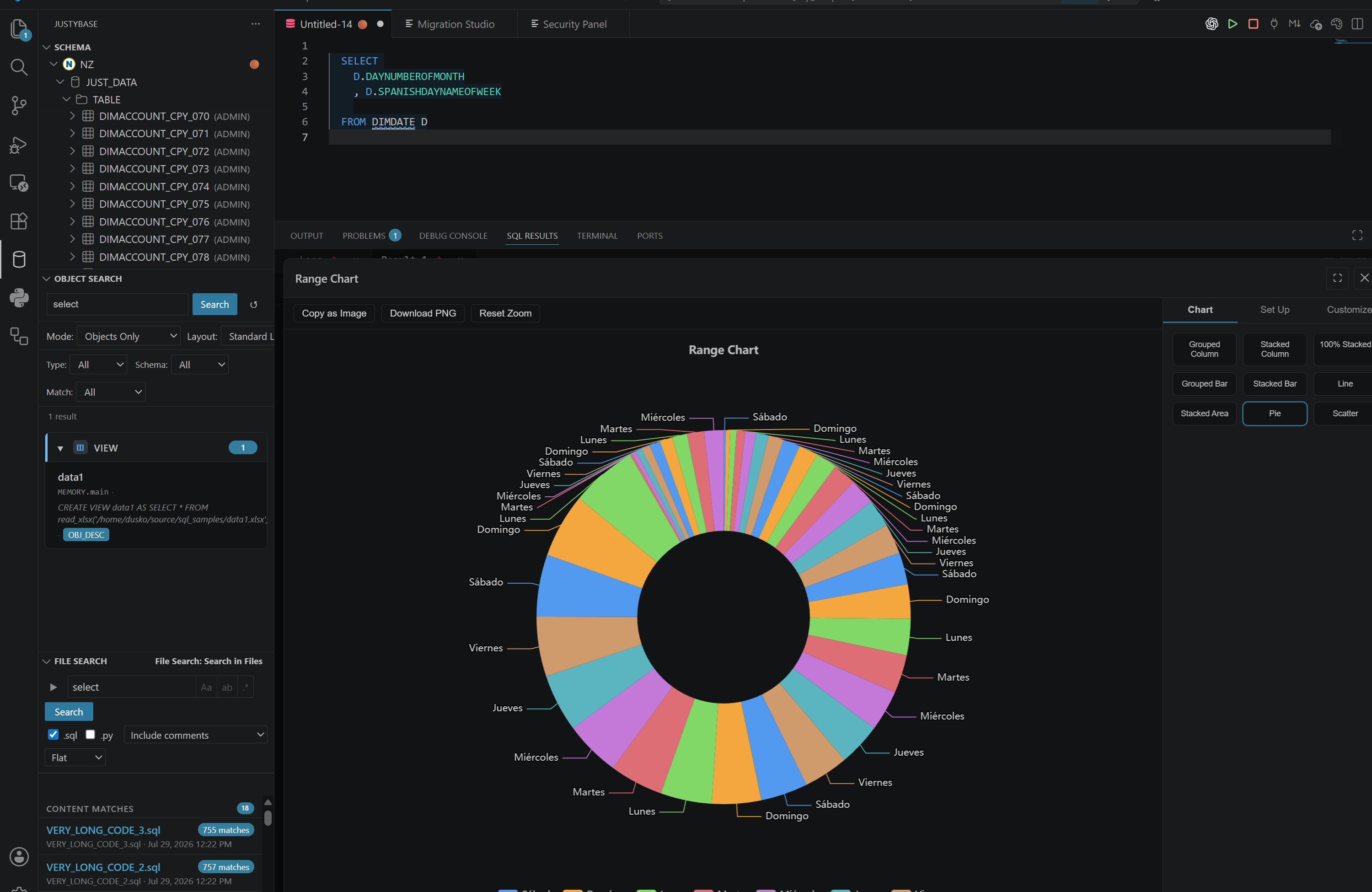
Filter and sort result grids, profile columns, export data, and visualize trends directly in VS Code.
Quick start
- Install JustyBase SQL Editor (MS SQL Server).
- Open the JustyBase view and select Connect.
- Choose Microsoft SQL Server, then enter server, port, database, authentication, and credentials.
- Open a
.sql file and run the current statement or selection with Ctrl+Enter / F5.
The extension uses the shared connection form and VS Code Secret Storage. Keep passwords and tokens out of project files.
Runtime notes
- Large query results are read row by row through
request.stream.
- Cancelling a query aborts the active request without discarding the connection pool.
- Schema browsing concentrates on user databases and catalog objects suitable for the explorer.
- The SQL Server parser and snippets are provided by the core extension and activate for an MSSQL connection.
Development and live tests
From the repository root, with a reachable SQL Server:
npm run install:mssql
npm run test:mssql:integration
Set MSSQL_LIVE_TEST_HOST, MSSQL_LIVE_TEST_PORT, MSSQL_LIVE_TEST_DATABASE, MSSQL_LIVE_TEST_USER, and MSSQL_LIVE_TEST_PASSWORD locally. Never commit these values.
For a throwaway local server, use the compose file in WSL2 (Docker required):
docker compose -f extensions/mssql/docker-compose.integration.yml up -d --wait

export MSSQL_LIVE_TEST_HOST=127.0.0.1
export MSSQL_LIVE_TEST_PORT=51433
export MSSQL_LIVE_TEST_DATABASE=justybase_mssql_local
export MSSQL_LIVE_TEST_USER=sa
export MSSQL_LIVE_TEST_PASSWORD='Justybase!Passw0rd'
export MSSQL_LIVE_TEST_ENCRYPT=true
export MSSQL_LIVE_TEST_TRUST_SERVER_CERTIFICATE=true

node scripts/mssql-integration-database.cjs create
npm run test:mssql:integration
node scripts/mssql-integration-database.cjs drop

docker compose -f extensions/mssql/docker-compose.integration.yml down -v
The credentials are throwaway local values. Do not run npm ci from WSL against
a checkout shared with Windows; use the dependencies already installed for the
platform you run on, or a separate Linux clone.
For a package build:
cd extensions/mssql
npm install
npm run check-types
npm run build
License
Apache-2.0. The Marketplace VSIX includes THIRD_PARTY_NOTICES.md.

