
Gitina — Git Branch Colorizer
Color your VS Code interface automatically based on your current Git branch.
Stay aware of where you are. Never accidentally push to main again.



What is Gitina?
Gitina watches your active Git branch and instantly applies a matching color to the VS Code interface. At a glance, you always know where you are:
- 🟡 On a
feature/ branch — title bar and activity bar turn yellow
- 🔴 On a
hotfix/ branch — interface turns red
- ⚠️ On
main — a warning alert appears in the status bar
No setup required. Rules are stored directly in VS Code settings and survive restarts.
Screenshots
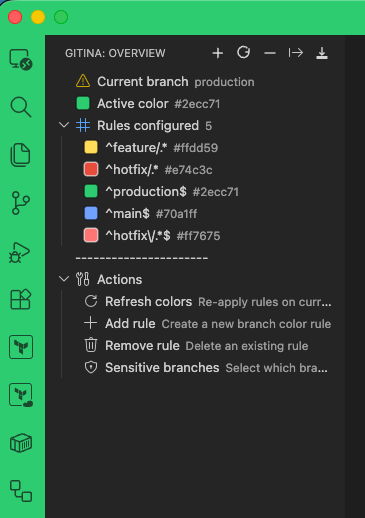
The sidebar gives you a single place to check the current branch, the active color, the configured rules, and the main quick actions.
Sensitive Branch Warning

When you switch to a sensitive branch such as main, Gitina turns the status bar into a clear warning so risky contexts stand out immediately.
Command Palette Integration
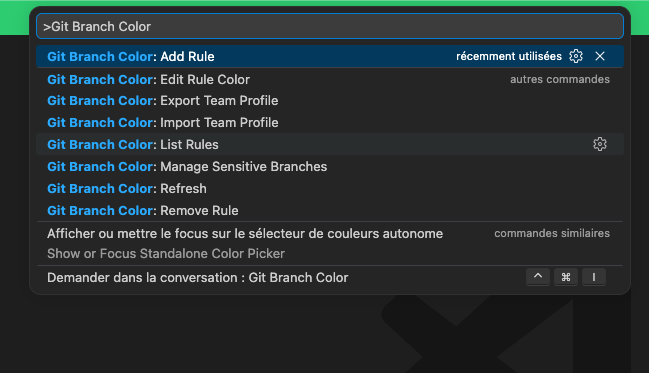
Every primary action is available from the Command Palette, including rule management, refresh, and team profile import/export.
Features
🎨 Branch → Color Rules
Map regex patterns to hex colors. The first matching rule wins.
^main$       →  [#444444](https://github.com/khechinimed/gitina/issues/444444)  (dark grey)
^develop$    →  #2ecc71  (green)
^feature/.*  →  #f1c40f  (yellow)
^hotfix/.*   →  #e74c3c  (red)
The status bar background and workbench.colorCustomizations update automatically on every branch switch.
⚠️ Sensitive Branch Alerts
When you land on a sensitive branch (main, production, release by default), Gitina shows a visual warning:
- A status bar item appears with an orange background and a
⚠️ prefix
- Sidebar displays an alert icon next to the branch name
On non-sensitive branches the status bar item is hidden entirely — it only appears as a warning.
Configure which branches are sensitive directly from the sidebar. The picker shows each branch's current state: checked = sensitive, unchecked = not sensitive.
Open the Gitina panel in the Activity Bar for a live overview of your workspace.
| Section |
What you see |
| Current branch |
Branch name + warning icon on sensitive branches |
| Active color |
Hex color + live color swatch |
| Rules configured |
All rules, expandable, each with a color swatch |
| Actions |
Refresh, Add rule, Remove rule, Sensitive branches |
Per-rule inline actions — hover any rule row to reveal:
| Icon |
Action |
✏️ edit |
Change the rule color with a live-preview color picker |
👁 eye / eye-closed |
Toggle the rule on or off without deleting it |
Disabled rules appear greyed out and are skipped during branch matching.
👥 Team Profile
Share your color setup across your whole team in one file:
- Export — saves all rules to
.gitinarc.json
- Import — loads rules from any
.gitinarc.json
Commit the file to your repository and every developer shares the same color scheme instantly.
// .gitinarc.json
{
  "rules": [
    { "pattern": "^main$",       "color": "#e74c3c" },
    { "pattern": "^develop$",    "color": "#2ecc71" },
    { "pattern": "^feature/.*",  "color": "#f1c40f" },
    { "pattern": "^hotfix/.*",   "color": "#c0392b" }
  ]
}
Commands
All commands are available from the Command Palette (⌘ Shift P / Ctrl Shift P) and from the Gitina sidebar toolbar.
| Command |
Description |
Git Branch Color: Add Rule |
Wizard to create a new branch color rule |
Git Branch Color: Remove Rule |
Pick and delete an existing rule |
Git Branch Color: Edit Rule Color |
Change the color of a rule (also available inline in sidebar) |
Git Branch Color: List Rules |
Display all configured rules |
Git Branch Color: Refresh |
Re-apply colors to the current branch |
Git Branch Color: Manage Sensitive Branches |
Pick which branches trigger the warning alert |
Git Branch Color: Export Team Profile |
Save rules to .gitinarc.json |
Git Branch Color: Import Team Profile |
Load rules from .gitinarc.json |
Settings
All settings live under the gitBranchColor.* namespace.
| Setting |
Type |
Default |
Description |
gitBranchColor.rules |
array |
(4 default rules) |
Regex-to-color mapping rules |
gitBranchColor.sensitiveBranchesEnabled |
boolean |
true |
Enable or disable the sensitive branch alert entirely. |
gitBranchColor.sensitiveBranches |
array |
["main", "production", "release"] |
Branch name patterns that trigger the warning alert. |
{
  "pattern": "^feature/.*",  // JavaScript regex
  "color": "#f1c40f",        // Hex color string
  "enabled": true            // Optional — false skips the rule
}
Example settings.json
"gitBranchColor.sensitiveBranches": ["main", "master", "production"],
"gitBranchColor.rules": [
  { "pattern": "^main$",       "color": "#e74c3c" },
  { "pattern": "^master$",     "color": "#e74c3c" },
  { "pattern": "^develop$",    "color": "#2ecc71" },
  { "pattern": "^release/.*",  "color": "#9b59b6" },
  { "pattern": "^feature/.*",  "color": "#f1c40f" },
  { "pattern": "^hotfix/.*",   "color": "#e67e22" },
  { "pattern": "^chore/.*",    "color": "#95a5a6" }
]
How rules are matched
- Rules are evaluated top to bottom
- The first matching rule wins — order matters
- Patterns are standard JavaScript regular expressions
- Rules with
"enabled": false are skipped entirely
How colors are applied
Gitina writes a single key to your VS Code settings:
"workbench.colorCustomizations": {
  "statusBar.background": "#f1c40f",
  // ...
}
This is the only setting Gitina ever writes to. It never touches your code, git history, or any other configuration.
Automatic cleanup — when you disable or uninstall the extension, Gitina automatically removes all color keys it injected from workbench.colorCustomizations, leaving your settings clean.
To reset manually, clear that block in your settings.json, or run Git Branch Color: Refresh after removing all rules.
If you use a synced VS Code profile, color changes will be reflected across all machines sharing that profile.
Requirements
- VS Code
^1.110.0
- A workspace with a
.git folder (the extension activates automatically)
Release Notes
0.1.0
Release 0.1.0:
- Branch → color rules with regex matching
- Sensitive branch alerts (configurable list, status bar warning)
- Sidebar panel: current branch, active color, rules overview
- Inline rule actions: edit color, enable/disable toggle
- Manage sensitive branches directly from the sidebar
- Team profile export/import via
.gitinarc.json

