
Newf
Create new files and folders from the command palette.
Fast, minimal, with brace expansion and templates.


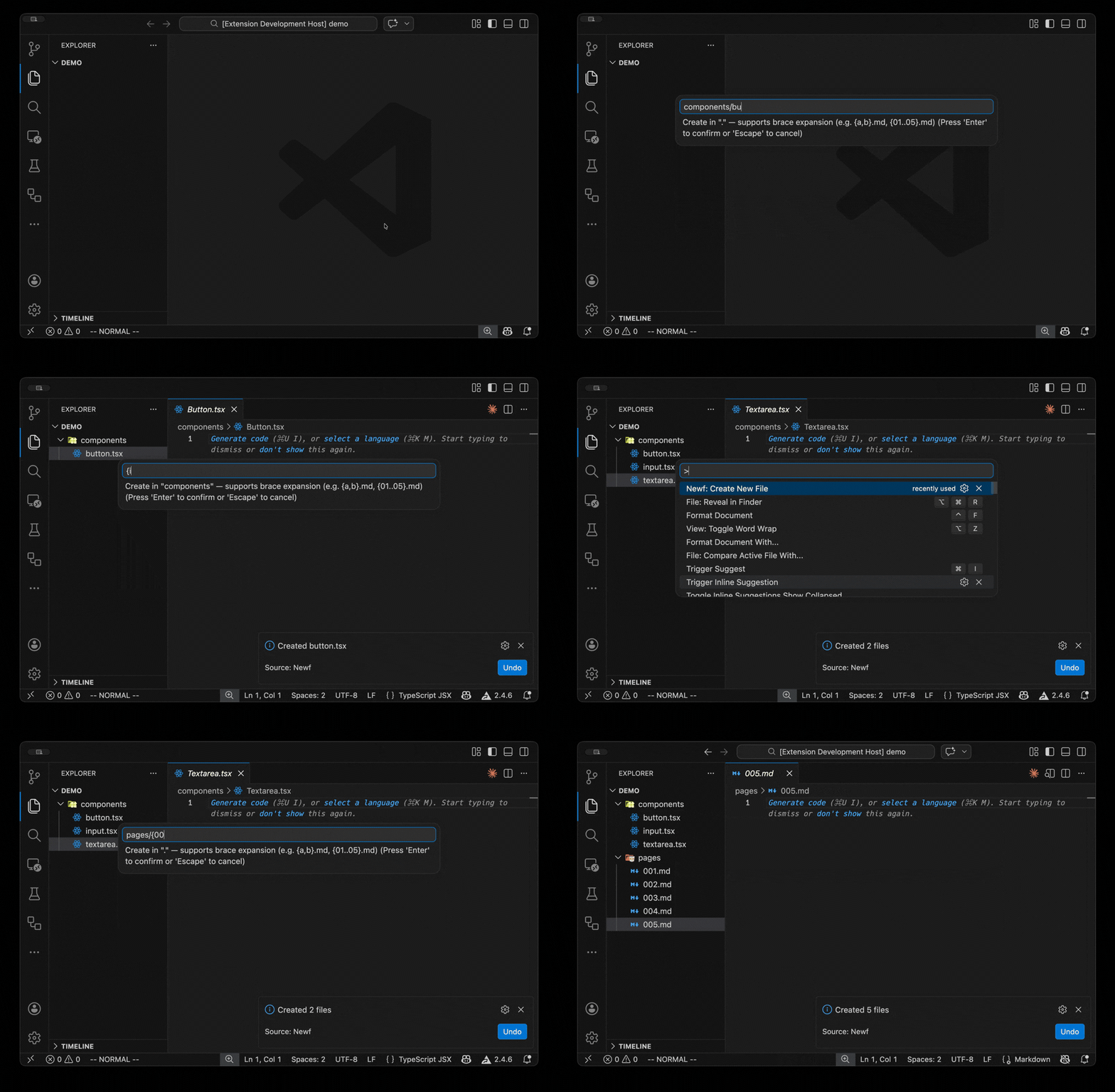
Installation
Search for Newf in the extensions tab on VSCode, or install from the command line:
code --install-extension kazuito.newf
Commands
Newf: Create New File
Open the command palette (Cmd+Shift+P / Ctrl+Shift+P) and run Newf: Create New File.
- Select a workspace root when your window has multiple folders open.
- Pick a target directory from the quick pick list, or type a new one to create it inline.
- Enter a file, folder, or brace-expansion pattern.
- Matching paths are created. By default, the last created file opens in the editor.
You can also run this command from the Explorer context menu on either a folder or a file. When started from a file, Newf uses that file's parent directory.
Newf: Create New File at Path
Run Newf: Create New File at Path to skip the directory picker and type a path relative to the workspace root directly.
This is useful when you already know the final path:
src/components/Button.tsx
docs/getting-started.md
Directories are created automatically. If a file already exists, it is opened without overwriting.
Brace Expansion
Newf supports full brace expansion, so you can create multiple files and folders in a single command.
Comma-separated lists
components/{Header,Footer,Sidebar}.tsx
Creates components/Header.tsx, components/Footer.tsx, and components/Sidebar.tsx.
Numeric ranges
pages/page-{01..05}.md
Creates pages/page-01.md through pages/page-05.md.
Nested patterns
src/{components/{Button,Input},hooks/use{Auth,Theme}}.ts
Creates four files across two directories.
Multiple entries
Separate unrelated files with commas at the top level:
README.md, LICENSE, src/index.ts
Folders
Use a trailing slash to create folders instead of files:
docs/
src/{components,hooks}/
README.md, docs/
There is a safety limit of 100 expanded files per command.
File Templates
Automatically seed new files with starter content using the newf.templates setting. Map simple glob patterns to template strings.
Available template variables:
${name}: file stem without the final extension${basename}: full filename including extension${ext}: final extension including the leading .${dir}: parent directory relative to the workspace root, or .${workspaceFolder}: absolute path to the selected workspace root${date}: local date in YYYY-MM-DD
"newf.templates": {
  "*.tsx": "export default function ${name}() {\n  return <div />;\n}\n",
  "*.md": "---\ntitle: ${name}\ndate: ${date}\npath: ${dir}/${basename}\nworkspace: ${workspaceFolder}\n---\n",
  "*.test.ts": "import { describe, it } from 'node:test';\n\n",
  "src/**/*.ts": "// ${name}\n"
}
Matching rules:
- Patterns without
/ match the basename only (e.g. *.tsx)
- Patterns with
/ match the workspace-relative path (e.g. src/**/*.ts)
- Supports
* (within one path segment) and ** (across segments)
- First matching pattern wins
- Existing files are never overwritten regardless of templates
Settings
newf.openAfterCreate
Control which created files are opened automatically:
"newf.openAfterCreate": "last"
Available values:
"last": open the last created file, or the last existing file when nothing new was created"all": open every newly created file"none": do not open files automatically
newf.templates
Use templates to seed file contents based on the created path. See the section above for variables and matching rules.
Directory Creation
In the directory picker, type a path that doesn't exist yet to get a Create directory option at the top of the list. Accepting it creates the directory and proceeds directly to the filename input without leaving the flow.
Directory Listing
The quick pick menu shows all directories in your workspace. In git repositories, it uses git ls-files to respect your .gitignore. Non-git projects fall back to a filesystem walk that excludes hidden directories and node_modules.
The root directory (.) is always available.
Security
Path traversal is blocked. Inputs like ../../etc/passwd that resolve outside the selected base directory are rejected.
Requirements
Development
pnpm install
pnpm bundle        # Bundle the extension to out/
pnpm compile:tests # Compile tests to out-test/
pnpm compile       # Bundle the extension and compile tests
pnpm watch         # Rebuild the extension bundle in watch mode
pnpm watch:tests   # Recompile tests in watch mode
pnpm lint         # Lint and format check (Biome)
pnpm test          # Bundle, compile tests, and run the VS Code test suite
pnpm package       # Build a VSIX without bundled dev/test files
pnpm typecheck     # Type check without emitting
Packaging uses the Rolldown bundle in out/, keeps test artifacts in out-test/, and excludes local env files plus other development-only assets from the published VSIX.
License
MIT

