  ________________  __  _______  ___    ____
 /_  __/ ____/ __ \/  |/  / __ \/   |  / __ \
  / / / __/ / /_/ / /|_/ / /_/ / /| | / / / /
 / / / /___/ _, _/ /  / / ____/ ___ |/ /_/ /
/_/ /_____/_/ |_/_/  /_/_/   /_/  |_/_____/
Your terminal. One click away.




Works in VS Code · Cursor · Google Antigravity · any VS Code fork
🚀 Installation
You can install TermPad directly within your editor or via the web:
In VS Code or Cursor:
- Open the Extensions panel (
Ctrl + Shift + X or Cmd + Shift + X).
- Search for
TermPad (by kaustubhbhoir).
- Click Install.
From the Web:
Visit the VS Code Marketplace and click Install.
What is TermPad?
You open a project. You type git status. Then npm run dev. Then cd ... Then clear. Then git status again.
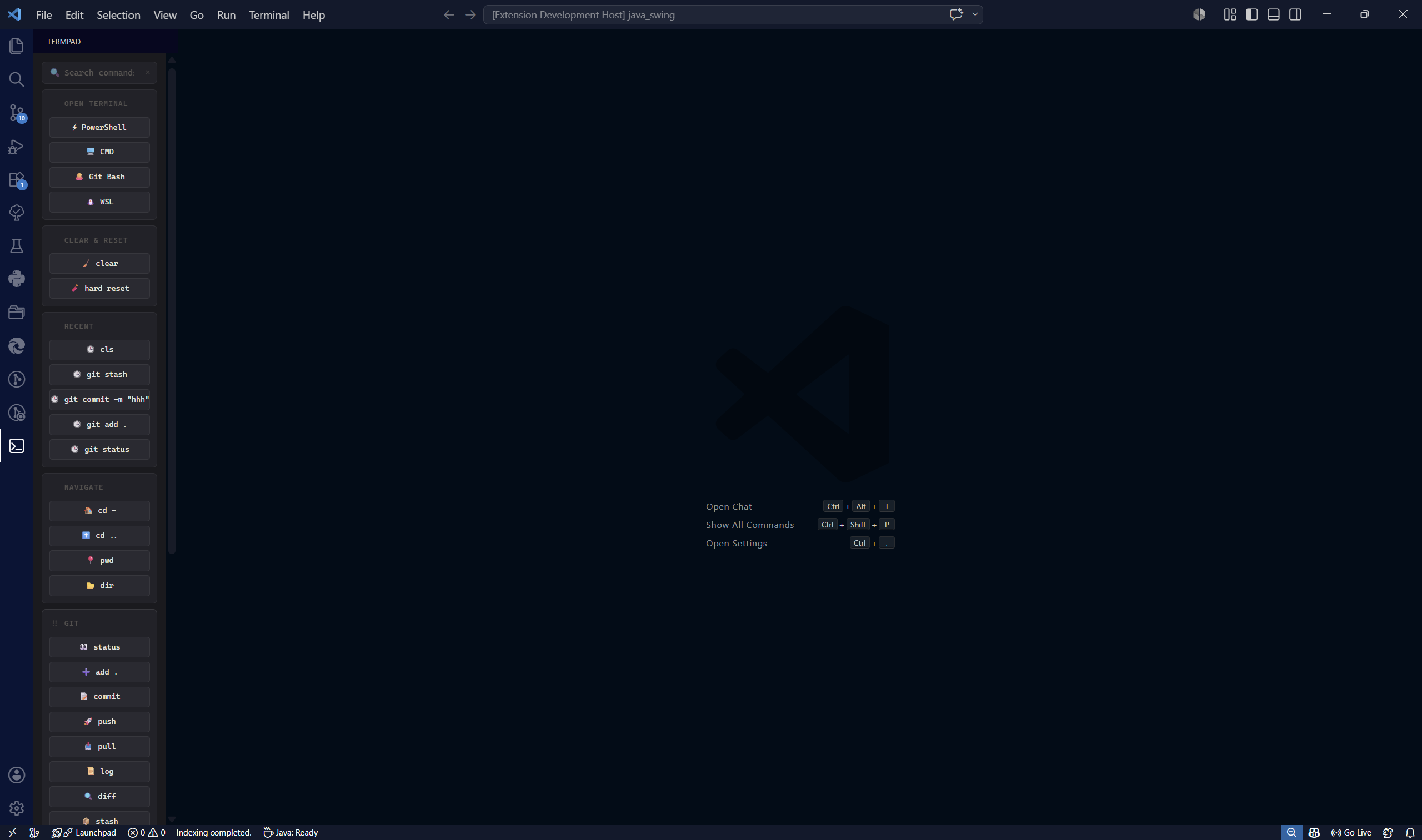
TermPad puts all of that in a sidebar dashboard. Click button → command runs. No terminal focus-switching, no retyping, no wasted keystrokes.
Screenshots
Features
⚡ One-click terminal commands
Every button fires a command into your active terminal instantly. If no terminal is open, TermPad opens one for you.
🐚 Multi-shell launcher
Fresh terminal in your preferred shell, one click. TermPad auto-detects what's available on your OS:
| OS |
Available Shells |
| Windows |
PowerShell, CMD, Git Bash, WSL |
| macOS |
zsh, bash, fish |
| Linux |
bash, zsh, fish, sh |
🔍 Instant search
Type in the search bar. All sections and buttons filter live. Useful once your custom commands list grows.
🔄 Drag-and-drop layout
Hover any section header → drag → done. Order is saved automatically.
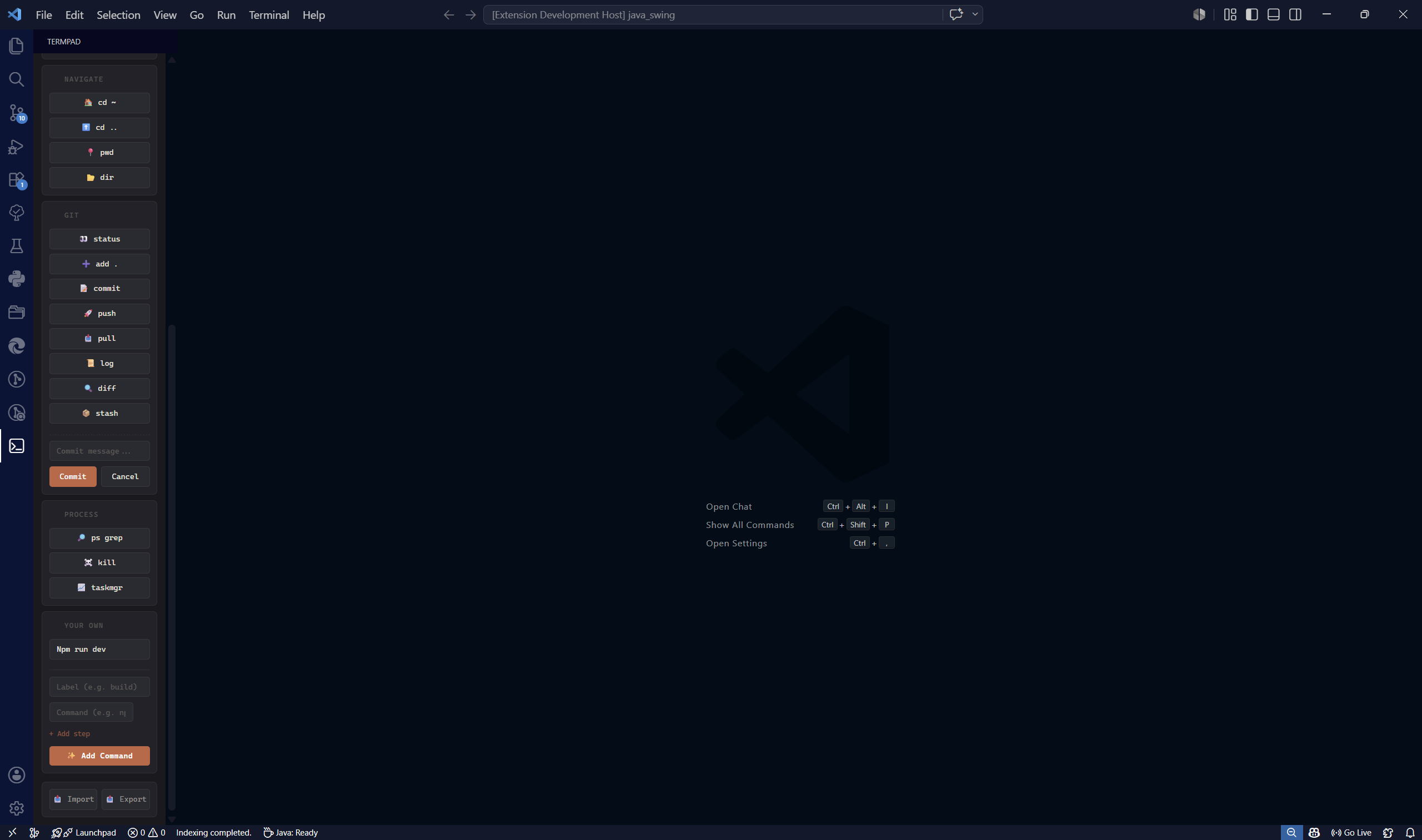
➕ Custom command buttons
Add npm run dev, docker compose up, python manage.py runserver — whatever you repeat every day — with a label and one click. Remove them just as easily.
💾 Import / Export
Export your entire dashboard config to JSON. Import it on any machine or share it with your team.
Getting Started
1. Open TermPad
Find the TermPad icon in the VS Code Activity Bar (works the same in Cursor and Google Antigravity's Editor View). Click it.
2. Run a command
Click any button. Done.
3. Add your own commands
Go to Your Own → enter a label + command → click + Add Command.
4. Back up your setup
Click Export at the bottom to save a .json snapshot. Import to restore it anywhere.
Works In
| Editor |
Status |
| VS Code |
✅ Full support |
| Cursor |
✅ Full support |
| Google Antigravity |
✅ Compatible (Editor View) |
| Any VS Code fork |
✅ Should work |
Antigravity users: TermPad slots right into Antigravity's Editor View sidebar. Great pairing — let your agents handle the complex tasks in Manager View while TermPad keeps your frequent manual commands one click away.
Local Development
git clone <repo-url>
cd termpad
npm install
# Hit F5 in VS Code to open a Development Host with TermPad active
Source is under src/ and media/.
Contributing
PRs are welcome. Open an issue first if it's a bigger change so we're aligned before you build it.
Author
Kaustubh Bhoir — Computer Engineering

License
MIT — use it, fork it, ship it.