TMUX Worktree
Seamlessly manage tmux sessions alongside git worktrees — right from VS Code.


🌏 Read this in other languages: English | 한국어 | 简体中文 | 繁體中文 (台灣) | 繁體中文 (香港) | 日本語
Install from VS Marketplace
Why It Feels Polished
- Image-aware terminal paste:
Cmd+V / Ctrl+Shift+V keeps normal text paste, but auto-inserts an image file path when clipboard has an image.
- Remote-SSH clipboard bridge: local clipboard images can be pasted into remote terminals without manual upload steps.
- Collision-safe session identity: sessions use
repo-name + path hash namespace and slug disambiguation for same-name repos and similar paths.
- Legacy-compatible migration: previous session prefixes are still detected when
@workdir belongs to the repo.
- No-git fallback visibility: even non-git folders still appear as
current project (no git) instead of disappearing from the tree.
Why?
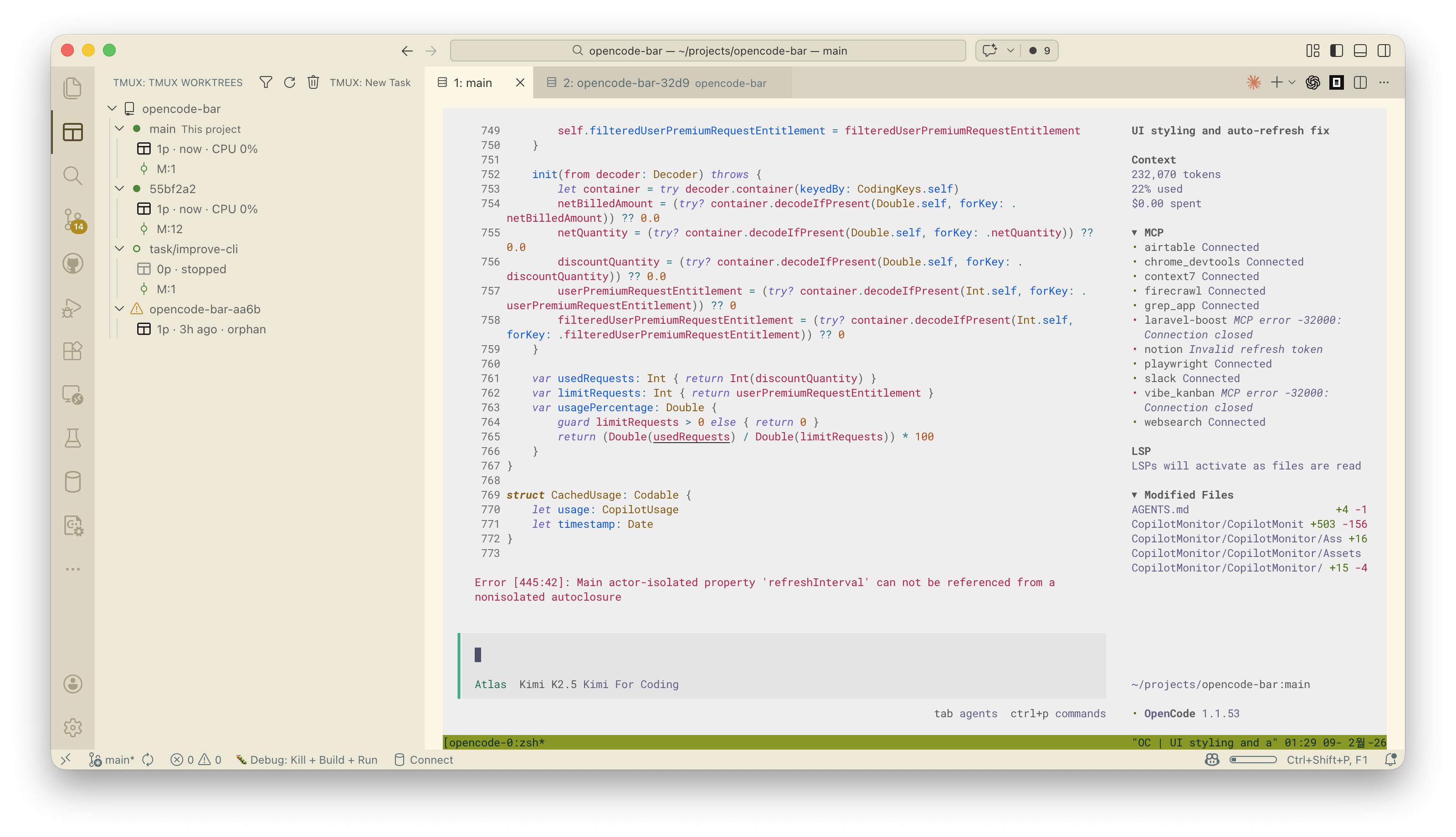
If you use git worktree for parallel development and tmux for persistent terminal sessions, you know the pain of manually juggling both. This extension bridges the gap:
- One click to create a worktree + tmux session together
- Tree view showing all worktrees with their tmux status
- Auto-attach to the right tmux session when you open a worktree
- Never lose context — sessions persist even if VS Code closes
Perfect for AI Coding Agents
Run AI coding agents (Claude Code, Codex, OpenCode, Gemini CLI) inside tmux sessions. Your agent keeps running in the background — reconnect from anywhere, even from a phone via Termux.
Real-World Use Cases
🤖 Parallel Development with AI Agents
project/
├── master            → tmux: "myapp/master" (Claude Code refactoring)
├── feature/oauth     → tmux: "myapp/feature-oauth" (manual coding)
└── fix/memory-leak   → tmux: "myapp/fix-memory-leak" (Codex analyzing)
Run independent AI agents on each branch, check results in VS Code. Sessions keep working in the background.
🌐 Remote Server Development
Connected to a dev server via SSH:
- Use VS Code Remote-SSH to connect
- Manage branch sessions with TMUX Worktree
- SSH disconnect? tmux sessions persist
- Reconnect from home, café, or phone
📱 Mobile Code Review
Access from phone via Termux + SSH:
ssh dev-server
tmux attach -t myapp/feature-oauth
Review AI-written code during your commute.
Features
🌳 Explorer View
A dedicated sidebar showing all your git worktrees and their associated tmux sessions at a glance. See session status, pane count, and last activity time.
⚡ One-Click Task Creation
Create a new git branch + worktree + tmux session in one step. Start working on a new feature instantly.
Managed worktrees are created under ~/.tmux-worktrees/<repo-name-hash>/ by default, which keeps repository roots clean and avoids cross-repo path collisions.
Enter any valid branch name such as feat/auth or task/my-task; tmux session/worktree slugs safely flatten / into -.
If a task slug would collide with the primary worktree slug, the extension auto-suffixes it to keep sessions unique. The primary worktree's slug is its current branch name (e.g. master, develop) so sessions follow the real default branch, falling back to main only when no branch can be resolved.
New task branches stay local-only until the first publish, so VS Code keeps showing Publish Branch instead of attempting to sync against a not-yet-existing remote branch. The extension stores the chosen compare base in branch.<name>.vscode-merge-base so SCM diffs still use the expected base branch.
🔗 Smart Attach
- Attach in Terminal — open tmux session in VS Code's integrated terminal
- Attach in Editor — embed tmux session as an editor tab
- Auto-attach — automatically connect when opening a worktree folder
- Size-stable attach — retries PTY size sampling, force-resizes before attach, then restores
window-size latest so full-screen TUIs avoid both 80x24 first paint and persistent clipping
- Prompt-stable attach — strips VS Code/Electron shell-integration env before tmux/zellij session bootstrap so nested prompt markers do not corrupt redraw, selection, or backspace editing inside the multiplexer
- Zellij-safe bootstrap — new Zellij sessions are seeded with a real terminal type instead of
TERM=dumb, and the attach path requests Zellij's simplified UI so VS Code terminals avoid stale prompt redraw and missing-glyph squares
- Zellij leading-dash safety — hidden repo names such as
.hermes are attached without letting Zellij parse the generated session name as CLI flags, so Remote-SSH editor tabs do not flash help and immediately close
- Zellij key passthrough — when the Zellij backend is selected, the extension contributes terminal-focus-only layout-independent Alt shortcuts, Shift+Left/Shift+Right, Ctrl+D/Ctrl+Q/Ctrl+G passthrough, and Shift+Enter for console multiline input, and applies the needed terminal setting overrides only while Zellij is active
🗂️ Configurable Session File Directory
- Tmux/zellij IPC sockets are stored in
tmuxWorktree.socketDir (default /var/tmp) instead of /tmp/. The default is the POSIX persistent-temp directory, which survives reboots and avoids macOS' deep $TMPDIR exceeding the 103-byte Unix-socket path limit.
- On first activation, the extension asks where to store session files. Press Enter to accept the default
/var/tmp, or type a custom path (e.g. ~/.cache/sockets). The dir is auto-created on confirmation if missing.
- After confirming the directory, an optional Sync to Shell prompt writes a managed
export TMUX_TMPDIR=... ; export ZELLIJ_SOCKET_DIR=... block to your shell rc (~/.zshrc, ~/.bashrc/~/.bash_profile, or ~/.config/fish/config.fish) so tmux/zellij in other terminals also use the same dir. A timestamped backup of the rc file is created before writing.
- Change it later via
TMUX: Change Session File Directory or TMUX: Sync Session File Directory to Shell rc.
🧹 Orphan Cleanup
Detect and clean up tmux sessions that no longer have matching worktrees. Keep your environment tidy.
🖥️ Session Management
- Split panes and create new windows from the context menu
- Copy worktree paths to clipboard
- Open worktrees in new VS Code windows
- Filter sessions by name
📋 Smart Paste (Image-Aware Terminal Paste)
Cmd+V (macOS) / Ctrl+Shift+V (Linux) in terminal first checks clipboard content- If clipboard has text, it keeps the default paste behavior
- If clipboard has an image, it saves a temporary
.png and inserts the file path into terminal
- Works with local sessions and Remote-SSH (webview bridge uploads local clipboard image to remote host)
- Force image-only mode from Command Palette:
TMUX: Paste Image from Clipboard
🧭 Robust Session Mapping
- Session namespace uses
repo-name + path hash to avoid collisions between same-name repositories in different directories
- Legacy session names are still detected for compatibility when
@workdir points inside the current repo
- Worktrees with colliding slugs are auto-disambiguated (parent folder, then path hash)
- Non-git folders are still shown in the tree as
current project (no git)
Commands
| Command |
Description |
TMUX: Attach/Create Session |
Attach to or create a tmux session for the current worktree |
TMUX: New Task |
Create a new branch + worktree + tmux session |
TMUX: Remove Task |
Remove a worktree and its tmux session |
TMUX: Cleanup Orphans |
Remove orphaned tmux sessions |
TMUX: Smart Paste (Image Support) |
Smart terminal paste: text uses normal paste, image inserts temporary file path |
TMUX: Paste Image from Clipboard |
Force image paste and insert the saved image path into the active terminal |
TMUX: Change Session File Directory |
Change where tmux/zellij IPC sockets are stored (default /var/tmp) |
TMUX: Sync Session File Directory to Shell rc |
Write TMUX_TMPDIR/ZELLIJ_SOCKET_DIR exports to your shell rc so external tmux/zellij use the same dir |
CLI: tmux-worktree-tui
A standalone Go binary that mirrors the extension's session-naming and
env-handling rules so you can attach to the same multiplexer session from
any terminal — without opening VS Code.
cd cli && go install ./... # installs ~/go/bin/tmux-worktree-tui
Subcommands
| Command |
Description |
tmux-worktree-tui |
Launch the interactive worktree/session picker (Bubble Tea TUI) |
tmux-worktree-tui open |
Attach to (or create) the tmux/zellij session that the VS Code extension would use for the current directory |
open flags
| Flag |
Description |
--multiplexer tmux\|zellij |
Override the multiplexer chosen by VS Code settings |
--print |
Print the resolved session name, namespace, slug, and chosen multiplexer, then exit without attaching |
What open does for the current directory
- Resolves the primary worktree via
git rev-parse --git-common-dir.
Non-git folders use the folder itself as the identity root.
- Computes the same
{basename}-{sha1[:8]}_{slug} session name the
extension would compute.
- Reads
tmuxWorktree.multiplexer and tmuxWorktree.socketDir from your
.vscode/settings.json first, then user-level VS Code / Insiders /
Cursor / Antigravity settings; falls back to tmux + /var/tmp.
- Sanitizes
VSCODE_*, ELECTRON_RUN_AS_NODE, TERM_PROGRAM* from the
environment (and from a running tmux server) so newly attached panes
stay free of shell-integration markers.
- Handles zellij's leading-dash session-name quirk (e.g.
.hermes) by
passing the name after --.
- Replaces the current process with
tmux new-session -A / zellij attach --create via syscall.Exec, or uses tmux switch-client when
already inside tmux.
Recent Updates (v1.1.2 - v1.2.12)
- v1.2.12: Fixed session namespace stability when VS Code is opened from a linked worktree; session names and managed worktree paths now stay anchored to the primary worktree.
- v1.2.8: Fixed Zellij attach for session names beginning with
-, which can happen in Remote-SSH workspaces opened from hidden folders such as .hermes.
- v1.1.6: Added image-aware terminal paste for AI CLI workflows (
Cmd+V / Ctrl+Shift+V) and a force image paste command. Also improved startup auto-attach sizing stability to reduce occasional small terminal rendering until a manual window resize, fixed persistent clipping by restoring window-size latest after forced pre-attach resize, and fixed a shell-script parsing regression that could fail attach launch in some environments.
- v1.1.4 - v1.1.5: Improved tmux clipboard reliability by enabling clipboard capabilities and passthrough options during attach.
- v1.1.3: Refactored legacy session-prefix compatibility logic for safer migration.
- v1.1.2: Added slug collision handling and explicit no-git workspace labeling (
current project (no git)).
Requirements
- tmux — must be installed and available in PATH
- git — must be installed and available in PATH
- VS Code 1.85.0+
Getting Started
- Install the extension
- Open a git repository in VS Code
- Click the TMUX icon in the Activity Bar (sidebar)
- Your existing worktrees and tmux sessions will appear automatically
To create a new task: click the + button in the TMUX panel header, enter a branch name, and you're ready to go.
How It Works
Repository (root)
├── master            → tmux session: "project-a1b2c3d4_master"
├── feature/login     → tmux session: "project-a1b2c3d4_feature-login"
└── fix/bug-123       → tmux session: "project-a1b2c3d4_fix-bug-123"
Each worktree gets a dedicated tmux session. Session names use a repo namespace (repo-name + path hash) plus a slug, which avoids collisions across same-name repositories in different directories.
New tasks are stored outside the repository by default at ~/.tmux-worktrees/<repo-name-hash>/.
Learn More
License
MIT

