MuJoCo Viewer for VS Code, Cursor & other VS Code-based IDEs
A live 3D viewer and editor for MuJoCo MJCF models — runs in VS Code, Cursor, Windsurf, VSCodium, and any other IDE that speaks the VS Code extension API.
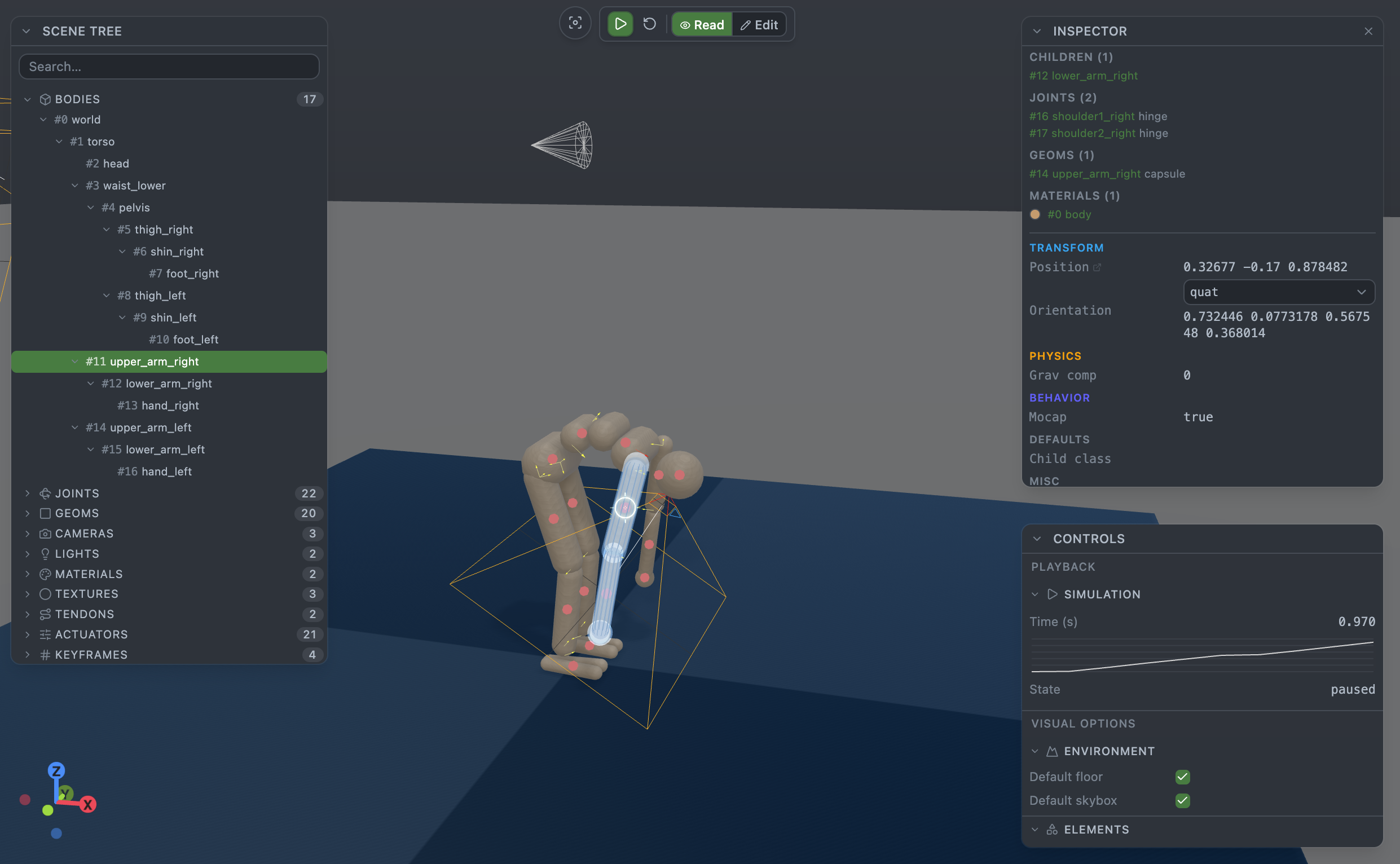
Open an MJCF .xml file and get a real-time physics simulation alongside your code. Edit attributes in the XML and watch the scene update. Click anything in the 3D view to inspect and tweak it, and have your changes flow back into the XML as undoable edits.
Preview release. Feedback and bug reports welcome at github.com/julien-blanchon/mujoco-viewer/issues.
What it is
A workbench for iterating on MuJoCo robot models. The usual loop when writing MJCF is edit XML → run a separate viewer → squint at a compile error → re-edit. This extension collapses that into a single VS Code window: the XML and the running simulation sit side by side, and everything round-trips automatically.
On the viewer side
- Live physics — the simulation runs in-panel. Play, pause, step, or reset. Physics is real MuJoCo (the official
mujoco-js WASM build), not a visual approximation.
- Full 3D navigation — orbit with the mouse, WASD / arrow keys to fly,
F to re-frame, right-click to pan. Tunable in settings.
- Scene understanding — a tree of bodies, joints, geoms, cameras, lights, materials, textures, tendons, actuators, sensors, and keyframes. Click anything to select and inspect.
- Viewpoints — jump to any MJCF-declared
<camera>, or click "track body" to follow a moving part through the simulation.
- Debug overlays — contact points, contact forces, center-of-mass markers, inertia boxes, joint frames, tendon paths, perturbation arrows — all toggleable.
- Screenshots — save a PNG of the current frame with one command.
On the editor side
- Two-way editing — type in the XML and the simulation re-compiles on the fly. Drag a gizmo on a body, change a value in the inspector, apply a keyframe — the XML is updated through
WorkspaceEdit, so it's all undoable in the regular text editor.
- Compile errors surfaced as toasts — MuJoCo rejects a malformed edit and you see the exact message in the viewer. No context-switching to a terminal.
- Multi-file models —
<include> graphs resolve transparently. Meshes (STL / OBJ / MSH), textures (PNG / HDR / custom builtins), and heightfields load from the workspace automatically.
- Inspector edits — change a body's position, swap a geom's material, re-arrange a keyframe, toggle a light — the inspector panel maps every field directly onto its attribute in the source XML.
- Save semantics match VS Code — the viewer marks documents dirty,
Cmd/Ctrl+S persists, closing a dirty tab prompts. Nothing surprising.
On the simulation side
- Standard MuJoCo features — constraints, contact dynamics, actuators, tendons, sensors, flexcomps, all work out of the box.
- Keyframes — MJCF
<keyframe> entries appear in the tree; click to apply, edit fields in the inspector to modify.
- Perturbation — drag a body in the running simulation to apply a test force.
- Fixed time step — the viewer honours your MJCF's
<option timestep=…>.
Install
VS Code
Open the Extensions view (Cmd/Ctrl+Shift+X) and search MuJoCo Viewer, or install from the VS Code Marketplace page.
Cursor, Windsurf, VSCodium & other forks
These IDEs ship with the Open VSX gallery instead of the VS Code Marketplace. The extension is published on both, so the install steps are the same — just the source differs:
- Cursor — Extensions view → search MuJoCo Viewer (Cursor reads Open VSX by default).
- Windsurf — Extensions view → search MuJoCo Viewer.
- VSCodium / Gitpod / code-server — Extensions view → search MuJoCo Viewer, or install directly from the Open VSX page.
If your IDE can't find it in its built-in search, grab the .vsix from the GitHub Releases and install it via Extensions → … → Install from VSIX… — the same file works in every VS Code-based IDE.
Models included with MuJoCo (humanoid, cassie, shadow hand, etc.) all work out of the box.
Open a file in the viewer
The extension ships a title-bar icon, but VS Code hides extension-contributed icons behind the … overflow menu by default and you have to right-click → Show MuJoCo: Open with MuJoCo Viewer to pin it. That's annoying enough that the rest of this section covers the ways that don't depend on the icon being visible.
Option A — Command Palette (always works). Open the .xml file in a text editor, then Cmd/Ctrl+Shift+P → MuJoCo: Open with MuJoCo Viewer. Also available while a viewer tab is focused: MuJoCo: Open as Text Editor / MuJoCo: Reload Model / MuJoCo: Save Screenshot….
Option B — Right-click a .xml in the Explorer. The Open with MuJoCo Viewer / … to the Side entries are in the context menu unconditionally.
Option C — Make it the default editor (recommended). Set mujoco-viewer.editor.defaultViewer in your user or workspace settings and forget about the icon entirely:
| Value |
Behaviour |
ask |
VS Code shows the standard editor picker (default). |
viewer |
Every .xml opens in the viewer. |
text |
Every .xml opens in the text editor (viewer is opt-in via the command). |
mjcfOnly |
Only *.mjcf.xml / *.mujoco.xml open in the viewer; other .xml as text. |
The cleanest setup is mjcfOnly + renaming your models to humanoid.mjcf.xml or humanoid.mujoco.xml. Those files open directly in the 3D viewer on double-click, plain .xml keeps its normal behaviour, and the XSD schema auto-registers for the MJCF suffixes.
Option D — Pin the title-bar icon once. On a .xml tab, right-click the … button on the right → toggle on MuJoCo: Open with MuJoCo Viewer. VS Code remembers the pin per-workspace. Same for MuJoCo: Reload Model, Save Screenshot…, and Open as Text Editor when you're on a viewer tab.
Schema validation
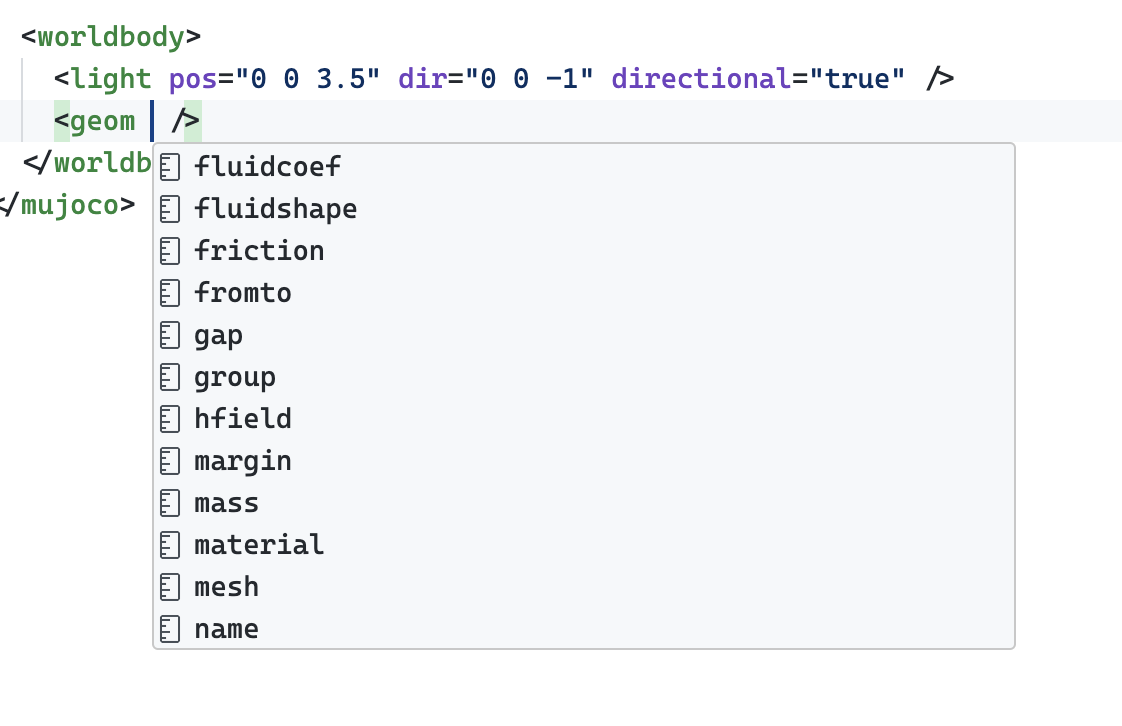
If you install Red Hat XML (free, widely-used) and name your files *.mjcf.xml or *.mujoco.xml, the MuJoCo schema auto-registers and you get in-editor autocomplete and validation — no xsi:noNamespaceSchemaLocation needed on your <mujoco> root.
Element and attribute completion:
Enum completion on constrained attributes:

Inline validation:

If you'd rather keep the plain .xml suffix, run XML: Bind to Grammar/Schema File… from the Red Hat XML command palette and point it at https://raw.githubusercontent.com/julien-blanchon/mujoco-schema/main/mujoco_schema.xsd.
Schema registration is on by default — turn it off via mujoco-viewer.model.schemaValidation.
Commands
All commands are available from the Command Palette (Cmd/Ctrl+Shift+P). No default keybindings — the extension used to ship play/pause/reset bindings on Space / R / F, but those could steal keys from other VS Code panels, so they've been removed. Bind them yourself via Preferences → Keyboard Shortcuts if you miss them.
MuJoCo: Open with MuJoCo ViewerMuJoCo: Open with MuJoCo Viewer to the SideMuJoCo: Reload ModelMuJoCo: Toggle Play / PauseMuJoCo: Reset SimulationMuJoCo: Reset Camera ViewMuJoCo: Save Screenshot…MuJoCo: Open as Text EditorMuJoCo: Reveal Model Folder in ExplorerMuJoCo: Show Output Log
Settings
All settings live under mujoco-viewer.* and update live — no reload needed.
- Simulation —
autoPlay, pauseOnFileChange
- Camera —
flySpeed, boostMultiplier, slowDivisor, invertY
- Rendering —
shadows, showGrid, showSkybox, backgroundStyle
- Editor —
openBehavior (replace vs. side-by-side), defaultViewer (see above)
- Panels —
defaultCollapsed (useful on small screens)
- Model —
schemaValidation (gates the Red Hat XML registration above)
- Screenshot —
directory (default save folder; blank = prompt each time)
- Developer —
logLevel for the MuJoCo Viewer output channel
Requirements
- VS Code 1.100+ (or Cursor, Windsurf, VSCodium, code-server, Gitpod — any IDE on the same extension API).
- Optional: Red Hat XML (Open VSX mirror) — only needed for in-editor MJCF autocomplete and validation. The viewer itself works without it.
Privacy
No telemetry. The extension and all physics computation run locally — no network requests except for optional schema lookups when you explicitly reference a remote XSD.
License
MIT. The bundled MuJoCo WASM is Apache-2.0 via mujoco-js.
Links

