Claude Code Dashboard
A VS Code extension that shows you what Claude is doing on your machine — token usage, estimated costs, sessions, and insights across all your projects, right inside VS Code.
No API key required. No data leaves your machine.




Screenshots
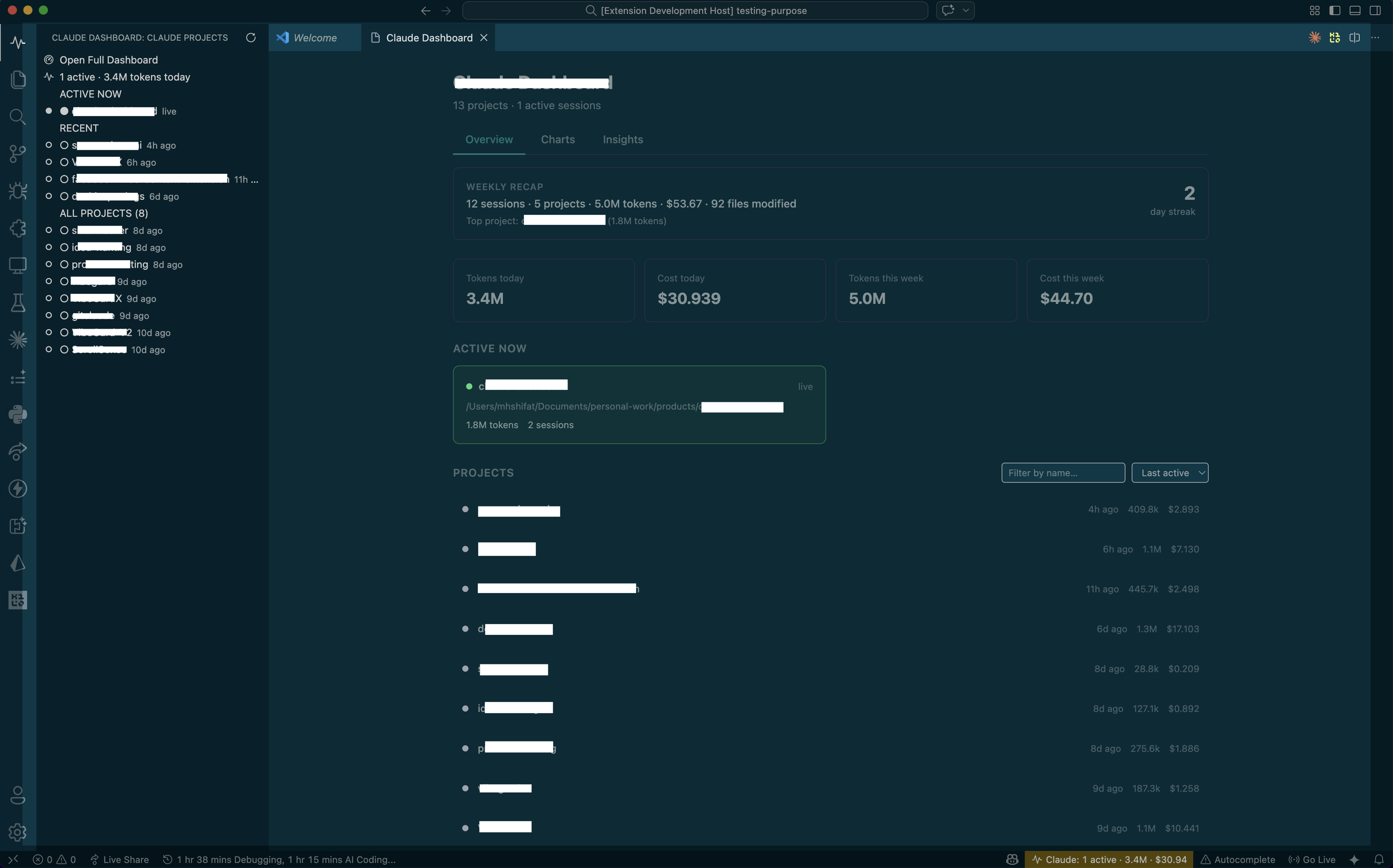 Main dashboard — projects, stats, weekly recap, and estimated cost overview
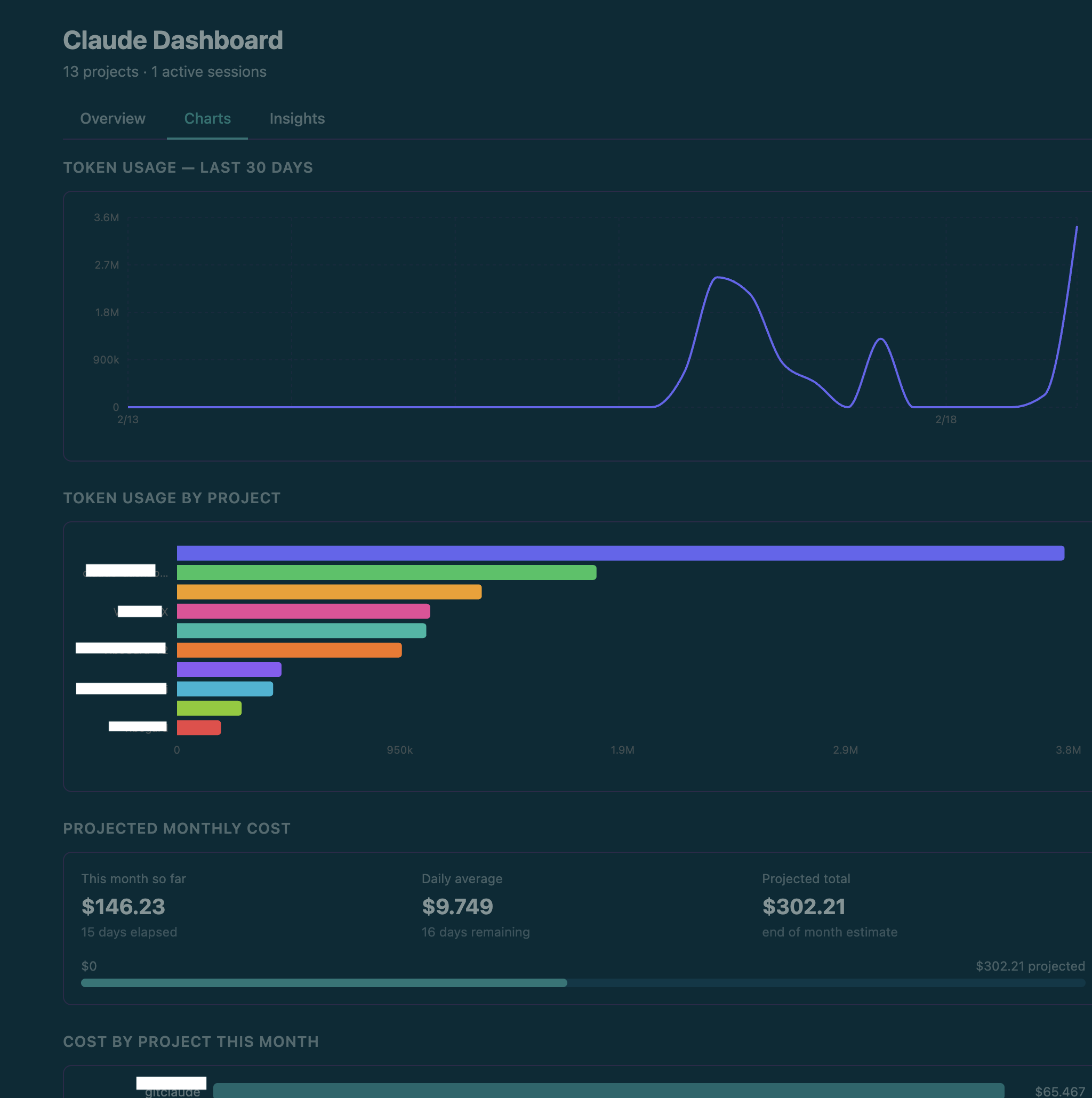 Charts tab — 30-day token trend, usage by project, projected monthly estimated cost
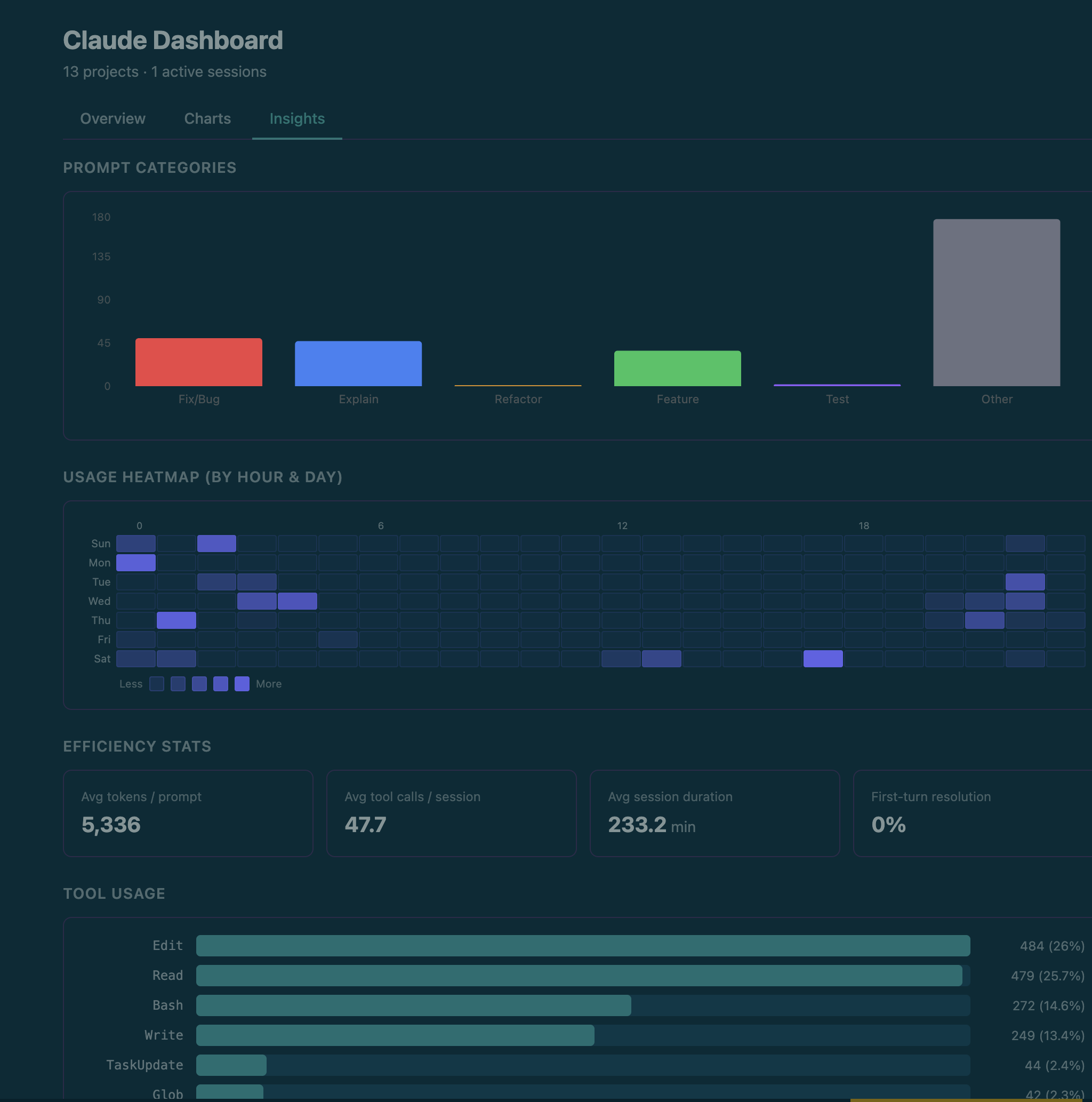 Insights tab — heatmap, tool usage, productivity by hour, hot files
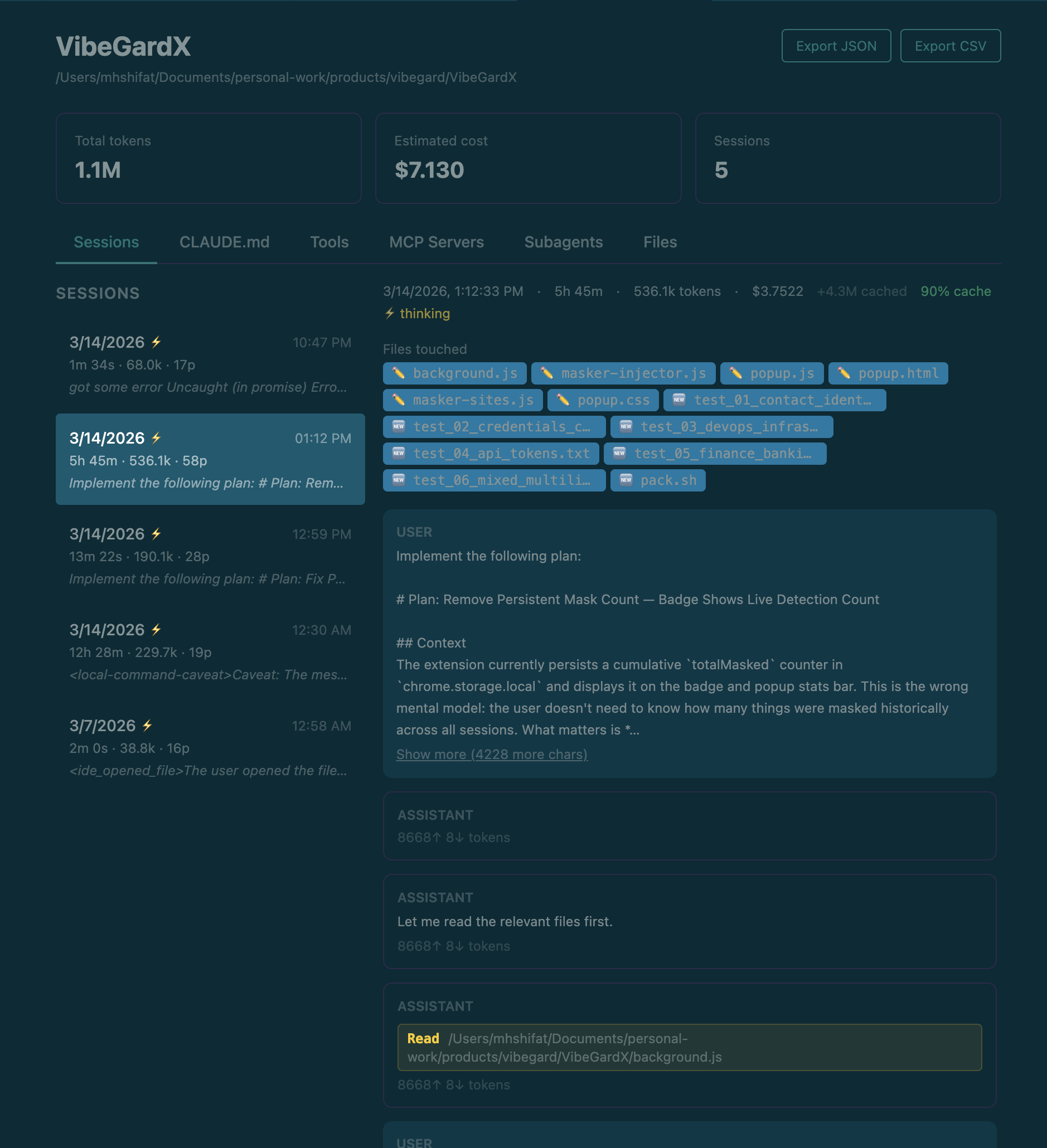 Project detail — session history with prompt previews and token breakdown
Installation
Search for Claude Code Dashboard in the VS Code Extensions panel, or install directly:
Requirements: VS Code 1.85+ and Claude Code installed and used at least once.
Getting started
- Click the pulse icon in the VS Code activity bar to open the Claude Projects sidebar.
- The full dashboard opens automatically to the right.
- On first run you'll be asked once whether to enable live tracking (adds two hooks to
~/.claude/settings.json; a backup is made first). Choose Enable, Not now, or Never — your choice is remembered and the dialog never re-asks.
Skipping hooks is fine — the dashboard still shows all historical data. You only lose the live "Claude is running" indicator. Toggle later anytime with Claude Code Dashboard: Enable Live Tracking / Disable Live Tracking in the command palette. Uninstalling the extension automatically removes the hooks and event file.
What's inside
| Tab |
What you see |
| Overview |
Weekly recap, today's tokens & estimated cost, active sessions, full project list |
| Charts |
30-day token trend, usage by project, projected monthly estimated cost |
| Insights |
Usage heatmap, tool breakdown, productivity by hour, hot files |
Project detail view — click any project to see its full session history, turn-by-turn conversation, token breakdown, estimated cost, files touched, CLAUDE.md, and MCP servers. Export to JSON or CSV any time.
Token and cost notes
- Token counts come from local Claude session logs in
~/.claude/projects/.
- Displayed
totalTokens exclude cache-read tokens, which Claude may reuse heavily across long sessions.
- Cost is a local estimate based on detected model family, a static pricing table (last updated 2026-06), and parsed token usage. Sessions on unknown models are estimated at Sonnet rates and marked
est.* in the UI.
- Aggregate cost views include subagent-attributed cost when Claude spawns subagents.
- Estimated cost may differ from Anthropic billing, invoices, or future pricing changes.
Configuration
Search for Claude Code Dashboard in VS Code settings (Cmd+, / Ctrl+,).
| Setting |
Default |
Description |
claudeDashboard.monthlyTokenBudget |
0 |
Monthly token cap. Set to 0 to disable. |
claudeDashboard.monthlyBudgetUsd |
0 |
Monthly estimated cost cap in USD. Alerts at 80% and 100%. Set to 0 to disable. |
Troubleshooting
No projects showing
— Verify ~/.claude/projects/ exists, then run Claude Code Dashboard: Refresh from the command palette. Check the Output panel (select "Claude Code Dashboard") for errors.
Sessions not updating in real time
— Run Claude Code Dashboard: Enable Live Tracking from the command palette, then check ~/.claude/settings.json for entries referencing .dashboard-events.jsonl. The file watcher fallback still updates within ~300ms.
Cost numbers look off
— Cost is estimated locally from parsed token usage, detected model family, and a static pricing table. Cache read tokens are tracked separately and excluded from totalTokens, but still contribute to estimated cost.
Corrupted settings.json after hook injection
— Restore the backup: cp ~/.claude/settings.json.bak ~/.claude/settings.json
Data privacy
The extension only reads files in ~/.claude/ and your project directories. No network requests. No telemetry. The only files it ever writes are:
~/.claude/settings.json — hook config (with your consent; backup made first)~/.claude/.dashboard-events.jsonl — live events from the injected hooks~/.claude/.dashboard-live — marker file that arms the hooks (deleting it disables them instantly)~/.claude/settings.json.bak — backup before hook injection or removal
Disabling live tracking (or uninstalling the extension) removes the hooks, the marker, and the event file.
Contributing
Contributions are welcome! Please read the Contributing guide before opening a PR.
See SECURITY.md for how to report vulnerabilities privately.
Changelog
See CHANGELOG.md for the full version history.
License
AGPL-3.0 — free to use and modify, but any modified version must also be released under the same license. Commercial reselling is not permitted.

