Org Viewer
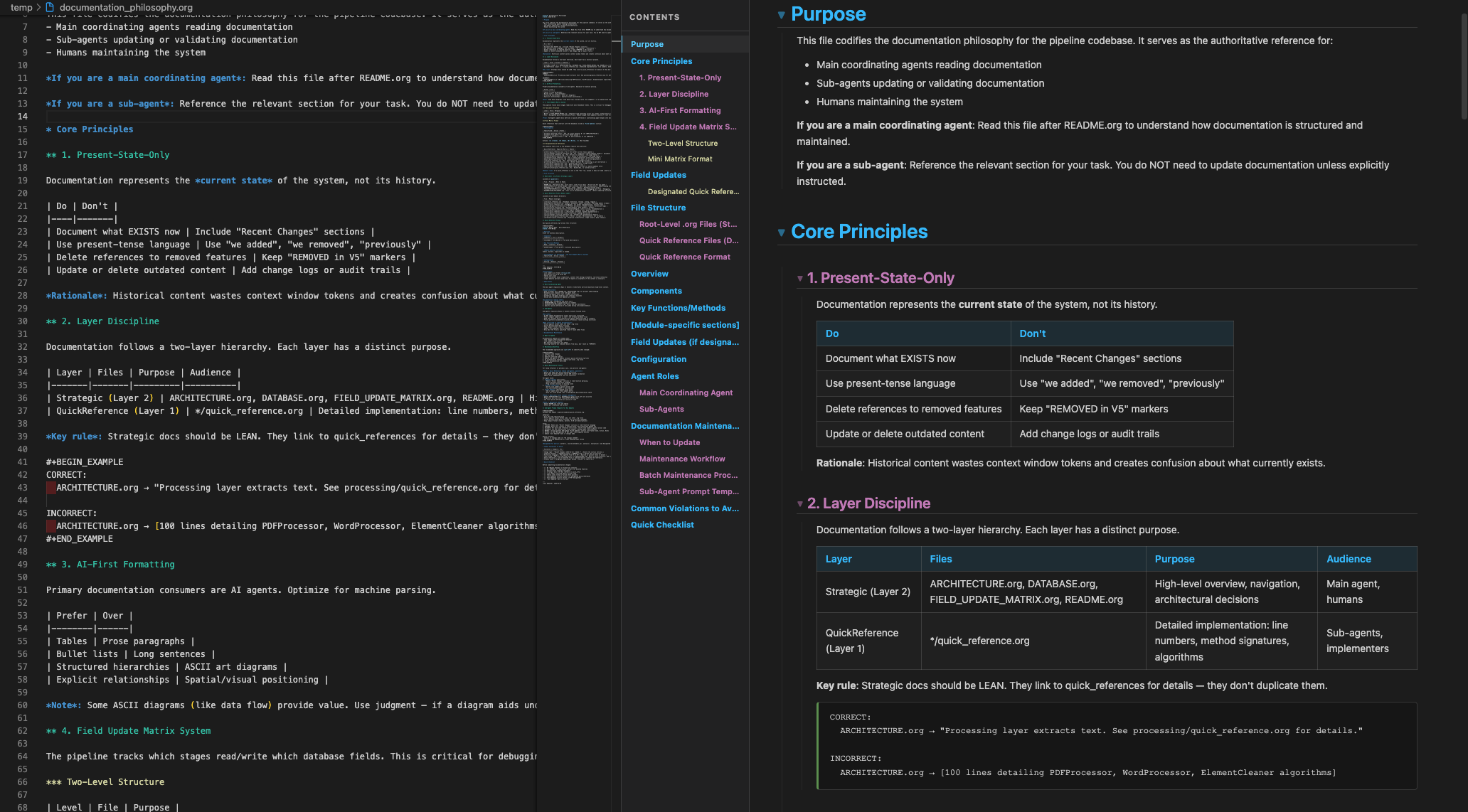
An enhanced live preview for .org and .md files in VS Code — with collapsible sections, a TOC sidebar, syntax highlighting, token counting, and a built-in documentation philosophy template.
Why This Exists
I build apps with AI coding tools — Claude Code, Cursor, Codex — but I don't vibe code. I've found that the difference between AI being genuinely helpful vs. generating slop comes down to one thing: how well the AI understands your codebase.
That understanding starts with documentation. Not READMEs that rot after week one — structured, maintained documentation that tells an AI agent exactly where things are, how they connect, and what matters.
I chose .org files for this because they create a clean separation:
.org files are state references. They describe what the codebase IS right now — architecture, module details, implementation specifics. AI agents read these to navigate and develop..md files are everything else — reports, summaries, changelogs, user-facing docs.
This extension previews both formats, but the .org workflow and the documentation philosophy behind it is where the real value lives.
Documentation Philosophy
The extension includes a Template tab with a complete documentation philosophy you can copy straight into your projects. Here's the gist:
Present-state only — Documentation describes what exists now, not what changed. No "Recent Changes" sections, no "REMOVED in V5" markers. Historical content wastes AI context window tokens and creates confusion about what's current.
Two-layer structure:
| Layer |
Files |
Purpose |
| Strategic |
README.org, ARCHITECTURE.org, etc. |
High-level overview, navigation, key decisions |
| Quick Reference |
*/quick_reference.org |
Module-level detail: line numbers, method signatures, algorithms |
Strategic docs stay lean and link to quick references for depth. Quick references live inside each module's directory and are scoped to that module only.
AI-first formatting — Tables over prose. Bullet lists over paragraphs. Explicit relationships over spatial positioning. The primary consumers of this documentation are AI agents, so optimize for machine parsing.
The full template in the extension covers file naming conventions, when to create (or skip) documentation files, agent roles, maintenance workflows, and common mistakes to avoid. Open any file in the preview panel and hit the Template tab to see it.
Features
- Dual-format preview —
.org and .md files rendered side-by-side with real-time updates on every edit
- Collapsible sections — Click any heading to collapse/expand its content
- Sticky headings — Headings pin to the top as you scroll, stacking neatly under parent headings
- Table of contents — Fixed sidebar with scroll spy, click-to-navigate, and token count badge
- Token count — See the file's token count in the TOC header — useful for managing AI context window budgets
- Syntax highlighting — Code blocks with VS Code Dark+ colors via highlight.js (~40 languages)
- File reference detection — File paths auto-detected and color-coded by type (
.org/.md refs are clickable)
- Doc Map — Workspace-wide view of all
.org files, organized by layer (Strategic / Quick Reference / Other)
- Documentation Philosophy Template — Built-in template you can copy into any project
- Org-mode rendering — Headings, lists, tables, links, images, code blocks, math, metadata, planning lines, property drawers, CLOCK entries, TODO/DONE badges, priority cookies, tags
- Markdown rendering — Full GFM support including tables, task lists, strikethrough, and fenced code blocks
- Theme-aware — Respects your VS Code theme (light, dark, high-contrast)
Keybindings
| Shortcut |
Action |
Scope |
Cmd+Shift+V |
Open preview (replaces current pane) |
.org files |
Cmd+K V |
Open preview to the side |
.org files |
For .md files, use the command palette (Cmd+Shift+P > "Doc Viewer: Open Preview") or click the preview icon in the editor title bar.
File Reference Colors
File paths in your documents are automatically detected and color-coded:
| Type |
Extensions |
Color |
| Org / Markdown |
.org, .md |
Blue (clickable) |
| Docs |
.mdx, .rst, .txt |
Purple |
| Code |
.py, .js, .ts, .go, .rs, etc. |
Yellow |
| Config |
.json, .yaml, .toml, .xml, etc. |
Orange |
Getting Started
- Install from the VS Code Marketplace
- Open any
.org or .md file
- Press
Cmd+K V or click the preview icon in the editor title bar
Contributing
git clone https://github.com/Joh4nn3s-00/org-viewer.git
cd org-viewer
npm install
npm run build
Press F5 in VS Code to launch the Extension Development Host. See README.org for the full developer reference (architecture, pipeline details, known issues).
License
MIT

