Azure DevOps PR Review

AI-powered code review for Azure DevOps pull requests, right inside VS Code and powered by your GitHub Copilot subscription.
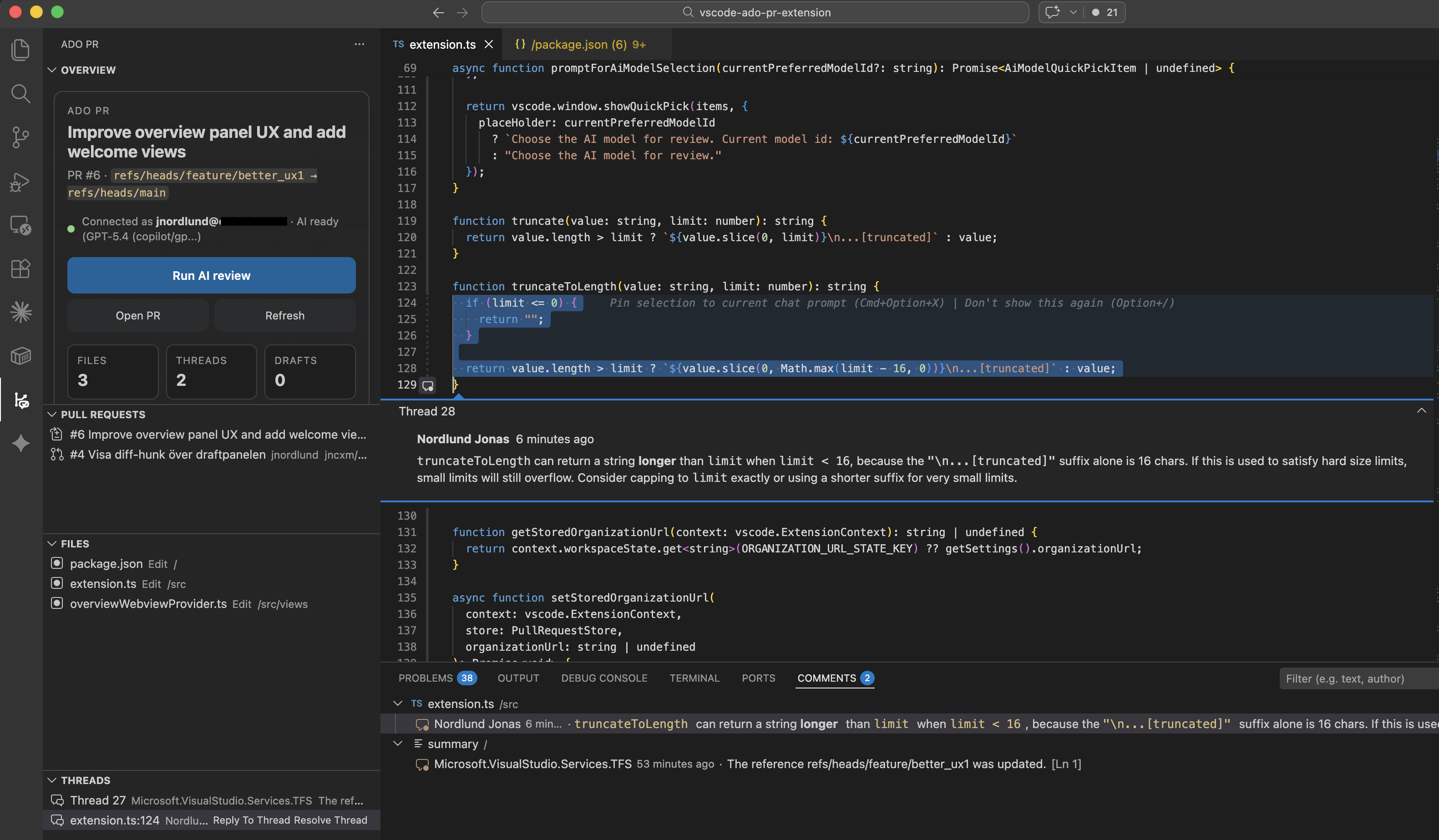
Azure DevOps lacks a built-in AI review workflow in VS Code. This extension fills that gap: open a pull request, click Run AI Review, go through the suggested findings, edit what you want to keep, and publish: All without leaving the editor. If you already have GitHub Copilot and Azure Devops, you have everything you need.
Features
AI-Powered Code Review (via GitHub Copilot)
- One-click AI review - review the whole PR, a single file, or a code selection
- Editable drafts - AI-generated comments open as drafts you can edit before publishing
- Model selection - choose which Copilot model to use for reviews
- Repo-specific guidance - load custom review instructions from
.ado-pr-review.json
- Uses your existing Copilot subscription - no extra API keys or accounts needed
Full PR Review Workflow
- Open any PR from its URL - paste an Azure DevOps pull request link and start reviewing
- Browse changed files - view diffs in VS Code's built-in diff editor
- Review threads - reply, resolve, or reopen discussion threads inline
- Post summary comments - add top-level comments to the pull request
- List active PRs - see all open pull requests for the current repository
Seamless Authentication
- No PAT required - uses VS Code's built-in Microsoft authentication
- No Entra app registration - works out of the box with your Microsoft account
- Auto-detect organization - inferred from the pull request URL
Quick Start
- Install the extension from the VS Code Marketplace.
- Run
Azure DevOps PR: Open Pull Request from the command palette.
- Paste a pull request URL, e.g.
https://dev.azure.com/<org>/<project>/_git/<repo>/pullrequest/<id>.
- Sign in with your Microsoft account when prompted.
The ADO PR sidebar opens with four views: Overview, Pull Requests, Files, and Threads.
AI Review
AI review is optional and uses VS Code's Language Model API (typically GitHub Copilot Chat).
You can run AI review at three levels:
- Entire pull request - review all changed files at once
- Current file - focus on the file open in the editor
- Current selection - review only highlighted code
Generated comments open as editable drafts - nothing is published until you decide.
Prerequisites
- GitHub Copilot Chat installed and enabled
- At least one language model available in VS Code
Model Selection
Run Azure DevOps PR: Select AI Model to choose your preferred Copilot model. Choose Automatic to let the extension pick the best available model.
Review Guidance
Add a .ado-pr-review.json file to your workspace root for repository-specific review instructions:
{
  "version": 1,
  "reviewInstructions": [
    "Prioritize correctness, security, and data handling issues.",
    "Avoid low-value style comments unless they hide a real risk."
  ]
}
Run Azure DevOps PR: Open Review Config to create a starter config.
Authentication
The extension uses VS Code's built-in Microsoft authentication. It supports both URL formats:
https://dev.azure.com/<org>
https://<org>.visualstudio.com
If you open a pull request first, the organization is inferred automatically from the URL.
Typical Workflow
- Open a pull request from its URL.
- Browse the overview, changed files, and existing threads.
- Open a file in the diff editor and review the changes.
- Reply to threads or post summary comments.
- Run AI review on the PR, a file, or a selection.
- Edit the generated drafts and publish only what you want to keep.
All Commands
| Command |
Description |
Azure DevOps PR: Connect |
Sign in to Azure DevOps |
Azure DevOps PR: Disconnect |
Sign out |
Azure DevOps PR: Set Organization URL |
Configure the organization URL |
Azure DevOps PR: Open Pull Request |
Open a PR from its URL |
Azure DevOps PR: Open Selected Pull Request |
Open a PR from the list |
Azure DevOps PR: Refresh Pull Request |
Reload the current PR |
Azure DevOps PR: Refresh Pull Request List |
Reload the PR list |
Azure DevOps PR: Run AI Review |
Generate AI review comments |
Azure DevOps PR: Select AI Model |
Choose the Copilot model |
Azure DevOps PR: Open Review Config |
Open or create review config |
Azure DevOps PR: Show Draft Suggestions |
View AI-generated drafts |
Azure DevOps PR: Publish Draft Comment |
Publish a draft to Azure DevOps |
Azure DevOps PR: Reply To Thread |
Reply to a review thread |
Azure DevOps PR: Resolve Thread |
Mark a thread as resolved |
Azure DevOps PR: Reopen Thread |
Reopen a resolved thread |
Azure DevOps PR: Post Summary Comment |
Add a top-level comment |
Azure DevOps PR: Open Changed File |
Open a file in the diff editor |
Azure DevOps PR: Open Thread Location |
Jump to a thread's code location |
Settings
| Setting |
Description |
adoPr.azureDevOps.organizationUrl |
Azure DevOps organization URL |
adoPr.azureDevOps.scopes |
Microsoft authentication scopes |
adoPr.azureDevOps.apiVersion |
Azure DevOps REST API version |
adoPr.azureDevOps.baseUrl |
Azure DevOps base URL |
adoPr.review.maxFilesForAi |
Max files included in AI review |
adoPr.review.maxDiffChars |
Max diff characters per AI request |
adoPr.review.preferredModelId |
Preferred language model id |
Troubleshooting
Connect fails? Check that your organization URL matches https://dev.azure.com/<org> or https://<org>.visualstudio.com.
401 or 403 errors? Your Microsoft account may not have access to the organization, or the pull request belongs to a different organization.
No AI model available? Make sure GitHub Copilot Chat is installed and enabled. The Overview view reports AI readiness status.
Comments on wrong line? The extension uses conservative fallback positioning. File-level and summary comments are most reliable.
Known Limitations
- One Azure DevOps organization per workspace
- One pull request active at a time
- Large PRs are truncated in AI review to keep request size bounded
- Exact line anchoring is not guaranteed for all diff shapes
Planned for Later Versions
- Merge conflict resolution - support for helping resolve pull request merge conflicts directly from VS Code
- Council-style AI review - explore broader support for multi-perspective AI review, inspired by LLM Council
Privacy and Data Flow
- Azure DevOps REST APIs - loads PR metadata, diffs, files, and threads; publishes replies and comments
- VS Code Language Model API - only used when you explicitly run AI review; sends file paths, diffs, and review instructions to the selected model provider
If you do not run AI review, no pull request code is sent to a language model.
Local Development
npm install
npm run build
npm test
npm run test:extension
npm run package:vsix
Install the resulting VSIX via Extensions > ... > Install from VSIX and select dist/vscode-ado-pr-extension.vsix.
License
MIT

