MangaBar — Manga, Manhwa & Comic Reader for Any IDE (VS Code, Cursor & More)





🌟 Enjoying MangaBar? Please consider giving us a Star on GitHub to support development and help more developers discover it!
📑 Table of Contents
⚡ Read Manga Directly Inside Your Development Workspace
MangaBar is a lightweight, high-performance manga, manhwa, webtoon, and comic reader crafted specifically for code editors and IDEs. Whether you're waiting for a build to finish, tests to pass, or taking a quick micro-break between coding sprints, MangaBar lets you read seamlessly without switching windows, losing focus, or breaking your development flow.
🌟 Why MangaBar?
- 📖 Embedded Dual-Docking: Keep your File Explorer open on the left and dock MangaBar in the secondary right sidebar (
auxiliarybar)—or vice versa with a single click.
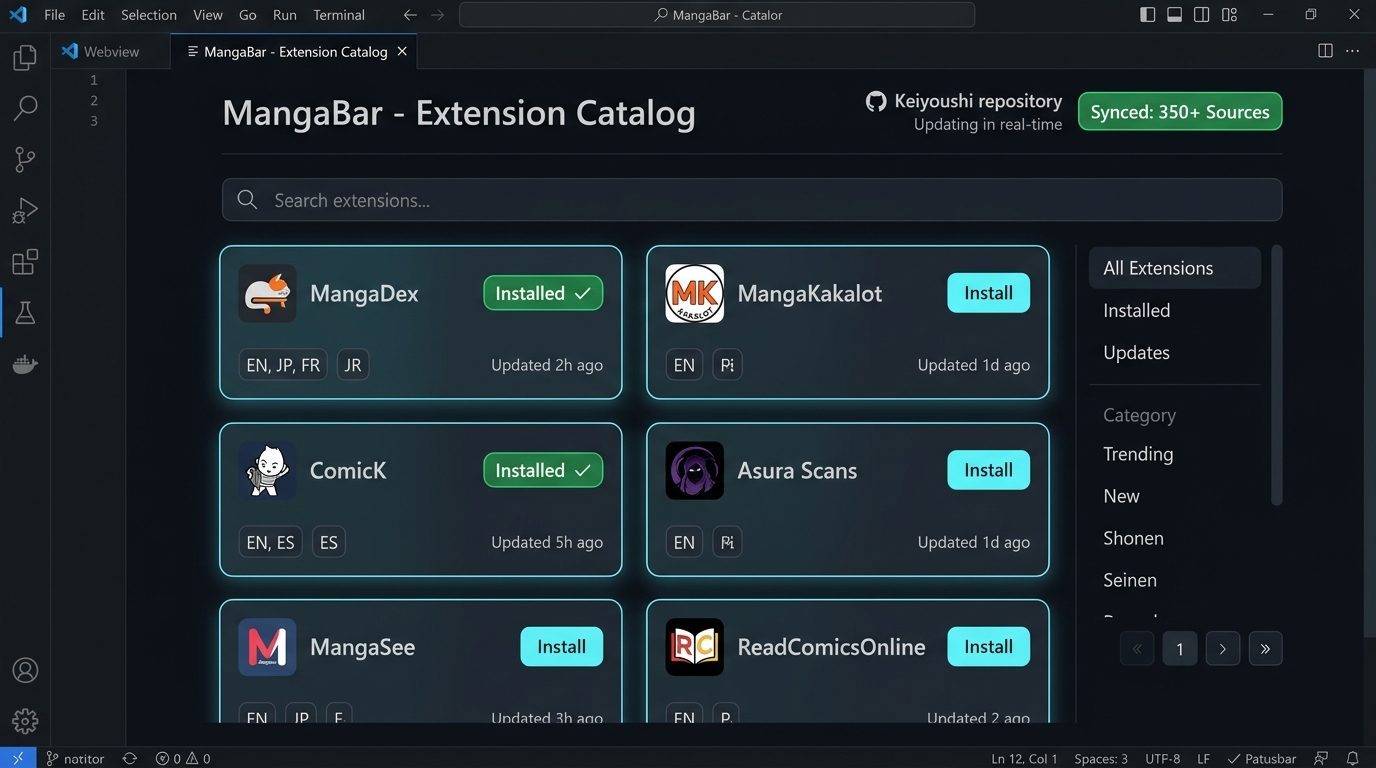
- 🚀 350+ Sources Pre-Configured: Instant access to the official Keiyoushi Extension Network including MangaDex, MangaKakalot, ComicK, Asura Scans, and more.
- 🔍 Smooth Clamped Zoom & Pan (50% – 400%): Smooth
Ctrl + Wheel or Ctrl +/- zoom with strict event isolation—never accidentally zoom your IDE editor fonts.
- 💾 Offline Downloads: Download full chapters to your local drive for uninterrupted offline reading during commutes and flights.
- ⌨️ Global Hotkey (
Ctrl+Alt+M): Instantly toggle your manga panel or full editor tab from anywhere in your IDE.
- 🔒 Completely Private & Isolated: Operates offline-first with zero tracking, storing data locally at
~/.mangabar.
📸 Visual Showcase
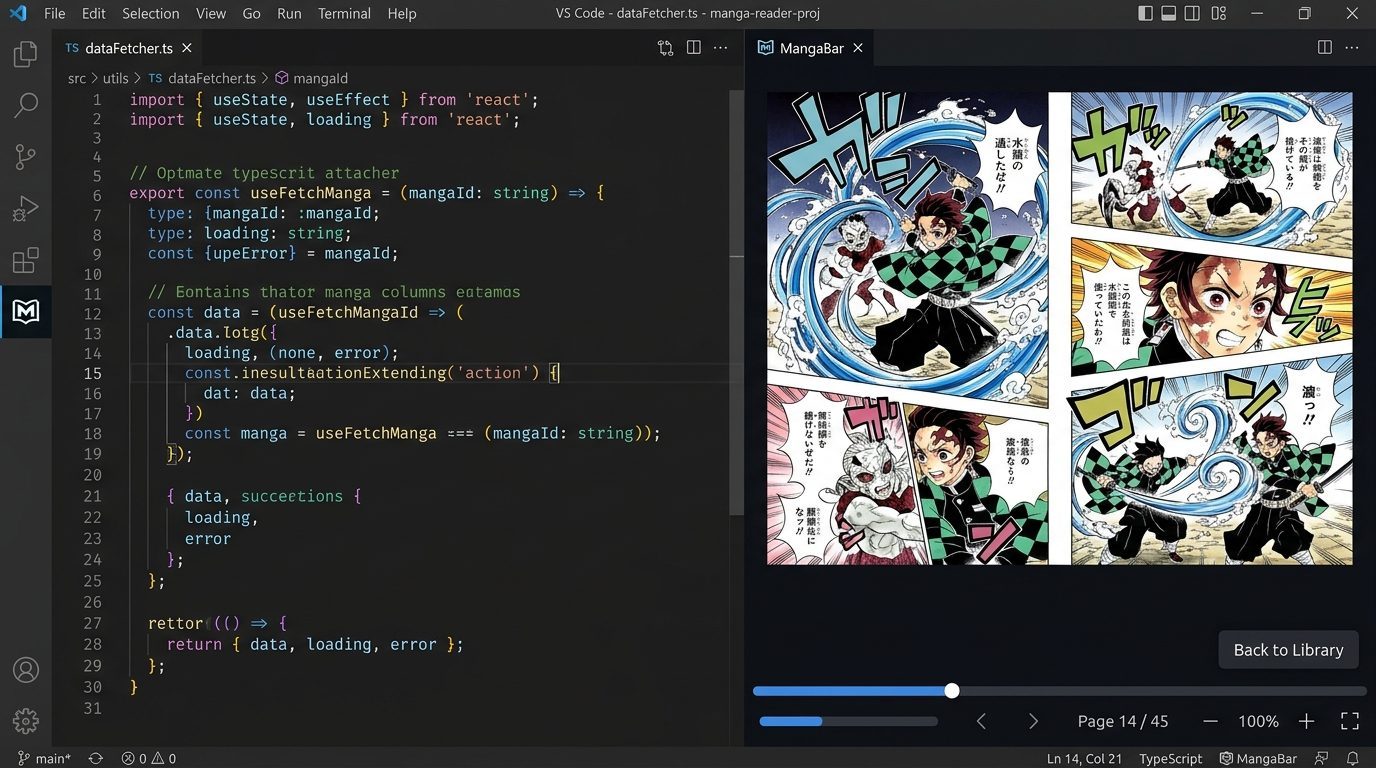
1. Split-Screen Coding & Reading
Dock MangaBar side-by-side with your active code files. Read continuously or single-page while monitoring logs and terminals.
2. Rich 350+ Source Extension Catalog
One-click install from hundreds of community-maintained manga, manhwa, and comic extensions with automatic repository synchronization.
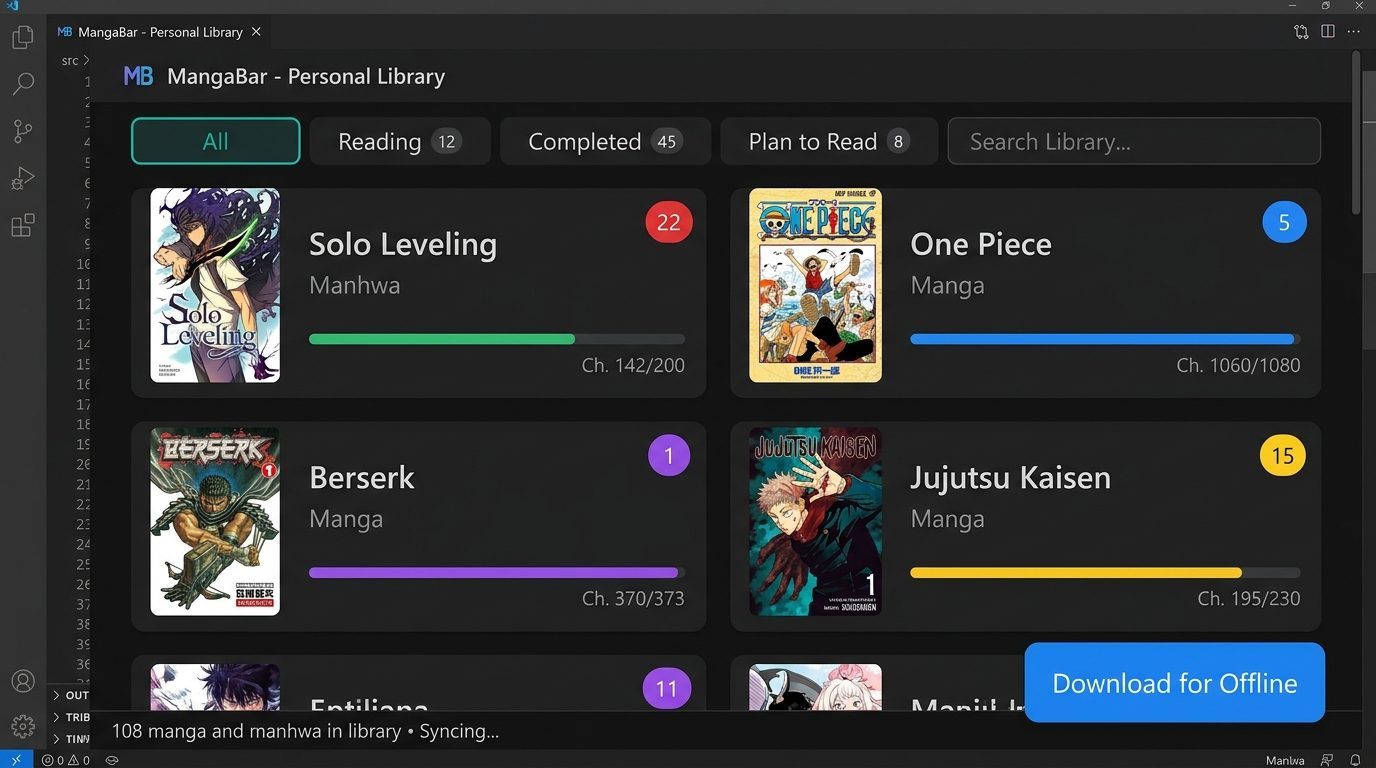
3. Personal Library & Offline Chapter Downloads
Track your reading progress, organize titles by status (Reading, Completed, Plan to Read), and download chapters for offline use.
🚀 Quick Start in 60 Seconds
Installation
Download the latest .vsix from the GitHub Releases page, then install via command line or IDE UI:
# Install via VS Code CLI:
code --install-extension mangabar-0.2.0.vsix

# Or install via Cursor CLI:
cursor --install-extension mangabar-0.2.0.vsix
Or inside your IDE:
- Open the Extensions View (
Ctrl+Shift+X or Cmd+Shift+X).
- Click the
... (Views and More Actions) menu in the top-right corner.
- Select Install from VSIX... and choose
mangabar-0.2.0.vsix.
Step-by-Step Setup
- Open MangaBar:
- Click the MangaBar Book Icon in the Activity Bar (left), or press
Ctrl+Alt+M (Cmd+Alt+M on macOS).
- First-Time Launch:
- MangaBar automatically prepares its local offline engine into
~/.mangabar.
- Install Your First Source:
- Navigate to Browse > Extensions, find your favorite source (e.g. MangaDex, ComicK, or MangaKakalot), and click Install.
- Start Reading:
- Search for titles, add them to your personal Library, and enjoy distraction-free reading!
⌨️ Keyboard Shortcuts & Controls
| Shortcut (Win / Linux) |
Shortcut (macOS) |
Command |
Action |
Ctrl+Alt+M |
Cmd+Alt+M |
mangabar.toggleReader |
Toggle full reader editor tab (Open / Close) |
Ctrl+Alt+S |
Cmd+Alt+S |
mangabar.toggleSidebar |
Focus MangaBar sidebar companion in Activity Bar |
Ctrl + Scroll |
Cmd + Scroll |
Reader Zoom |
Zoom image smoothly between 0.5x and 4.0x |
Click + Drag |
Click + Drag |
Reader Pan |
Pan around zoomed page smoothly |
Escape |
Escape |
Dismiss Menu |
Dismiss reader overlay or exit back to manga details |
🛠️ Commands Reference
Access these commands anytime from the Command Palette (Ctrl+Shift+P / Cmd+Shift+P):
| Command |
Command Identifier |
Description |
| MangaBar: Toggle Side Bar Location |
mangabar.toggleSideBarLocation |
Instantly switches MangaBar between Left and Right sidebars |
| MangaBar: Toggle Full Reader |
mangabar.toggleReader |
Toggles the reading panel (Ctrl+Alt+M) |
| MangaBar: Open Full Reader |
mangabar.openReader |
Opens the full-scale reader in a main editor tab |
| MangaBar: Toggle MangaBar Sidebar |
mangabar.toggleSidebar |
Opens the MangaBar companion in the sidebar |
| MangaBar: Start Server |
mangabar.startServer |
Manually starts the local MangaBar background engine |
| MangaBar: Stop Server |
mangabar.stopServer |
Gracefully shuts down the background server |
| MangaBar: Restart Server |
mangabar.restartServer |
Cleans process locks and restarts the background engine |
| MangaBar: Reload View |
mangabar.reloadView |
Refreshes the active MangaBar webview frame |
| MangaBar: Change Storage Location |
mangabar.configureStorage |
Relocates manga library and download data folder |
| MangaBar: Open in External Browser |
mangabar.openWebBrowser |
Launches current manga page in your default browser |
⚙️ Extension Settings
Customize MangaBar behavior in Settings (Ctrl+, or Cmd+, > search for MangaBar):
| Setting |
Default |
Description |
mangabar.sideBarLocation |
"left" |
Preferred dock: "left" (Primary Activity Bar) or "right" (Secondary Side Bar). |
mangabar.customServerUrl |
"" |
Connect to an existing or remote server instance (e.g., http://localhost:4567 or http://192.168.1.100:4567). |
mangabar.serverPort |
4567 |
Default HTTP port for the engine (auto-selects next available port if busy). |
mangabar.dataDirectory |
./data |
Directory where MangaBar stores your library, database, and settings (~/.mangabar). |
mangabar.downloadDirectory |
./data/downloads |
Storage path for downloaded offline manga chapters. |
mangabar.autoStartServer |
false |
Automatically boot the local engine when opening MangaBar (disabled by default for smooth IDE startup). |
mangabar.extensionRepo |
Keiyoushi URL |
Extension repository URL for community manga sources. |
mangabar.serverDownloadUrl |
"" |
Custom URL or mirror to download the engine binary. |
❓ Frequently Asked Questions (FAQ)
1. Can I read manga offline with MangaBar?
Yes. MangaBar fully supports offline chapter downloads. Open any title from your favorite source, choose the chapters you want to download, and save them directly to your local drive. Chapters are stored locally in ~/.mangabar/data/downloads so you can read anytime without internet access.
2. Which manga, manhwa & comic sources are supported?
MangaBar comes pre-configured with the official Keiyoushi Extension Repository, giving you one-click access to over 350+ community-maintained sources. Popular supported sources include MangaDex, ComicK, MangaKakalot, Asura Scans, Flame Comics, and numerous language-specific catalogs in English, Spanish, French, Portuguese, Indonesian, and more.
3. Does zooming manga affect my VS Code editor zoom?
No. MangaBar implements clamped zoom event isolation (0.5x to 4.0x). Zooming in and out using Ctrl + Mouse Wheel or Ctrl +/- strictly modifies the manga page canvas without zooming your IDE workspace or editor text font.
4. Why is autoStartServer disabled by default?
To keep your IDE launch blazing fast and conserve system CPU and RAM during heavy coding sessions, MangaBar only starts when you actively trigger it (e.g. clicking MangaBar: Start Server or opening the reader). If you prefer background engine auto-boot, simply set "mangabar.autoStartServer": true in VS Code Settings.
5. Does MangaBar work in Cursor, Windsurf, and VSCodium?
Yes. MangaBar is built on standard VS Code Extension APIs (compatible with VS Code 1.85.0+) and works seamlessly in Cursor, Windsurf, and VSCodium. Download the latest .vsix from GitHub Releases and install via CLI or editor UI.
6. Where is my personal data and reading history stored?
All manga library records, reading status, settings, and downloaded chapters are stored entirely locally on your computer at ~/.mangabar. No account creation, telemetry, or external cloud syncing is required.
We welcome contributions, issues, and feature suggestions from the community!
💻 Compatibility
MangaBar runs natively across all major desktop operating systems and modern code editors:
- IDEs: VS Code (
1.85.0+), Cursor, Windsurf, VSCodium.
- Operating Systems: Windows 10/11 (x64, arm64), macOS (Intel & Apple Silicon), Linux (Ubuntu, Debian, Fedora, Arch).
- Architecture: Zero cloud dependency; 100% self-hosted and private.
📄 License & Attribution
- Distributed under the MIT License.
- Powered by open source community extensions and reader engines. All manga and comic content belongs to their respective creators and publishers.
- Maintained by Jayesh on GitHub.

